Xiaomi and Redmi phones have a secret GPU Overclock mode using MIUI software to boost gaming performance. You can get more FPS in games, better score for Antutu, if you allow this mode. Allowing this mode however will cause the system to overheat. Long-term usage it can turn into a dangerous situation.
Android users installing apps from third-party app stores are at risk of the BlackRock malware. How can this malware be stopped?
BlackRock malware is yet another threat worrying Android users. This newly-discovered malware can target a variety of different applications, thereby stealing your information.
Make sure you know what BlackRock malware is, and how you can protect yourself, before installing another file.
Security firm, ThreatFabric, discovered a digital danger that affects Android devices in May 2020: BlackRock malware.
Analysts however quickly discovered that BlackRock malware is not really a new threat. BlackRock malware is the product of leaked source code for Xeres malware, which is a form of trojan LokiBot banking.
Despite the fact that BlackRock malware is based on a banking trojan, it does not just affect banking apps. It also targets applications for shopping, leisure, social relations, entertainment and even dating. This extensive publicity makes it extremely risky.
It currently has 337 apps on its goal list, some of which you might be using on a regular basis. Its target applications aren’t limited to one country either — it targets applications across Europe, North America , and Australia.
ThreatFabric presents the full list of targets in its article. Some of the applications on the list include Gmail, Netflix, Snapchat, eBay, Twitter, TikTok, PayPal and more.
BlackRock malware has not been detected on the Google Play Store until now. Currently it targets downloaded apps from third-party sites, but that does not mean that BlackRock malware will never appear on the Google Play Store. Aggressive hackers also can find ways to break Google’s protection protocols.
How BlackRock Malware Steals Your Information
When BlackRock malware appears on your computer it can never be noticed by an unknowing user. It uses a technique known as a “overlay,” a fake window which pops up over a legitimate app. The overlay mixes with the software so it’s hard to say whether the pop-up is part of the app or not.
The window will ask you to enter your credit card number and login code, before you can even start using the legal app. This helps it to get the details right off the bat.
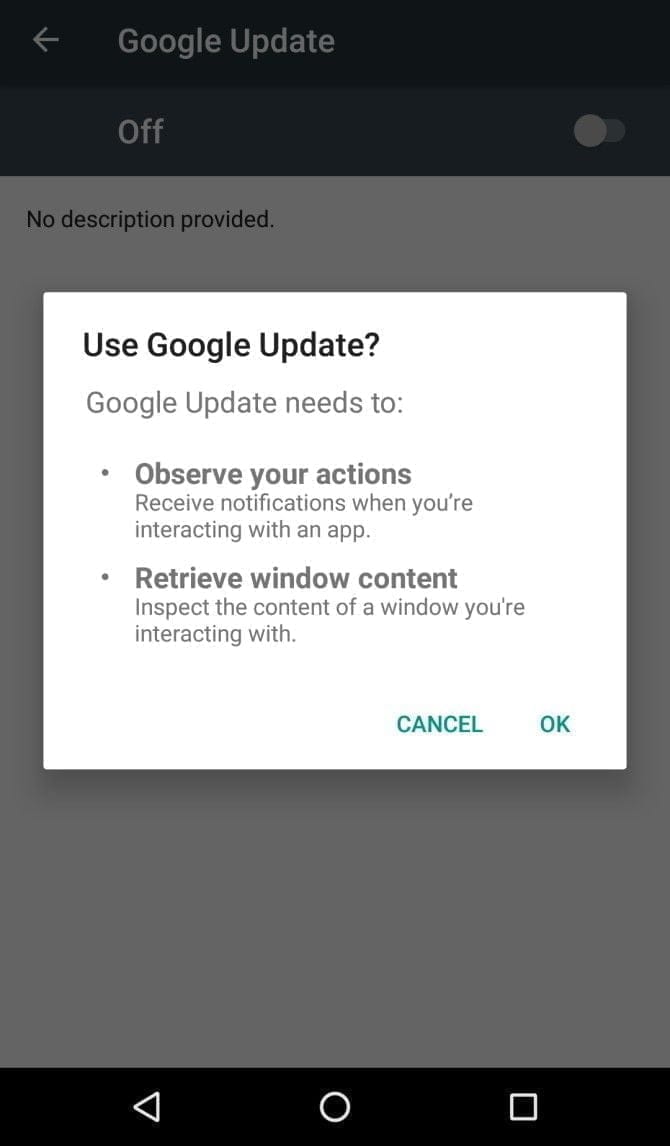
It infiltrates your device in the first place by getting Accessibility Services permissions. When you install an infected app, it’ll prompt you to enable a fake Google Update. Accepting the “Google Update” allows it to intervene with your device.
If you aren’t familiar with an Android’s Accessibility feature, you should know that it’s one of the most powerful functions on your device. It’s meant to help Android owners with disabilities, but Accessibility Services can be used to hack your phone as well. This feature can automate a variety of tasks for the user, including tapping the screen, reading text aloud, and even creating captions.
Giving BlackRock permission to use Accessibility Services lets you build the overlay that you can see when you open the target app. It also gives additional functionality to the malware, as it can then use an Android DPC (device policy controller) to grant administrator privileges to itself.
In other words, it not only steals the confidential details you type into its overlay — it can actually do a lot more than that. BlackRock does not only intercept SMS messages, mask alerts and lock your computer, it can also engage in keylogging. That said, this malware is certainly not what you want on your computer.
Protect yourself from BlackRock malware
As mentioned earlier, the Google Play Store still hasn’t found BlackRock. But just because apps from third-party app stores are currently being targeted, that doesn’t mean it’ll never make its way to Google Play.
ThreatFabric notes that it “can not yet predict how long BlackRock will be active on the threat landscape.” Meanwhile, it’s necessary to bear in mind some precautions before installing apps.
Why an anti-virus app won’t cut it
It’s not a bad idea to have an antivirus app on your smartphone, but unfortunately, an antivirus app won’t stop the BlackRock malware. When BlackRock infiltrates your phone, it has a feature that blocks you from using an antivirus app.
As soon as you open an antivirus or an Android cleaner app, such as Avast, Kaspersky, McAfee, BitDefender, or Superb Cleaner, BlackRock will immediately redirect you to your Home screen. This prevents you from removing the malware using an antivirus app.
So, if you download a sketchy app from a third-party store, and think that an antivirus app will keep you safe from all threats, think again.
Check app permissions
No matter how legit an app may seem, you should keep an eye on the app permissions. Some apps request permissions that have nothing to do with the App’s core function.
For example, your SMS messages obviously don’t need access to a flashlight app. This is a sign that you should immediately uninstall the App.
As BlackRock malware asks for permissions from Accessibility Services, you’ll want to look for any apps that require that particular privilege. If an app is legitimately for users with disabilities, has good reviews, and is from the Google Play Store, you are likely to have confidence in granting permission to the accessibility services. If not, avoid giving that privilege to any applications that don’t need it.
Download apps from Google Play Store only
Google Play Protect was put in place to scan your installed apps for malware as soon as you download them, as well as scan them periodically once installed. Third-party app stores don’t have this safety feature, so you’re pretty much on your own in terms of security.
The lack of security protocols on third-party stores has allowed BlackRock malware to thrive. To lower your risk of encountering BlackRock malware, try to avoid third-party apps stores, and refrain from downloading APKs.
Stay safe!
BlackRock malware will hopefully never hit the Google Play Store. There really isn’t any telling if the actors behind BlackRock malware can find a loophole in Google’s security policies, but if they succeed, BlackRock malware could accumulate a significant number of victims.
If BlackRock ever reaches the Google Play Store, it’s not too surprising. After all, despite Google’s strict security protocols, several apps that contain Joker malware still managed to make their way onto the Google Play Store.
Your phone’s capacity is limited and can fill up quickly. Regularly, the apps you use to build new files to store information.
These temporary data files are known as a cache, and cache files take up a reasonable chunk of your Android phone’s storage space. Let’s look at the cache’s purpose, how to clear it out and more.
What are cache files
When you open an app, your phone uses the temporary data stored in cache files to recall the associated information more quickly. For example, Spotify might cache your most frequently accessed playlists so they don’t have to load their list of songs every time you open them.
A cache file is useful to the associated program only, so for instance, Spotify has no use for Instagram’s cache. In most cases it discards the accompanying cache files once an app decides that the stored temporary information is no longer useful. Websites, applications, and games all use cache files to provide you with a faster browsing experience.
Clearing cache benefits
Cache files are critical and you don’t usually have to screw them up. Deleting cache files from your phone manually, however, is often useful.
This can help in a few ways:
In the short term, clearing cache helps you save storage space on your phone. But this is a temporary solution, since new cache files are created every time you use apps.
Sometimes, old cache files can become corrupted. When this happens, apps can start experiencing problems. Deleting the corrupted cache files can solve these issues.
Old cache files can potentially pose security and privacy threats. Web pages cached in your browser may contain sensitive information. If an unauthorized person accessed these files, they could steal personal details.
If a browser or other app refuses to fetch the latest version of a page, clearing cache can force it to update.
Should You do it regularly?
Now that you know the advantages of clearing cache, you might think on a schedule that you should clear the cache manually. But in reality this is counter-productive. Keep in mind that cache files have the useful function of speeding access to the content you currently use.
That is why deleting old cache files by hand is not a good idea. Android also has a built-in feature to delete unused files, which usually works very well. The key occasions to remove cache files manually occur when:
An app’s cache files are corrupted, causing the app to misbehave.
You want to delete files containing personal information to protect your privacy.
You’re running out of storage space on your phone and don’t want to delete your videos, pictures, and apps.
For new versions of Android, the cache files for each device need to be removed individually. Notice that all of the cache is seldom removed. Clearing the cache from a few problematic apps can in most cases solve storage or performance problems.
Open Settings and select Storage.
In the resulting list, tap the Other Apps entry. This will take you to a list of all the apps installed on your phone.
Choose an app that holds a lot of cache files. You can tap the three-dot menu in the top-right and choose Sort by size to see which apps take up the most space. We’ll use Chrome as an example.
On the app’s info page, tap the Clear Cache option.
That’s all you need to do to clear the cache files for any app on your phone. If you tap Clear Storage instead, you’ll remove all data from the app. This essentially resets it to a fresh state.Advertisement
Older Android versions gave you the option to delete all cached files at once by going to Settings > Storage > Cached Data. From there, simply tap OK when you see the option to delete all cache files.
What happens after clearing cache?
After you clear the cache files, you’ll regain some storage space and the app will continue to work as normal. However, all the data it used to smooth out performance is gone, so it may take some extra time to browse around at first. Over time, the app will build up cache again based on your usage.
Clearing cache files will not force you to log into apps again. You won’t lose data like game progress, browser bookmarks, or similar.
Your Android phone’s storage space is a precious commodity. Clearing unused cache files is a decent way to free up space temporarily or troubleshoot app issues. But it’s not something you should do often, or through unreliable third-party apps.
Unlocking your Android phone’s bootloader is the first step to rooting and flashing custom ROMs. And, contrary to popular belief, it’s actually fully supported on many phones. Here’s how to unlock your bootloader the official way.
Android and its pre-installed apps come practically free, but Google still earns a pretty big penny thanks to targeted web-wide ads. Your phone is actually helping the company tailor marketing strategies to you. There are a few options to make Google less invasive on your smartphone by turning off any default monitoring settings, if you don’t like that and a move to iOS isn’t your jam. However, you need to be aware that this will break a couple of features.
Not all monitoring is poor per se, in my view, but we should also pause to consider what we’re really learning from it. For example, you may see little point in continuously sharing your location history with Google, but you might still be interested in being able to find and/or delete your device remotely if it’s stolen or misplaced — that’s why I ‘d recommend not turning off the Locate My Device feature of Google.
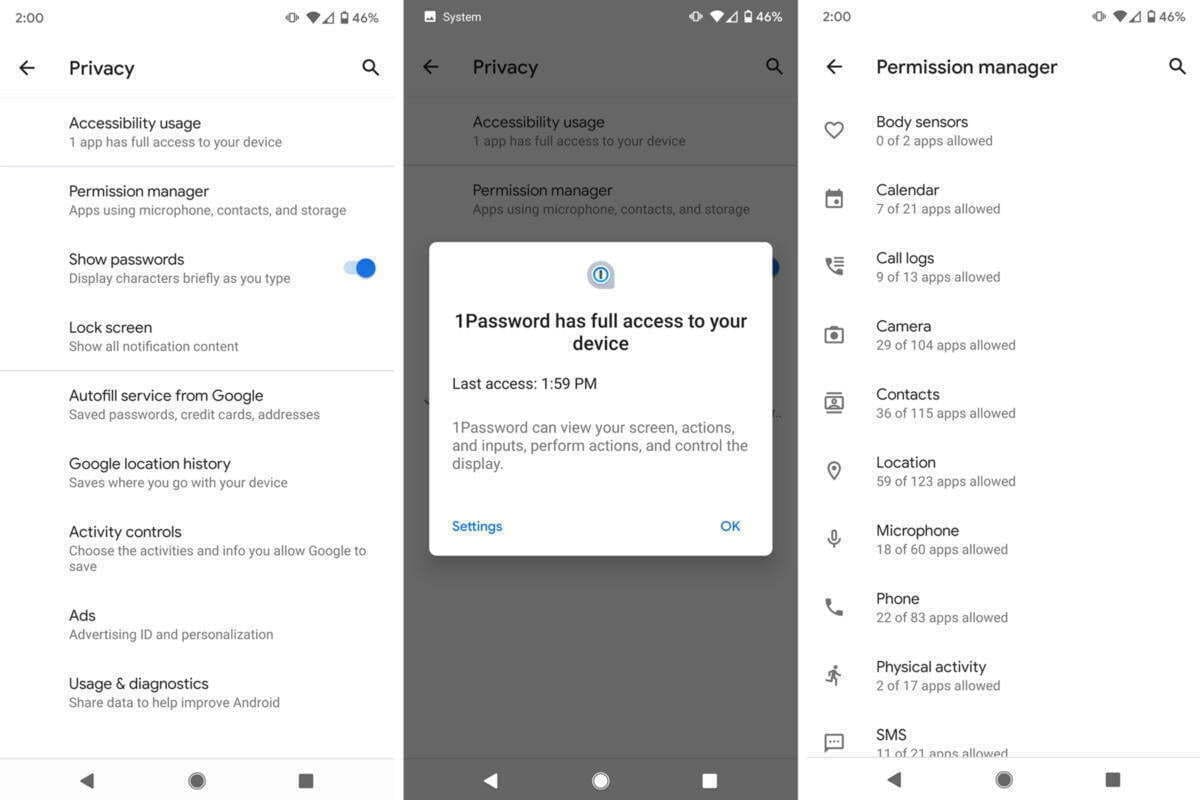
If you’re one of the fortunate few who have already received Android 10, head to Settings-> Privacy to tweak what personal details you ‘re sharing with Google. You will find in it everything this article discusses about your Google Account and Android settings. These solutions are spread around Android for everyone else, but don’t worry: we ‘re here to help you find them all and we’ll also share the benefits and drawbacks that come with changing them.
Location History and Tracking
You may know that Google stores a history of all the places you’ve visited by default, accessible via Google Maps -> Your Timeline. While Google says it protects this data and doesn’t share it with third parties, you might still be uncomfortable knowing the company has a complete track record of your every step (while carrying your phone). It’s possible to turn off this location tracking altogether, but to do so thoroughly, you need to flip quite a few switches. That’s why we’ve published a whole other article on the issue. Check it out here.
Keep in mind that turning off Location History comes with some minor disadvantages: Your timeline in Google Maps won’t update anymore, your Google Assistant will lose some capabilities, and your automatic commuting notifications will stop appearing.
Prevent apps from tracking your location in background
Android 10 improves some of Android’s notoriously bad privacy practices of old, as you can finally prevent both third-party and first-party apps from polling your location in the background, limiting their location access to only while in use.
Head to Settings -> apps & notifications -> Permissions manager -> Location. There, you’ll find a list of all apps installed on your phone. You can individually set limits for each by choosing a tier: Allowed all the time, allowed only while in use, or denied. I keep most of my apps on the medium setting, as many of them offer added benefits when they have access to my location, especially navigation apps.
On older versions of Android, you’ll need to choose between always allowing and always prohibiting access to the location. You should carefully evaluate which apps you trust, and check what you gain from sharing your location with an app. For example, in a hotel booking app, you probably won’t be searching for accommodation in your current vicinity, and probably won’t need to offer it access to your place. Other apps allow you to set your address manually, too, like weather apps or food delivery services. With the slight inconvenience of typing in your address they give the same features.
Opt out of Google’s personalizations
To hinder Google from following you around the web, head to your Google Account’s activity controls, accessible here and under Settings -> Google -> Manage your Google Account -> Manage your data & personalization.
In there, you can turn off Web & App Activity, but note that Google results might become less accurate when you do this. You’ll also stop Google from collecting data on your Google Assistant usage which severely limits its usefulness. For example, the Assistant won’t respond to personal queries like “What’s on my calendar?” or “Read my messages” on any device, including Home speakers — Google sure wants you to supply your data to continue using the Assistant. If you’re adamant about protecting your privacy, you should probably stop using Google Home speakers and the Assistant altogether anyway.
You can proceed by turning off YouTube History and, more importantly, Ad personalization. When you do that, Google will stop pushing personalized advertisements to you and will instead show you more generic, less relevant content. According to Google, it will solely be based on “general factors, like the subject of what you’re looking at, the time of day, or your general location.”
You’ll also need to head to myactivity.google.com to delete previously stored information. On that website, open the hamburger menu by tapping the three bars in the top left corner and choose “Delete activity by.” Then you can select which activity you’d like to remove.
On Android 10, all of these settings have been moved to one location, easily accessible in Settings -> Privacy. While you’re there, be sure to turn off the following, too:
Turn off Autofill service from Google.
Turn off Usage & Diagnostics.
Turn off backups
To turn off backups to Google’s servers, head to Settings -> System -> Backup. There, you can toggle off Back up to Google Drive.
Keep in mind that none of your precious data will be automatically restored when you lose or break your phone when you do this. You’ll have to back up your contacts or ask friends and family for their phone numbers, you’ll need to manually sign back into apps you’ve used on your old phone, you’ll lose custom device settings including Wi-Fi passwords, and your photos and videos won’t be backed up. Assess carefully whether having some peace of mind regarding this data is worth a privacy tradeoff or not.
Also consider switching to a privately hosted server using ownCloud or similar open source solutions to sync your files and backup your data.
Third-party software if is possible
If you don’t want to get Google tracked, consider using third-party software over pre-installed Google apps. There are plenty of email providers, cloud storage tools, note-taking applications, and navigation systems out there that don’t rely on Google software like Microsoft Outlook, Dropbox, Bundled or Evernote, and Here Maps. If you want to go all in on privacy, you should even consider open-source substitutions. That’s no guarantee that your data is secure, but code is mostly peer-controlled and often not in a single company’s hands. My colleague Corbin has created a series of articles that highlight alternatives to rising Google apps.
Some Google apps can even be safely deactivated by tapping and holding their icons in the app drawer or homescreen, tapping the i button, and choosing disable. Be careful with this, though, as some apps like Google Search are necessary to keep your phone up and running. Something like Play Music or YouTube should be safe to disable, though.
Other browser
If you’re concerned about Google Chrome’s tracking mechanisms, consider switching to another browser that keeps your privacy intact. I’d argue Firefox (especially the all-new preview version) and Firefox Focus are the best choices since they rely on a browser engine not created by Google. Many other third-party browsers use Google Chrome’s rendering engine, which is not good for the health of the web. If you’re not satisfied with Firefox, you might still want to try Microsoft Edge, Samsung Internet, or Vivaldi.
You can make any of these your default browser by choosing “Always open with this app” when you tap a link in another application. If you use the Google app, you’ll notice that it still opens links in a custom Chrome tab. To make the search engine use your preferred third-party browser, head to the More bottom tab -> Settings -> Generaland turn off Open web pages in the app.
Make Chrome less hungry for your data, head to the browser’s settings (three-dot menu -> Settings -> Search engine) and change the search engine to another provider — among the ones listed, DuckDuckGo.com is your best option concerning privacy. Its results often aren’t as spot on as Google’s, though — there’s a reason why the company is still king of search.
Incognito mode?
Contrary to popular belief, any browser’s incognito or private mode only goes so far when you want to stay low-profile online. Your ISP and public Wi-Fi providers might still be able to see which websites you visit. The same is true for some ad trackers that rely on a unique combination of your hardware, software, and IP address rather than cookies to track you across both incognito and regular mode. If you truly want to stay anonymous, consider trying the Firefox-based Tor Browser. It routes your queries through a bunch of servers to obscure your online movements.
Custom ROMs
One surefire way to avoid being tracked by Google altogether is installing a custom ROM without any Google apps on it. Many apps rely on Google Play Services, which provide essentials like push notifications and location data. What you can do is use a ROM with microG, an open-source replacement for many functions provided by Play Services.
However, just because custom ROMs are open source doesn’t mean that someone went looking for malicious code in the source. You should stay away from obscure forks and you should absolutely preface any custom ROM installation with a ton of research. Google promises not to sell your data to third parties and would face severe consequences if it did because so many people, businesses, and governments rely on its services. An individual ROM developer distributing free software to a few people would be much harder to keep in check.
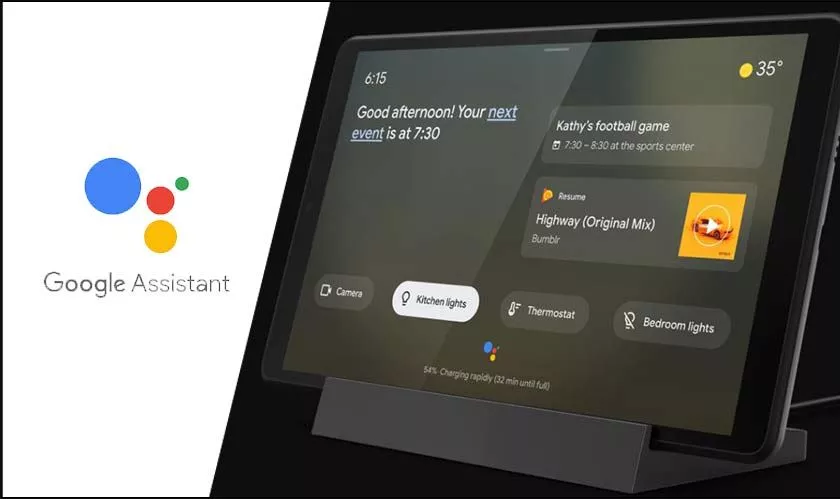
If you are using Google Assistant on your Android phone, you can add interactive features to the lock screen by activating the Ambient mode function.
This is a smart sorts screen that turns on while your phone is charging and replaces the lock screen. Without opening the lock screen, you can view alerts, weather forecasts, play music, display pictures and perform a host of other functions. This article shows how to allow Ambient Mode in Google Assistant.
Activating Ambient Mode
First of all, if you haven’t already, you will need to download and install the Google Assistant app on your phone.
Once Google Assistant is installed, start the app and go to the main page.
Here you will notice the explorer option (the compass icon) near the bottom corner of the page. Tap on the icon.
This will take you to the Explore section of the app – the part where you can configure settings like alarms, the weather forecast, etc.
For now, ignore all the other functions on the Explore page and tap on your profile picture in the top corner.
A new list of options will drop down. Scroll down the list and select the Settings option.
A new page that shows your Google Account profile page will appear.
Scroll left from the page to the Assistant section. Once again, scroll down past the list of options presented to you. Near the bottom, you will find a section entitled “Assistant Devices.” There is a phone option under that section which you need to select.
On the new page that opens, scroll down the options available until you see the one titled “Ambient Mode.” Toggle on this option by tapping on the gray button next to it so that it turns blue.
In recent years, app subscriptions have become much more popular, with many Google Play applications offering free trials, too. But if you don’t use your subscription much, or were not pleased with what it had to do, you can cancel at any time. Not sure if the app itself would do that?
Instead you should go up to Google Play. And here’s how to cancel a Play Store subscription.
Pause a Google Play Store subscription
The first thing you need to know is that canceling is not the only available option. If you are short on cash, in some cases, you can pause payment for a month and continue your subscription on the next. Only some apps offer this, but it’s worth checking if they do.
Check which account is currently signed in if you are using multiple or sharing the device with family members.
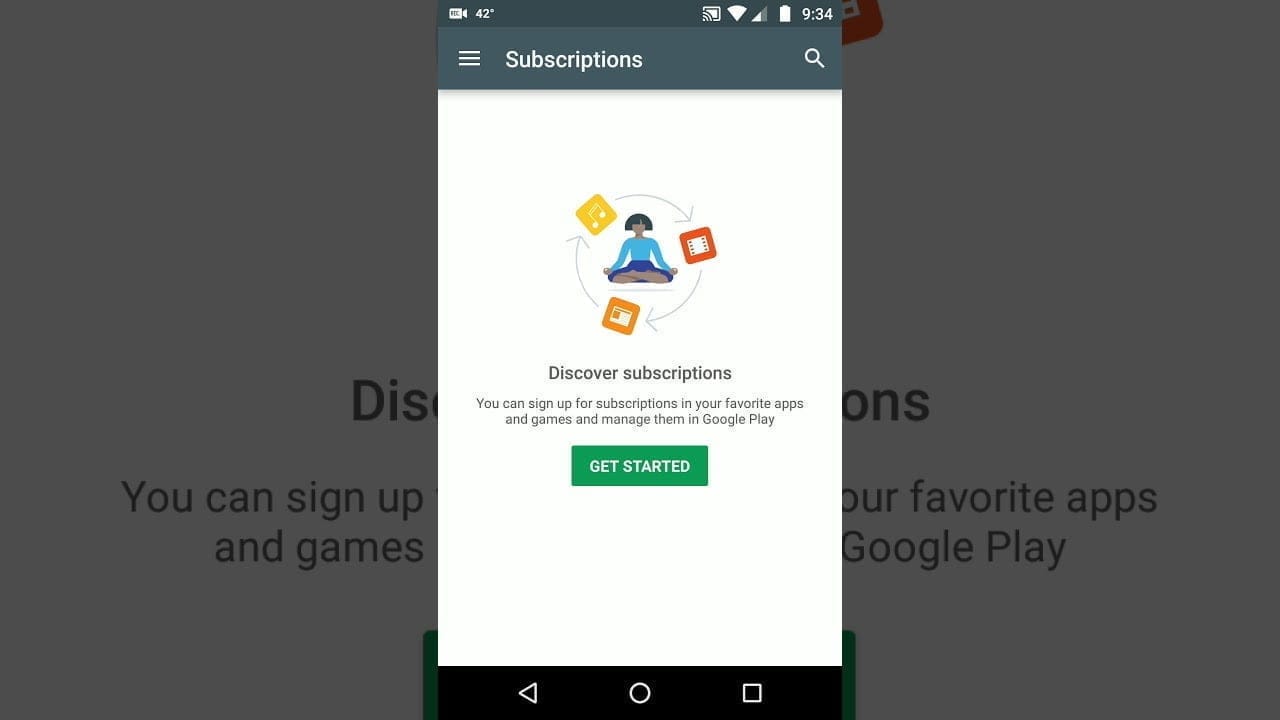
Tap the menu button in the upper left corner (three lines), followed by Subscriptions.
Select the subscription you want to pause.
Tap Manage. If the app offers this option you will see Pause payments. Tap it.
If you will be able to select the time period you’d like to cause for. All that’s left to do after is tap Confirm.
We should note, however, that your subscriptions will be paused at the end of your current billing period.
Cancel a Google Play Store subscription
Not satisfied with what your subscription had to offer? Then it’s time to cancel. Follow these steps to do so:
Open the Google Play Store app and make sure you’re signed into the right account.
Tap the menu button in the upper left corner, then go to Subscriptions.
Find the subscription you want to cancel and select it.
Tap Cancel subscription and follow the on-screen instructions.
You may be asked to select a reason for the cancellation. Choose one from the options and tap Continue followed by Cancel subscription.
Don’t worry about losing part of your subscription — you’ll be able to use the software for the time during which you’ve already charged or the remainder of your free trial. The same goes with annual subscriptions. For example, if you signed up in March and cancelled shortly after, you’ll still be able to use the application until March 2021. It will not be automatically renewed after that.
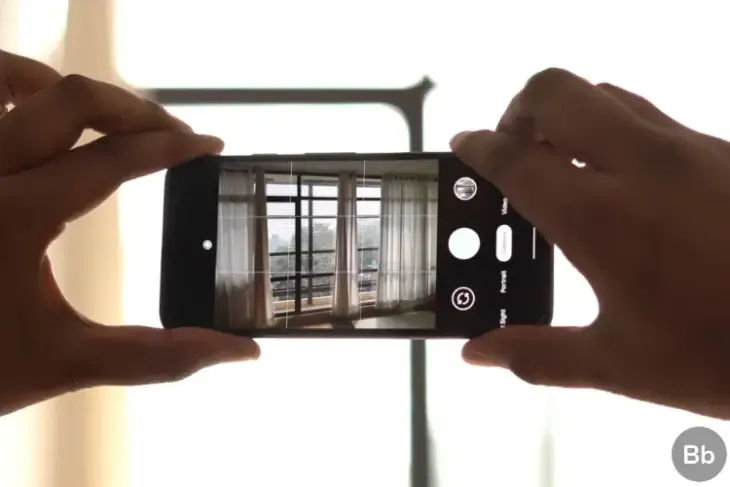
Google’s Pixel portfolio has raised the bar when it comes to mobile image manipulation the past few years, but the company has struggled to offer a comparable experience when it comes to filming images. The 2018 Pixel 3 suffered from a bad audio recording problem and last year’s Pixel 4 entered the market with 4 K video capture which was limited at 30fps while most other 2019 flagship smartphones were capable of 4 K video capture at 60fps.
Once the Pixel 4 was introduced, Google said that the feature was not incorporated solely because 4 K video capturing on smartphones wasn’t nearly as commonplace as 1080p. This may certainly be accurate, but a later study showed that the Pixel 4 actually didn’t have enough bandwidth to handle simultaneous 4 K 60fps feeds from the phone’s two rear cameras. Other manufacturers have gotten around this issue by limiting 4K/60 video capture to just one camera or reducing the bit rate slightly.
Since the Pixel 4 just receive a feature drop this past week, if Google doesn’t figure out a way to implement 4K/60 video capture on the Pixel 4, don’t expect it to show up until later this spring. If the feature is only made available on the Pixel 4a, Google will have some explaining to do.
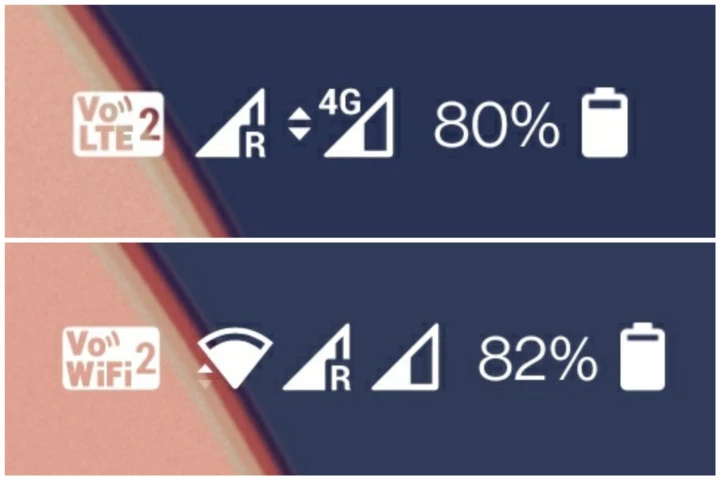
If your carrier supports VoLTE/VoWiFi but not on your device you can easily enable it with some modifications. There is even a Magisk module to forcefully enable.
To enable VoLTE/VoWifi you need to add below lines in your build.prop file.
All you need to edit the build.prop file is a text editor, and a file browser that can access the root directory. Most of these file browsers come with an integrated text editor so you don’t have to think about downloading one just to edit the build.prop file if you don’t already have a favorite editor enabled. Root Explorer, File Explorer Root Browser, and Solid Explorer are some common file browsers capable of doing just about anything a file browser could do. If you have another favorite file browser please let us know in the comments.
When you have a root enabled file browser, navigate to the /system/ folder and scroll down to find the build.prop file. Tap on it and choose ES Note Editor or any other editor installed on the device that you wish to use.
Move the original file into a separate folder and rename it as build.prop.bak before we change the build.prop file and then transfer this file back to the /system/ folder. This way, if anything goes wrong you don’t have to worry, because your system fails to boot. You should delete the changed build.prop from TWRP recovery, and remove the.bak from the name of the backup build.prop. Again your system is booting properly.