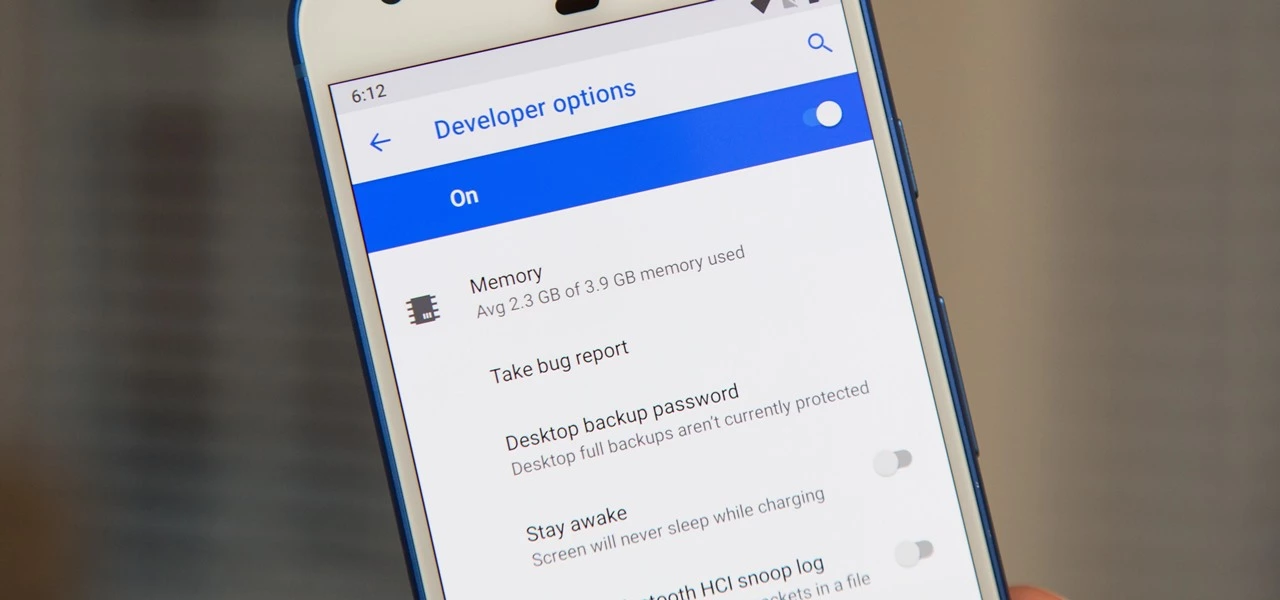
One of the first things you should do when you get your new Google Pixel 6 or 6 Pro is open the hidden “Developer options” menu. Don’t be put off by the word “developer” because this hidden Android 12 menu contains functionality that any Android user can use.
If you don’t have a Pixel 6 or 6 Pro, you can still access the “Developer options” menu on any other Pixel model, as well as devices from other OEMs such as Samsung. If you haven’t updated your system or purchased a Pixel 6 or 6 Pro, I’ll teach you how to accomplish it on Android 12. If you haven’t updated your system or purchased a Pixel 6 or 6 Pro, the process is basically the same on older Android versions.
Enable developer options in Android 12
Open up your Settings app and tap “About phone” from the list. To get to this menu even faster, use the new search tool in Android 12 from your app library (swipe up on the home screen), search for “about,” and select “About phone” from the results.
After that, scroll down to “Build number.” This is the backdoor to revealing the “Developer options” menu. Simply tap “Build number” at least seven times in a row, then confirm you want to unlock the menu by entering your PIN. (The PIN interface is concealed in screenshots, as shown below.)
For a few moment, you should see “You are now a developer!” appear to let you know it worked. You’ve already unlocked the menu if it reads, “No need, you’re already a developer.”
Newly unlocked developer options
Return to your Settings app’s main menu, hit “System,” and then select “Developer options” from the bottom of the list. Unlike “About phone,” you can’t search for “developer” in your app library’s search bar to get there right away, but you can locate it in Settings’ search bar.
In “Developer options,” there are plenty of things to explore. While there are plenty of reasons to unlock “Developer options” on your Pixel in Android 12, some quick ones to note include keeping your screen awake while charging, starting the process for unlocking your bootloader, making software updates install themselves when your device restarts, and showing a dot on the screen for each tap you make.
USB debugging is another popular setting that lets you use ADB to talk to and issue commands to your Android device from your computer.
Reset the developer options
Let’s say you suspect that something you enabled in “Developer settings” is causing your Pixel to malfunction or produce unexpected results, but you have no idea what the issue is. In that situation, you may quickly restore the developer menu to its previous state.
To do so, open the menu and untick the “Developer options” checkbox at the top. Then, on the “Allow development settings” prompt, toggle it back on and tap “OK.” Everything you changed in the menu earlier will be reset to their settings on Android.
Hide the developer options
You can hide the “Developer options” menu if you no longer want to utilize it. Toggle off the “Developer options” switch at the top of the menu by opening it. You won’t be able to get back into the menu unless you repeat Step 1 above. If you later re-enable “Developer options,” it will revert to its default settings, so any tools and preferences you specified before will have to be redone.
Narrow AI is preferable to doing specific tasks. It has many limitations. Weak AI does not preserve memory or experience. But, it is widely used. Out of 7 different types of AI, narrow AI is used everywhere. Find out the best 20 examples of narrow AI.
Weak (narrow) AI refers to an AI system that is created for and focuses on one dedicated purpose, as opposed to a strong AI that could be applied to a host of problems or tasks.
In the future, artificial intelligence will be able to carry out human tasks more efficiently and with fewer errors. However, until scientists discover a way for machines to learn on their own and mimic biology more closely, we will always need humans in our society.
These tasks are performed single-handedly by the computer, and it does it well. They can, however, display behavioral weakness too. This happens when a description of a material does not register, explain, or predict anything. They are pretty in the form of a programmed response.
1. Face ID to unlock your cell phone
The average individual with a personal device encounters narrow AI every single day. For example, if you use Face ID to unlock your cell phone, you use narrow AI! If you attempted to google something and recommended other options for your search, that is an example of narrow AI.
2. GPS tracking
Narrow AI is any technology that provides a specific, narrow solution to the user. Many companies use narrow AI in that it offers a SaaS revolving around GPS tracking for fleets across the nation, without the development of narrow AI.
3. Bot or software application
Narrow AI is the program designed to do a specific task, i.e., handle a narrow task set. A bot or software application that uses AI to do a particular task can be categorized as ‘Narrow AI’.
4. Driverless car’s AI system
The work of a driverless car’s AI system is to comprehend a road’s situation, maps, traffic rules, and drive. So, it won’t understand your commands like ‘Dance’ if it is not programmed for that. It is narrow AI.
5. X-ray machine
An AI-enabled X-ray machine will only detect X-rays and won’t alert you on temperature changes in the room, as it is not working.
6. Siri
Siri – the famous AI-enabled person assistant – will respond to any of your queries, even if it is inaccurate or does not understand your query.
7. Vitalize human cognition
Narrow AI (Artificial Intelligence) performs a single task in a programmed way. It is known to vitalize human cognition and into a limited specific area. It works beyond human expectations, or how do you explain playing a chess game with your device, that is an example of weak AI. The weak AI collects big data and transforms them into usable information by making predictions.
8. AI simulates human cognition
Weak artificial intelligence (AI)—also called narrow AI—is a type of artificial intelligence limited to a specific or limited area. Weak AI simulates human cognition. It can benefit society by automating time-consuming tasks and analyzing data in ways that humans sometimes can’t. Weak AI can be contrasted to strong AI, a theoretical form of machine intelligence equal to human intelligence.
9. Image and facial recognition systems
Weak AI systems, such as those used by Facebook and Google to automatically identify persons in images, are examples of these systems.
10. Chatbots and conversational assistants
Google Assistant, Siri, and Alexa are examples of prominent virtual assistants. Simpler customer-service chatbots, such as one that aids clients in returning an item to a retail store, are also featured.
11. Self-driving vehicles
Narrow AI applications include autonomous or semi autonomous cars, such as some Tesla models and autonomous drones, boats, and factory robots.
Narrow AI is often used to refer to machines that can perform specific tasks, such as playing chess or driving cars. These systems are very good at these particular tasks, but they don’t exhibit many other abilities typically associated with human-level intelligence. Critics have argued that narrow AI might perform precise actions, but they are not intelligent.
Autonomous vehicles and drones;- are designed solely for self-driving locomotion
12. Human-like decisions
Artificial intelligence (AI) designs systems that can make human-like decisions and perform tasks that people otherwise have to do themselves. The concept of AI has been around since the dawn of science fiction, but it has only been in recent years that AI has been realized in hardware systems for specific tasks. Weak AI is one of the many terms used to characterize this type of AI and machine learning systems and automated tasks.
13. Recommendation algorithms
Recommendation algorithms on social media and streaming platforms such as Twitter, TikTok, YouTube, and Netflix are the best examples. Their sole purpose is to monitor user behavior and interaction on-site and use the data collected to predict and display content that the user might like.
14. Image and facial recognition systems
Image and facial recognition systems identify people and images based on numerous data points collected. It is a weak AI because it serves no other purpose than identification.
15. Medical field
In the medical field, AI systems speed up the pharmacovigilance process by automating adverse report analysis, collecting medical evidence, and compiling final reports.
16. AI exam proctoring
AI exam proctoring systems stand as an excellent example of weak AI in the education field. The AI bots that answer your customer queries in the domain of business are also weak AI. When it comes to the transportation industry, weak AI exists in the form of digital receipt systems.
17. Sensor and automated manufacturing machines
Sensor and automated manufacturing machines in the manufacturing industry work as per the encoded functionalities. The banking domain has included weak AI in the form of automated customer dashboards.
18. grammar correction systems
AI-based grammar correction systems, AI resume analysis systems, and automated management systems are examples of narrow AI.
19. Contextual recommendation engines
Contextual recommendation engines are also weak AI systems. They utilize deep learning concepts to recognize things such as language recognition and behavioral patterns and frequently searched-for or talked-about topics to provide users with recommendations tailored specifically for them. They are, however, unable to do anything further than that and are therefore weak AI.
20. Google’s search engine
Google‘s search engine is another example of weak AI. It isn’t designed to understand what you are asking but only to find relevant documents according to some set of criteria.
Final Words
Narrow AI, sometimes known as weak AI, uses artificial intelligence technology to create a high-functioning system that mimics — and possibly exceeds — human intelligence for a specific purpose.
While smartphones and tablets are excellent temporary digital nannies for keeping children entertained, they also pose a risk of children spending their parents’ money on in-app purchases and the Google Play Store itself. This article will teach you how to avoid making unintentional or unwanted purchases on your Android smartphone or tablet.
Anyone with young children has most likely placed a smartphone or tablet in the hands of their child, assuming the child does not already have their own device. However, with so many games offering in-app purchases, how do you keep them from exceeding your credit card limit?
With the popularity of the one-click purchase feature, such convenience creates a risk for poorly secured devices in children’s hands. Securing your device will also assist you in avoiding impulse or even accidental purchases.
Both Google and Apple offer tools to control or prevent such unwanted or accidental purchases on Android or iOS/iPadOS. In this article, we’ll show you how to do that in Google’s ecosystem.
Avoid unwanted purchases on your smartphone by your child
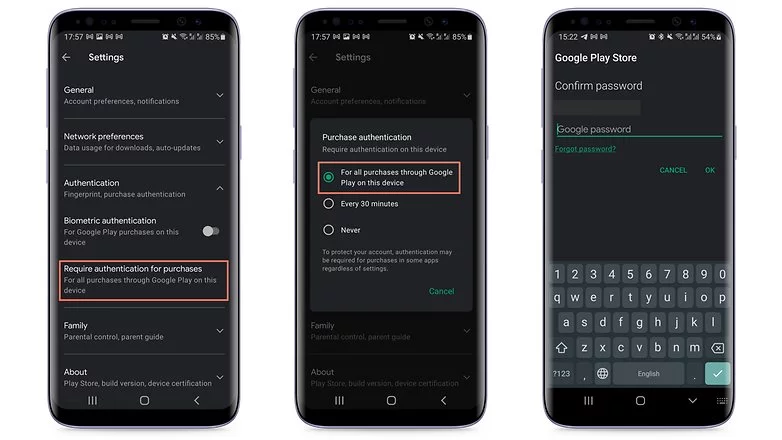
If your child uses your smartphone or tablet while logged in to your Google account, the simplest solution is to make all purchases require approval via account password confirmation. Simply follow these steps to accomplish this:
Tap the profile picture in the top corner of the screen in the Play Store.
Choose Settings.
Tap the Authentication field to launch the available options.
Select Require authentication for purchases.
Choose For all purchases through Google Play purchases on this device.
As the option itself already mentioned, you will need to repeat the steps on all tablets and smartphones used by the child.
Otherwise, the child may authorize purchases using his or her fingerprint or other biometric systems registered on the device if the Biometric authentication option is enabled.
Needless to say, the password to your Google account is private and should never be shared with your child. Disable biometric authentication as well if necessary.
After following the above steps, every time you or anyone else using the device would like to make a purchase, you/they will need to authorize it by entering your Google account password, including in-game and in-app purchases that rely on the Google Play Services payment system.
Another important point is to remember to repeat the steps for all user accounts that have been registered on the smartphone or tablet. Doing so will help avoid unwanted scares on devices used, for instance, covering both personal and professional areas.
After you’ve completed the preceding steps, every time you or anyone else using the device wants to make a purchase, you’ll need to authorize it by entering your Google account password, including in-game and in-app purchases that use the Google Play Services payment system.
Another important point to remember is to repeat the steps for all user accounts registered on the smartphone or tablet. This will help to avoid unwanted scares on devices used, for example, in both personal and professional settings.
Use parental Control to prevent unwanted purchases
If your child has his or her own tablet or smartphone, we recommend using parental controls to force purchase authorization. Google provides the Family Link app for just this purpose. This app allows you to create a user account just for your child or teen, as well as other admin options for YouTube, web search, and other services.
After installing the app on your smartphone or the smartphone of the child’s guardian, launch Family Link and follow the steps shown below:
After the app is launched, choose the user account of the parent or guardian.
In the next screen, select the Parent option.
Choose Next and then I’m ready.
On the next screen, we will choose to create a new account for the child by tapping No.
If she already has a Google account, just go to Settings on the other device, then Google > Parental Controls, and set up the device to be managed from your smartphone.
Tap Next to begin the account creation process, which will require more information and can take around 10 minutes.
During this step, you will need to agree to additional terms of use and confirm your user password, as well as accept the privacy rules for the new account.
At the end of the creation process tap the Next button.
After creating the Family Link account, use the login as the primary Google account on the child’s device. Return to your smartphone and launch the Family Link app to configure the following restrictions on the child’s account:
Tap the View button under the profile that will have restricted purchases.
Select the Manage settings option.
Choose Google Play.
Tap Require approval for.
Select the All content option just to be safe!
After that, each time the child attempts to purchase content, they must authorize the transaction on the parent or guardian’s device.
Depending on how the secondary account is set up, make sure there is no form of payment registered in the account. If there are any, simply follow the steps in the next section.
Remove associated credit or debit cards on the Google account
This is a more extreme option, and it is not recommended if you also buy a lot of apps, have subscriptions or recurring payments associated with your Google account, or use the Google Pay service. Removing all payment methods from your Google account affects all devices associated with the login, so think twice before wiping your account clean.
To remove a credit card, debit card, or other payment methods from your account, follow these steps:
Launch the Play Store app and tap your profile photo.
Select the Payments and subscriptions option.
Choose Payment methods.
Scroll down the screen and launch the More payment settings option.
The browser will open a list of all available payment methods registered on the account. Tap Remove.
Confirm the removal of the credit/debit card from the account by tapping Remove again.
You will need to repeat these steps for each registered payment method, as well as all for all user accounts associated with the device.
These codes can be divided into two categories: USSD codes and MMI codes. While these hidden codes are rarely useful to the average smartphone owner, they can be used to pique your interest once in a while. As a result, the goal of this article is to compile a comprehensive list of these secret codes for Android devices.
What is the USSD and MMI code?
While the average user may not need to know the distinction between these two, it is always useful to be aware of them. Both USSD and MMI codes are typically preceded by an asterisk or a pound symbol/hashtag. These codes are regularly updated as new versions of Android software are released, and some manufacturers have their own special codes as well.
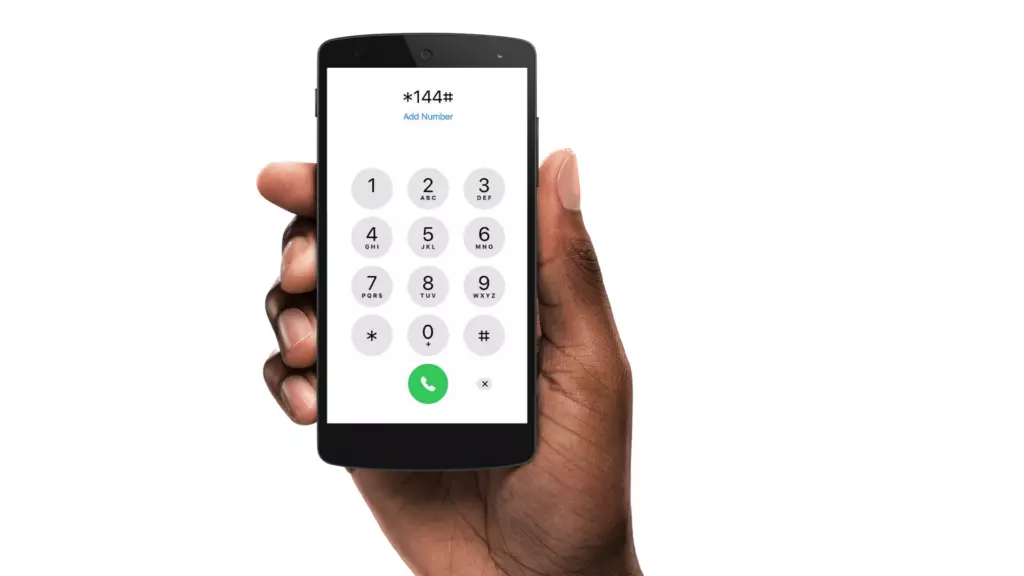
The code entry procedure is straightforward, requiring only that you bring up your dialer keypad and enter the appropriate number sequence. It’s worth noting that some codes are carrier-specific, which means they won’t work on all devices. So, if your phone doesn’t respond to a code, don’t dwell on it; instead, move on and try again.
USSD code
USSD is an abbreviation for Unstructured Supplementary Service Data, and these codes are commonly used to communicate between your smartphone and your mobile network operator. This also means that in order for USSD codes to work, you must almost always be connected to your carrier.
Previously, USSD codes were used to initiate and terminate specific value-added services. They were also helpful in informing you of your data usage and prepaid balance, as well as providing access to a wealth of carrier-specific information.
fWhile smartphone enthusiasts continue to use them, USSD codes have largely fallen out of favor with general users because most carriers have their own app/website where most of this information can be easily accessed. USSD codes are typically carrier-specific and vary from one carrier to the next. You will need to contact your carrier to find out which ones apply to you.
MMI Codes
MMI codes, on the other hand, are part of the Man Machine Interface schema and are typically unique to a smartphone brand or model. MMI codes provide access to a variety of interesting features on your smartphone, ranging from your IMEI number and SAR values to hidden menus commonly used by smartphone engineers and repair services.
Several smartphones, for example, allow users to enter an MMI code to access a ‘test’ menu. This menu allows users to quickly perform various tests on their smartphone, such as camera and vibration motor tests, as well as speaker and display tests.
Note that there are only a few MMI codes that typically work on all Android smartphones. We have listed the most popular ones in the generic list of codes below.
Info Codes
Generic secret codes for Android phones (Info codes)
CODE
FUNCTION
*#06#
Show phone’s IMEI
*#07#
Displays the Specific Absorption Rate (SAR) value of the device
*#*#225#*#*
Displays calendar storage info
*#*#426#*#*
Google Play Services info or Firebase Cloud Messaging diagnostics (Select devices only)
*#*#759#*#*
Access Rlz Debug UI (Select devices only)
*#0*#
Info menu (Select devices only)
*#*#4636#*#*
Info menu (Select devices only)
*#*#34971539#*#*
Camera info (Select devices only)
*#*#1111#*#*
FTA software version (Select devices only)
*#*#1234#*#*
PDA software version
*#12580*369#
Software and hardware info
*#7465625#
Device lock status
*#*#232338#*#*
MAC address
*#*#2663#*#*
Touchscreen version
*#*#3264#*#*
RAM version
*#*#232337#*#
Bluetooth address
*#*#2222#*#*
Hardware version
*#*#44336#*#*
Software version and update info
*#*#273282*255*663282*#*#*
Backup all media
Testing codes
CODE
FUNCTION
*#*#197328640#*#*
Test mode
*#*#232339#*#*
Wi-Fi test
*#*#0842#*#*
Brightness and vibration test
*#*#2664#*#*
Touchscreen test
*#*#232331#*#*
Bluetooth test
*#*#7262626#*#*
Field test
*#*#1472365#*#*
GPS quick test
*#*#1575#*#*
Full GPS test
*#*#0283#*#*
Packet loopback test
*#*#0*#*#*
LCD display test
*#*#0289#*#*
Audio test
*#*#0588#*#*
Proximity sensor test
Configuration codes
CODE
FUNCTION
*#9090#
Diagnostics settings
*#301279#
HSDPA/HSUPA settings
*#872564#
USB logging settings
Developer codes
CODE
FUNCTION
*#9900#
System dump mode
##778 (+green/call button)
EPST menu
Manufacturer-specific codes
Samsung codes
CODE
FUNCTION
*#0*#
Access diagnostics
*#011#
Network details and serving cell information
*#0228#
Battery status
*#0283#
Loopback Test menu
*#0808#
USB Settings
*#1234#
Software version/ Model details
*#2663#
Firmware details (Advanced)
*#7353#
Quick test menu
*#9090#
Advanced debugging tools
*#9900#
SysDump
*#2683662#
Service mode (Advanced)
*#34971539#
Camera firmware details
Xiaomi Codes
CODE
FUNCTION
*#*#64663#*#*
Access test menu
Realme codes
CODE
FUNCTION
*#800#
Feedback menu
*#888#
Engineer mode – displays PCB number
*#6776#
Software version
OnePlus codes
CODE
FUNCTION
*#66#
Encrypted IMEI
*#888#
Engineer mode – displays PCB number
*#1234#
Software version
1+= (In stock calculator app)
Displays ‘NEVER SETTLE’ on the calculator app
*#*#2947322243#*#*
Wipes internal memory
Asus codes
CODE
FUNCTION
*#07#
Regulatory labels
.12345+= (In calculator)
Open engineering mode
Motorola
CODE
FUNCTION
*#*#2486#*#*
Opens engineering mode
*#07#
Shows regulatory information
##7764726
Hidden Motorola Droid menu
HTC
CODE
FUNCTION
*#*#3424#*#*
HTC test program
##786#
(Caution!) Phone reset menu
##3282#
EPST menu
##3424#
Diagnostic mode
##33284#
Field test
##8626337#
Launch Vocoder
*#*#4636#*#*
HTC info menu
Sony codes
CODE
FUNCTION
*#*#73788423#*#*
Access service menu
*#07#
Certification details
Nokia codes
CODE
FUNCTION
*#*#372733#*#*
Open service menu (FQC Menu)
Other codes
CODE
FUNCTION
*#7780#
(Caution!) Factory reset
*2767*3855#
(Caution!) Full factory reset
*#*#7594#*#*
Power off the phone
*#*#8351#*#*
Activate dialer log mode
#*#8350#*#*
Deactivate dialer log mode
Stay away from these codes! Think before using!
CODE
FUNCTION
*#*#7780#*#*
(Caution! Risk of data loss and rendering phone useless) Factory data partition reset
*2767*3855#
(Caution! Risk of data loss and rendering phone useless) Format device
USSD codes for US carriers
These aren’t exactly hidden, but they’re not widely known either. Once dialed, USSD, or Unstructured Supplementary Service Data, codes connect to the phone’s network to perform specific functions, such as determining how much credit is left on your prepaid phone or how much data you’ve used this month. They change frequently, and the codes differ from carrier to carrier. Here are some examples for some of the major US carriers, along with links to more carrier-specific codes:
AT&T
Check your data and SMS usage: *3282#
Verizon
Check your data and SMS usage: #3282
T-Mobile
Check your data usage: #932#
Sprint
Check minutes, messages, and other usage stats: *4
There’s a good chance you’ll never need to use most of these codes, but if you do, then now you know where to find them.
Assume you got an essential text message and mistakenly deleted it while attempting to archive it. How do you restore deleted messages now? To prevent the hassle in the first place, you can use phone data recovery tools or backup all of your text messages on Android. You can either use the default Google backup or a third-party SMS backup and restore app to accomplish this.
1. Backing Up SMS Using Google Backup
Google provides an SMS backup and restore service. However, it has many limitations, including the fact that it is not available on all Android devices, that you cannot monitor when Google can perform the automatic SMS backup, and that the backup expires after 57 days.
On the plus side, since it does not require the use of a third-party tool to backup and restore SMS, this is the best solution if you are worried about your privacy.
How to backup text messages to Google Drive?
Go to Android settings.
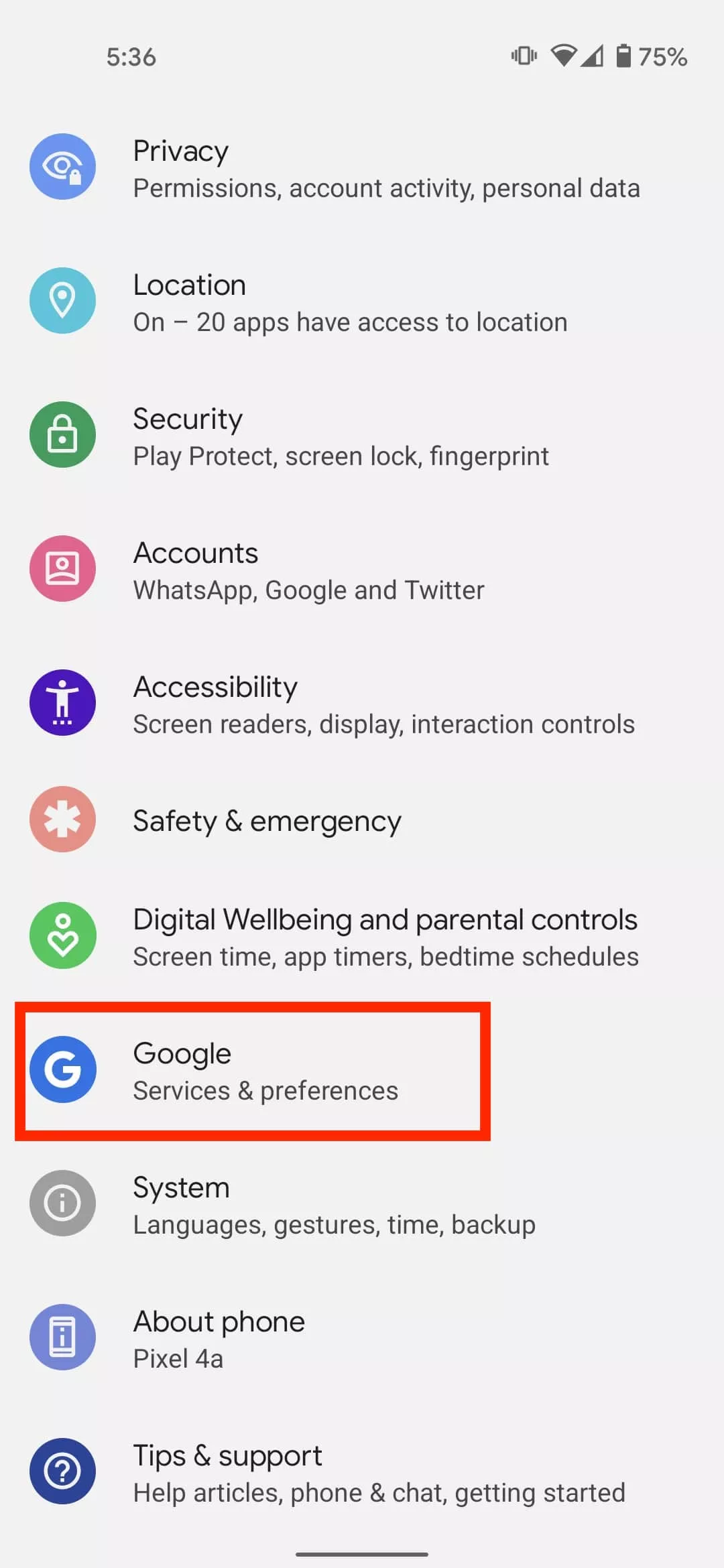
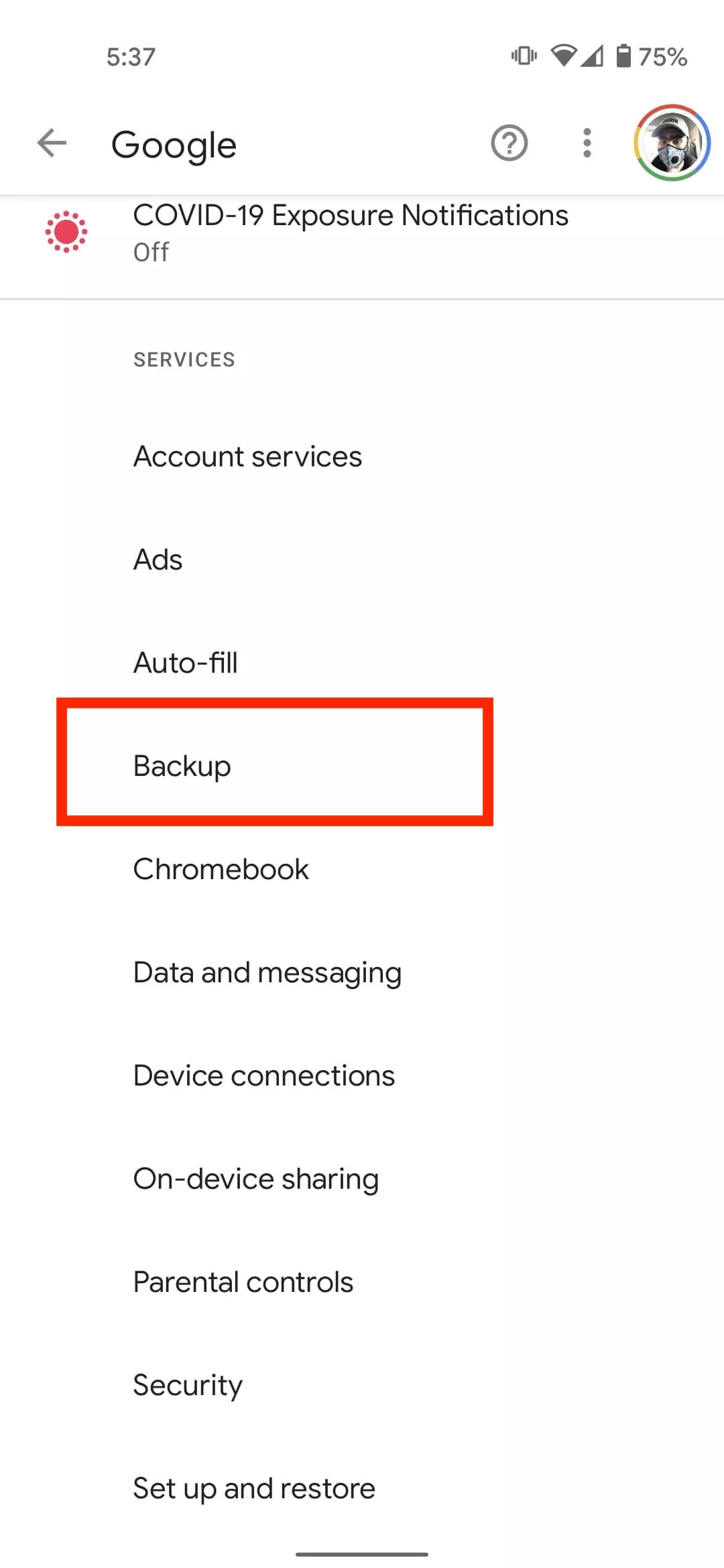
Select Google > Select Backup.
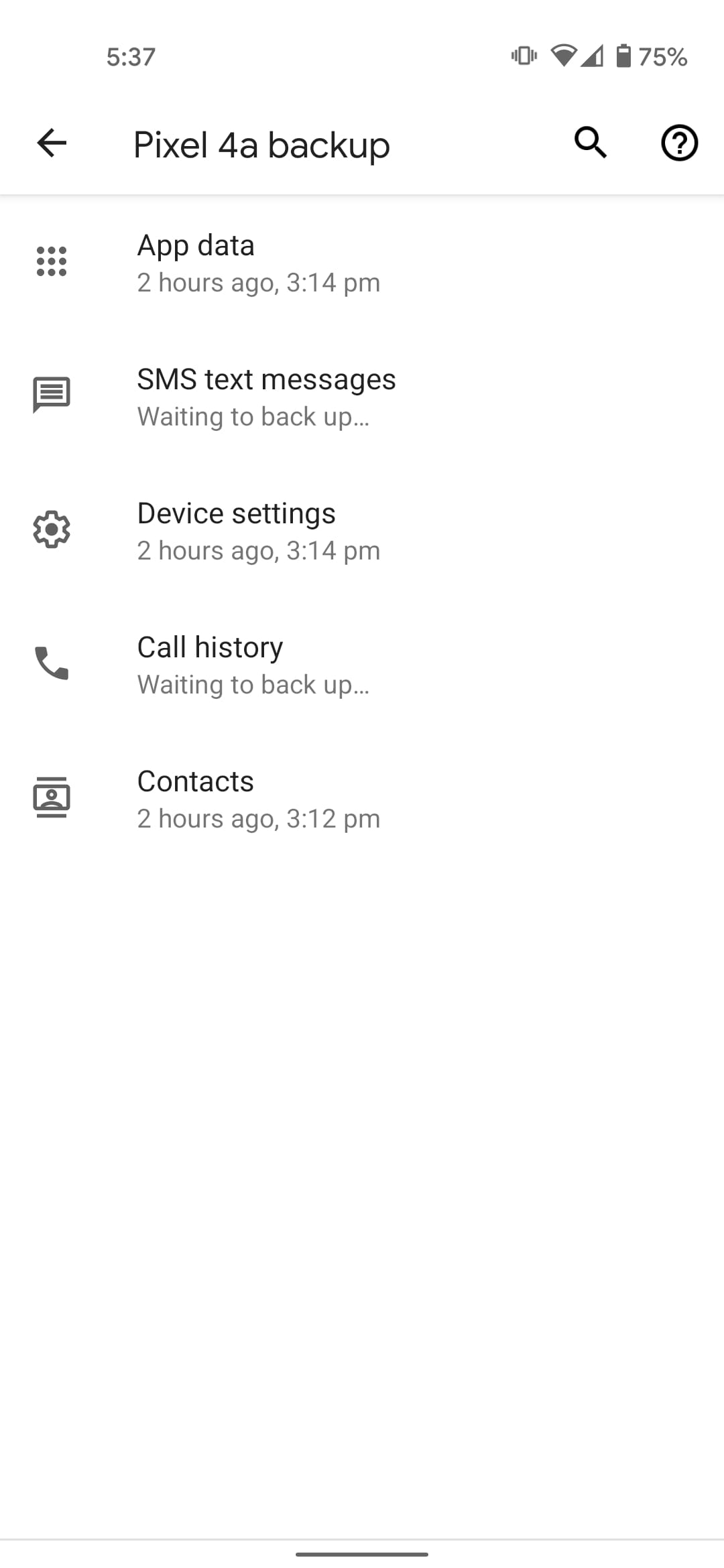
Tap on your device name and see if the backup includes “SMS Text Messages.”
Go back and Tap on Backup Now.
Once the backup is complete, you will find it under the Backups tab of your Google Drive.
2. Backing Up SMS Using A Third-Party Tool
Another way to backup text messages on Android is through a third-party tool. SMS Backup and Restore is a great option and is often recommended. But I always prefer SMS Organizer from Microsoft.
That’s because it’s not just a tool for backing up SMS on Android; it’s primarily an SMS app known for intuitively organizing text messages. I have been using SMS Organizer for a long time now and have never felt the need for another SMS app.
Of course, if you are satisfied with the default Google messages app or any other SMS app, you can always use SMS Backup and Restore Android app to save text messages. But here, I will show you how you can backup text messages using SMS Organizer:
How to backup text messages using SMS Organizer:
Go to the SMS organizer app
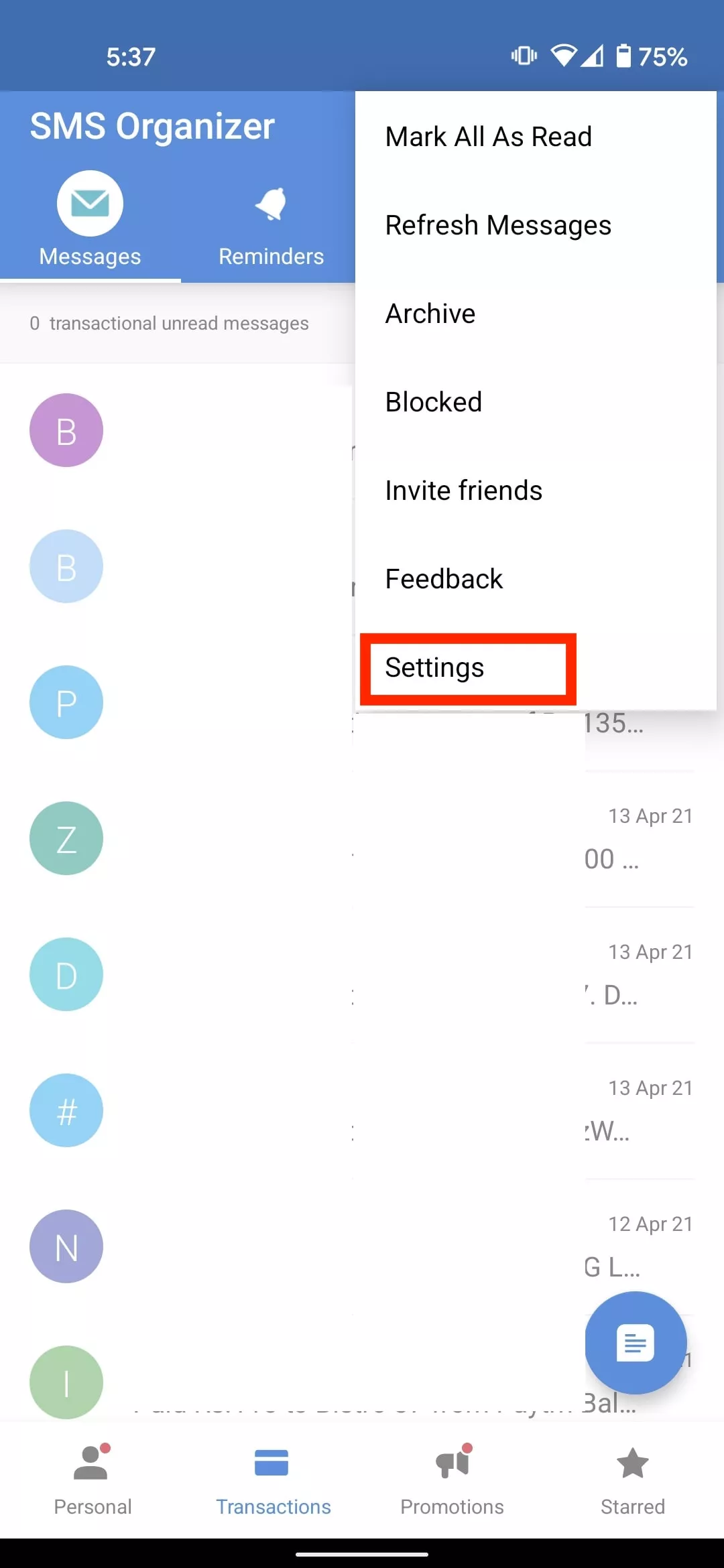
Tap on the menu icon in the top right corner
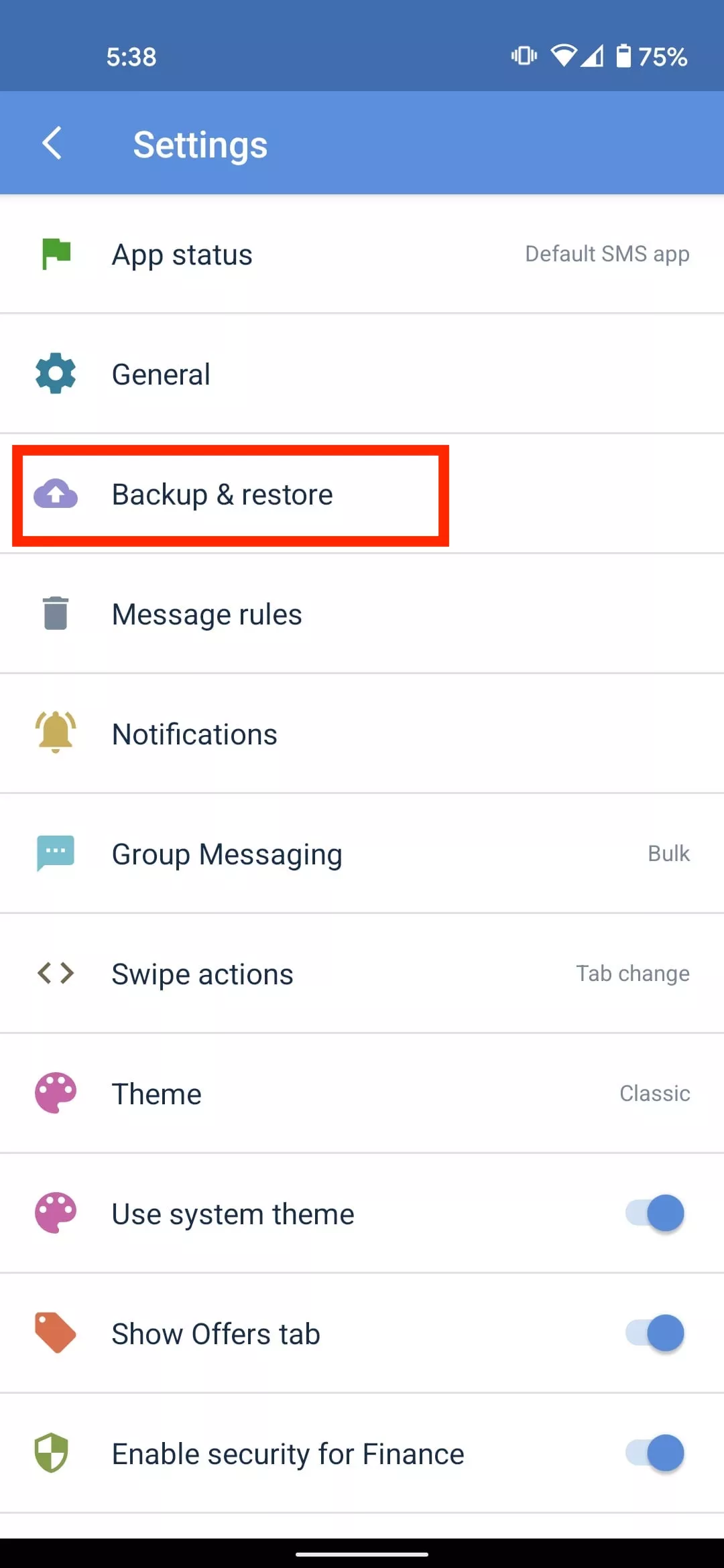
Select Settings
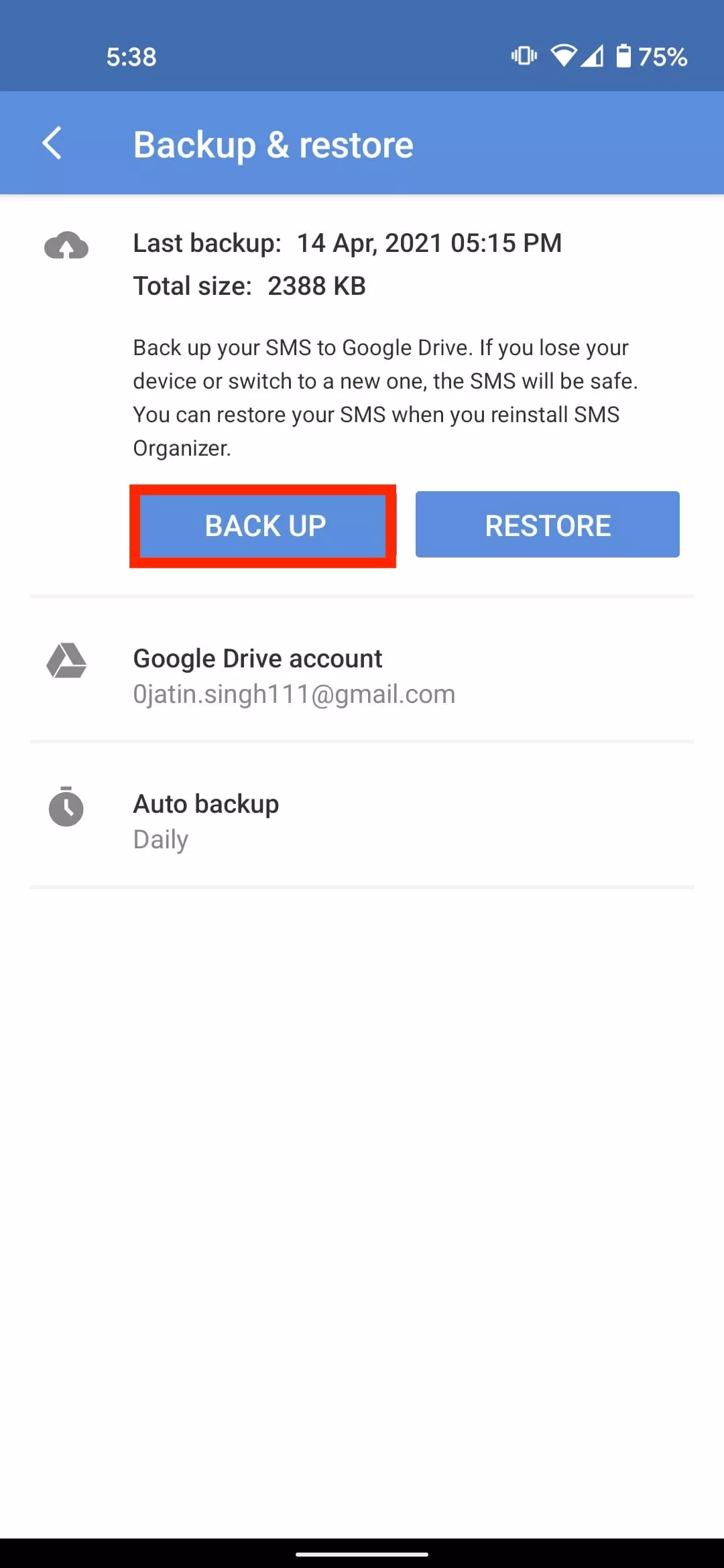
Tap on Backup & Restore
Select Backup
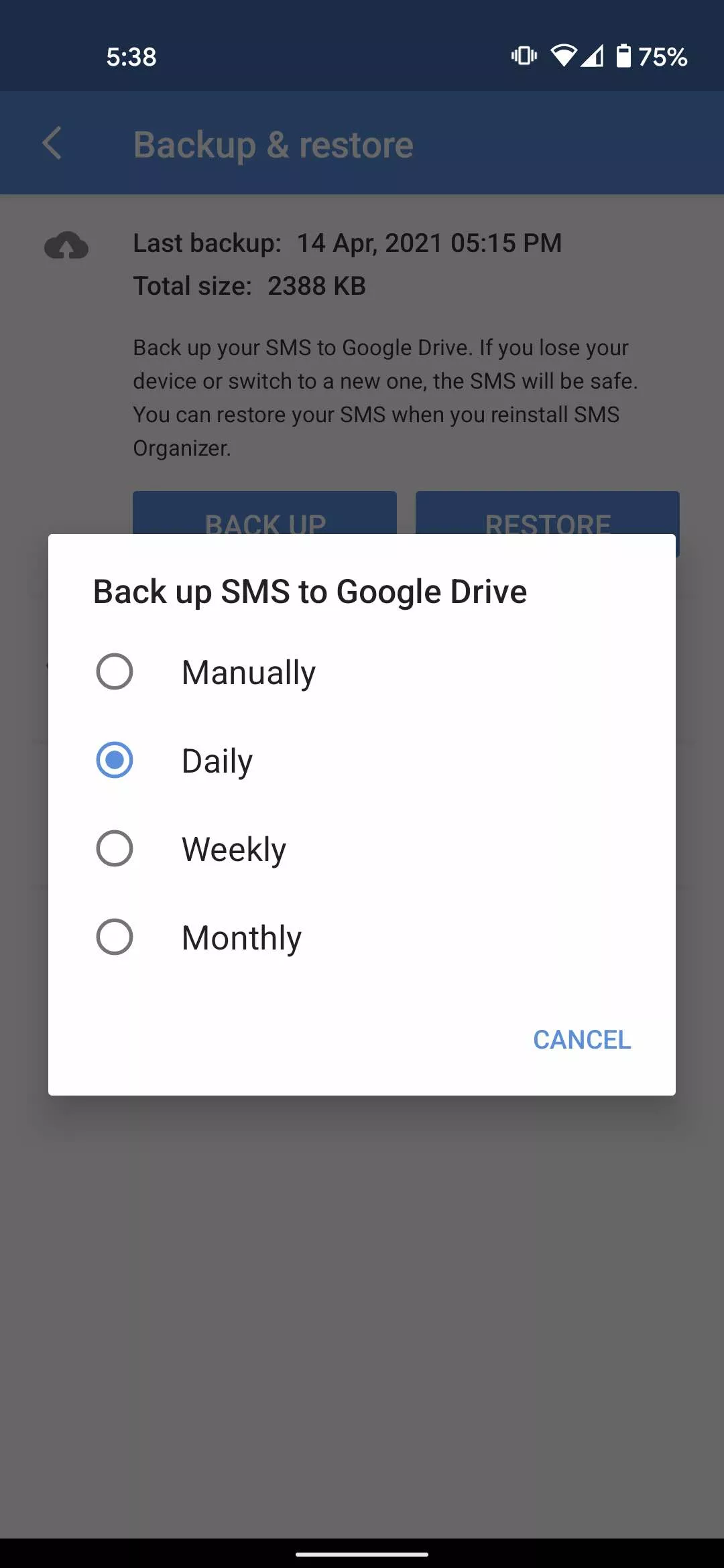
Tap on Auto Backup and set the SMS backup to daily, weekly or monthly.
Unlike SMS Backup and Restore, the SMS organizer does not have the option to backup SMS hourly or set a recurring scheduled time for automatic backup. That being said, both apps are efficient for backing up your SMS on Android.
Over the last few years, the challenge of bypassing SafetyNet Attestation has evolved from a simple cat and mouse game between Google and the modding community to a burgeoning battle full of obscure barriers. Thanks to the rise of hardware-backed certification techniques, it is very difficult to bypass the boot image integrity verification routine and hide root access. Installing Magisk on its own would not be enough to circumvent the latest update to SafetyNet, especially on newer devices. This is where the Universal SafetyNet Fix Magisk module comes in.
While legacy device owners, as well as custom ROM users, often use modules such as MagiskHide Props Config to spoof the CTS profile to pass basic certification, as long as the method in question relies on a valid combination of device and model names, fingerprint building, and security patch levels, there is no guarantee that the root hiding trick will remain useful in the future. This is due to the fact that Google Play Services is starting to use CTS profile validation hardware certification in many cases, even when a basic certificate is selected.
In case you have an Android device that has an unlocked bootloader (or locked using custom verified boot keys) and thus doesn’t pass hardware attestation, then the Universal SafetyNet Fix Magisk module may fix that. Created by Danny Lin AKA XDA Senior Member kdrag0n, the module works by taking advantage of the opportunistic nature of the hardware attestation routine. Quoting the developer:
… it (hardware attestation) falls back to basic attestation if key attestation fails to run — and prevent GMS from using key attestation at the framework level. This causes it to gracefully fall back to basic attestation and pass SafetyNet with an unlocked bootloader. … The “not implemented” error code from Keymaster is used to simulate the most realistic failure condition to evade detection, i.e. an old device that lacks support for key attestation.
The workaround is already available pre-integrated on the ProtonAOSP ROM from the same developer, which lets you pass SafetyNet without Magisk on fairly modern devices such as the Google Pixel 5. If you are a custom ROM maintainer and you wish to integrate this method with your build, you can do so by cherry-picking the necessary patches from this repository. On the other hand, the latest version of the ready-to-flash Magisk Module variant can be found here. Note that MagiskHide is still required if the target device is rooted.
In the smartphone industry now many smartphones have a large battery capacity of about 5000 mAh. With regular use, they can last up to 10 hours of full battery life, such as surfing, normal games, etc. Instead of a larger battery, modern smartphone companies are investing more in making fast chargers. In this guide, even if you don’t have easy charger help, we’ll show you how to charge a phone faster. These are 7 tips and tricks that have been tested and followed by users who operate perfectly with every smartphone in the world.
To check your current charging speed, use the Ampere app. Simply install Ampere on Android or iPhone and Plug-in the charger cable and wait for a second to measure the current input. At a normal 5V/2A charger, it would be approximately less than 2000mA showing in the app.
Tips and Tricks To Charge a Phone Faster
1. Turn ON Flight Mode
The first thing you should try is to turn on flight mode on your smartphone. Flight mode disables all incoming outgoing radio signals through the smartphone and significantly improves the charging speed. Alternatively, turn off other connectivities such as WiFi, Internet Data set to be off, Bluetooth, Hotspot, etc. Still, flight mode is more effective.
2. Do not charge your phone with Laptop
Charging your phone with a laptop could be a bad idea. When you charge your phone with an adapter, the charging speed mostly depends upon the power output of the adapter. A fast charger adapter produces from 20 to 55-watt output. Whereas, when you charge your phone using a laptop, the USB port is the current output source. And, mostly laptop’s USB ports produces 1 to 5-watt output. That’s why it would be a bad idea to charge a phone with a laptop. Instead, use a better fast charging cable and adapter.
3. Stop Background Running Apps
The reason why your battery percentage drops so quickly is running apps. There might be a few apps running in the background on the phone that result low in performance as well as slow charging speed. To prevent it, clear the recent apps from the menu and uninstall unused apps from your phone.
One more tip, do not install battery saver apps or similar apps. Those are useless apps and cut your charging speed and battery life along with smartphone performance.
4. Buy A Fast Charger
Generally, smartphone brands provide a normal 10-watt slow charge out of the box. However, if your phone supports fast charging, you should look for a quick charger with maximum output. Quick Charger 3.0 charges the battery pretty fast from 0 to 100%.
There are some hardcore gamers who like to play games all the time. Even when the smartphone is plugged-in to the charger. Doing this, you’re not only charging your phone at a very slow speed but also overheating can damager your phone or its battery. I highly recommend to not use your phone while charging, you better leave it idle.
6. Turn On Power Saving Mode
Batter saver or power saver mode is an inbuilt feature in Android and iPhones both. By turning on power save, you can expand your smartphone battery life as well as charge your phone faster. However, this mode turns off background running applications and background data usage in some cases.
To turn on Power saver in Android, go to Settings > Battery > Battery Saver > Tap to Enable. Power saver mode for iPhones, go to Settings > Battery > Turn Power Mode on.
7. Turn Off Your Phone to Charge Faster
Lastly, turn off your smartphone and plug-in to the charger. Switching off your smartphone disables almost every functionality and disconnects every connection. Hence, this is the most effective way to charge your smartphone’s battery at peak speed.
However, this wouldn’t be possible for users who receive important phone calls frequently
In the previous post, we discussed how by following some tips & tricks, you can boost the battery of your Android smartphone.
There are so many reasons why the performance of an Android smartphone would slow down. For instance, Android is too old, with low RAM & ROM, full storage, etc. Today, to get the best output from an Android phone, we’ll look at every problem and try to solve all of them. So, as you might have guessed, following are some smartphone tips to instantly enhance your Android smarthphone performance.
Uninstall unused apps
This is one of the reasons why it’s very sluggish on your Android. In general people install lots of Android applications even though they are not using them on their smartphone. Not only does having so many apps require room, but it also slows down performance. Just go to your smartphone settings then manage apps and uninstall those apps that you’re not using currently.
Your Android also has certain device bloatware that you can not easily uninstall. However to delete these types of software, I have made a separate post, you can read that from here, How to Uninstall Device Bloatware from Android Phones.
Keep some storage free
If your smartphone has a large storage capacity, the chances are it will not lag too much. This is because there will be lots of free spaces in memory to load apps resources. Whereas, there’ll no space to load the resources if your phone has low storage capacity. That’s the main reason for slowing down a smartphone performance. Always make sure that your smartphone has 3GB to 4GB memory free in ROM and slightly less in RAM.
To free your storage, you can delete the junk files and unnecessary files including useless WhatsApp photos, videos, thumbnails, etc.
Update your OS
With every Android update, smartphones still get better. New functionality, bug fixes, optimized performance and other enhancements are included in the update. So to get security updates and overall improved system performance, always keep your system updated.
An update, however, can often contain a massive bug, but it seldom occurs. You will collect reviews from users about the new update and then decide whether or not to install it.
Factory reset
After a long smartphone usage, it looses the performance overtime. Also, whenever smartphone software becomes too old, it loses the smoothness and performance as it was in the brand new smartphone. Which requires to perform a factory reset to fix some errors and clear all the smartphone logs from the memory. Well! there are many ways to reset an Android phone but you can reset your phone Settings > Backup & restore > Reset.
Do NOT INSTALL speed booster apps
From the play store, you can get tons of speed booster apps which promise to increase the performance of Android within a single tap. Oh, NO! Don’t install those kinds of software. Instead as a struggling launch app, that will make your phone much more laggy. They have clear frequent cache memory for multi-tasking, which is fine. In a nutshell, do not use boosters for speed.
Try new launcher
Some issues cause the output of the smartphone to slow down after using the default Android launcher for a long time. Well! Well! Oh! You’ve got too many launchers at the play store there. The best launcher, in my opinion, is Nova. See if your Android performance improves after upgrading to a new launcher, then follow other tips to stick with it.
Clear apps data or cache
An app increases its size when you start using it. And, sometimes size grows massive large to 1GB or more. Cache data are vital to load apps faster but creates problems when it stores than usual data that are no longer in use. And, it’s our responsibility to clear cache memory to free the useless filled storage. It makes smartphone fast as light. To clear cache of Android apps at once, go to Settings then tap Storage, choose Cache and delete them. Another way to do this, go to manage apps from settings and choose apps and clear data & cache one by one.
Increase animation speed
Increasing animation speed doesn’t directly increase the smartphone performance, however, it gives a feeling of fast performance. You can adjust the animation speed from Android developer settings. To get developer options, Go to Settings > About > Build number > tap 7 times.
Now, open developer settings and find these three options and set their value to 0.5 or turn it off completely.
One of the most fiercely fought fights in the entire mobile tech room is Android vs. iOS, and chances are, that will not change any time soon. There are some individuals that love Android completely, others who can’t use anything but iOS, and that causes a lot of back-and-forth.
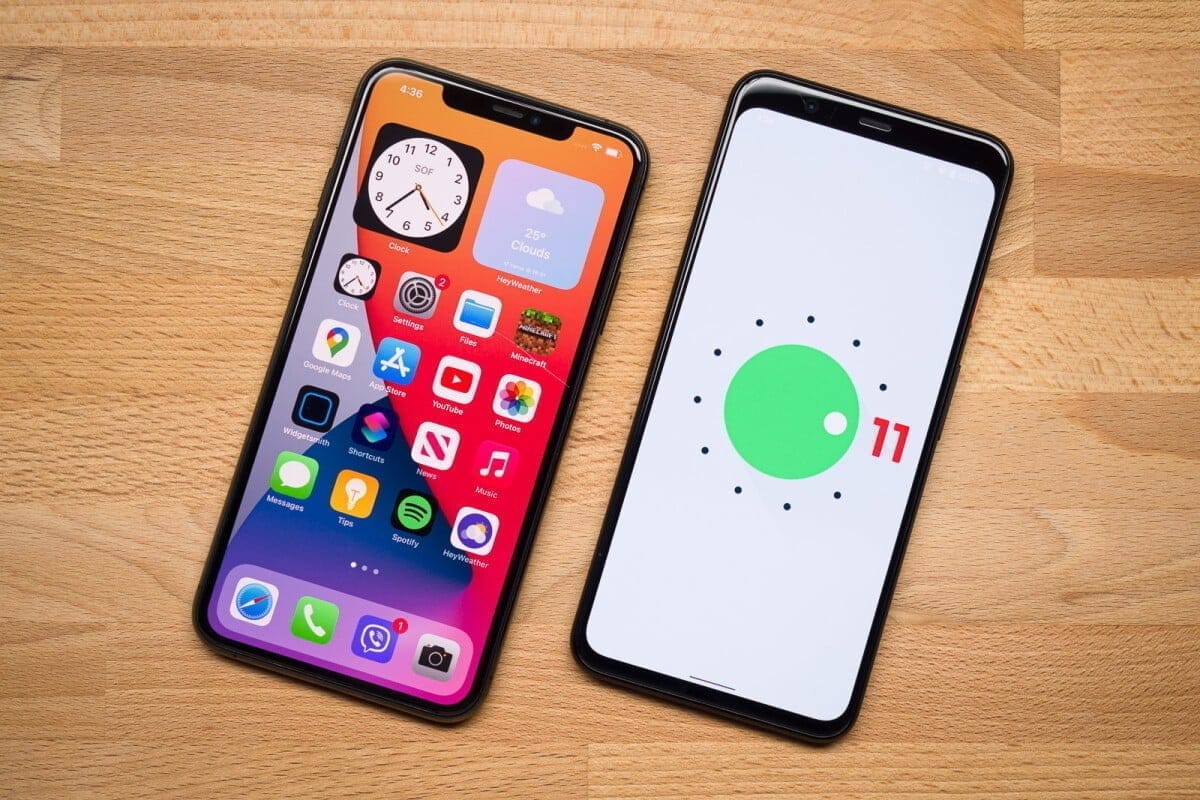
We’re certainly not here to suggest that Android is objectively better than iOS in any way, but we do want to take a closer look at the new Android 11 and iOS 14 updates. On top of a familiar base, the former provides small enhancements here and there, while the latter presents a full makeover that makes iOS more close to Android than it has ever been before.
iOS 14 is an impressive bit of software that does a lot of things really well, but if you ask us, there are certain things that Android 11 continues to be better at. To explain what we’re talking about, here are five reasons why Android 11 is the better operating system compared to iOS 14.
Better notifications
How it manages alerts is one of the strongest points people make in favor of Android. For a while now, updates on iOS have been really mediocre, and Google took an even bigger lead with Android 11 than it already had.
Android 11 separates your notification tray into three different parts, ranging from Conversations, Updates, and Silent as a priority. In Android 10, Alerts and Silent already existed, and with the introduction of Conversations, compared to anything else that pings your phone, it’s now much easier to see stuff like texts and telegram messages. Stuff labeled as conversation messages are moved to the top of your notification tray and show the profile picture of the person who sent you the message (along with an indicator of which messaging app the message came from).
It’s a small change, but I still feel like I’m doing a great job of keeping on top of updates with the Android phone as someone who carries two phones everyday, one with Android 11 and one with iOS 14. Things are clearly ordered, I can see easily if a new message is waiting for me and I usually feel like I have control of what’s happening.
There aren’t things I can say about the notification management of iOS 14, which all these years later appears to be a jumbled mess.
Chat bubbles – multiple conversation organizer
Speaking of conversations, chat bubbles are another major addition to Android 11. There’s an icon on the notification when you look at a contact notification that expands it out of the notification tray and into a floating bubble on your home screen, aka a chat bubble.
A glimpse of the ongoing conversation is shown by clicking on the chat bubble, enabling you to scroll through previous messages, type a new one, etc. Tapping it again reduces it back to the bubble button, which can be moved on either side of your screen anywhere.
Chat bubbles work with a number of messaging tools, including things such as Facebook Messenger, Google Messages, Telegram, and others. You can have several conversations packed in one chat bubble from various applications, making it easy to hop back and forth between conversations no matter where they take place.
At first, chat bubbles may seem a little gimmicky, but if you’re someone who does a lot of texting on your phone, even if you have a ton of other alerts pouring in during the day, they’re a genuinely nice way to keep things organized and within control. IOS 14 does not deliver anything comparable to chat bubbles, and for the near future, that will probably be the case.
Powerful permissions
It’s still something we’re going to recommend to take care of your digital privacy, and one of the easiest ways to start doing this is by taking control of device permissions on your devices. When downloading a new app, it’s just too easy to just grant all permissions, but the fact is that most applications do not require access to anything they ask for.
To its credit, iOS 14 has very strong controls on permissions. For any app installed from your Settings, you can look at permissions, with toggles to easily activate and disable permissions as you please. When you open a new app that asks for anything like your place, you will also be asked whether you only want to allow access once or anytime you use the app.
For Google with Android 11, permissions were a major priority, with them seeing a few main changes. The first takes Android up to iOS feature parity, with Android 11 now enabling an app to only give position authorization once. However, Android goes a step further by providing this one-time feature for requests for microphones and cameras, too.
Auto-resetting permissions are something else only found in Android 11. If you have granted permissions for an app that has not been used in a couple of months, those permissions will be revoked automatically. Next time you open the app, you can re-grant them, so it’s a way to guarantee that forgotten users don’t have access to things they don’t need.
Quick controls
Chances are that you have some smart home devices in your house/apartment, whether it’s light bulbs, your thermostat, or a wall socket. It is extremely nice to be able to monitor your lights when you are on holiday or kick on the heater on your way home from work, but juggling a bunch of different applications to do all that is anything but.
Google and Apple have already done a decent job by putting all these controls between the Google Home and Apple Home apps into one central location, but Android 11 makes it even better by making you incorporate your most-used controls right into your power menu.
No matter what you do on your screen, the redesigned power menu will be exposed by keeping the power button down. You still have the normal power controls, but this location is now used by Android 11 to also showcase your favorite Google Pay card and any smart home controls you want. Now it is possible to switch on the kitchen lights or change the temperature by simply keeping your power button and pressing the shortcut you have added.
Thanks to how many items I have related, my Google Home app is kind of a cluttered mess, so it is so much easier to have easy access to my most-used controls this way. With the latest shortcuts in your easy settings, iOS 14 also provides fast access to smart home toggles, but that still includes turning on the device and then swiping down. Being able to click the power button at any moment, regardless of whether the screen of my phone is on or off, is a much easier day-to-day experience.
Customizations
Without a doubt, the highlight feature of iOS 14 is its expanded customization. You can hide home screens you don’t want to see, there’s an app drawer to view everything installed on your phone, you can set default apps, and we finally have widgets that can be placed on home pages next to app icons. It’s one of the biggest changes we’ve ever seen for how iOS operates, and the execution is pretty darn great.
Apple deserves a lot of credit for everything it changed in this regard, but even with everything that’s new, Android 11 continues to offer more customization options — and by a long shot.
For instance take default apps. You can update your default web browser and email app with iOS 14 now, but that’s it. That’s not possible right now if you want to change stuff like your default navigation or camera app. In addition, if you ever turn your phone off/restart as Apple resets it all back to its own things, you will need to re-enable those default apps. It’s a much poorer experience compared to the default app setup we’ve had on Android for years.
In iOS 14, custom icons are kind of a thing, but for every single app you want to change the icon for, you need to build a Siri Shortcut. And when you build a Siri Shortcut and don’t directly alter the app icon, you won’t see your custom icon in the app drawer or outside the home screen anywhere on the device. Compare that with Android 11 or any previous edition, where it is as easy to change an app icon as downloading a custom icon pack and diving into the settings of your launcher.
On that note, on iOS 14 you still can’t use a different launcher. You can switch about and add widgets to your applications, but that is it. Android has seemingly infinite third-party launchers that in the blink of an eye can turn your entire home screen, enabling you to really make your phone the way you want it. Everybody on Android gets these comprehensive customization choices, no matter whether you have the best Android phone or not.
Android is one of the most preferred operating systems out there, simply because of the customizability it offers.
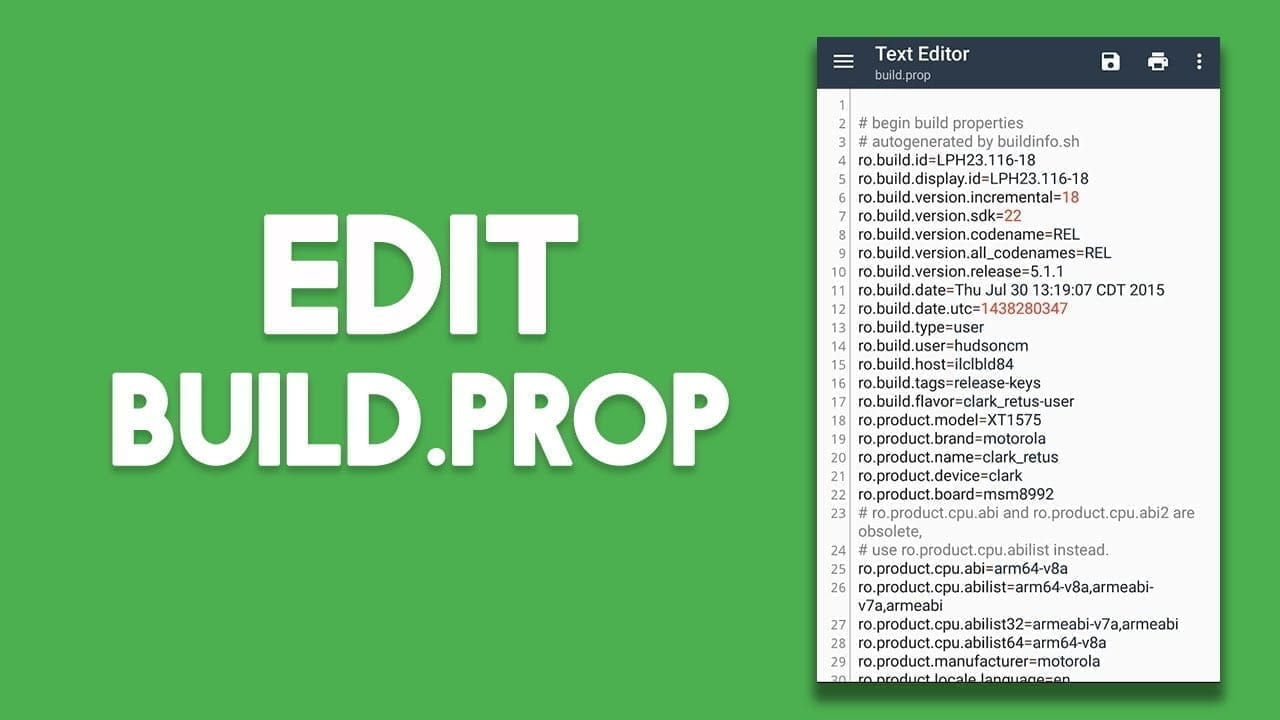
Almost every element of one’s computer can be modified by the consumer, and even tweaked in some ways to make sure their devices work better. All of this depends primarily on the config file of your computer, that is, the file build.prop. This file contains all of your device’s configuration data as well as the Android framework built on it. Many power users alter this file in order to further tweak their computer. We have recently done an article for your Android device on some of the coolest build.prop tweaks. Unfortunately, though, because this is a system file, the general principle is that a rooted computer is required. Ok don’t worry, because there’s still a way around that.
So, if you’re an Android user looking to the build.prop file on their Android device but don’t have root access, read on, as we share with you our guide on how to edit build.prop without root access:
Edit Build.prop without root access
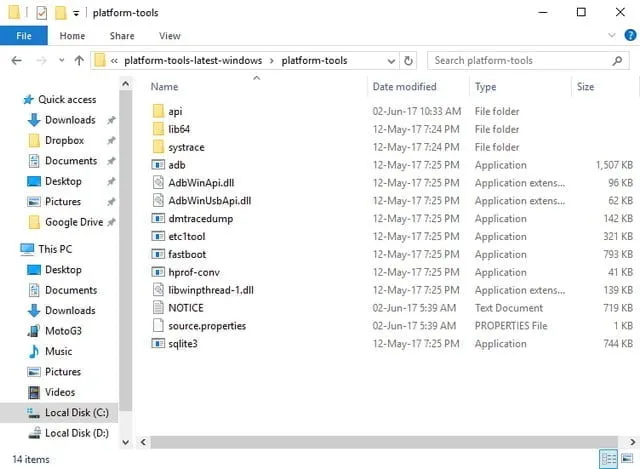
To begin with, download and install ADB and Fastboot drivers onto your system, as shown here.
Install an advanced text editor like Notepad++ or Sublime Text on your system. This is will be used later on to edit the build.prop file.
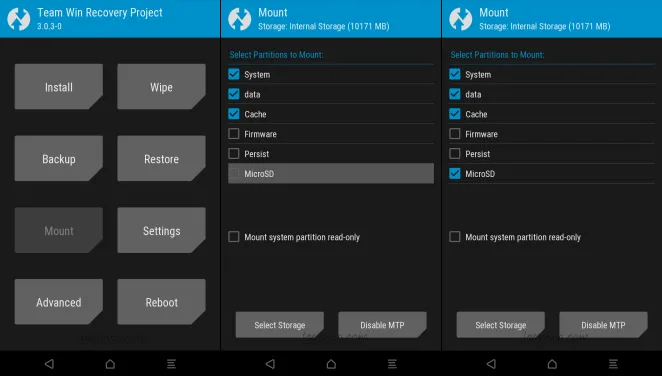
Next up, switch off your device and head over to the recovery mode. Once there, tap on “Mount”. A list of all the partitions on your device will open up. Make sure the checkbox next to ‘System’ is checked, and the checkbox next to “Mount system partition read-only” is unchecked.
Once you’ve mounted the /system partition, connect your device to your PC and open the ADB window. Once there, type in the following command to transfer the build.prop file onto your system:
adb pull /system/build.prop <path to save file>
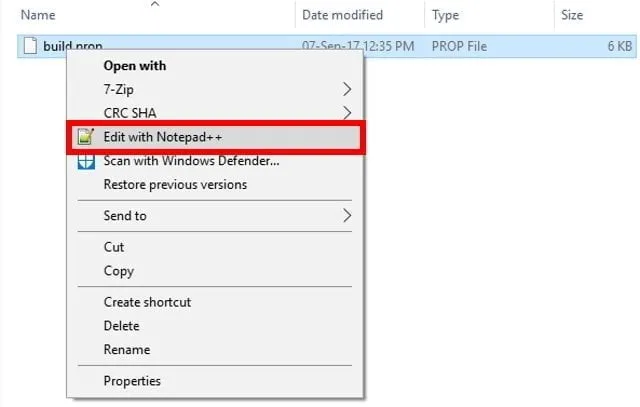
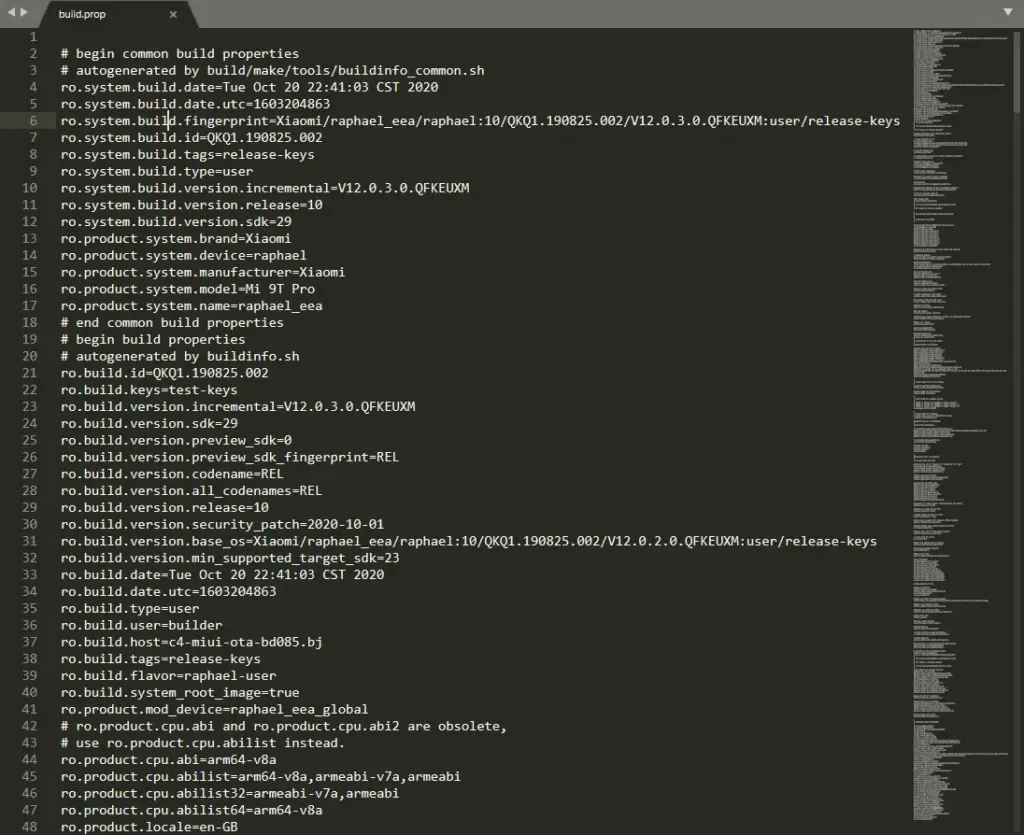
Now that your build.prop file has been transferred to your system, you can edit it easily using the text editor you downloaded previously. To do so, simply right-click on the build.prop file and select “Edit with Notepad++” or any other text editor that you may have downloaded.
A new Notepad++ window should now open and you should easily be able to modify the build.prop file. Once you’re done with your edits, simply save the changes.
Now that you’ve edited the build.prop file, we need to transfer it back to your device. To do so, run the following command in the ADB window:
adb push <path to your file>/system/build.prop
Now that you’ve transferred the modified build.prop file, you need to set its permissions as well. To do so, open up the ADB shell by typing in the following command:
adb shell
Once you’re inside the ADB shell mode, type in the following command to set the right permissions:
chmod 644 /system/build.prop
And that’s it. You can now close the ADB window. Your build.prop file has now been modified as per your preferences.
It will help you get something out of your Android device by changing your build.prop file. Android’s greatest advantage over other operating systems is its level of customizability, which relies largely on the build.prop file. And while not everyone has root access, using the above form, one can still change their build files. Note that whatever you are doing with your build.prop file, just in case, always and always have a backup available. Well, this is all from my hand, but in the comments section below, I’d love to hear the various tweaks you tried to implement on your computer.