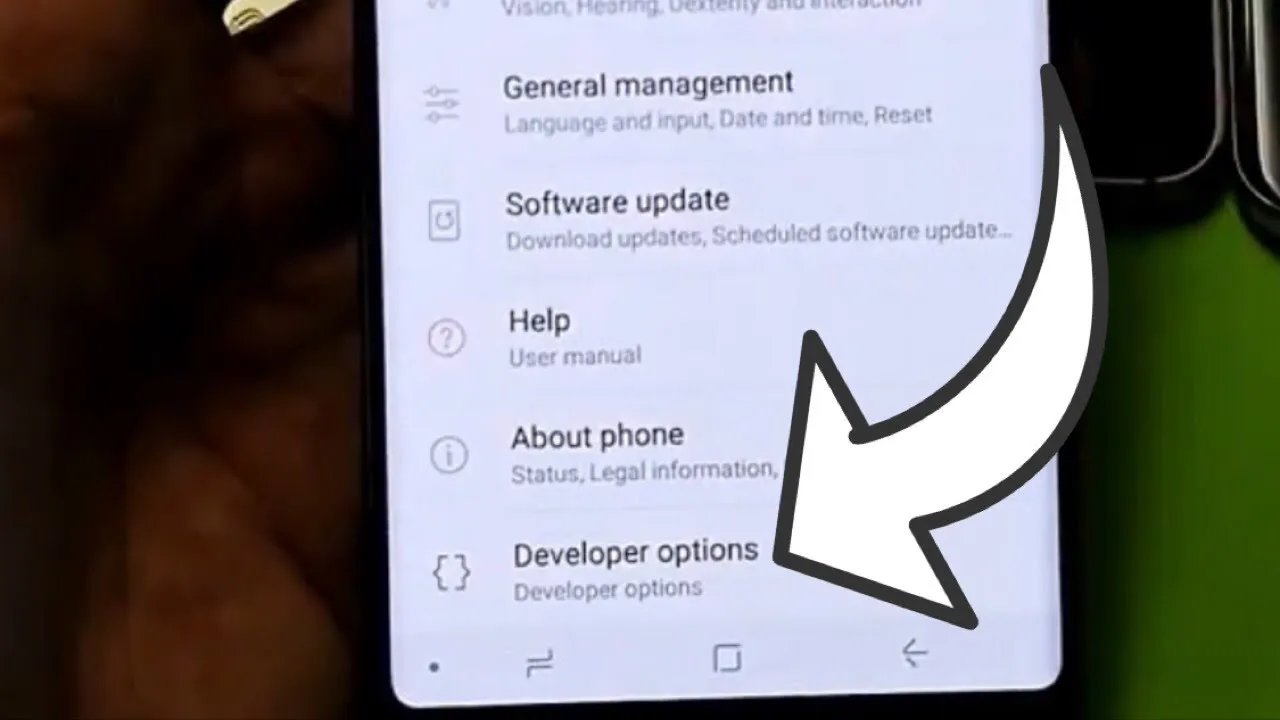
Tag: usb

  • How to enable developer options and USB debugging

    How to enable developer options and USB debugging

    Enabling Developer Options and USB debugging is crucial if you want to test apps, get more control over your Android device, or connect your phone to a computer for development. This built-in Android function provides you with the ability to delve deeper, regardless of whether you’re a power user or simply attempting to troubleshoot a persistent issue.

    Without requiring root access, we’ll show you exactly how to activate USB debugging and Developer Options on any Android device in this tutorial. We’ll also go over the functions of each feature and when you might require them.

    What are Developer Options on Android?

    Android’s Developer Options is a secret menu with advanced settings designed mainly for developers. But regular users might also benefit from many of these choices. For instance, you can:

    • Speed up animations to make the phone feel faster
    • View CPU usage on screen
    • Simulate different display sizes
    • Force apps into split screen
    • Enable USB debugging for data transfers or app testing

    By default, Developer Options are hidden, but you can enable them with just a few taps.

    What is USB debugging and why use it?

    USB debugging allows your Android device to communicate with a computer using Android Debug Bridge (ADB). This is critical for:

    • Transferring files and installing apps manually
    • Using development tools like Android Studio
    • Running shell commands via ADB
    • Taking full device backups
    • Recovering devices stuck in boot loops or soft bricks

    Unless you’re developing apps or using advanced tools, USB debugging isn’t needed all the time. But turning it on gives you more flexibility when needed.

    How to enable Developer Options

    The Developer Options menu can be accessed by following these steps:

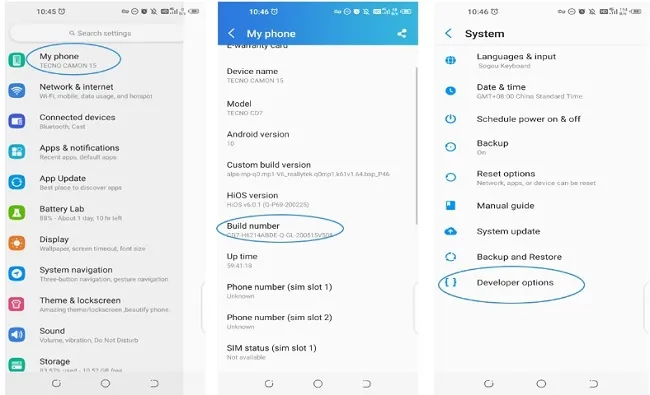
    1. Open the Settings app on your Android phone.
    2. Scroll down and tap “About phone.”
    3. Find the “Build number” entry (you may need to tap “Software information” first on some devices).
    4. Tap the Build number 7 times. You’ll be asked to confirm your device lock (PIN, pattern, or fingerprint).
    5. You’ll see a message saying “You are now a developer!”

    Once this is done, Developer Options will be available in your Settings.
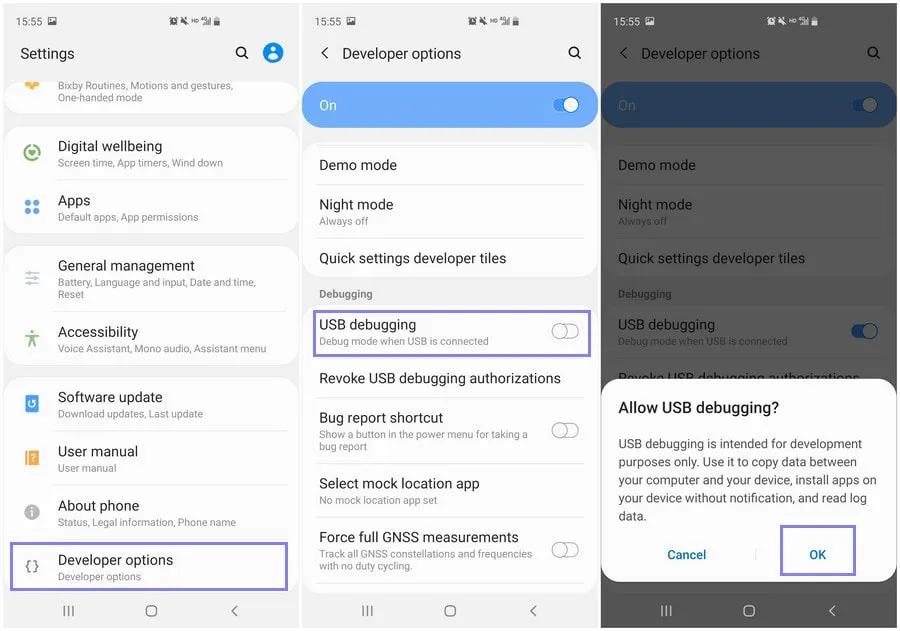
    developer option on Android Galaxy devices

    Location of Developer Options by brand:

    • Samsung: Settings → Developer options (at the bottom of the main settings menu)
    • Google Pixel: Settings → System → Developer options
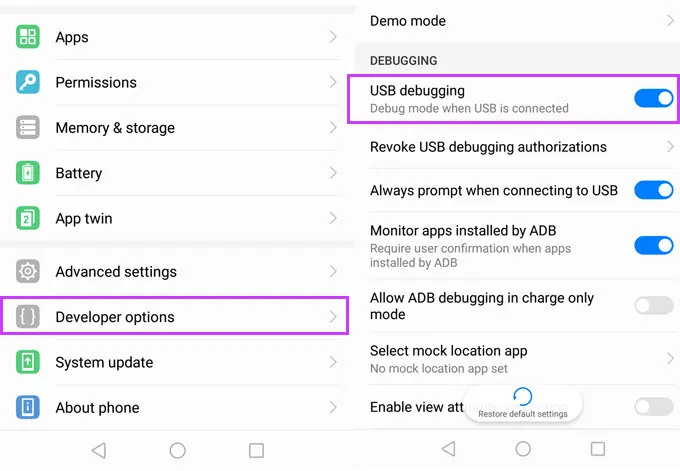
    • Xiaomi: Settings → Additional settings → Developer options
    • OnePlus: Settings → System → Developer options
    • Motorola: Settings → System → Developer options
    enable developer options

    How to enable USB debugging

    Now that Developer Options are turned on, you can enable USB debugging:

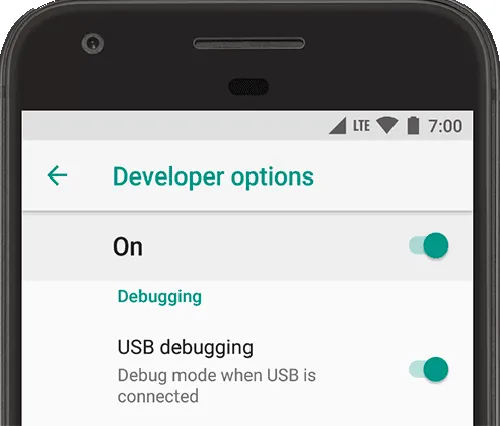
    1. Go to Settings → Developer Options
    2. Scroll down to the “Debugging” section
    3. Toggle on “USB debugging”
    4. Confirm the prompt asking if you’re sure

    That’s it! You can now use your phone with development tools or perform more advanced actions from your PC.

    When should you turn off USB debugging?

    If you’re not actively using USB debugging, it’s best to leave it off. Here’s why:

    • USB debugging can be a security risk if your device falls into the wrong hands while unlocked.
    • Some apps or company policies block access if USB debugging is enabled.

    To disable it, just return to Developer Options and toggle it off.

    Other useful Developer Options settings

    Besides USB debugging, some other features you may want to explore include:

    • Window animation scale / Transition animation scale: Set to 0.5x for faster UI response
    • Force activities to be resizable: Useful for multitasking and split screen
    • Stay awake while charging: Keeps the screen on during testing
    • Limit background processes: Improve performance by reducing multitasking
    • Show taps / Pointer location: Great for app demos or screen recording

    Be cautious while experimenting—many of these options affect system behavior.

    Troubleshooting Developer Options or USB debugging

    Developer Options not appearing?

    • Double-check that you tapped “Build number” exactly 7 times
    • Some devices require a reboot afterward

    USB debugging not working?

    • Try a different USB cable or port
    • Make sure “File Transfer” mode is selected via USB preferences
    • Check that your computer has proper ADB drivers installed

    You may access a robust collection of tools on your Android phone by turning on USB debugging and Developer Options. Although developers are their main target audience, tech-savvy consumers who desire greater control over their gadget might also benefit from them.

    These options can improve your Android experience, whether you’re using ADB to transfer files, debug apps, or simply wish to adjust animation speeds. Just use caution when navigating the options, since some settings may have unexpected consequences.

    Stay connected with the latest from Droid Tools—follow us on X @droid_tools, like our page on Facebook, check out our updates on Instagram, and follow us on Google News for real-time news, device tips, and mobile tech insights.
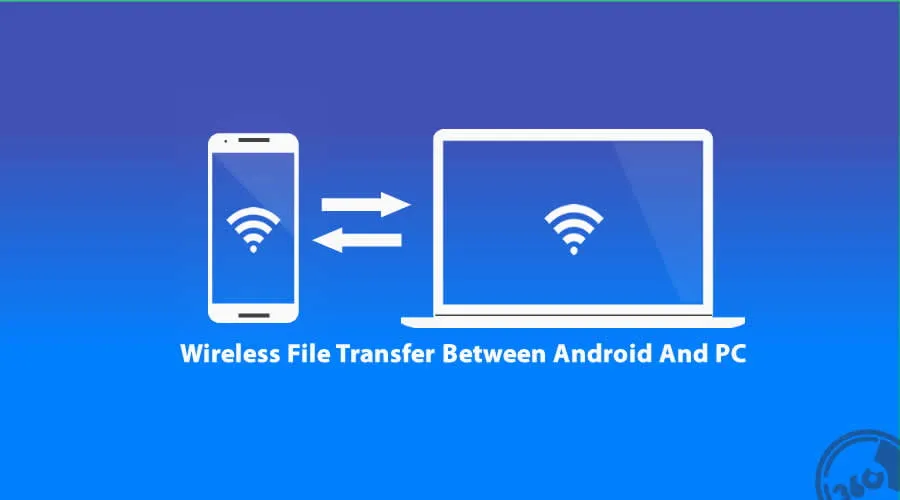
  • How to transfer files from Android to PC (no cable needed)

    How to transfer files from Android to PC (no cable needed)

    Gone are the days when a USB cable was the only way to move files between your Android phone and computer. Whether you’re transferring photos, documents, or videos, there are now several wireless methods that make the process faster and more convenient — no cables, no drivers, and no hassle.

    In this article, you’ll discover how to transfer files from Android to your PC wirelessly utilizing free built-in utilities and reliable third-party apps. All ways are easy, secure, and don’t need rooting your smartphone.

    Why Go Wireless?

    Here’s why transferring files without a cable is the smarter choice:

    • No need to carry cables or adapters
    • Works on all modern Windows, macOS, and Linux PCs
    • Faster for frequent transfers
    • No risk of physical damage to USB ports

    1. Use Google Drive (Cloud Sync)

    If you have a Google account, you already have access to Google Drive — one of the easiest ways to transfer files wirelessly.

    Steps:

    1. Open the Google Drive app on your Android device.
    2. Tap the “+” icon, then select Upload.
    3. Choose the file(s) you want to send.
    4. Wait for the upload to complete.
    5. On your PC, go to https://drive.google.com and log in.
    6. Download the files to your computer.

    Pros:

    • Seamless for documents and photos
    • Files are stored in the cloud, so they’re safe even if your phone is lost
    • Works across devices and operating systems

    Cons:

    • Requires an internet connection
    • File size limits apply (15GB free storage per Google account)

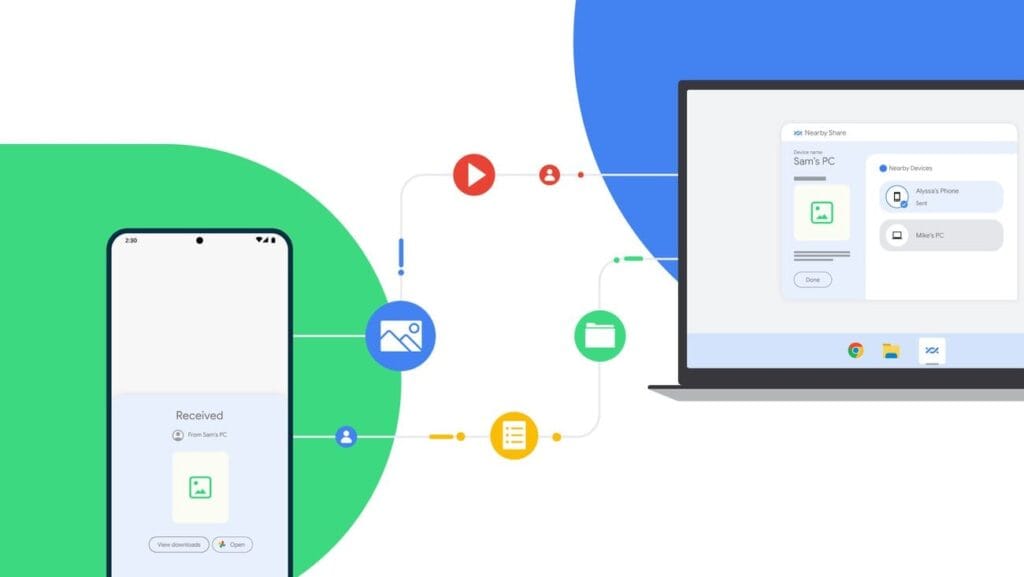
    2. Send via Nearby Share (Best for Windows)

    Nearby Share for transfer files

    Currently fully supported on Windows 10/11, Nearby Share is Google’s AirDrop-style solution for sharing files instantly between Android and Windows devices.

    Set It Up:

    1. On your Android, go to Settings > Google > Devices & sharing > Nearby Share and turn it on.
    2. On your PC, install the official Nearby Share for Windows app from Google’s website.
    3. Connect both devices to the same Wi-Fi network and ensure Bluetooth is on.

    Send Files:

    1. Select a file on your Android device.
    2. Tap the Share icon and choose Nearby Share.
    3. Your PC should appear in the list — tap it to send the file.
    4. Accept the transfer on your computer.

    Pros:

    • Fast and secure
    • Works offline (local Wi-Fi or Bluetooth)
    • No cloud storage needed

    Cons:

    • Not available on older PCs or operating systems
    • Some routers may block discovery if firewall settings are strict

    Method 3: Transfer with File Sharing Apps (like Send Anywhere)

    Direct wireless transfers between your computer and phone are possible through Wi-Fi thanks to apps like Xender, Feem, and Send Anywhere.

    Using Send Anywhere:

    1. Install Send Anywhere on your Android from the Play Store.
    2. Visit https://send-anywhere.com on your PC.
    3. On your phone, select the files you want to send.
    4. You’ll get a 6-digit code — enter this on your PC to receive the files.

    Pros:

    • Works on any OS and browser
    • No account required
    • Fast local transfer via Wi-Fi Direct (not over the internet)

    Cons:

    • Ads in the free version
    • Interface might be confusing for first-time users

    Method 4: FTP File Transfer via File Manager Apps

    If you prefer full control over file navigation, FTP (File Transfer Protocol) is a powerful option — no internet needed.

    Using Solid Explorer or ES File Explorer:

    1. Install a file manager that supports FTP (e.g., Solid Explorer).
    2. Open the app and go to Network > FTP Server.
    3. Start the server — the app will display an IP address like ftp://192.168.1.10:1234.
    4. On your PC, open a browser or FTP client (like FileZilla) and enter the address.
    5. Browse your phone’s storage and download files directly.

    Pros:

    • Full control over folders and files
    • High-speed transfers over local network
    • No cloud or apps required on the PC

    Cons:

    • Not user-friendly for beginners
    • Must stay on the same Wi-Fi network

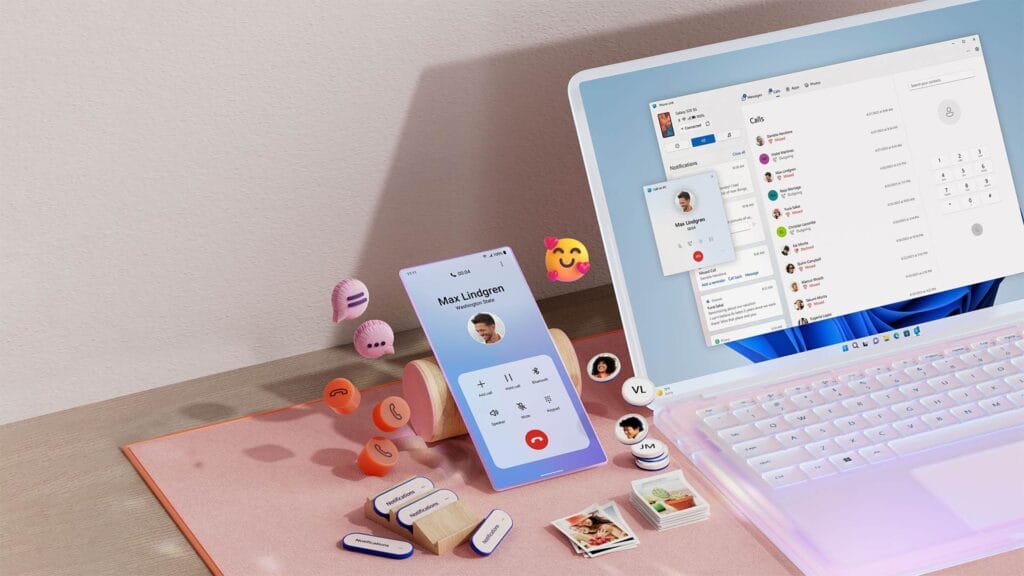
    Method 5: Microsoft Phone Link (Windows 10/11)

    msft open laptop with mobile phone floating emojis RW10WBx

    Microsoft’s Phone Link app (previously “Your Phone”) enables seamless connectivity between Android and Windows.

    Setup:

    1. On your Android, install the Link to Windows app.
    2. On your PC, open the Phone Link app (pre-installed on Windows 10/11).
    3. Follow on-screen instructions to link the two devices.

    Features:

    • Access photos, messages, notifications, and files
    • Drag-and-drop files directly between phone and PC

    Pros:

    • Seamless experience for Samsung and Surface users
    • Files transfer instantly without cables

    Cons:

    • Requires Microsoft account
    • Full feature set limited to specific models (Samsung, Honor)

    Bonus: Email, Telegram, or WhatsApp (for Small Files)

    For documents or images under 100MB, you can simply email them to yourself or use Telegram’s Saved Messages to transfer between devices.

    • Email: Attach files and send them to your own address.
    • Telegram: Send the file to yourself from your Android and download it on your PC.
    • WhatsApp Web: Share with a trusted contact and download via WhatsApp Web on PC.

    What’s the Best Option?

    MethodSpeedInternet RequiredSetup ComplexityBest For
    Google DriveMedium✅ YesLowBackups & multi-device use
    Nearby ShareHigh❌ NoMediumWindows 10/11 users
    Send AnywhereHigh✅/❌ OptionalMediumFast wireless transfers
    FTP via File ManagerVery High❌ NoHighTech-savvy users
    Microsoft Phone LinkHigh✅ YesMediumWindows users w/ Samsung

    You no longer require a USB cable to transfer data between your Android phone and computer. Whether you want to backup your gallery, transfer work documents, or send huge films, wireless solutions make the process simple and effective.

    Nearby Share and Google Drive are the most user-friendly solutions. If you desire speed and complete control, FTP or Send Anywhere would suffice, as they do not require cloud storage.

    Experiment with the way that best suits your workflow; once you go wireless, you will not want to plug in again.

  • Public phone chargers are a security risk FBI says

    Public phone chargers are a security risk FBI says

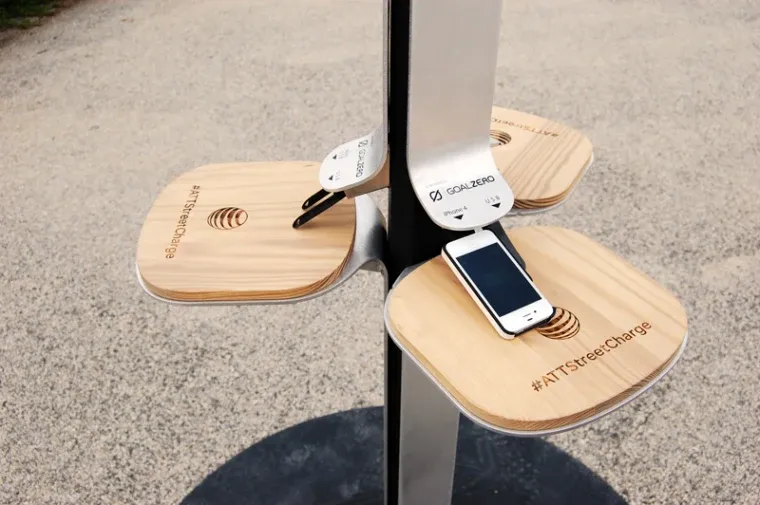
    The FBI has issued a warning on public charges that may be found in malls, airports, and other places and requests that nobody make use of them. When traveling or doing other things, it’s a good idea to utilize your own portable charger or power bank since you’re not confined to one place.

    The FBI claims that criminals have discovered a way to use USB connections available in these places to install malware and monitoring software onto devices. and advises everyone to use an electrical outlet instead and bring their own charger and USB wire.

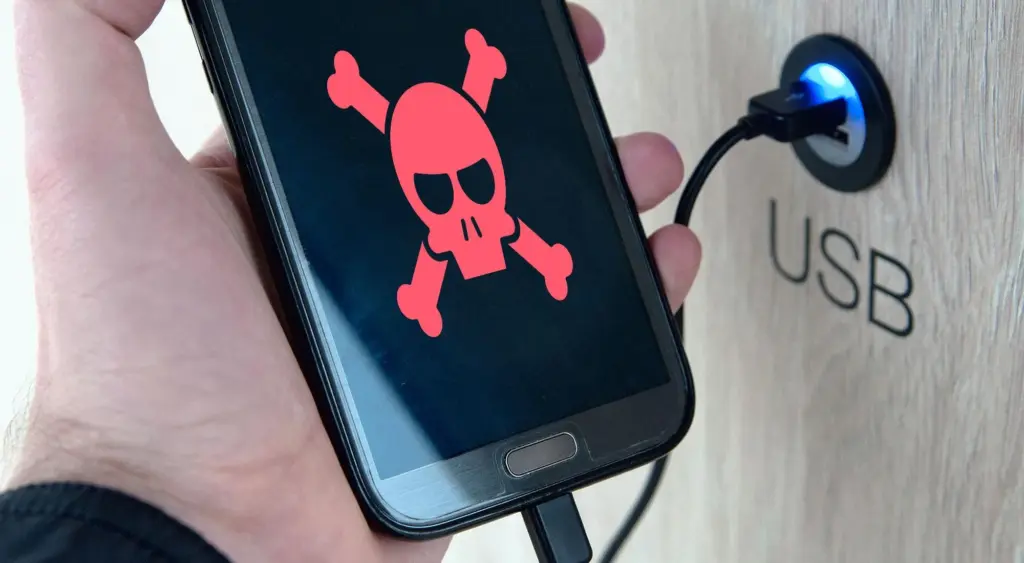
    security risk

    Juice jacking is the term used to describe this practice. This is how malicious software can be added to public charging stations by hackers. It gives them the ability to view, steal, and even track the data from your mobile devices. Regrettably, iOS devices are not immune to juice jacking; Android smartphones are more likely to be affected.

    So how can juice jacking be prevented? The simplest solution is to always travel with your own USB cord and charger. For this reason, we advise getting a battery pack for your gadget. There are numerous solutions available for this as well.

    This can be avoided

    The simplest method is to use a battery pack. Since you are not required to remain confined to one outlet, you can carry it in your pocket and wander around the mall, airport, or anywhere else. Also, it functions when you need to charge your phone but are not in certain areas.

    Although this is quite frightening, it is quite simple to avoid. It’s difficult to use one of those USB ports when you’re at the airport because they’re normally all occupied. But right now, you need to steer clear of them.

  • Express guide on how to root an Android device

    Express guide on how to root an Android device

    Please note that rooting your Android phone can be a complex and potentially risky process. Before proceeding, it’s important to research thoroughly, understand the risks and potential consequences, and proceed at your own risk. Also, the information I provide in this article may not apply to all Android devices, as different manufacturers may have different procedures and requirements for rooting. With that in mind, let’s dive in:

    What is rooting and why would you want to do it?

    root android with magisk

    Rooting is the process of gaining access to the root directory of an Android device. This allows you to have administrative privileges on your phone, which can give you more control over your device and the ability to customize it to your liking. For example, you can install custom ROMs, remove pre-installed apps, tweak settings that are not available in the default user interface, and much more.

    However, rooting also comes with some risks. It can void your warranty, make your phone less secure, and even brick your device if you don’t follow the instructions carefully. Therefore, it’s important to proceed with caution and do your research before attempting to root your Android phone.

    Step-by-step guide to rooting your Android phone

    Check your phone’s compatibility

    Before you start rooting, make sure your Android device is compatible with the rooting method you want to use. Different phones have different hardware and software configurations, so not all rooting methods work on all devices. To check compatibility, you can search online for your phone’s model number and the specific rooting method you want to use.

    Backup your data

    Rooting can potentially erase all the data on your phone, so it’s important to back up your data first. You can use your phone’s built-in backup feature, or use a third-party backup app to backup your data to an external device or cloud storage.

    Enable developer options

    android root developer options

    To root your phone, you need to enable developer options on your Android device. To do this, go to “Settings”, then “About phone”, then tap “Build number” seven times. This will enable developer options on your phone.

    Enable USB debugging

    dev options

    Once you’ve enabled developer options, you need to enable USB debugging on your Android device. To do this, go to “Settings”, then “Developer options”, then toggle on “USB debugging”.

    Download and install the rooting software

    There are many rooting software options available online, such as KingRoot, Magisk, and SuperSU. Choose the one that’s compatible with your phone and download it from a trusted source. Once you’ve downloaded the software, install it on your computer.

    Connect your phone to your computer

    Connect your Android device to your computer using a USB cable. Make sure your phone is in “USB debugging” mode.

    Root your phone

    Launch the rooting software on your computer and follow the instructions carefully. The rooting process may take a few minutes, and your phone may restart several times during the process. Be patient and don’t disconnect your phone from your computer until the process is complete.

    Verify root access

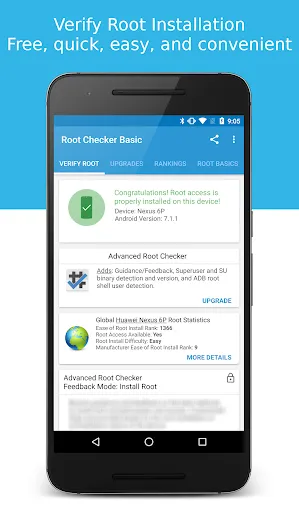
    Once the rooting process is complete, you can verify that your phone is rooted by installing a root checker app from the Google Play Store. If the app confirms that your phone is rooted, congratulations! You now have administrative privileges on your Android device.

    Conclusion

    In conclusion, rooting your Android phone in 2023 can give you more control over your device and the ability to customize it to your liking. However, it’s important to proceed with caution and do your research before attempting to root your phone. By following the step-by-step guide above, you can root your Android phone safely and enjoy the benefits of administrative privileges on your device.

  • Configure Android USB tethering on macOS

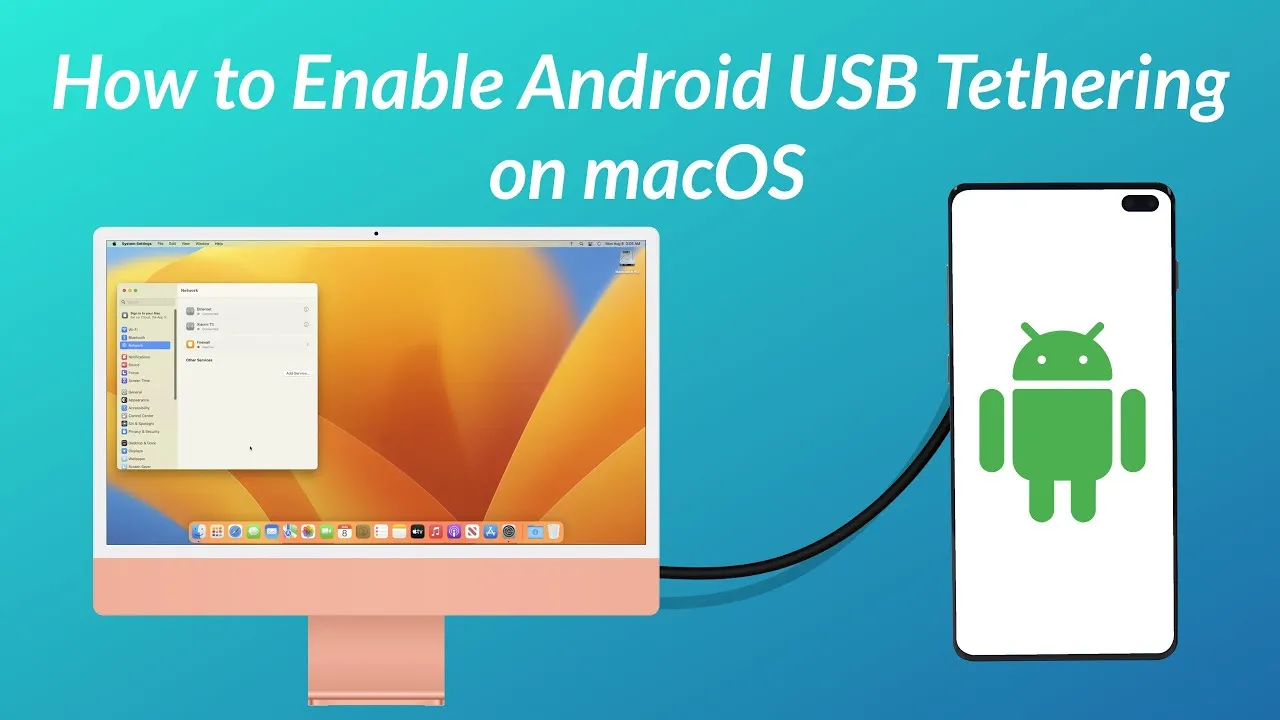
    Configure Android USB tethering on macOS

    Even though Wi-Fi tethering is the most practical method for connecting an Android phone to a Mac, you may occasionally need to utilize USB instead.

    However, USB tethering between Android and Windows is simple, but depending on the Android device you’re using, connecting it between Android and Mac can be more difficult. Here’s how to configure Mac OS for Android USB tethering.

    Use the Built-In USB Tethering Option (if Supported)

    A contemporary Android device running Android 12 or later may already have built-in support for USB tethering on macOS. To make it work, you might not need any additional strategies. For instance, on a Pixel 7 running Android 13, all you need to do is connect your phone to your computer to get started.

    1. Unlock and connect your phone to your Mac via a USB cable.
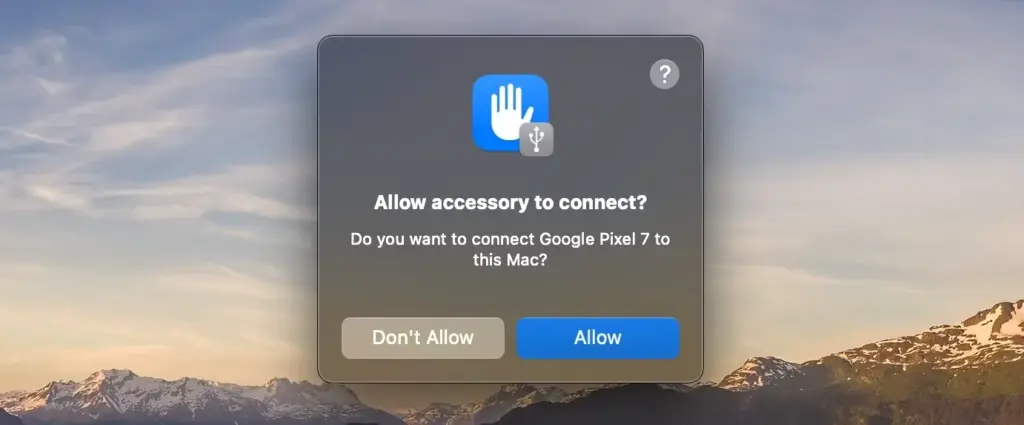
    2. If you’re using macOS 13, you may need to click to allow your phone to connect
    3. A notification will appear on your phone labeled something like Charging this device via USB. Tap on it.
    4. Under the USB Preferences screen that opens, set Use USB for to USB tethering.
    macOS tethering
    USB tethering Android

    Now that the issue has been resolved, you should be able to use your Mac to access the internet as usual. If you have a limited data plan and are using a 4G or 5G mobile data connection, be mindful of your usage.

    If the notification doesn’t appear when you connect your phone, you can instead go to Settings > Network and Internet > Hotspot and tethering and toggle on USB tethering. This option will be grayed out if your phone isn’t connected to a computer using a USB cable, and remember that some of the menus may be slightly different depending on what phone you’re using.

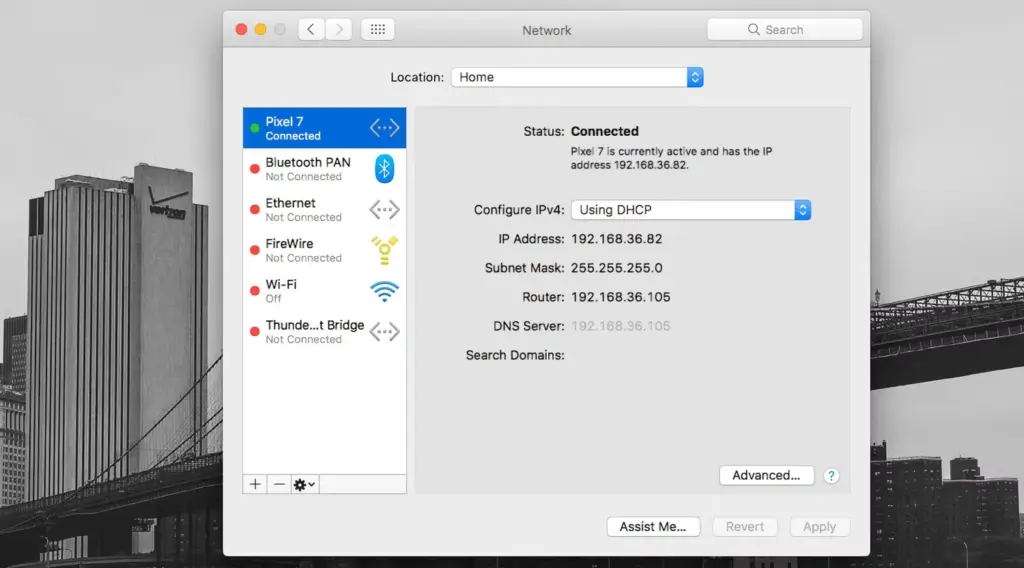
    To verify the connection on your Mac, go to System Settings (or System Preferences) > Network, where you’ll see your phone’s name listed with a green dot next to it.

    If USB tethering on macOS isn’t supported on your phone and you can’t set up Wi-Fi tethering, you do have another option. However, this comes with a potential snag of its own.

    Use the HoRNDIS Driver

    The required driver is not present on older Android devices or those that lack built-in support for USB tethering on a Mac, which prevents the sharing of an internet connection. Fortunately, you can get it working by installing the third-party HoRNDIS driver. All Android devices are compatible with this driver, which is akin to the one used by Windows computers.

    HoRNDIS is free and open-source and should work well in many cases. However:

    • It hasn’t been updated since 2018, so may not support newer versions of macOS.
    • It doesn’t work on Macs powered by Apple Silicon.

    The discussions on the software’s Github page do include some workarounds to get HoRNDIS running on M1 and M2 machines. But it’s a complicated process that involves disabling your Mac’s System Integrity Protection, so is not suitable for most users.

    Assuming the caveats don’t apply to you, here’s how to set up HoRNDIS on your (Intel-based) Mac.

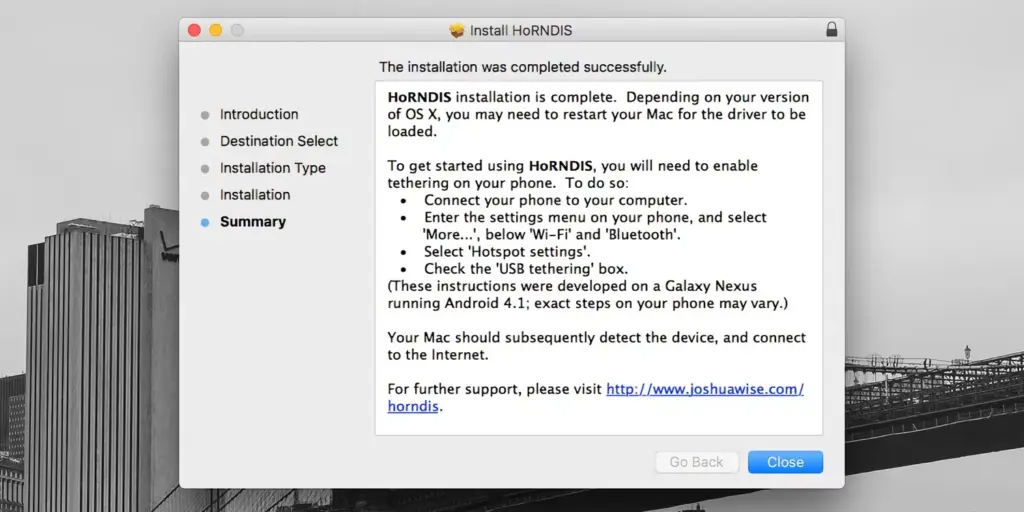
    1. Download and install the most recent version of HoRNDIS on your Mac (the PKG file).
    2. It’s a good idea to reboot your Mac at this stage, although this may not be necessary depending on what version you’re using.
    3. Now run through the steps we outlined above. Connect your phone via USB, tap the notification labeled Charging this device via USB, and set Use USB for to USB tethering.
    MacOS tethering horndis

    You should now be able to connect to the internet. Go to System Preferences > Network, where you should see your phone listed with the green dot alongside it. This confirms that the connection is active.

    To uninstall HoRNDIS, check the /System/Library/Extensions/ and /Library/Extensions/ folders and delete HoRNDIS.kext. Then reboot your Mac.

    tethering connect macos

    Using HoRNDIS is easy enough if your Mac is compatible. However, we’d only choose to use it if wireless tethering is not an option. You can troubleshoot your Android mobile hotspot to see if that helps.

    USB Tethering on macOS Is Simple

    If your Android phone doesn’t support USB tethering with a Mac natively, you’ll need to install a driver, but it’s simple to accomplish and functions as expected.

    Sharing a data connection with a desktop or laptop from your phone is practical. However, you may share the connection from your Mac to other devices as well, so it doesn’t stop there.

  • Debloat any Huawei device using ADB

    Debloat any Huawei device using ADB

    Bloatware consumes storage on your smartphone. The worst part is that you can’t immediately uninstall them from your Huawei smartphone; they go by the name of tools. This bloatware typically comes preinstalled on your device. However, occasionally they do originate from different places, such as downloading dangerous links or third-party apps. Here is a simple tutorial on how to use ADB commands to debloat or remove bloatware from Huawei.

    You must be sick and tired of the bloatware that comes pre-installed on your Huawei smartphones. And as you would have guessed, the majority of them serve no purpose other than to promote Huawei and occasionally steal your data.

    debloat huawei devices

    Why You Should Remove Bloatware Apps

    Bloatware is generally in your device to consume a lot of valuable resources, including battery juice. While it is running in the background of your device, it affects your device’s performance. It could fill your lock screen with Ads, or even your internet browser.

    How To Debloat Or Remove Bloatware From Huawei Using ADB

    Below mentioned steps are there to help you in removing the bloatware from the device. You need to follow these steps very thoroughly and successfully remove the bloatware from the device.

    Step 1: Download and install Android SDK

    The baby step toward this guide is to download the Android SDK tool from this link. This is the official tool provided by Google. The Android SDK tool is a software development kit used to develop Android applications.

    Here is how you can install the Android SDK platform Packages and tool

    • Start the Android Studio
    • Select Configure>SDK Manager
    • In the default setting dialog box, click these tabs to install Android SDK platform packages.
    • Click apply and then click OK.

    Or you can just download it directly from this link.

    Step 2: Enable USB debugging

    The next step is making your device readable by the ADB software to make changes in the ADB mode. Head on to the settings>about and enable developer mode by tapping on the build number seven times.

    Your smartphone’s developer option will be turned on.

    Now go to Settings > System > Advanced > Developer Option, scroll down and look for the USB debugging and turn it on.

    Step 3: Make sure to establish the ADB shell Connection

    The ADB command does a variety of device actions, such as installing and debugging an App and when you are about to debloat your smartphone from all the bloatware preset, Establishing an ADB shell connection is a must; here is how you can do it.

    Advertisements

    • Connect your smartphone with the PC using the USB cable.
    • Now look for the platform tool folder in the Android Studio SDK manager, in the path android_sdk/platform-tools
    • In the platform tool folder, launch the Command Prompt, by typing the CMD in the address bar
    • Now type “adb devices” in the command window to verify the ADB connection.
    • You will get the device ID (If not, try again with correct spellings). Now type “adb shell” to establish the shell environment.
    • Your device codename will be listed, which means the shell connection is established.

    Step 4: Type in the ADB commands to remove bloatware from Huawei phone

    Now you can start removing bloatware apps from your device follow the below commands.

    Type “pm list packages” in the command line. This will give the list of all the available packages and apps on your Huawei device.

    Type “pm uninstall – –user 0 PackagenName” command for removing the bloatware from the Huawei device, the command is generic.

    Advertisement

    You can replace the PackageName with the actual package name. If you want to uninstall the Huawei stock app market, just type in “pm uninstall – –user 0 com.Huawei.appmarket” to uninstall the app market application.

    List of Huawei Bloatware Packages

    Below is the list of all the packages in your Huawei phone in the form of bloatware. You can remove all these applications and packages by just typing the package name.

    Huawei Built in Application Package

    com.huawei.android.tips | Huawei Tips/Tricks
    com.huawei.android.totemweather | Huawei Weather
    com.huawei.arengine.service | Augmented reality service
    com.huawei.browser | Huawei Browser
    com.huawei.contactscamcard | Business card reader
    com.huawei.compass | Huawei Compass
    com.huawei.desktop.explorer | Desktop Service
    com.huawei.fido.uafclient | Fast ID Online function
    com.huawei.gameassistant | Huawei Game Suite (HiGame)
    com.huawei.geofence | Geofence service
    com.baidu.input_huawei | Built in keyboard
    com.huawei.appmarket | Huawei Market
    com.huawei.android.chr | HwChrService
    com.huawei.android.FloatTasks | Floating dock
    com.huawei.android.hsf | Huawei own Services Framework
    com.huawei.android.hwpay | Huawei Payement app
    com.huawei.android.karaoke | karaoke entertainment app
    com.huawei.android.mirrorshare | MirrorShare from Huawei
    com.huawei.android.remotecontroller | Huawei Smart Controller
    com.huawei.search | HiSearch app
    com.huawei.stylus.floatmenu | Floating menu
    com.huawei.hdiw | Huawei ID app
    com.huawei.hifolder | Huawei Online Cloud folder service
    com.huawei.himovie.overseas | Huawei Videos App
    com.huawei.hitouch | Floating dock by Huawei
    com.huawei.hwdetectrepair | Huawei Smart diagnosis app
    com.huawei.iaware | Huawei info app
    com.huawei.livewallpaper.paradise | Live wallpaper service
    com.huawei.parentcontrol | Parental controls functions
    com.huawei.pcassistant | HiSuite service
    com.huawei.phoneservice | HiCare app
    com.huawei.mirror  | Huawei Mirror app
    com.huawei.screenrecorder | Huawei Screen recorder feature
    com.huawei.vassistant | Huawei Voice Assistant
    com.huawei.videoeditor | Video editor function
    com.huawei.wallet | Huawei Wallet
    com.huawei.watch.sync | Huawei Watch sync function
    com.iflytek.speechsuite | Default voice input method

    Bloatware Package  List

    com.android.bips | Print Service
    com.android.calculator2 | Calculator app
    com.android.calendar | Calendar app
    com.android.carrierconfig | Carrier-specific configuration
    com.android.cellbroadcastreceiver | Cell Broadcast
    com.android.dreams.basic | Screensaver mode
    com.android.dreams.phototable | Photo screensaver
    com.android.egg |Android build’s easter egg feature
    com.android.email | Stock email app
    com.android.emergency | Emergency Contacts
    com.android.exchange | Non-Gmail email support
    com.android.gallery3d | Gallery
    com.android.htmlviewer | In-built HTML viewer
    com.android.hotwordenrollment.okgoogle | OK Google detection service
    com.android.magicsmoke | Live wallpaper
    com.android.managedprovisioning | Managing App
    com.android.mediacenter | Huawei Music app
    com.android.mms | SMS app
    com.android.mms.service | MMS app
    com.android.noisefield | Live wallpaper
    com.android.phasebeam | Wallpaper
    com.android.printservice.reccomendation | Mobile Printing service
    com.android.pacprocessor | Proxy auto-configuration
    com.android.phone.recorder | Call recorder
    com.android.providers.blockednumber | Storage of blocked numbers
    com.android.providers.calendar | Calendar sync
    com.android.providers.partnerbookmarks | bookmarking service
    com.android.providers.userdictionary | Dictionary
    com.android.quicksearchbox | Quick Search box
    com.android.soundrecorder | Sound recorder
    com.android.stk | SIM Toolkit
    com.android.vending | Google Play Store
    com.android.voicedialer | Voice search
    com.android.vpndialogs | VPN system
    com.android.wallpaper.holospiral | Live wallpaper
    com.android.wallpaper.livepicker | Wallpaper picker
    com.android.wallpapercropper | Wallpaper cropper
    com.example.android.notepad | Notepad

    Apps from Google in Huawei smartphone

    com.google.android.apps.books | Google Books
    com.google.android.apps.cloudprint | Cloud print
    com.google.android.apps.currents | Currents
    com.google.android.apps.docs | Google Drive
    com.google.android.apps.fitness | Google Fit
    com.google.android.apps.mapps | Google Maps
    com.google.android.apps.photos | Google Photos
    com.google.android.apps.tachyon | Google Duo
    com.google.android.apps.wallpaper | Google Wallpapers
    com.google.android.apps.wellbeing | Digital Wellbeing
    com.google.android.feedback | Google Feedback
    com.google.android.googlequicksearchbox | Google Search
    com.google.android.gm | Gmail
    com.google.ar.core | Google ARCore
    com.google.marvin.talkback | Talkback
    com.google.android.play.games | Google Play Games
    com.google.android.street | Google Street View
    com.google.android.videos | Google Play Movies
    com.google.android.youtube | YouTube
    com.google.tango.measure | Google Measure

    Unwanted 3rd Party app bloatware

    com.amazon.aa | Amazon
    com.amazon.aa.attribution | Amazon Attribution
    com.booking – Booking.com | Booking App
    com.ebay.mobile – eBay | Ebay SHopping
    com.facebook.appmanager |Facebook manager
    com.facebook.system |
    com.facebook.orca |Facebook
    com.facebook.katana |
    com.facebook.services |
    com.instagram.android |Instagram
    com.netflix.mediaclient | Netflix App
    com.netflix.partner.activation |
    com.microsoft.translator | Tarnslator from Microsoft
    com.snapchat.android | Snapchat
    com.swiftkey.swiftkeyconfigurator | SwiftKey Keyboard
    com.touchtype.swiftkey |Swiftkey Keayboard
    com.twitter.android |Twitter
    org.smsalliance.openmobileapi.service | SmartcardService

    Summing up all

    These days, bloatware is a common feature on Huawei devices, thus you should debloat or uninstall bloatware apps from your cellphone to free up space or simply to safeguard your privacy. You may quickly remove the bloatware from your Huawei smartphone if you complete all of these procedures and type all of the commands.

  • Download MTK USB drivers – universal

    Download MTK USB drivers – universal

    Knowing about this MTK USB All Driver is advantageous for any device operator. Software operators who already know about it profit from its advantages. This is why we show it to you, too, we want you to benefit from that.

    MTK USB Drivers

    This driver lets users attach their gadget to the windows of your computer. It lets them attach their tool to the desired machine, since they want to attach to the system for flashing stock firmware or other important reasons.

    There are many important items to connect your device, such as flashing IMEI, flashing stock firmware and connecting it to the machine to move data from the tool. Read on and learn more information about this car, including both the new and old models.

    1. All-Purpose Linking the Device: The tool helps you to connect to the windows computer with your media system and to relay data from the gadget to the computer or from the computer to the gadget in question. All you need to do is make sure you have enabled USB debugging on your gadget before attaching the device to the computer.
    2. IMEI Flashing: MTK USB all driver aids users by helping the windows computer monitor their device.
    3. Flashing Firmware: It is effortless for you to use in flashing your device. If you have Boot loop on your device or if your device is not turning on, you can use the MTK USB all driver to flash the stock firmware and also fix the boot loop on your device. After using it, your device will turn on easily, and you will easily connect your device to the computer.