From background controls to looks, Xiaomi’s HyperOS offers consumers a great deal of customization options for their phones. Nevertheless, one tiny switch among all of these choices could stealthily drain battery life without your knowledge. Owners have recently complained of unexpected power consumption in user forums and on Reddit, even while their phones are just sitting on a desk.
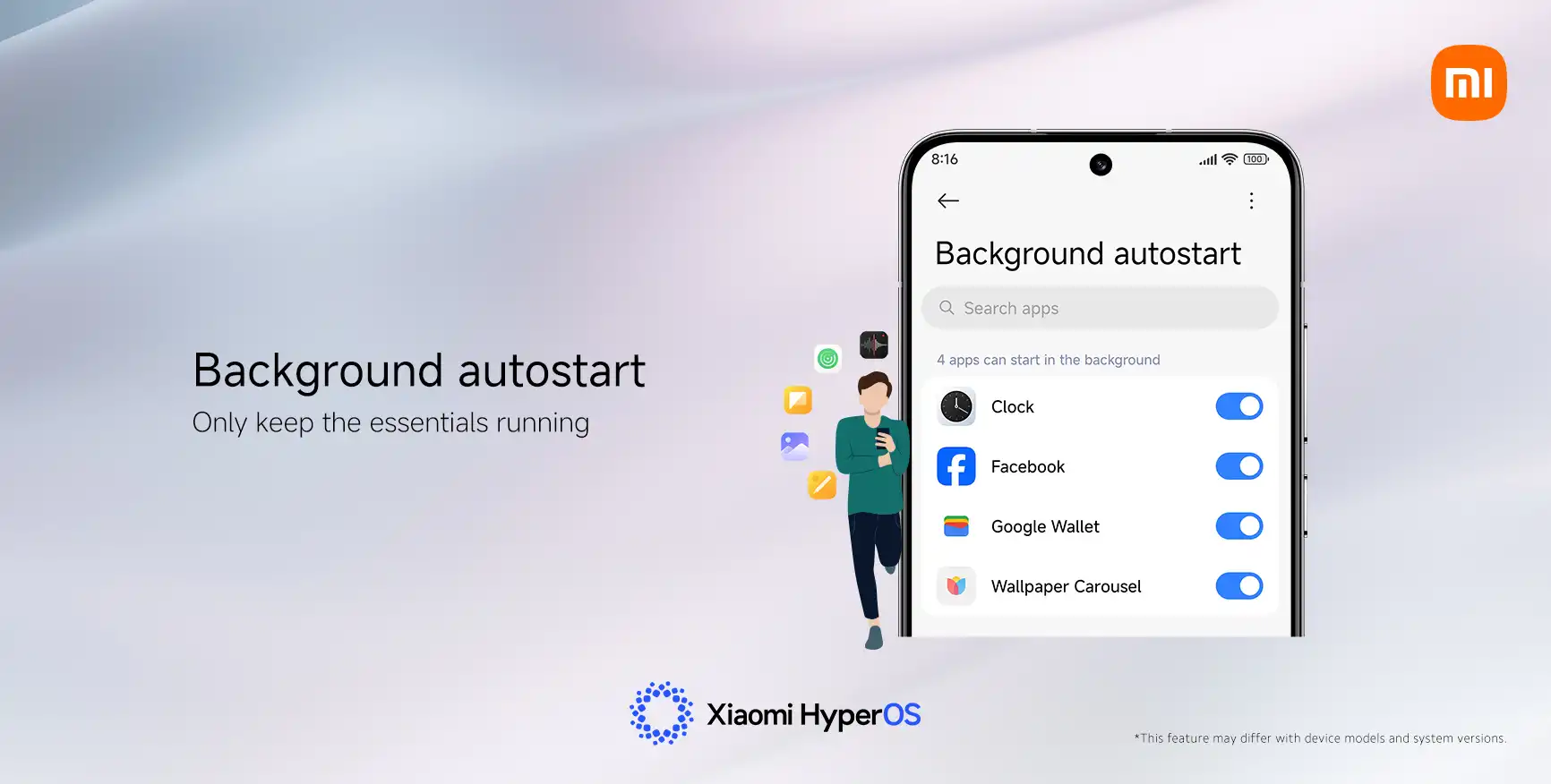
“App Autostart” is one feature that frequently appears. Its original purpose was to speed up the delivery of notifications in older MIUI systems. However, Xiaomi has already made improvements to HyperOS‘s notification system, so this choice is no longer as important.
Apps can operate automatically in the background when Autostart is enabled. Those apps continue to use memory and power even while you are not accessing your device. According to several users, turning off unnecessary autostart permissions can extend the standby duration of their phones by up to ten times.
How to Fix It in a Few Steps
You don’t need to be a tech expert to save battery life. Here’s the simple way to manage it:
Open Settings on your Xiaomi phone.
Tap Apps, then Permissions.
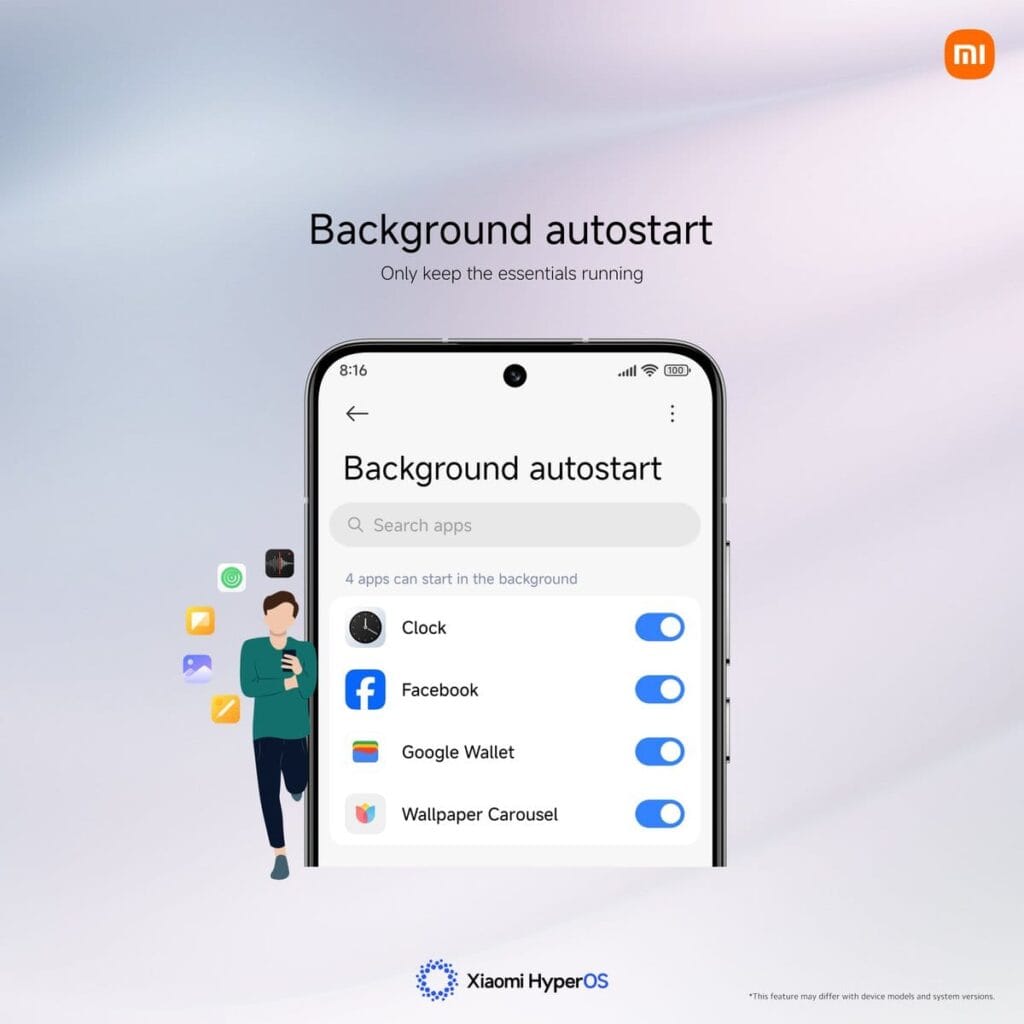
Select Background Autostart.
Check which apps are allowed to start automatically.
Turn off Autostart for any that aren’t essential.
It makes sense to limit the use of this feature to essential messaging apps like Telegram and WhatsApp. You can safely leave off tools you don’t use often, games, and shopping apps.
Other Easy Ways to Get More Battery Life
Turning off Autostart is a big help, but you can stretch your power even further by combining a few other habits:
Limit or disable Always-On Display to cut screen power use.
Use Dark Mode, especially on AMOLED screens.
Review notification permissions and mute apps that alert too often.
Shorten screen timeout so the display turns off faster.
Activate Battery Saver mode for less important apps.
A HyperOS developer recently explained on Xiaomi’s forum that small tweaks like these often have the biggest effect: “You don’t need deep settings knowledge—just consistency. Tiny adjustments add up to big savings.”
Key Points
“App Autostart” can drain battery silently in HyperOS.
Turning it off saves power and improves standby time.
Only key messaging apps should keep it active.
Combine small changes for longer daily use.
Xiaomi keeps battery controls simple but powerful.
Ultimately, practical flexibility is what Xiaomi strives for. Deep control is available when you want it, but the default settings are still user-friendly enough for everyone. A phone that drains quickly can be made to last from morning to night with a few well-considered adjustments.
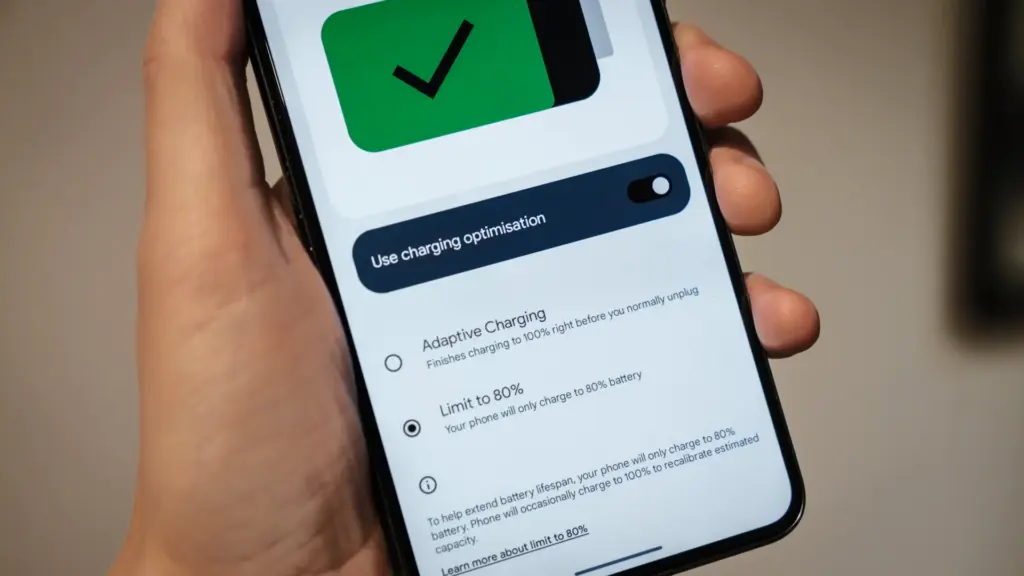
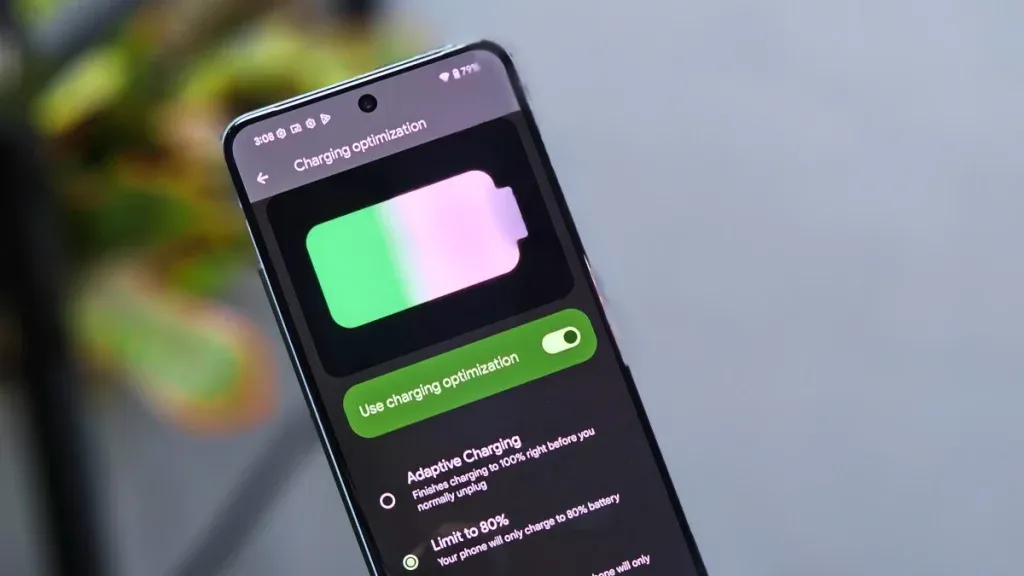
Manufacturers are beginning to realize that battery health is a major concern for contemporary smartphones due to longer update commitments. In an effort to extend battery life, Android 15 added an optional 80% charging limit in addition to long-standing features like adaptive charging. Similar features were first introduced by Apple with the iPhone 15, and many Android phones now have them as well.
However, doesn’t 80% seem like a pretty arbitrary number? Why would you want to cap yourself below your maximum capacity? It’s time to go through more fiction and truths about batteries. Here are some things to be aware of.
Keeping batteries healthy for longer
Heat and voltage are the two main enemies of battery health. Keeping your phone off of a hot dashboard, avoiding charging it beneath your pillow, and using slower charging when you don’t need a quick top-up are the main ways to manage the former. However, the user cannot effectively regulate voltage wear; voltage stress is merely a consequence of battery charging.
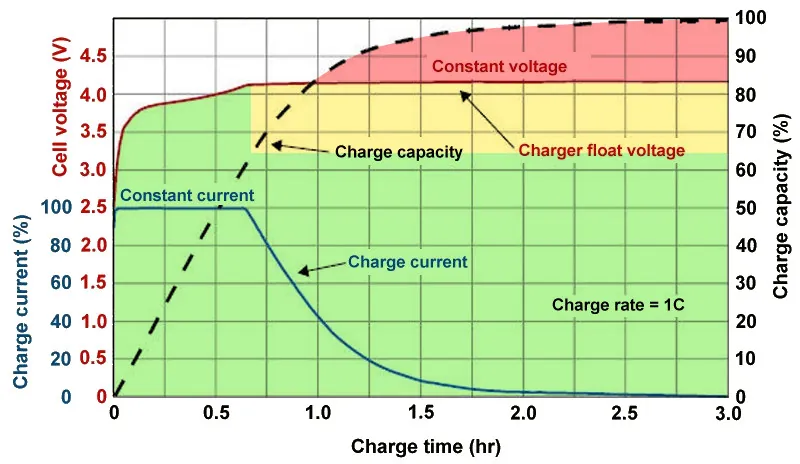
As you can see, the voltage of a nearly depleted battery is lower than that of a full one. Because there is some wiggle area below the peak voltage, which increases tolerance for voltage peaks brought on by large currents, this voltage gap can actually be exploited to accelerate charging. Many lightning-fast charging solutions operate in this way without damaging your battery. There is less tolerance between the immediate and maximum voltages, though, because a battery’s voltage rises as it fills up. Li-ion batteries will explode if their rated voltage is ever exceeded! To fully charge a battery, you must go slowly and carefully.
Although charging engineers take precautions to prevent battery explosions, wear can still happen simply by raising the battery’s voltage. The battery’s available lithium capacity eventually decreases due to anode saturation. When electrolytes are highly charged, they can also slowly break down into gases, and the cathode of the battery can also dissolve into the electrolyte. In a single case, none of this is concerning and is partly inevitable nevertheless, but over time, the additional wear accumulates and causes the battery’s capacity to gradually decrease more quickly than is ideal.
The first 60% of a battery’s voltage usually increases the fastest, after which it gradually increases until it reaches full. Stopping at around 80% is a nice halfway house because the battery is sufficiently charged to last for hours even if it isn’t quite at its peak voltage, which is where the most harm happens. The seemingly arbitrary 80% measure has a lot of sound research behind it, but is it truly helpful in real-world situations?
Should I only charge my phone to 80%?
The truth is that no matter what you do, your phone’s battery will ultimately deteriorate; the best way to handle this gradual decline will depend on your demands. The most careful chargers who maintain their phone’s temperature and adhere to the 80% rule may be able to increase the battery’s life by a year or more, which is unquestionably valuable. Whether artificially restricting oneself to 80% now is worth the long-term benefits is a personal decision.
Let’s examine the worst scenario. While many of today’s higher-end smartphones have ratings of 1,000 or even 2,000 cycles, modern smartphone batteries are typically rated for at least 500 charge cycles before depleting to 80% of their initial capacity. In the worst scenario, that amounts to about a year and a half of charging your phone every day from empty to full—a modest routine—and for longer-lasting phones, it may continue for several years. The majority of customers will most likely wait two to three years before detecting a decline in battery life, and much longer before it becomes a serious issue. And that’s assuming no additional safety measures are taken.
A year or more could pass before you need to replace your battery if you limit yourself to 80% charge.
Fortunately, most modern phones come with some built-in assistance. Taking your phone from the plug as soon as possible helps prevent stress from idle charging because phones tend to trickle charge for a time after displaying the completely charged notification, so the 100% charged notification is rarely actually quite full. By maintaining the battery at a reduced capacity and voltage until just before you normally unplug your phone in the morning, using Adaptive Charging or Optimized Charging—depending on the manufacturer of your phone—will help even more. Maintaining healthy habits like this could help your battery reach the three-year mark with ease.
Google’s latest Pixels go one step further, using Battery Health Assistance to gradually limit charging pace and battery capacity in software to keep a lid on long-term health and safety.
However, many people without extremely demanding workloads could still benefit from just charging their laptops, phones, and other devices to 80% charge (where possible) if they truly want to extend the life of their batteries. This can help you get through a normal day while also enhancing battery health. However, if you want to use your phone for the entire day, I wouldn’t advise unplugging it from the charger before 70%.
Worrying about an 80% restriction isn’t worth the battery concern if you frequently run out of juice by the end of the day, play a lot of games, or (like me) have strange charging patterns where your phone is rarely full anyway. In order to further customize the maximum restriction to your requirements, certain phones additionally provide 85%, 90%, and 95% settings. In any event, use your phone whatever you like, but be mindful that the battery will need to be changed after a few years. Don’t worry, you will need a new battery for your phone whether you intend to keep it for five, six, or seven years.
Fortunately, even for older phones, Apple, Google, and Samsung all have competitive battery replacement programs. It’s not awful to spend about $80 to keep a phone functional for many more years. However, in some areas, you may have to pay more than you should, and other brands’ availability and costs differ significantly.
With long-term ownership, these expenses are unavoidable; the only question is how many months you can try to avoid them. Adhering to the 80% rule will undoubtedly be beneficial.
Blue light is a type of high-energy visible (HEV) light with a short wavelength in the visible light spectrum. It is part of the light emitted by the sun and various artificial light sources. Blue light is known for its stimulating and alertness-inducing properties, which can be both beneficial and potentially harmful.
The primary source of blue light on Android devices is the screen display. Android smartphones and tablets emit this light from their screens to produce vibrant and colorful visuals.
Most Android devices use LED (Light Emitting Diode) backlights for their screens. These backlights emit the light to create the white light that illuminates the screen. The intensity of blue light emitted by LEDs can vary depending on the device’s settings and brightness.
The content displayed on Android devices, such as apps, websites, and videos, can contain varying degrees of blue light. For example, websites with bright backgrounds and certain apps may have a higher concentration of this light.
Android operating systems often include features like adaptive brightness and night mode settings. These features can adjust the amount of blue light emitted by the screen based on the time of day and user preferences.
The importance of addressing blue light exposure for eye health
In our increasingly digital and screen-centric world, the exposure to blue light, especially from smartphones, tablets, and computers, has become a major concern for eye health. Here’s why it’s crucial to address this light exposure:
Digital Eye Strain: Prolonged exposure to digital screens, which emit blue light, can lead to digital eye strain or computer vision syndrome. This condition includes symptoms like eye fatigue, dryness, redness, and blurry vision. It can cause discomfort and reduce productivity.
Sleep Disruption: Blue light, particularly in the evening, can interfere with our natural sleep-wake cycle. It suppresses the production of melatonin, a hormone that regulates sleep. Exposure to blue light before bedtime can make it harder to fall asleep and negatively impact the quality of sleep.
Potential for Long-Term Damage: Some studies suggest that prolonged exposure to blue light, especially from screens held close to the eyes, might contribute to long-term eye health issues. This includes concerns about the development of age-related macular degeneration (AMD), a leading cause of vision loss.
Children and adolescents are increasingly using digital devices, and their eyes are more susceptible to damage from the light due to their clearer lenses. Addressing blue light exposure is particularly important for this age group to protect their developing eyes.
Reducing the light exposure can enhance overall eye comfort, especially for individuals who spend extended periods in front of screens. This is crucial for professionals, students, and anyone who relies on digital devices for work or entertainment.
To safeguard eye health, it’s essential to take measures to reduce the light exposure, especially during the evening and night time hours. This can be achieved through software settings, apps, screen protectors, and adopting healthy screen usage habits. Prioritizing eye health in the digital age is a proactive step toward maintaining comfortable vision and preventing potential long-term eye problems.
With an Android device, there are essentially two ways to turn on Night mode or the blue light filter. You can either utilize some third-party apps or the OEM’s standard built-in blue light filter. If there isn’t a built-in filter, the latter is your only practical choice. Let’s examine both of these choices closely and discover how to use them.
If your device doesn`t support any of the option above there is another way to block the blue light with blue light glasses.
Let’s dive into our options:
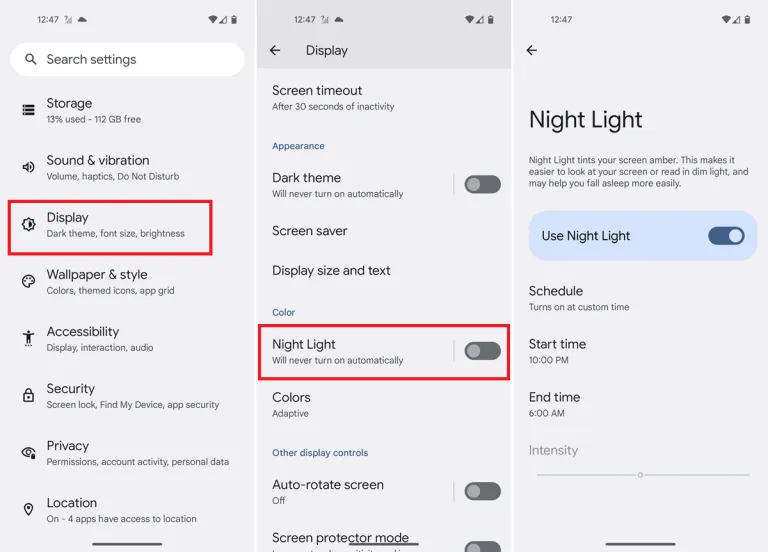
Enable native blue light filter in Android Devices
The majority of Android smartphone manufacturers have developed unique user interfaces. The user interface has been altered and customized even though they are based on stock Android. The filter may therefore be available in Night mode, Read mode, etc.
A step-by-step tutorial for turning on the blue light filter on your device is provided below.
You should typically be able to schedule the feature and change the color temperature to your preference. You can modify the color temperature with the Intensity or Opacity options, while the Schedule option lets you schedule when it turns on and off.
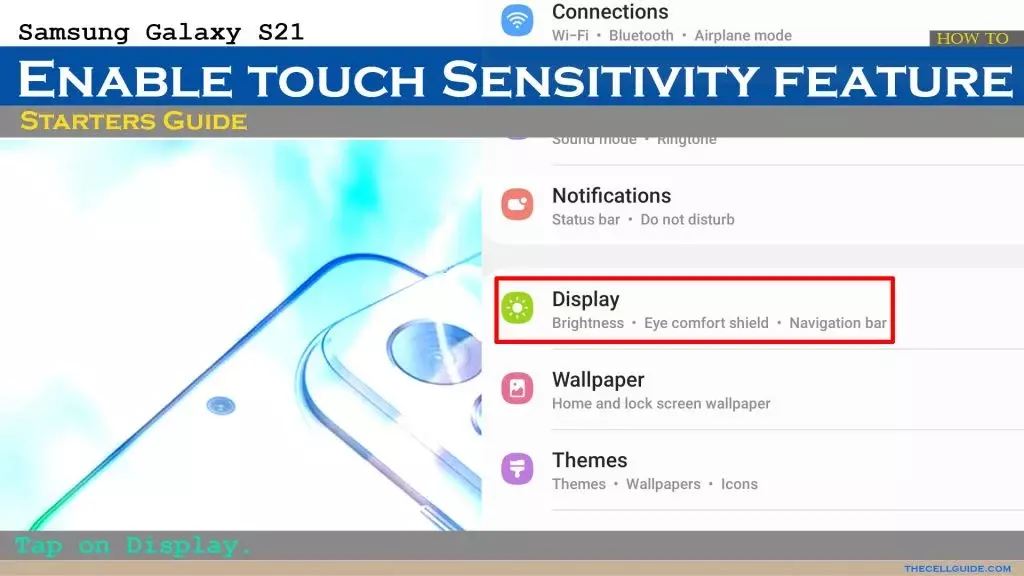
Go into your phone settings and open your Display settings.
From here, you should be able to see a section labeled Blue light filter, Night shift, or Eye comfort shield, among others. The name changes depending on what phone you’ve got.
Here, you can adjust the color temperature of your screen, turn the blue light filter permanently on, or set a schedule.
When setting a blue light schedule, you can choose between an automatic sunset-to-sunrise schedule or a custom schedule.
If using the sunset-to-sunrise schedule, then your location service will need to be on for your phone to know at which time the sun rises and sets in your local area.
If setting a custom schedule, then you will be able to manually select at what time you would like the blue light filter to turn on and turn off each day.
Use third-party apps
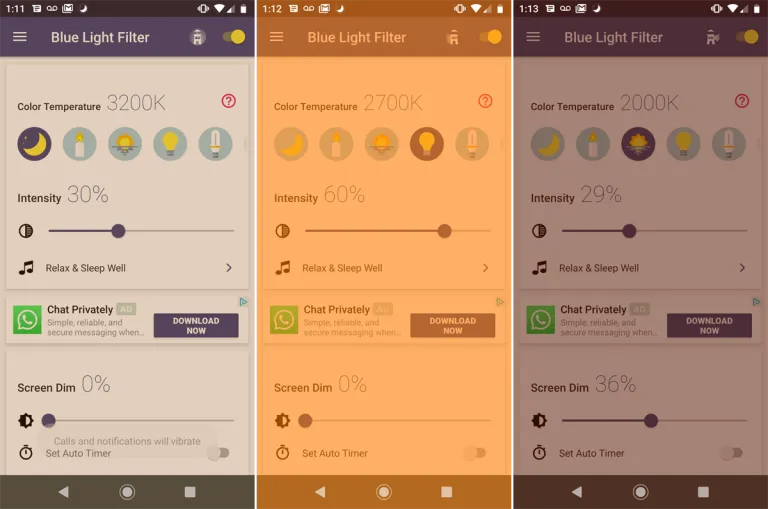
If a built-in blue light filter is not available, you can easily get an app for it from the Play Store. There are thousands of free third-party apps available that will turn on your phone’s blue light filter. A shortcut can be added to the home screen or quick access settings, the filter’s color can be selected, the strength can be changed, and other functions are available in some of these programs. We will go over some of the top third-party apps in this section that are offered on the Google Play Store.
An outstanding program that provides far more than your default blue light filter is called Bluelight Filter. To use as a filter, you can pick from a variety of hues and hue combinations. Many people find the default green filter to be more calming than the normal yellow filter. The filter’s strength is another option. Also, it enables you to add a one-tap button to the Quick access settings and a toggle switch widget to the home screen. We advise everyone to check out this simple and lightweight program once.
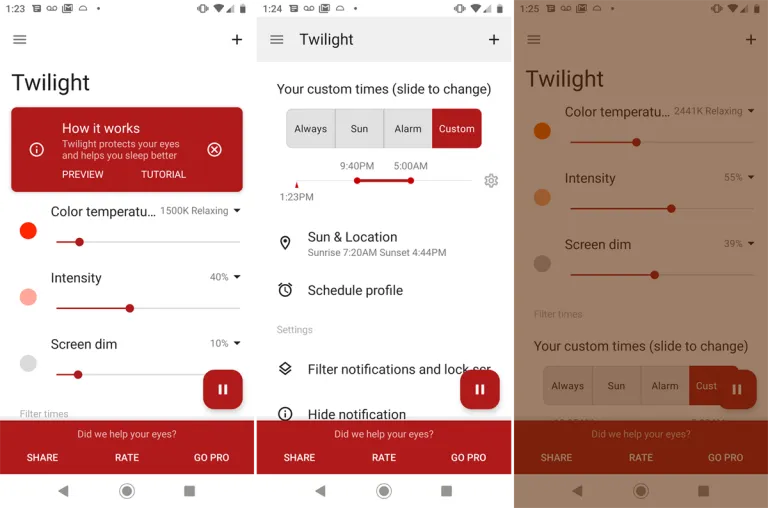
Another widely regarded free blue light filter software is Twilight. Both PCs and smartphones can use it. Instead of the conventional yellow light filter, it has a red one. Sliders can be used to change the screen dim, color temperature, and intensity. The app makes the claim that it would enhance melatonin secretion and the sleep cycle.
Using this app, you may manually activate a blue light filter or schedule it to activate and deactivate at predetermined periods during the day or night. The filter’s hue, opacity, and brightness are all adjustable. To enable the filter without opening the program, you may even build a shortcut icon or widget.
Blue light glasses
Using blue light glasses on all devices offers a multitude of benefits for both short-term comfort and long-term eye health. These specialized glasses effectively reduce eye strain caused by prolonged screen exposure, making it more comfortable to work, study, or enjoy entertainment on digital devices.
By filtering out a portion of the potentially harmful light emitted by screens, they contribute to improved visual comfort, reducing symptoms like eye fatigue and headaches. Additionally, wearing blue light glasses in the evening can promote better sleep quality by minimizing disruptions to the body’s natural sleep-wake cycle.
These glasses are particularly advantageous for children and adolescents, whose developing eyes are more susceptible to the effects of this light. Overall, blue light glasses are a practical and proactive solution to address the challenges posed by our modern screen-centric lifestyles, enhancing both immediate well-being and the long-term health of our eyes.
Conclusion
The advantages of preventing blue light from electronics are apparent, and they include both short-term comfort and long-term wellbeing. Digital eye strain can be considerably reduced by taking proactive steps to decrease its exposure, such as utilizing filters, blue light-blocking eyewear, or changing device settings. In turn, this improves our comfort and productivity while using screens for extended periods of time.
Also, limiting exposure to nighttime helps to maintain a balanced sleep cycle, encouraging improved slumber and general wellness. Safeguarding our eyes against the potential long-term consequences of blue light is a critical investment in our future vision and eye health, especially for children and teenagers. In a time when digital gadgets play a significant role in our lives, reducing the negative effects is a sensible and proactive move that will make using digital devices more comfortable and healthy.
To ensure optimal usability, smartphone makers tune the default touch sensitivity. However you might think it’s too low and have trouble with simple navigation. Poor calibration, low refresh rate settings, a thick screen protector, dampness, and other factors may all contribute to it. For your top budget phone, the majority of Android OEMs (original equipment manufacturers) provide pertinent alternatives to improve touch sensitivity.
When the touch screen on your Android phone doesn’t respond to your touches correctly, you may expect a below-average experience. Such delays in touch annoy and perplex you. Use the tips below to increase the sensitivity of your Android phone before you trade it in for an iPhone.
Increase touch sensitivity on Android
A screen protector is one of the must-have accessories to protect your Android phone’s expensive display. However, many have noticed a degraded touchscreen sensitivity after applying tempered glass on their Android devices. If you are among them, make a tweak from Settings.
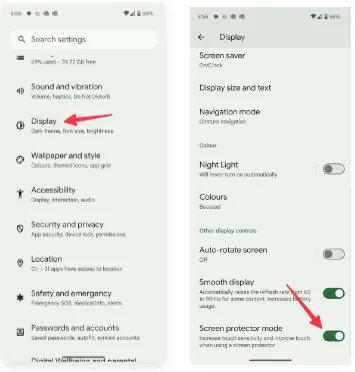
Open Settings on your Android phone.
Scroll to Display.
Turn on the Screen protector mode toggle to increase the sensitivity level.
Increase touch sensitivity on Samsung Galaxy phones
We talked about the default Settings menu that’s preinstalled on most Android phones, including the Google Pixel. Samsung uses a different Settings menu on One UI software. If you have one of the top Galaxy phones, use the steps below to change touch sensitivity.
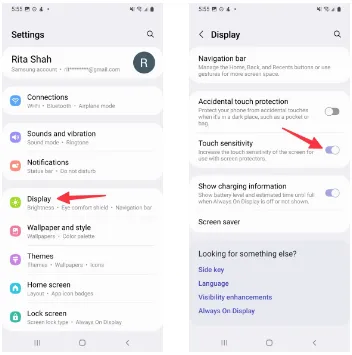
Open Settings on your Samsung phone.
Select Display and turn on the Touch sensitivity toggle.
Increase display refresh rate
Did you set your mobile device’s refresh rate to 60 Hz instead of 120 Hz? To increase the battery life of their phones, many people lower the panel refresh rate. Nevertheless, switching back to 60 Hz after being accustomed to a refresh rate of 120 Hz or greater can impair your experience with touch sensitivity. It’s time to switch your Android phone to a high refresh rate.
Open Settings and go to Display.
Turn on the Smooth display toggle.
Samsung phones
Samsung users can go through the steps below to increase the refresh rate.
Launch Settings and scroll to Display.
Select Motion smoothness.
Tap the radio button beside Adaptive.
If your LTPO (low-temperature polycrystalline oxide) display automatically adjusts the refresh rate, you can adjust the Developer settings to force the peak refresh rate, which will enhance the quality of your animations and touch responsiveness.
Increase pointer speed on Android
Do you notice lag while using a Bluetooth mouse on your Android phone or tablet? You can change the pointer speed and wheel scrolling speed from Settings.
Launch the Settings app and scroll to General management.
Select Mouse and trackpad.
Use the slider to increase the pointer speed and wheel scrolling speed.
We used screenshots from a Samsung phone. The steps may change on your Android, OnePlus, or Google Pixel phone. On some phones, it’s often a part of the accessibility menu.
Use a high-quality screen protector
Did you buy a screen protector from a sketchy Amazon listing? These below-average screen protectors often cause issues with touch sensitivity even when you increase the touch sensitivity from Settings.
You should stick to reputed names or opt for the official tempered glass from the OEM for your Android phone.
Use phone-compatible gloves
Traditional gloves don’t often play nice with modern smartphones. If your region has snowfalls during the winter, get a pair of gloves that are compatible with your smartphone.
Let your phone cool down
If you use your phone after a long gaming session or recording a lengthy 4K clip, the device temperatures go abnormally high, and you may face issues with touch sensitivity for a while. You may also notice lag with basic scrolling on the homescreen or the web page. Let your phone cool down and use it after some time has passed. The issue is more apparent on phones with poor cooling systems.
Can you use third-party apps to improve touchscreen response speed?
The Google Play Store is packed with third-party apps that claim to improve the touchscreen response speed and sensitivity of your screen during gaming. You should always take such apps with a pinch of salt. They also advertise calibrating the touchscreen to factory settings. Most of these apps are paid and may not work as expected. If you face this issue, get a refund from the Google Play Store.
In the smartphone industry now many smartphones have a large battery capacity of about 5000 mAh. With regular use, they can last up to 10 hours of full battery life, such as surfing, normal games, etc. Instead of a larger battery, modern smartphone companies are investing more in making fast chargers. In this guide, even if you don’t have easy charger help, we’ll show you how to charge a phone faster. These are 7 tips and tricks that have been tested and followed by users who operate perfectly with every smartphone in the world.
To check your current charging speed, use the Ampere app. Simply install Ampere on Android or iPhone and Plug-in the charger cable and wait for a second to measure the current input. At a normal 5V/2A charger, it would be approximately less than 2000mA showing in the app.
Tips and Tricks To Charge a Phone Faster
1. Turn ON Flight Mode
The first thing you should try is to turn on flight mode on your smartphone. Flight mode disables all incoming outgoing radio signals through the smartphone and significantly improves the charging speed. Alternatively, turn off other connectivities such as WiFi, Internet Data set to be off, Bluetooth, Hotspot, etc. Still, flight mode is more effective.
2. Do not charge your phone with Laptop
Charging your phone with a laptop could be a bad idea. When you charge your phone with an adapter, the charging speed mostly depends upon the power output of the adapter. A fast charger adapter produces from 20 to 55-watt output. Whereas, when you charge your phone using a laptop, the USB port is the current output source. And, mostly laptop’s USB ports produces 1 to 5-watt output. That’s why it would be a bad idea to charge a phone with a laptop. Instead, use a better fast charging cable and adapter.
3. Stop Background Running Apps
The reason why your battery percentage drops so quickly is running apps. There might be a few apps running in the background on the phone that result low in performance as well as slow charging speed. To prevent it, clear the recent apps from the menu and uninstall unused apps from your phone.
One more tip, do not install battery saver apps or similar apps. Those are useless apps and cut your charging speed and battery life along with smartphone performance.
4. Buy A Fast Charger
Generally, smartphone brands provide a normal 10-watt slow charge out of the box. However, if your phone supports fast charging, you should look for a quick charger with maximum output. Quick Charger 3.0 charges the battery pretty fast from 0 to 100%.
There are some hardcore gamers who like to play games all the time. Even when the smartphone is plugged-in to the charger. Doing this, you’re not only charging your phone at a very slow speed but also overheating can damager your phone or its battery. I highly recommend to not use your phone while charging, you better leave it idle.
6. Turn On Power Saving Mode
Batter saver or power saver mode is an inbuilt feature in Android and iPhones both. By turning on power save, you can expand your smartphone battery life as well as charge your phone faster. However, this mode turns off background running applications and background data usage in some cases.
To turn on Power saver in Android, go to Settings > Battery > Battery Saver > Tap to Enable. Power saver mode for iPhones, go to Settings > Battery > Turn Power Mode on.
7. Turn Off Your Phone to Charge Faster
Lastly, turn off your smartphone and plug-in to the charger. Switching off your smartphone disables almost every functionality and disconnects every connection. Hence, this is the most effective way to charge your smartphone’s battery at peak speed.
However, this wouldn’t be possible for users who receive important phone calls frequently
In the previous post, we discussed how by following some tips & tricks, you can boost the battery of your Android smartphone.
There are so many reasons why the performance of an Android smartphone would slow down. For instance, Android is too old, with low RAM & ROM, full storage, etc. Today, to get the best output from an Android phone, we’ll look at every problem and try to solve all of them. So, as you might have guessed, following are some smartphone tips to instantly enhance your Android smarthphone performance.
Uninstall unused apps
This is one of the reasons why it’s very sluggish on your Android. In general people install lots of Android applications even though they are not using them on their smartphone. Not only does having so many apps require room, but it also slows down performance. Just go to your smartphone settings then manage apps and uninstall those apps that you’re not using currently.
Your Android also has certain device bloatware that you can not easily uninstall. However to delete these types of software, I have made a separate post, you can read that from here, How to Uninstall Device Bloatware from Android Phones.
Keep some storage free
If your smartphone has a large storage capacity, the chances are it will not lag too much. This is because there will be lots of free spaces in memory to load apps resources. Whereas, there’ll no space to load the resources if your phone has low storage capacity. That’s the main reason for slowing down a smartphone performance. Always make sure that your smartphone has 3GB to 4GB memory free in ROM and slightly less in RAM.
To free your storage, you can delete the junk files and unnecessary files including useless WhatsApp photos, videos, thumbnails, etc.
Update your OS
With every Android update, smartphones still get better. New functionality, bug fixes, optimized performance and other enhancements are included in the update. So to get security updates and overall improved system performance, always keep your system updated.
An update, however, can often contain a massive bug, but it seldom occurs. You will collect reviews from users about the new update and then decide whether or not to install it.
Factory reset
After a long smartphone usage, it looses the performance overtime. Also, whenever smartphone software becomes too old, it loses the smoothness and performance as it was in the brand new smartphone. Which requires to perform a factory reset to fix some errors and clear all the smartphone logs from the memory. Well! there are many ways to reset an Android phone but you can reset your phone Settings > Backup & restore > Reset.
Do NOT INSTALL speed booster apps
From the play store, you can get tons of speed booster apps which promise to increase the performance of Android within a single tap. Oh, NO! Don’t install those kinds of software. Instead as a struggling launch app, that will make your phone much more laggy. They have clear frequent cache memory for multi-tasking, which is fine. In a nutshell, do not use boosters for speed.
Try new launcher
Some issues cause the output of the smartphone to slow down after using the default Android launcher for a long time. Well! Well! Oh! You’ve got too many launchers at the play store there. The best launcher, in my opinion, is Nova. See if your Android performance improves after upgrading to a new launcher, then follow other tips to stick with it.
Clear apps data or cache
An app increases its size when you start using it. And, sometimes size grows massive large to 1GB or more. Cache data are vital to load apps faster but creates problems when it stores than usual data that are no longer in use. And, it’s our responsibility to clear cache memory to free the useless filled storage. It makes smartphone fast as light. To clear cache of Android apps at once, go to Settings then tap Storage, choose Cache and delete them. Another way to do this, go to manage apps from settings and choose apps and clear data & cache one by one.
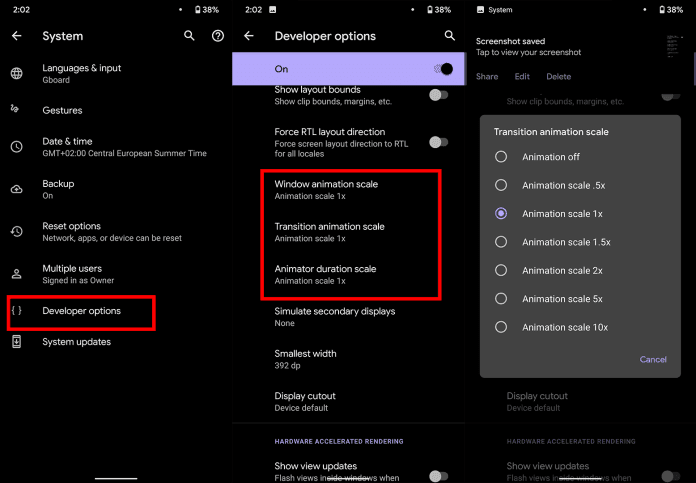
Increase animation speed
Increasing animation speed doesn’t directly increase the smartphone performance, however, it gives a feeling of fast performance. You can adjust the animation speed from Android developer settings. To get developer options, Go to Settings > About > Build number > tap 7 times.
Now, open developer settings and find these three options and set their value to 0.5 or turn it off completely.
In recent months, Google Assistant has grown a lot and is one of the most innovative online voice assistants available today. These days, it is also built into all Android smartphones, so it is very popular.
Voice assistants are often not ideal or not ideal for all, it would be best to disable certain features in some cases to provide a better user experience and protection.
By disabling some Google Assistant settings, not only for better protection for our privacy but also we will be able to make the use of the big G-assistant more comfortably, compared to the basic configuration.
These changes are very simple. In short, the use of Google Assistant can (and should) be customized according to our needs to derive real benefit from it without giving Google complete access to our data.
To protect your privacy when using Google Assistant, you need to follow these five tips:
The new Google privacy settings updates do not automatically record what we are asking the Assistant to do. In the past, these recordings were sent to research teams composed of actual people who listened to our words to see whether the algorithm had reacted effectively.
If we want to manually disable (or enable) these recordings, we need to open Google Assistant by pressing the home button for a long time (or you can also install the Google Home app, but it’s easier to disable it via Google Assistant).
Open Google Assistant, tap on the profile picture at the top right of your computer to go to the settings. Then go to the “You” tab and “Your data in the assistant.“
Scrolling down, you will find “Audio recordings.”
From there, you will be able to see what Google Assistant has recorded, delete the audio clips, and choose whether to turn off the recordings entirely or pause it, etc.
After the Assistant replies, the phone’s microphone is reactivated while Continued Conversation is active, to hear any other questions. We would not have to say the activation expression “Hey Google” again this way.
To disable this Google Assistant feature, after opening the Google Assistant settings, go to the ‘Assistant’ tab. Then tap on “Continued Conversation,” and you can disable or activate it there.
In certain smart devices, such as speakers, the Google Assistant often activates for no reason, or it often takes too long to activate. This is due to an incorrect configuration of the activation phrase sensitivity.
You can adjust this sensitivity by going to ‘Assistant settings > Assistant tab’ and then selecting the computer that the Assistant is active on (if you have more than one linked to the same Google account).
Then tap the Settings button, and you can find and change “Hey Google Sensitivity.” This function may be restricted or absent depending on the language you are using the Assistant. For smartphones, this option is not open. It is primarily for other devices that are smart.
Video Camera
If we use a smart display with a camera, then this hardware part can be accessed by Google Assistant to, for example, start a video call.
Even if we do not call anyone, some smart displays hold the camera running, and this might become a privacy problem. The management of this part is therefore important, but unfortunately, it differs from model to smart display model.
Therefore, after the purchase, you can automatically search for a way to set the camera so that it does not work until it is really necessary.
Via the Google Home app, you will know exactly what Google tracks, just open it and tap the profile picture first and then the menu.
You’ll find “Google Activity Controls” here and pick the “Manage Activity” option after opening it, and you’ll see an interface displaying all the things you’ve done online: websites, games, etc.
So, yeah, Google knows what you do, but by trying the options listed above, you can cover those things. So next time, in order to protect your privacy, better disable these Google Assistant settings.
What are the most commonly asked questions from Android users? Like, how is Android getting faster? How can I make my Android phone faster? Well, it is the hope of every Android user that their phone defies all the boundaries of fluidity and rapidity.
But do you believe this is true? Can you make your Android phone faster than it can? At most, what we want is to make the Android system function as if it’s new, because our smartphone is slowed down by downloading apps and using them everyday. These apps run in real-time and consume the device’s memory, energy , and other resources.
So, what could be the many ways to use our Android devices efficiently, in such a way that we could reduce the lags and freezes as much as possible if not completely?
Keep the apps you use
Nearly every guide to Android tips and tricks you could read will suggest that you keep only those apps you use on a daily basis. Doesn’t that sound apparent? Will you store your house with unnecessary items only because they are free? Yeah, our homes are always loaded with items like that, but do we have to do the same with our smartphones?
In order to keep running, numerous apps that live inside our smartphones run all the time and need to connect to the Internet. Even if we don’t benefit from these applications, they will just place a burden on the hardware even raise our data bills. It would be a smart step in the direction of speeding up Android to get rid of such software.
Clear the cache
On a daily basis, there are some applications that you don’t need, but they are relevant enough to have a place on your computer. Like, you book flights, hotels, and order food with the apps you use. Try to delete the cached data for such apps in the Settings to make Android quicker, to ensure that they do not take much space when they are not in use. Often learning the cached data helps to make the app faster as it eliminates old data that might make it slow and cause freezes and crashes. The application will maintain newer versions of the same stuff when the data is removed.
Clear the memory several times during the day
Android has exceptional abilities for task management. It can, whenever needed, close unwanted processes on its own. But I can tell you this old-school thing would be of great help if your system had a RAM shortage.
Nearly every launcher nowadays provides the option of freeing up system memory. If there is no memory cleaning application, you should consider downloading any. And I am not talking about the apps here that claim to make your Android phone faster by running cleaning operations in real-time. And all they do is make it even slower on the computer.
Check if there are lighter versions of apps
Many of the popular apps like Facebook, Twitter, Messenger, and Opera also have versions of their ‘lite’. These lightweight applications are also designed for smartphones at the entry-level and for consumers needing to keep things simple.
The efficiency of your Android phone can be enhanced by using Lite versions for applications. And they also decrease your data bills, and it’s one of the reasons that there are such games.
Update your device
Each newer version of Android comes with different performance enhancements. So, updating your computer will do wonders and accelerate Android if your vendor is good enough to release one.
Alternatively, you can head over towards custom ROMs for your Android device if you think the device maker built the phone and just forgot the fact that it exists anymore. That is the case of the Mi Pad my friend brought more than a year ago. Even though the device has capable hardware, it still runs Android KitKat. Please note that using customs ROMs usually comes in the category of Android performance tips for experienced users.
Before you install an app
It’s almost a decade since Android came into existence and the number of apps for the platform has now grown into millions. But out of these uncountable number of apps and games, not all of them are designed by developers with good intentions.
Many Android apps are fake and want to take control of your device, steal valuable data and send it to their masters. For instance, the System Update malware lived in the Play Store for three years, undetected.
Google has recently rolled out Play Protect tool for scanning such apps. Indirectly, you can make your Android device faster by this option. However, you should check the authenticity of an unknown app before you install it, even if you’re downloading it from the Play Store.
Format your SD Card to improve Android performance
If you experience frequent crashes on your Android phones, one of the explanations might be a corrupt SD. Formatting the SD card would not only delete the unnecessary junk of files generated by the Android framework and various apps, but could ultimately lead to a boost in performance.
Update only over WiFi
In order to keep the information fresh all the time or do other things such as uploading files, images , videos, several apps need to update themselves in the background. Disabling background data can thus render an Android computer, to an extent, faster.
That’s because it bars apps from linking to the internet and from using device tools. Turning off background data for mobile networks will also be helpful in saving your internet bills.
Alternatively, you can turn off auto-sync on your Android device if you want to keep your device from being synced by Google.
And turn-off auto update in Google Play by visiting Settings > Auto-update apps > Select Auto-update apps over WiFi only.
Restart is what your Android phone needs sometimes
For our computers, this applies; restarting the machines will help them find their way through tough times. Similarly, Android devices may be the case too. It deletes temporary files to speed up Android when you reboot your computer and also cleans up the memory of the device.
Use the cloud, free your storage
Files are being transferred to the cloud in the latest 2017 storage fashion. Not only does this make our data available across devices, it also frees up precious internal storage on the Android phone that applications installed on the device can use. Keep in mind that internal storage plays a significant role in your Android phone’s output.
Keep your home screen clean
It sounds good to fill your Android home screen with live wallpapers and loads of widgets. However, all these things put additional load on the hardware under the hood and affect the output of the system.
Often, when you use a heavy app or play games, you may see your Android device struggling to load the contents of the home screen.
One of the many ways you can make your Android phone quicker is to keep your home screen as clean as possible. Every time you return to the home screen or wake the computer from sleep, it doesn’t have to load all the content.
Try other launchers made for Android
android launchers
Custom launcher is a perfect way to turn your Android computer into a whole new version of itself. It might not be feasible for a custom launcher to have a major performance boost related to hardware, but some of them suck much less memory and Processor than others. Installing a lightweight custom launcher will thus make your Android phone functionally faster.
In addition, the variety of shortcuts, customizations, and other options will help to make your Android device run faster, if not faster. These applications will reduce the time that people would possibly spend in searching different apps and settings on their devices.
What to do when your Android phone freezes?
It’s hard to digest, but some evil apps and processes make our device experience the temperatures of hell. But repeatedly tapping the screen or pressing buttons would only make things worse when your Android freezes due to an app crash or when all RAM gets consumed.
Under such cases, strive to show some calmness and maturity. Most of the time, it’s just the app, and pressing the home button will take you to home screen. After that you can destroy the affected app from the Recent apps section to make Android faster.
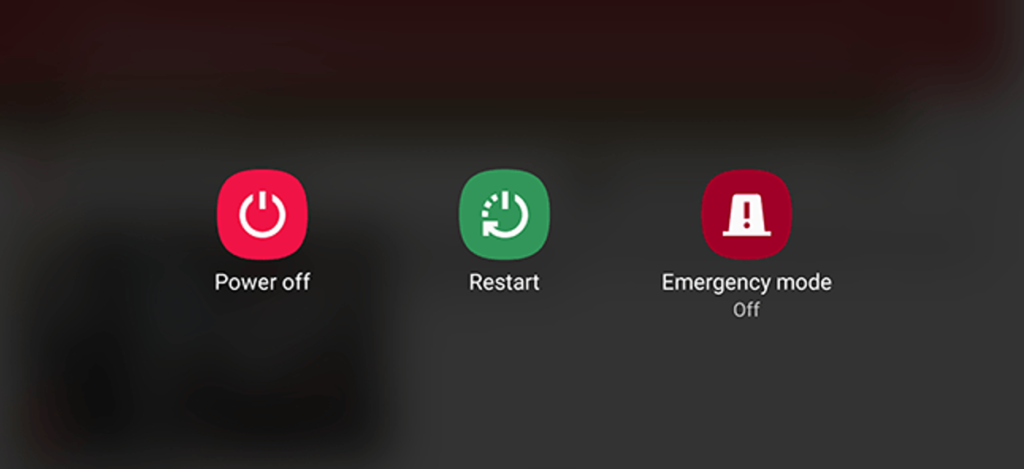
When you press the home button, if nothing happens, press the power button gently and try to ‘reboot’ or ‘turn off’ the system. If the system is stubborn enough to resist a restart you may remove the battery. If your mobile has a non-removable battery, you can have all the time, but you may have to wait until the battery is discharged.
Developer options
There is a much popular way to make an Android device faster by tweaking some settings in the Developer Options. However, I personally don’t like this suggestion as it leaves the device without any special effects.
You can enable Developer Options on Android by going to the About section and tapping the build number five times consecutively. Then, you’ll be able to see Developer Options in the Settings. You can disable animations on the device. Set Window animation scale, Transition animation scale, and Animator duration scale to off.
This change reduces the time wasted on rendering various visual effects on the screen when you operate, making it work quicker in some sense. Go ahead if you’re fine that your device appears to be running a decade old software when it’s not.
Reset your device
Last and but not least, the ultimate option to make your Android phone faster is to perform a factory reset. You can consider it if your device has slowed down to the level that can’t do basic things.
There are two ways to reset on your Android device. First is to visit Settings and use the factory reset option present there. This would perform a soft reset of your device which involves resetting device settings and wiping all the data like your photos, videos, apps, cache, etc.
For deeper cleaning, you’ll have to boot into recovery mode and hard reset the device. After you turn off the phone, on most Android devices, recovery mode can be accessed by pressing Power and Volume Down button for around 5 to 10 seconds.
You will need to boot into recovery mode for deeper cleaning, and hard reset the computer. On most Android devices, after you turn off the handset, you can access the recovery mode by pressing the Power and Volume Down buttons for around 5 to 10 seconds.
In most situations, though, you should stick with the first process, as it will fix problems for you. And, try to back up the data before you do something.
So, these were some of the Android tips and tricks for your phone with a hope that you’d be able to give it some adrenaline rush.