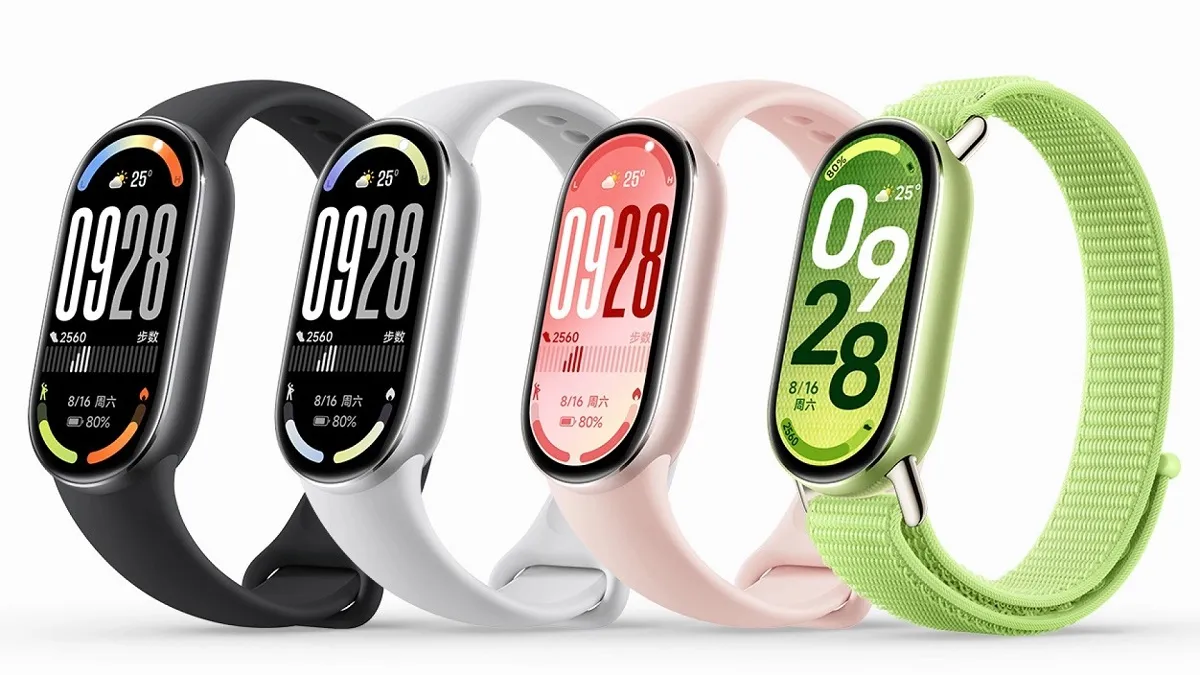
After a few weeks of using the Xiaomi Band 10, I’m starting to see why the company is attempting to market this wearable as more than simply a fitness tracker. By combining convenience, adjustable design, and health tracking into a single small device, the Band 10 lives up to its marketing slogan, “Fit in Style.”
The Xiaomi Band 10 is intended for consumers seeking a harmonious blend of fashion and functionality. It’s helpful for someone who values a wearable that looks well in both casual and business contexts, is health-conscious, and wants to track their progress.
Design and display
The 1.72-inch AMOLED display was among the first features I liked. With a resolution of 212 x 520 pixels at 326 PPI, it is crisp, and at 1500 nits, it becomes bright enough to be seen outside. Additionally, compared to previous versions I’ve tried, the 60Hz display rate makes navigating menus feel more fluid.
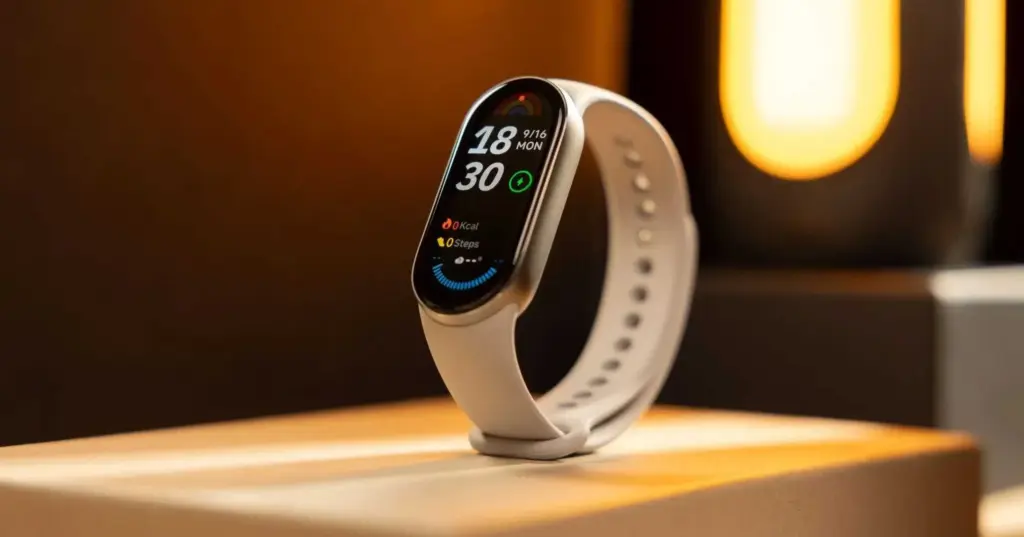
I appreciate that Xiaomi allowed for some design freedom with the Band 10. It feels high-end thanks to the ceramic frames and aluminum alloy, and I can quickly switch up the style with the many strap alternatives (TPU and fluororruber in various colors). I wasn’t limited to a few static designs because there is even more personalization space because to the 200+ watch faces. However, I don’t update it very often. I’ll be stuck with a design for months after I feel familiar with it. Additionally, I didn’t have to worry about splashes if I perspired while working out because of its 5ATM water resistance.
Fitness and health tracking features
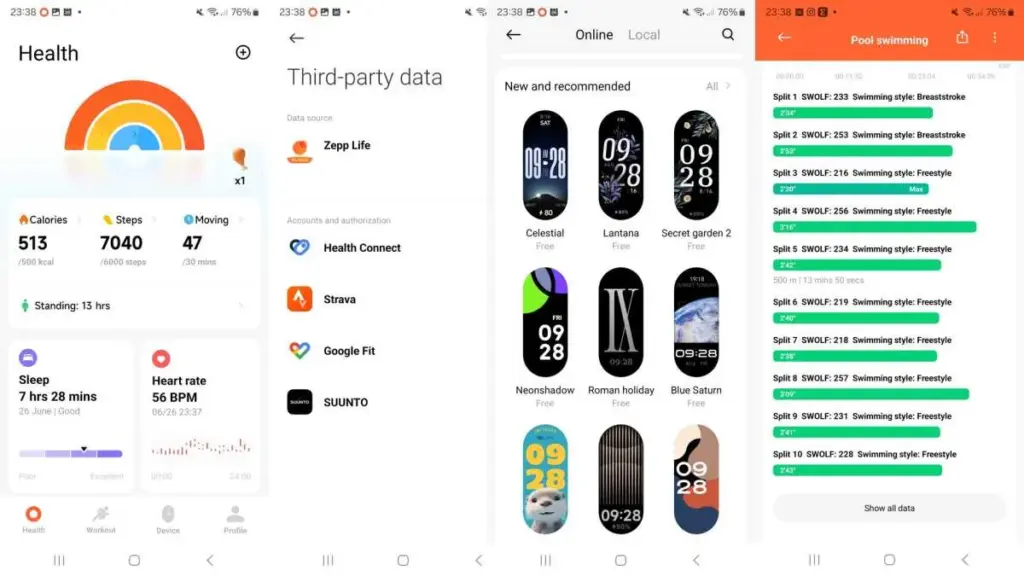
The Band 10 has more than 150 workout options for fitness. I primarily used it for strength training, indoor cycling, and jogging, and the monitoring was reliable. I also utilized it for hula hoops and jump rope.
One of the advantages is health monitoring. When combined with other devices, I found the heart rate broadcast capability to be helpful, and the heart rate sensor performed well for both daily monitoring and exercise. In addition to recording my number of hours slept, sleep monitoring provided me with tailored advice on how to enhance the quality of my sleep. The Band 10 does a good job of keeping me informed about my health when combined with all-day SpO2, stress, and activity tracking.
All of this is synchronized with the Mi Fitness app, which displays the data in an uncluttered, readable format. I like that the app allowed me to establish precise targets and monitor long-term changes.
Battery
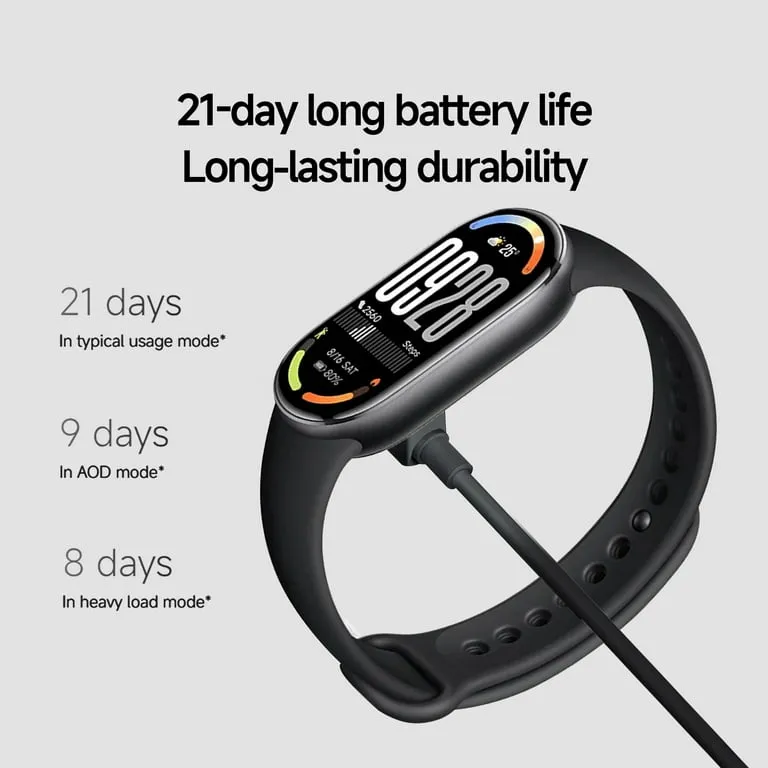
Another advantage is battery life. Xiaomi says that the 233mAh battery may last up to 21 days of normal use. In my tests, I was able to use it for around two weeks with the brightness, workouts, and alerts set fairly high. Considering that many smartwatches only survive three days, it’s still excellent.
It’s also convenient to charge. It is simple to top up even between hectic schedules because the magnetic charger clips on simply and I was able to get a full charge in approximately an hour.
The Xiaomi Band 10 is compatible with iOS (12.0 and above) and Android (8.0 and above), and it supports Bluetooth 5.4. It was easy to pair, and the connection held.
I was able to view call alerts and read messages on my wrist without continually checking my phone thanks to the effective notification system. Convenience was increased by the seamless operation of basic controls including music playback, weather, and reminders.
What struck me after wearing the Xiaomi Band 10 every day was how effectively it struck a balance between being a fashion piece and a health tool. The lightweight design makes it simple to wear all day and even at night for tracking sleep, yet the screen is bright enough to make it feel like a tiny smartwatch.
That’s precisely what I want in a fitness band—I didn’t feel the need to take it off frequently. I seldom ever had any latency, the user interface is straightforward, and the touch reaction is fast. It concentrates on elements that make sense for its intended audience rather than being overburdened with extraneous features.
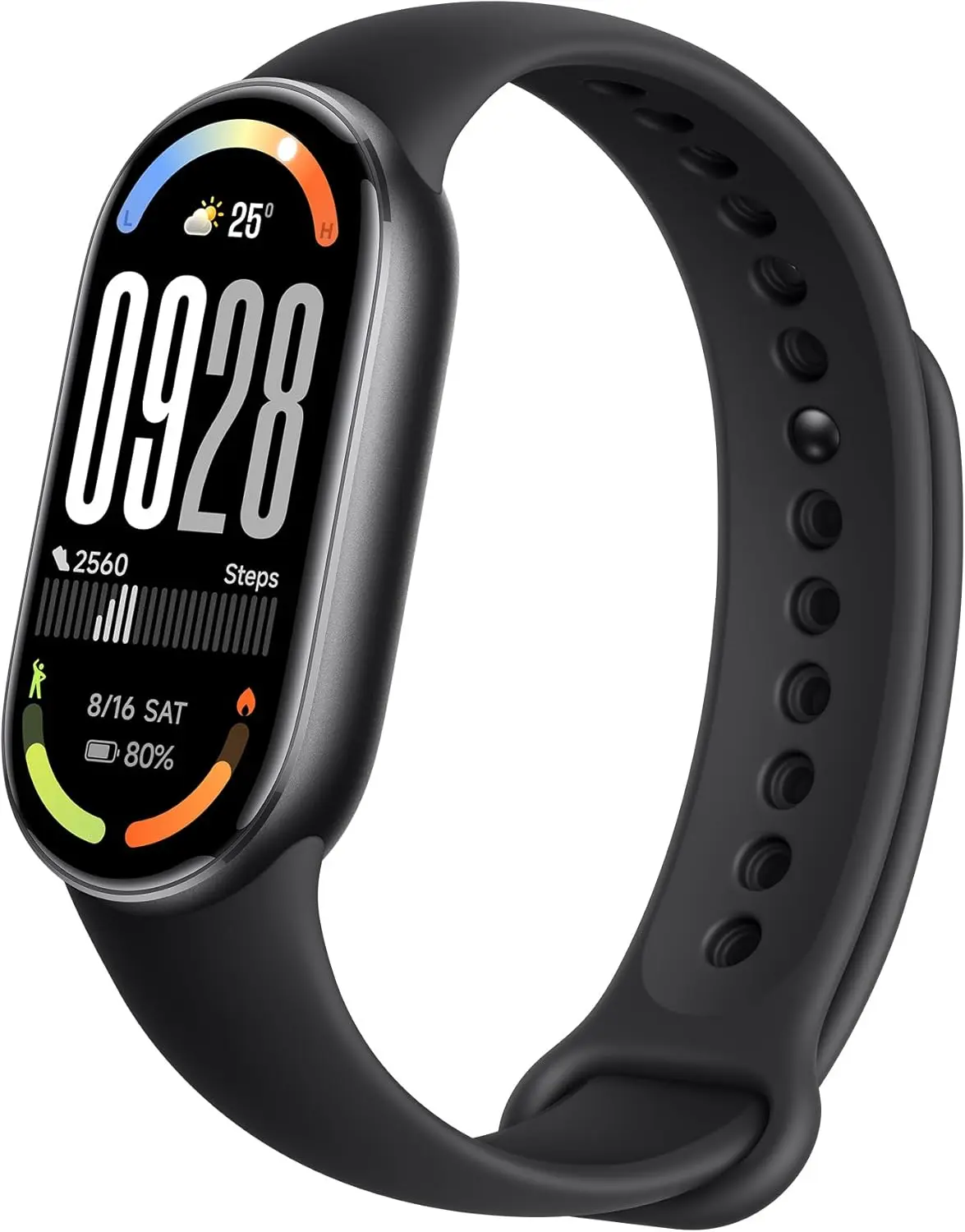
Xiaomi Mi Band 10
Enjoy stunning visuals and a seamless touch thanks to the huge 1.72-inch AMOLED display.The screen-to-body ratio can be increased from 66% to 73% thanks to symmetrical 2.0mm ultra-thin bezels made possible by vacuum filling sealing technology.
For those who wish to move up from a simple fitness tracker without going all smartwatch territory, the Xiaomi Band 10 seems like a logical upgrade. It is practical due to its extended battery life and fast charging, dependable in terms of tracking health, and fashionable enough to wear in a variety of contexts.
In summary, this fitness band has more than 150 sports modes, precise health tracking, and a long battery life that eliminates the need for continuous charging. Its design can be altered to fit individual tastes in watch faces, bands, and frames.
The Xiaomi Band 10 fulfills company’s promises regarding pricing and features, allowing you to stay active and healthy while still looking stylish.