After setting up a new Samsung Galaxy, you should think about the apps you use and don’t use.
There are many unnecessary preinstalled apps on your phone that don’t always enhance the user experience. Therefore, it is safe to remove any bloatware and superfluous apps.
These apps clog your home screen, suck up storage space, and slow down your phone.
All of Samsung’s devices, from the most recent high-end Galaxy phones to the most affordable variants, come with these apps.
When setting your Samsung Galaxy device, stay away from adding bloatware.
You are prompted to install extra apps when you set up a new Samsung device.
Take your time and uncheck the apps you don’t need because it automatically chooses the ones on that list. This is a simple method of avoiding additional bloatware.
If not, you’ll have to take them out by hand when you decide they’re useless.
Which apps on your Samsung Galaxy phone are safe to remove or deactivate?
On a Samsung phone, deleting and uninstalling apps is simple. The Settings menu allows you to remove or deactivate the majority of apps; for others, you can use ADB commands.
Many preloaded system-related apps can be securely removed, although we don’t advise the typical user to do so.
Although these apps don’t take up much space, you may need to factory reset your phone in order to restore it if you remove the incorrect one.
Additionally, you are unable to remove or disable apps that are essential to the phone’s operation. Put them in a different folder if you want them hidden.
The popular apps that you can remove or disable from your Samsung Galaxy phone are listed below. You might see different apps than those on this list depending on your area or carrier.
Many of them are Samsung’s substitutes for Google apps like Drive or Chrome. Since they don’t interfere with how your device functions, you can safely uninstall them—especially if you like Google’s app suite.
These are some great alternatives that you can download from the Play Store if you don’t want to utilize Google or Samsung apps.
Get the best possible performance out of your new Samsung Galaxy mobile.
One of the first things you should do when configuring your Samsung Galaxy phone is to remove any unneeded software. Performance can be enhanced, particularly on low-cost Samsung phones.
Additionally, removing bloatware frees up space on your Samsung phone. Installing Good Lock modules will help you take advantage of this.
The first thing you should do if your Android phone has become sluggish is to wipe off its storage. Here are some tips for speeding up your outdated Android phone if you’re not sure where to start.
Delete unused apps
Phones can accumulate a large number of unused apps over time, leaving your device looking crowded. You may have used an outdated photo editing app or a QR scanner app from a restaurant on your previous trip. Uninstalling these apps is the best way to free up space on your Android phone.
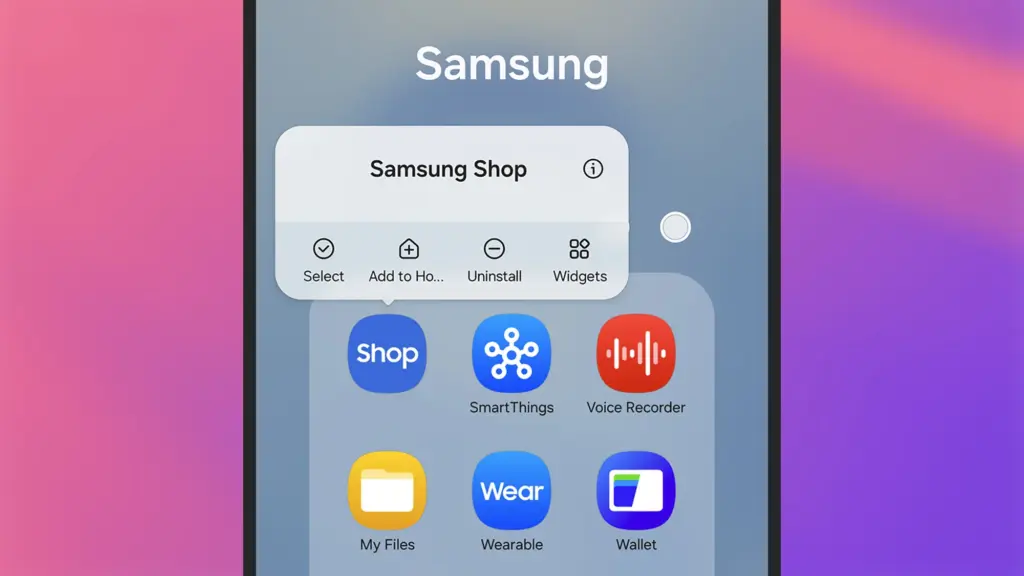
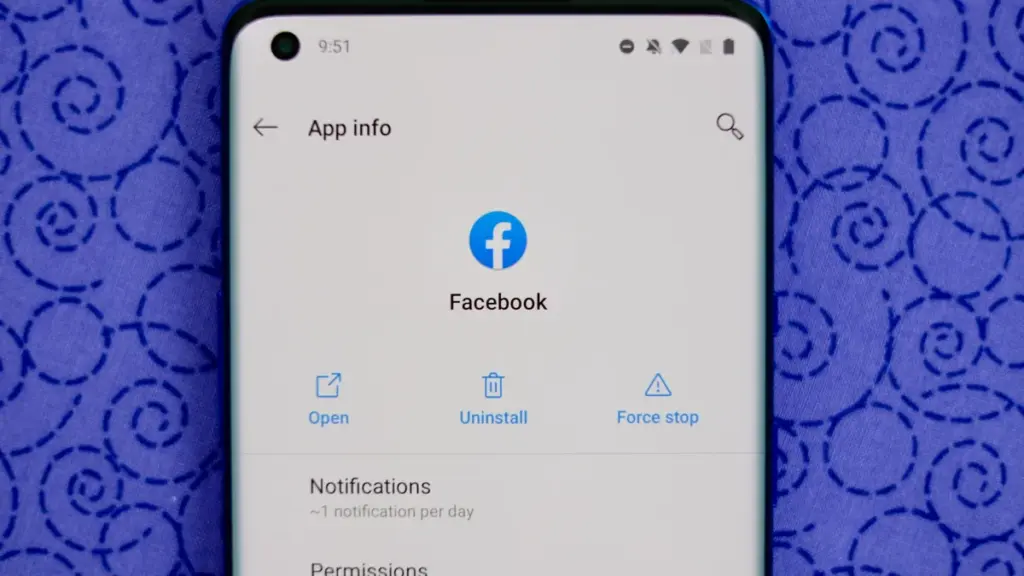
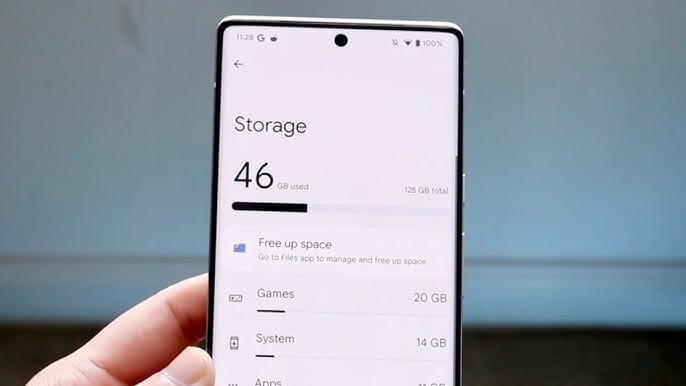
Because your Android phone won’t have to spend resources on apps that aren’t being used, decluttering it can speed it up. Removing these APKs will improve resource management and make your phone quicker. To view the list of installed apps and remove those you no longer require, navigate to Settings > Storage > Apps. You may also long-press on these forgotten apps on the app screen to get App Info > Uninstall.
Clear storage
Files and long-forgotten pictures of school notes are just two examples of the trash that accumulates on old Android phones. Following the removal of unnecessary apps, you should try to free up space on your Android phone by browsing through the stored files and images.
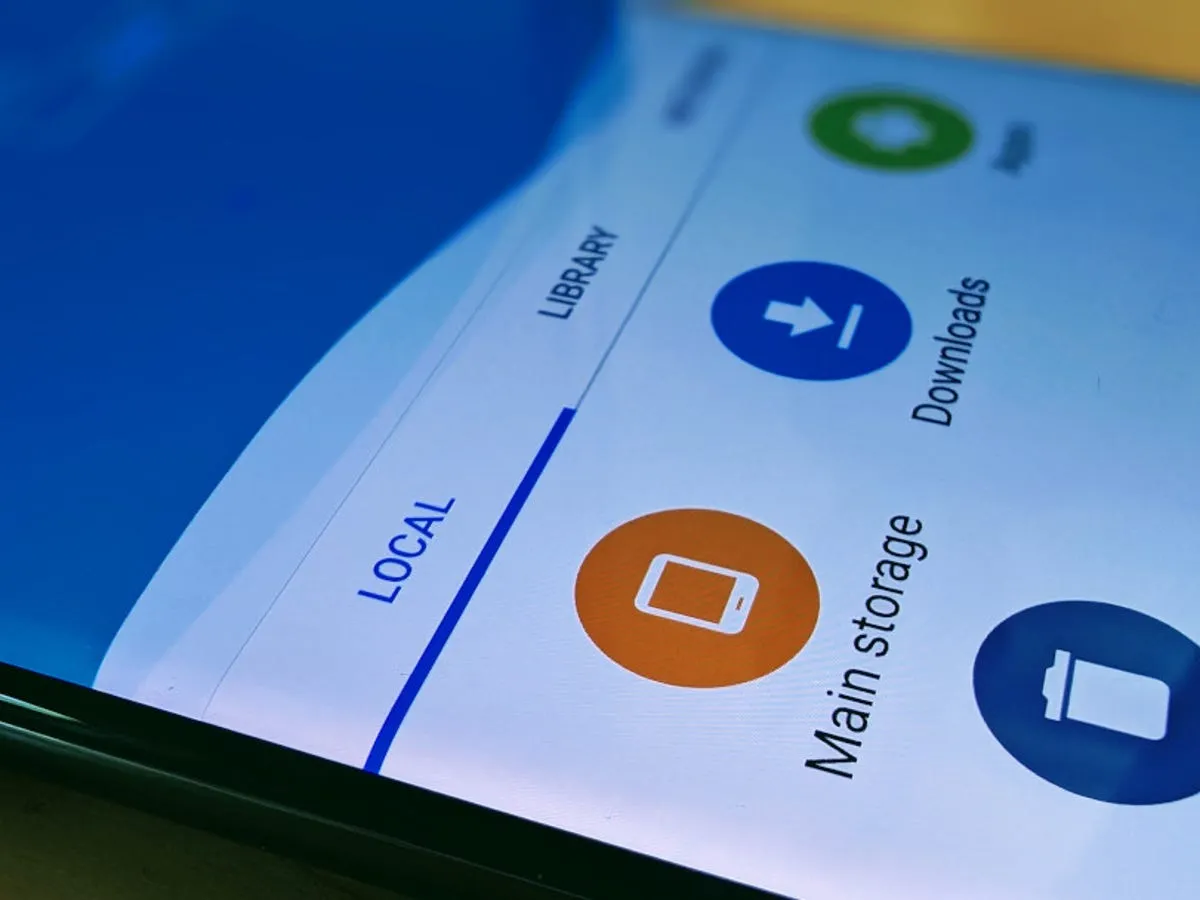
To see what’s saved, open the File app on your phone. The majority of garbage, including long-forgotten PDF files, images, etc., is frequently found in the Downloads folder. You should check two more areas to make sure the storage is clear.
Offload photos from your phone and save them to an external drive or the cloud. This helps create a backup of your memories and clear space on your old Android phone.
Clear the app cache. For the unaware, cache is bits of data that an app saves so it is quicker to operate the next time you open it. I recommend clearing the cache for less-used apps with no saved login information. You can go to Settings > Storage > App > Clear Cache to save more space.
Check for updates
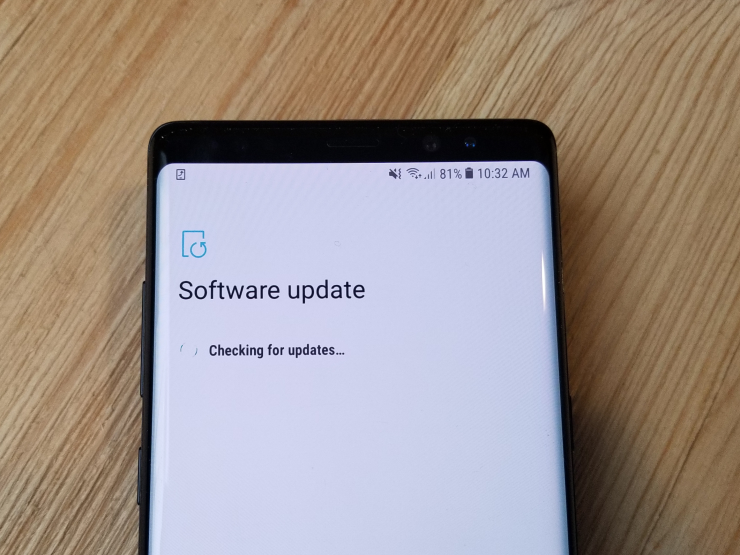
Verify that the operating system on your Android phone is up to date. Updating it will install the most recent security procedures and make it snappier. To verify and install the most recent software version, navigate to Settings > General > System Update.
After updating your old Android phone to the most recent OS version and removing the uninstalled apps, you should update the remaining apps from the Google Play Store. To get the newest features, enhanced security, and faster performance, it’s critical to utilize the most recent versions of these programs.
Adjust the animation speed
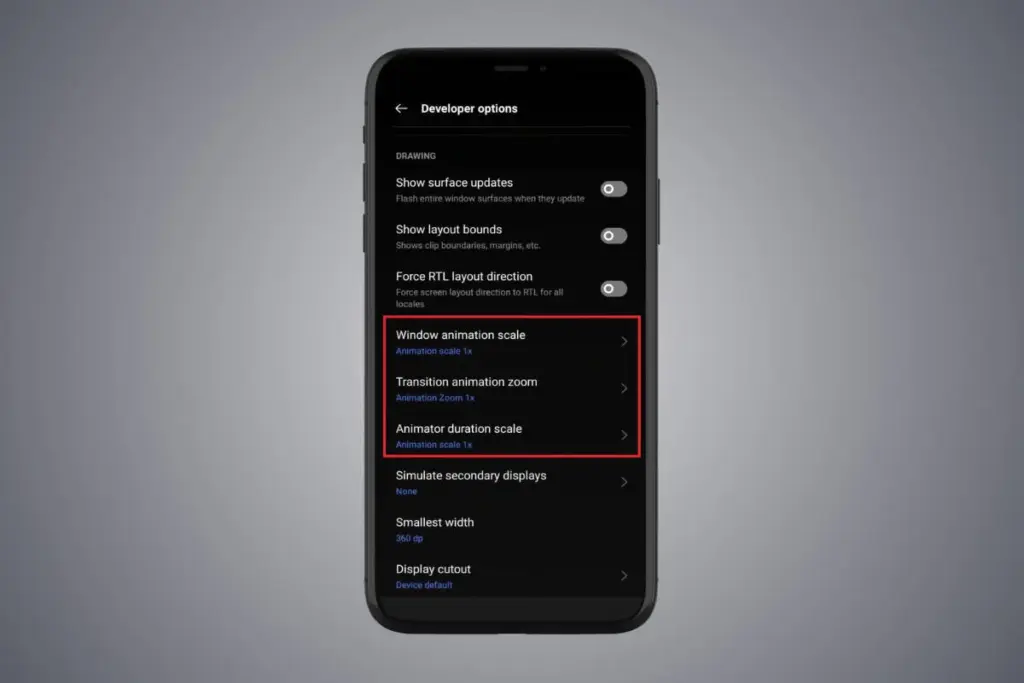
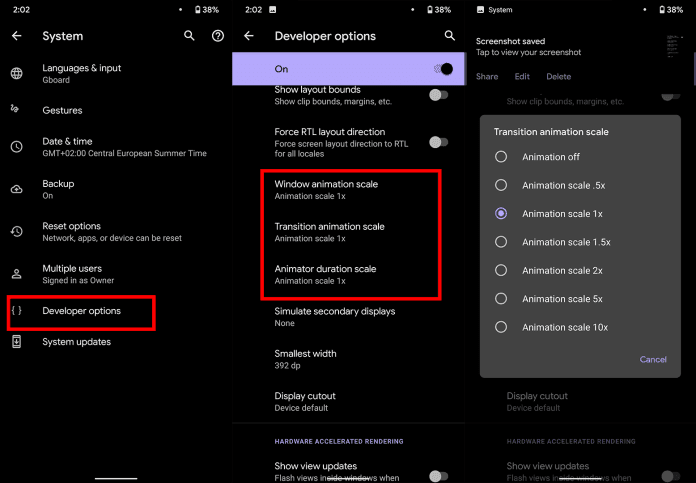
A few features, such as Developer options to alter the animation speed, can be enabled or disabled to make your phone feel faster. This can make your phone feel much faster, but it’s a little trickier than the other settings discussed above.
Go to Settings > About phone > Tap on Software details >, then tap your Build number seven times to enable Developer options. You should now be able to access various animation scale parameters as this should activate the Developer options.
Next, locate the Window animation scale by scrolling down in the Drawing section of the Developer settings. To make apps and window pop-ups run faster, tap on it and adjust the animation to 0.5x.
To reduce the speed at which you move between home screen panels and within apps, you may also change the Transition animation scale. Additionally, reduce the Animator duration scale to speed up typical UI motions like unlocking the phone and opening and closing apps.
You may breathe fresh life into your aging Android phone by adjusting these settings. After adjusting, it ought to feel quicker and have more zip when performing daily tasks. If you want to give it a refresh, I recommend tinkering around with your home screen, changing the wallpaper, and modifying extra settings to help it stay longer.
Every Android smartphone requires a file explorer, and Google Files is the default choice for Pixel smartphones and many others. This lightweight, free tool has all the necessary file management features, and its simple layout makes it simple to examine information in folders or categories. It’s not the greatest file management tool for Android, but it’s an excellent method to get rid of duplicate files and keep your smartphone free of clutter.
I’ve used a lot of Android file explorers over the years, and these are the greatest substitutes for Google Files since they have more sophisticated capabilities, a more appealing appearance, and more customization choices.
Cx File Explorer
With a variety of options to assist users in managing their decreasing storage space, Cx File Explorer focuses primarily on managing the storage on Android devices. Its analysis features, which show the location of storage hogs, the amount of storage used by each file type, and the largest files on the device, are its strongest feature. This feature is very useful to me because it makes it easier to organize the videos I have on my device for offline entertainment and flights.
In addition to these features, Cx File Explorer has a simple layout with integrated image, video, and audio players, a handy info box showing available storage, and a small icon-based breadcrumbs menu.
Cx File Explorer
Cx File Explorer is a powerful file manager & storage cleaner app with a clean and intuitive interface. With this file manager app, you can quickly browse and manage the files on your mobile device,
Mixplorer is more extensible and versatile than most file explorers. Having been in development for more than ten years, this is my favorite Android file management software.
As implied by its name, Mixplorer may easily connect a wide range of storage options, including LAN, Google Drive, OneDrive, external media, internal storage, and other cloud services. You can view all of this info without launching specific apps once it’s set up. Additionally, Mixplorer is compatible with symlinks, which offer even more versatile file access options throughout Android.
The customizable design of Mixplorer is another well-liked feature. Although the basic layout is easy to use, power users may install skins to customize the software, integrate add-ons for more functionality, and effortlessly navigate between services and folders using the tabbed interface. I adore Mixplorer’s dropdown breadcrumbs menu because it’s a clever design decision that allows you to quickly navigate back to a root folder without taking up much screen real estate.
Mixplorer
MiX Silver is a bundle of MiXplorer file manager and Archiver, Image, Tagger and PDF add-ons as a paid app to support development of MiXplorer.
In the Android app market, Solid Explorer is likewise quite well-regarded. Solid, a high-end file management program, has many of the same functions as Mixplorer, plus a few extras. Its real-time folder size indicator, which refreshes each directory’s byte count as files are added or removed, is possibly my favorite feature.
Solid Explorer File Manager
Solid Explorer is a file management app inspired by the old school file commander applications.
Material Files appeals to both Files by Google consumers and power users by striking a mix between an intuitive user interface and a robust feature set. The app feels as though Google themselves could create it because of its heavy reliance on Material You. Its components permit automated Night mode activation based on system settings and take on the color scheme of your device.
Even though it doesn’t offer the same expandability as Mixplorer, I would contend that its user interface is simpler to use. Nevertheless, the left-hand sidebar has all the information I require. Its dedicated Screenshots shortcut, which takes me straight to screenshots of the programs I frequently use for my articles, is something I really like.
The program does not let you connect to and access files on Google Drive, for example, but it does enable external storage on physical media or local networks.
Material Files
An open source Material Design file manager. Lightweight, clean and secure. Follows Material Design guidelines, with attention into details.
Finally, Fossify File Manager prioritizes simplicity and privacy and is open-source and free. With more security features, it most likely offers the experience that is closest to Files by Google in that regard. For example, it enables users to secure certain files and folders using a password or fingerprint.
With multiple color choices for the overall theme, a tab that shows you which file kinds are using up space on your disk, and basic search and organizing tools, the user interface is very user-friendly.
Fossify File Manager
Tired of file managers that slow you down and invade your privacy? Unlock a lightning-fast, secure, and completely customizable experience with Fossify File Manager.
Google Files is by no means an inferior app. In fact, Google has created a straightforward and dependable file management solution that ensures constant performance for all Android applications. Consider one of the five programs listed above, though, if you require a few extra capabilities, wish to access local network stores and cloud storage, or want to add protection to your crucial files.
Unnecessary system apps and bloatware can be annoying. They drain your battery, take up important storage, operate in the background, and are frequently impossible to remove with standard methods. Although rooting your Android device gives you complete control over system programs, most users are not advised to do so because it violates your warranty and jeopardizes security.
Thankfully, there are secure and efficient methods for disabling or removing system programs without rooting, particularly when using ADB (Android Debug Bridge). We will go over every technique in this article, from basic settings adjustments to more sophisticated (yet secure) desktop tools.
What are system apps and why can’t you delete them easily
Applications that are pre-installed by the manufacturer or carrier of the device are known as system apps. These consist include third-party programs like Facebook or Netflix that OEMs package, stock utilities, or branded services.
They cannot be removed using the standard app menu since they are installed in the system partition. ADB commands, however, can be used to disable or even uninstall many.
Common examples of pre-installed system apps include:
Duplicate media players or browsers
OEM app stores
Partner bloatware like Amazon Shopping, LinkedIn, or TikTok
Preloaded games or theme services
Disable system apps from settings
This is the simplest method and doesn’t require a PC.
Steps:
Open Settings > Apps.
Tap See all apps to view the complete list.
Select the system app you want to disable.
Tap Disable. You may be asked to confirm your choice.
Not all system apps can be disabled (depends on OEM).
Disabled apps can be re-enabled manually.
This is the safest approach for beginners.
Uninstall system apps using ADB (no root)
You can use ADB to perform advanced commands on your Android device by connecting it to a computer. This technique allows you to remove system programs for the current user without requiring root access.
This will restore the app for the current user, assuming it wasn’t fully deleted from the system partition.
Uninstalling system apps without root gives you more control over your Android phone without compromising safety. ADB is a powerful tool that helps remove bloatware, reclaim storage, and speed up your device. If you’re cautious and avoid critical system packages, you can safely declutter your phone and enjoy a cleaner experience.
Whether you’re using the built-in disable function or running ADB commands, you don’t need root access to take control of your device anymore.
You are not alone if your Android device has started to lag. Many gadgets have the potential to slow down over time, but there are easy solutions to boost performance. Restarting the device is a quick fix that can resolve a lot of frequent problems. Clearing up cached data from websites and apps is another efficient way to increase speed and free up storage.
With the use of simple steps, you will go through the process of clearing your Android device’s cache. Depending on the manufacturer and software customisation of your Android device, the steps described may differ, but the overall procedure is the same, and this guide should help you get started.
View every application that is installed on your Android smartphone.
To easily view all of the apps on your Android phone or tablet, launch the Settings app. Scroll until you see Storage, then tap on it. Next, check for the Apps option. On some Android devices, Storage may not appear, and you can navigate directly to Apps from the Settings menu.
If you’re having trouble finding the Apps section, you can always use the search bar at the top of the Settings app to help.
When you are in the Apps area, some Android versions make it simple to view which apps use the most space. Simply hit the three-dot menu in the upper right corner and select Sort by Size.
Clear the cache of of the installed apps
Select an app from the list to remove its cache. Just a heads up: I prefer using an app you installed over a system service like Android System Intelligence. I have had inconsistent outcomes with emptying the cache of system apps, thus it is recommended to only delete the cache for apps you added yourself.
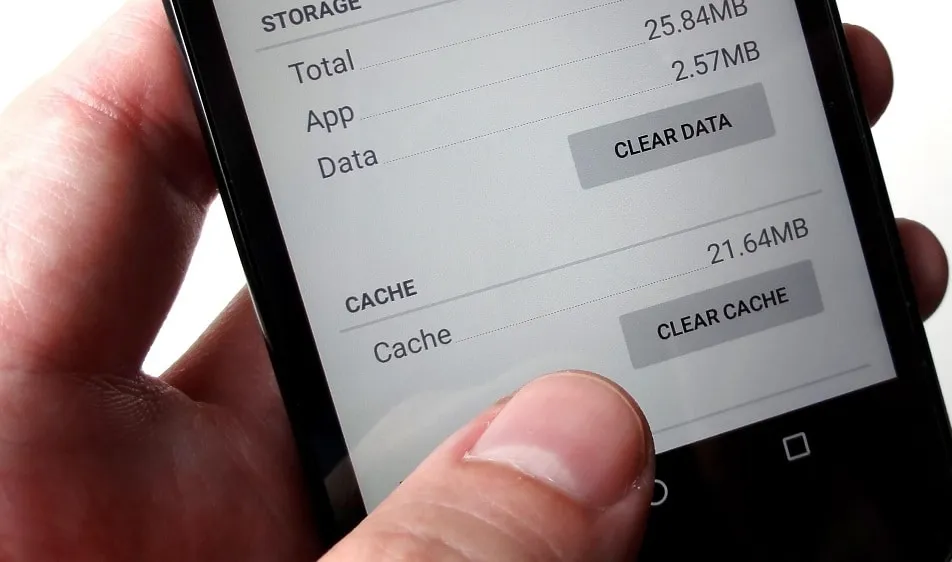
When you open an app, you will see facts such as its size, user data, cache size, and total storage usage. At the top of the page, you will find two options: Clear storage and Clear cache.
Tap Clear cache to clear the cache for that app. However, avoid tapping Clear storage because it will reset the app, requiring you to set it up again. Clearing the cache will not cause any problems.
Continue to browse your list of installed apps, checking for any programs that take up a lot of space and removing their cache.
If you are feeling particularly thorough, you might erase the cache for each app on your phone. However, it is a good idea to start with the biggest offenders, such as the Facebook app.
Clear the cache from Chrome
If Chrome is your primary browser, it may have accumulated a large amount of data, which can slow down your device. Here’s how to clear the cache.
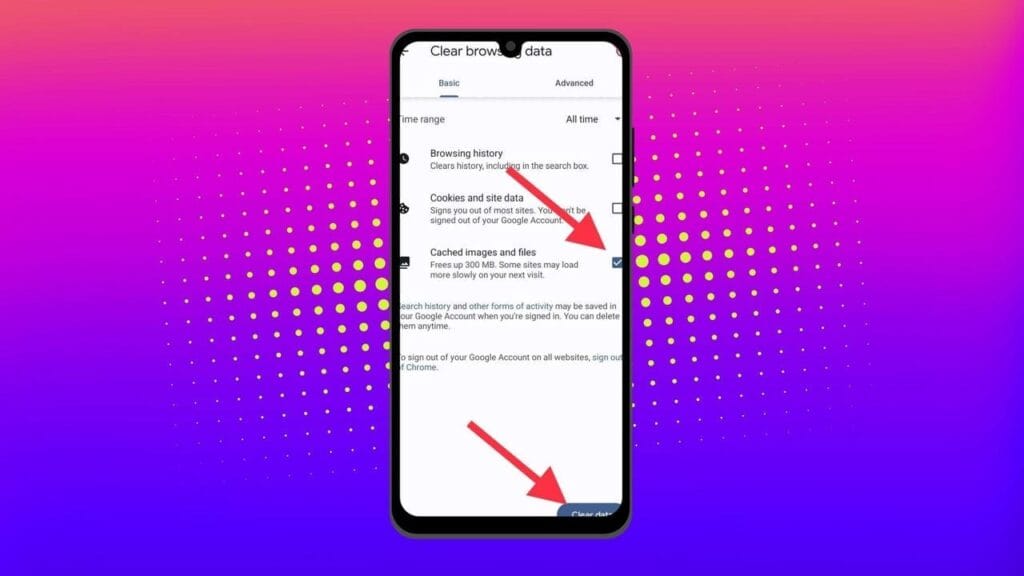
Go to History settings in Chrome – Open the Chrome app on your Android device, press the three-dot menu in the top-right corner, click History, and then Clear browsing data.
Choose the data you want to delete – The following screen will display a selection of alternatives, allowing you to select whatever data you want to erase from Chrome.
You can also provide a timeframe for when you want the data cleared. Each option gives a brief explanation of what it does and how it may affect your browsing experience. For example, deleting cookies and site data will log you out of most (if not all) websites. Clearing cached images and files may cause Chrome to load images more slowly the next time you visit a website.
In later versions of Chrome for Android, hitting the menu button displays the option “Clear Browsing Data”. When you select this option, a popup will display, allowing you to erase browsing data for a defined time period.
If you choose More Options, you’ll be taken to the Browsing Data screen, where you can select the data to delete and choose the time range.
What does cached data mean?
Cache is temporary storage that stores data like as photos, files, and scripts from websites or apps you have visited in order to speed up their loading time. Clearing cached data, whether for Chrome or any other app, removes the files that have been kept on your device. For example, on Facebook, cached data could contain profile pictures, photos, and videos.
Deleting cached data from the Facebook app removes these temporary files from your smartphone, which may cause the program to take longer to load content the next time you use it. However, this strategy will have no effect on the accounts you visit, the postings you make, or your personal information.
Will deleting the cache remove all app data?
No, emptying an app’s cache does not destroy crucial data such as login credentials or saved settings. It merely deletes temporary files that help the app load faster, so you do not lose any important data.
Will deleting the cache make your Android device faster?
Yes, clearing the cache can free up storage and remove corrupted or outdated files that may slow down your device, leading to smoother performance.
How often should you clear your cached data?
It depends on how well your equipment performs. If you are experiencing slowdowns or other problems, emptying the cache can be part of the solution. Otherwise, you may only need to perform it once every three to six months.
Is the purpose of clearing the cache only to increase storage space?
No. Clearing the cache is one of the first steps you should take when dealing with bugs or difficulties in an app. Cached files frequently get corrupted or outdated, and removing them causes the app to reload the cache, which can resolve the issue. As a result, deleting the cache can assist solve problems rather than simply free up space.
Can you clear the cache for all Android apps simultaneously?
There is no built-in method to remove the cache for all Android apps at once, but you can browse through the list and clear each app’s cache separately.
Right now, it’s difficult to talk about Pixels without the topic eventually turning to the brand-new Pixel 7 and Pixel 7 Pro. And it’s understandable why: both inside and out, Google’s most recent Pixel smartphones are just incredible. They have a ton of power and exciting new tricks that just ooze out of them.
But what’s this? To reward yourself to new and exciting phone features, you don’t need to be the owner of a Pixel 7. Because your device’s software is always being updated, there are tons of valuable jewels hiding beneath the surface, which is the beauty of the Pixel world. The majority of Pixel owners simply don’t notice them, or perhaps they do but quickly forget afterward.
In order to give several noteworthy Pixel features the attention they merit, today we’re going to take a step back. They should function for you regardless of whether you’re holding a Pixel 7 or an older model—even, in most circumstances, if your Pixel is too old to have received the most recent Android 13 update.
Discover some extraordinary Pixel gems by reading on, then continue the celebration by enrolling in my Pixel Academy e-course. For my favorite Android Police friends, it’s a seven-day email trip that teaches you a ton of time-saving Pixel information and is totally free.
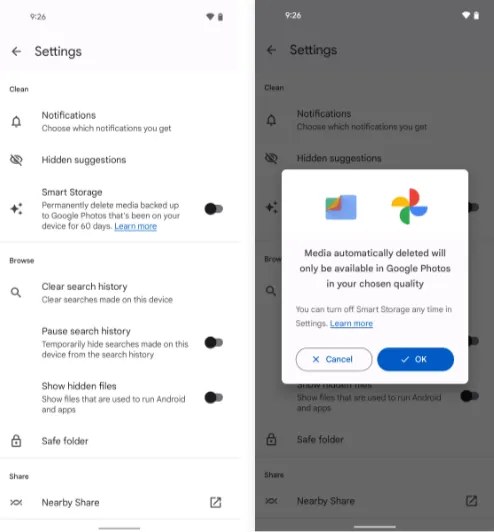
Smarter storage
The following is a further automation-focused intellect built into your Pixel and ready to be cuddled: The technology automatically deletes duplicates of the photos and movies you’ve already backed up to Google Photos when your phone’s local storage starts to run out of room.
Of course, you can always do it on your own, but doing so requires (a) actually remembering to do it frequently and (b) spending the time to complete the process’s several manual phases. And while I don’t know about you, my brain is now made up of about 97% oatmeal, so everything I can automate to reduce the load on myself is a win in my book.
If you’ve got a current Pixel with the snazzy new Android 12 software on it, open up the Files by Google app (or go download it, if it isn’t already on your phone).
Then:
Tap the three-line menu icon in the app’s upper-left corner.
Select “Settings” in the menu that comes up.
Flip the switch next to “Smart Storage” into the on position and confirm that you want to activate the feature.
With Android 11 or earlier
If your Pixel is on an older version of Android (howdy, Pixel 2 partners!), you’ll find the same option within your phone’s system settings:
Open up your settings and tap “Storage.”
Look for the line labeled “Smart Storage.” Tap it — tap it with gusto, damn it!
Choose whether you want your already-backed-up items to be deleted when they’re 30, 60, or 90 days old.
Activate the toggle at the top of the screen.
Either way, you’ll just need to make sure you’re set to sync your photos and videos to Google Photos — by tapping your profile picture in the Google Photos app and then looking for the “Backup” line in the menu that comes up — and you’ll never have to think about your storage running low again.
Image extracting
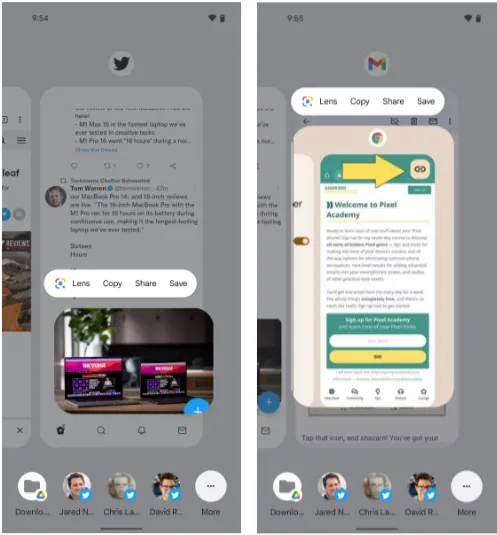
Save yourself some time and let your Pixel make it simple the next time you need to grab a picture from someplace, whether it’s a website, a text message, a forum for earwig aficionados, or whatever the situation may be.
The Overview screen on your Pixel phone includes a secret feature that lets you take pictures almost anywhere. And all it takes to access its magic is a simple swipe and a few fast taps:\
While you’re viewing any app with a visible image, open up the Overview interface — by swiping up about an inch from the bottom of your screen and then stopping, if you’re using the current Android gestures system, or by tapping the square-shaped icon along your screen’s lower edge, if you’re still using the old legacy button-nav setup.
Touch and hold your finger onto the image within the app’s preview.
Select the option to copy, share, or save the image — or use Google Lens to analyze it, if you really want to get wild.
This will work in most any app where an image is present — even if it’s an app where you couldn’t typically save an image in any easy way (Gmail, Twitter, Earwiggalicious, etc).
Let’s all say it together now: Pixel features can be incredibly beneficial once you remind yourself of their possibilities and then learn to properly take advantage of them! (Okay, so that rallying cry might need a little work.)
Text extraction
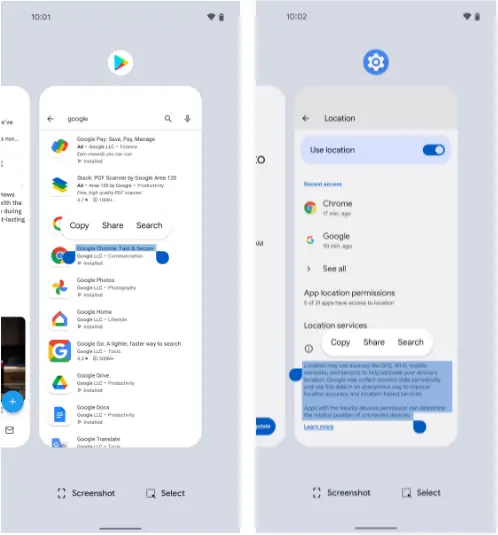
Following up on our previous Pixel feature, your fancy Google phone can help you pull text out of practically anywhere imaginable and then copy it, share it, and search for it to your heart’s content.
What’s especially useful here is that just like with the last item, this feature works even in places where you couldn’t typically copy text — your feed in social media apps, parts of the Play Store, or even sections of your system settings.
And it’s right in the same place as the image extractor we just finished exploring:
Head back into your Pixel’s Overview area.
Touch and hold your finger onto any text in the current app’s preview — or, if you’d rather (and if your Pixel is recent enough to be running Android 10 or higher), tap the “Select” text at the bottom of the screen and then highlight the specific text you want from there.
Choose “Copy,” “Share,” or “Search” from the menu that comes up.
Smirk knowingly at any iPhone users in the vicinity.
Simple screenshots
One of the most frequent complaints I get from my fellow Android-loving primates is how difficult it may be to take a screenshot on a Pixel. ‘ See, back then, the system power-button menu on Pixels included a straightforward option to take a screenshot of the screen. But after that, Google, well, Googled. It changed that menu, and then, um, it changed it again a year later, and the choice vanished.
Hold the phone, though: If you aren’t a fan of the old-fashioned physical button mechanism for capturing a screenshot, there is still another way.
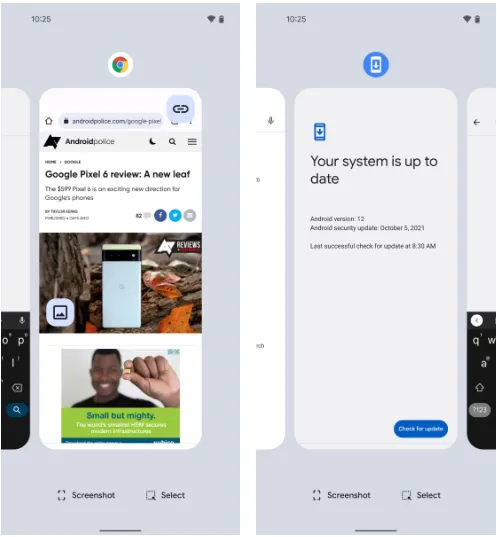
It’s right there in plain sight on that same Overview screen we were just gawking at, in fact, and yet hardly anyone seems to notice it.
Yes, that’s it; it’s down there on the screen. As long as you have Android 11 or higher, your Pixel will always offer up a “Screenshot” option directly inside its Overview interface, regardless of the program or area of Android you’re looking at. And selecting that will record whatever is visible on the screen of the active process.
The system status bar, the bottom-of-screen navigation area, and any other extraneous items won’t appear in screenshots you take in this fashion as a bonus; this is a notable and occasionally useful departure from Android’s customary physical-button screenshot-capturing method.
Tap to wake
Pixels have plenty of options for easy screen activation. Maybe you like using the always-on time and info system, for instance. Or maybe you’re more of a lift-to-check kind of Pixel owner.
Whether you’re using any of those features or not, though, your Googley phone has another useful system for waking up its display in a jiff. It harkens back to an earlier Android era, and it’s one of the Pixel’s most overlooked possibilities.
Ready? Simply press the display twice to turn on the screen of your Pixel whenever you want. Just two quick taps are all it takes to wake up your phone. The unknown!
The “Tap to check phone” option should be present on your lock screen by default, but if it isn’t, check your system settings, go to “Display,” then “Lock screen,” and see whether the option is present. If it is, you can verify that it is on and enabled. (On Pixels running previous versions of Android, you’ll need to touch “Advanced” before you can access that option, which is labeled “Double-tap to check phone.”)
Automation
Although there are many chances for advanced automation on Android, your Pixel comes with its own native rules system that can significantly increase the intelligence of your phone with hardly any work.
It’s called, rather fittingly, Rules — and with about 30 seconds of setup, it can allow your phone to change its ringing and notification behavior based on where you are or what Wi-Fi network you’re connected to at any given moment.
Here’s how to get it up and running:
Head into your Pixel’s system settings (by swiping down twice from the top of the screen and then tapping the gear-shaped icon in the lower-right corner of the panel that pops up).
Tap “System” followed by “Rules.”
Make sure the toggle at the top of the screen that says “Always allow location for Rules” is in the on position.
Look for a line that prompts you to allow the feature to run in the background. If you see that, tap it and then tap “Allow” on the confirmation that appears.
Pause to take a sip of the nearest fizzy beverage.
Tap “Add rule” and then consider your options.
Then what? That’s really up to you. For a few ideas, you could instruct your Pixel to vibrate for incoming alerts when you’re at work, make it to go into Do Not Disturb mode whenever you’re at the movies, or configure it to ring whenever you’re connected to your home network.
Smart screens
The last item in our list of overlooked Pixel characteristics is a two-parter that your eyes will like.
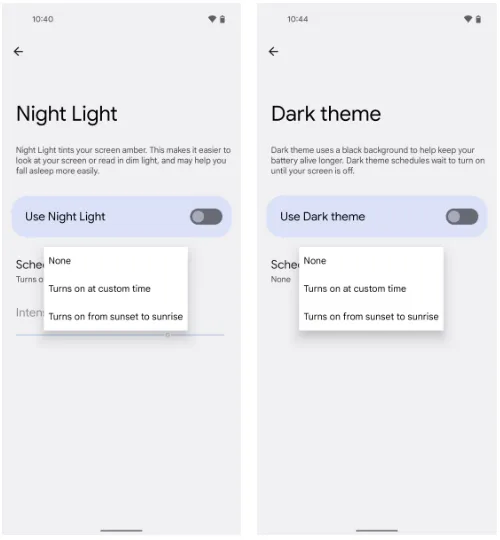
The screen-tinting Night Light option can be automatically activated on your Pixel based on the sunrise and sunset times in your current location or a schedule you create. In this manner, your phone’s screen will adopt a softer, less harsh type of coloring that will be easier on your eyes when night falls and the lights get faint. And as soon as morning comes around, it will switch back to the regular daytime mode.
Return to your Pixel’s system settings, select “Display,” then press “Night Light,” then “Schedule,” to configure your automated Night Light activation routine. The options to select the sunset-to-sunrise setup or to enter your own unique hours for dim-environment optimization are displayed there.
While we’re on the subject of screen intelligence, think about if your phone’s theme changing from a lighter theme during the day to a darker one at night might be a good addition to your new Night Light intelligence. For me, the two patterns—standard screen colors and a light theme during the day and Night Light and Android’s dark mode during the night—are a lovely and extremely natural pairing.
If you want to give that double-display whammy a whirl, back out to the main “Display” menu and look for the “Dark theme” line. Tap it, then tap “Schedule,” and you’ll see a selection that’s identical to the one you just configured for the Night Light.
What are the most commonly asked questions from Android users? Like, how is Android getting faster? How can I make my Android phone faster? Well, it is the hope of every Android user that their phone defies all the boundaries of fluidity and rapidity.
But do you believe this is true? Can you make your Android phone faster than it can? At most, what we want is to make the Android system function as if it’s new, because our smartphone is slowed down by downloading apps and using them everyday. These apps run in real-time and consume the device’s memory, energy , and other resources.
So, what could be the many ways to use our Android devices efficiently, in such a way that we could reduce the lags and freezes as much as possible if not completely?
Keep the apps you use
Nearly every guide to Android tips and tricks you could read will suggest that you keep only those apps you use on a daily basis. Doesn’t that sound apparent? Will you store your house with unnecessary items only because they are free? Yeah, our homes are always loaded with items like that, but do we have to do the same with our smartphones?
In order to keep running, numerous apps that live inside our smartphones run all the time and need to connect to the Internet. Even if we don’t benefit from these applications, they will just place a burden on the hardware even raise our data bills. It would be a smart step in the direction of speeding up Android to get rid of such software.
Clear the cache
On a daily basis, there are some applications that you don’t need, but they are relevant enough to have a place on your computer. Like, you book flights, hotels, and order food with the apps you use. Try to delete the cached data for such apps in the Settings to make Android quicker, to ensure that they do not take much space when they are not in use. Often learning the cached data helps to make the app faster as it eliminates old data that might make it slow and cause freezes and crashes. The application will maintain newer versions of the same stuff when the data is removed.
Clear the memory several times during the day
Android has exceptional abilities for task management. It can, whenever needed, close unwanted processes on its own. But I can tell you this old-school thing would be of great help if your system had a RAM shortage.
Nearly every launcher nowadays provides the option of freeing up system memory. If there is no memory cleaning application, you should consider downloading any. And I am not talking about the apps here that claim to make your Android phone faster by running cleaning operations in real-time. And all they do is make it even slower on the computer.
Check if there are lighter versions of apps
Many of the popular apps like Facebook, Twitter, Messenger, and Opera also have versions of their ‘lite’. These lightweight applications are also designed for smartphones at the entry-level and for consumers needing to keep things simple.
The efficiency of your Android phone can be enhanced by using Lite versions for applications. And they also decrease your data bills, and it’s one of the reasons that there are such games.
Update your device
Each newer version of Android comes with different performance enhancements. So, updating your computer will do wonders and accelerate Android if your vendor is good enough to release one.
Alternatively, you can head over towards custom ROMs for your Android device if you think the device maker built the phone and just forgot the fact that it exists anymore. That is the case of the Mi Pad my friend brought more than a year ago. Even though the device has capable hardware, it still runs Android KitKat. Please note that using customs ROMs usually comes in the category of Android performance tips for experienced users.
Before you install an app
It’s almost a decade since Android came into existence and the number of apps for the platform has now grown into millions. But out of these uncountable number of apps and games, not all of them are designed by developers with good intentions.
Many Android apps are fake and want to take control of your device, steal valuable data and send it to their masters. For instance, the System Update malware lived in the Play Store for three years, undetected.
Google has recently rolled out Play Protect tool for scanning such apps. Indirectly, you can make your Android device faster by this option. However, you should check the authenticity of an unknown app before you install it, even if you’re downloading it from the Play Store.
Format your SD Card to improve Android performance
If you experience frequent crashes on your Android phones, one of the explanations might be a corrupt SD. Formatting the SD card would not only delete the unnecessary junk of files generated by the Android framework and various apps, but could ultimately lead to a boost in performance.
Update only over WiFi
In order to keep the information fresh all the time or do other things such as uploading files, images , videos, several apps need to update themselves in the background. Disabling background data can thus render an Android computer, to an extent, faster.
That’s because it bars apps from linking to the internet and from using device tools. Turning off background data for mobile networks will also be helpful in saving your internet bills.
Alternatively, you can turn off auto-sync on your Android device if you want to keep your device from being synced by Google.
And turn-off auto update in Google Play by visiting Settings > Auto-update apps > Select Auto-update apps over WiFi only.
Restart is what your Android phone needs sometimes
For our computers, this applies; restarting the machines will help them find their way through tough times. Similarly, Android devices may be the case too. It deletes temporary files to speed up Android when you reboot your computer and also cleans up the memory of the device.
Use the cloud, free your storage
Files are being transferred to the cloud in the latest 2017 storage fashion. Not only does this make our data available across devices, it also frees up precious internal storage on the Android phone that applications installed on the device can use. Keep in mind that internal storage plays a significant role in your Android phone’s output.
Keep your home screen clean
It sounds good to fill your Android home screen with live wallpapers and loads of widgets. However, all these things put additional load on the hardware under the hood and affect the output of the system.
Often, when you use a heavy app or play games, you may see your Android device struggling to load the contents of the home screen.
One of the many ways you can make your Android phone quicker is to keep your home screen as clean as possible. Every time you return to the home screen or wake the computer from sleep, it doesn’t have to load all the content.
Try other launchers made for Android
android launchers
Custom launcher is a perfect way to turn your Android computer into a whole new version of itself. It might not be feasible for a custom launcher to have a major performance boost related to hardware, but some of them suck much less memory and Processor than others. Installing a lightweight custom launcher will thus make your Android phone functionally faster.
In addition, the variety of shortcuts, customizations, and other options will help to make your Android device run faster, if not faster. These applications will reduce the time that people would possibly spend in searching different apps and settings on their devices.
What to do when your Android phone freezes?
It’s hard to digest, but some evil apps and processes make our device experience the temperatures of hell. But repeatedly tapping the screen or pressing buttons would only make things worse when your Android freezes due to an app crash or when all RAM gets consumed.
Under such cases, strive to show some calmness and maturity. Most of the time, it’s just the app, and pressing the home button will take you to home screen. After that you can destroy the affected app from the Recent apps section to make Android faster.
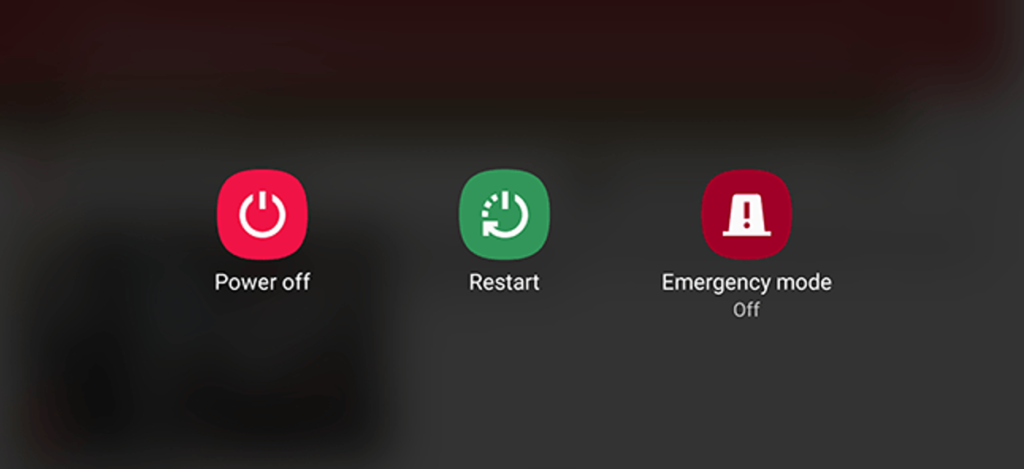
When you press the home button, if nothing happens, press the power button gently and try to ‘reboot’ or ‘turn off’ the system. If the system is stubborn enough to resist a restart you may remove the battery. If your mobile has a non-removable battery, you can have all the time, but you may have to wait until the battery is discharged.
Developer options
There is a much popular way to make an Android device faster by tweaking some settings in the Developer Options. However, I personally don’t like this suggestion as it leaves the device without any special effects.
You can enable Developer Options on Android by going to the About section and tapping the build number five times consecutively. Then, you’ll be able to see Developer Options in the Settings. You can disable animations on the device. Set Window animation scale, Transition animation scale, and Animator duration scale to off.
This change reduces the time wasted on rendering various visual effects on the screen when you operate, making it work quicker in some sense. Go ahead if you’re fine that your device appears to be running a decade old software when it’s not.
Reset your device
Last and but not least, the ultimate option to make your Android phone faster is to perform a factory reset. You can consider it if your device has slowed down to the level that can’t do basic things.
There are two ways to reset on your Android device. First is to visit Settings and use the factory reset option present there. This would perform a soft reset of your device which involves resetting device settings and wiping all the data like your photos, videos, apps, cache, etc.
For deeper cleaning, you’ll have to boot into recovery mode and hard reset the device. After you turn off the phone, on most Android devices, recovery mode can be accessed by pressing Power and Volume Down button for around 5 to 10 seconds.
You will need to boot into recovery mode for deeper cleaning, and hard reset the computer. On most Android devices, after you turn off the handset, you can access the recovery mode by pressing the Power and Volume Down buttons for around 5 to 10 seconds.
In most situations, though, you should stick with the first process, as it will fix problems for you. And, try to back up the data before you do something.
So, these were some of the Android tips and tricks for your phone with a hope that you’d be able to give it some adrenaline rush.