The first thing you should do if your Android phone has become sluggish is to wipe off its storage. Here are some tips for speeding up your outdated Android phone if you’re not sure where to start.
Delete unused apps
Phones can accumulate a large number of unused apps over time, leaving your device looking crowded. You may have used an outdated photo editing app or a QR scanner app from a restaurant on your previous trip. Uninstalling these apps is the best way to free up space on your Android phone.
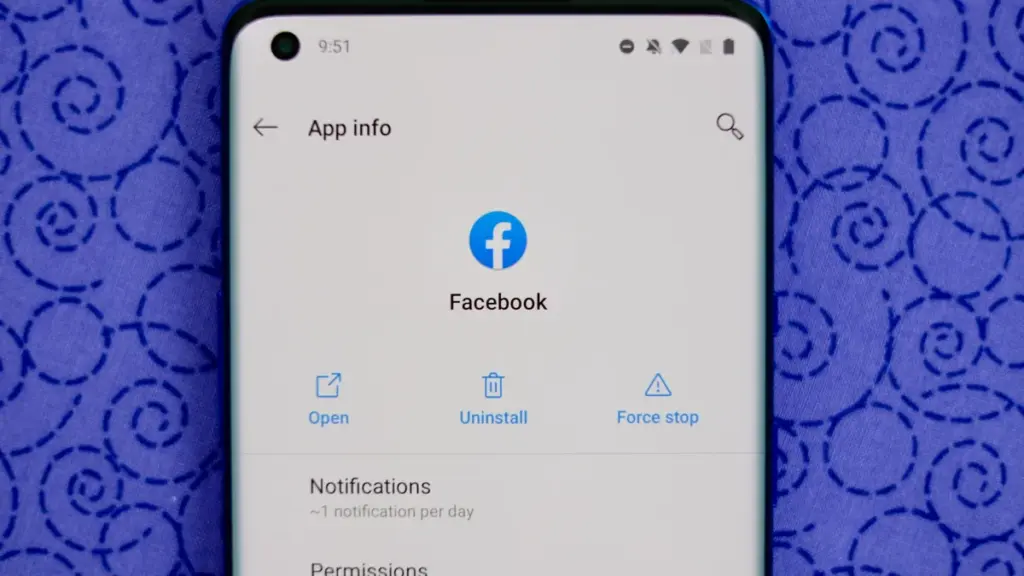
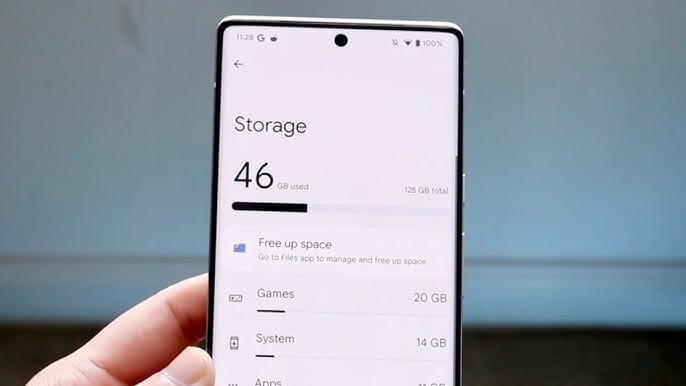
Because your Android phone won’t have to spend resources on apps that aren’t being used, decluttering it can speed it up. Removing these APKs will improve resource management and make your phone quicker. To view the list of installed apps and remove those you no longer require, navigate to Settings > Storage > Apps. You may also long-press on these forgotten apps on the app screen to get App Info > Uninstall.
Clear storage
Files and long-forgotten pictures of school notes are just two examples of the trash that accumulates on old Android phones. Following the removal of unnecessary apps, you should try to free up space on your Android phone by browsing through the stored files and images.
To see what’s saved, open the File app on your phone. The majority of garbage, including long-forgotten PDF files, images, etc., is frequently found in the Downloads folder. You should check two more areas to make sure the storage is clear.
Offload photos from your phone and save them to an external drive or the cloud. This helps create a backup of your memories and clear space on your old Android phone.
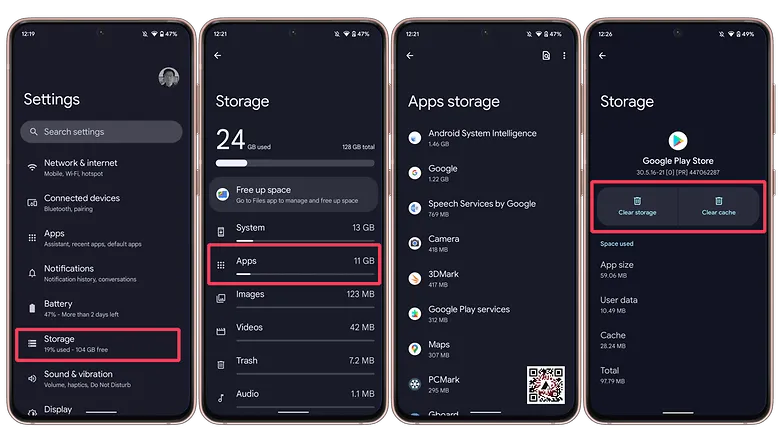
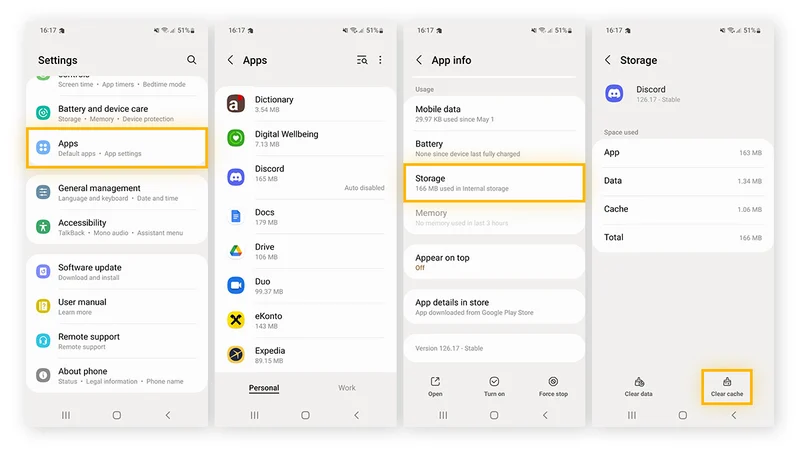
Clear the app cache. For the unaware, cache is bits of data that an app saves so it is quicker to operate the next time you open it. I recommend clearing the cache for less-used apps with no saved login information. You can go to Settings > Storage > App > Clear Cache to save more space.
Check for updates
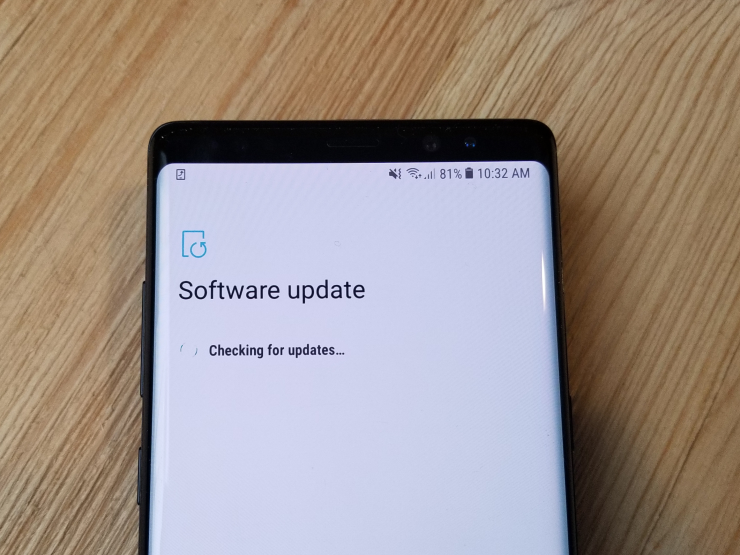
Verify that the operating system on your Android phone is up to date. Updating it will install the most recent security procedures and make it snappier. To verify and install the most recent software version, navigate to Settings > General > System Update.
After updating your old Android phone to the most recent OS version and removing the uninstalled apps, you should update the remaining apps from the Google Play Store. To get the newest features, enhanced security, and faster performance, it’s critical to utilize the most recent versions of these programs.
Adjust the animation speed
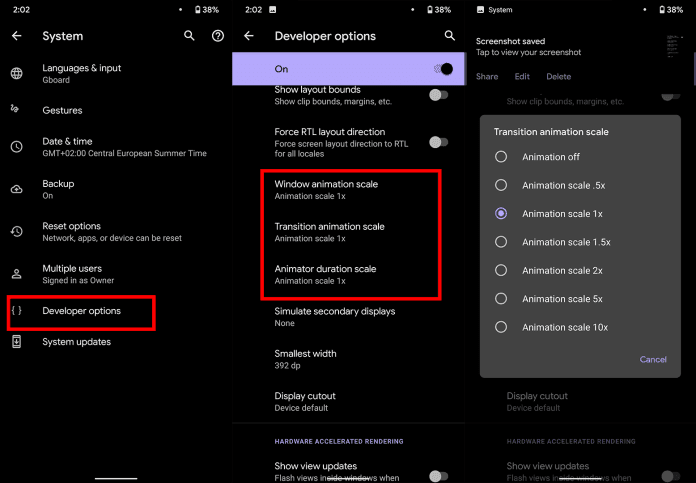
A few features, such as Developer options to alter the animation speed, can be enabled or disabled to make your phone feel faster. This can make your phone feel much faster, but it’s a little trickier than the other settings discussed above.
Go to Settings > About phone > Tap on Software details >, then tap your Build number seven times to enable Developer options. You should now be able to access various animation scale parameters as this should activate the Developer options.
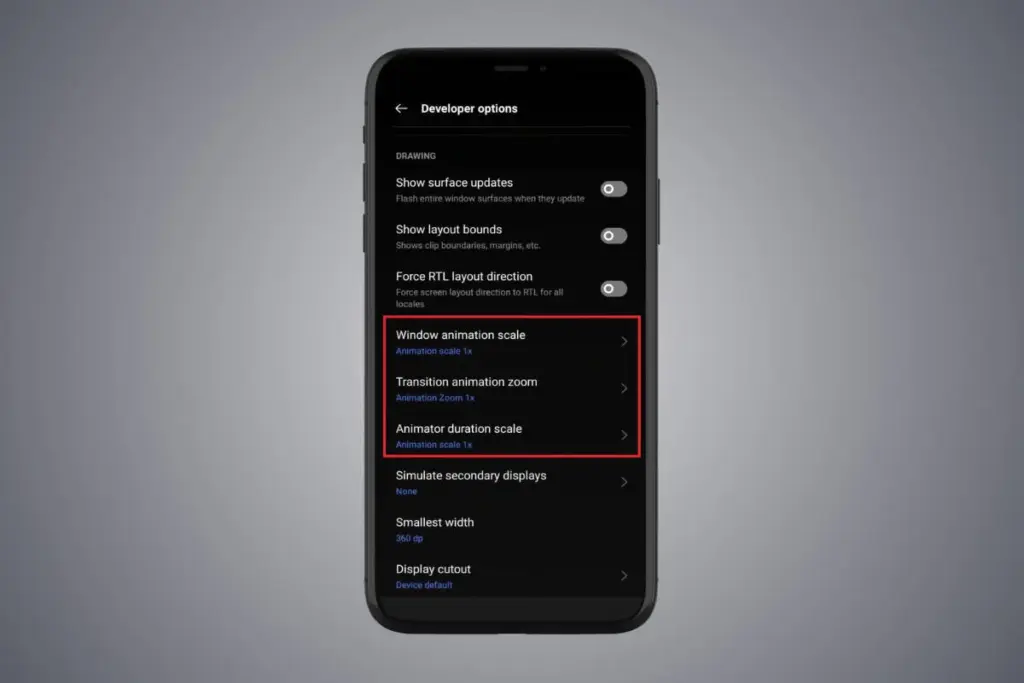
Next, locate the Window animation scale by scrolling down in the Drawing section of the Developer settings. To make apps and window pop-ups run faster, tap on it and adjust the animation to 0.5x.
To reduce the speed at which you move between home screen panels and within apps, you may also change the Transition animation scale. Additionally, reduce the Animator duration scale to speed up typical UI motions like unlocking the phone and opening and closing apps.
You may breathe fresh life into your aging Android phone by adjusting these settings. After adjusting, it ought to feel quicker and have more zip when performing daily tasks. If you want to give it a refresh, I recommend tinkering around with your home screen, changing the wallpaper, and modifying extra settings to help it stay longer.
Your device may slow down as a result of cached data that builds up, corrupts, or just becomes out of date over time. Although a targeted cache clear is a quick fix that doesn’t require updating hardware, restarting your phone frequently helps.
In June, Google introduced Android 16 to Pixel devices and a few OEMs, bringing with it new Material You updates, performance enhancements, and other improvements. Clearing the cache on your Android phone or tablet can give it a new boost and free up some storage space if you want to attempt this update but are concerned since you’ve observed it already feels too sluggish.
How to clear cached data from Android apps
Although each manufacturer may have somewhat different processes, the overall procedure is the same.
1. See all the apps installed on your Android device
Navigate to Storage in Settings, then select Apps. If there isn’t a specific Apps entry, you may easily locate it in Settings by using the search bar.
Some Android devices now offer a “Free up space” option through the Google Files app in the Storage menu as well. This can be used by opening Files, selecting Clean from the three-line menu in the top-left. Examine each recommendation (such as duplicates, huge files, and useless apps), then follow the instructions to remove any files you no longer require.
2. Clear cache for individual apps
(Avoid system services) press an installed app, choose “Storage and cache,” and then press “Clear cache.” Tap “Clear storage” only if you wish to fully reset the application.
3. Do the same for all apps you want
Do the same with any programs that consume a lot of storage. Data-hungry hogs like social apps and streaming services are a good place to start.
Additionally, some Android versions make it simple to view which apps are using the most space when you’re in the Apps menu. Just choose Sort by Size from the three-dot menu that appears in the upper-right corner.
Note: There may be an integrated clear-all-cache feature on some Android phones. There should be a ‘Select All’ button at the top under Settings > Storage > and App Cache.
How to clear cache from Chrome
1. Go to History settings in Chrome
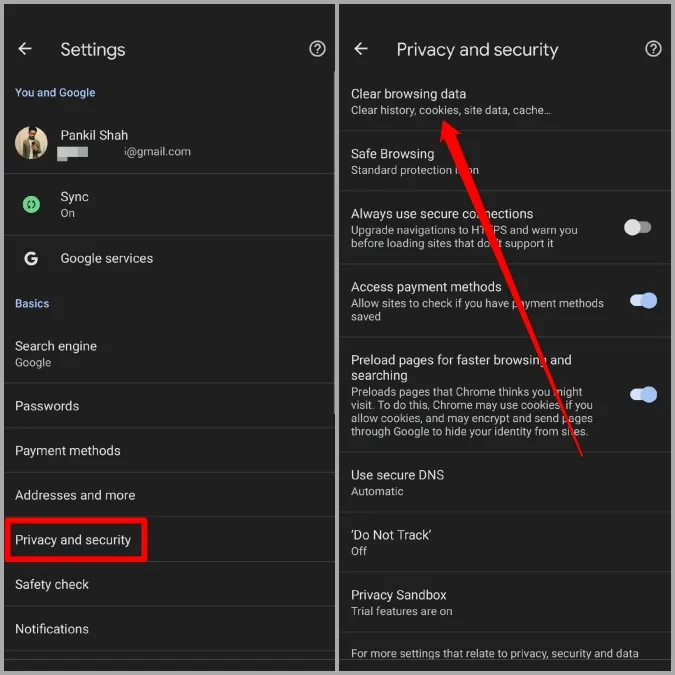
Open Chrome, tap the three-dot menu Settings > History > Clear browsing data.
2. Choose the data you want to delete
Check “Cached pictures and files” (as well as anything else you want to delete) after choosing the time frame. Next, select “Clear data.”
Every choice describes its function and how it impacts your experience. removing cached files and pictures may result in Chrome loading images more slowly the next time you visit a website, while removing cookies and site data will log you out of many or all websites.
3. Optional: A simpler shortcut
In recent versions of Chrome for Android, hitting the menu button brings up the Clear Browsing Data option. When you choose this, a pop-up window requesting that you delete your browsing history from a certain time frame will show up. Selecting More Options will bring up the Browsing Data screen, where you can pick which data to remove and what time period to use.
You are not dreaming if your Android phone used to be blazing fast but suddenly feels slow. Android devices naturally slow down over time for a number of reasons, the majority of which are entirely resolvable without the need for third-party apps or technical know-how.
Why Android is getting slower?
📦 1. App Cache Buildup
An application, such as Instagram, YouTube, or your web browser, saves small amounts of temporary data (called cache) each time you use it so that it loads more quickly the following time. Although useful when used sparingly, this cache accumulates over time, depleting storage and occasionally making the program (or even your phone) slow.
Example: Chrome can build up hundreds of MBs in cache after a few weeks of browsing. Clearing it can noticeably improve speed.
⚙️ 2. Background Processes Piling Up
Applications do not simply launch when you use them. Multiple apps keep running in the background, syncing data, giving notifications, and even tracking position. This depletes the battery and RAM (your phone’s memory), which can affect speed.
Tip: Social media and messaging apps are the biggest offenders. If you’ve got 10+ apps running in the background, expect a performance dip.
📲 3. Unused or Pre-installed Apps
Bloatware is the term for the numerous apps that are pre-installed on your phone and frequently continue to run in the background even if you have never used them. You end up with a cluttered, overloaded system when you include the apps you downloaded, used once, and then forgot about.
You don’t have to delete everything, but disabling or uninstalling apps you don’t use makes a big difference.
🔁 4. Software Updates and Feature Overload
Software updates can be bulky, yet they are necessary for security and new functionality. Updates for apps and newer Android versions are gradually tailored for more modern hardware. This implies that all of the new features and animations may be too much for your outdated device to handle.
Ever noticed how a major Android update seems to slow your phone a bit? That’s usually why.
🗄️ 5. Low Internal Storage
For Android to function properly, it requires a buffer of free space. Your phone may begin to crawl if it is overloaded with pictures, movies, downloads, and residual program data for background processing.
Rule of thumb: Keep at least 4 GB free at all times. If you’re below that, expect slowdowns.
✅ The Good News?
You don’t need root access, expensive cleaner apps, or a trip to the repair shop. Most speed issues can be solved in just a few minutes using built-in settings.
📍 In the next section, we’ll walk through the exact steps you can take right now to get your Android device running like new again.
✅ 1. Restart Your Phone
Why it matters: Restarting your phone clears temporary files, ends frozen background processes, and resets system performance. It’s like giving your phone a fresh breath of air.
What to do:
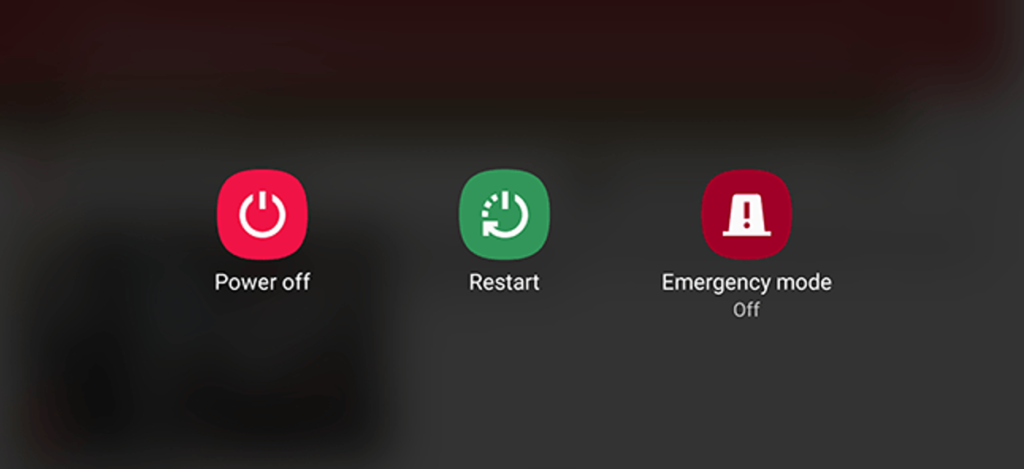
Hold the Power button until the menu appears
Select Restart (or Power Off, then turn it back on)
📌 Do this at least once a week — it can fix lag, crashes, and battery issues instantly.
🧹 2. Clear App Cache (Not Data!)
Apps store cache to improve loading times, but too much of it can cause lag, glitches, or even crashes.
Here’s how to clear cache:
Go to Settings > Apps
Tap on an app like Chrome, TikTok, or Instagram
Tap Storage & Cache
Tap Clear Cache
⚠️ Important: Don’t tap Clear Storage/Data unless you want to log out or reset the app.
🧠 Pro Tip: Clear cache for your most-used apps once every 2–3 weeks.
📦 3. Uninstall or Disable Unused Apps
Apps you never use can:
Take up precious storage
Run silently in the background
Slow down boot times
To remove them:
Long-press the app icon > tap Uninstall
OR go to Settings > Apps > [App Name] > Uninstall
If an app can’t be uninstalled:
Tap Disable — it won’t run or consume resources anymore.
🔇 Example: Carrier apps, pre-installed games, or assistant tools you never asked for.
🛠️ 4. Reduce Animations (Developer Options)
Android’s transitions and animations may look sleek — but they can delay actions on older or budget phones.
Here’s how to disable or reduce animations:
Go to Settings > About Phone
Tap Build Number 7 times to unlock Developer Options
Go back to Settings > System > Developer Options
Scroll down to:
Window Animation Scale
Transition Animation Scale
Animator Duration Scale
Change all three to 0.5x or Animation Off
📈 Expect a noticeable speed boost — especially on devices with less RAM.
🗃️ 5. Free Up Storage Space
Storage nearing full = a major performance killer. Your phone needs free space to install updates, load files, and run background tasks.
Quick ways to free up space:
Open Files by Google > Clean to remove junk, large files, and duplicates
Go to Gallery > Albums > Downloads and delete old files
Offload videos/photos to Google Photos or an SD card
💾 Aim to keep 15–20% of your total storage free (e.g. at least 4–6 GB on a 32 GB phone).
🔋 6. Disable Background Sync & Battery Hogs
Many apps sync data constantly — even when you’re not using them.
To limit background activity:
Go to Settings > Battery > App usage
Tap on heavy apps (Facebook, Gmail, etc.)
Restrict background use or set to “Battery Optimized”
For syncing:
Go to Settings > Accounts > Auto-sync Data
Turn it off for accounts you rarely use
💡 This saves RAM and battery life — a win-win.
🔄 7. Update Android & Your Apps
Updates contain bug fixes and performance improvements. If you’re behind, you could be missing important optimizations.
Update system:
Settings > System > System Update > Check for updates
Update apps:
Open Google Play Store
Tap your profile icon > Manage apps & device
Tap Update All
🔄 Do this monthly, especially if you notice app crashes or slowness.
🧩 8. Use Lite Versions of Apps
Heavy apps = more RAM, more battery, more lag.
Try these alternatives:
Facebook Lite instead of Facebook (saves over 500 MB!)
Messenger Lite instead of Messenger
YouTube Go (lighter on data and resources)
Twitter Web via browser instead of the app
You’ll free up space and speed up daily use.
🖼️ 9. Use Static Wallpapers
Live wallpapers constantly run behind the scenes, draining battery and processing power.
Change it:
Long press on the home screen > Wallpaper & Style
Choose a static image from your gallery or system wallpapers
🌓 Tip: Dark wallpapers also save battery on AMOLED/OLED screens.
🧠 10. Try a Lightweight Launcher
Your phone’s default launcher (like Samsung’s One UI or Xiaomi’s MIUI) can be bloated and animation-heavy.
Better options:
Nova Launcher (fast, customizable)
Niagara Launcher (minimalist & smooth)
Smart Launcher 6 (lightweight & sleek)
Switching to one of these can reduce memory use and simplify your experience.
You are not alone if you have ever found yourself tethered to a charger, watching the battery bar slowly but surely creep towards a usable level. But fear not, fellow Android users – this guide is your road map to victory, filled with useful tips and tricks to turn your phone into a charging champion!
Gone are the days of excruciatingly slow refills and battery anxiety—we are about to unlock the secrets to lightning-fast boosts that get you back online, streaming, and snapping in no time at all! Say hello to a world of stress-free power-ups!
Wire will charge you faster.
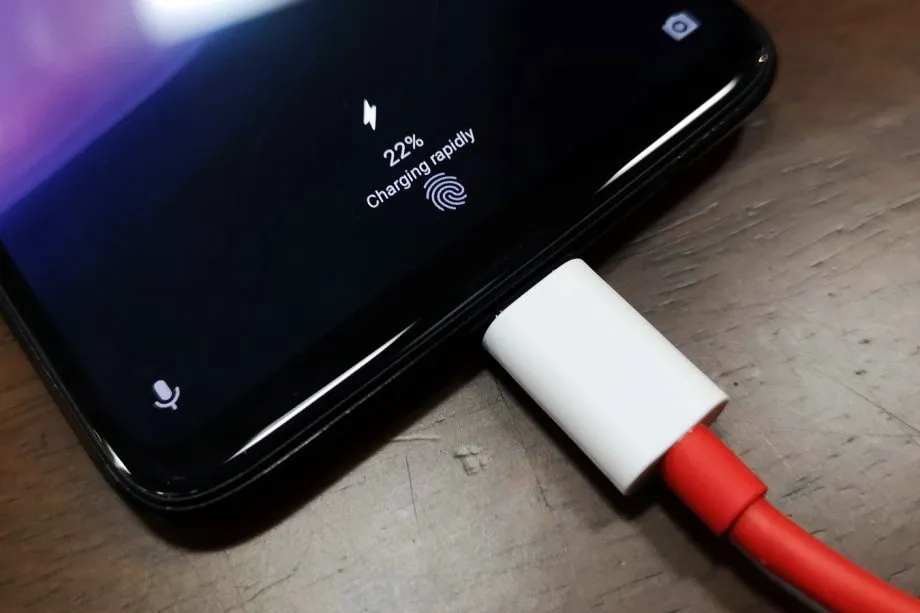
The Realme GT 3 boosts an impressive 240W charging speed, theoretically allowing a 0 to 100% charge in less than 10 minutes. Some Samsung phones can reach 45W with USB charging. Wired charging is normally faster than wireless charging. Android phones typically reach their highest charging speeds through USB-C, often reaching speeds of over 20W. In contrast, wireless charging is usually limited to 10 to 15W.
Additionally, USB-C is generally regarded as more dependable than wireless charging. While technologies like Qi2 with magnetic locking aim to address these issues, USB-C remains the more robust and dependable option. Wireless chargers rely on precise coil alignment for efficiency, and there is always a chance that a slight bump will displace your phone or knock it off the charger completely.
If at all possible, turn off your smartphone to expedite the charging process.
The best way to reduce battery life is to completely shut down your phone. Even in this case, it should continue to charge as fast as possible, so when it is connected to a compatible charger (which we cover in the next section), this provides the fastest possible charging scenario. The disadvantage is that you can not keep track of how fast your phone is charging, and you can not use apps or check notifications, so some people may decide not to use this option. If you are worried about receiving important messages from family or work, we strongly advise against using this method.
Use a direct power brick instead of a power bank or computer.
1. Only dedicated chargers guarantee fast wired charging:
While newer USB 3.x and 4.x ports can support super-fast charging (up to 240W) using a technology called USB-PD, they rarely reach that speed.
Most computer USB ports and portable power banks, even fancy ones, usually offer much slower charging than your phone’s dedicated charger. This is because they often lack the necessary power output capabilities.
2. Dedicated chargers are the safest and most reliable option:
While exceptions like the Anker Prime exist, relying on non-dedicated chargers for fast charging introduces risk and uncertainty.
Your phone’s original charger or a high-quality replacement designed for your specific model are the safest and most reliable way to ensure optimal charging speed without damaging your phone’s battery.
So, for the best, fastest, and most reliable wired charging experience, stick with your phone’s dedicated charger whenever possible.
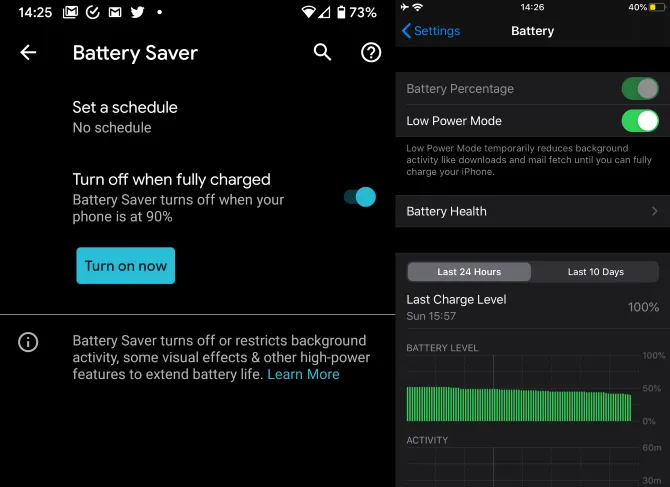
Low power mode (also known as Battery Saver on most Android devices, though the name may differ on your phone) is the best option if you do not want to or are unable to turn off your phone. It helps save battery life by turning off certain functions and background activities, extending the time between charges.
The low power mode on your phone can do a number of things, like accelerating the screen’s shut-off time, decreasing background sync activity, downgrading from 5G to 4G, and restricting the use of power-hungry apps. Pixel phones also have an Extreme Battery Saver mode that goes one step further, decreasing CPU speed and disabling notifications for apps that are paused. You may not use it constantly, but it is a way to concentrate on charging while maintaining access to critical features.
Disable unused features
While a phone’s screen and processor use up a lot of energy, wireless technology can also consume a significant amount, especially if your phone is frequently downloading files or searching for available networks.
Using Airplane Mode is the easiest way to turn off wireless radios, but it is not always the best option because it usually disables Bluetooth and Wi-Fi in addition to cellular data, which can be problematic if you need to use wireless earbuds or have an internet connection. You may need to adjust the Airplane Mode settings or use Quick Settings to turn off individual radios that are not in use. For example, if you are going to be away from home, you can probably disable Wi-Fi unless you need it for hotspots or Android Auto.
To increase the charging speed, do not use your smartphone while it is charging.
Playing 3D games like Fortnite or PUBG Mobile can severely deplete your phone’s battery. It is important to emphasize that the more tasks your phone completes, the more power it will use. If at all possible, find something else to do with your time until you need to respond to important calls and messages.
Keep your phone cool while charging
The ideal temperature range for charging a phone is between 50 and 86°F (10 and 30°C). To make sure your phone stays in this range, try moving it out of direct sunlight, putting it near a fan, or taking it out of its case—especially if the case is insulating, like a leather wallet case. Keep in mind that your phone naturally warms up during charging, so if it is already close to the upper limit, charging could push it out of the ideal zone.
In other cases, you might need to warm up your phone; for instance, a case that might be problematic in a Texas summer could be ideal for a cold winter in Ontario.
There are much more entry-level cellphones than flagships on the market. Because of the low-end specifications of these cellphones, it is highly typical for them to have poor speeds. Even tiny apps can cause the smartphone to hang on low-end hardware. Furthermore, many web pages may take a long time to load. If you have a Xiaomi entry-level smartphone, though, you’re in luck. There are a few basic things you can do to boost the speed of your smartphone. Xiaomi’s most popular smartphones are entry-level models. As a result, they come with insufficient hardware, which may cause them to slow while under strain. You can make the MIUI UI run faster and prevent these smartphones from hanging or freezing.
Boost MIUI speed
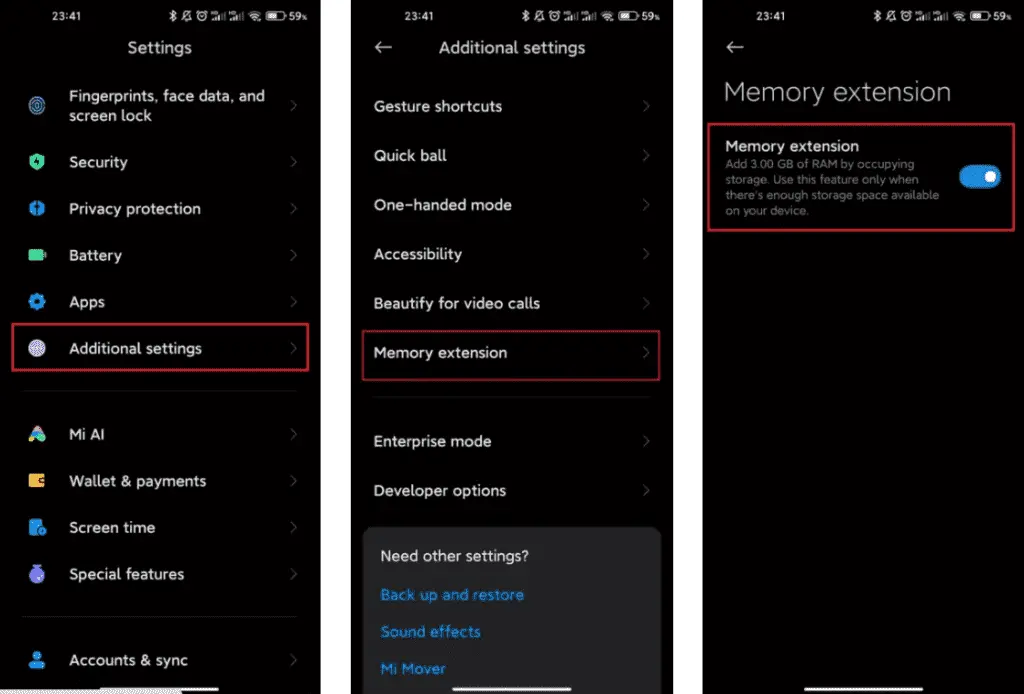
1. Extend your memory
Xiaomi, a Chinese company, has added a feature to its devices that may be of assistance. This is where the RAM expansion feature comes in. This capability has been available for the company’s smartphones since last year. This feature frees up RAM by using internal storage to create SWAP storage space. If you can activate this option, you’ll be able to boost the MIUI system’s speed. Although it is not as fast as physical RAM, it is a significant improvement.
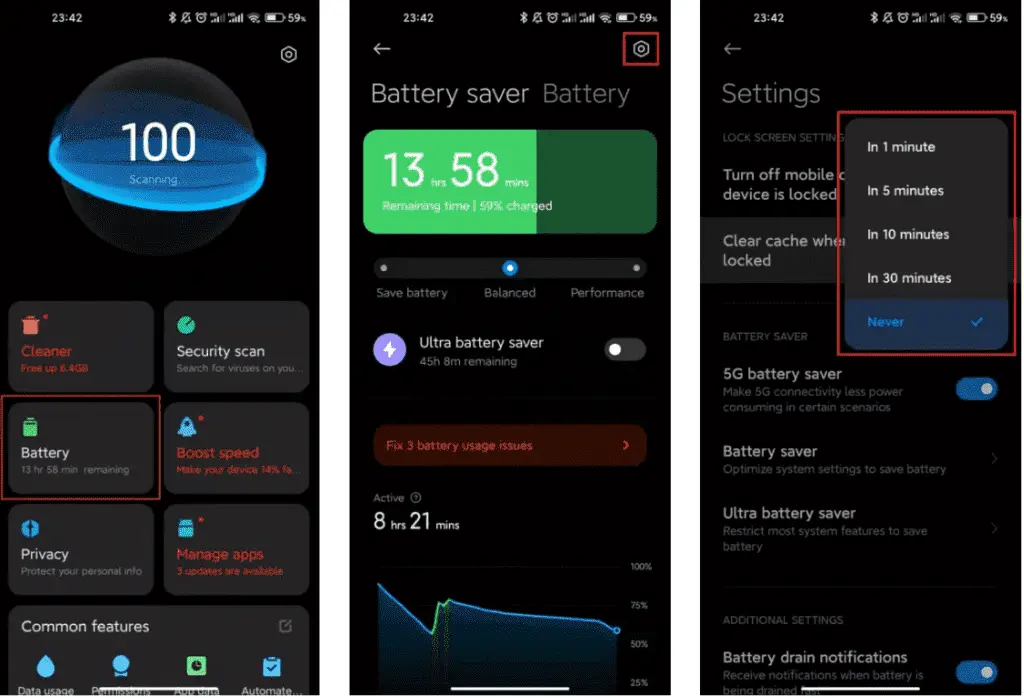
2. Clean cache
Whethere its a smartphone, tablet or even a desktop, clearing cache is very good for operation. When the cache storage is too heavy, it could cause the device to lag. The rate at which your cache storage fills up depends on how you use your device. With the automatic cache clearing feature, it is now very easy to clear cache. You no longer need to clear the cache via recovery mode.
Xiaomi MIUI automatic cache cleaning feature ensures that your cache is always clear. Whenever you lock your smartphone screen, this feature clears the cache. Furthermore, you can manually set this feature to clear the cache at intervals. Thus, whether your hardware is insufficient, clearing the cache will ensure that all its limited resources are spent on relevant operations.
3. Disable system apps and ads
You may have noticed that the MIUI system app has in-built advertisements when you run it. It’s vital to realize that these adverts consume some hardware resources. This means that it has the potential to slow down the smartphone. They can create delays in the opening of some functionalities since they require system resources. Xiaomi makes it optional to see these advertising because they might be quite unpleasant.
You may quickly disable advertising that you don’t want to see, and they won’t appear again. All you need to do is set up a private DNS server. In the private DNS provider, type “dns.adguard.com.” Then, just to be sure, look to see if these adverts are still visible. This will free up some hardware resources while also speeding up the MIUI system.
4. Disable system animations
This solution is compatible with any smartphone operating system. For entry-level cellphones, some functions are a great luxury. One of these features is system animation. Deactivating this feature is a common technique for making the operating system run faster. Make certain that the animation scales are set to 0 or 0.5. These animations will be faster than before, and MIUI itself will speed up.
5. Keep the storage clean
Obviously, filling your storage with “crap” is a recipe for disaster. This is because the storage capacity of your smartphone has a big impact on its use. This is also not unique to MIUI devices, but rather to all gadgets.
The pace of the smartphone slows down when the internal storage is full. You may notice minor latency and the device freezing at this stage. This can be avoided by keeping storage as basic as possible.
What are the most commonly asked questions from Android users? Like, how is Android getting faster? How can I make my Android phone faster? Well, it is the hope of every Android user that their phone defies all the boundaries of fluidity and rapidity.
But do you believe this is true? Can you make your Android phone faster than it can? At most, what we want is to make the Android system function as if it’s new, because our smartphone is slowed down by downloading apps and using them everyday. These apps run in real-time and consume the device’s memory, energy , and other resources.
So, what could be the many ways to use our Android devices efficiently, in such a way that we could reduce the lags and freezes as much as possible if not completely?
Keep the apps you use
Nearly every guide to Android tips and tricks you could read will suggest that you keep only those apps you use on a daily basis. Doesn’t that sound apparent? Will you store your house with unnecessary items only because they are free? Yeah, our homes are always loaded with items like that, but do we have to do the same with our smartphones?
In order to keep running, numerous apps that live inside our smartphones run all the time and need to connect to the Internet. Even if we don’t benefit from these applications, they will just place a burden on the hardware even raise our data bills. It would be a smart step in the direction of speeding up Android to get rid of such software.
Clear the cache
On a daily basis, there are some applications that you don’t need, but they are relevant enough to have a place on your computer. Like, you book flights, hotels, and order food with the apps you use. Try to delete the cached data for such apps in the Settings to make Android quicker, to ensure that they do not take much space when they are not in use. Often learning the cached data helps to make the app faster as it eliminates old data that might make it slow and cause freezes and crashes. The application will maintain newer versions of the same stuff when the data is removed.
Clear the memory several times during the day
Android has exceptional abilities for task management. It can, whenever needed, close unwanted processes on its own. But I can tell you this old-school thing would be of great help if your system had a RAM shortage.
Nearly every launcher nowadays provides the option of freeing up system memory. If there is no memory cleaning application, you should consider downloading any. And I am not talking about the apps here that claim to make your Android phone faster by running cleaning operations in real-time. And all they do is make it even slower on the computer.
Check if there are lighter versions of apps
Many of the popular apps like Facebook, Twitter, Messenger, and Opera also have versions of their ‘lite’. These lightweight applications are also designed for smartphones at the entry-level and for consumers needing to keep things simple.
The efficiency of your Android phone can be enhanced by using Lite versions for applications. And they also decrease your data bills, and it’s one of the reasons that there are such games.
Update your device
Each newer version of Android comes with different performance enhancements. So, updating your computer will do wonders and accelerate Android if your vendor is good enough to release one.
Alternatively, you can head over towards custom ROMs for your Android device if you think the device maker built the phone and just forgot the fact that it exists anymore. That is the case of the Mi Pad my friend brought more than a year ago. Even though the device has capable hardware, it still runs Android KitKat. Please note that using customs ROMs usually comes in the category of Android performance tips for experienced users.
Before you install an app
It’s almost a decade since Android came into existence and the number of apps for the platform has now grown into millions. But out of these uncountable number of apps and games, not all of them are designed by developers with good intentions.
Many Android apps are fake and want to take control of your device, steal valuable data and send it to their masters. For instance, the System Update malware lived in the Play Store for three years, undetected.
Google has recently rolled out Play Protect tool for scanning such apps. Indirectly, you can make your Android device faster by this option. However, you should check the authenticity of an unknown app before you install it, even if you’re downloading it from the Play Store.
Format your SD Card to improve Android performance
If you experience frequent crashes on your Android phones, one of the explanations might be a corrupt SD. Formatting the SD card would not only delete the unnecessary junk of files generated by the Android framework and various apps, but could ultimately lead to a boost in performance.
Update only over WiFi
In order to keep the information fresh all the time or do other things such as uploading files, images , videos, several apps need to update themselves in the background. Disabling background data can thus render an Android computer, to an extent, faster.
That’s because it bars apps from linking to the internet and from using device tools. Turning off background data for mobile networks will also be helpful in saving your internet bills.
Alternatively, you can turn off auto-sync on your Android device if you want to keep your device from being synced by Google.
And turn-off auto update in Google Play by visiting Settings > Auto-update apps > Select Auto-update apps over WiFi only.
Restart is what your Android phone needs sometimes
For our computers, this applies; restarting the machines will help them find their way through tough times. Similarly, Android devices may be the case too. It deletes temporary files to speed up Android when you reboot your computer and also cleans up the memory of the device.
Use the cloud, free your storage
Files are being transferred to the cloud in the latest 2017 storage fashion. Not only does this make our data available across devices, it also frees up precious internal storage on the Android phone that applications installed on the device can use. Keep in mind that internal storage plays a significant role in your Android phone’s output.
Keep your home screen clean
It sounds good to fill your Android home screen with live wallpapers and loads of widgets. However, all these things put additional load on the hardware under the hood and affect the output of the system.
Often, when you use a heavy app or play games, you may see your Android device struggling to load the contents of the home screen.
One of the many ways you can make your Android phone quicker is to keep your home screen as clean as possible. Every time you return to the home screen or wake the computer from sleep, it doesn’t have to load all the content.
Try other launchers made for Android
android launchers
Custom launcher is a perfect way to turn your Android computer into a whole new version of itself. It might not be feasible for a custom launcher to have a major performance boost related to hardware, but some of them suck much less memory and Processor than others. Installing a lightweight custom launcher will thus make your Android phone functionally faster.
In addition, the variety of shortcuts, customizations, and other options will help to make your Android device run faster, if not faster. These applications will reduce the time that people would possibly spend in searching different apps and settings on their devices.
What to do when your Android phone freezes?
It’s hard to digest, but some evil apps and processes make our device experience the temperatures of hell. But repeatedly tapping the screen or pressing buttons would only make things worse when your Android freezes due to an app crash or when all RAM gets consumed.
Under such cases, strive to show some calmness and maturity. Most of the time, it’s just the app, and pressing the home button will take you to home screen. After that you can destroy the affected app from the Recent apps section to make Android faster.
When you press the home button, if nothing happens, press the power button gently and try to ‘reboot’ or ‘turn off’ the system. If the system is stubborn enough to resist a restart you may remove the battery. If your mobile has a non-removable battery, you can have all the time, but you may have to wait until the battery is discharged.
Developer options
There is a much popular way to make an Android device faster by tweaking some settings in the Developer Options. However, I personally don’t like this suggestion as it leaves the device without any special effects.
You can enable Developer Options on Android by going to the About section and tapping the build number five times consecutively. Then, you’ll be able to see Developer Options in the Settings. You can disable animations on the device. Set Window animation scale, Transition animation scale, and Animator duration scale to off.
This change reduces the time wasted on rendering various visual effects on the screen when you operate, making it work quicker in some sense. Go ahead if you’re fine that your device appears to be running a decade old software when it’s not.
Reset your device
Last and but not least, the ultimate option to make your Android phone faster is to perform a factory reset. You can consider it if your device has slowed down to the level that can’t do basic things.
There are two ways to reset on your Android device. First is to visit Settings and use the factory reset option present there. This would perform a soft reset of your device which involves resetting device settings and wiping all the data like your photos, videos, apps, cache, etc.
For deeper cleaning, you’ll have to boot into recovery mode and hard reset the device. After you turn off the phone, on most Android devices, recovery mode can be accessed by pressing Power and Volume Down button for around 5 to 10 seconds.
You will need to boot into recovery mode for deeper cleaning, and hard reset the computer. On most Android devices, after you turn off the handset, you can access the recovery mode by pressing the Power and Volume Down buttons for around 5 to 10 seconds.
In most situations, though, you should stick with the first process, as it will fix problems for you. And, try to back up the data before you do something.
So, these were some of the Android tips and tricks for your phone with a hope that you’d be able to give it some adrenaline rush.