Tag: sms

  • Google Messages ads RCS label in contact list

    Google Messages ads RCS label in contact list

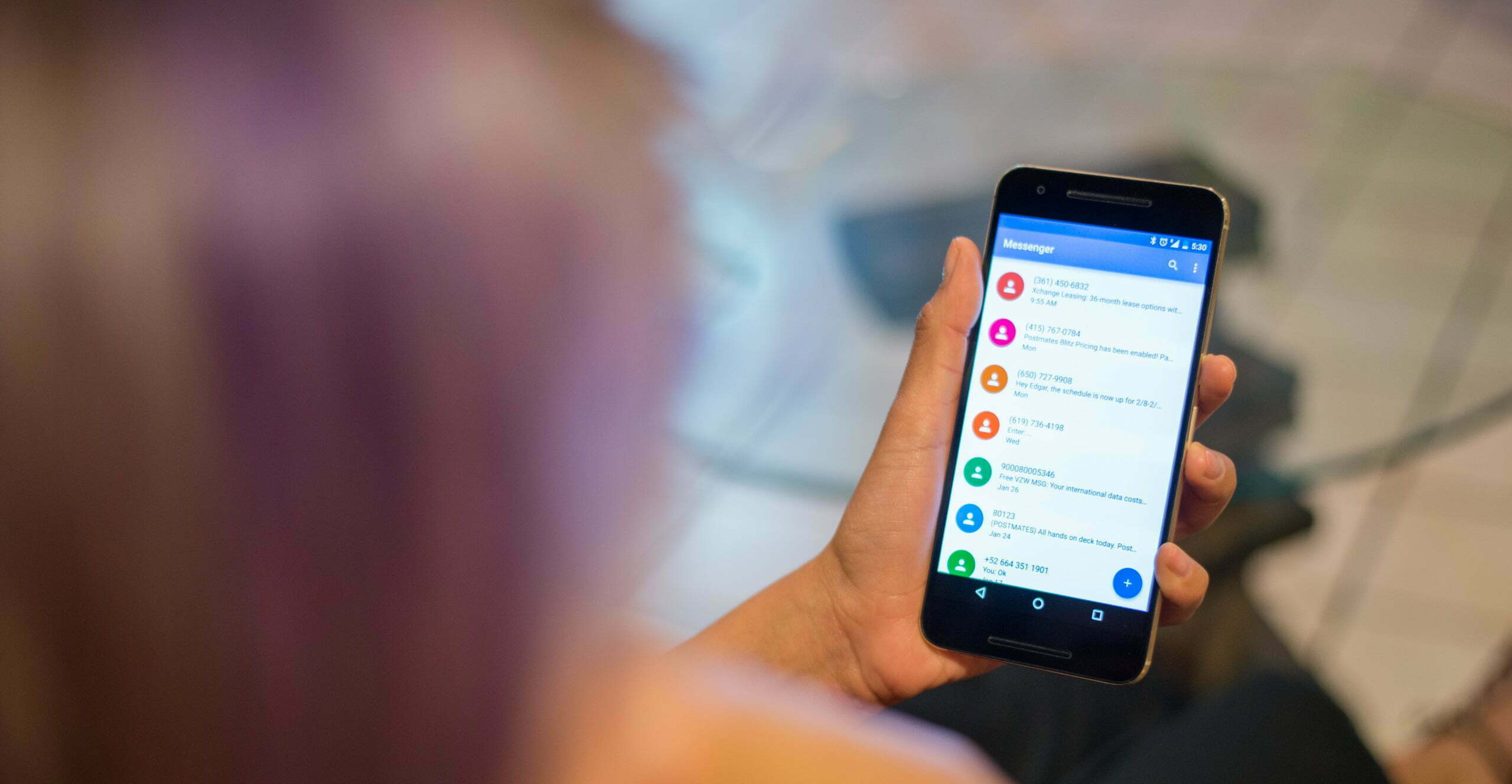
    Google Messages’ RCS texting feature isn’t as efficient as it could be. You can’t tell whether someone has RCS messaging enabled unless you start a chat with them. With a new RCS indication in Google Messages, Google is permanently resolving this issue.

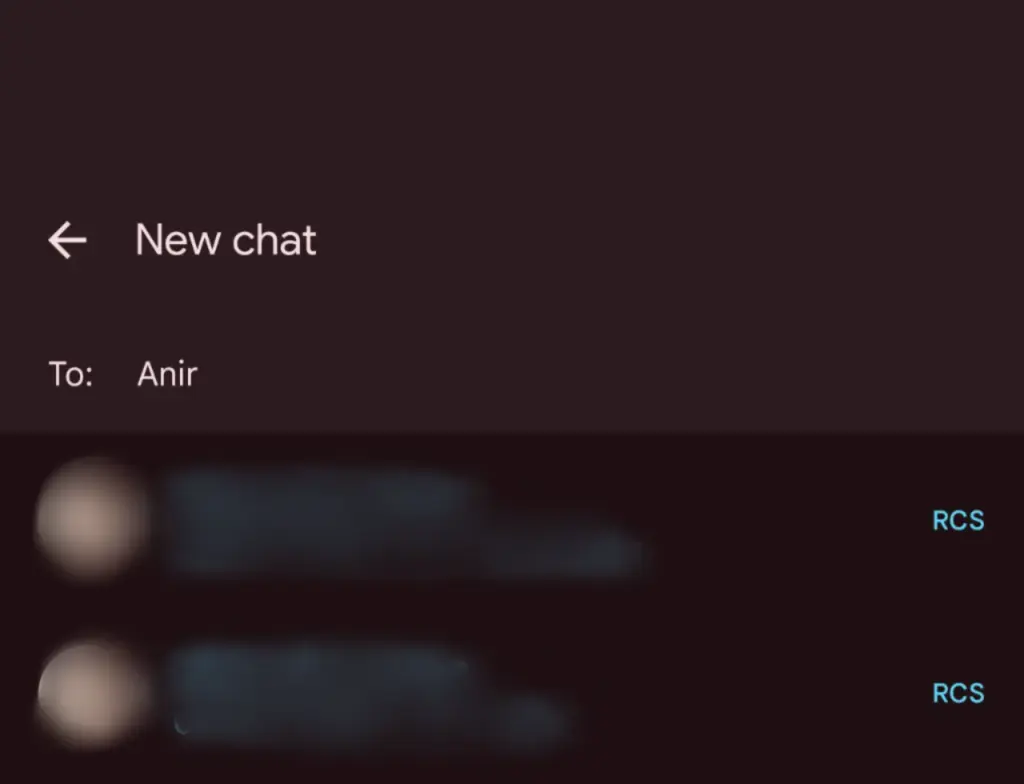
    The “RCS” badge will appear on the right of numbers that support the upgraded texting experience (via Reddit) when you compose a new message and navigate through your contact list in Google Messages. The label won’t show up next to a saved contact if they are not able to send RCS texts.

    In addition to the label, dynamic color theming is used to further draw attention to RCS-enabled contacts. Regular numbers are shown in either white or black. Google Messages will show RCS availability for each number if a contact has more than one.
    google messages rcs label

    Even though this might not seem like much, it will contribute to a more reliable RCS experience. Now, you can easily check if a contact has RCS enabled. This modification should only serve to increase the uptake of RCS.

    Before, you had to begin writing a message with them in order to find out. In April of this year, Google was initially observed working on this Google Messages update.

    According to 9to5Google, there are further minor modifications. The “New conversation” title that was previously displayed on the screen that comes after tapping the “Start chat” button has been replaced with the “New chat” heading.

    Some users of the most recent Google Messages for Android beta (20250527_01_RC00) are seeing the RCS label. Since none of my phones have the label yet, it looks like this is a restricted server-side rollout.

    Google brings many features to Messages

    To its credit, Google has been working diligently on Google Messages, addressing numerous issues and incorporating new features to level it up with its rivals. The business merits recognition, even though there is still much to be done.

    Testing has revealed several planned Google Messages enhancements, such as threaded answers, a huge compose box for seeing your lengthy texts, and a new landscape style.

    If you want the latest Droid Tools news, follow us on X @droid_tools and like our page on Facebook to stay updated.
  • HyperOS 2.2 Beta changelog released by Xiaomi

    HyperOS 2.2 Beta changelog released by Xiaomi

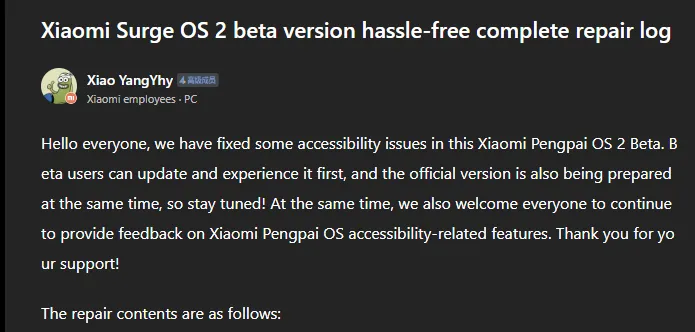
    Xiaomi has taken a huge step in making its devices more inclusive by releasing a comprehensive accessibility repair log for HyperOS 2.2 Beta. Xiaomi employee @小杨Yhy shared a complete update in the Xiaomi Community, addressing accessibility concerns across the system, including basic controls, SMS functioning, and TalkBack improvements. This massive accessibility upgrade underscores Xiaomi’s dedication to create a more inclusive user experience, ensuring that their devices are usable by people with a variety of disabilities.

    HyperOS 2.2 Beta change log

    Common control enhancements in HyperOS

    The accessibility update addresses a number of typical control issues that previously limited users with impairments. These improvements significantly improve the system’s overall user experience.

    Key enhancements to standard controls are:

    • Corrected password control choices in the input fields
    • Resolved index bar operation and selection issues
    • Corrected focus problems with bubbles showing up when entering pages
    • Corrected switch control focus redundancy
    • Corrected wrong reading of switches as checkboxes
    • Included proper labeling to jump buttons in lists
    • Fixed reading problems with search and input boxes
    • Fixed focus and labeling problems with back buttons
    • Enhanced notifications of selection status
    • Provided proper labels to progress bar buttons

    These fundamental upgrades will make the process more natural for users who rely on accessibility capabilities, particularly those who use screen readers or voice commands.

    Communication and messaging enhancements

    All users must be able to communicate, and the latest update significantly improves the SMS and phone accessibility capabilities. These changes make messaging and phoning more accessible to handicapped people.

    Notable SMS and phone accessibility fixes include:

    • Correct labeling of satellite map SMS broadcasts
    • Addressed incorrect messaging in SMS multi-select action
    • Fixed the checkbox selection issue in message feedback.
    • Removed unnecessary blank focus fields in message details
    • Resolved incoming call number labeling issues
    • Fixed the dial pad focus and selection problems.

    The new update also resolves several contact-related accessibility challenges to allow users greater control over their contact list and dialing irrespective of disability.

    Control Center and System Settings Accessibility

    System settings and the Control Center both benefit from extensive accessibility enhancements, making the management of the device more accessible to everyone.

    Key improvements are:

    • Resolved focus penetration problems in the Control Center
    • Fixed switch status reporting issues
    • Included proper labeling throughout the Control Center
    • Fixed-coordinate position reporting during icon ordering adjustment
    • Enhanced focus of notification center and labeling
    • Fixed switch reading problems in settings
    • Added proper control type announcements

    These enhancements guarantee that the users with disabilities can efficiently navigate and control their device settings without the presence of accessibility barriers.

    Specific accessibility features for apps

    The update also introduces several accessibility improvements to some of the Xiaomi apps, such as the CalculatorCalendarWeatherNotesRecorderFile Manager, Xiaomi Video, and Browser. These improvements work to achieve consistent accessibility within the entire Xiaomi ecosystem. TalkBack users stand to benefit most from the fixed volume adjustment problem and touch failure issues that previously hindered screen reader performance.

  • Backup and restore your SMS On Android devices?

    Backup and restore your SMS On Android devices?

    Assume you got an essential text message and mistakenly deleted it while attempting to archive it. How do you restore deleted messages now? To prevent the hassle in the first place, you can use phone data recovery tools or backup all of your text messages on Android. You can either use the default Google backup or a third-party SMS backup and restore app to accomplish this.

    1. Backing Up SMS Using Google Backup

    Google provides an SMS backup and restore service. However, it has many limitations, including the fact that it is not available on all Android devices, that you cannot monitor when Google can perform the automatic SMS backup, and that the backup expires after 57 days.

    On the plus side, since it does not require the use of a third-party tool to backup and restore SMS, this is the best solution if you are worried about your privacy.

    How to backup text messages to Google Drive?

    1. Go to Android settings.

      How to backup SMS on Android
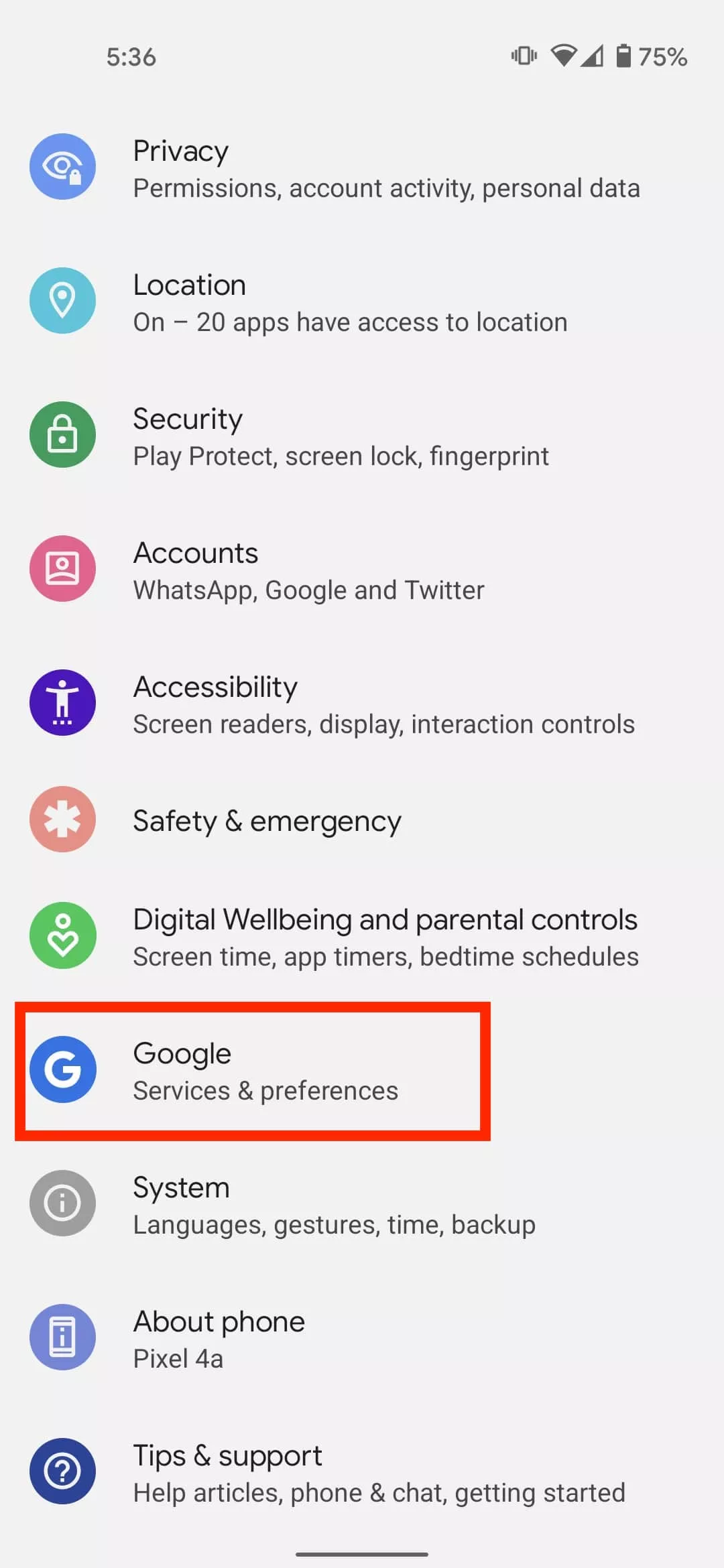
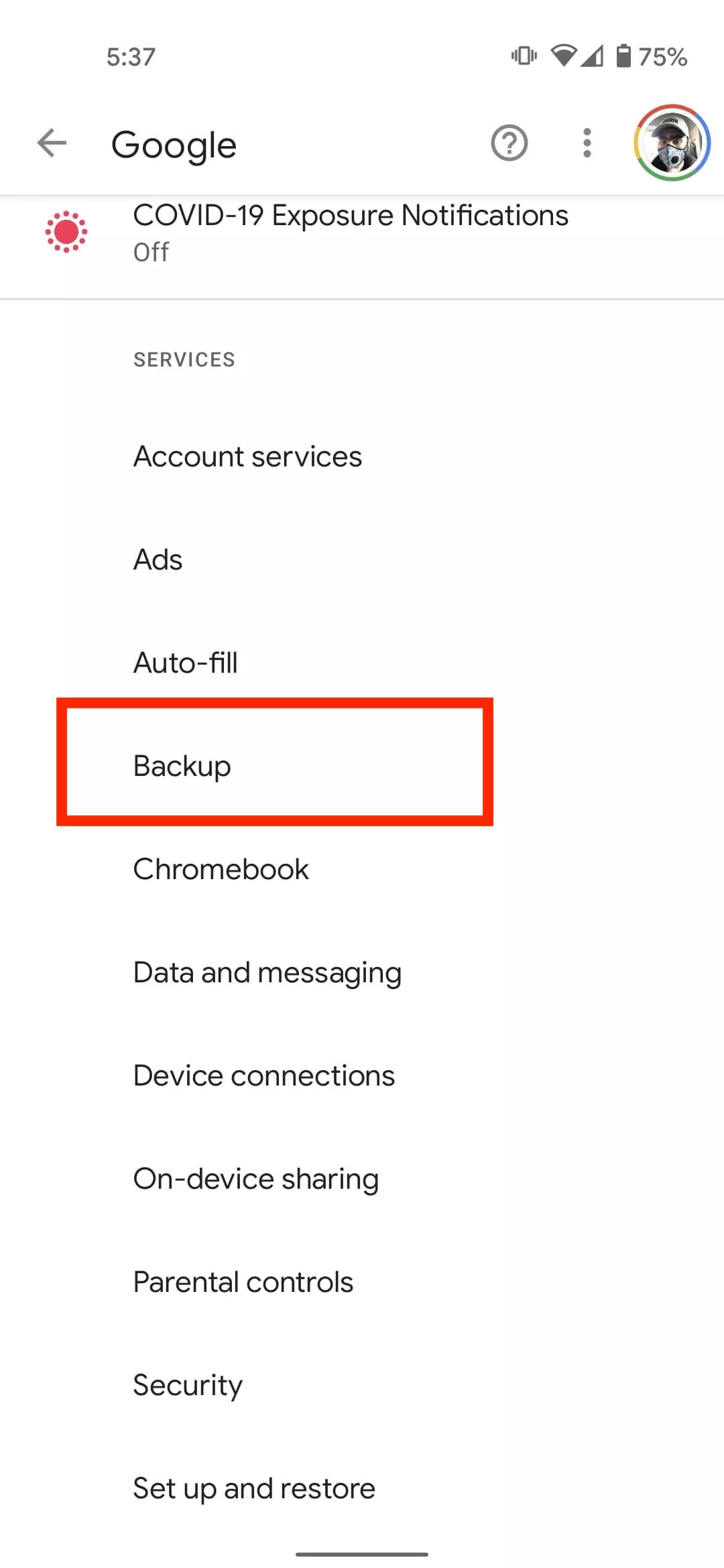
    2. Select Google > Select Backup.

      Select backup SMS Google
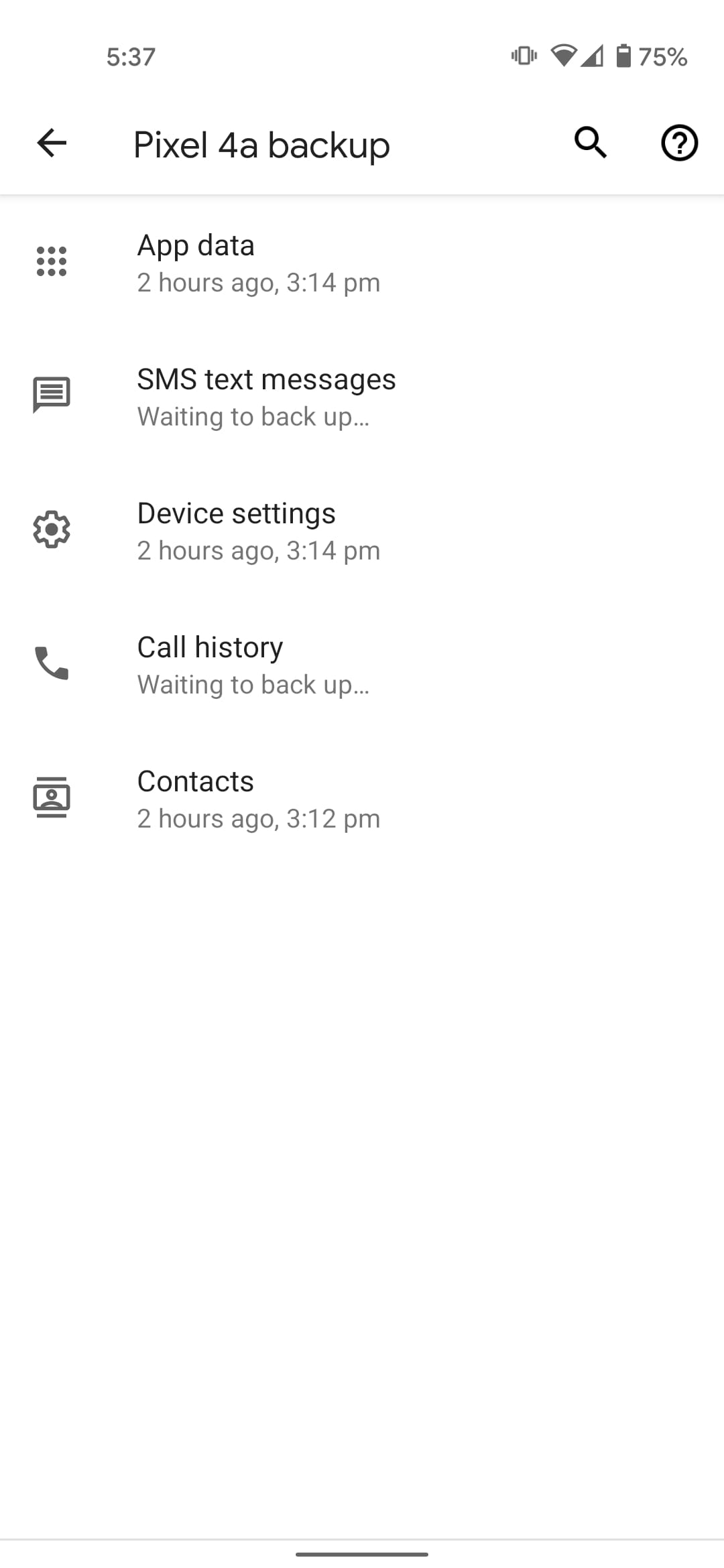
    3. Tap on your device name and see if the backup includes “SMS Text Messages.”

      backup text message AndroidSMS text message Google Backup
    4. Go back and Tap on Backup Now.

    Once the backup is complete, you will find it under the Backups tab of your Google Drive.

    2. Backing Up SMS Using A Third-Party Tool

    Another way to backup text messages on Android is through a third-party tool. SMS Backup and Restore is a great option and is often recommended. But I always prefer SMS Organizer from Microsoft.

    That’s because it’s not just a tool for backing up SMS on Android; it’s primarily an SMS app known for intuitively organizing text messages. I have been using SMS Organizer for a long time now and have never felt the need for another SMS app.

    Of course, if you are satisfied with the default Google messages app or any other SMS app, you can always use SMS Backup and Restore Android app to save text messages. But here, I will show you how you can backup text messages using SMS Organizer:

    How to backup text messages using SMS Organizer:

    1. Go to the SMS organizer app
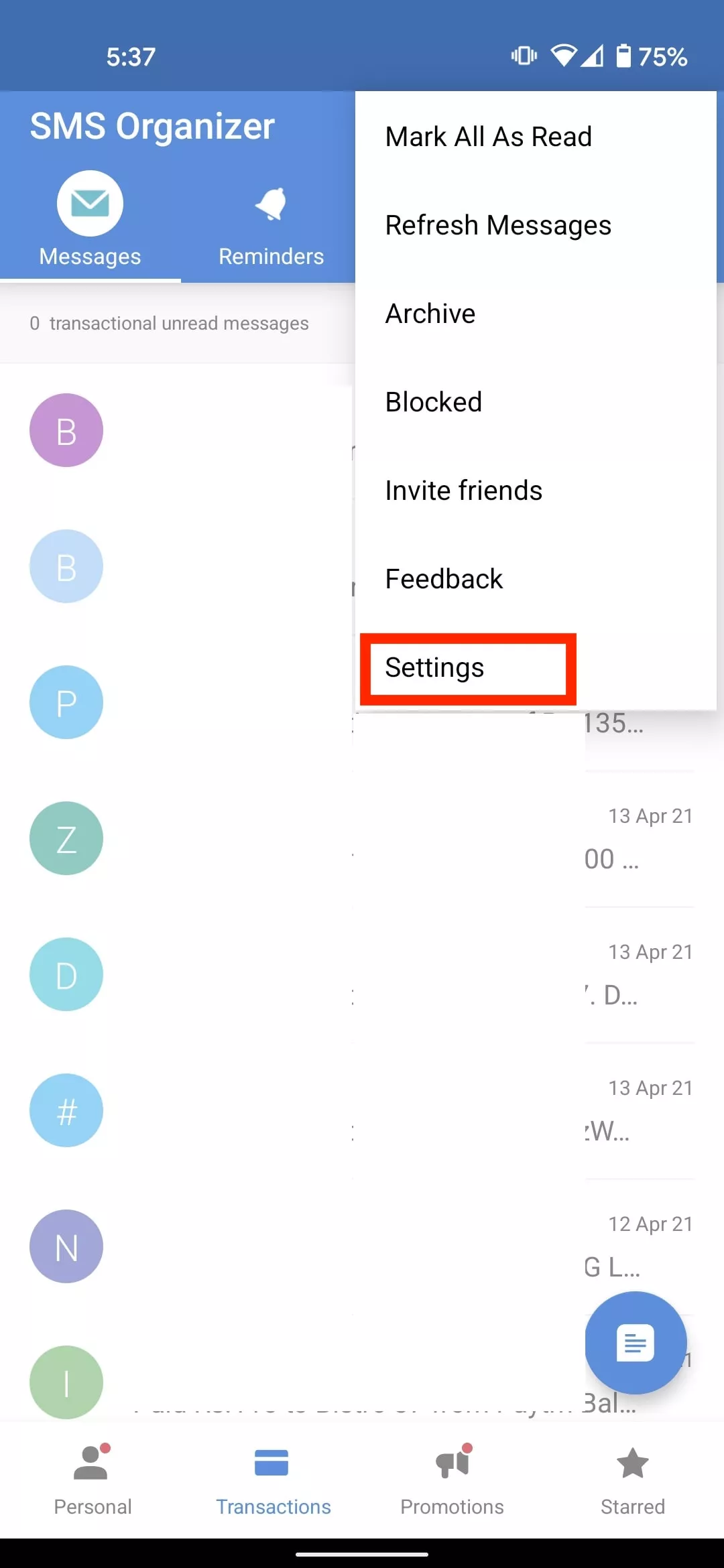
    2. Tap on the menu icon in the top right corner

      SMS Organizer go to Settings
    3. Select Settings
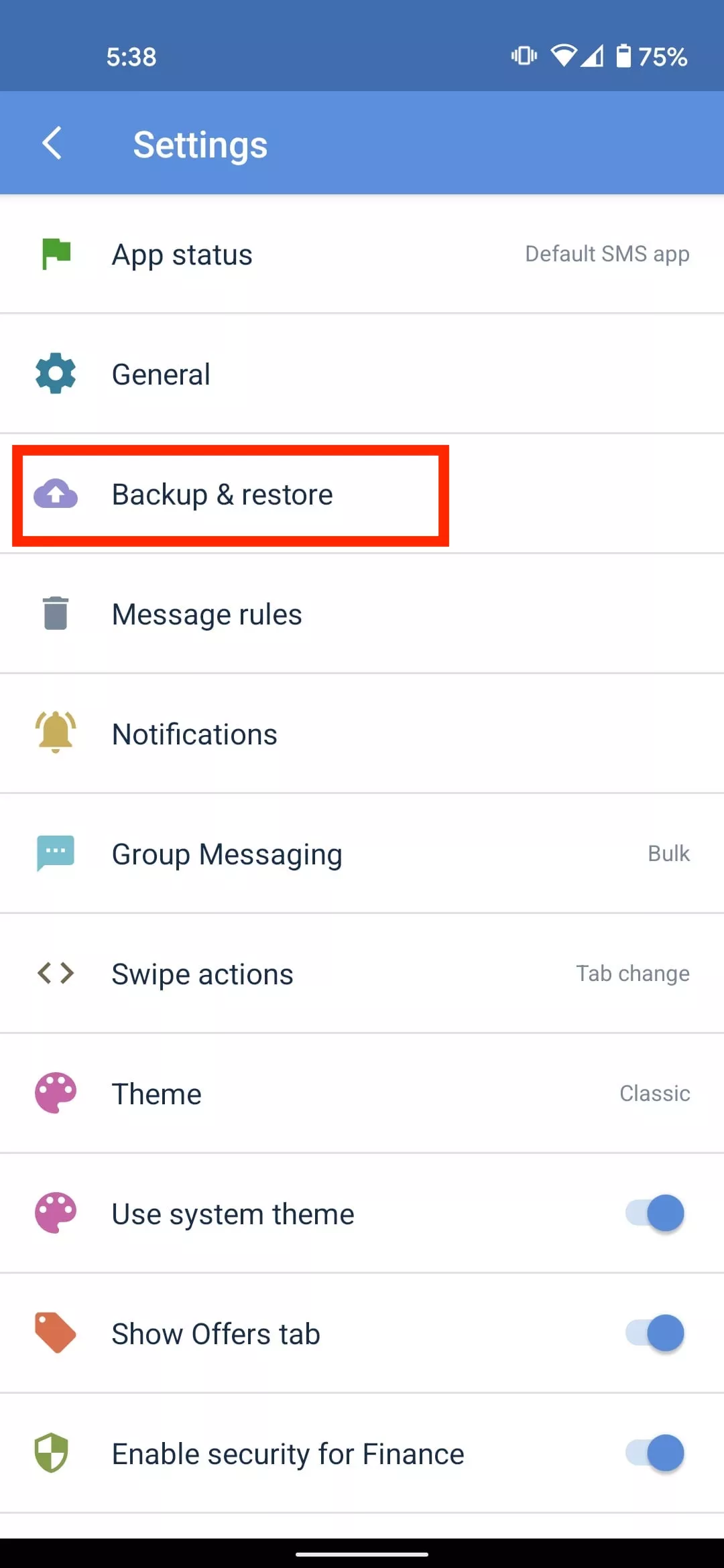
    4. Tap on Backup & Restore

      SMS Organizer backup & Restore
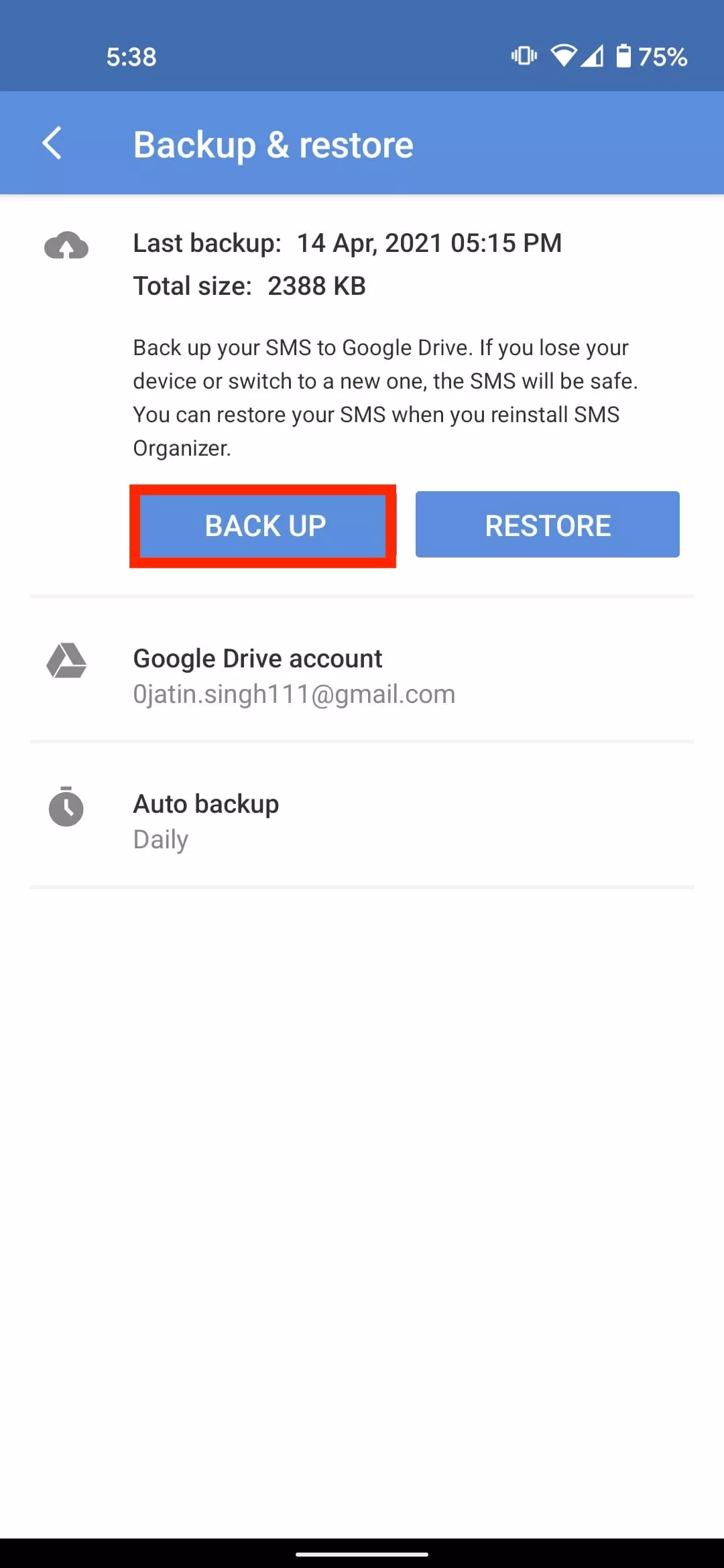
    5. Select Backup

      SMS organizer backup
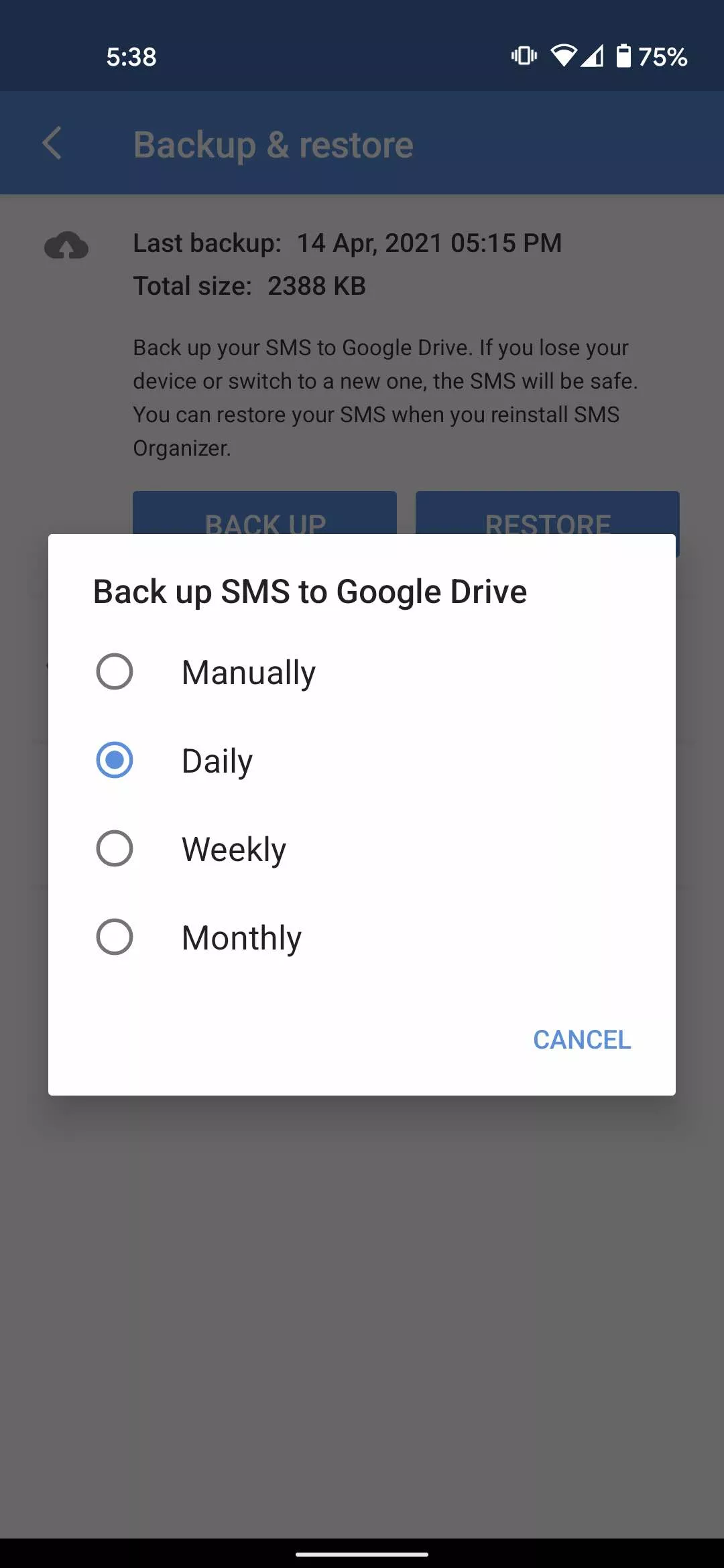
    6. Tap on Auto Backup and set the SMS backup to daily, weekly or monthly.

      SMS organizer daily backup

    If you want to restore text messages on a new Android device, simply install the app > Log in to your account and Select Restore.

    Unlike SMS Backup and Restore, the SMS organizer does not have the option to backup SMS hourly or set a recurring scheduled time for automatic backup. That being said, both apps are efficient for backing up your SMS on Android.