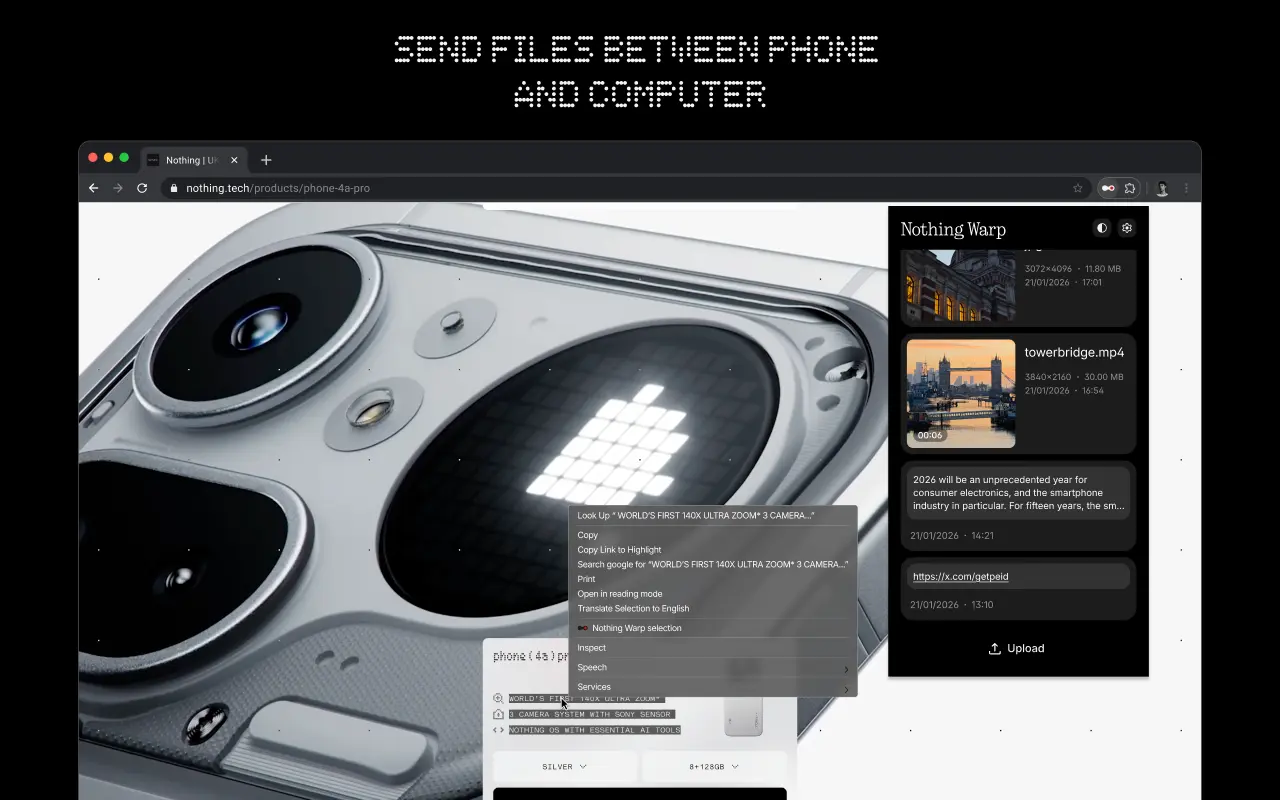
Moving data between an Android phone and a Mac has not been easy for users. Users are frequently forced to rely on third-party products or cloud services due to the absence of a native, dependable bridge. With the goal of making this process much more convenient, Nothing is now stepping in with a new solution called Warp.
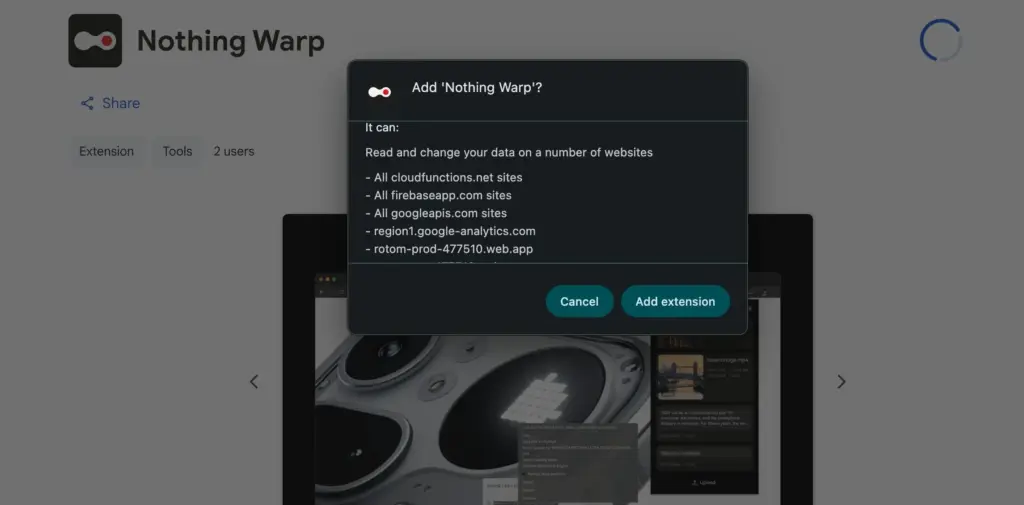
Warp is designed as a two-part solution, consisting of a browser extension and an Android app. Because it operates via a browser, it may be used on Windows and Linux computers as well as macOS, so long as users are using a browser that is based on Chromium. It has an advantage over ecosystem-specific tools due to its broader interoperability.
After installation, Warp appears in Android devices’ default sharing menu. Photos, movies, documents, links, and even plain text can be sent with ease. Similar versatility is available on the computer side thanks to the extension; you can push images from a webpage, email files, and copy text straight to your phone. Nevertheless, it isn’t always effective. Warp could not show up as an option if certain online apps override the browser’s built-in right-click feature.
The ability to handle many devices is a noteworthy feature. It is not necessary for the recipient device to be active at that precise moment in order to deliver material across several devices. Because Warp does not require a direct connection between devices, this is feasible. Rather, it sends files via a download prompt on the other device after briefly uploading them online.
For daily use, this approach is effective, particularly for smaller files. Images and text excerpts move smoothly and swiftly. For larger files, however, this is not the case. For instance, it can take a considerable length of time to upload large videos before they are ready to be seen elsewhere.
Nothing claims that it does not directly handle user files in terms of privacy. Because Google Drive is used to route transfers, customers must link their Google account in order to utilize the service. Although specifics regarding storage consumption and file management are still unclear, the business also asserts that these files do not clog the user’s Drive storage.
Warp is presently free to use and in beta. It provides a useful and more universal approach to exchange content across Android smartphones and Macs without depending on brand-specific capabilities, even though it might not be able to substitute quicker, direct transfer methods for large files.
The Pixels are even more feature-rich than Android. You find more the deeper you go. Given that he finds more features than Google even promotes, our own Mishaal Rahman may likely attest to that. And that speaks volumes about a platform that the majority of us use on a regular basis on our phones, which are our main devices.
Having spent years immersed in the vibrant and colorful world of Android, I have created certain personal favorites—features that are really essential yet still go unappreciated. Although you may be aware of them all, I’m willing to wager that many of us are unaware of them until we come across them in a random Reddit comment.
I now use these functions on a regular basis; some are exclusive to the Pixel, while others are available on all Android devices.
Quick tap
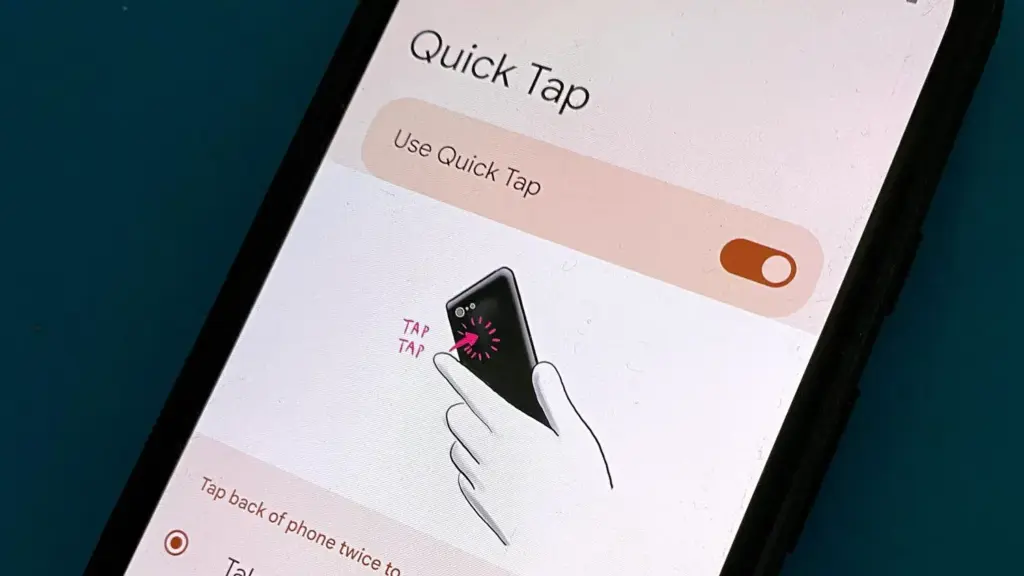
Double-tapping the back of a Pixel phone activates shortcuts, which is a great gesture. I have my Quick Tap in Settings app set to pull down the notification shade, which I probably do a thousand times a day, whether it’s to ignore a barrage of Instagram direct messages or obsessively check for a message.
Particularly when utilizing an app, it’s far simpler than reaching your thumb all the way to the top of the screen. I just need to lightly tap my index finger, which is where it naturally sits, to check who has ping-ed me, and then I can immediately resume my job while ignoring them. Easy.
Clipboard manager on Gboard
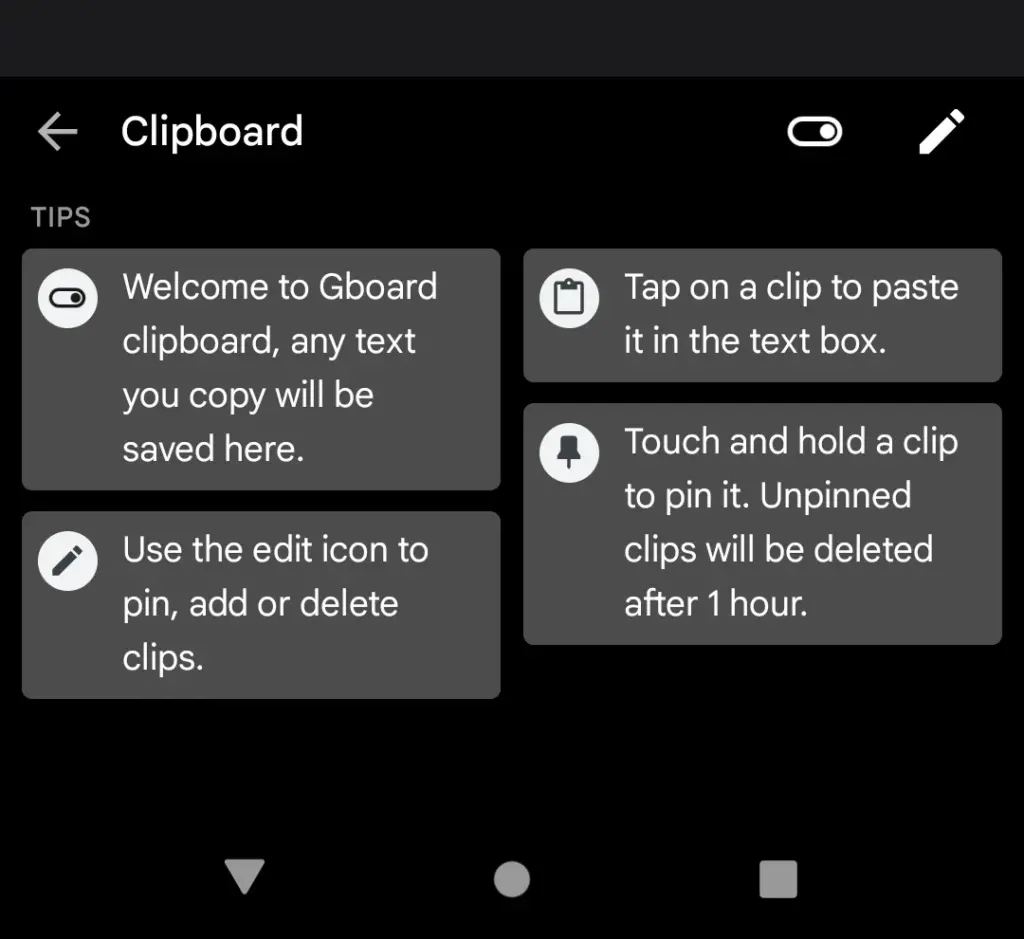
Sincerely, I’m not sure how I’ll manage without this anymore. I’m always storing text snippets, URLs, package tracking numbers, and even Instagram captions that I’m still working on using Gboard’s clipboard manager. Additionally, it is located beneath Gboard‘s menu selections and is only a tap away.
It’s an underappreciated talent to be able to pin things so they don’t disappear after an hour. Additionally, it helps me fill out those nagging forms that always reload when I switch between apps. My sanity has been rescued numerous times by having lengthy responses stored in the clipboard.
Smart text selection in overview
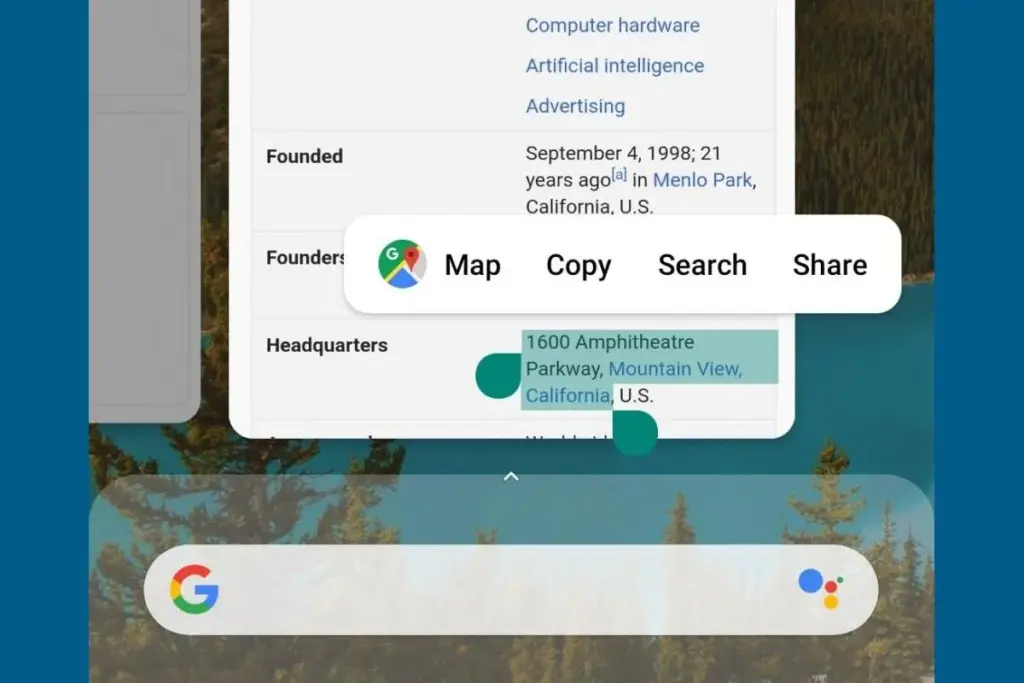
Who knew it could feel like such a victory to save one more tap? Long-pressing text in the app overview screen on Pixel phones allows you to copy it without having to return to the app.
At first, it might not seem like a significant deal. However, those saved taps add up if you’re copying information one by one, for example, from WhatsApp to fill out a form somewhere else while making sure everything is correct. It’s a minor detail that helps me avoid a lot of conflict and irritation.
Multitasking with split-screen
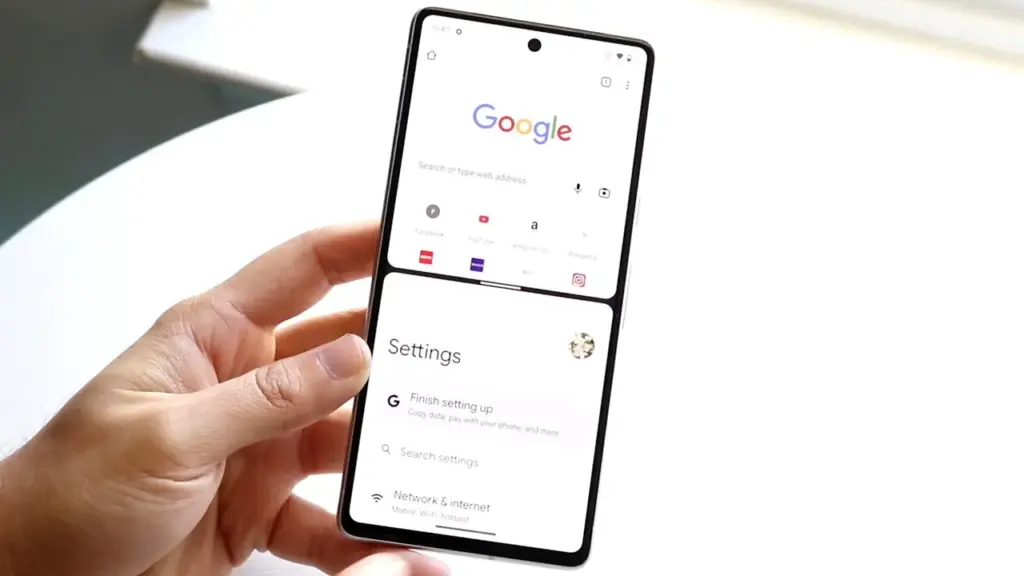
I believe this function to be equally useful on smaller devices, even though it’s frequently marketed for phones with giant screens and foldables. To avoid continually switching between apps, I regularly utilize it to run utilities like the calculator alongside other programs, again from the Overview page.
I’ll admit that I occasionally forget it’s there, but I spare myself the hassle by arranging my programs into split-screen the instant I see myself switching between them too frequently.
App pinning
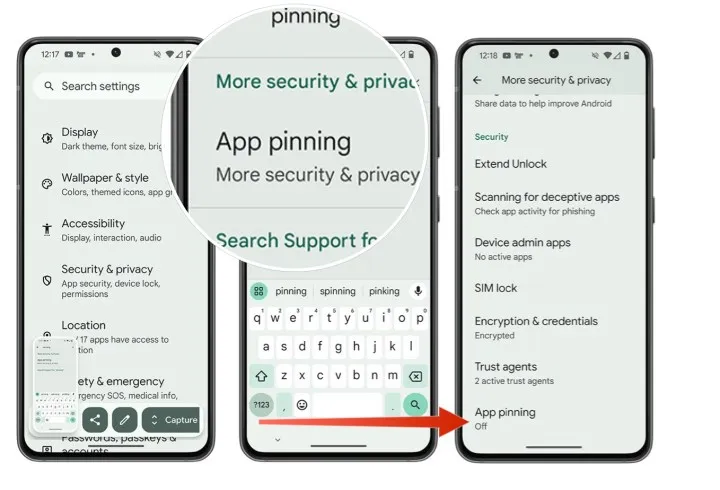
It’s simple but incredibly underappreciated. I pin the app by choosing the Pin option from the Overview screen whenever I give my phone to someone, such as to pick up a contact or scan a QR code at a movie theater (you must first enable app pinning in your phone’s Security and privacy settings). This prevents them from inadvertently or purposely swiping into another app.
When I show friends and family a single picture, I can’t stop them from idly browsing around my gallery, but I can stop them from switching to Messages or Keep. It comes in particularly handy when my young niece or nephew borrows my phone to play games and I don’t want them to change applications or erase random notes.
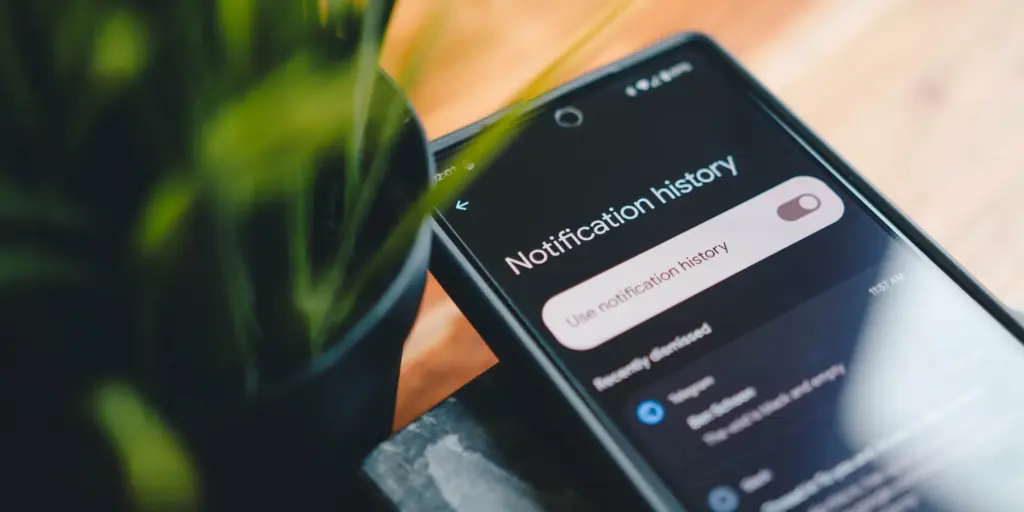
Notification history if you dismissed one by mistake
It would be an understatement to say that this is a lifesaver. I vividly recall how taken aback I was to discover that Android even possessed this capability.
I occasionally unconsciously swipe away notifications from a particular app out of habit, only to discover later that I truly needed that particular app. Even if accessing notification history through the Notifications area of the Settings app isn’t the most user-friendly method, knowing that those messages aren’t permanently erased calms my racing thoughts.
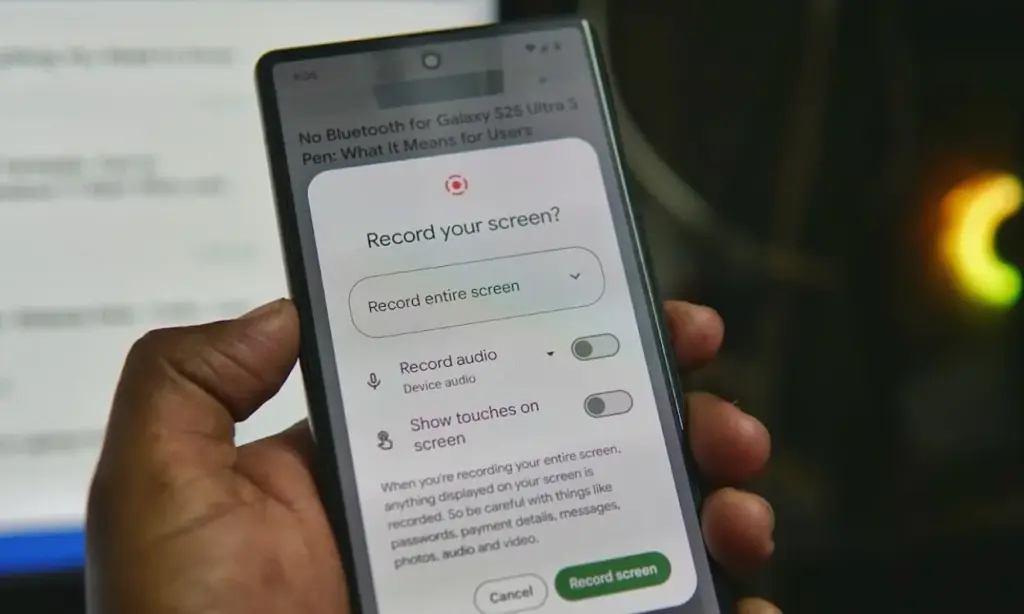
Screen recording has built-in audio
In addition to recording the screen, Android’s built-in screen recorder also records internal audio, not simply microphone input. Every time you choose the option from the Quick Settings menu, it allows you to choose the audio source.
I utilize the functionality for more enjoyable (and practical) purposes, but it’s also useful for sending how-tos to friends and relatives. When a song strikes, you can save synced lyrics from music applications to share with someone, record buggy app behavior to report bugs (and collect huge bug bounties, just saying), or record clear audio broadcast parts from YouTube.
The microphone does not pick up any noise during any of this. Furthermore, you definitely don’t need any dubious third-party tools for this.
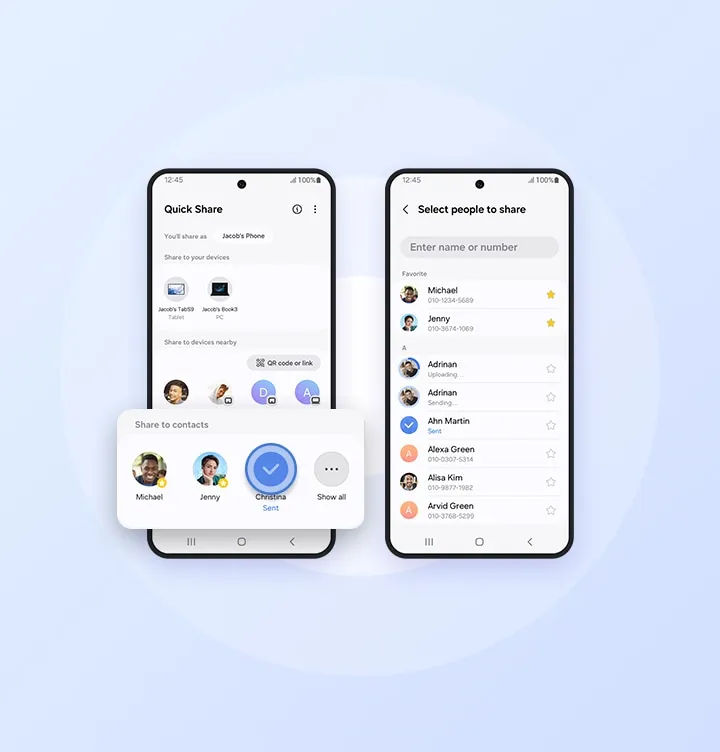
Quick Share
Fast file transfers between devices are a feature of Quick Share, however I use it more for myself than for other people.
I frequently have to transfer screenshots and images from my Pixel to my Mac for work. I can share files as quickly and smoothly as AirDrop if I have a third-party app installed on macOS. Even better, Google’s first-party Quick Share software functions flawlessly on Windows, so you’re in luck.
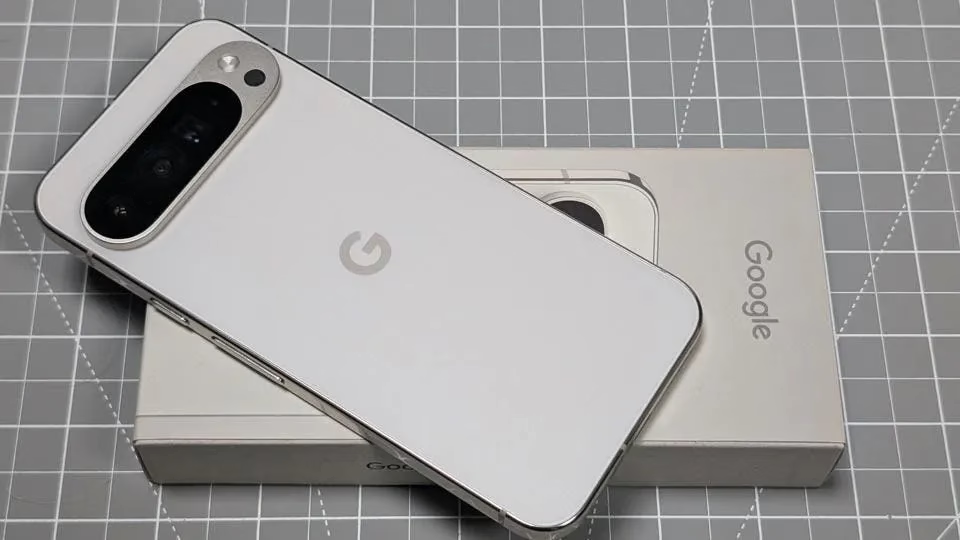
Google Pixel 10 Pro XL
Google Pixel 10 Pro XL is the ultimate Pixel experience, featuring advanced AI – Gemini, unbelievable camera quality, impeccable design, and the next-gen Google Tensor G5 chip
I’m confident that there are a dozen more hidden gems like this in the UIs of Android and Pixel if I look more closely. However, I use these on my Pixel every single day. My flow and my sanity would be totally disrupted if I were to lose even one of them.
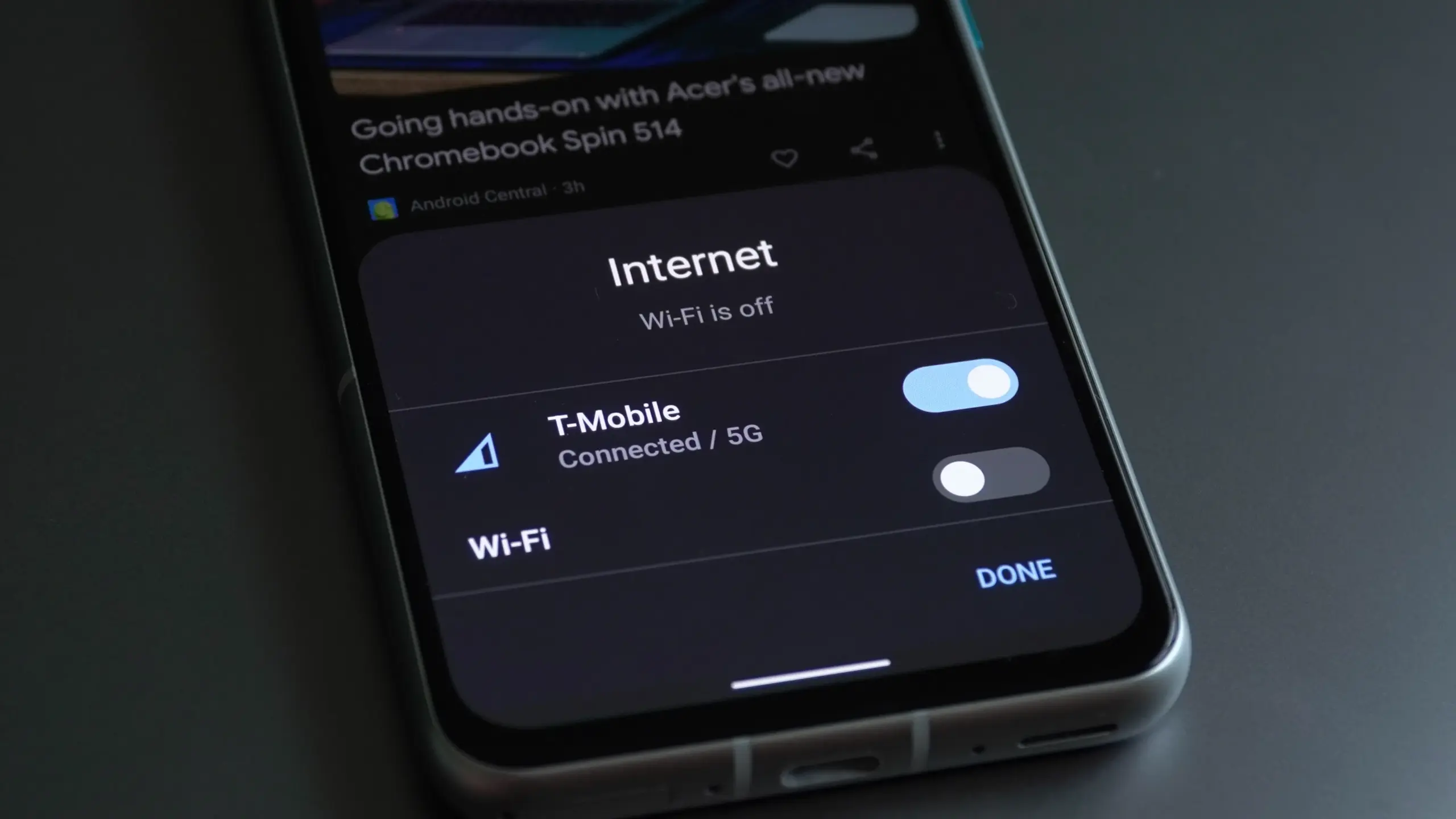
Connectivity features enable communication between networks and devices. Numerous tools are available on Android, with Bluetooth, Wi-Fi, Near-Field Communication, and mobile hotspot being among the most widely used. There are very few users that do not utilize any of them in a given day.
You might be using a wireless connection to watch videos or pair your wireless headphones with your phone. You may be surprised to learn that there are more features available to improve your experience. Let’s examine your device’s settings in more detail and get you using them immediately.
Use QR code to share your internet connection
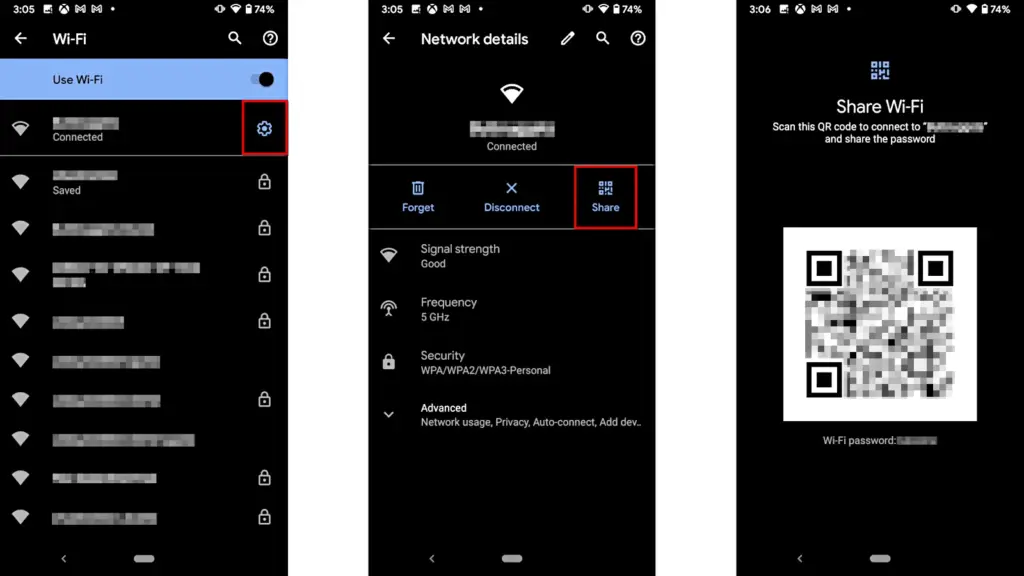
It’s uncomfortable to pause what you’re doing, type or speak out your Wi-Fi or mobile hotspot password, and ensure sure no one else can see or hear it. Use a QR code if you want to share it more quickly. Here’s how:
For wi-fi network
Go to Settings > Wi-Fi.
While your device is connected to a network, tap the information icon beside the network.
Tap Share. You may need to enter your security method to continue.
You should see a QR code. It’s a square filled with a black and white pattern.
From the device you’re sharing to, access the QR code tile from Quick Settings.
Scan the QR code to get access immediately.
Mobile hotspot password
Open Settings.
Go to Network & internet or Connection & sharing.
Tap Hotspot & tethering or Personal hotspot.
Tap the toggle button to enable hotspot.
Tap the tiny QR code icon beside the hotspot name. You should see the enlarged version after entering your security unlock method.
On the other devicce, access the QR code tile from Quick Settings and scan it to gain access.
Share files to iPhone wirelessly
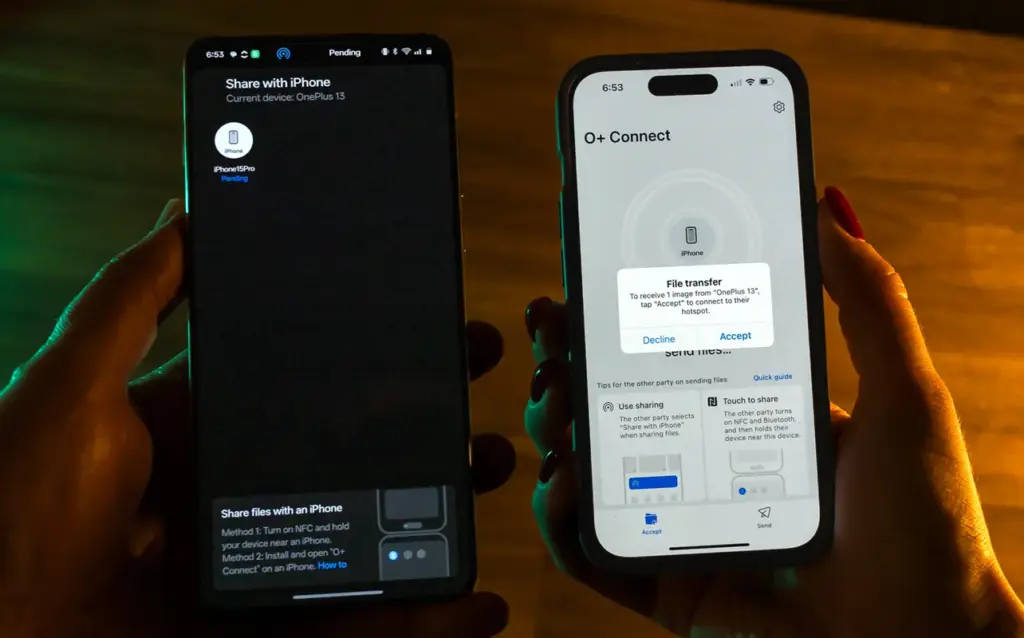
It can be frustrating and difficult to move files and data between the iOS and Android environments. Due to Apple’s closed-off ecosystem design, cross-platform compatibility necessitates a significant amount of manual labor. Although it is incompatible with iPhones, Quick Share for Android is an alternative to Apple’s AirDrop. But on Android 15, OnePlus’ new Share with iPhone feature unites the worlds of Oppo, Realme, and OnePlus devices. Since the receiving device needs to download the O+ software in order to connect, the solution isn’t entirely native. Nevertheless, it’s quick and not too difficult. To utilize it, follow these steps:
Open Settings.
Go to Connection & sharing.
Select Share with iPhone. Then tap the toggle button to turn on the feature.
On the iPhone, install the O+Connect app from the Apple App Store. Then open it and turn on Bluetooth.
Select the files you want to send from either phone.
You should see the detected devices while preparing to send them. Tap your preferred device.
Accept the transfer request on the receiving device. The files should arrive in seconds, depending on the size.
Use Wi-FI calling and texting
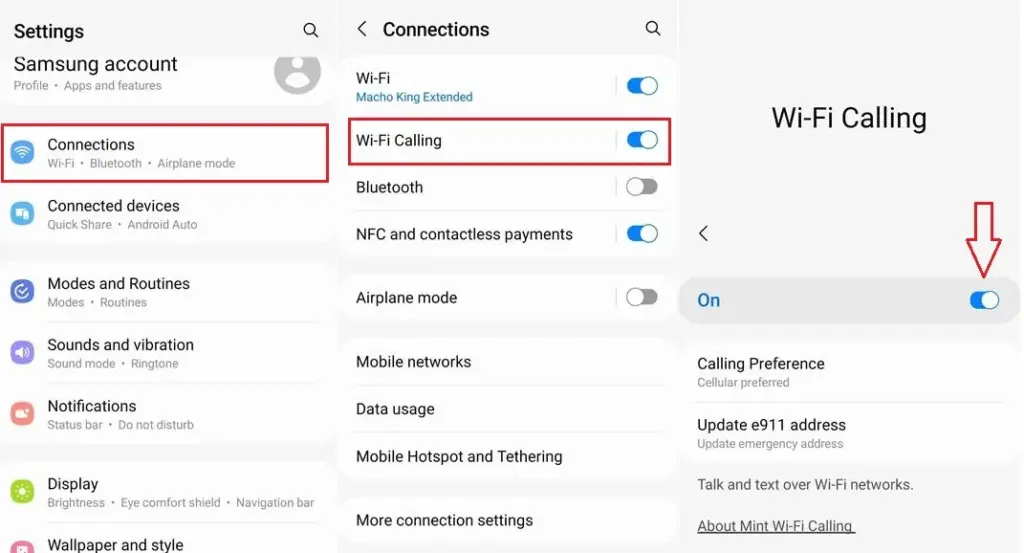
Signals from routine phone calls and texts travel through cell towers before they are received by the recipient. Connecting with individuals will be difficult if you’re in a rural location far from a cell tower or in a building with high walls. Use Wi-Fi calling instead for better outcomes. Your phone uses Wi-Fi to send a message or make a call over the internet, avoiding the cell tower, as long as you have access to a Wi-Fi network. To utilize it, follow these steps:
Ensure that Wi-Fi is turned on and you’re connected to a network.
Open the Google Phone app.
Tap the three-dot icon in the upper-right corner. Then select Settings.
Tap Calls.
Select Wi-Fi calling.
Turn on the toggle button beside Use Wi-Fi calling.
Use your phone as a PC webcam
The size of the camera sensor and lens is constrained by the tiny area in the top bezel of a laptop. PC cameras are typically blurry and uninteresting for proper video calls because of this. Thankfully, your phone has more space for wider apertures and larger sensors, which provide sharper images. With Android 14, you can now take advantage of that feature and use your smartphone as a camera. It was enhanced with Android 15’s high-quality mode. To enhance your virtual meetings using the functionality, take the following actions:
Connect your PC and phone with a USB cable. You should see a notification on your phone recognizing the connection.
Tap the notification and choose to use USB for Webcam.
Tap the HQ button in the upper-right corner of the call screen to use High Quality mode.
Activate Bluetooth automatically every day
iOS has had automatic Bluetooth activation for many years. It is only temporarily disabled when you disable it from the Control Center. Unless you disable the option from the settings menu, it reactivates. Keep it on if you’re constantly connecting to Bluetooth speakers, earphones, or even your automobile, even though most people find it annoying. The automation setting was first available on Pixel phones running Android 15, and it might eventually be available on other devices. Here’s how to make it active:
Open the Settings app.
Go to Connected devices > Connection preferences.
Tap Bluetooth.
Turn on the toggle button beside Bluetooth, thenthe button beside Automatically turn on tomorrow.
After you deactivate Bluetooth, it can now turn on by itself the next day. It probably tries to avoid interfering with your short-term preferences and believes you need it during your regular activity hours. As long as you aren’t actively using the linked device, it will drain the battery a little but not significantly. When no music is playing on the speaker or earphones you’re wearing, the connection remains in a low-power mode.
Android’s best-kept secrets
Every phone brand on Android has special features that are just waiting to be found, making it a labyrinth of capabilities. What you see on a Samsung may not be the same on a OnePlus or Pixel, and it’s precisely this diversity that adds excitement to the ecosystem. Digging behind those layers will reveal more hidden gems in productivity, privacy, accessibility, and multitasking.
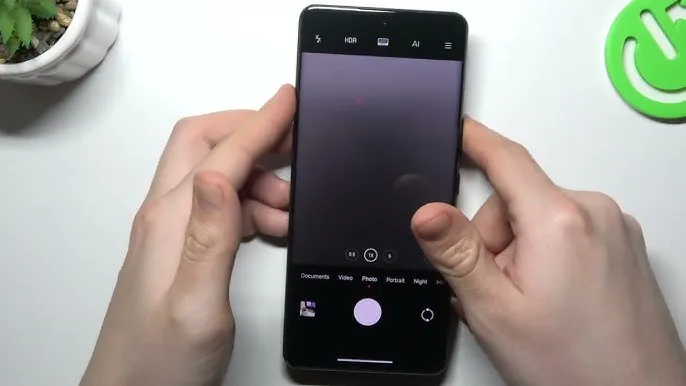
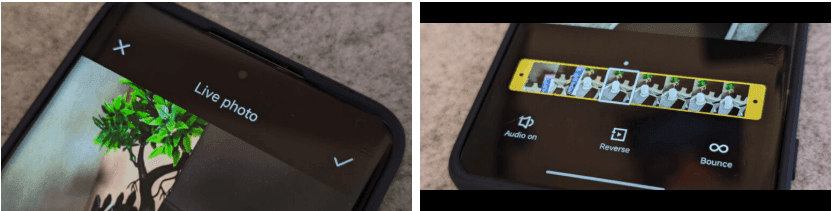
The cross-ecosystem LivePhoto transmission compatibility of HyperOS 2 was formally revealed by Xiaomi, enabling smooth live photo sharing between Xiaomi phones, Xiaomi Pads, iPhones, and iPads. Grayscale mode is supported, and the feature is progressively being made available in batches.
The enhancement is one of the actions Xiaomi is taking to create a comprehensive ecosystem that will provide a more seamless experience across devices. For optimal compatibility, users who are interested in the functionality should update their smartphones to the most recent versions of Xiaomi Photo Album and Xiaomi Share.Xiaomi HyperOS is always evolving, providing consumers with fresh and creative features to enhance their convenience.
LivePhoto Cross-Ecosystem Support Details
Sharing dynamic pics in the LivePhoto format while maintaining their motion effects is now possible with Xiaomi HyperOS 2. Users can now share and enjoy LivePhotos on both Xiaomi and Apple devices with ease thanks to the latest update, which was revealed in the official Q&A (Episode 8) for Xiaomi HyperOS on March 7.
How to use live photo transfer
For successful transmission of LivePhotos, users must meet the following requirements:
Both devices must be on the same wireless LAN – The sending and receiving devices need to be on the same wireless local area network.
The applications must be upgraded to certain versions – Apple and Xiaomi devices must have the latest software upgrades to be able to support this.
The Xiaomi ecosystem is greatly improved by this function, which allows users to find and share LivePhotos on several platforms without compromising motion effects. It is easier than ever to switch between devices and share memories with pals via an iPhone. In the days ahead, customers may anticipate even more cross-platform interoperability capabilities as Xiaomi develops HyperOS 2. Keep an eye out for additional information regarding Xiaomi HyperOS 2 and its ongoing feature additions.
Chromebooks haven’t had any cross-device synergy with Android devices for nearly a decade. With its Better Together features, Google attempted to bridge the gap between its devices, but it felt like an afterthought when compared to Apple’s Mac-to-iPhone connection. That all changed with the introduction of Phone Hub in Chrome OS 89, and with OS 91, Google finally made it possible to exchange family memories, documents, and files between Chromebooks and Android devices with Nearby Share. Here’s how to utilize it to transfer data between your Google devices without a hitch.
The Setup
First impressions are key, and Google continues to amaze with its onboarding process. The setup UI for Nearby Share makes it easy to get started by providing a fun experience. Open the settings on your Chrome OS device to get started with Nearby Share. Nearby Share can be found on the first page, under Connected devices. Select Set up from the drop-down menu.
Nearby Share is no exception to Google’s love of integrating its simple UI everywhere. The onboarding UI functions as a compass to guide you through the process of installing Nearby Share on your Chromebook. It’s quite easy to use, and the Google-style illustrations keep you entertained while you’re setting it up.
You can modify your privacy so that all or some of your contacts can view your Chrome OS device after you’ve given it a name. If you choose “hidden,” your gadget will remain hidden until you enable it from the shelf. When the setup is finished, you’ll be taken to Nearby Share’s settings to review. Before you transmit data, make sure both of your devices are nearby and have Bluetooth and location turned on.
Transfer files to Chromebook
It can be difficult to send files to your Chromebook. Nearby Share streamlines the process and reduces the amount of time spent attempting to share a file. We’ll use Google Photos to share an image using my Chromebook in this tutorial.
To send a photo, tap on the share button at the bottom left of your phone’s screen, and select Nearby Share in the share sheet. Your phone should recognize your Chromebook — tapping “Accept” will begin transferring the photo. You can also share an assortment of documents and files with your Chromebook, too.
Transfer files to your smartphone
You can transfer a document or a photo from your Chromebook to your phone if you want to take it with you. Sharing files from your Chromebook to your Android smartphone is a breeze. In the Chrome OS file manager, right-click any file and choose “Share” from the menu. Select your phone from the list by clicking Nearby Share.
It may take a few tries for it to detect your device; launching Nearby Share from Android’s quick settings can help.
When the transfer is complete, your file should appear in your phone’s download directory.
Nearby Share can also be used to transfer files from one Chrome OS device to another. You can access Nearby Share by right-clicking a file in the Chrome OS files app and selecting “share.” After the receiving party accepts the file from the system tray, the file transfer will begin. My gadgets required a few tries to connect, but once they did, the data transferred quickly. Nearby Share will be available to PWAs that implement the Web Share API, such as PhotoStack.