Tag: secure

  • How to create secure folders on any Android device

    How to create secure folders on any Android device

    Android users are particularly concerned about privacy and data safety, especially when saving sensitive files, images, or papers. Whether you are concerned about someone peeking through your gallery or want to protect business-related content, Android has built-in security features that do not require third-party apps.

    This guide describes how to use secure folders and app-based file protection features on several Android devices, including Samsung, Google Pixel, and more.

    What is a secure folder

    A secure folder is a safe location on your Android smartphone where you can keep programs, files, and media separate from the main user interface. Access requires authentication (PIN, pattern, or fingerprint), ensuring that only you can open it. When data is moved to a safe folder, it is rendered invisible in conventional folders and apps such as Google Photos or File Manager.

    Samsung’s Secure Folder is the best-known example, however other manufacturers provide comparable functionality.

    How to use Secure Folder on Samsung Galaxy devices

    Samsung offers a native solution called Secure Folder, available on most devices running One UI:
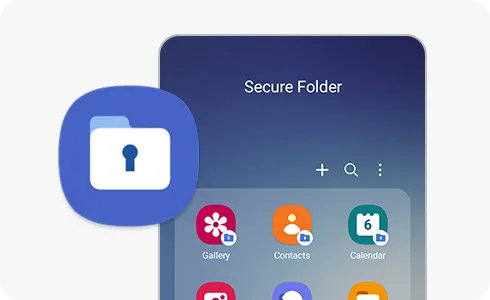
    samsung secure folder
    1. Enable Secure Folder:
      • Go to Settings > Security and privacy > Secure Folder.
      • Sign in to your Samsung account if prompted.
      • Set your preferred lock method (PIN, password, or biometric).
    2. Add apps or files:
      • Open the Secure Folder app from your app drawer.
      • Tap Add apps to duplicate apps like Gallery, Notes, or Email.
      • Tap Add files to move photos, videos, or documents from regular storage.
    3. Access and manage your folder:
      • Secure Folder functions as a sandbox. Files here do not interact with the rest of your phone.
      • Notifications from apps inside Secure Folder can be hidden.
      • You can even hide the Secure Folder icon for additional privacy.

    Samsung’s Secure Folder is protected by Samsung Knox, ensuring hardware-based encryption.

    How to create secure folders on Google Pixel (and stock Android)
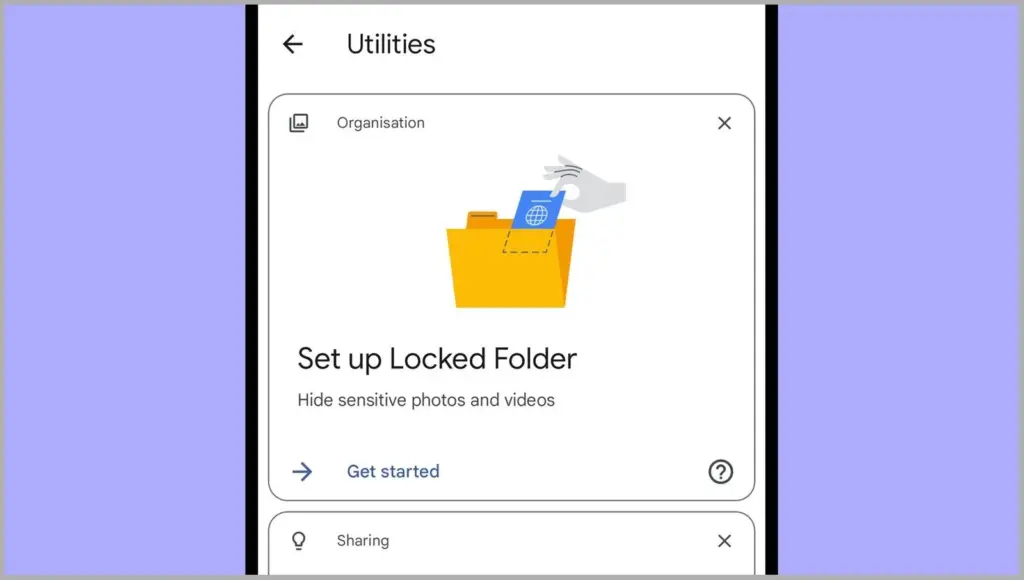
    secure folder on Google Pixel

    Google Pixel and stock Android phones don’t include a “Secure Folder” app like Samsung, but there are still options:

    1. Use Files by Google – Safe Folder

    Files by Google includes a Safe Folder to protect sensitive files.

    • Open the Files by Google app.
    • Tap Browse, then scroll to Collections > Safe folder.
    • Set up a 4-digit PIN when prompted.
    • Move any files (photos, documents, videos) into the Safe Folder for encryption and restricted access.

    Limitations:

    • No secure app duplication.
    • Cannot protect entire apps—only individual files.

    2. Use screen pinning or app lock (if supported)

    On Pixel phones, you can use screen pinning to lock a specific app:

    • Go to Settings > Security > Advanced > Screen pinning.
    • Turn it on and set it to ask for unlock credentials.

    When enabled, you can lock an app to the screen and prevent switching until your PIN or fingerprint is entered.

    Secure folder alternatives for OnePlus, Xiaomi, Vivo, and Realme

    Many Android OEMs offer their own version of secure folder functionality:

    • OnePlus (App Lock & Hidden Space):
      • Go to Settings > Utilities > App lock to lock apps.
      • Use Hidden Space (swipe right in the app drawer) to hide apps or files from plain view.
    • Xiaomi (Second Space or App Lock):
      • Second Space lets you create a full-profile clone for private use.
      • App Lock in Settings lets you password-protect apps and media.
    • Vivo/Realme:
      • Use File Safe or Private Safe under Security settings.
      • This lets you encrypt and store sensitive files securely.

    Each of these tools serves a similar purpose: creating a private area for your data and apps that only you can access.

    When should you use a secure folder

    Secure folders are ideal for:

    • Storing sensitive photos, work files, or legal documents
    • Keeping personal messages or notes private
    • Isolating apps with private data
    • Creating a private profile for shared phones or kids

    If your phone is shared, stolen, or accessed without your knowledge, a protected folder provides an additional layer of security.

    Android provides numerous options to protect your most sensitive data, with secure folders ranking among the best built-in solutions for the purpose. Whether you use Samsung’s powerful Secure Folder, Google’s Safe Folder, or manufacturer-specific features, these solutions offer true privacy without the need to install third-party apps. To protect your digital life, ensure that they are correctly configured and that you use a strong authentication technique.
  • How to synchronize 2FA codes with Google Authenticator

    How to synchronize 2FA codes with Google Authenticator

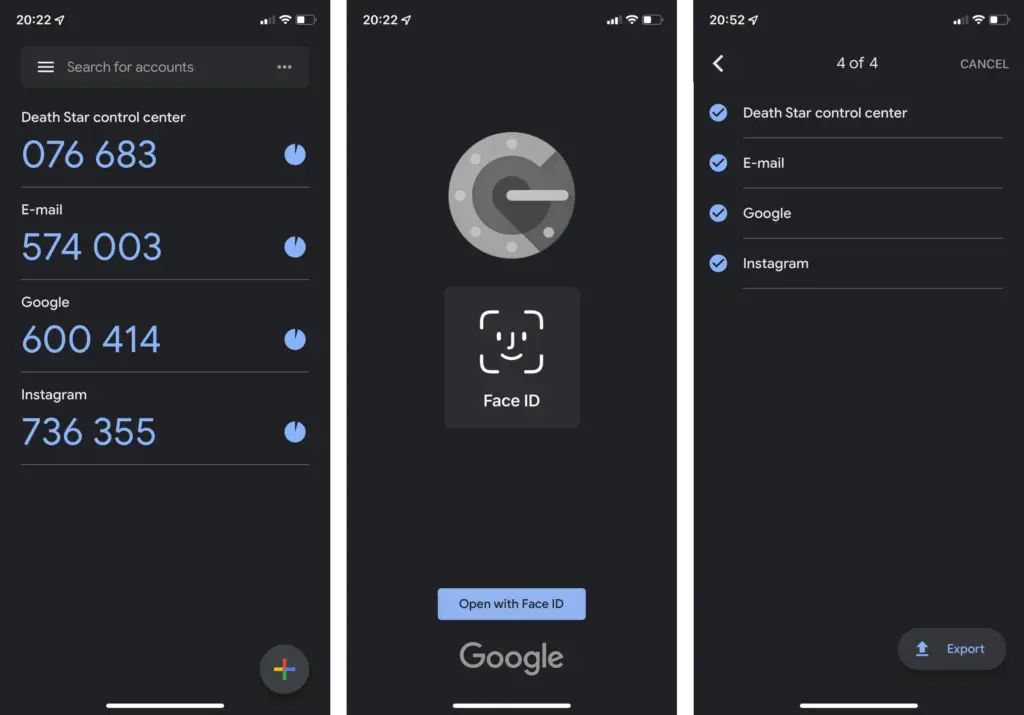
    One of the easiest methods to increase the security of your user accounts is by using Google Authenticator. The ability to synchronize the 2FA generation between phones using the Google Account was recently enabled. Find out how to do it in the following stages.

    Up until recently, it was not able to automatically synchronize the token creation between devices, which was one of the biggest drawbacks of utilizing Google Authenticator. Accounts in the app could be manually exported and imported, but users could momentarily lose access to their accounts if their phone was stolen or misplaced.

    google authenticator

    Synchronize 2FA codes between phones on Google Authenticator

    The new automatic syncing relies on the Google Account associated with the device but is optional in case you don’t want to have your security codes synced on Google’s servers—especially since Google doesn’t enforce another type of confirmation before syncing as Authy does. Having said that here is how you start syncing 2FA tokens using Google Authenticator:

    1. Update or install Google Authenticator (Android | iOS).
    2. On the “Welcome” screen, select the Google account used to synchronize 2FAs. 

    If you skipped the account selection during the first run, activating syncing is as simple as switching an account on any other Google app:

    1. Tap on the profile logo in the top right corner.
    2. Select the Google Account to synchronize 2FA.

    When the 2FA codes are synced with the Google Account, it is indicated in both instances by the green cloud icon in the top right corner. Simply choose the same Google account the next time you open Google Authenticator on a new phone to enable the 2FA generators.

    How to stop syncing 2FA online on Google Authenticator

    If you want to stop syncing code generation in the Google Authenticator, the steps are similar:

    1. Tap on the profile picture in the top right corner.
    2. Select Use without an account.
    3. Confirm the action by tapping on the Continue button.

    Tech companies are slowly starting to implement Passkeys to replace passwords and 2FAs, but two-factor authentication is not going away anytime soon apparently, with even fewer services supporting the new security standard.

  • 6 Useful Tips to Secure Your Android Device

    6 Useful Tips to Secure Your Android Device

    Russia has been invading Ukraine for over a month, and concerns about cybersecurity are growing. Even before the invasion, US officials blamed Russia for cyberattacks on Ukraine’s Ministry of Defense and two banks.

    While the US Cybersecurity and Infrastructure Security Agency has stated that there are no particular or credible cyberthreats aimed at the US, it has also stated that hypothetical cyberattacks are more likely to target infrastructure. CISA advises that everyone be ready in case something goes wrong. When it comes to cyberdefense, safeguarding your mobile device is a smart place to start. Here are six things Android users may do to keep their data safe.

    android secutiry 1

    Always update you OS

    Updating your operating system can resolve issues and repair known security risks. If you don’t update to the current version, you and your device are vulnerable to security weaknesses that could expose sensitive information to unscrupulous actors. Some individuals put off updating their operating system to avoid dealing with early glitches, but waiting too long can destroy your PC. Here’s all you need to know about Android 12.

    Use two-factor authentication

    In the event that your password is compromised, two-factor authentication, or 2FA, adds a second layer of security to your Android account. When you use 2FA, a second message is sent to another device after you enter your password, requesting you to confirm that you are trying to log in. It takes a little longer to log in, but the added degree of protection is well worth it. Here’s how to enable two-factor authentication.

    Password manager

    A password manager can assist you if you’re having problems remembering several passwords and creating unique passwords for each account. These tools can be used in conjunction with 2FA to securely store passwords and fill login pages automatically. They can also protect you from phishing schemes, which ask you to input your password on a phony website. Check out CNET’s reviews of password managers Bitwarden, LastPass, and 1Password for additional information.

    Encrypt your device

    Beginning in 2015, Google mandated that all Android smartphones be encrypted out of the box. After your device has been encrypted, every data saved on it is protected by a PIN number, fingerprint, pattern, or password that only the owner knows. Even Google won’t be able to unlock your device without the key. You may learn how to encrypt your phone here.

    Remove data from Google

    Because Android is a Google product, unencrypted device data may end up on a Google server. You can check with Google to see what data it has about you and request that it be deleted. It’ll take some time, but it’ll be worth it because your information can’t be stolen if it’s not in the system to begin with. Here’s how you ask Google to remove your data, but keep in mind that Google does not guarantee that it will comply with your request.

    Last option – reset/delete your phone

    You can remotely wipe your phone if you lose it or it is stolen. If you need to do this, our Android settings guide includes a walkthrough. Because this deletes all data from your phone, you should make a habit of backing it up on a second device if you have anything important on it.


    For more information on securing your phone, check out these eight apps to protect your phone’s privacy, what information digital security experts wish you knew and how to stop your phone from tracking you.

  • BlackRock Android Malware – what is it and how to avoid it

    BlackRock Android Malware – what is it and how to avoid it

    Android users installing apps from third-party app stores are at risk of the BlackRock malware. How can this malware be stopped?

    BlackRock malware is yet another threat worrying Android users. This newly-discovered malware can target a variety of different applications, thereby stealing your information.

    Make sure you know what BlackRock malware is, and how you can protect yourself, before installing another file.

    Security firm, ThreatFabric, discovered a digital danger that affects Android devices in May 2020: BlackRock malware.

    Analysts however quickly discovered that BlackRock malware is not really a new threat. BlackRock malware is the product of leaked source code for Xeres malware, which is a form of trojan LokiBot banking.

    Despite the fact that BlackRock malware is based on a banking trojan, it does not just affect banking apps. It also targets applications for shopping, leisure, social relations, entertainment and even dating. This extensive publicity makes it extremely risky.

    It currently has 337 apps on its goal list, some of which you might be using on a regular basis. Its target applications aren’t limited to one country either — it targets applications across Europe, North America , and Australia.

    ThreatFabric presents the full list of targets in its article. Some of the applications on the list include Gmail, Netflix, Snapchat, eBay, Twitter, TikTok, PayPal and more.

    BlackRock malware has not been detected on the Google Play Store until now. Currently it targets downloaded apps from third-party sites, but that does not mean that BlackRock malware will never appear on the Google Play Store. Aggressive hackers also can find ways to break Google’s protection protocols.

    How BlackRock Malware Steals Your Information

    When BlackRock malware appears on your computer it can never be noticed by an unknowing user. It uses a technique known as a “overlay,” a fake window which pops up over a legitimate app. The overlay mixes with the software so it’s hard to say whether the pop-up is part of the app or not.

    The window will ask you to enter your credit card number and login code, before you can even start using the legal app. This helps it to get the details right off the bat.

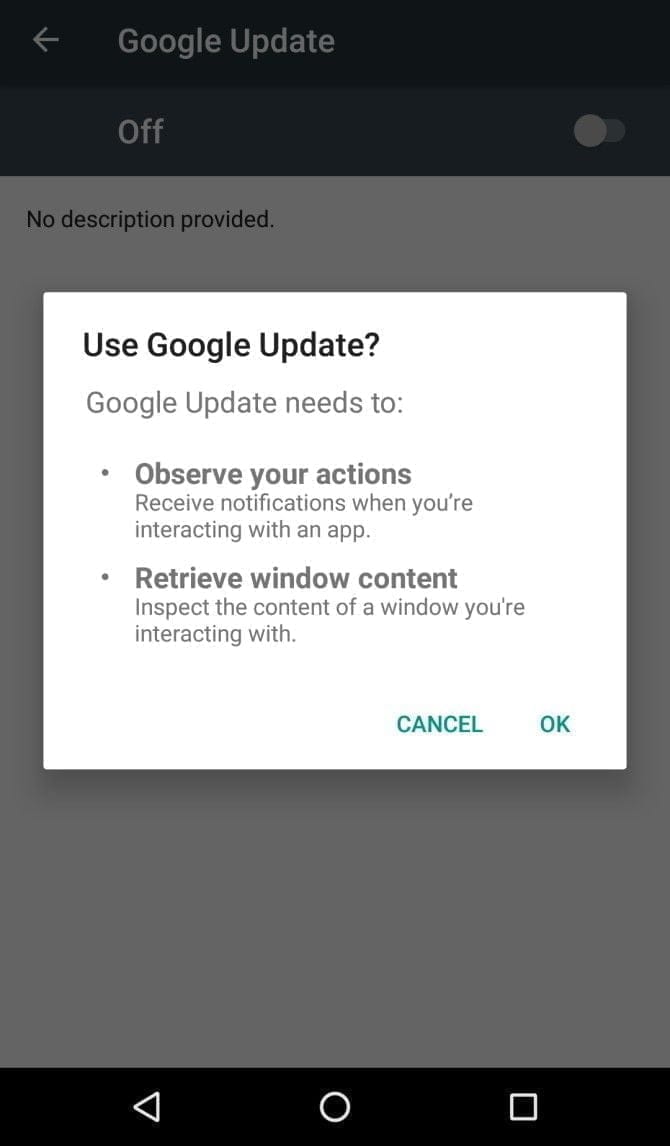
    It infiltrates your device in the first place by getting Accessibility Services permissions. When you install an infected app, it’ll prompt you to enable a fake Google Update. Accepting the “Google Update” allows it to intervene with your device.

    If you aren’t familiar with an Android’s Accessibility feature, you should know that it’s one of the most powerful functions on your device. It’s meant to help Android owners with disabilities, but Accessibility Services can be used to hack your phone as well. This feature can automate a variety of tasks for the user, including tapping the screen, reading text aloud, and even creating captions.

    Giving BlackRock permission to use Accessibility Services lets you build the overlay that you can see when you open the target app. It also gives additional functionality to the malware, as it can then use an Android DPC (device policy controller) to grant administrator privileges to itself.

    In other words, it not only steals the confidential details you type into its overlay — it can actually do a lot more than that. BlackRock does not only intercept SMS messages, mask alerts and lock your computer, it can also engage in keylogging. That said, this malware is certainly not what you want on your computer.

    Protect yourself from BlackRock malware

    As mentioned earlier, the Google Play Store still hasn’t found BlackRock. But just because apps from third-party app stores are currently being targeted, that doesn’t mean it’ll never make its way to Google Play.

    ThreatFabric notes that it “can not yet predict how long BlackRock will be active on the threat landscape.” Meanwhile, it’s necessary to bear in mind some precautions before installing apps.

    Why an anti-virus app won’t cut it

    It’s not a bad idea to have an antivirus app on your smartphone, but unfortunately, an antivirus app won’t stop the BlackRock malware. When BlackRock infiltrates your phone, it has a feature that blocks you from using an antivirus app.

    As soon as you open an antivirus or an Android cleaner app, such as Avast, Kaspersky, McAfee, BitDefender, or Superb Cleaner, BlackRock will immediately redirect you to your Home screen. This prevents you from removing the malware using an antivirus app.

    So, if you download a sketchy app from a third-party store, and think that an antivirus app will keep you safe from all threats, think again.

    Check app permissions

    No matter how legit an app may seem, you should keep an eye on the app permissions. Some apps request permissions that have nothing to do with the App’s core function.

    For example, your SMS messages obviously don’t need access to a flashlight app. This is a sign that you should immediately uninstall the App.

    As BlackRock malware asks for permissions from Accessibility Services, you’ll want to look for any apps that require that particular privilege. If an app is legitimately for users with disabilities, has good reviews, and is from the Google Play Store, you are likely to have confidence in granting permission to the accessibility services. If not, avoid giving that privilege to any applications that don’t need it.

    Download apps from Google Play Store only

    Google Play Protect was put in place to scan your installed apps for malware as soon as you download them, as well as scan them periodically once installed. Third-party app stores don’t have this safety feature, so you’re pretty much on your own in terms of security.

    The lack of security protocols on third-party stores has allowed BlackRock malware to thrive. To lower your risk of encountering BlackRock malware, try to avoid third-party apps stores, and refrain from downloading APKs.

    Stay safe!

    BlackRock malware will hopefully never hit the Google Play Store. There really isn’t any telling if the actors behind BlackRock malware can find a loophole in Google’s security policies, but if they succeed, BlackRock malware could accumulate a significant number of victims.

    If BlackRock ever reaches the Google Play Store, it’s not too surprising. After all, despite Google’s strict security protocols, several apps that contain Joker malware still managed to make their way onto the Google Play Store.

  • Set up two-factor authentication on WhatsApp

    WhatsApp is an top notch and revolutionary app. Simple to use, free, and with out a advertising, it isnow notunexpected that it isdesiredvia many users spherical the world. With its written and voice messaging system, the strength to form voice and video calls, it gives a service like that of a telephone.

    Many peopleuse it on a each day and percentage tons of private data, that’s why it’scrucial to stay it secure. We, therefore, recommend that you trulydiscovered out two-aspect authentication to your account. This characteristic are going to be especially beneficialonce you log into WhatsApp on another device to feature additional safetyon your profile.

    Enable two-factor authentication

    There is only one method for two-factor authentication on WhatsApp. Once logged in, the application prompts you to create a custom PIN code.

    whatsapp screenshot2
    1. Open the WhatsApp application on your phone.
    2. Press the three dots in the upper right corner.
    3. Press Settings.
    4. Press Account.
    5. Press Two-step Verification.
    6. Press Activate.
    7. Enter your personalized PIN code before clicking on next.
    8. Re-enter your personalized PIN code.
    9. Press Confirm.
    10. Enter your email address before clicking on next.
    11. Re-enter your email address.
    12. Press Save.
    13. Press Done.
    whatsapp screenshot3

    The two-factor authentication imagined by using WhatsApp has a as a substituteuncommon configuration however well, we do with what we have, as they say. Most important: greater securityfor your data.
    The best small constraint of this selection is to remember this unique WhatsApp PIN code with a view to be used very rarely. Before developing it, I invite you to choose a password that is easy for you to take into account, butbest for you.