Tag: repair

  • Android device repair prep (stress-free) – the power guide to protect your data

    Android device repair prep (stress-free) – the power guide to protect your data

    Your android device is going in for service or repair, and yeah… it’s easy to tell yourself, “It’s just a screen replacement, what could happen?” Then you remember: your phone is basically your pocket brain. Photos, notes, bank apps, work chats, that one folder you never show anyone—everything.

    So let’s do this properly.

    This guide is a practical, no-drama checklist to prepare your android device before you hand it to a technician. Not the paranoid kind of prep. The smart kind. The kind that prevents data loss, protects your privacy, and makes the repair process smoother.
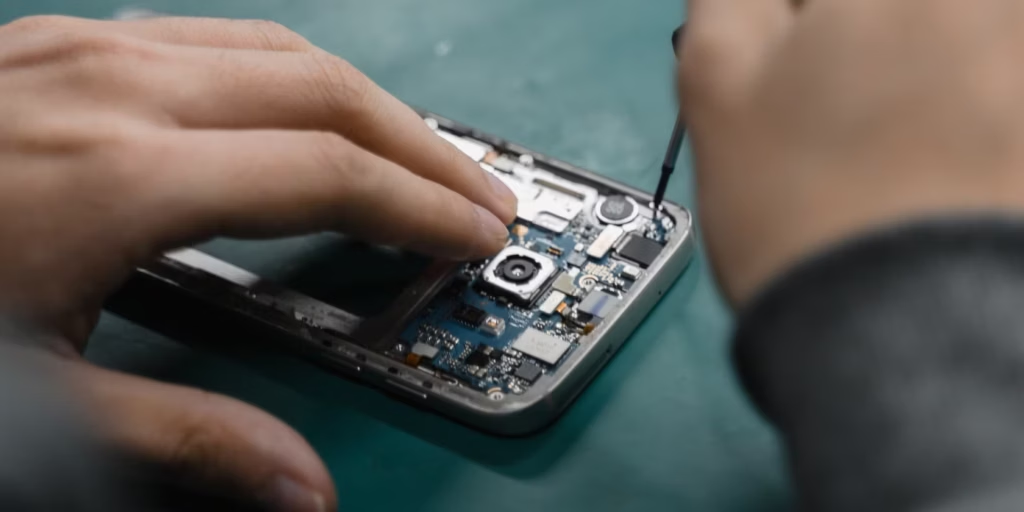
    android device preparation before repair

    Secondary keywords used naturally: Android backup, factory reset, phone repair checklist, protect personal data, Google account removal, SIM card and SD card, Find My Device.

    The “Quick Outline” (Internal, For Flow)

    You’ll go through:

    • Why prep matters (even with trustworthy shops)
    • Backup (cloud + local)
    • Remove SIM/SD and sensitive access
    • Decide on factory reset (and when not to)
    • Document your issue like a grown-up (so repairs go faster)
    • Privacy + security settings that actually matter
    • What to do at drop-off and pickup
    • Common mistakes and a simple final checklist

    Why Preparing an Android Device Before Repair Matters (More Than You Think)

    Here’s the uncomfortable truth: even honest repair shops can cause data loss.

    Not because they’re evil. Because diagnosing problems often involves resets, firmware updates, battery disconnects, or tests that can corrupt storage. And if your android device is acting weird already (boot loops, overheating, random restarts), the risk of “it died during testing” is real.

    Also, there’s privacy. Most technicians don’t care about your personal life. But your phone is still unlocked data sitting in someone else’s hands. It’s like leaving your house keys on the counter and hoping nobody opens the wrong door.

    You don’t need to be anxious. You just need a process.

    Step 1: Back Up Your Android Device (Cloud First, Local Second)
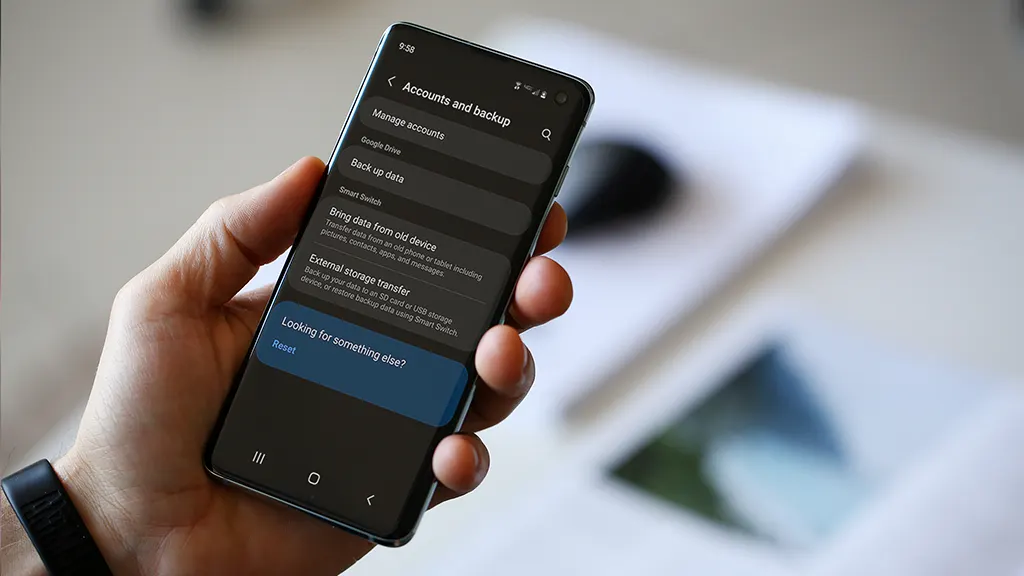
    android device backup

    If you only do one thing, do this.

    Use Google Backup (Fast and Built-In)

    On most phones:

    • Settings → Google → Backup
      or
    • Settings → System → Backup

    Turn it on and let it run. Then check the backup timestamp. Don’t assume it worked “at some point.”

    What it usually covers:

    • App list and some app data
    • Call history
    • Contacts (often via Google Contacts sync)
    • Device settings
    • SMS/MMS (on many devices)

    But – small contradiction – Google backup is both great and not enough. It’s reliable for basics, but it’s not a perfect clone of your phone.

    Back Up Photos and Videos

    If you use Google Photos:

    • Open Google Photos → profile icon → Photos settings → Backup

    Then scroll your gallery and confirm recent photos actually uploaded. People think they’re backed up… until they aren’t.

    Make a Local Copy (Because Clouds Have Limits)

    Plug your android device into a laptop/PC:

    • Select “File Transfer” (MTP)
    • Copy these folders:
      • DCIM (camera photos/videos)
      • Pictures
      • Download
      • Documents
      • WhatsApp/Telegram media folders (if you use them heavily)

    If you don’t have a PC, use:

    • An external USB drive with an OTG adapter
    • A microSD card (if your phone supports it)

    Local backup feels old-school. But it’s the “seatbelt” you’ll appreciate if the cloud fails.

    [img here – alt: android device backup before service]

    Don’t Forget Two “Annoying” Things

    These are the ones that hurt most when they’re gone:

    • Notes (Google Keep / Samsung Notes / third-party apps)
    • Authenticators (2FA apps)

    For authenticator apps, check inside the app for export/transfer options before your device gets wiped. Otherwise you might lock yourself out of accounts. Not fun.

    Step 2: Remove SIM Card and SD Card (Small Action, Big Protection)

    This part is quick and oddly satisfying.

    • Remove the SIM card (your number and carrier access)
    • Remove the SD card (your personal files and media)

    Even if the repair shop is trustworthy, SIM/SD cards can be misplaced. They’re tiny. Things happen.

    Also, if your SD card has photos—don’t leave it in the phone. Just don’t.

    Step 3: Decide If You Should Factory Reset the Android Device
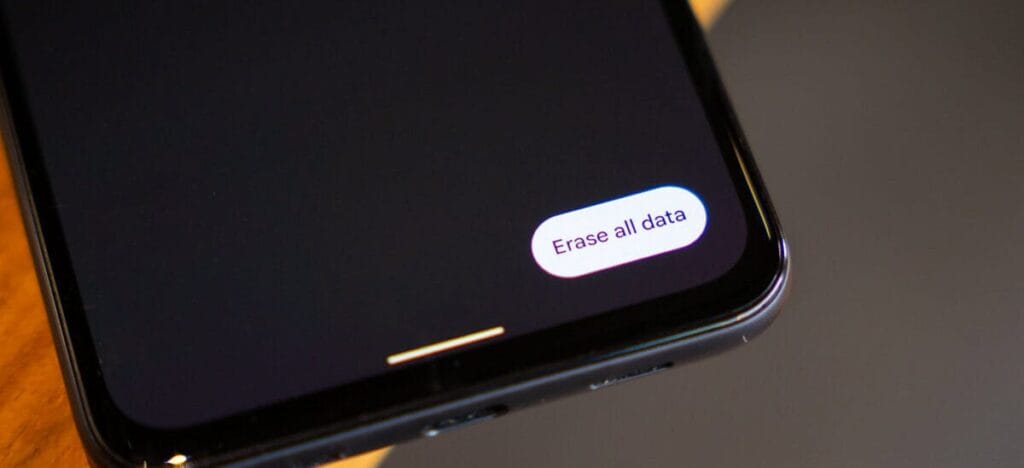
    Android factory reset e1768831900326

    This is where people get stuck.

    When a Factory Reset Makes Sense

    A factory reset is smart when:

    • The repair is software-related (crashes, freezing, weird bugs)
    • You’re shipping the phone to a service center
    • You don’t want anyone to access anything—even by accident
    • You’re okay with restoring everything later

    Path usually looks like:

    • Settings → System → Reset options → Erase all data (factory reset)

    When You Shouldn’t Reset Yet

    Don’t reset if:

    • You need to show the issue (random reboots, screen glitch, camera error)
    • The repair center asks you not to (rare, but possible)
    • You rely on on-device data that you can’t back up properly

    Here’s the clarification: privacy matters, but so does diagnosis. If the technician can’t reproduce the issue, you might get the dreaded “no fault found” result. So sometimes you keep the data… but you lock it down.

    Step 4: Lock Down Access (Without Making the Repair Impossible)

    If you’re not factory resetting, this part is essential.

    Use a Strong Lock Screen

    Set a PIN (not 0000, please).
    Disable “Smart Lock” features that keep the phone unlocked at home or near a watch.

    Pause or Remove Highly Sensitive Apps

    For apps like:

    • Banking
    • Crypto wallets
    • Password managers

    At minimum:

    • Sign out
    • Remove biometric login
    • Consider uninstalling temporarily (after backup)

    Technicians don’t need that access to replace a screen.

    Keep “Find My Device” Enabled (Usually)

    If the phone is lost during transit or at a large facility, Find My Device can help locate it. Just make sure you remember your Google login.

    Step 5: Write a Simple Repair Note (This Speeds Everything Up)

    A good repair note is like giving the mechanic a clean description of the engine noise.

    Create a note (or email) with:

    • Phone model (e.g., “Samsung Galaxy A54”)
    • Android version (Settings → About phone)
    • What’s wrong (specific symptoms)
    • When it happens (after charging? after updates? only on Wi‑Fi?)
    • What you already tried (restart, safe mode, clearing cache, uninstalling an app)

    Example (copy style, not text):

    • “Screen goes black during calls, but touch still works. Happens 3–4 times/day. Started after last system update. Restart fixes temporarily.”

    That’s gold for technicians.

    Step 6: Clean Up “Embarrassing” Stuff (No Shame, Just Practical)

    This isn’t about being dramatic. It’s about comfort.

    Before service:

    • Close private tabs in your browser
    • Remove sensitive photos from the main gallery (move to a secure folder or cloud)
    • Turn off notification previews on lock screen

    Even if your phone stays locked, notifications can reveal a lot.

    [img here – alt: android device privacy before repair]

    Step 7: At Drop-Off—Ask the Right Questions (Politely)

    A simple script:

    • “Will you need my unlock code?”
    • “Is a factory reset likely?”
    • “Do you keep devices overnight, and how are they stored?”
    • “Can you note the condition (scratches/dents) on the intake form?”

    Also: take quick photos of your phone from all angles before you hand it over. It’s not accusatory. It’s just smart.

    Step 8: After Repair—Test Before You Leave

    Don’t rush out. Do a 2-minute test:

    • Screen touch everywhere
    • Charging port
    • Speaker and mic (quick voice recording)
    • Camera front/back
    • Wi‑Fi and Bluetooth
    • Fingerprint sensor (if you use it)

    If anything feels off, say it immediately. Fixes are easier on the spot.

    Common Mistakes People Make (So You Don’t)

    • Backing up “later” (and then forgetting)
    • Assuming Google Photos uploaded everything
    • Leaving the SIM/SD in the phone
    • Handing over a phone with banking apps logged in
    • Not writing down the symptoms (leading to “we can’t reproduce it”)
    • Forgetting 2FA authenticator migration
    • Not taking photos of device condition before drop-off

    The Final Checklist (Print This Mentally)

    Before service or repair:

    • Backup complete (cloud + local copy)
    • Photos verified in cloud
    • 2FA/authenticator transferred or backed up
    • SIM removed
    • SD card removed
    • Banking/password apps logged out or removed
    • Strong lock screen enabled (or factory reset done)
    • Repair note written (symptoms + model + what you tried)
    • Photos taken of device condition

    That’s it. That’s the whole play.
  • 4 methods to unbrick your Android device

    4 methods to unbrick your Android device

    So your phone is bricked. Your phone won’t boot because you flashed a ROM, installed a mod, modified a system file, or did something else.

    Not to worry! It can probably be fixed. Unbricking an Android device is explained here.

    What ‘Bricking’ or a ‘Bricked Phone’ mean?

    ‘Bricking’ your phone essentially means that your once useful device is now only as useful as a brick. A ‘bricked phone’ is usually unresponsive, won’t power on, and doesn’t function normally.

    How is your phone bricked?

    Depending on how a phone was bricked in the first place, different steps are required to unbrick it. Bricked phones fall into one of two categories:

    • The soft brick. The phone freezes on the Android boot screen, gets stuck in a boot loop, or just goes straight to recovery. So long as something happens when you press the power button, it’s soft bricked. The good news is these are pretty easy to fix.
    • The hard brick. You push the power button, and nothing happens. Hard bricks can be caused by issues like attempting to flash an incompatible ROM or kernel, and there’s normally no software solution for them. Hard bricks are terrible news, but fortunately, they’re quite rare.

    You’re probably soft bricked, and you’ll see something similar to the picture above. Although it’s challenging to develop a one-size-fits-all method to unbrick Android due to the variations in how various devices operate, there are four typical techniques you can try to get things back on track:

    • Wipe the data, then re-flash a custom ROM
    • Disable Xposed mods through recovery
    • Restore a Nandroid backup
    • Flash a factory image

    Before you get started, make sure your phone and computer are set up and ready with the proper tools.

    What you need to unbrick a Android device?

    Most of the equipment you need to repair your phone probably already exist in your possession. Since you already know how to use them because you used them to root your device and flash ROMs, they shouldn’t be a problem. However, make sure before you start.

    Custom recovery is most crucial. This was probably installed when you rooted your phone, however it could occasionally be completely erased or rewritten by the default recovery. We advise using TWRP if you do need to reinstall it. It is a completely functional custom recovery with builds for the majority of common devices but is also far too simple to use.

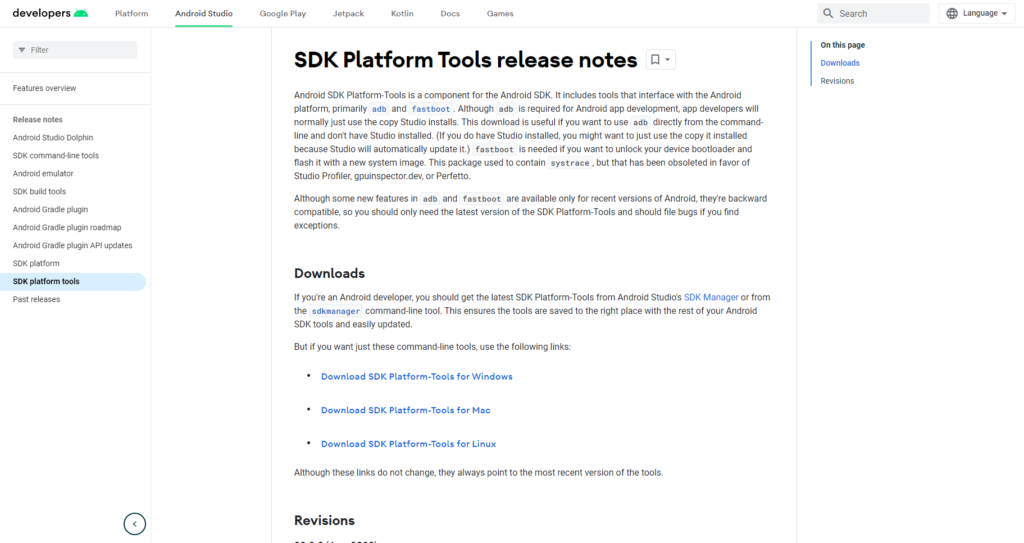
    Then, you might require ADB and Fastboot. You can obtain both of them from the website for Android Developers, and they are frequently used for rooting and flashing system mods. If you are unfamiliar with Fastboot and ADB, see our introduction to them.

    android sdk tools for unbrick Android

    And finally, some manufacturers use special software to flash factory images. Hopefully, you can avoid doing this, but if you need to, you can use Odin for Samsung, the LG Flash Tool for LG devices, or the ZTE Unbrick Tool if you’ve got a ZTE device. Just make sure that they support your specific model of device.

    Most of these tools will let you fix a bricked Android phone using a PC. However, you can often do the job directly on the phone itself.

    Wipe data and ee-flash a custom ROM

    If you flashed a ROM and Android won’t boot, try this method.

    When you have issues while flashing a fresh custom ROM, it’s one of the most likely scenarios that your phone will soft brick. Your failure to first erase your data is frequently to blame in this situation.

    When you decide to flash a new ROM over top of your old one instead of having to restore your applications and data, this is known as a “dirty flash” and takes place. Generally speaking, if you’re flashing a newer version of your current ROM, you can get away with it, but you must always delete your data anytime you flash a different ROM.

    Fortunately, it’s easy to fix—as long as you’ve backed up your phone properly. If you haven’t, well, you’ve learned an important lesson the hard way. Follow these steps:

    1. Boot into your custom recovery.
    2. Navigate to the Wipe option and choose Advanced Wipe.
    3. Check the box marked Data (you can wipe the system, ART cache, and cache again, too), then hit Confirm.
    4. Re-flash your custom ROM.

    A factory reset is effectively accomplished by wiping your data, although your internal storage or SD card shouldn’t be erased by this process (although, again, you should back it up just to be safe). Your phone will display the Android setup screen after restarting. Your programs ought to start reinstalling themselves immediately after inputting your Google account details.

    You can use your Nandroid backup to recover your data if necessary.

    Disable Xposed Modules in Recovery

    Try this method if: You get boot loops after installing a new Xposed module.

    The Xposed Framework isn’t as common as it once was, but it’s still a simple way to mod your phone, and also one of the most dangerous.

    The best Xposed modules are so easy to install—many of them are available in the Play Store—that they lull you into a false sense of security. It’s unlikely anyone makes a Nandroid backup before installing a new Xposed module, even though they can brick your phone.

    Use ADB Push to Install the Xposed Uninstaller

    The best way to deal with these problems is with the Xposed Uninstaller, if it’s available for your version of Android. This is a small flashable ZIP that you can install through the recovery to remove Xposed from your device.

    If you don’t already have it on your phone, you can put it on an SD card, or you might be able to copy it over using the ADB push method:

    1. Download the Xposed Uninstaller to your desktop.
    2. Connect your phone to your computer via USB and boot into recovery.
    3. Launch the command prompt (Windows) or Terminal (Mac) and use the cd command to change the directory to where you have adb installed.
    4. Type adb push [full path to xposed uninstaller.zip] [full path to destination]. On Mac and Linux, precede the command with ./ (such as ./adb).
    5. When the file finishes copying, flash it through the recovery.

    How to Disable Xposed Modules in Recovery

    If you can’t use ADB push and the Xposed Uninstaller, try either of these solutions.

    This method lets you disable Xposed through recovery:

    1. Boot into recovery, then navigate to Advanced > Terminal command.
    2. Create a file called /data/data/de.robv.android.xposed.installer/conf/disabled
    3. Reboot your phone.

    This method prevents Xposed modules from starting:

    1. Boot into recovery and select File Manager.
    2. Navigate to the folder /data/data/de.robv.android.xposed.installer/conf/ then delete the file modules.list
    3. Reboot your phone.

    None of these fixes will reverse the modifications that the modules have made to your system. You will need to restore your Nandroid backup if these changes bricked your phone.

    Restore a Nandroid Backup

    Try this method if: You need to remove other system mods, replace a tweaked system file, or if the methods above didn’t work.

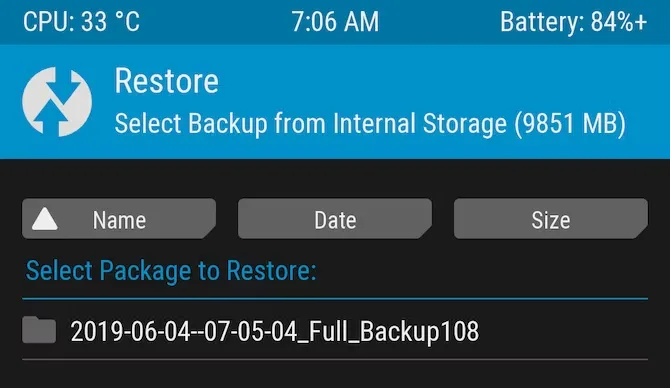
    The safety net for Android mods and customizations is the Nandroid backup. It’s a full snapshot of your phone, including the operating system as well as your data and applications. You can restore your soft-bricked device to working order as long as you have access to your custom recovery and a Nandroid backup.

    twrp restore bricked device
    1. Boot into recovery and navigate to Restore.
    2. Select your backup from the list, confirm, and wait while it’s restored.
    3. Reboot your phone.

    Nandroid backups are a bit of a pain to make. They take a while and cannot be done in the background. But they’re worth it: they’re the simplest way to unbrick your phone.

    Recover Data From a Nandroid Backup

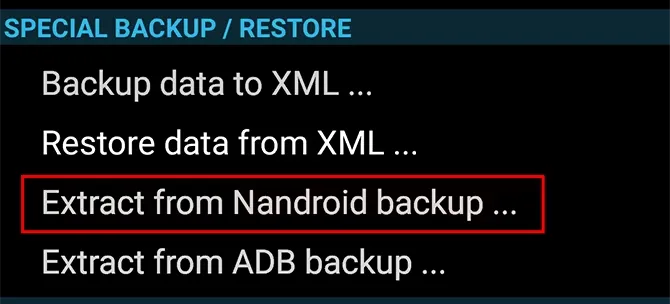
    A Nandroid backup can also save the day if you had to wipe your data and didn’t back it up in an easily restorable form. It’s possible to extract specific parts of a Nandroid, so you can restore your apps and data without needing to restore the operating system as well.

    Here are the instructions for this:

    1. Boot into Android and install Titanium Backup from the Play Store. While this app hasn’t been updated for a while, it’s still one of the best options for this task.
    2. Tap the menu button and navigate to Special Backup/Restore > Extract from Nandroid Backup.
    3. Select your backup from the list.
    4. Choose whether to restore apps, data, or both, and select them (or hit Select All).
    5. Tap the green tick icon to start the restore process.
    nanddroid backup restore unbrick

    Flash the factory image

    Try this method if: None of the other options work.

    Re-flashing a factory image is your only remaining choice if your attempts to unbrick Android have so far failed. This erases everything on your internal storage and returns the phone to its factory settings. Your phone will be unrooted as well.

    You might be better off trying to flash a stock ROM first because it removes everything. Instead of factory images, OnePlus offers flashable ROMs for recovery. You can find similar files for almost every device at xda-developers.com. For added convenience, you can often flash a stock ROM that has already been root access.

    Flashing a factory image varies from flashing a ROM in that it occurs via a desktop computer connection as opposed to recovery. Other devices make use of customized software while some use the Fastboot utility from the Android SDK. For instance, Samsung makes use of the Odin tool.

    The instructions for flashing a factory image vary for each device due to the various techniques used. Additionally, not all manufacturers make their firmware accessible to the general public, so you must find them from unofficial sources.

    Here’s where to find factory images for some popular Android brands:

    Hard brick?

    Hard bricked phones are notoriously more difficult to fix, but thankfully they’re also much rarer.

    How to unbrick a hard bricked Android device

    Make sure the phone is truly bricked by plugging it in and letting it charge for some time. Try to reset it by depressing the power button for 10 to 15 seconds (or removing the battery if your gadget is older). You might also want to try putting it into your computer; if your PC does not recognize it, you can be very sure that your phone has been severely bricked.

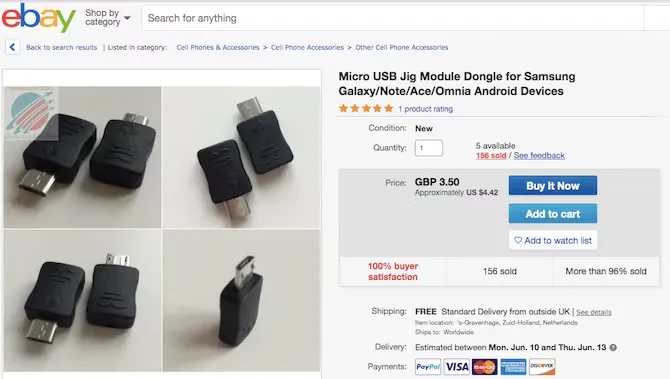
    If it is unquestionably hard bricked, your options may be limited. A USB Jig, a little gadget that fits into the USB port and puts the phone into Download Mode to reload the default software, can resurrect a few phones.

    usb jig

    On eBay, you can find cheap USB Jigs for hard-bricked phones, but only for a very limited selection of outdated gadgets. Even then, there is no assurance that they will be successful.

    Beyond that, you might need to either find a local phone repairman or send your phone in for repair (though rooting it might have void your warranty). However, you’ll probably end up having to buy a new gadget.

    Stay safe

    Hopefully, this guide has helped you to unbrick your Android phone. And hopefully, your experience hasn’t put you off rooting and hacking Android altogether.

    But if you’d rather play it safe in future, you can still have a lot of fun with your phone. Take a look at our guide to the best Android tweaks you can make without rooting for some amazing ideas.

  • How to fix fingerprint sensor faults on Realme devices

    How to fix fingerprint sensor faults on Realme devices

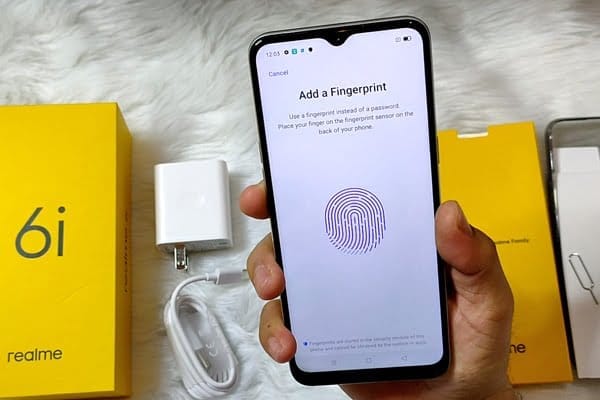
    realme 6i fingerprint sensor 600x400 1

    Unless we’re talking about an entry-level smartphone, all of the latest mid- and high-range Android devices have a fingerprint sensor as the most significant unlocking process. Realme mobiles also use this technology, either on the back or by sensors on the phone. The fingerprint reader can fail at any time though.

    Any piece of hardware at any given time is vulnerable to failure. We also tell you about various issues on our site several times, but thankfully in most cases the solutions are at our fingertips. The same is true of Realme mobiles and the fingerprint sensor, which can fail without warning and without having an obvious trigger for us.

    (adsbygoogle = window.adsbygoogle || []).push({});

    Test the device

    Realme cell phones modified or released with RealmeUI have a security center to identify potential hardware or software issues. The application can be found with the other apps of the device and can measure several aspects, including the fingerprint sensor. In order to be able to test this section, we have to uncheck all the others (or leave them in case we take advantage of a full test)

    We will click on the “Start search” button until completed. The device will take a few minutes and we’ll be able to see if there is a fingerprint sensor problem at the moment. If it does, the device will provide us with the necessary rabbits to solve them.

    test real me device
    (adsbygoogle = window.adsbygoogle || []).push({});

    Register the fingerprint again

    This is the easiest way to troubleshoot or spot unusual fingerprints. The goal is to delete all the tracks we’ve captured and start anew. Click on the trash can icon in the registered fingerprints to do this, and click on “Add a fingerprint” and re-register our fingerprint until done.

    real me register fingerprint

    Register a finger more times

    This is a trick to offer maximum precision in finger unlocking. It involves registering the same finger at least twice. In this way the system will detect our fingerprint more times, being able to register parts that it did not do in the first pass and thus being more precise.

    Clean the sensor

    Dirt is one of the key explanations for sensor failures on fingerprints. Over time and after using the mobile with dirty hands, a thin film of fat between the sensor and our finger can be produced which prevents correct reading. This can cause problems, and lead us to believe it is a malfunction of the sensor. While our Realme has a fingerprint sensor on the screen or on the back, it is enough from time to time to wipe with a dry cloth to remove dirt and restore its efficacy to what it was before.

    Factory reset

    If any of the above does not work, it is best to return the system to factory settings so that all settings and downloaded data can be removed and then try to get the fingerprint sensor to work again. To do this, click on Settings / Backup and then click on “Delete Factory Files.” This choice may be under Storage / Backup and Restore, depending on the version of ColorOS or RealmeUI. The process will last a couple of minutes and the mobile will turn on again and the fingerprint sensor will respond again.

    Hardware problem

    If even with those, the fingerprint sensor works again, it is possible that we are facing a hardware problem caused by a blow or internal failure , which requires the assistance of a professional technician.