Tag: qpr1

  • Android 17 QPR1 Beta 1 Is Now Available for Pixel Devices

    Android 17 QPR1 Beta 1 Is Now Available for Pixel Devices

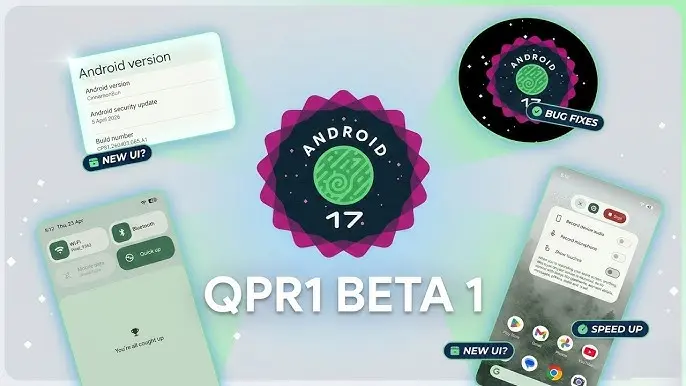
    With the final scheduled Android 17 Beta dropping just last week, Google has wasted no time shifting focus — Android 17 QPR1 Beta 1 is already here.

    Google describes the release officially as the start of “the next round of Beta updates for our September Feature Drop release,” marking the beginning of the QPR1 cycle ahead of what will become a standalone feature update later in the year.
    Android 17 QPR1 Beta 1 beta released for Pixel

    This build addresses the following issues:

    • Fixed a crash in the Default Print Service occurring during low ink conditions that prevents users from completing print jobs. (Issue #487545419)
    • The Terminal app triggers an Application Not Responding (ANR) error that results in the application and device becoming unresponsive. (Issue #497465940)
    • Resolved an issue where uncontrollable hardware audio processing on the voice communication path caused distortion and phase cancellation in VoIP applications. (Issue #494843726)
    • Direct audio output may fail to open on devices using the AIDL audio HAL when playing audio streams longer than five seconds. (Issue #372064012)

    There are no obvious user-facing changes in this release — it’s primarily a bug-fix drop rather than a feature-forward update.

    Pixel users enrolled in the Android Beta program can submit feedback directly through the Android Beta Feedback tool, accessible from the app drawer or Quick Settings, which routes reports straight to the Google issue tracker. The Android Beta community on Reddit is also an active space for discussion and bug reports.

    Build number: CP31.260403.005.A1

    Android 17 QPR1 Beta 1 system images are now available for the following devices: Pixel 6, Pixel 6 Pro, Pixel 6a, Pixel 7, Pixel 7 Pro, Pixel 7a, Pixel Tablet, Pixel Fold, Pixel 8, Pixel 8 Pro, Pixel 8a, Pixel 9, Pixel 9 Pro, Pixel 9 Pro XL, Pixel 9 Pro Fold, Pixel 9a, Pixel 10, Pixel 10 Pro, Pixel 10 Pro XL, and Pixel 10 Pro Fold, along with the Android Emulator.

    You can easily join via the Android Beta Program to get an on-device OTA.
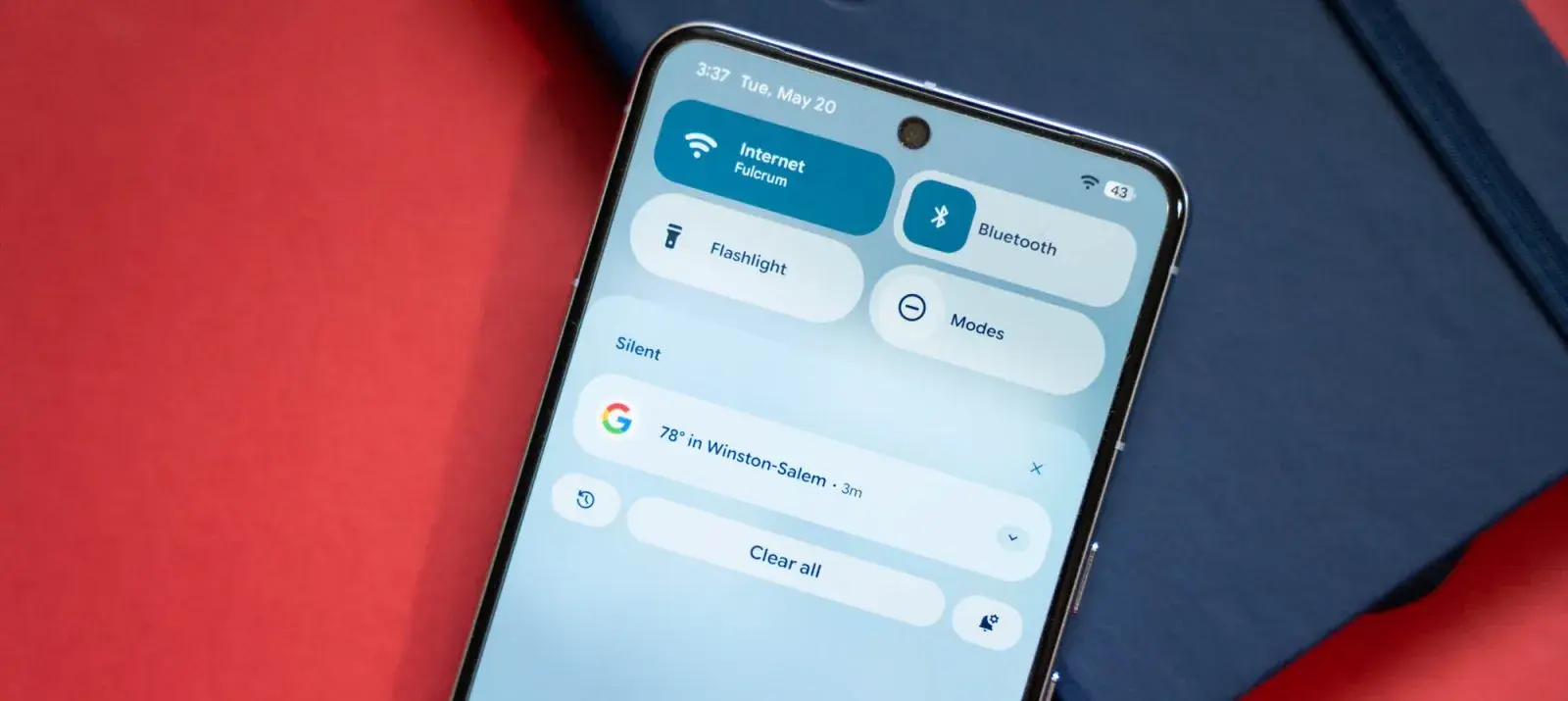
  • Change how notifications are displayed on Android lockscreen

    Change how notifications are displayed on Android lockscreen

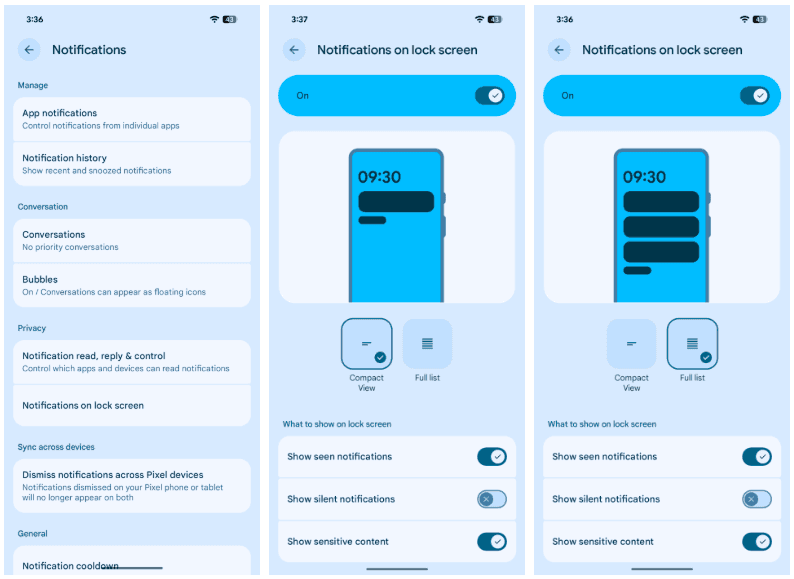
    With Android 16 QPR1, changes on how the how lock screen notifications are displayed came. The abrupt shift may be a little confusing if you’re not used to it. Now that the “compact” and “full” views are available, this guide will assist you in selecting the appropriate one.

    In its new condensed layout, Google’s latest Android release by default shows notifications on the lock screen. merely one notification is displayed in the presentation; all other notifications are merely represented by app icons in the overflow menu below. The secondary compact portion receives alerts that are viewed.

    The only alternative way for alerts to appear on the Pixel’s lock screen is “full list.” Notifications are displayed in cards and in the order they were received. Although they can be enlarged, they do occupy a considerable lot of room.

    There are further choices as well. Notifications that are viewed without any action performed, such as unlocking the phone, are buried until the phone is unlocked when the “display seen notifications” setting is disabled. In order to keep the shade clear, the option to “Show silent notifications” will show alerts from apps that have been manually or automatically switched to silent.

    Here’s how to set your preferred view:

    1. On your Pixel running Android 16 QPR1 or later, head to settings.
    2. Find and tap Notifications.
    3. Hit Notifications on lock screen.
    4. Choose between Compact View and Full list.
    notifications list on Android 16

    Although you can always go back, for some people, full view can be the greatest choice. In contrast to compact mode, which only shows one notification at the top, all Pixel lock screen notifications are always shown in that mode. All of this depends on personal taste, but that’s what makes Android what it is!

  • Desktop Mode preview spotted in Android 16 QPR1 Beta 2

    Desktop Mode preview spotted in Android 16 QPR1 Beta 2

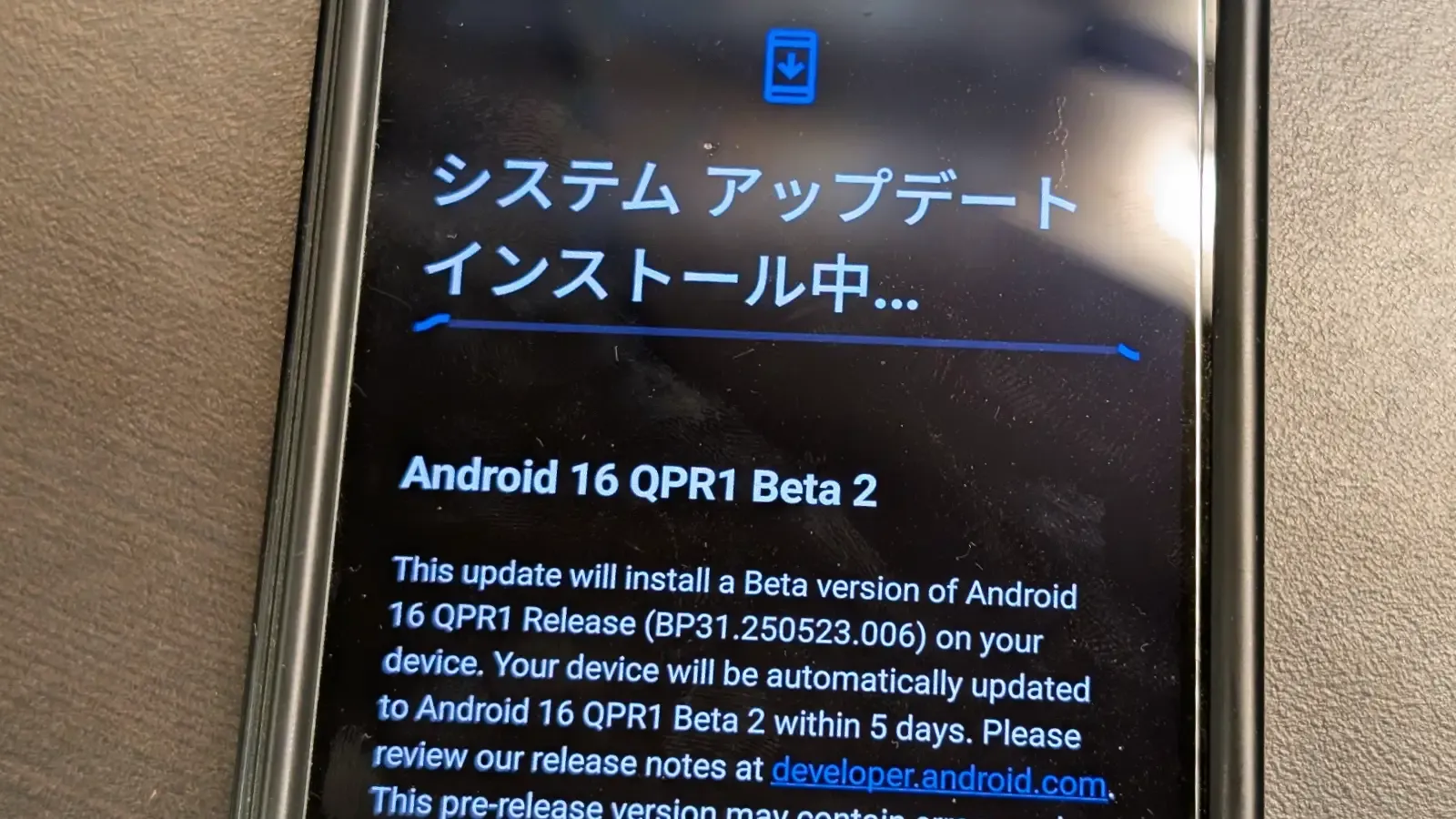
    Android 16 has finally been made available to the general public by Google. The June Pixel Drop and Android 16 QPR1 Beta 2 are also available today, so this isn’t the only update. Here, we’ll concentrate on Android 16 QPR1’s second beta, which will be made available to the general public as Pixel Drop the next quarter.

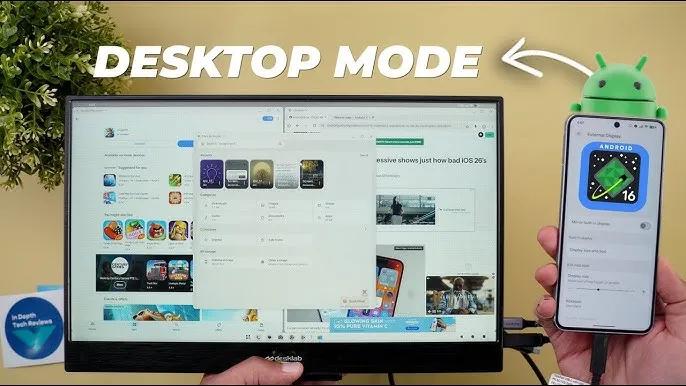
    In late May, Google started testing the Android 16 QPR1. Some of the Material 3 Expressive changes were first made available in the first beta. In addition to bug improvements, the second beta offers developers a sneak peek into Dex-like desktop mode.

    android 16 qpr1 beta 2 desktop mode

    Desktop mode is inevitable in Android 16

    Pixel devices using build number BP31.250523.006 can access the Android 16 QPR1 Beta 2, which is still based on the May security patch. The second beta, as previously said, is more akin to a bug-fix update that fixes a number of known problems. The known bug fixes are listed here.

    • Auto dark theme is not working
    • Now playing is crashing when selecting a track
    • Camera frequently fails to launch
    • Shortcuts for newly-downloaded apps aren’t automatically added
    • Home button not working on app list UI
    • “More wallpapers” button misaligned in wallpaper settings
    • Gemini fails to work on the lockscreen

    The second beta of Android 16 QPR1 will be accessible via an over-the-air update if you have already installed the first beta on your Pixel phone. To test the new QPR beta and the next beta builds, you can simply sign up for the beta program if you’re on a public build.

    Make care to backup crucial data and charge your smartphone to at least 50% before applying the update.

    Stay connected with the latest from Droid Tools—follow us on X @droid_tools, like our page on Facebook, check out our updates on Instagram, and follow us on Google News for real-time news, device tips, and mobile tech insights.