Tag: photos

  • Google Photos Adds AI Touch-Ups That Fix Your Selfies Without Looking Fake

    Google Photos Adds AI Touch-Ups That Fix Your Selfies Without Looking Fake

    Google Photos has been on a steady update streak lately, picking up long-requested features alongside smaller quality-of-life improvements. The app isn’t slowing down either – Google is now rolling out another update that brings a set of touch-up tools directly into the built-in image editor. The company is framing the addition around the idea that “your photos should capture how you feel in the moment.”

    New touch-up tools land in Google Photos’ image editor

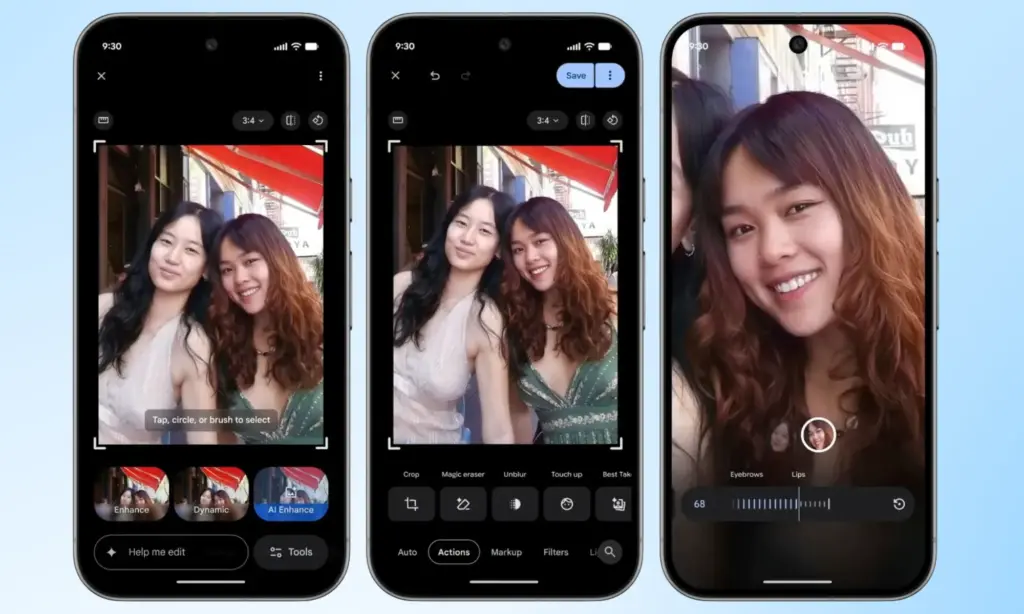
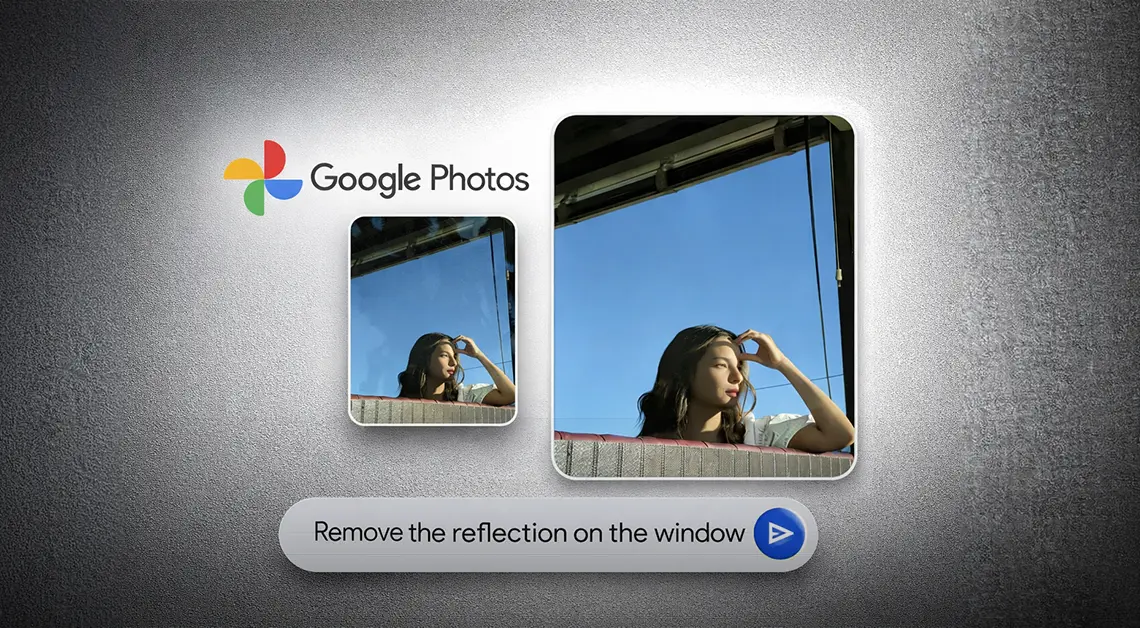
    The new tools are designed to apply subtle, targeted enhancements to portrait shots. According to Google, they let users refine skin texture, remove blemishes, brighten eyes, and whiten teeth – all within seconds. The workflow is straightforward: select a face in the photo, then pick from a set of options including heal, smooth, under eyes, irises, teeth, eyebrows, or lips. From there, a slider lets you dial in the intensity of each effect.

    Google Photos Touch Up feature in action

    Everything renders in real time, so adjustments are visible as they’re made, making it easy to fine-tune before saving. It’s worth noting that many third-party photo editing apps have offered similar tools for years, but Google Photos users now get these capabilities natively, without needing to reach for a separate app.

    Rolling out gradually to Android devices with 4GB RAM or more

    Google Photos Adds AI Touch-Ups

    This feature has had a long road to release. Code strings hinting at its existence were first discovered inside Google Photos back in October last year, but it’s taken until now for Google to push it live. It’s a welcome addition for anyone who likes to put a little polish on their photos before sharing, though those who prefer keeping images untouched can simply skip it entirely.

    Google has confirmed the touch-up tools are rolling out gradually on a global basis through the Photos app, targeting Android devices running Android 9.0 or higher with at least 4GB of RAM. Given that the rollout is just getting started, it may take a few days before the update reaches all eligible devices.

  • How to back up your Android phone

    How to back up your Android phone

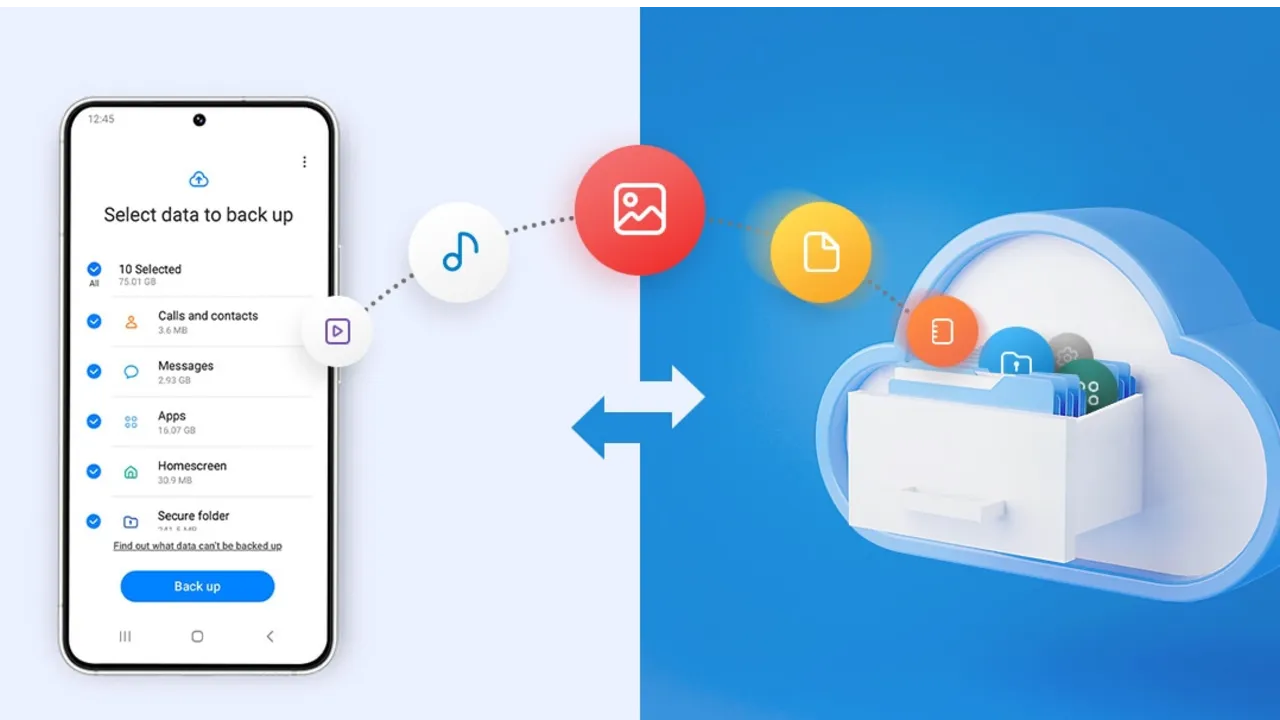
    Backing up your Android phone ensures that your data is safe in case of loss, damage, or switching to a new Android device. Thankfully, Android has a number of built-in security features that secure your contacts, media, apps, and settings without the need for third-party programs.

    Establishing a suitable backup plan is crucial, regardless of whether you’re upgrading your device or getting ready for a factory reset.

    Why it’s important to back up your Android phone

    It’s not just techies who should back up. You run the danger of losing private images, critical messages, app data, and even saved Wi-Fi passwords if your phone is misplaced or broken. Regular backup creation allows you to:

    Use Google backup (cloud-based method)

    google backup data

    Google offers a dependable, integrated backup system that connects to your Google account and stores your important data in the cloud. For the majority of Android users, it is the most practical approach.

    What Google backup saves:

    • App data and preferences
    • Call history
    • Contacts
    • SMS text messages
    • Device settings (Wi-Fi, wallpapers, display preferences)
    • Photos and videos (via Google Photos if enabled)

    How to enable Google backup:

    1. Open Settings on your Android device
    2. Scroll down and tap Google
    3. Tap Backup
    4. Ensure Backup by Google One or Back up to Google Drive is turned on
    5. You’ll see a summary of what’s being backed up. Tap Back up now to trigger an immediate backup

    Once enabled, your phone will automatically back up daily when connected to Wi-Fi and charging.

    Back up photos and videos using Google Photos

    Your videos and pictures frequently include priceless memories. To make sure your media files are securely backed up and available on multiple devices, Google Photos offers a quick and safe solution. It’s among the most dependable ways to preserve your graphic information without requiring complicated instruments or extra hardware.

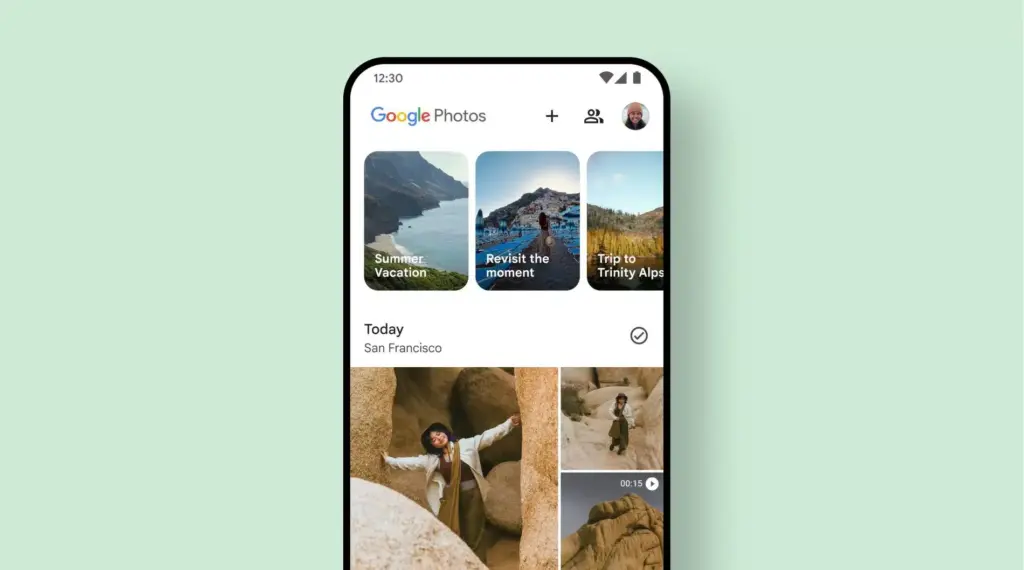
    Google Photos is a robust cloud-based platform that automatically stores and arranges your images and videos, making it more than simply a gallery app. Once activated, it will sync your media to your Google Account continually, so your memories will be preserved even if your device is lost or damaged.

    Steps to back up media:

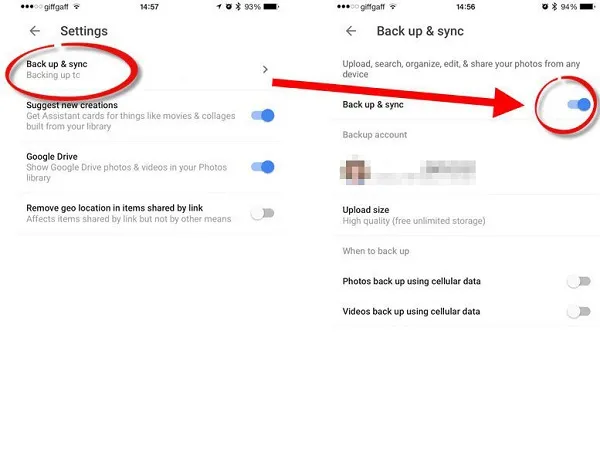
    1. Open the Google Photos app
    2. Tap your profile icon in the top right
    3. Choose Photos settings > Backup
    4. Toggle Backup to on
    5. Choose your preferred upload size (Storage saver or Original quality)
    google photos enable back upyour Android devices photos and videos

    All your photos and videos will sync to the cloud, and you can access them on any device logged into your Google account.

    Back up files manually to a PC

    Although cloud storage services like Google Drive and Google Photos are convenient, backing up your Android files to a PC by hand offers you more control, privacy, and independence from internet connectivity. It’s a simple process that guarantees you have a hard copy of all of your vital information, including documents, films, images, and more, safely saved on your computer.

    Here’s how:

    1. Connect your Android phone to your PC using a USB cable
    2. On your phone, choose File Transfer / MTP mode when prompted
    3. Open File Explorer on your computer
    4. Locate your device, open it, and navigate to folders like DCIM, Downloads, Pictures, or Documents
    5. Copy and paste the desired files to a safe folder on your PC

    This method is ideal for archiving large files or performing a one-time back up your Android without an internet connection.

    Use Samsung Cloud or manufacturer tools (for Samsung, Xiaomi, etc.)

    Some manufacturers offer their own back up your Android device solutions in addition to Google’s.

    For Samsung users:

    1. Go to Settings > Accounts and backup
    2. Tap Samsung Cloud
    3. Choose what to back up (contacts, calendar, settings, etc.)
    4. Tap Back up now

    You can restore this data to any Samsung device later using the same Samsung account.

    Xiaomi users:

    Use Mi Cloud by going to Settings > Mi Account > Mi Cloud and enabling the backup options available for your account.

    Always ensure you’re connected to Wi-Fi and have enough cloud storage before initiating the process.

    Backup apps like SMS and call logs (optional)

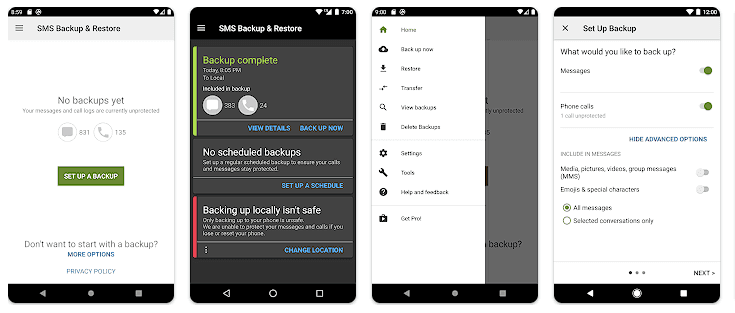
    Most devices now have SMS and call history included in Google’s backup system, but if you have an older phone or want more redundancy, apps like SMS Backup & Restore can give you more flexibility.

    back up your Android

    How to restore your data

    When setting up a new Android phone:

    1. Log in with the same Google account used for backup
    2. During the setup process, Android will detect the backup
    3. Choose what you want to restore—apps, settings, contacts, etc.
    4. Wait for the process to complete; some data may take time to sync

    For manufacturer backups, you’ll need to use the brand-specific restore method (Samsung Cloud, Mi Cloud, etc.).

    Tips for reliable Android backups

    • Always use a stable Wi-Fi connection before backing up
    • Keep automatic backups turned on for peace of mind
    • Occasionally perform a manual backup if you’re making major changes
    • Regularly check if Google Photos is syncing properly
    • For local backups, organize files by folders and label your backups by date

    Back up your Android device is easy and doesn’t require technical expertise. The majority of your crucial data is handled by Google’s reliable, automated solution, but you also have more flexibility with local and manufacturer-specific solutions. Having a backup guarantees that your data is never completely lost, whether you’re changing phones or simply staying secure.

  • RAW photos are now backed to Google Photos and displayed in the main grid.

    RAW photos are now backed to Google Photos and displayed in the main grid.

    Google Photos is making a significant change to how it manages RAW photos and backup on Android, as we noticed at the beginning of this year. The format has been substantially improved as of late, although there may be some drawbacks.

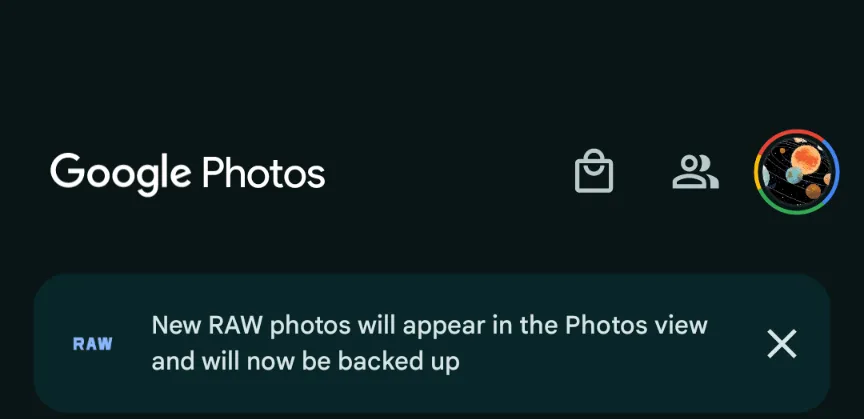
    This morning, Google Photos presented the following banner on a Pixel 8 that had previously taken RAW photos in the Camera app: “New RAW shots will appear in the Photos view and will now be backed up.”

    google photos raw backup

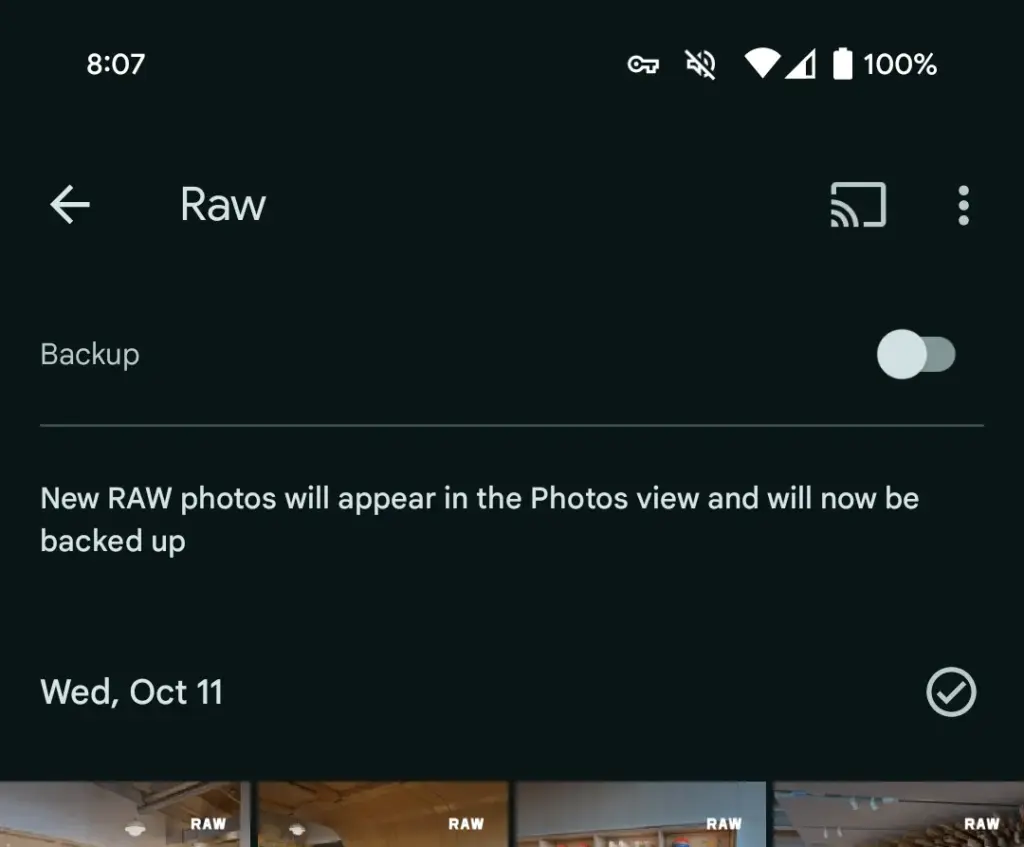
    Taking a RAW photograph now automatically uploads it to Google Photos backup and displays it in the main “Photos” tab/grid. It’s labeled “RAW” in the top-right corner, and opening it shows a switcher at the bottom that allows you to view the JPEG as well. When viewed as a “Burst,” JPEG allows you to “Export this photo” or “Keep this photo only,” whereas RAW allows you to “Set as main photo” and “Keep this photo only.”

    RAW files are quite huge, and Google automatically uploading to the cloud might rapidly exceed mobile data restrictions. (However, Google is no longer uploading earlier on-device RAWs.) There is no obvious way to prevent RAW uploads using existing backup settings.

    It may potentially have an influence on Google One storage restrictions. Personally, I’ve always transferred RAW photographs I’ve taken via USB because I don’t have a backup for that folder.

    Meanwhile, that “Raw” folder (on Pixel) found in the Library tab > Photos on device carousel is no longer in use. New RAW images are not shown there. At a glance, there’s no obvious way to view just RAW captures in Google Photos.

    google photos raw

    Meanwhile, this comes as Google Photos recently added the ability to set a default RAW editor. Photos settings > Apps & devices > Raw editor shows apps like Photos (which will convert to JPEG before editing), (Pixel) Markup, Gallery (Go), and Snapseed.

    We’ve reached out to Google to explain this RAW backup change in Photos on Android on behalf of wedding photographers.

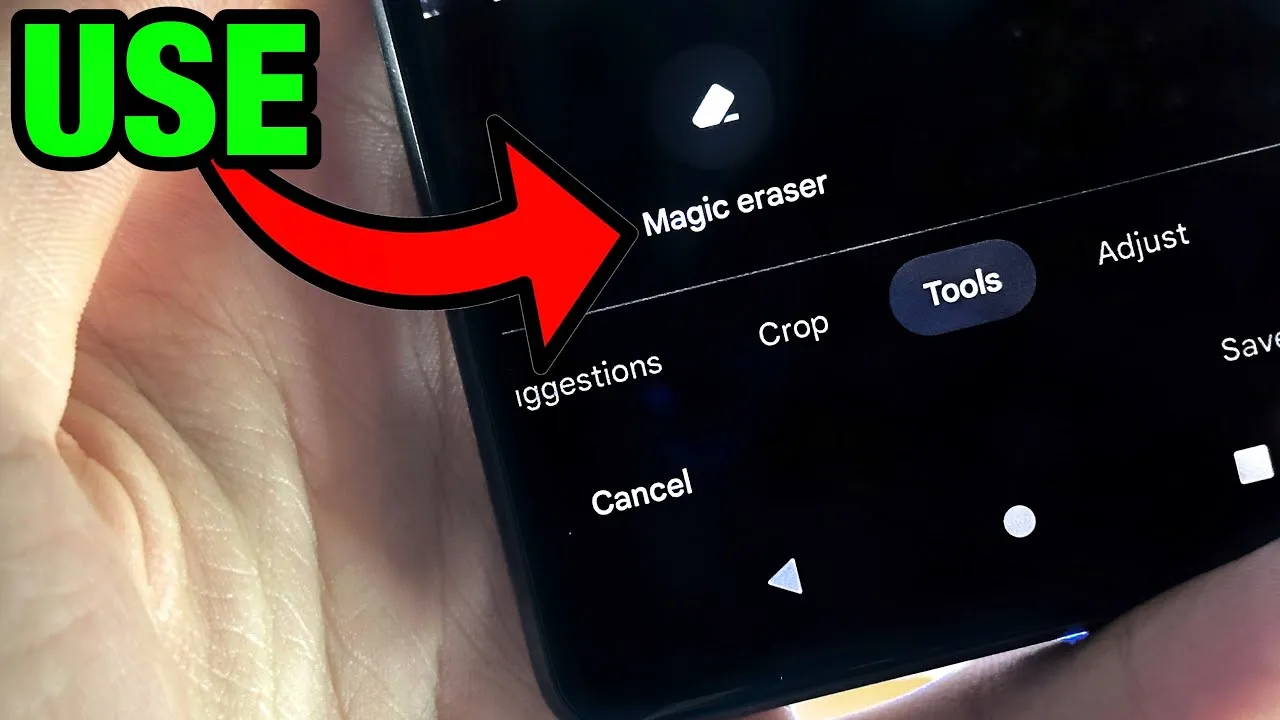
  • Magic Eraser tool will receive audio support on Pixel 8

    Magic Eraser tool will receive audio support on Pixel 8

    Google’s artificial intelligence (AI)-powered Magic Eraser tool debuted on the Pixel 6 smartphone. Later, it was expanded to accommodate additional iPhones and Android phones. A new version that removes various forms of audio from video recordings looks to be in development by Google; it will probably launch on the Google Pixel 8 and Pixel 8 Pro.

    Google hasn’t yet acknowledged anything regarding the Pixel 8 smartphones, however over the weekend, an unidentified person purportedly uploaded some promotional content on X (formerly known as Twitter).

    Magic Eraser tool

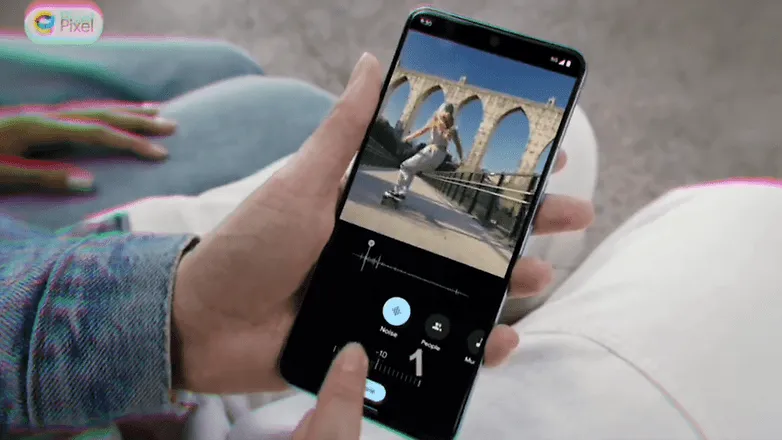
    The unreleased Pixel 8 Pro was seen in the video clip sporting a brand-new feature called Audio Magic Eraser. The editing tool was identified as a video-specific version of Magic Eraser. It appears that the tool is able to recognize the important noises in videos and then gives the user the choice to decrease or delete the audio signature.

    As for the many kinds of noises in videos, it can distinguish between background noise, people, and music. We would not, however, rule out the potential of the presence of more categories in addition to the aforementioned three.

    The Pixel 8 Pro has a similar appearance to the early renders that were published, but it has a new temperature sensor under the camera bump. It would seem appropriate for the low-cost Google flagship Android device to be unveiled in a fresh shade of blue, as is most likely the case with the smaller Pixel 8.

    The Pixel 8 line will be powered by Android 14 and may ship in October, based on Google’s prior Pixel launches. At the same time, it’s anticipated that the speculated Pixel Watch 2 with its metal body and ultra-wideband connection would be unveiled.

    Source: X/u/ez8622647227573

  • Google Pixel 7 prototype photo gallery

    Google Pixel 7 prototype photo gallery

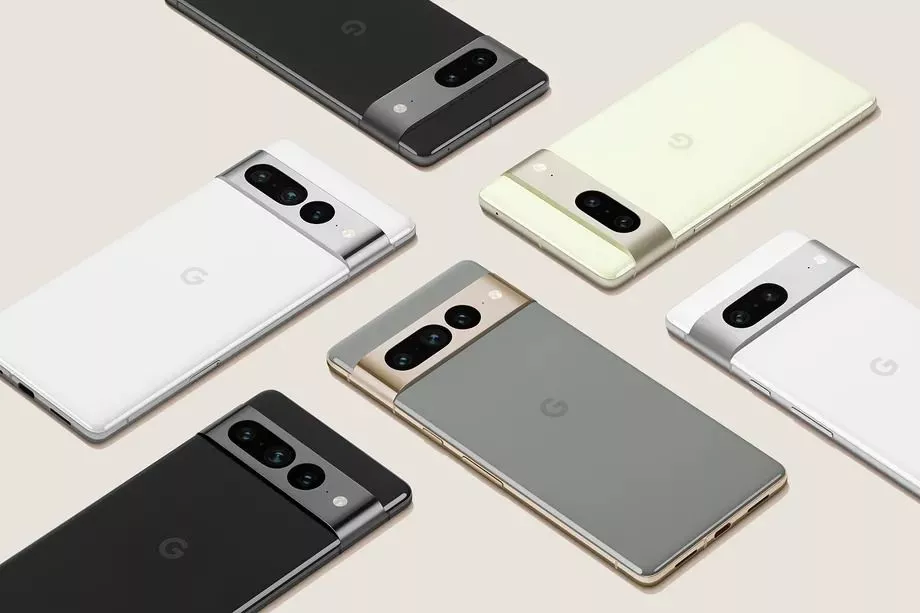
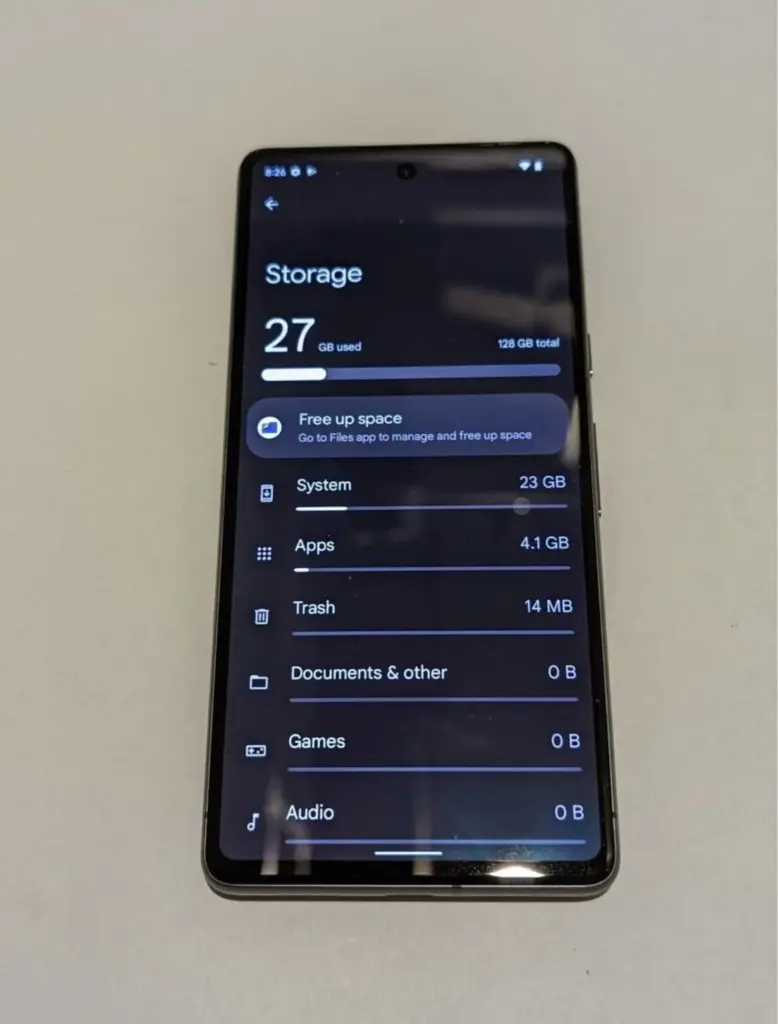
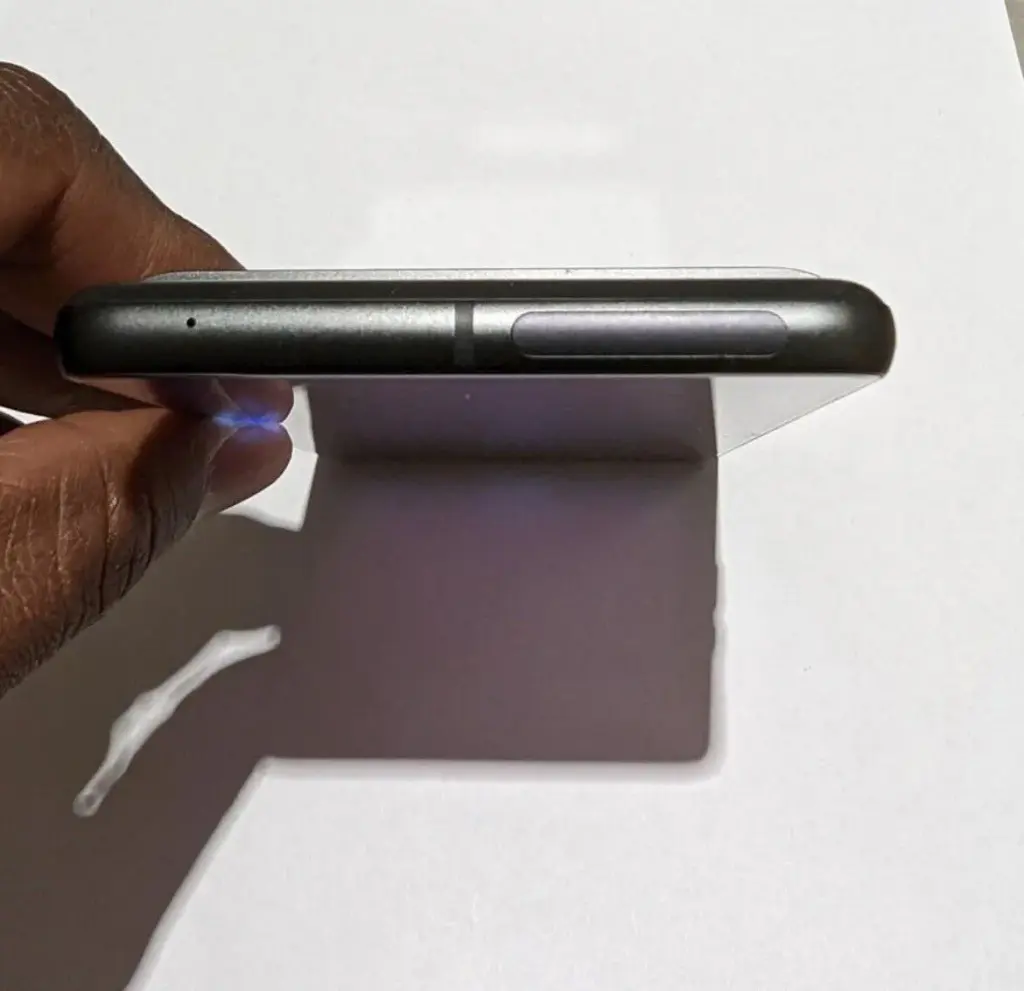
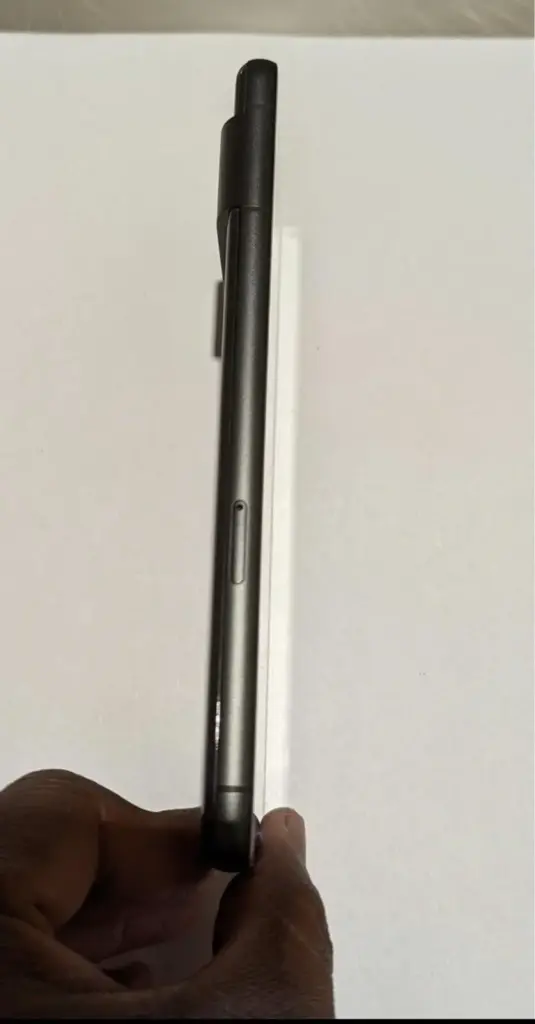
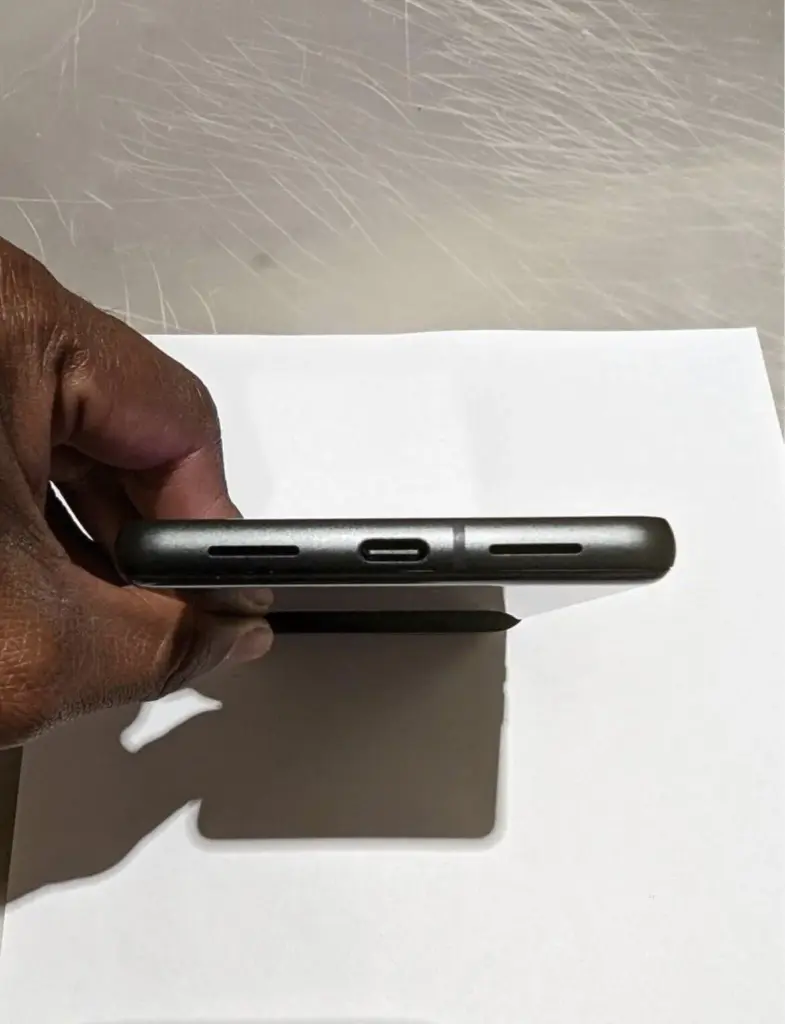
    We got our first official look at the Pixel 7 and Pixel 7 Pro at Google I/O, and now we’re getting even more due to an early prototype of the Pixel 7 appearing on eBay.

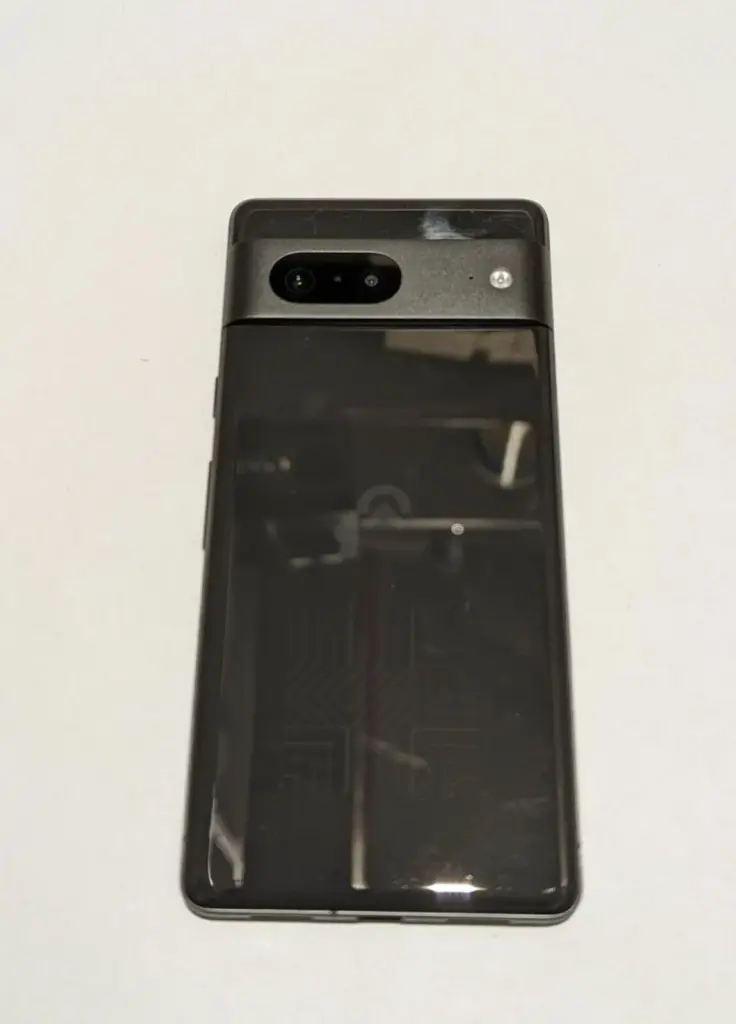
    Today, an eBay auction appeared for someone selling what appears to be a Pixel 7 prototype. The listing was pulled down shortly after this item was published, about 1:30 p.m. ET.

    The gadget is seen in its black “Obsidian” version, which includes a glossy glass back and the new metal camera bar that Google previously demonstrated. The device also includes a logo that is similar to previous Google prototypes but has been modified.

    Because Google has previously shown the Pixel 7’s design, this eBay auction doesn’t reveal much new information, though it does confirm that the Pixel 7 will ditch the matte black frame of the Pixel 6 in favor of a textured metal frame. The mmWave antenna window, which was previously seen in CAD leaks, is also visible.

    We can also see the Pixel 7 Pro in the mirror, with its unique camera bar snapping shots of this phone, which is a little amusing.

    The listing went on to say that the phone already had Android 13 installed and that “pixel apps were in the development stage.

    The only other thing we know from this leak is that the Pixel 7 will have 128GB of storage, as expected.

    Google has already confirmed that the Pixel 7 and Pixel 7 Pro will be releasing this fall. Pixel 7 specs will include a second-generation Tensor chipset. This updated design will come in the “Obsidian” color we’re seeing here as well as being sold in “Lemongrass” and “Snow.”

  • Portrait Mode to your dogs, food, and much more from Google Photos

    Portrait Mode to your dogs, food, and much more from Google Photos

    Over the last few months, Google Photos has been quietly rolling out new features, and another one will be available shortly, expanding Portrait mode beyond your typical single subject. Unfortunately, like last year’s Pixel-exclusive Photo editing tools, this new Portrait Blur will only be available for Pixels and Google One users via the Google Photos Android app.

    Prior to Google Photos Portrait Blur, Portrait Mode was only available for human images. Now, it’s available for a considerably wider range of subjects. Portrait Blur can attract focus and blur away crowded backgrounds in everything from images of animal pets you’re continually sending to your grandkids to that great meal you’re enjoying on vacation to the flowers in your yard coming into bloom this month.

    https://youtube.com/watch?v=fXEkPeSBr-Q

    This function isn’t limited to fresh pictures, either. You’ll be able to use it on any suitable photo once it’s available on your Android phone. This means you can take Portrait mode photos of your first puppy just as easily as the one you should be scritching behind the ears right now, providing you tagged their photos for easier reminiscing. Because this is performed after the photo is taken rather than during it, you can revert the snapshot to its original condition if the Portrait mode fails.

    This is just one of the many announcements Google dropped today, including a new screen time widget, iMessage reaction support for Google Messages, an expansion of Gboard grammar check to all Android devices, and lots more, all rolling out in the coming weeks.

  • Oganization feature for power users catches up with Google Photos

    Oganization feature for power users catches up with Google Photos

    Google Photos remains one of the finest methods to sync your collection to the cloud, even without its free high-quality backups. It can be accessed from any web-connected device, although not all applications have the same tools. For years, the Photos app for Android has been unable to manually change metadata — a critical function for any gallery tool — but that is now changing with Google’s latest version.

    google photos

    The ability to add and alter information from photographs and videos is realistically required, and it is something that Android customers have long sought from the firm.

    Not only did Google add it to the web client way back in 2015, but the iOS version of the app supports editing this info as well — something we’ve previously highlighted as an odd exclusion.

    google photos organize

    So while this feature is definitely overdue, it’s at least easy to use (via 9to5Google). To edit the time and date for an image, just tap on the pencil icon in the description field below your selection. It uses Android’s standard day and time picker to change this info, so it’s easy to select the exact timeframe you want. Once the new metadata is entered, just tap back to your photo to close it.

    There is no method to remove or conceal metadata from individual photos, but you can set random entries if you want to remove or hide metadata from specific captures. There is also no ability to batch update your photos; instead, you must utilize the online app for group editing.

    This appears to be a server-side upgrade, like with most Google app updates. However, we are seeing it on Google Photos v5.60, so it may already be on your phone. If you don’t see the edit button, try updating the app from the Play Store link below or downloading the most recent APK from APK Mirror.

  • 14+ must have apps on your Android smartphone

    14+ must have apps on your Android smartphone

    Have you just got a new Android smartphone for your holidays? It might be a little overwhelming if it’s your first one, so to get you started, here are some apps you should install or set up on a new Android device immediately.

    Alternatively, it might be time to give them a shot if you’re not already using these apps!

    Google Messages (RCS)

    google messages rcs apps

    Messaging has historically been a sore point among Android smartphones in the US at least. Fortunately, Google has been working hard to address that in recent months and now, as of this year, the solution known as RCS (Rich Communication Services) is open to every Android smartphone in the world.

    How can you get your computer with RCS and, more importantly, what’s the advantage? Firstly, the advantage is that RCS is much more capable than SMS/MMS. Better quality photos can be submitted, typing indications, and more all arrive with RCS. Team chats are now having a big update as well. RCS is like Apple’s iMessage, essentially, just for Android phones.

    All you need to do is update Google Messages to get RCS on your Android phone. The free app is an SMS app at its heart, but it can also allow RCS messaging on any carrier and any Android smartphone in select countries, including the US. Just download it, set it as your default SMS app, and wait until the RCS prompt is switched on.

    Telegram & Discord

    telegram and discors

    You should go beyond the standard RCS and SMS if you want an app for even better messaging. One of our favourite messaging apps is Telegram and it functions a lot like the super famous WhatsApp. However, unlike that app, Telegram runs easily on several smartphones or tablets at one time and instantly backs up all your messages. Plus, all is always end-to-end encrypted and you have available both voice and video calls.

    Another great networking option is Discord, which provides private messages and “servers” to host a few friends or hundreds, all with rooms and chat managers. It’s a fantastic experience, and one that’s excellent for gamers in particular.

    Google Duo

    googe duo

    2020 has been a wild year, but sadly, with a pandemic already going on, we are entering 2021. With that in mind, one of the easiest and safest ways to stay in contact with loved ones is still with video calling apps.

    Google Duo is one of the best Android video-calling applications. The totally free app allows starting video calls on Android phones and tablets as well as Chromebooks, laptops, and even iOS devices super fast. Think of it as Facetime for Apple, but not locked up to one ecosystem.

    The app works with your phone number or email address and on certain devices it features fun filters and even screen sharing. However, the best function might be just how well it operates on less-than-ideal connections.

    Zoom

    ne of the most popular video calling/conferencing tools during the pandemic so far has been Zoom. By its popularity alone, this is an app you should have installed. The service offers meetings that you can connect to with just a link or a password, easily connecting with loved ones, friends, or using it for business meetings. Many schools are also using Zoom for remote learning. It’s a powerful app, and one that’s not going to cost you anything unless you’re the one hosting.

    Meet, Skype, Facebook Messenger

    Other great apps for video calling going into 2021 include:

    • Google Meet, an app that works a lot like Zoom but is attached to your Google account and is very popular especially with schools.
    • Skype, one of the original video calling apps that still works great especially for friends and family.
    • Facebook Messenger, a service that lots of people in the US currently use and has an excellent video calling option alongside its messaging features.

    Google Photos

    download

    One of the first things you should install on a new Android smartphone – or an iPhone for that matter – is Google Photos. For the vast majority of Android users, the app will be pre-installed on your device, but you’ll still need to get things set up.

    To do that, simply open the app, sign in with your preferred Google account, and decide on backup options. Photos will automatically backup your pictures and videos in the background, but you’ll need to tell it if you want that done over Wi-Fi only or on cellular data as well.

    From there, you’ll just need to decide on quality. For the next several months, everything is backed up to Google Photos with no limits for “high-quality,” slightly compressed backups, but in June you’ll need a Google One subscription to store anything past 15GB of data.

    If you want to backup your photos outside of Google, one of the best options is Amazon Photos which provides no-frills backups and, for Prime customers, unlimited storage for photos.

    Gboard

    The keyboards pre-installed on a lot of Android smartphones that are most popular today are, well, not nice. In particular, we have particular qualms about LG, but in any case, you can get more features and improved functionality from a different keyboard in many cases.

    Our top selection? Gboard of Google’s own. This keyboard has a fantastic layout that supports features such as gesture/swipe typing, GIF search and input, and so much more, and is convenient for typers of all types. There are also special features, such as the recent inclusion of the “Emoji Kitchen” that can produce some wacky emoji stickers on the fly. You may also subject Gboard to the desire of your heart.

    Put simply, it’s an excellent keyboard that’s totally free and, if it wasn’t already on your phone, it’s one you should absolutely try.

    Find My Device

    Here’s another app that every new Android device should already be loaded on. “Find my device” is an app from Google designed to help you keep track of your smartphone if it is lost. If, for some reason, the app isn’t activated on your computer, it is available through the Play Store.

    When you open Find My Laptop, a Google account will prompt you to sign in and enter your password as well. You’ll be able to see your computer as well as any others connected to your account until that’s completed. Any computer on your account can then ring, lock, or scrub. The same goes for your new phone, some other Android device you own, an Android phone from a friend, or even just a web browser.

    As a side note, in Google Play Services, the key feature of actually locating your phone with this app is on by default, but you can get a little more access using the app as well as being able to locate your other Android devices via the app as well as helping friends find their phones.

    Google One

    google one

    If you do lose or break your phone, you don’t have to lose your data. That’s where Google One comes in handy. With any Google One storage plan (starting at just $2/month), you’ll get improved backups of your phone. By default, Android already backs up core data for free to your Google account, but the One app can back up SMS messages and MMS messages along with your photos and videos.

    ActionDash

    ActionDash provides strategies such as pausing applications to prevent you from using them to help curb your mobile use, restricting how long an app can be used each day and more.

    Everything is done on-device and isn’t uploaded to the cloud and, better yet, the app is free and won’t hurt your battery either. ActionDash is available on Google Play.

    Let’s finally talk about the habits of smartphones. For many, mobile addiction is a major concern, and there are ways to help curb digital well-being apps by moving through a new decade. On your computer, there may already be one enabled, but if not, ActionDash is a free Android smartphone Digital Wellness app that works on almost any device.

    The app monitors how you use your phone during the day, including which applications are used, how many times your smartphone has been activated, and also how many updates you receive.

    Check these waterproof box with actions dash.

    Google’s Digital Wellbeing experiments

    If you really have a smartphone addiction and you want to find a way to guilt yourself into stopping, Google’s collection of Digital Wellbeing experiments might be able to help. These include:

    • Screen Stopwatch, a wallpaper that constantly updates with the amount of time you’ve been using your phone that day.
    • Activity Bubbles, a wallpaper that shows how many times you unlock your phone in a day and how long each “session” lasts.
    • Unlock Clock, a wallpaper that counts how many times you’ve opened up your phone each day.

    Google Keep Notes

    google keep

    By using a note-taking app, keeping track of reminders, lists, and more can be made even easier. Personally, Google Keep Notes is my favorite note-taking app on Android and it’s something that just seems to keep getting better over time.

    Google Keep is totally free and allows you to store in the app notes, lists, and even drawings. These notes are also synced to your Google account, which means that on any other device, including computers, you can access them. You can even use Google Assistant speakers like the Nest Mini to handle a shopping list with a fast setup!

    Microsoft OneNote – Google Keep alternative

    If you want something that’s not from Google and has a few more advanced features, Microsoft OneNote is an excellent option. The app is completely free, though works better with other Microsoft apps using a Microsoft 365 subscription. You can back up notes, drawings, and insert pictures in the app and, like Google’s app, they’ll sync across devices with your Microsoft account.

    A few more …

    • Waze: While Google Maps will do the trick for many, Waze offers crowdsourced live traffic data and reports for speed traps and more.
    • Google News: Especially in these times, keeping up with the latest news is important, and using personalized data, Google News will bring you top stories in a slick app that’s really easy to use.
    • Feedly: Want to keep track of the news using personalized RSS feeds? Feedly is one of the best apps for the job, and it’s free!
    • LastPass: We all have a ton of passwords and online security is important. If you need help managing your passwords, LastPass is an easy, free, and most importantly secure option. 1Password is also an excellent app for this purpose, but it requires a fee.
    • Google Home/Amazon Alexa: Got some smart home speakers or displays? You’ll want to have the Google Home or Amazon Alexa apps installed depending on what devices you own.
    • Get a 3rd-party launcher: Installing a new launcher is a great way to fully customize the homescreen on your new Android phone. Nova Launcher and Action Launcher are great options for this.
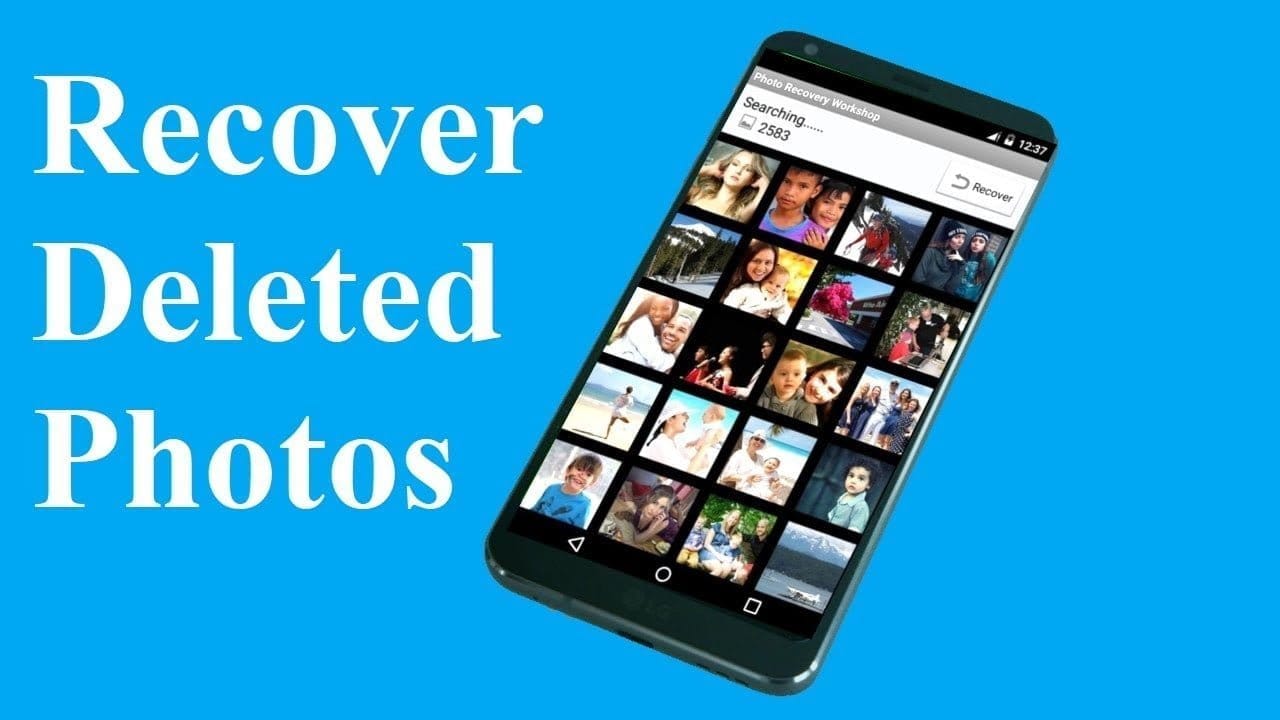
  • Recover your deleted photos on Android – how to

    Recover your deleted photos on Android – how to

    recover photos from android

    We’ve all deleted pictures on our phones by mistake before, but what if you delete anything absolutely irreplaceable? You don’t have to panic, but to retrieve your files, you do need to act quickly. Just follow our instructions below and you should be able to jiffy your pictures back.

    Do not be concerned, it is not too late! If you’re just morbidly curious about what could happen to your pictures, then we can also advise you how to back them up so you never have to feel the panic again.

    (adsbygoogle = window.adsbygoogle || []).push({});

    Recover deleted photos with an app

    First, head to the Play Store and grab DiskDigger photo recovery and then run the app. There are a few apps on the Play Store that claim to recover deleted photos, but after our investigation, DiskDigger was not only more reliable, but was less intrusive when it came to serving up ads, too.

    When you have the app, it’s helpful to turn off your phone’s Wi-Fi and data connections. The explanation for doing this is that when data is removed, whether images, music or documents, it is not completely removed until something in the device’s memory has been written over it. In addition, it ‘s important that you quickly uninstall all of your phone cleaning applications, since they will permanently erase the files you inadvertently deleted, making them impossible to restore.

    NOTE: DiskDigger is limited to retrieving images from your thumbnail caches on a non-rooted computer, meaning the images are likely to be of poorer quality than the original photos or videos. It is only possible to restore the original full-resolution versions of the images or videos by rooting your computer and getting the app’s Pro version. If you don’t know how to root your phone, then refer to our full guide on how to get started with rooting Android.

    If you’ve recently deleted your photos, DiskDigger should be able to find those photos, and you’ll be given the option of whether to restore them to a folder on your device, or back them up to a cloud service.

    recover deleted photos
    (adsbygoogle = window.adsbygoogle || []).push({});

    At first, it didn’t look like DiskDigger could locate our images, but our deleted pictures were discovered by a fast dip into its settings and unchecking the minimum file size factor. Like we said above, if you want to recover your images, you’ll need the App’s Pro edition, which can be found at the link below. Less than $4 to get your memories back is a small price to pay.

    Be careful if you use the cleanup feature in the app, as some users have deleted all their photos because they didn’t understand that it would delete everything, not just the images they deleted on purpose to save space.

    Once you’ve recovered your photos, you’ll want to make sure this never happens again. And we all know prevention is better than the cure.

    Back up your photos on Google Photos

    Google Photos

    Now that we’ve explained how to recover deleted photos on Android, the next step is to prevent this situation from happening again. To do this, we recommend using an app such as Google Photos. It offers unlimited photo storage (so long as the files aren’t too large) and the backup function is easy to set up.

    (adsbygoogle = window.adsbygoogle || []).push({});

    If the app has been enabled, just go to its Settings, then Backup & Sync, and you can choose how much – and by what process – you want your images backed up to. Of course we suggest that you back up as soon as possible.