Tag: ota

  • How to check for Android updates manually – don’t miss crucial features & fixes

    How to check for Android updates manually – don’t miss crucial features & fixes

    Software updates are vital for keeping your Android smartphone secure, efficient, and compatible with the most recent apps. However, many users disable auto-updates, either to save data or to avoid unpleasant modifications. What is the good news? You can still manually check for and apply updates, rather than waiting for a system prompt.

    In this extensive article, we will teach you how to manually check for Android system updates across many brands and what to do if no update appears – even if you assume one is available.

    Why Android updates matter

    There are several good reasons to check for Android updates manually:

    1. Get Critical Security Patches Faster

    Waiting for the automatic update prompt could expose your phone to known exploits. Manually checking allows you to keep ahead of security issues by ensuring that your device always has the most recent patch.

    2. Access New Features Early

    Android upgrades frequently include new interface modifications, battery optimizations, and system features. Manual updates allow you to try the latest enhancements as soon as they are published.

    3. Fix Device Glitches or Bugs

    Some updates contain stability fixes for specific devices. If your phone has been behaving up, a system update may fix crashes, poor performance, or connectivity issues.

    4. Ensure App Compatibility

    Many apps now require the latest Android versions to function properly. Without regular upgrades, your favorite apps may cease to function or lose essential features.

    Check for updates via settings (standard Android)

    This is the most common way to check for updates on Android, regardless of the manufacturer.

    Steps:

    1. Open your device’s Settings.
    2. Scroll down and tap on System.
    3. Tap Software Update or System Update (name may vary).
    4. Tap Check for updates.
    5. If an update is available, follow the on-screen instructions to download and install.

    What if it says “Your system is up to date”?
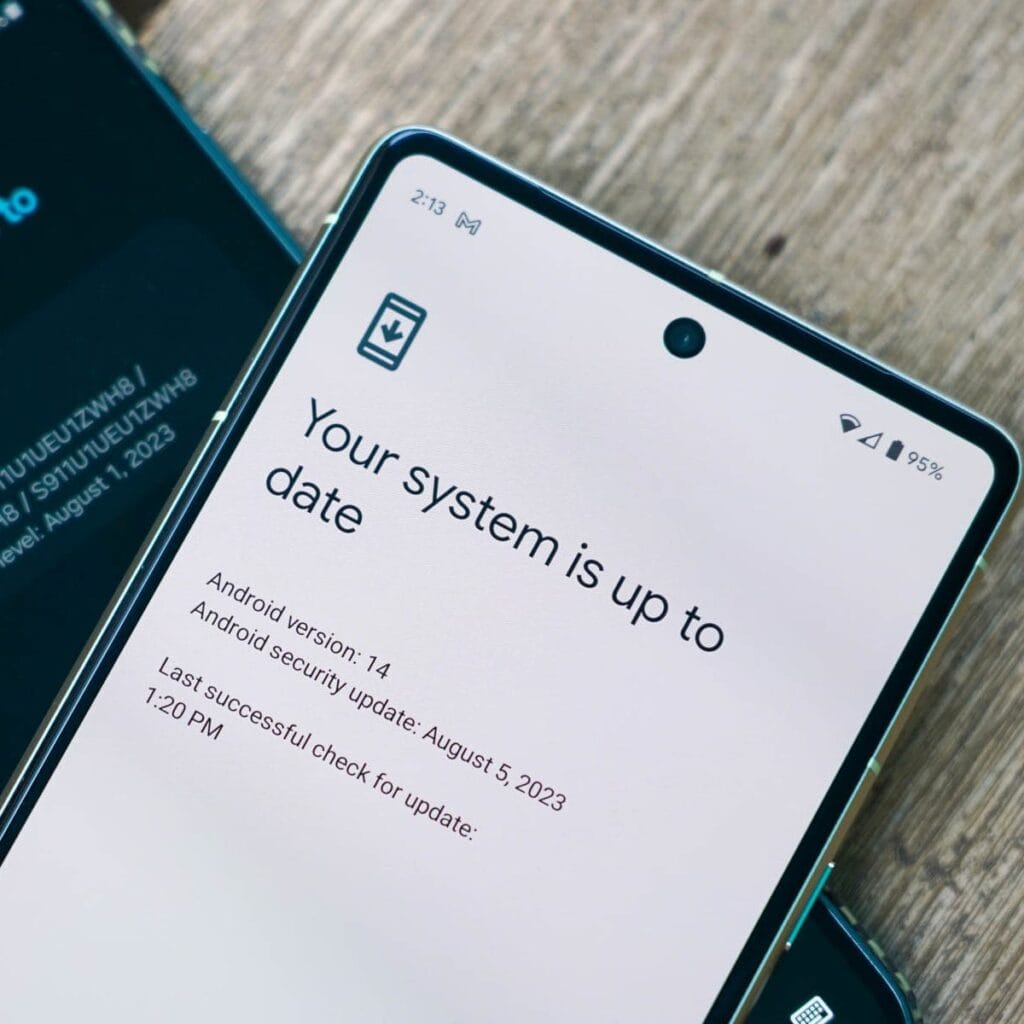
    Android updates system is up to date

    That alerting does not always indicate that there is no update; it could simply have not yet reached your region or device build. In that situation, consider the advanced methods listed below.

    How to check updates on specific Android oems

    Because manufacturers customize Android OS, the update settings may be in slightly different locations.

    Samsung Devices

    • Go to Settings > Software update > Download and install
    • Samsung pushes monthly security patches and One UI feature updates through this panel.

    Google Pixel

    • Go to Settings > System > System update
    • Pixel devices receive updates directly from Google — typically first among all brands.

    Xiaomi, Redmi, POCO (MIUI)

    • Go to Settings > About Phone > MIUI Version
    • Tap on Check for updates.
    • For advanced control, use the Updater app found in system apps.

    OnePlus (OxygenOS)

    • Go to Settings > About phone > OxygenOS version
    • Tap Check for updates
    • Alternatively, download the OnePlus Updater APK for sideloading updates.

    Oppo / Realme (ColorOS & Realme UI)

    • Go to Settings > Software update
    • Tap on Check for updates
    • Oppo also has an “Early Access” program for beta releases.

    Motorola

    • Go to Settings > System > Advanced > System Updates
    • Tap Check for updates

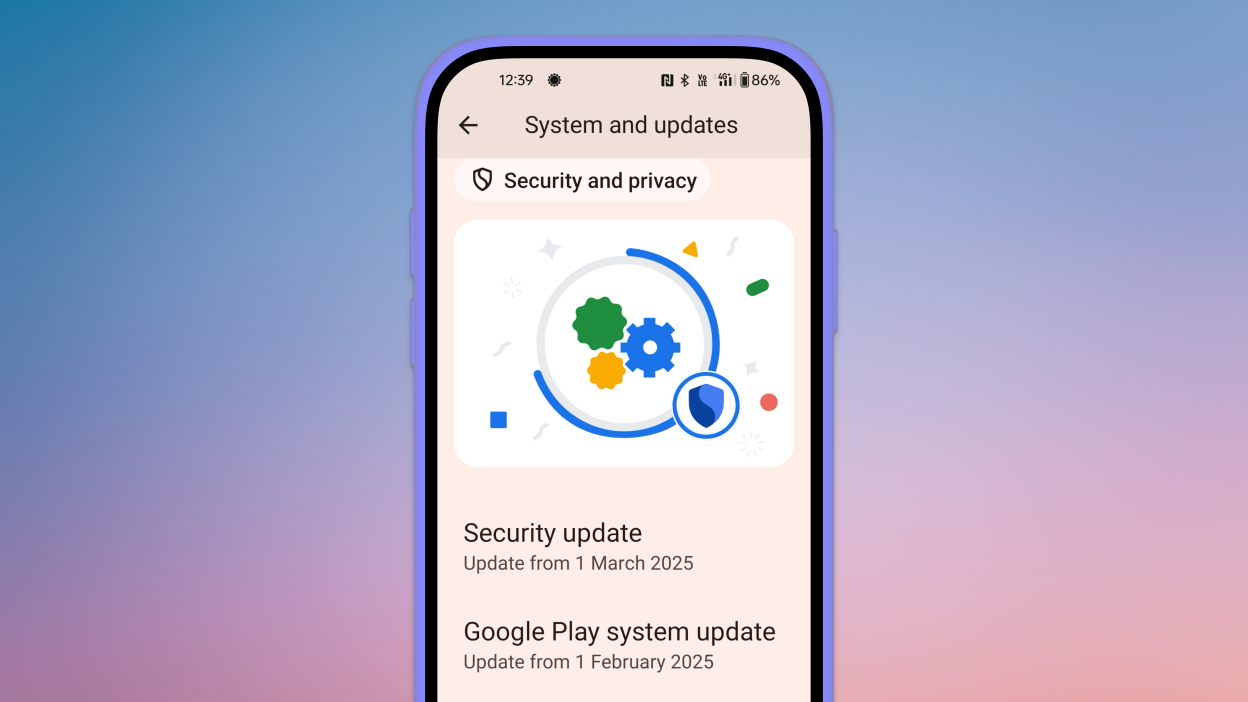
    Use Google Play system updates (separate from OS)
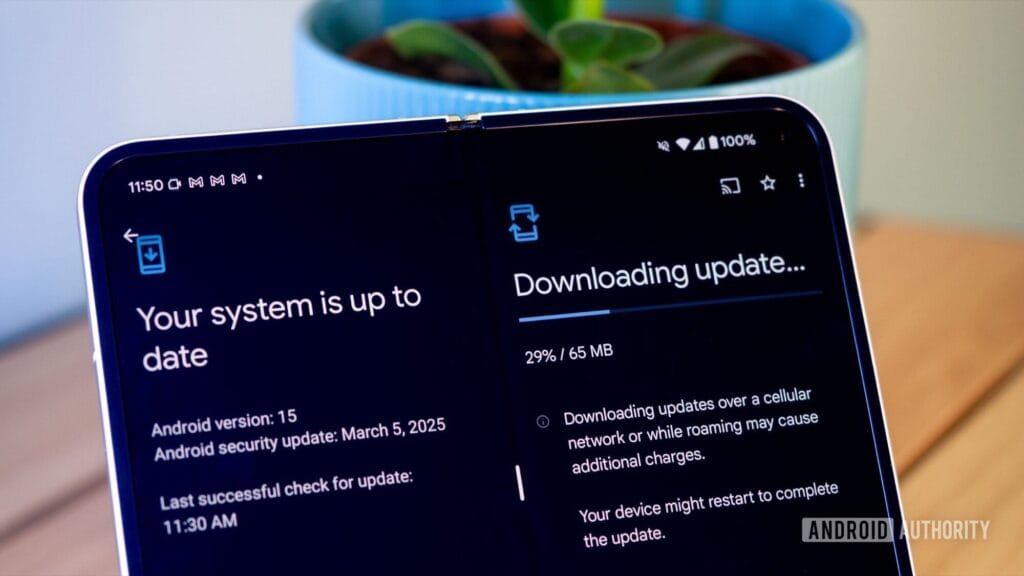
    android updates

    Since Android 10, Google has separated certain security and performance updates from full OS upgrades. These are delivered via Google Play system updates.

    How to check:

    1. Go to Settings > Security > Google Play system update
    2. Tap Check for update

    These are smaller updates that often improve background processes like biometric security, encryption modules, or system services.

    Force update with OTA Zip files (advanced users)

    If your manufacturer has released an official firmware update but it hasn’t reached your phone yet, you can manually install it using an OTA (Over-The-Air) zip file.

    Steps (for advanced users):

    1. Visit your manufacturer’s official website or trusted forums like XDA.
    2. Download the correct OTA update file for your model and region.
    3. Place the file in the root directory of your internal storage.
    4. Boot into Recovery Mode (usually via holding Power + Volume Up).
    5. Choose Apply update from SD card or Install update.zip.

    ⚠️ Caution: Flashing the wrong file or interrupting the process can brick your device. Always back up your data.

    What to Do If No Update Appears?

    If you’ve tried everything and your device still says it’s up to date, here are possible reasons:

    • Carrier Delay: Devices tied to mobile carriers often receive updates later than unlocked models.
    • Staged Rollouts: Updates are released in waves. Your device may be queued for later.
    • Region Restriction: Updates may reach some countries first. A VPN won’t help because updates are tied to device build numbers, not IP addresses.
    • Outdated Device: If your device is more than 2–3 years old, it may have reached its end of life for updates.

    Pro Tips to Get Updates Faster

    • Enroll in beta programs if your phone supports them (Pixel, Samsung One UI Beta, etc.)
    • Use the manufacturer’s official updater app (like the Xiaomi Updater).
    • Keep at least 3–5 GB of free storage so updates can install smoothly.
    • Fully charge your battery before downloading any major update.

    Final Thoughts

    Checking for Android updates manually is a good practice, especially if you value efficiency, security, or new features. While auto-updates may manage this silently in the background, taking control ensures that you are always using the most recent and safest version of Android.

    Whether you are using a Samsung, Pixel, Xiaomi, or Motorola, the steps are usually only a few taps away. Stay up to date and secure.

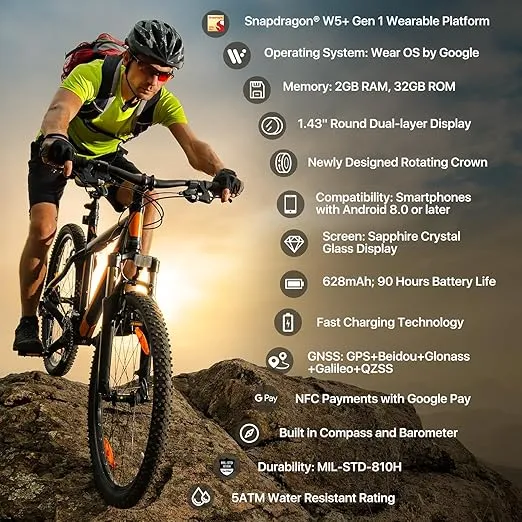
  • TicWatch Pro 5 – new update brings new features

    TicWatch Pro 5 – new update brings new features

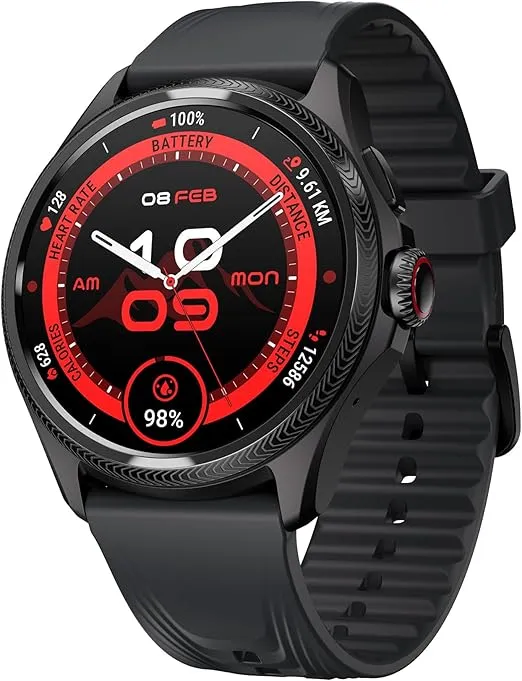
    Mobvoi has announced that the TicWatch Pro 5 and TicWatch Pro 5 Enduro smartwatches will soon receive an update. Version TMDB.240925.002 adds new capabilities to the wearables, including a safety tool and other sports.

    In addition, these wearables have received a number of improvements and bug fixes.

    The Mobvoi TicWatch Pro 5 and Pro 5 Enduro smartwatches are set to be updated. This release and a comparable upgrade for the latest TicWatch Atlas smartwatch have been announced on Facebook.

    TicWatch Pro 5

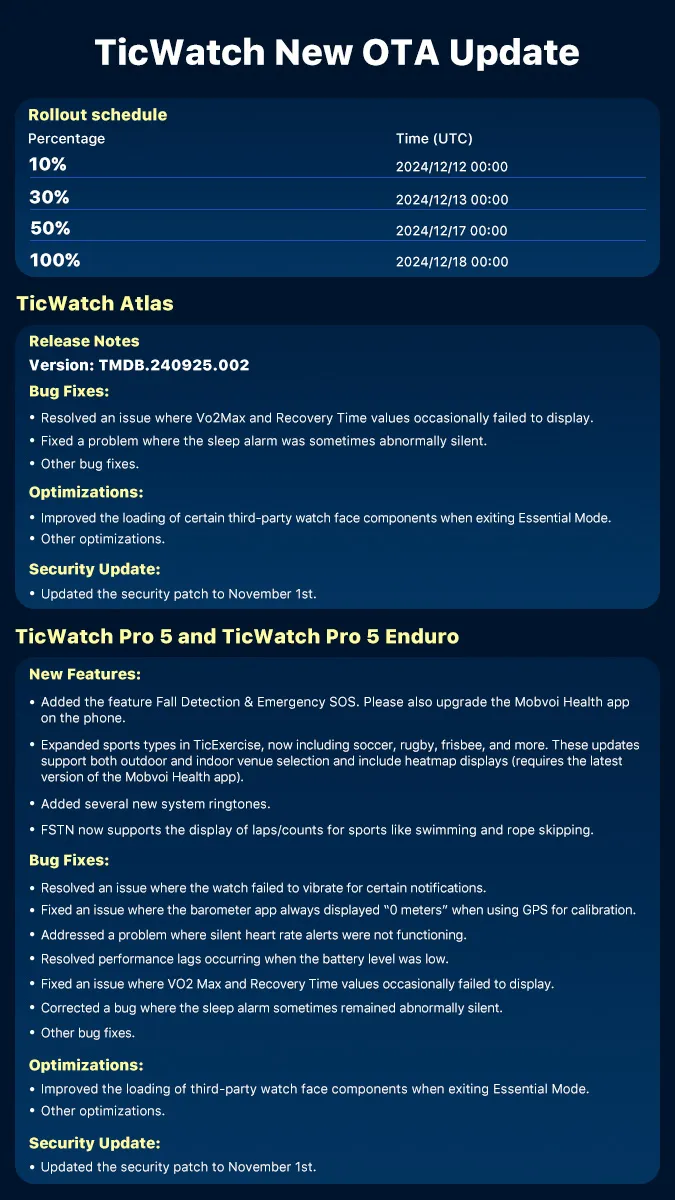
    The version TMDB.240925.002 upgrade is expected to add new features to wearables. These include Fall Detection and Emergency SOS, which allow users to raise an alarm if they are in distress; however, you must also update the Mobvoi Health smartphone app to use this capability.

    TicExercise now includes additional sports such as soccer, rugby, and frisbee. Additionally, there are new system ringtones, updates to several third-party watch face components, and a security patch for November 1st.

    In addition, Mobvoi has fixed issues such as the watch failing to vibrate in response to a notification, missing VO2 Max and Recovery Time statistics, and performance lagging at low batteries.

    Version TMDB.240925.002 will be available to TicWatch Pro 5 and Pro 5 Enduro smartwatch users beginning December 12th. It will initially be available to only 10% of units, growing to 50% on the 17th and 100% on the 18th. The TicWatch Pro 5 Enduro smartwatch is currently available on Amazon for $313.81.

    ticwatch 5 enduro

    Ticwatch Pro 5 Enduro

    Experience uninterrupted productivity and training with TicWatch Pro 5 Enduro’s remarkable battery life.

    Amazon’s Choice
    $419.26$313.81Buy on Amazon
    TicWatch Pro 5 update Version

  • July Android security update Google Pixel devices

    July Android security update Google Pixel devices

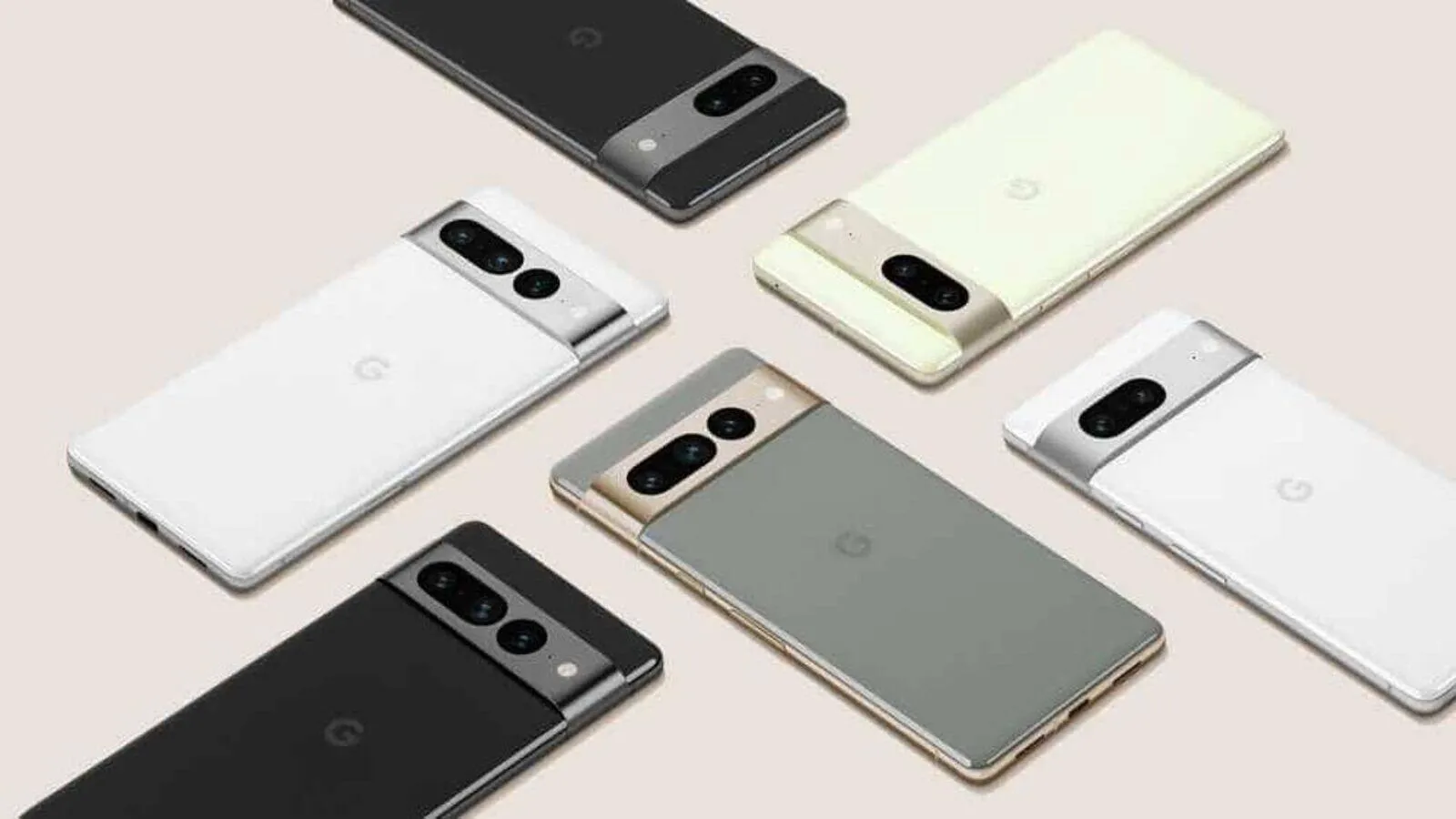
    The July Pixel update is now available as one of the final Android 13 updates, following the June release of a big quarterly platform update and Pixel Feature Drop that included new functionality and numerous bug fixes. It is anticipated to be somewhat less significant than last month’s and ought to prepare us well for the next Android 14 release.

    Prepare your Pixel 4a, Pixel 7 Pro, and Pixel 7a for an update right away. The initial updates for your Pixel Fold or Pixel Tablet should also be available. The fact that new Pixel smartphones are receiving upgrades is huge news, even if it’s just a tiny update. As I type this, a 23.27MB update is downloading to my Pixel Tablet. It is also visible to others who have Pixel phones.

    For those in the Android Beta Program, you are not likely to receive an update. When you are in that program, you are on a different software track.

    how to update google pixel am ah

    July Google Pixel update builds

    Global

    • Pixel 4a: TQ3A.230705.001
    • Pixel 4a (5G): TQ3A.230705.001
    • Pixel 5: TQ3A.230705.001
    • Pixel 5a (5G):  TQ3A.230705.001
    • Pixel 6: TQ3A.230705.001
    • Pixel 6 Pro: TQ3A.230705.001
    • Pixel 6a: TQ3A.230705.001
    • Pixel 7: TQ3A.230705.001
    • Pixel 7 Pro: TQ3A.230705.001
    • Pixel 7a: TQ3A.230705.001
    • Pixel Fold: TQ3C.230705.001.C1
    • Pixel Tablet: TQ3A.230705.001.B4
    • Pixel Watch:  RWDC.230705.001

    Verizon

    • Pixel 7: TQ3A.230705.001.A1
    • Pixel 7 Pro: TQ3A.230705.001.A1
    • Pixel 7a: TQ3A.230705.001.A1
    • Pixel Fold: TQ3C.230705.001.B1

    T-Mobile

    • Pixel 6: TQ3A.230705.001.A1
    • Pixel 6 Pro: TQ3A.230705.001.A1
    • Pixel 6a: TQ3A.230705.001.A1

    Japan

    • Pixel Fold: TQ3C.230705.001.C2

    July Google Pixel update bug fixes

    No major bug fixes to report on any device outside of the Pixel Tablet. For Google’s biggest screen, they list the following:

    • Battery & Charging: General improvements for charging, battery usage or thermal performance in certain conditions
    • User Interface: Fix for issue occasionally causing lock screen notification text to display behind unlock UI elements

    Again, Google should begin pushing these updates shortly over-the-air (Settings>System>System update), but if you don’t want to wait for Google and prefer to update manually, you will find each factory image or OTA file at the links below. For instructions on how to flash a factory image, here you go. For instructions on how to flash an OTA .zip file, here you go.

    Links:

  • Multitasking improvements and more on the new update for OnePlus 9 series

    Multitasking improvements and more on the new update for OnePlus 9 series

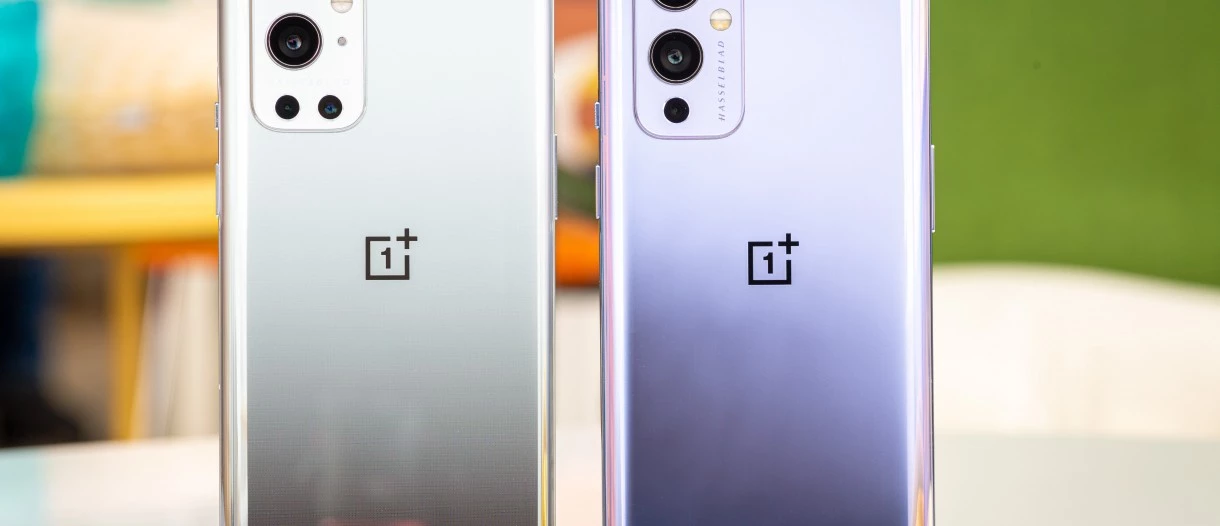
    May 19, 2022: OnePlus has released a new system update for the OnePlus 9 series (via XDA Developers). It has version C.60 and is over 1.5GB in size.

    The most recent OTA update improves multitasking and adds some connection and gaming features. The May security patch, however, is still unavailable for the phones. The complete changelog is available below.

    oneplus 9 series

    Convenience & efficiency

    • You can now open up to 3 apps in floating windows at the same time in Split-screen mode and switch between Floating window and Split screen modes
    • You can now use the Clock app in Quick Return

    Connectivity

    • You can now open up to 3 phone windows on your PC

    Games

    • Adds the HyperBoost end-to-end frame rate stabilizer
    • Heterogenous graphics: Reduces gaming loads and power consumption (only for some games)

    As always, this OTA will be incremental. It will reach a small percentage of users initially. A broader rollout should start in a few days.

    To check if an update is available, head to Settings > System > System updates on your device.

    Previous OnePlus 9 and 9 Pro updates

    • April 18, 2022: OnePlus rolled out a new system update for the OnePlus 9 and 9 Pro. The update carried Oxygen OS 12 version C.48 and went out to the flagships in India, North America, and Europe. There were no new features added with the update. However, it brought the April 2022 security patch to the phones. The changelog also mentioned system stability improvements.
    • March 21, 2022: OnePlus pushed out the stable Oxygen OS 12 update to the OnePlus 9R. The update was rolled out to users who were previously running the open beta version of the software. The OnePlus 9 and 9 Pro also got the incremental OxygenOS 12 update C.47 in North America and Europe. It optimized the stability of communication, fixed issues causing the operator’s name to be displayed incorrectly, improved system stability and camera fluency, and brought the March 2022 security patch.
    • March 10, 2022: OnePlus pushed out the Oxygen OS 12 C.46 update to the OnePlus 9 and 9 Pro. The company noted that the build will not release in North America due to specific country-related limitations. The firmware brought a bunch of improvements. However, the major change was the addition of the February security patch.
    • January 21, 2022: OnePlus rolled out update LE2125_11.C.44_1440_202201182114 (or 115) to the OnePlus 9 and 9 Pro in January. This update brought plenty of fixes for performance, display issues, cameras, and more. It also included the January 2022 security patch.
    • December 30, 2021: The OnePlus 9 and 9 Pro received Oxygen OS 12 C.40, which initially rolled out to global and Indian variants. The update fixed a few issues that the second Oxygen OS 12 release missed.
    • December 6, 2021: After a months-long beta program, the OnePlus 9 and OnePlus 9 Pro started getting a stable version of Oxygen OS 12, based on Android 12. However, due to intensely negative feedback to the update’s many bugs, OnePlus pulled it. The update restarted a week later.
    • November 25, 2021: Oxygen OS 11.2.10.10 rolled out to the OnePlus 9 and OnePlus 9 Pro. The update brought the November security patch and a few bug fixes but no significant changes.
    • September 17, 2021: OnePlus is rolling out a new Oxygen OS update (11.2.9.9) to the OnePlus 9 and 9 Pro. The update adds the September 2021 security patch and also brings the brand new Hasselblad XPan camera mode. There is also a slew of camera-related tweaks and other miscellaneous bug fixes.
    • July 29, 2021: OnePlus is rolling out Oxygen OS 11.2.4.4 to the OnePlus 9R. The update adds the July security patch to the phone and also brings the Bitmoji AOD feature that lets users place an avatar on their always-on display screen which changes based on activity and other factors. Fixes for “known issues” are bundled in the update alongside the updated GMS package.
    • July 19, 2021: OnePlus rolled out Oxygen OS 11.2.8.8 to the OnePlus 9 and OnePlus 9 Pro. It added one big feature for Ambient Display users — Bitmoji AOD. This lets users place an avatar on their always-on display screen which changes based on activity and other factors. The update also Fixed some “known issues” and added the July 2021 Android security patch.
    • June 6, 2021: The OnePlus 9 and 9 Pro gained Oxygen OS 11.2.7.7 which brought power consumption improvements, and camera tweaks, including an HDR option for video recording on the OnePlus 9 Pro.