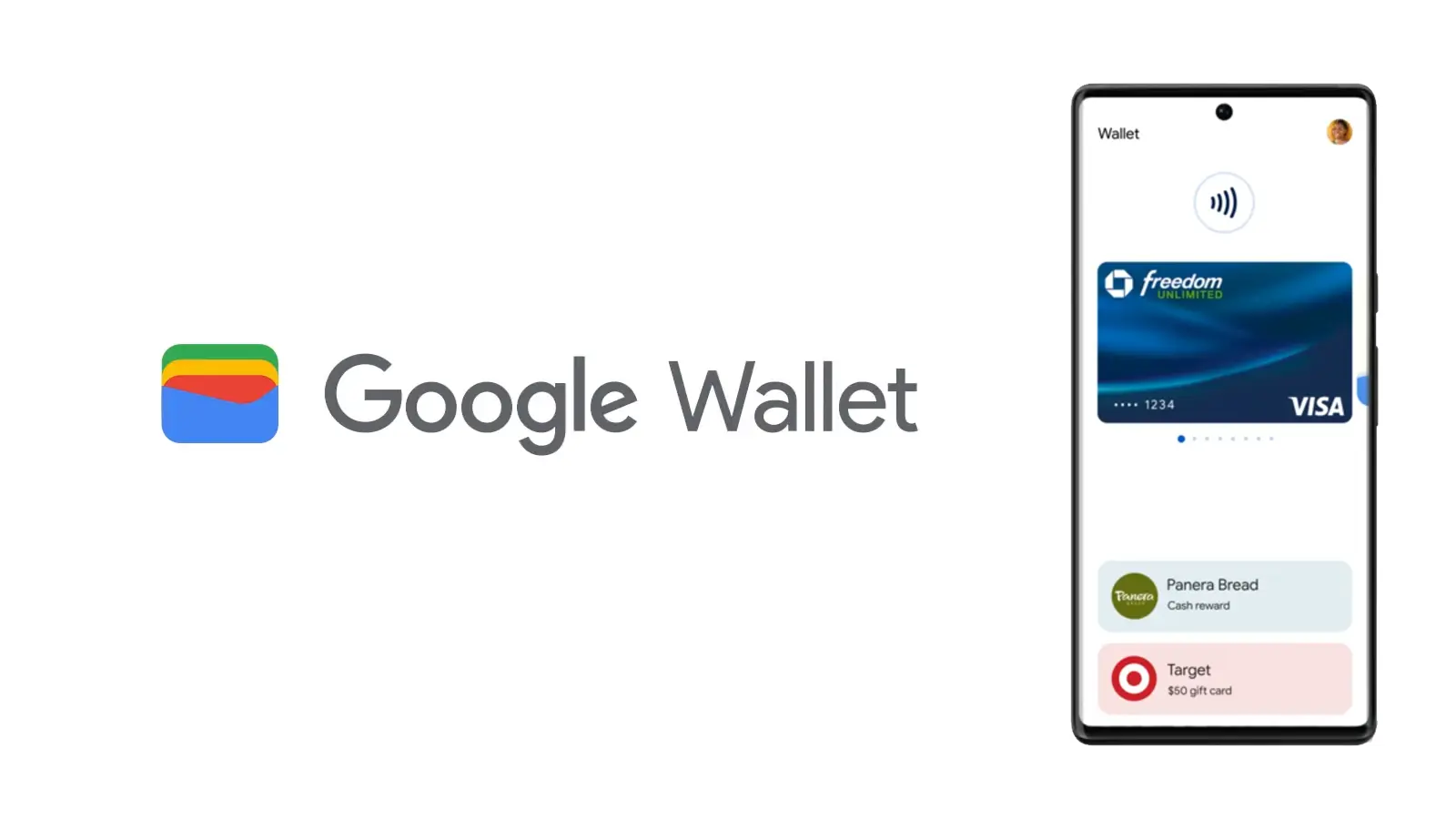
Google Wallet is a straightforward and safe mobile wallet that can easily store anything from concert tickets to credit cards. However, what occurs if you are not within range of Wi-Fi or if your mobile data is unavailable? Is it still usable?
If you do not want to carry around a heavy physical wallet, Google Wallet can be rather useful. However, once we are out and about, we have no control over mobile signals or data connectivity. Therefore, it makes sense to be concerned about Google Wallet not working when there is no data connection.
Even if your phone or smartwatch loses data connectivity, most of its functionality will keep working. For example, you can use your bank card to make contactless payments even when your smartphone is turned off. However, you cannot add a new bank card.
Similarly, other cards and passes, such as boarding passes, event tickets, loyalty cards, digital IDs, and gift cards, do not usually include an online component for frequent use. If they are retrieved via an online service, you may require internet access to add them. Otherwise, they do not require a data connection to operate.
Digital IDs, corporate badges, car keys, health insurance cards, and hotel keys can also work offline.
However, if you are offline, Google Wallet will be unable to retrieve the most recent information about your stored cards and passes, such as loyalty point balances or updated flight timings.

Google Wallet
Safety starts with understanding how developers collect and share your data. Data privacy and security practices may vary based on your use, region, and age. The developer provided this information and may update it over time.
How does Google Wallet work offline?
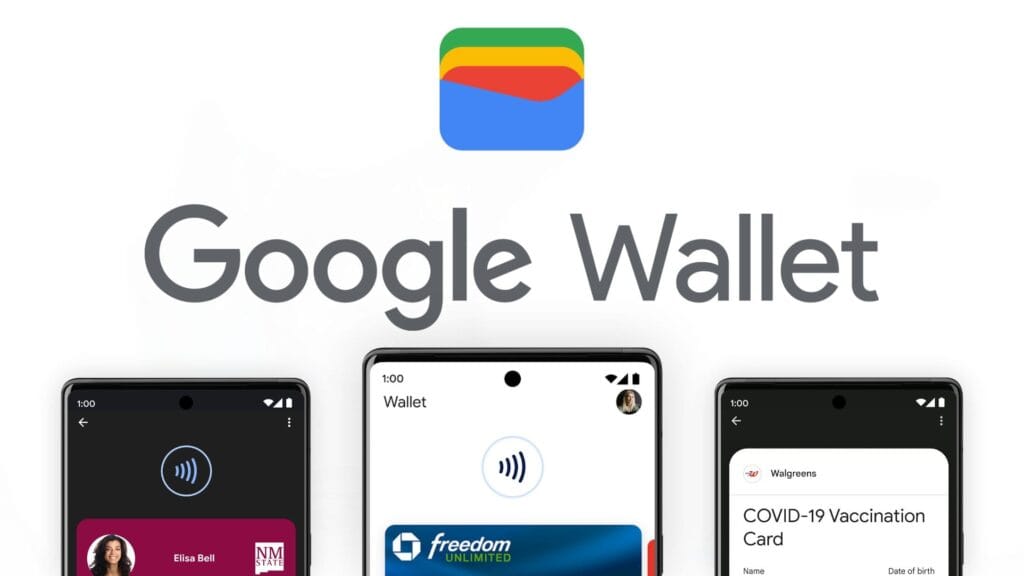
As previously stated, many of the cards and passes you save in Google Wallet do not have an active online component. As a result, utilizing these cards does not require the app to connect to the internet. However, payment cards work slightly differently.
When you add a bank card to Google Wallet, the app downloads a few one-time tokens from your card issuer, which effectively represent your payment card. When you pay with a contactless terminal, these codes are safely kept on your device and communicated to them. The terminal handles all the heavy lifting. It utilizes the token to communicate with the bank server and finish the transaction. So, you do not require the internet to pay using NFC because just the encrypted one-time code is transferred. This also protects the entire process from man-in-the-middle assaults.
However, if you frequently utilize contactless payments without taking your phone or smartwatch online, your one-use tokens may run out. In such a case, you will be unable to make further payments. So, if you want to continue using contactless payment without complications, make sure your smartphone is not offline for an extended period of time. Whenever your phone is online, Google Wallet refreshes its supply of one-time tokens for later usage.
Google Wallet normally saves a certain number of one-time tokens, which varies by card issuer. The number might range from roughly five to ten. Some card issuers may not support the offline payment option.
It may be better to go offline in poor network areas.
Although Google Wallet functions properly when connected to a stable internet connection, it may suffer with unstable data connections. So, if you see empty grey boxes while attempting to access the various cards or passes in your Google Wallet, your phone is most certainly experiencing connectivity troubles. The program attempts to connect to the internet to affirm the validity and other details of your inserted cards, but is unable to do so due to internet connectivity issues.
In these situations, it is best to turn off mobile data and Wi-Fi. This way, you will be able to access all of the app’s offline functions, including its main function, contactless payments. Once you have turned off mobile data and Wi-Fi, you can view and use your stored cards. This is especially useful in locations with inadequate networks.
Google Wallet is an useful and flexible tool for Android users. It has quickly become the preferred place for all of your cards, IDs, tickets, and passes.