Tag: microsoft

  • Some of the best Android Launchers in 2025

    Some of the best Android Launchers in 2025

    The top Android launchers are the best resources for making your Android experience unique. One of the best features of the Android ecosystem has always been user choice, and launchers make it even better. They allow you to customize the greatest Android phones in ways that Google and stock launchers could only imagine.

    While some of the top launchers are made for a more minimalist experience, others allow you to customize nearly every aspect of Android. If you’re not like that, however, there are launchers that offer a rainbow of colors that rivals the hardware store’s painting section.

    Whatever you decide, a launcher is the ideal option to update the appearance and feel of your phone without having to spend money on a new device. The only thing left to do is choose one, and we’ve been evaluating the top Android launchers to assist you in doing so.

    Nova Launcher
    android launcher - nova launcher

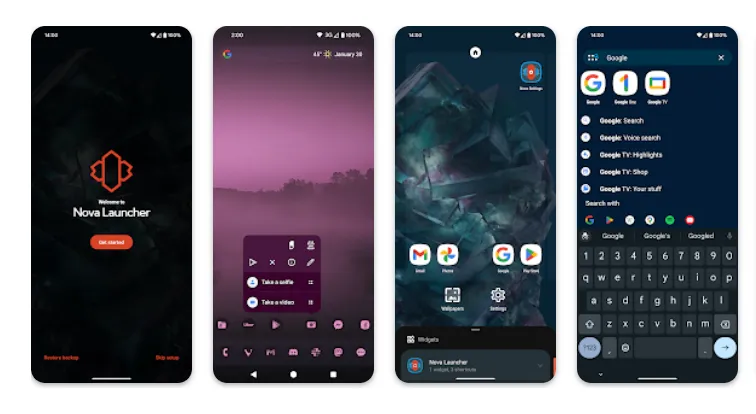
    It would be impossible to discuss the top Android launchers without mentioning Nova Launcher. Nova Launcher is quick, svelte, and incredibly customizable. It strikes a compromise between a wide range of utility and look customizations and a low performance impact, allowing you to customize your home screen without sacrificing speed.

    Color themes, icon packs, scrollable docks, app drawer modifications, folder settings, and endless scrolling are just a few of the many possibilities available. Sesame Shortcuts, animations, and other enhancements are just a few of the new features that the Nova team is constantly developing since they are never satisfied with what they have.

    Choose Nova Launcher Prime, a $4.99 edition that has more functionality than the free download, if you want the most potent features.

    Download Nova Launcher: Play Store

    AIO Launcher
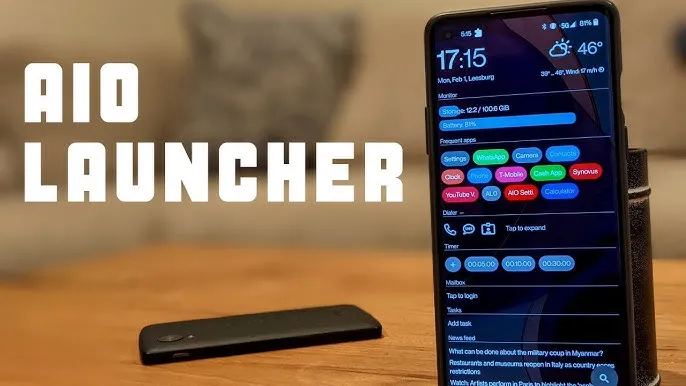
    AIO Launcher for Android

    AIO Launcher focuses on packing as much information as possible into a comparatively simple format on your screen, while other launchers could include decluttering cosmetic changes.

    In addition to system statistics, recently received calls, texts, and emails, the app shows your most used apps, upcoming calendar events, and more.

    on-app purchases enable additional features like widget support, app icons, and Android notifications on the home screen stream, even though AIO Launcher is free. Even if it doesn’t have the most user-friendly design among the top Android launchers, if you don’t mind information density, it’s still a compelling option.

    Download AIO Launcher: Play Store

    Microsoft Launcher
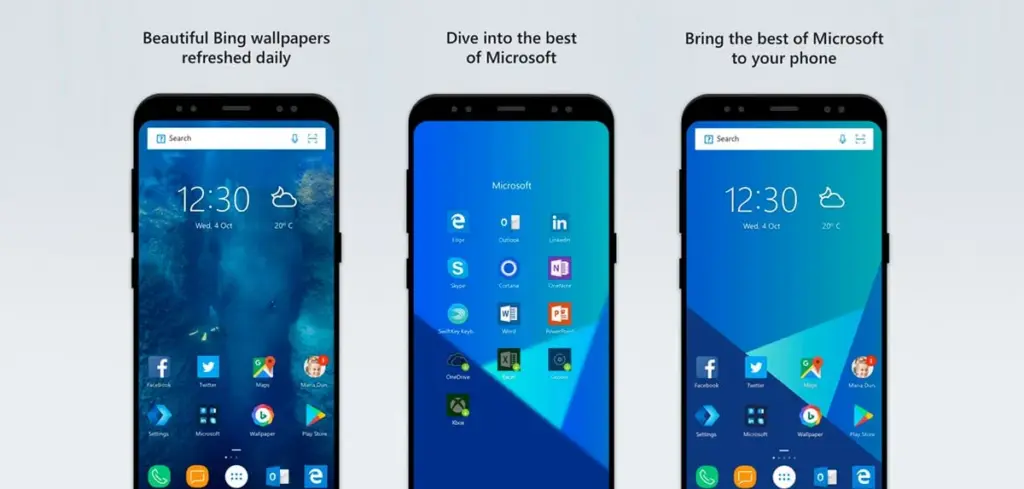
    microsoft launcher

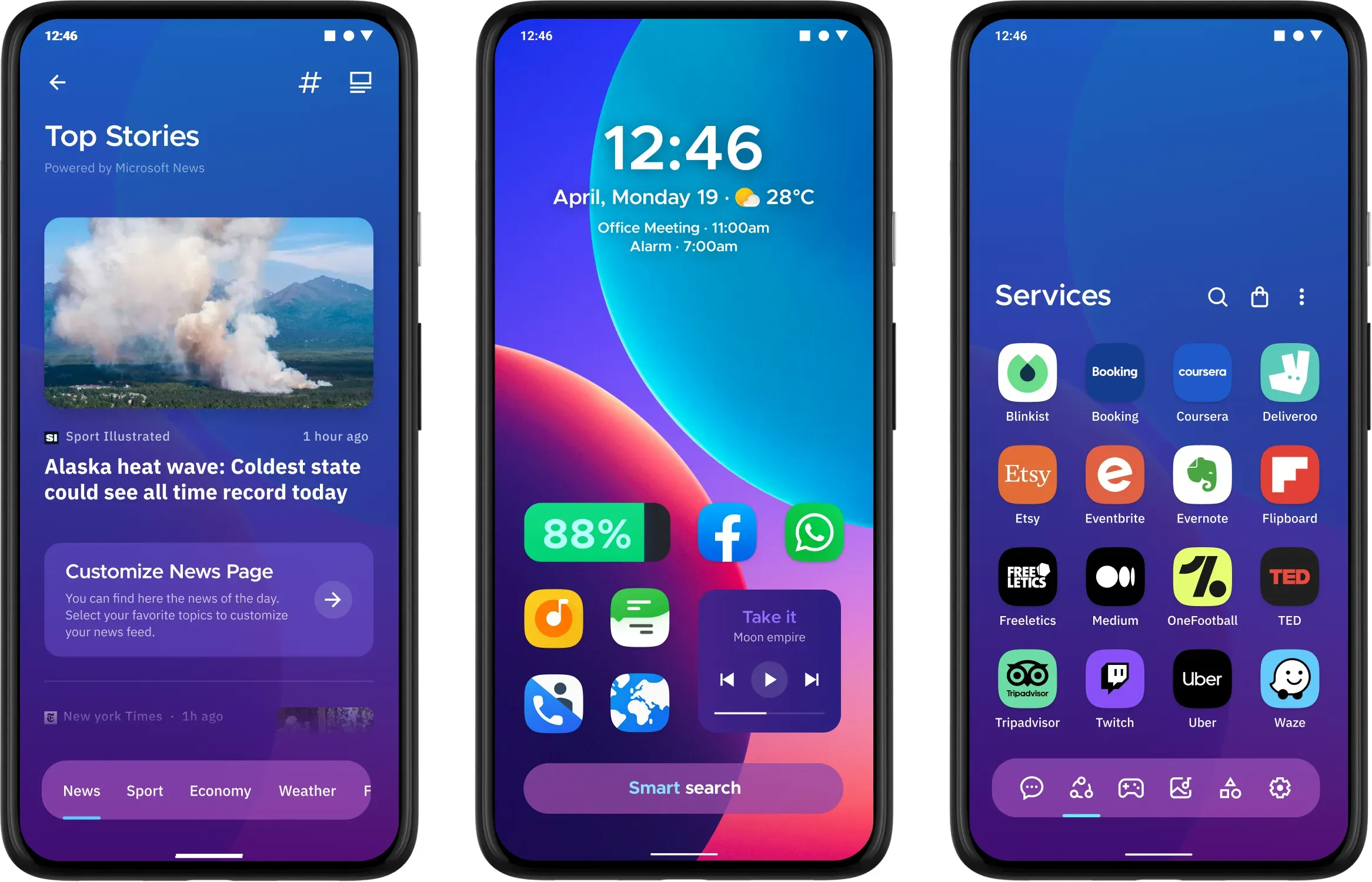
    In addition to retaining Arrow’s small, context-sensitive app pages and customisable feed, Microsoft rebranded their fantastic Arrow Launcher as the Microsoft Launcher. The company is also aiming to enhance the interaction between your Android phone and Windows computer.

    In addition to opening online links from mobile devices to PC Edge, users may rapidly take pictures with their phones and view them on their desktop. They can also begin editing Office 365 documents on their PC and continue while on the road using their mobile device.

    This is all on top of Microsoft’s adjustable themes, universal search bar, and gesture controls.

    Download Microsoft Launcher: Play Store

    Square Home
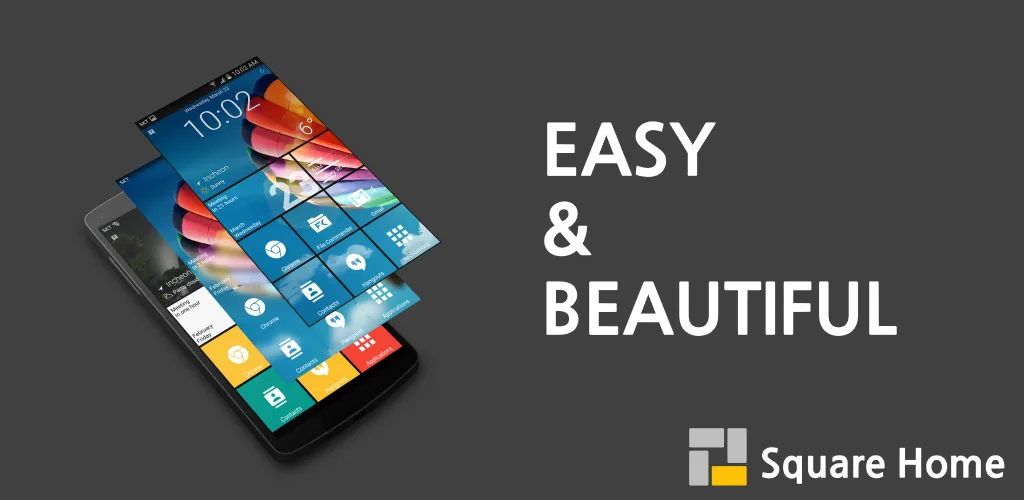
    square home android launcher

    Square Home might be for you if you want a more traditional, or perhaps we should say Microsoft-inspired, mobile experience. Although its design isn’t exactly the same as Windows Phone 8, it does include a squared-off grid structure that should bring back fond memories of Microsoft’s doomed handsets.

    If Microsoft hadn’t discontinued Windows Phone ten years ago, I like to think this is how it may have looked. For those of you who miss that specific design element, there is support for Live Tiles, home screen widgets, and a “Tiles on a Cube” system that allows you to swipe between tiles in a manner similar to twisting the top of a Rubik’s cube. Even better, it works with both foldables and Android tablets.

    The downside? It’s not free for more than 2 weeks. After your 14-day trial you’ll be asked to unlock the full version of the app with even more features — which is a one-off $5 payment.

    Download Square Home: Play Store

    Hyperion Launcher
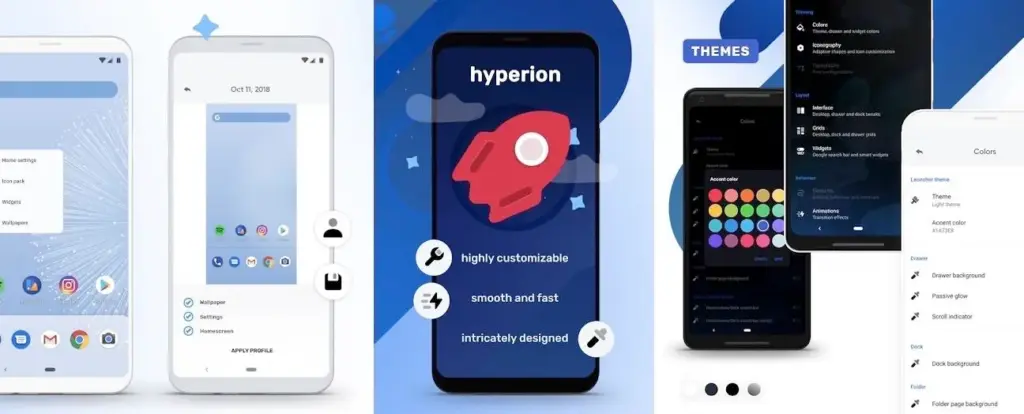
    hyperios launcher Android

    The developers of the well-known Substratum theming engine created Hyperion Launcher, a Pixel-like Android launcher that offers a wide range of customization options.

    Users can customize a wide range of options for themes, folders, transparencies, animations, icon packs, and adaptive icons in addition to the normal wallpapers and widgets. Many of Hyperion’s features are available for free, while the Pro edition requires an in-app purchase to enable others, such as launcher-level font changes and custom gestures.

    Download Hyperion Launcher: Play Store

    Niagara Launcher
    niagara launcher

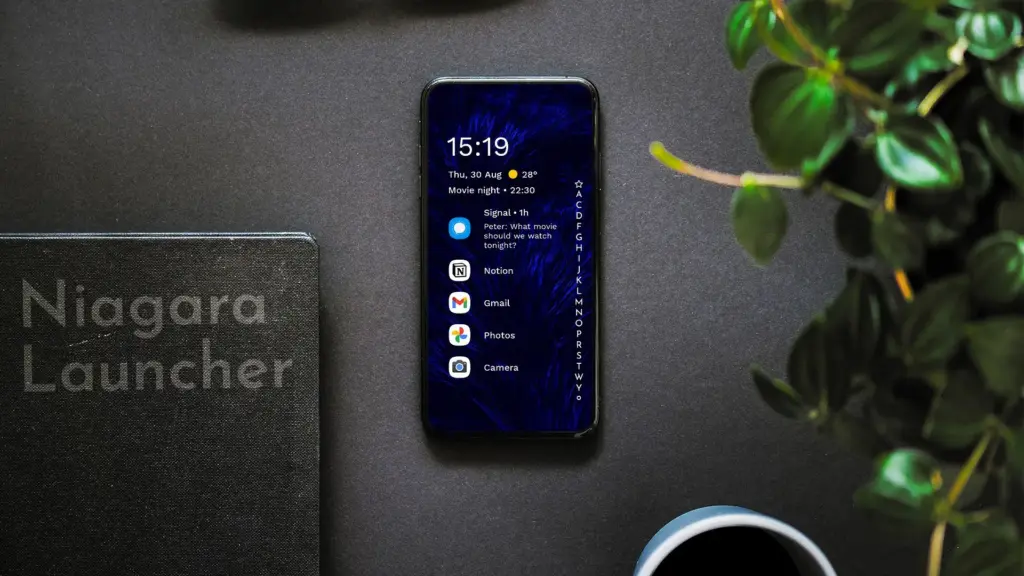
    Niagara is a slim Android launcher made to minimize other distractions while emphasizing your apps and alerts. Spam and persistent notifications are automatically filtered out of the notifications that are shown on your home screen. In addition to offering convenient alphabetical shortcuts, the app drawer instantly brings up your preferred apps.

    However, because of Niagara’s extreme simplicity, you shouldn’t anticipate any of the odd visual extras and features that you might anticipate from the majority of third-party launchers. It has a lot of promise and is often updated.

    Download Niagara Launcher: Play Store

    Is the stock launcher for you?

    We evaluated each launcher on this list using a variety of criteria during our hands-on experience with them. In particular, their features, design decisions, and genuine comparisons to standard Android versions.

    However, launchers are highly individualized, and what suits one user might not suit another. Therefore, ranking these rockets according to our perceptions and experiences was not the aim. Rather, we concentrated on the launcher’s goals and how successfully it achieved them.

    Giving the user as much functionality and autonomy as they like is the main goal of several launchers, such as Nova. Others, such as Square Home, are designed to provide a very particular experience; whether or not that is effective depends on the individual’s preferences.

    These launchers are ultimately just a small sampling of what is available. However, they do provide a great deal of choice and functionality in a number of areas. That’s why they’re so attractive. However, you are the only one who can decide which one is best for you, so make sure to try a few out for yourself.
  • How to scan documents using your Android phone

    How to scan documents using your Android phone

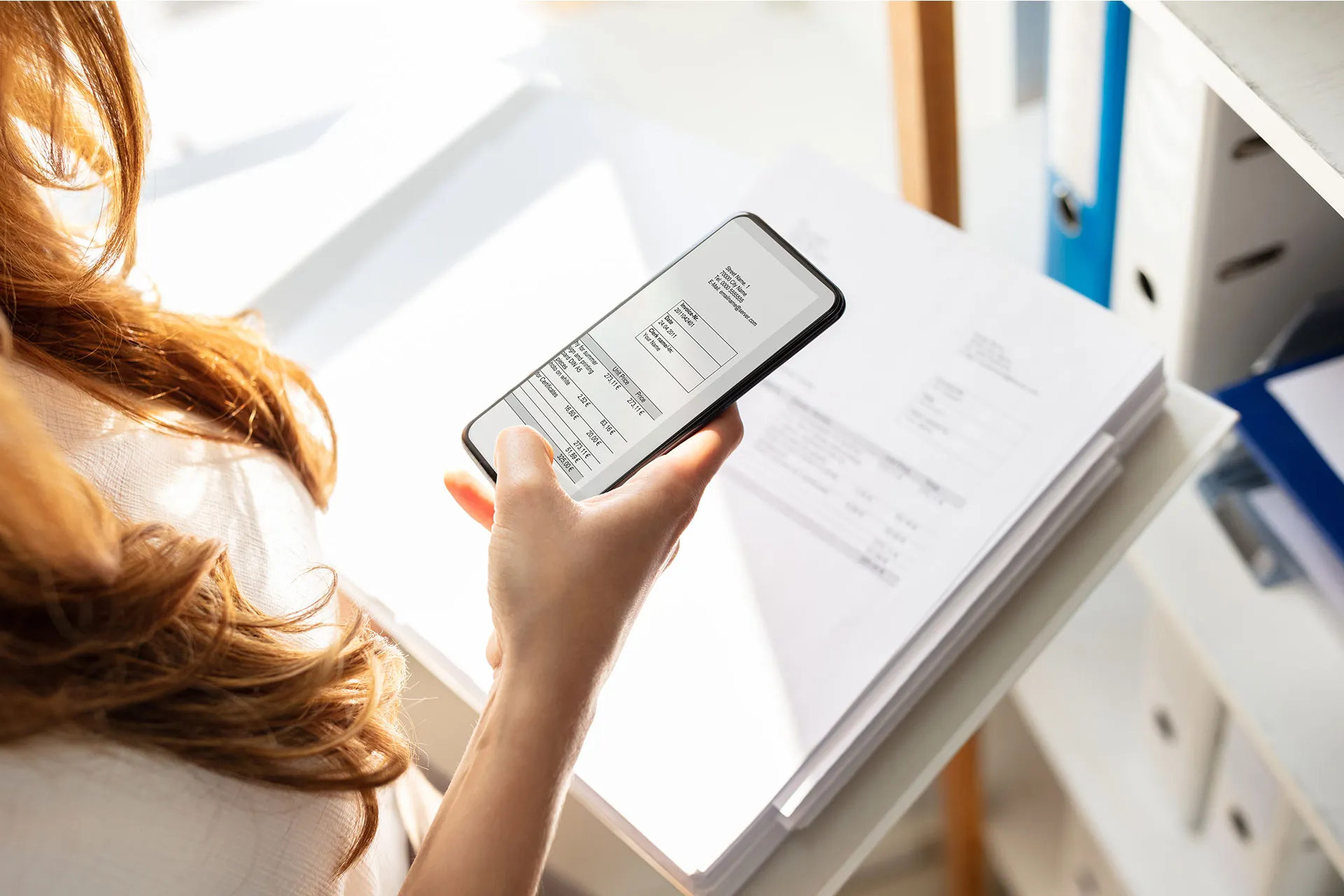
    A large flatbed scanner is no longer necessary for document scanning. You already have everything you need in your pocket if you own an Android phone. Android makes it simple to scan and digitize your papers with just your camera, whether they are signed contracts, handwritten notes, or invoices.

    We’ll walk you through the best ways to scan documents on Android with Google Drive, Google Photos, and other apps in this post. All you need is a decent camera and a few taps; no further gear is required.

    Why scan documents with your phone?

    There are many reasons to scan documents using your Android device:

    • You don’t have access to a physical scanner.
    • You want to save time by instantly digitizing documents.
    • You need to share signed papers, IDs, or receipts on the go.
    • You want to organize your paper clutter and go paperless.

    Thanks to apps like Google Drive and Microsoft Lens, the scanning process is fast, accurate, and easy to use.

    Scan documents using Google Drive

    scan documents with google drive

    Google Drive comes pre-installed on most Android phones and includes a powerful built-in document scanner.

    Step-by-step instructions:

    1. Open the Google Drive app
      Launch Google Drive from your app drawer.
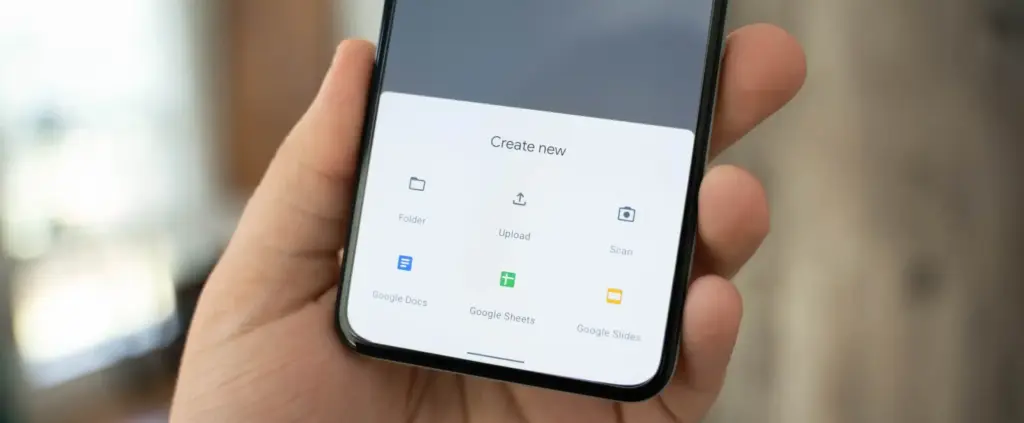
    2. Tap the “+” (plus) button
      It’s located at the bottom-right corner of the screen.
    3. Select “Scan”
      This opens your camera with a scanning interface.
    4. Take a photo of the document
      Frame the document clearly in good lighting. Tap the shutter button.
    5. Adjust the crop area
      You can move the corners to fit the document if the scan is uneven.
    6. Tap “Done” or scan more pages
      You can continue adding pages or finish the scan.
    7. Save the file
      Choose a name and folder to save the scan as a PDF in your Drive account.

    Pros:

    • No need to install anything
    • Saves directly to cloud
    • Easy to share scanned files

    Cons:

    • Limited editing tools
    • Requires Google account

    Scan documents using Google Photos (via Lens)

    Google Photos includes Google Lens, which can recognize text and scan documents quickly.

    How to do it:

    1. Open the Google Photos app
      Find the photo of your document or take a new one.
    2. Tap the “Lens” icon
      It’s at the bottom of the screen and activates text recognition.
    3. Select the document area
      Google Lens will highlight the text areas.
    4. Choose “Copy text” or “Search” or “Save as PDF”
      You can extract text or save it, depending on your needs.

    This method works best for typed text and single pages rather than full multi-page scans.

    Scan documents using Microsoft Lens

    scan documents

    Microsoft Lens is a dedicated scanning app with powerful enhancement tools.

    Steps:

    1. Install Microsoft Lens from the Play Store
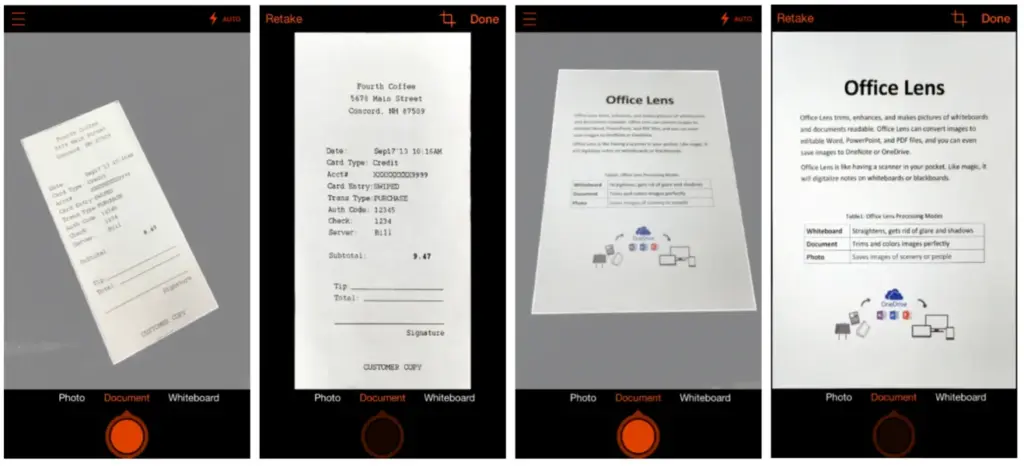
    2. Open the app and choose “Document” mode
    3. Capture your document
      It automatically detects edges and adjusts perspective.
    4. Edit the scan
      You can crop, rotate, or enhance the scan quality.
    5. Save or share the file
      Export to PDF, Word, OneNote, or save to your gallery.

    This app is ideal for professional-quality scans and editing.

    Tips for best scanning results

    • Use natural lighting to avoid glare or shadows.
    • Place the document on a flat, contrasting background.
    • Keep the phone steady while capturing the image.
    • Make sure the document fills the frame but doesn’t crop edges.
    • Clean your camera lens for sharper results.

    Organizing your scanned documents

    After scanning, keep your files organized by:

    • Creating folders in Google Drive (e.g., Receipts, IDs, Legal Docs)
    • Using consistent file naming (e.g., “Invoice_June_2025.pdf”)
    • Backing up to cloud storage or an external drive

    Security and privacy concerns

    If you’re scanning sensitive documents (like IDs, contracts, or financial info):

    • Use apps that encrypt your files
    • Avoid scanning on public Wi-Fi
    • Use a secure cloud service (Google Drive, OneDrive, etc.)
    • Consider locking folders or using file protection apps

    Scanning is excellent for common documents, but dedicated hardware scanners may still provide superior results for specific applications, such as high-resolution archiving, submitting legal papers, or intricate artwork. However, your Android phone is more than capable of meeting 95% of your daily demands.

    You can increase your freedom and convenience by learning how to scan documents with your Android phone. Whether you use a third-party tool, Google Drive, or Photos, digitizing documents and maintaining organization is simple. It only takes a few taps and eliminates the need for large scanners or additional procedures.

    Stay connected with the latest from Droid Tools—follow us on X @droid_tools, like our page on Facebook, check out our updates on Instagram, and follow us on Google News for real-time news, device tips, and mobile tech insights.

  • How to control your Android phone from a PC

    How to control your Android phone from a PC

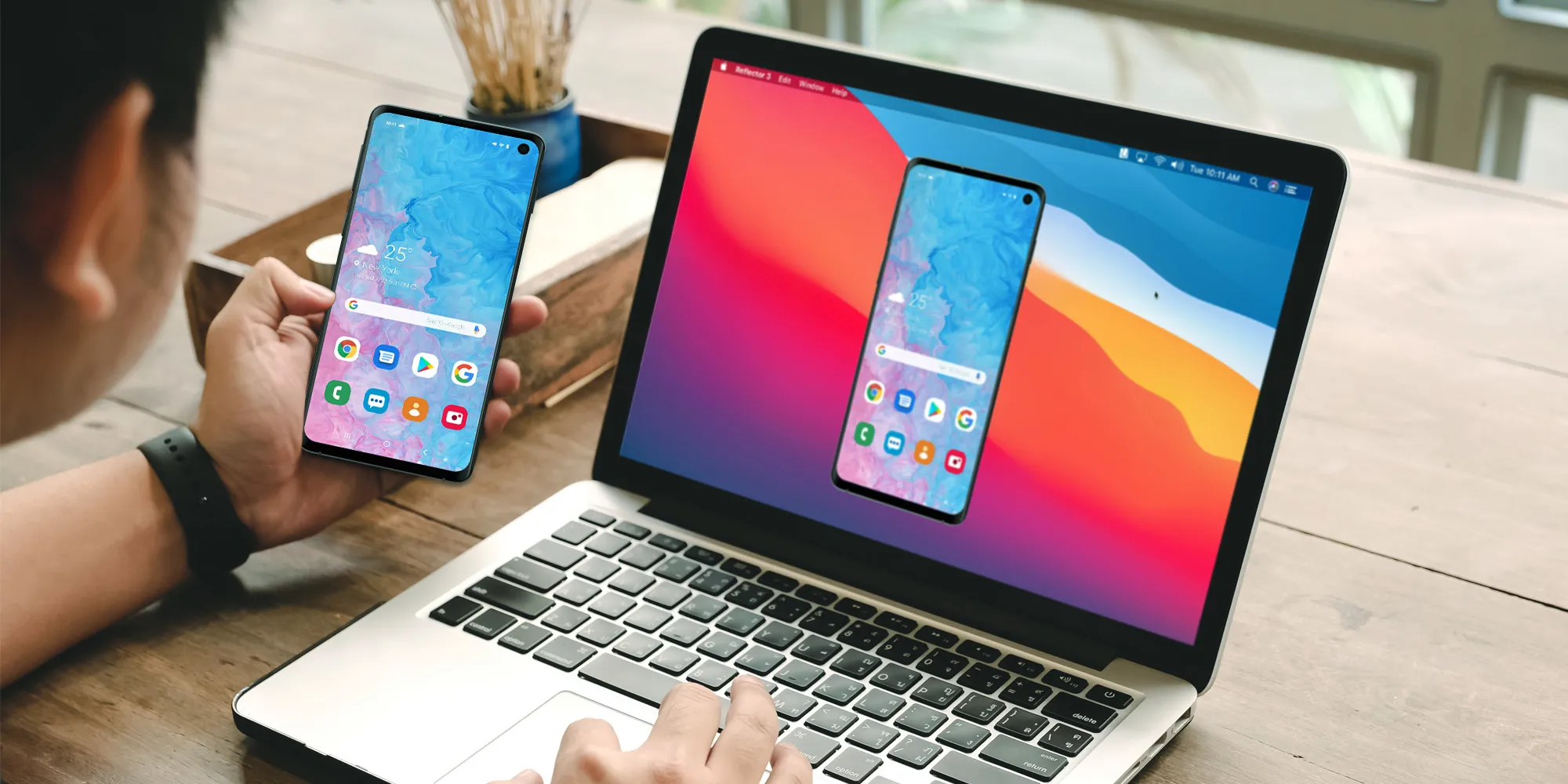
    Picking up my phone to check a notification or respond to a text annoys me since I want convenience. I always keep WhatsApp Web open in a tab because of this. Even while it meets the most of my communications requirements, it is insufficient. As a huge admirer of Apple’s iPhone Mirroring function, I have been searching for a practical method to manage my Android phone from my computer. I can do just that with these four apps.

    TeamViewer QuickSupport

    control your android device remotly

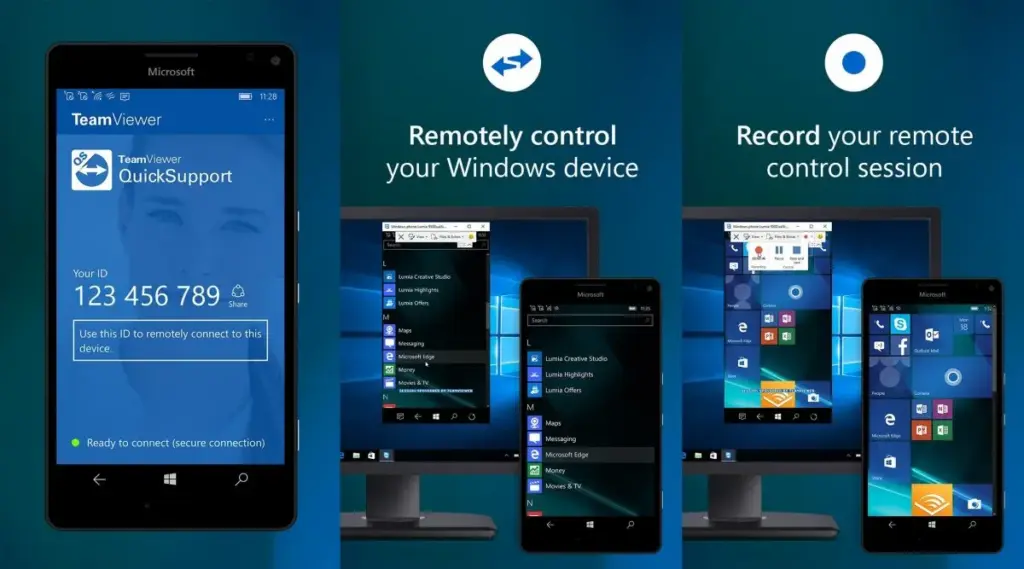
    Sometimes you need to remotely control your Android phone, either to access your device from a distance or to assist a buddy in troubleshooting a problem. This is made simple by TeamViewer QuickSupport, which provides complete remote control, enabling you to install apps, change settings, and browse menus from your PC.

    It is easy to set up. Install the QuickSupport app on your phone, connect using the TeamViewer desktop app, and give the person helping you the unique ID. They are perfect for remote management, troubleshooting, and technical help because they can operate your device in real time when they are linked. In contrast to many alternatives, TeamViewer is compatible with web browsers, Linux, macOS, and Windows. End-to-end encryption and two-factor authentication are two of its robust security features. Additionally, it facilitates communication and file transfers, which facilitates teamwork.

    There are certain drawbacks to TeamViewer. Access may be restricted by the limited free version, which may mark frequent personal use as commercial. Since network quality affects performance, lag may result from slower connections. It works well for remote control, but unlike Phone Link or Scrcpy, it is not designed for everyday phone mirroring.

    TeamViewer QuickSupport is still among the best choices for safe, cross-platform remote access, particularly for IT assistance and troubleshooting.

    Microsoft Phone Link

    control your android device from PC

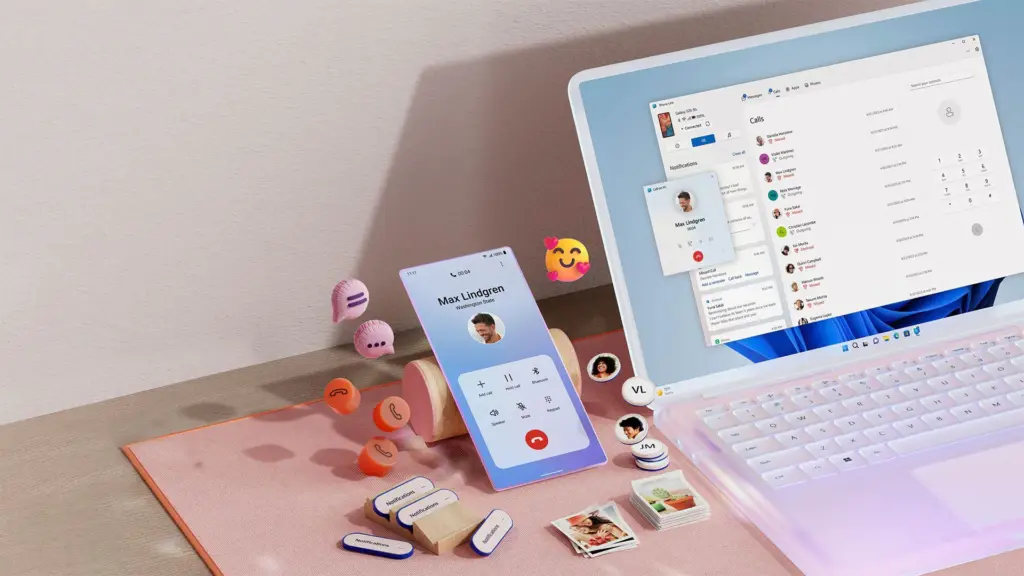
    Microsoft Phone Link, which is integrated into Windows 10 and 11, allows you to easily connect your Android phone to your PC. Without touching your phone, you can make calls, control notifications, send texts, and view recent photos.

    The ability to replicate apps is one of its strongest features. For apps without web versions, you can use your mouse and keyboard to interact with them when you launch specific mobile apps on your PC. It is easy to set up. You can connect your Android phone to your PC via Bluetooth or Wi-Fi after installing the Link to Windows app on your phone. Everything updates automatically once it is synchronized, and the connection is secure.

    Phone Link is revolutionary if you operate on a computer for extended periods of time. It ensures that you remain connected while minimizing distractions. The majority of Android phones can utilize its primary functions, albeit Samsung Galaxy devices are the greatest fit for it.

    AirDroid

    control your android device on air

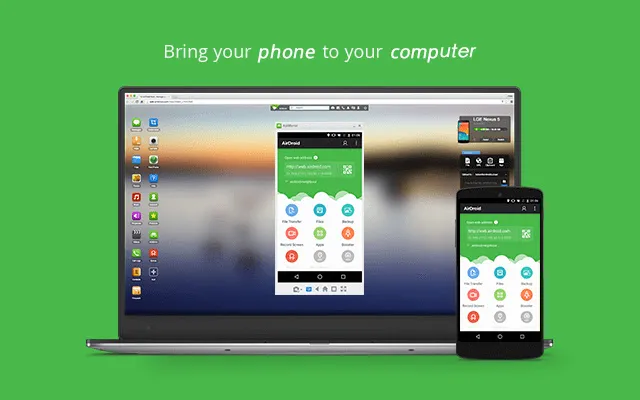
    AirDroid is another excellent option if you want complete control over your Android phone from your PC. It is cross-platform, having a web interface and specific Windows and macOS programs, unlike some rivals. Once configured, you can remotely access your phone’s camera, manage SMS messages, respond to notifications, transfer files, and mirror your screen without ever touching your device.

    It is easy to get started. Use the desktop software or log in via a browser after installing the AirDroid app on your Android phone and creating an account. Everything connects immediately if you are on the same Wi-Fi network. Although remote access is feasible, a paid subscription is needed for services like screen mirroring over mobile networks.

    AirDroid’s versatility is what sets it apart. For presentations or to view particular apps, you can mirror your screens. You can even transfer data across devices wirelessly. Another benefit that helps you stay informed about messages and alerts while working is notification mirroring. Despite having a lot of functionality, AirDroid maintains simplicity with a clear, user-friendly interface. Premium users receive end-to-end encryption for added security if security is a top concern.

    Scrcpy

    Scrcpy control phone from PC

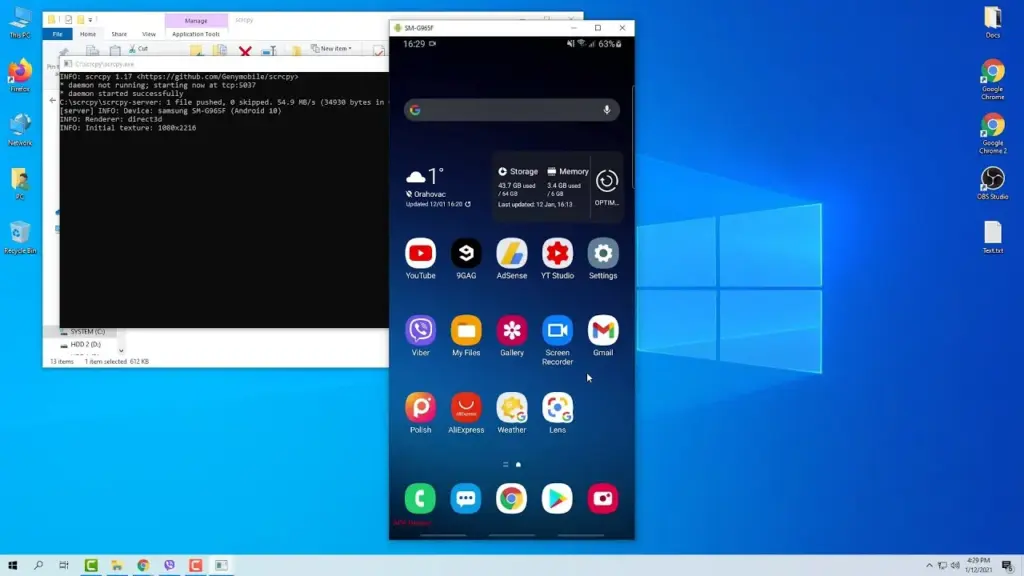
    It can be inconvenient to constantly pick up your phone to check things, particularly if you work on a PC. By enabling you to mirror and manage your Android phone from your PC, Scrcpy solves this problem. It has no bloat and is free.

    With an emphasis on low-latency, high-resolution screen mirroring without root access, Scrcpy is quick, light, and open source in contrast to many commercial programs. You have the option of using Wi-Fi or USB, depending on what is more convenient for you. It is easy to set up. After downloading the app, connect your phone to your PC and turn on USB debugging. When it is operating, you may use your keyboard and mouse to interact with your phone’s screen, which displays in real time.

    Scrcpy is a comprehensive mirroring solution that supports audio forwarding in its latest versions. Wireless performance can vary, though, and some users may find the absence of integrated file sharing and multi-device functionality to be a drawback. Furthermore, even though third-party graphical interfaces are available, people who are not familiar with Scrcpy may find its command-line configuration daunting.

    On the plus side, Scrcpy does not need to be installed on your phone, which lowers security concerns and conserves storage space. It improves with frequent updates because it is open source. Scrcpy is among the greatest free programs for managing your Android phone from a PC, provided you are prepared to overcome its drawbacks.

    How you work will determine which tool is ideal for you.

    For Windows users seeking a native, hassle-free method of syncing calls, messages, and notifications, Phone Link is my top pick. With file transfers, remote access, and notification mirroring, AirDroid goes above and beyond; however, some premium capabilities are subscription-based.

    I have experimented with Scrcpy since I love open source software. Although it offers little lag and high-performance screen mirroring, I find its command-line configuration to be less than ideal. Last but not least, TeamViewer QuickSupport is an option; nevertheless, its limitations in the free edition make it most appropriate for infrequent use.

    The most important factors – productivity, ease of use, or complete control – determine which tool is best. Whichever option you select, these options facilitate communication and task completion. It has never been simpler to control your Android phone from your PC. There is a solution that suits your operation, whether you require remote help, sophisticated functionality, or smooth integration.