Tag: manager

  • 5 best Android file explorers to manage your phone like a pro

    5 best Android file explorers to manage your phone like a pro

    Every Android smartphone requires a file explorer, and Google Files is the default choice for Pixel smartphones and many others. This lightweight, free tool has all the necessary file management features, and its simple layout makes it simple to examine information in folders or categories. It’s not the greatest file management tool for Android, but it’s an excellent method to get rid of duplicate files and keep your smartphone free of clutter.

    I’ve used a lot of Android file explorers over the years, and these are the greatest substitutes for Google Files since they have more sophisticated capabilities, a more appealing appearance, and more customization choices.

    Cx File Explorer

    With a variety of options to assist users in managing their decreasing storage space, Cx File Explorer focuses primarily on managing the storage on Android devices. Its analysis features, which show the location of storage hogs, the amount of storage used by each file type, and the largest files on the device, are its strongest feature. This feature is very useful to me because it makes it easier to organize the videos I have on my device for offline entertainment and flights.

    In addition to these features, Cx File Explorer has a simple layout with integrated image, video, and audio players, a handy info box showing available storage, and a small icon-based breadcrumbs menu.

    cx file explorer

    Cx File Explorer

    Cx File Explorer is a powerful file manager & storage cleaner app with a clean and intuitive interface. With this file manager app, you can quickly browse and manage the files on your mobile device,

    Mixplorer

    Mixplorer is more extensible and versatile than most file explorers. Having been in development for more than ten years, this is my favorite Android file management software.

    As implied by its name, Mixplorer may easily connect a wide range of storage options, including LAN, Google Drive, OneDrive, external media, internal storage, and other cloud services. You can view all of this info without launching specific apps once it’s set up. Additionally, Mixplorer is compatible with symlinks, which offer even more versatile file access options throughout Android.

    The customizable design of Mixplorer is another well-liked feature. Although the basic layout is easy to use, power users may install skins to customize the software, integrate add-ons for more functionality, and effortlessly navigate between services and folders using the tabbed interface. I adore Mixplorer’s dropdown breadcrumbs menu because it’s a clever design decision that allows you to quickly navigate back to a root folder without taking up much screen real estate.
    mixplorer Android file explorer

    Mixplorer

    MiX Silver is a bundle of MiXplorer file manager and Archiver, Image, Tagger and PDF add-ons as a paid app to support development of MiXplorer.

    Solid Explorer

    In the Android app market, Solid Explorer is likewise quite well-regarded. Solid, a high-end file management program, has many of the same functions as Mixplorer, plus a few extras. Its real-time folder size indicator, which refreshes each directory’s byte count as files are added or removed, is possibly my favorite feature.
    solid explorer

    Solid Explorer File Manager

    Solid Explorer is a file management app inspired by the old school file commander applications.

    Material Files

    Material Files appeals to both Files by Google consumers and power users by striking a mix between an intuitive user interface and a robust feature set. The app feels as though Google themselves could create it because of its heavy reliance on Material You. Its components permit automated Night mode activation based on system settings and take on the color scheme of your device.

    Even though it doesn’t offer the same expandability as Mixplorer, I would contend that its user interface is simpler to use. Nevertheless, the left-hand sidebar has all the information I require. Its dedicated Screenshots shortcut, which takes me straight to screenshots of the programs I frequently use for my articles, is something I really like.

    The program does not let you connect to and access files on Google Drive, for example, but it does enable external storage on physical media or local networks.
    material files file explorer

    Material Files

    An open source Material Design file manager. Lightweight, clean and secure. Follows Material Design guidelines, with attention into details.

    Fossify File Manager

    Finally, Fossify File Manager prioritizes simplicity and privacy and is open-source and free. With more security features, it most likely offers the experience that is closest to Files by Google in that regard. For example, it enables users to secure certain files and folders using a password or fingerprint.

    With multiple color choices for the overall theme, a tab that shows you which file kinds are using up space on your disk, and basic search and organizing tools, the user interface is very user-friendly.

    fosify file manager

    Fossify File Manager

    Tired of file managers that slow you down and invade your privacy? Unlock a lightning-fast, secure, and completely customizable experience with Fossify File Manager.

    Google Files is by no means an inferior app. In fact, Google has created a straightforward and dependable file management solution that ensures constant performance for all Android applications. Consider one of the five programs listed above, though, if you require a few extra capabilities, wish to access local network stores and cloud storage, or want to add protection to your crucial files.
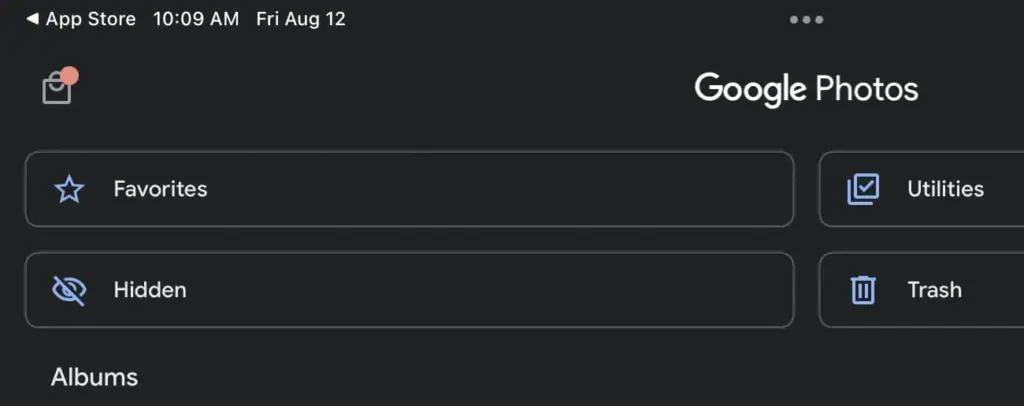
  • How to hide photos and videos on Android without any app

    How to hide photos and videos on Android without any app

    Do you want to protect specific images and videos without downloading additional apps? Android offers you multiple options to conceal your media, whether it be private memories, sensitive work material, or sensitive information – no dangerous tools or third-party apps are needed.

    Using built-in capabilities like Google Photos, File Manager, and brand-specific tools like Samsung‘s Secure Folder or Xiaomi’s Hidden Album, you will discover various ways to conceal images and videos on Android in this guide.

    Why hide media on your device?

    Privacy isn’t just about hiding things from others – it’s also about peace of mind. You might want to hide photos or videos that are:

    • Sensitive work screenshots or files
    • Personal or intimate photos
    • Copies of IDs, passwords, or financial info
    • Photos you don’t want others to see when scrolling through your gallery

    And the good news? You don’t need to install any shady apps to protect your content.

    Method 1: Hide Photos Using Google Photos Archive

    Hide Photos Using Google Photos Archive

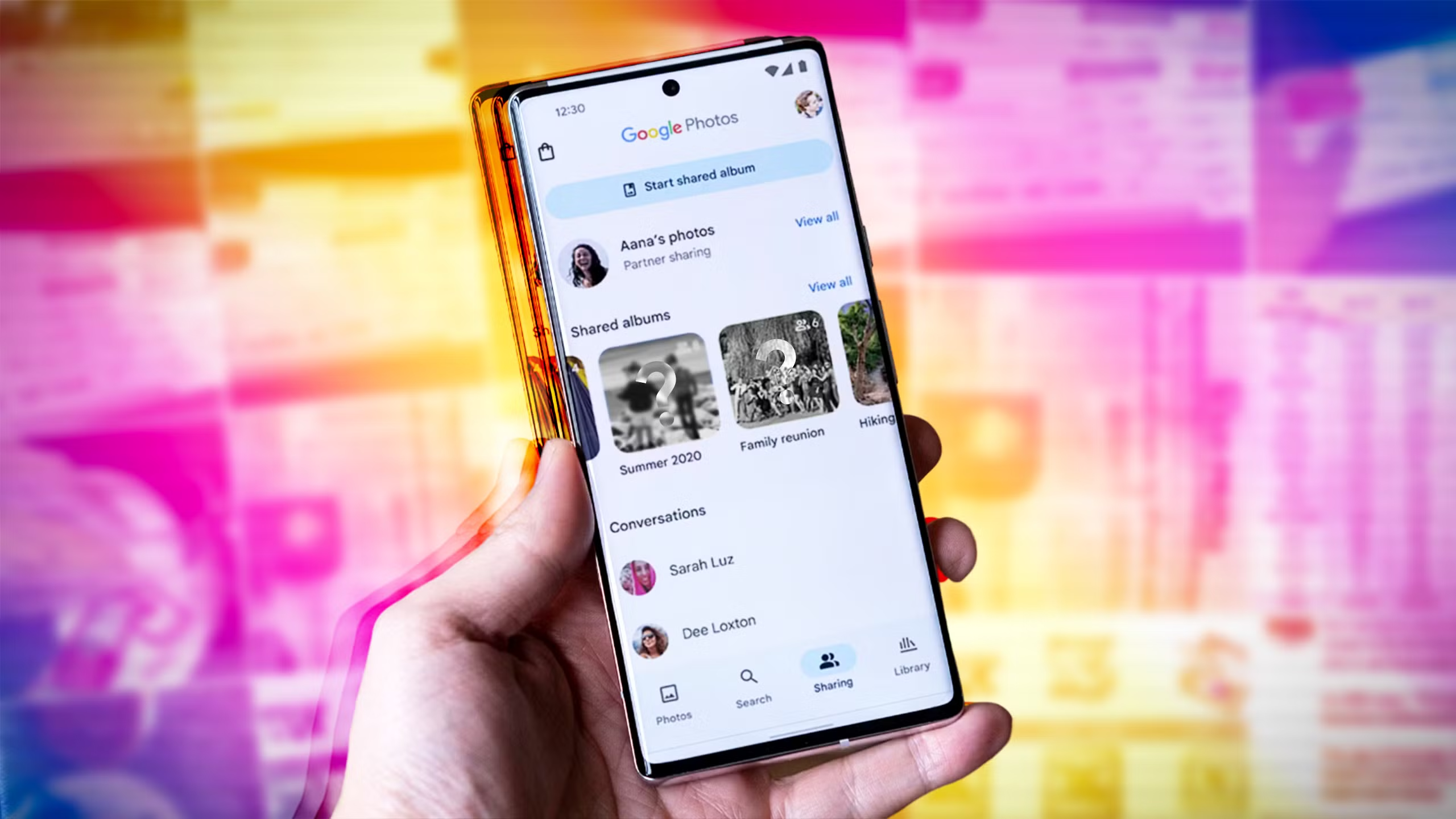
    If you’re using Google Photos (which is pre-installed on most Android devices), archiving is the quickest and safest way to hide images from your main gallery view – all without deleting them or moving files around manually.

    Step-by-Step Instructions:

    1. Open the Google Photos app
    2. Select the image(s) or video(s) you want to hide
    3. Tap the three-dot menu in the top right
    4. Select “Move to Archive”

    These files will now disappear from your main timeline but stay safely stored in the “Archive” section.

    Where to find archived photos later:

    • Go to Library > Archive in the bottom navigation of the Google Photos app

    Why it’s useful:

    • Doesn’t delete or move files — just removes them from the spotlight
    • Perfect for semi-private content you might need later
    • Works across devices if you’re syncing with Google Account

    Note: Archived photos still appear in albums or search results unless you manually remove them from those albums.

    📌 Best for: Casual privacy without breaking anything or hiding files completely.

    Method 2: Use File Manager to Hide Files Manually

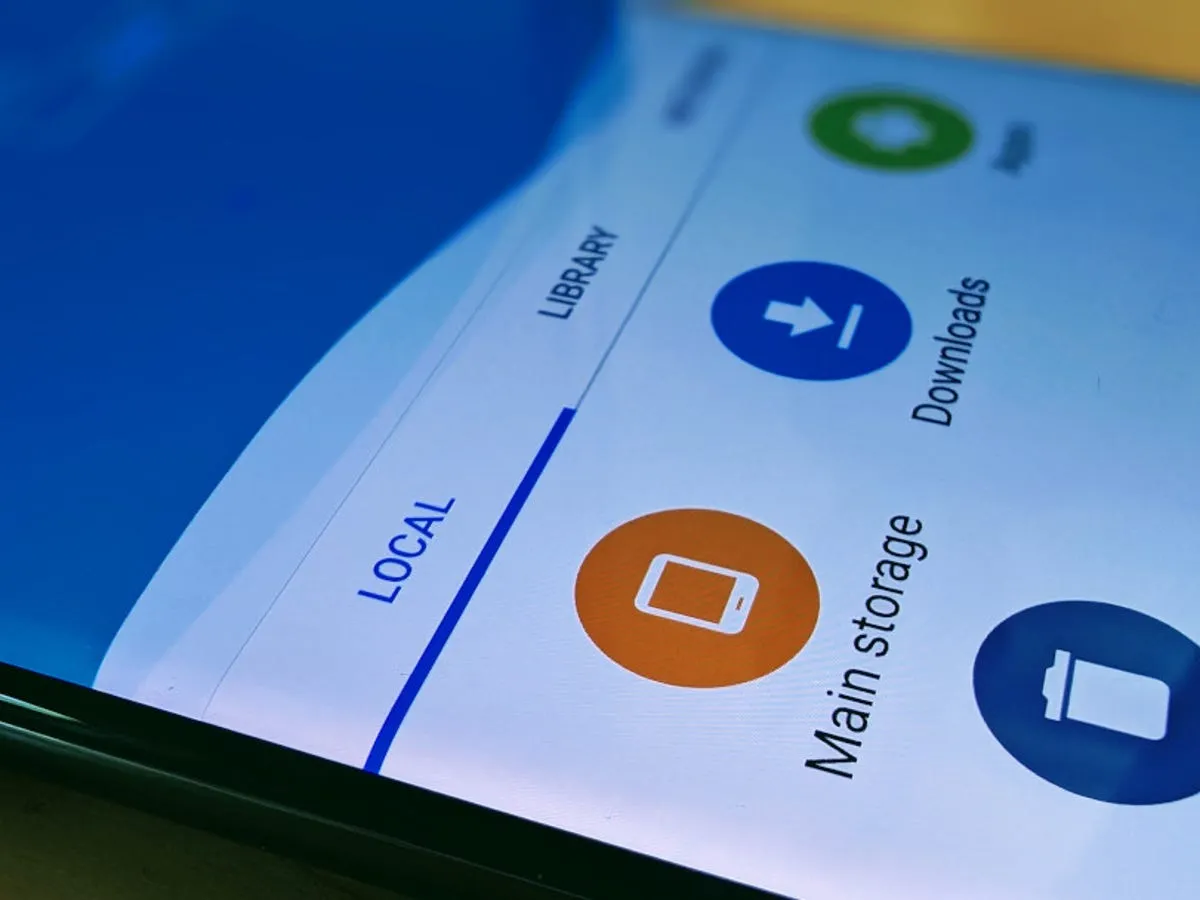
    Android file manager

    Regardless of brand or Android version, this is a universal solution that works with almost all Android phones. You will make a hidden folder that will be automatically ignored by the Android operating system and media scanning applications.

    Step-by-Step:

    1. Open the File Manager or My Files app on your phone
    2. Navigate to Internal Storage
    3. Create a new folder and name it with a dot (.) at the beginning, such as .HiddenMedia or .SecretFolder
    4. Move the photos and videos you want to hide into this folder

    Why it works:

    • Android treats folders starting with a “.” as hidden directories
    • Media in these folders won’t appear in your gallery, Google Photos, or other media apps

    Once done, your Gallery and Google Photos app will no longer detect those files — making them invisible unless you go looking.

    To view them again: enable “Show hidden files” in your file manager’s settings

    Best for: Total manual control over media hiding

    Method 3: Rename File Extensions

    This method only hides files so they will not open in photo or video apps; it does not actually hide them.

    Step-by-Step:

    1. Open your File Manager
    2. Find the photo or video file you want to hide
    3. Tap Rename and change the file extension (e.g., .jpg.xyz)

    At this point, the file will show up as an unopenable generic document. Just change the extension to its original format to get access again.

    Caution: Make sure you remember the original extension (.jpg, .png, .mp4, etc.) so you can restore it!

    Best for: Hiding media from gallery apps without deleting it

    Method 4: Use Built-In Secure Folder (Samsung, Xiaomi, Huawei)

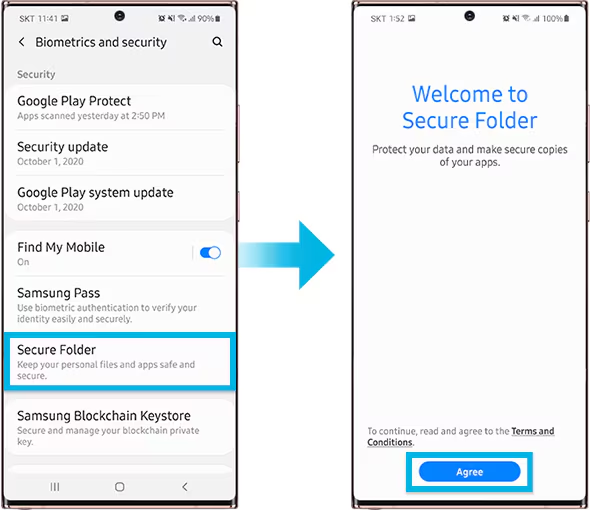
    secure folder

    Nowadays, a lot of oems include built-in safe storage options that enable you to conceal documents, programs, and media using password or biometric security.

    Samsung: Secure Folder

    With Samsung’s Secure Folder, your phone has a private, encrypted area. It is secured by a distinct passcode or fingerprint, which is distinct from the lock on your phone.

    To set it up:

    • Go to Settings > Biometrics & Security > Secure Folder
    • Sign in with your Samsung account
    • Create your Secure Folder with fingerprint, PIN, or pattern
    • Open the Secure Folder and import photos/videos from your gallery

    Even the application’s access is limited without unlocking the folder, and these files are totally concealed from the main gallery and file manager.

    Xiaomi/Redmi: Hidden Album

    The Hidden Album function in Xiaomi’s Gallery app makes it quick and easy to conceal private material.

    How to use:

    • Open the Gallery app
    • Go to Albums > Hidden Album
    • Set up the feature (may require Mi account login)
    • Move selected images/videos to this section

    Content in the Hidden Album is protected and will not appear elsewhere unless explicitly restored.

    For Huawei or OnePlus:

    Use PrivateSpace (Huawei) or App Lock & Hidden Space (OnePlus). These offer similar levels of privacy and allow photos/videos to be locked with additional credentials.

    Best for: Maximum privacy with encryption and authentication — perfect for work or highly sensitive media.

    Method 5: Use Guest Mode or Multiple Users

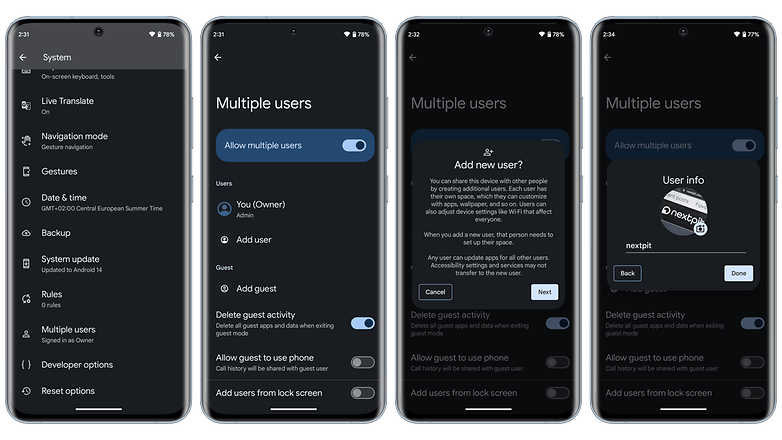
    guest mode on Android, hide photos and videos

    Another sneaky method is to create a Guest account on your phone:

    How to enable Guest Mode:

    Like a computer, Android allows for many user profiles. You can set up a Guest Mode on your phone to keep other users from seeing your messages, apps, or pictures.

    To activate Guest Mode:

    1. Open Settings > System > Multiple Users
    2. Enable Guest Mode or add a new User
    3. Switch to the guest profile when someone else is using your phone

    Switch to Guest mode when someone else wants to use your phone. This keeps all your media, apps, and settings hidden by default.

    Bonus Tip: Some phones allow locking the switch between users with a password or fingerprint.

    Best for: Sharing your phone without giving others access to your personal content.

    What NOT to Do

    While hiding media is easy, here are some common mistakes to avoid:

    • Don’t delete files unless you’re sure you have a backup
    • Don’t trust sketchy third-party apps from unknown developers—many are filled with ads, trackers, or even malware
    • Avoid cloud backups for sensitive files unless encrypted

    Extra Privacy Tips

    • Use a Gallery app with built-in vault (e.g., Simple Gallery Pro)
    • Encrypt your phone under Settings > Security > Encryption
    • Back up sensitive images to a secure cloud (e.g., Proton Drive or a password-protected ZIP file on Google Drive)

    Hide It the Smart Way

    You don’t need to clutter your phone with apps just to hide a few private photos. Android gives you several easy, built-in ways to hide images and videos safely:

    • Archive them in Google Photos
    • Move them to a dot-folder via File Manager
    • Use Secure Folder or Guest Mode for stronger protection

    Choose the method that best fits your comfort level and device brand—and enjoy peace of mind knowing your private media stays private.

  • Nokia X Manager – firmware tool

    Nokia X Manager – firmware tool

    Are you a customer of Nokia? If so, here’s another Nokia product with your Nokia environment being illuminated. The Nokia brand has developed and released yet another fantastic app that supports all Nokia users, and the unique application is the Nokia X Manager update (all versions).

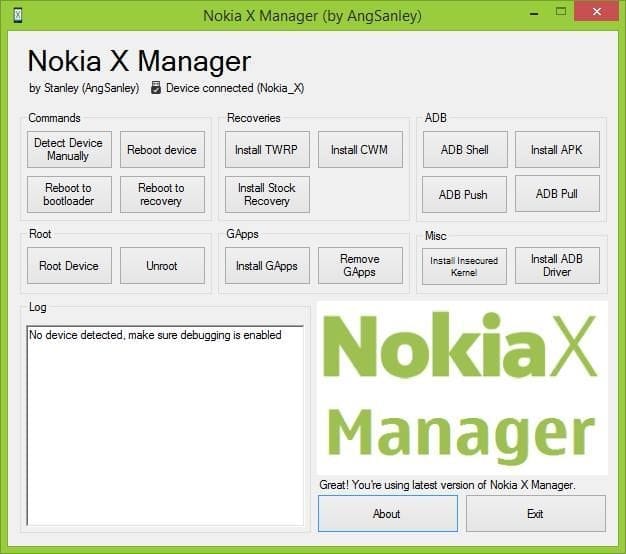
    Nokia X Manager is a small, compact program that lets users perform several tasks on their Nokia X smartphones. You will discover a lot of information about this if you go ahead and read this write-up. The write-up includes information such as all Nokia X models, the new and oldest edition and its functionality.

    nokia x manager
    Nokia x manager

    Nokia X Manger features

    1. Available Commands: The Nokia X Manager was made or created with a button based ADB commands that are made for restarting the device, detecting the tool automatically and manually, rebooting the recovery and rebooting the Bootloader.

    2. Install Recovery: With its features, it will be easier for users to install TWRP or CWM on their Nokia XL Smartphones or Nokia X Smartphones. With the Nokia X Manager, you can easily install the stock recovery on your computer.

    3. ADB Commands: Utilizing the characters, the users can introduce adb shell commands, do ADB pull or ADB push commands as well as install all kinds of the app on their computers.

    4. Speedy Rooting: With the Nokia X Manager, users are allowed to unroot or root their Nokia XL or Nokia X Smartphone in just one tap on the screen. Only by connecting the tool to the computer. Immediately the tool gets notified by the Nokia X Manager, tap on the button meant for rooting to get the device rooted.

    5. Install Gapps: With the means, you can freely install the Gapps, which means Google apps, on your Nokia XL Smartphone or Nokia X Smartphone. You have to make sure your tool is rooted first, to install or uninstall the Google apps.