Tag: life

  • Battery life myths vs facts: how to make your phone last all day

    Battery life myths vs facts: how to make your phone last all day

    Battery Life is the one Android topic where everyone has an opinion—and somehow, half of those opinions are stuck in 2011. You’ve probably heard “drain it to zero,” “never charge overnight,” or “close every app or your battery will melt.” Meanwhile, your phone still hits 18% before dinner.

    This guide is here to cleanly separate Battery Life myths from the real fixes that make a difference. Not miracle tricks. Not “turn off everything until your phone is basically a calculator.” Practical stuff you can do today, plus a few habits that keep your battery healthier over time.​

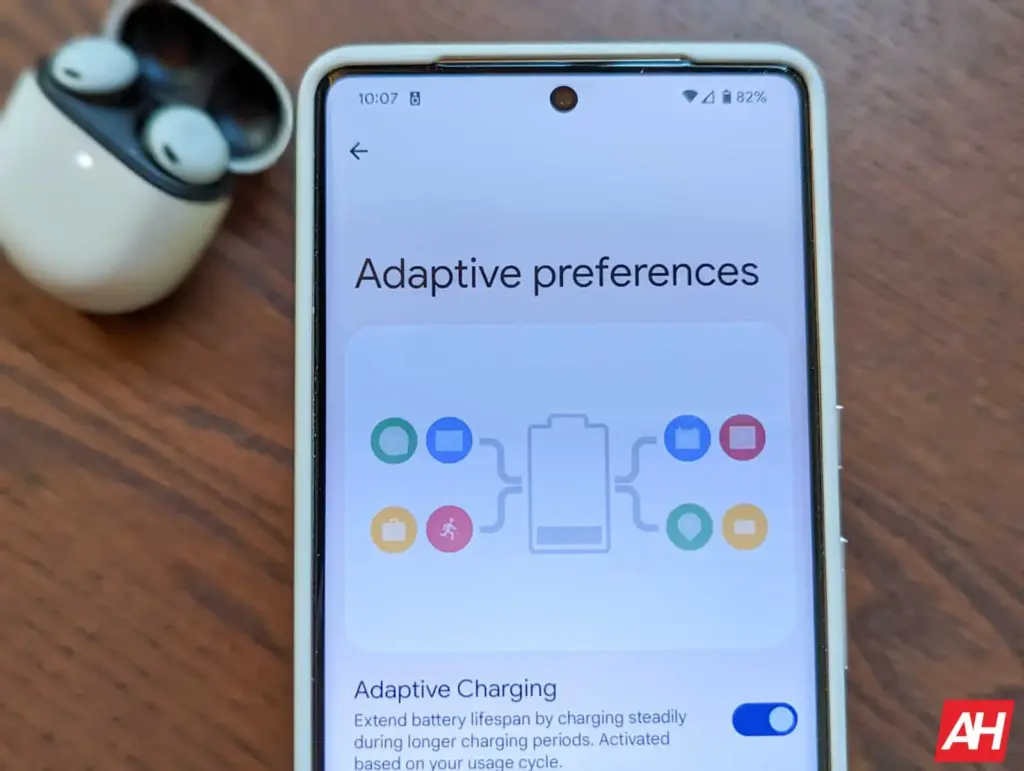
    Battery Life tips for Android users checking settings

    Why Battery Life Feels Random (But Usually Isn’t)

    Battery Life can feel unpredictable because it’s influenced by things you don’t notice in the moment—signal strength, background syncing, location services, screen brightness, and heat. Sometimes you change one setting, your phone lasts longer, and you assume you found “the secret.” Other times you do everything right and it still drains fast.

    On the one hand, modern Android is genuinely good at managing power in the background. But here’s the catch: one badly-behaved app, a weak 5G signal, or a hot charging session can undo all that smart optimization. So the goal isn’t perfection. It’s control.

    Before we fix anything, let’s kill the myths that waste your time.

    Myth #1: “You Must Drain Your Phone to 0% to Keep the Battery Healthy”

    This one is everywhere, and it sounds logical… until you remember: modern phones use lithium-ion batteries, not the older battery types that suffered from “memory effect.” Deep discharges can stress lithium-ion batteries over time, which is why many guides recommend avoiding constant 0% runs.​

    What to do instead (realistic version):

    • Try not to make 0% a daily habit.​
    • If your day usually ends around 20–30%, that’s a pretty comfortable routine for both Battery Life and battery longevity.

    Small nuance: letting your phone hit 0% occasionally isn’t a crime. It’s the repeated “red zone lifestyle” that tends to age batteries faster.

    Myth #2: “Charging Overnight Overcharges and Ruins Your Battery”

    Modern phones are designed to stop charging at 100%, so the old-school “overcharging” fear is mostly outdated. Overnight charging, by itself, isn’t automatically destructive.

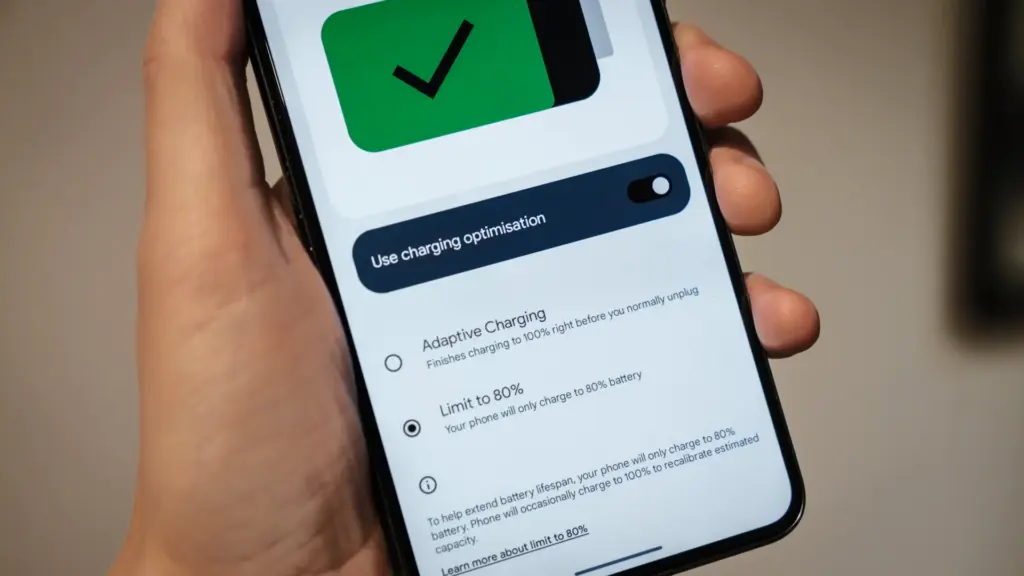
    But—and this is where people get it half-right—keeping a battery sitting at 100% for hours can add stress over the long term, especially if the phone is warm while charging. That’s why features like adaptive/optimized charging and charge limits exist.​

    Real fix:

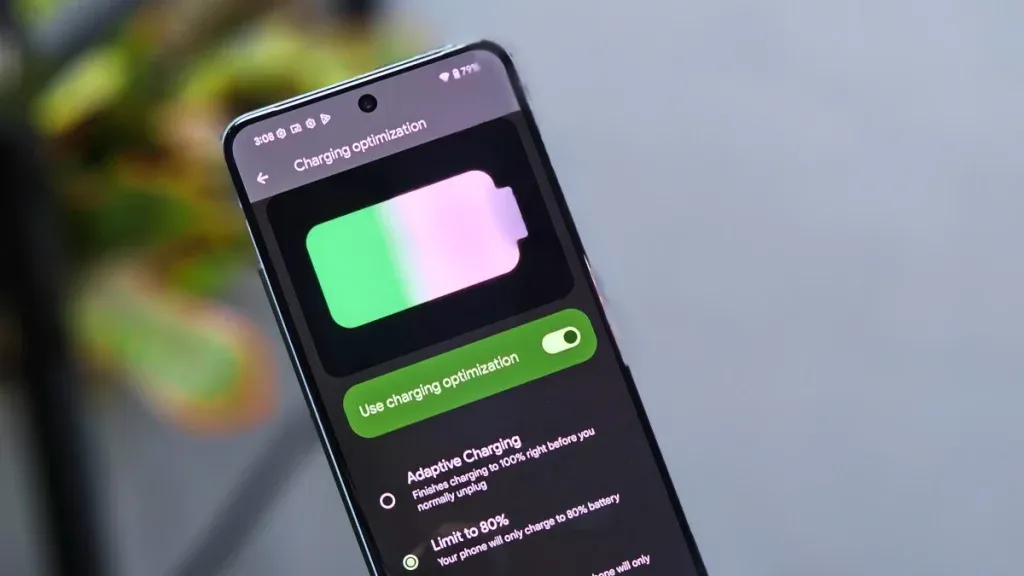
    • Turn on “Adaptive Charging” / “Optimized Charging” if your phone offers it.
    • If there’s a “Protect Battery” or “Charge to 80–85%” option, use it when you can (especially if you keep phones for 2+ years).​

    Myth #3: “Closing All Apps Saves a Ton of Battery”

    This is the classic “swipe everything away” habit.

    Sometimes it feels like it helps, because your phone looks “clean.” But Android often manages background apps efficiently on its own, and constantly force-closing apps can even add overhead because apps need to reload again and again. (It’s like turning your car off at every red light to save fuel—technically it changes consumption, but not in the way you want.)

    When it actually helps: when a specific app is misbehaving—running in the background, looping, overheating, or abusing location. In that case, the fix isn’t “close everything.” It’s “find the one problem app and deal with it.”​

    Myth #4: “Fast Charging Always Kills Batteries”

    Fast charging is not automatically a battery death sentence. Real-world testing and good charging management have improved a lot. But here’s the catch: heat is the enemy.

    Fast charging can create more heat depending on the charger, phone design, and environment. Heat accelerates battery wear, so it’s not the speed itself you fear—it’s the temperature that sometimes comes with it.​

    Practical approach:

    • Use fast charging when you need it (workdays, travel).
    • Use slower charging when you don’t (overnight, desk time), especially if your phone tends to run warm.​

    Myth #5: “Wi‑Fi and Bluetooth Should Always Be Off”

    This used to be decent advice years ago. Today it’s more “it depends.”

    Wi‑Fi can actually be more power-efficient than mobile data in many situations, and modern Bluetooth is generally low energy. The bigger issue is constant scanning, weak signals, and background activity triggered by connectivity.

    Real fix:

    • Keep Wi‑Fi on if you’re in stable coverage; it can help Battery Life compared to a phone fighting for cellular signal.
    • Turn off unnecessary scanning settings if you don’t need them (varies by Android version/brand).
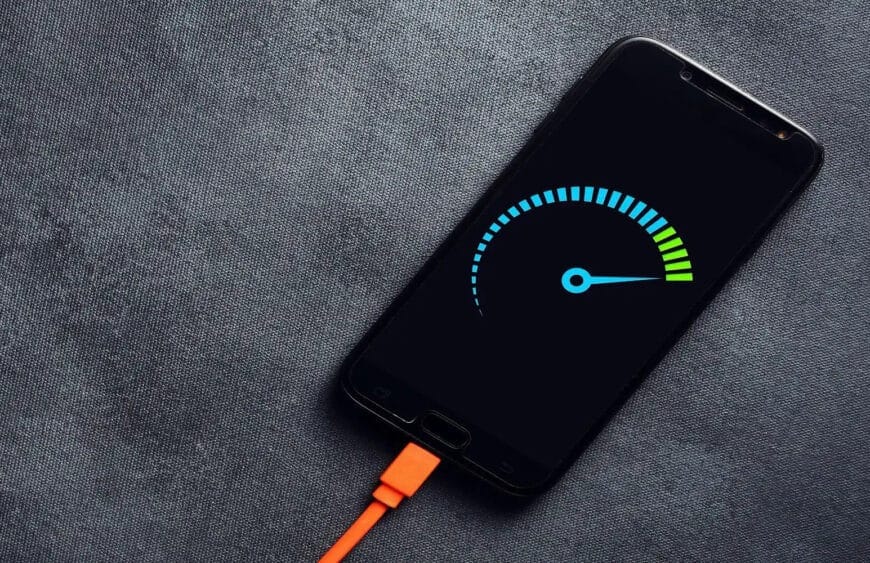
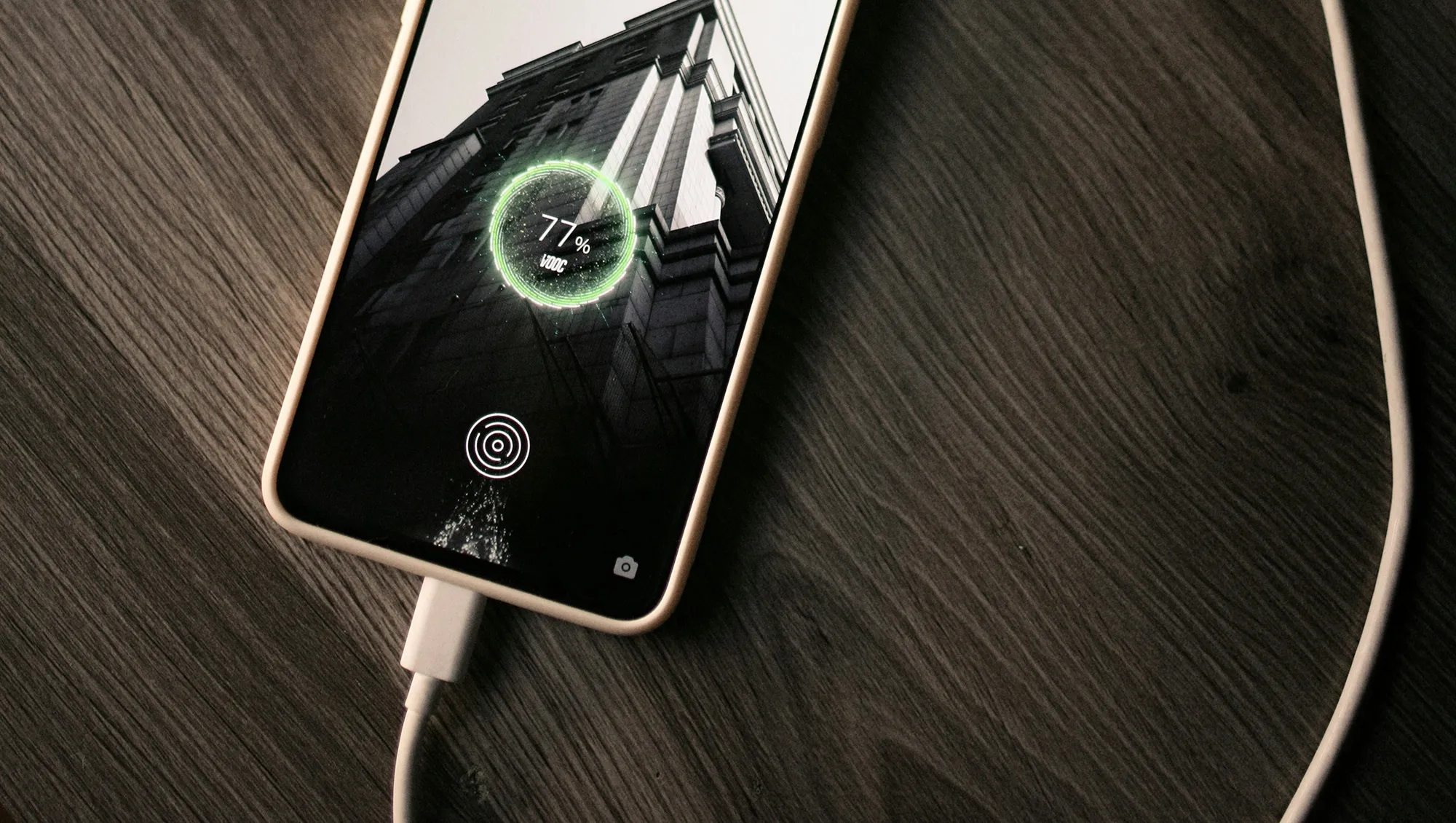
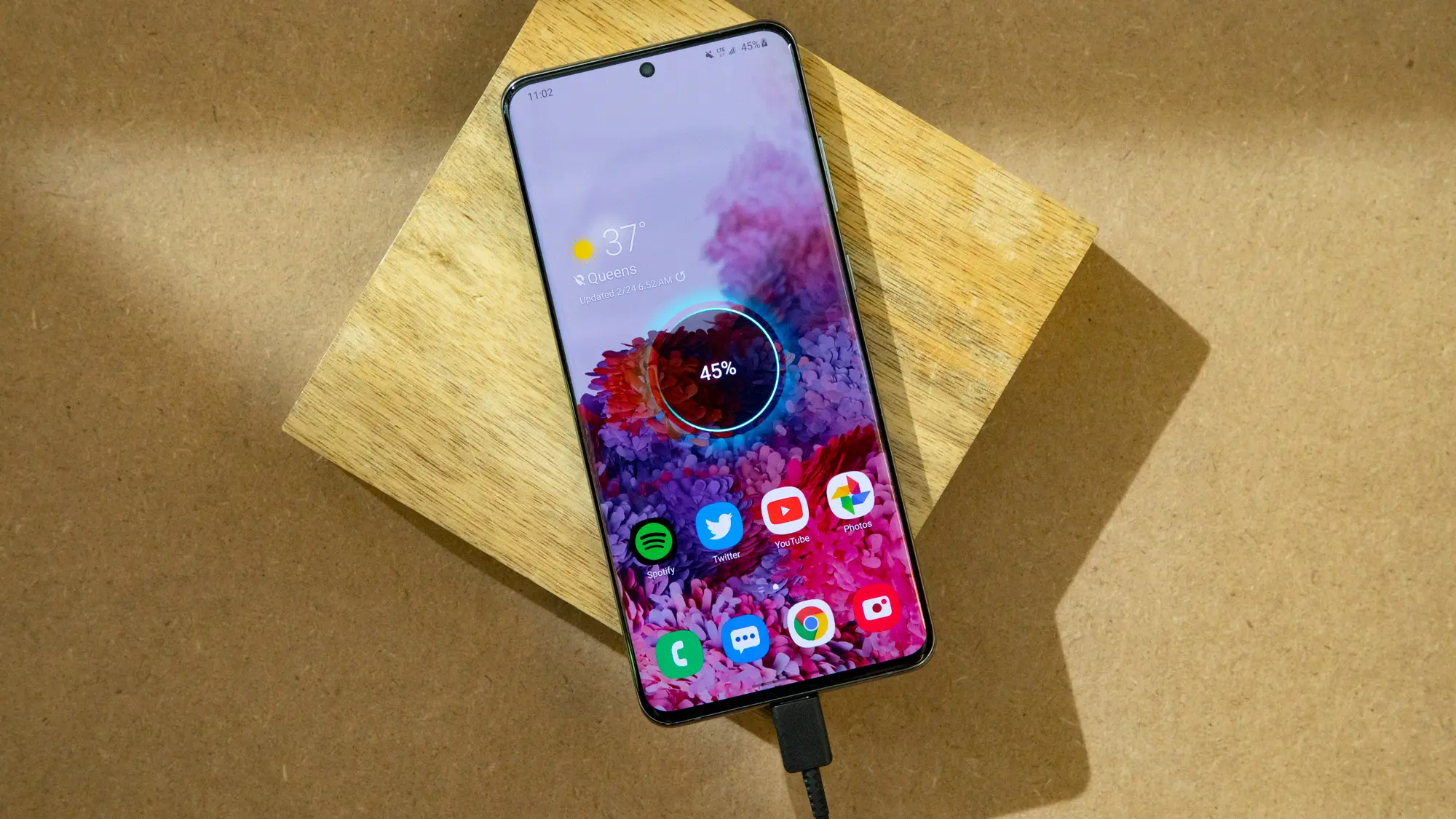
    Battery Life myth busting with a phone on charger

    The Real Fixes: What Actually Improves Battery Life (Without Making Life Miserable)

    Now the part that matters. These are the changes that most people can feel within 24–72 hours.

    Fix #1: Control the Screen (Brightness and Sleep Timer)

    For many users, the display is the biggest Battery Life drain. Not because your phone is “bad,” but because modern screens are bright and we keep them on longer than we realize.​

    Try this:

    • Enable Adaptive Brightness (so you’re not blasting 100% indoors).
    • Lower brightness one notch more than you think you need.
    • Reduce screen timeout (sleep) to something sensible (30 seconds to 1 minute).
    • Use Dark Mode if you like it—especially helpful on OLED screens.​

    Fix #2: Find Your “Battery Vampire” App

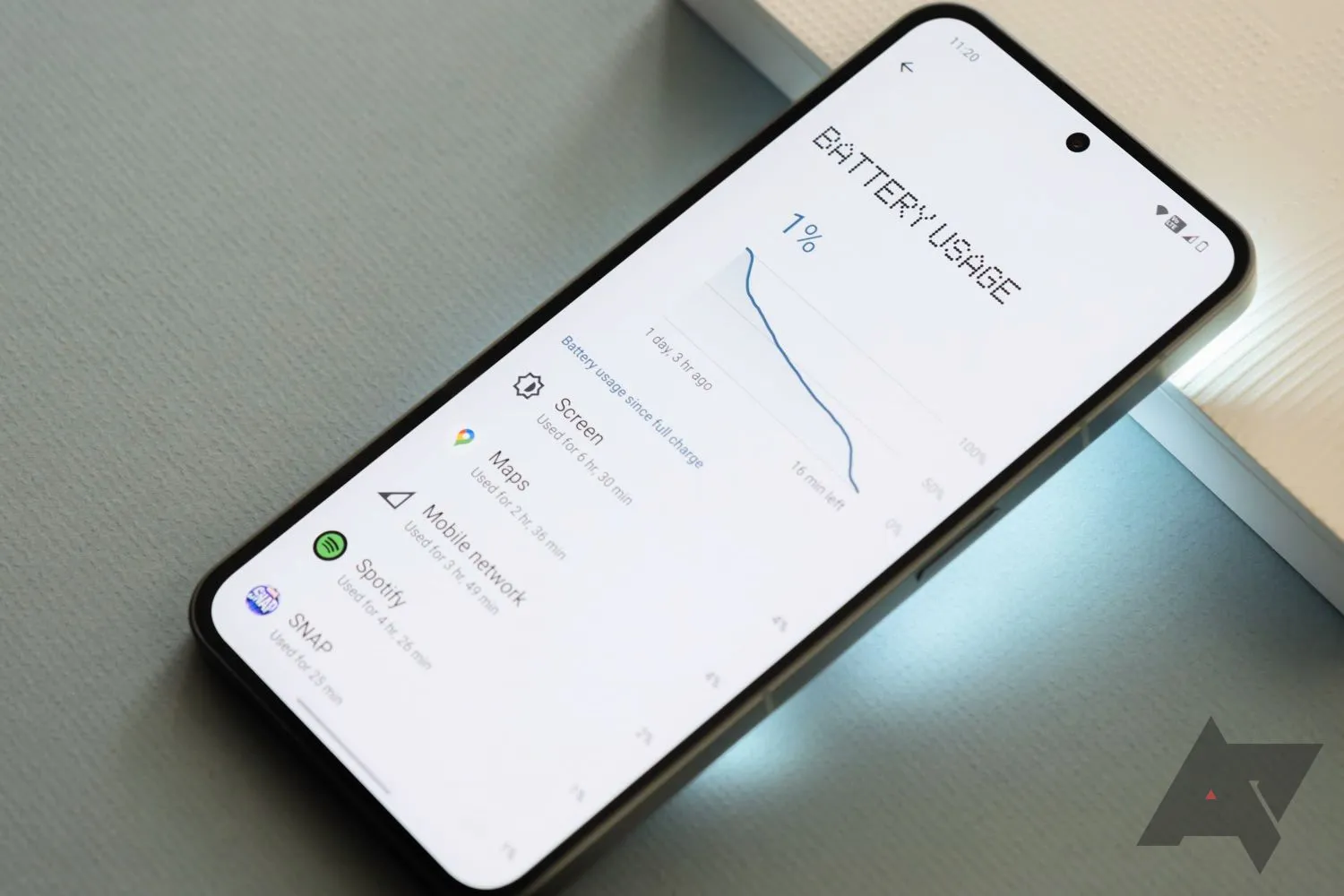
    Guessing wastes time. Checking takes two minutes.

    Go to:

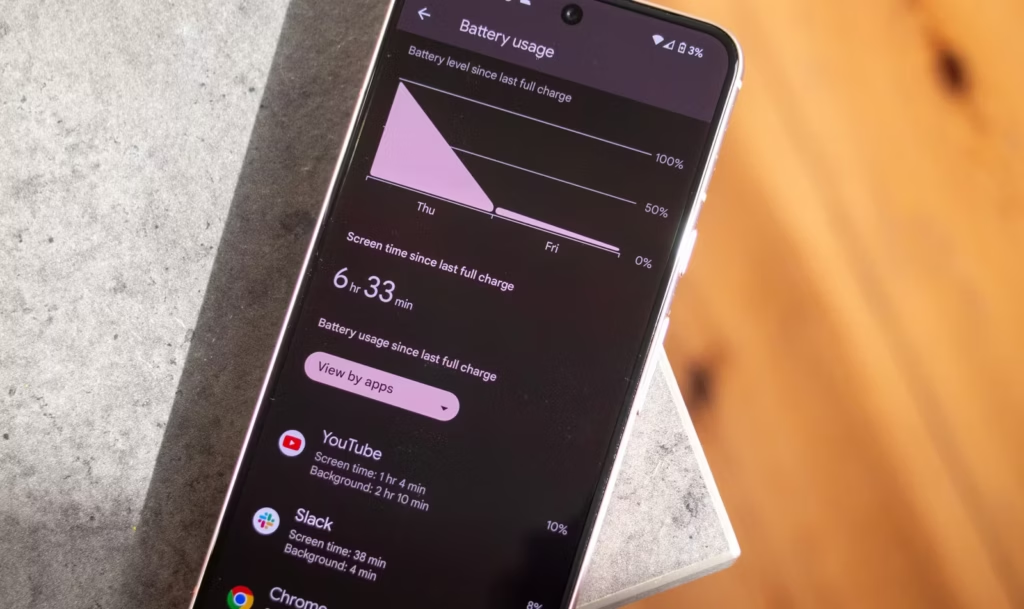
    • Settings → Battery → Battery usage (wording varies)

    Look for:

    • One app with unusually high background use
    • An app you barely use but that’s always near the top

    Then do one of these:

    • Update it (bad versions happen).
    • Restrict background activity (if Android offers it).
    • Remove it if it’s not essential.

    This is not anti-app paranoia. It’s basic hygiene. Even reputable apps can bug out after updates.

    Fix #3: Fix Location Permissions (Quiet Drain, Big Impact)

    Location is one of the easiest Battery Life drains to miss, because it doesn’t always “look active.”

    Set most apps to:

    • “While in use”

    Only keep “Always” for apps that truly need it:

    • navigation while driving (if you want alerts)
    • family safety apps (if you use them intentionally)

    Also consider turning off “precise location” for apps that don’t need it. Your weather app doesn’t need to know which side of the couch you’re on.

    Fix #4: Signal Strength Matters More Than People Think

    Here’s a sneaky Battery Life killer: poor signal.

    When your phone struggles to maintain connection, it works harder—especially on unstable 5G. If you’re in a weak coverage area, your battery can drop faster even if you’re barely using the phone.

    Try:

    • Use Wi‑Fi calling (if available).
    • Prefer Wi‑Fi when you’re home/work instead of letting mobile data do everything.
    • If 5G is unreliable in your area, test LTE for a day and compare Battery Life.

    Fix #5: Use Battery Saver Earlier (Not Only at 10%)

    Battery Saver isn’t only for emergencies. It’s a tool for predictable long days.

    Try:

    • Turn Battery Saver on at 30–40% if you know you’ll be away from a charger.
    • Use “Extreme Battery Saver” only when you truly need survival mode.

    This doesn’t mean living in Battery Saver forever. It means using it strategically—like carrying an umbrella when the sky looks suspicious.

    What Most People Get Wrong About Battery Life (A Quick Reality Check)

    Let’s call it out plainly:

    • People optimize the wrong things (closing apps constantly) and ignore the big drains (screen and signal).
    • People chase magic numbers (“always 80%”) but ignore heat, which often matters more.​
    • People think “new phone = perfect Battery Life,” but a single app or a bad network environment can wreck it.
    • People don’t verify backups/updates and blame “Android” when it’s actually one app misbehaving.

    And yes—sometimes the battery is simply aging. No setting can reverse chemistry.

    Battery Life Checklist (Do This Today)

    Quick checklist, no nesting, no drama:

    • Turn on Adaptive Brightness and reduce screen timeout.​
    • Check Battery usage and identify the top 3 apps.
    • Restrict or remove the top “background drain” app you don’t trust.
    • Review Location permissions and switch most apps to “While in use.”
    • Enable Adaptive/Optimized Charging or an 80–85% limit if available.​
    • Keep the phone cool while charging (no blankets, no hot car).
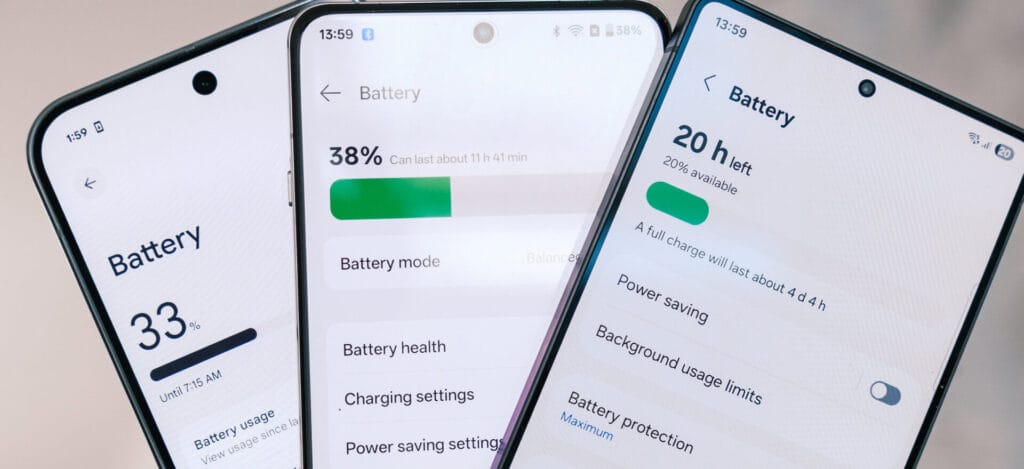
    Battery Life improvement checklist on an Android phone

    Charging Habits That Protect Battery Life Long-Term

    Battery Life today is one thing. Battery health over two years is another.

    A few habits that help longevity without making you obsessive:

    Keep heat low (the boring but true advice)

    Heat accelerates battery wear, so avoid:

    • charging under a pillow
    • gaming while charging
    • leaving the phone in direct sun while charging

    This isn’t fear-mongering. It’s just how batteries age.​

    Use the “80% rule” as a tool, not a prison

    Many sources recommend a “20–80%” or “30–80%” range for slower battery aging, but the exact number isn’t magical. The point is reducing time spent at very high charge levels, especially with heat.​

    If you’re traveling or need maximum Battery Life that day, charge to 100%. No guilt. Just don’t keep it sitting at 100% hot for hours every single day.​

    When It’s Not Settings: Signs Your Battery Is Actually Worn Out

    Sometimes your Battery Life issues aren’t fixable with tweaks because the battery has aged.

    Common signs:

    • Sudden drops from 30% to 10%
    • Random shutdowns at 15–20%
    • Noticeable heat during light tasks
    • Battery percentage behaving “jumpy”

    At that point, consider:

    • battery replacement (often worth it on mid/high-end phones)
    • or upgrading if the phone is old and already struggling with performance

    No shame either way. Batteries are consumables.

    FAQs

    1) Is it bad to charge my phone overnight?

    Modern phones prevent classic “overcharging,” but staying at 100% for hours—especially with heat—can contribute to wear over time, so adaptive charging or charge limits are helpful.​

    2) Should I always charge only to 80% for better Battery Life?

    Charging to 80–85% can reduce stress for long-term battery health, but it’s not mandatory. Use it when convenient, and charge to 100% when you need full-day Battery Life.​

    3) Does closing apps improve Battery Life?

    Not usually in a big way. It helps mainly when an app is misbehaving and draining battery in the background.​

    4) Does Dark Mode improve Battery Life?

    It can help, especially on OLED screens, because darker pixels can use less power. The impact varies by device and brightness.​

    5) Why does my Battery Life get worse in places with poor signal?

    Your phone works harder to maintain a connection when coverage is weak, which increases power use—even if you’re not actively using the phone.
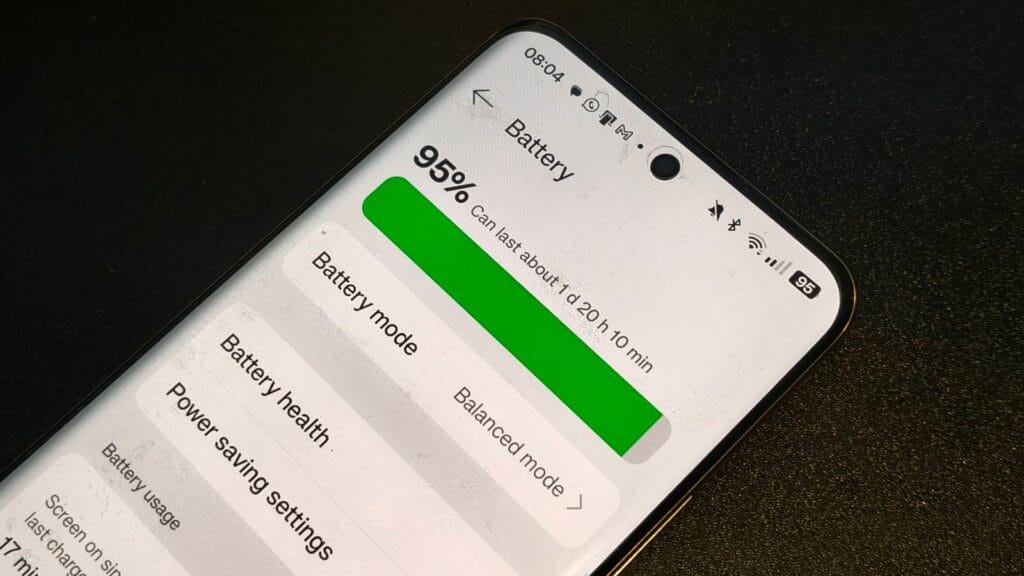
    battery life on an android phone

    What to Do Next

    If Battery Life has been frustrating lately, don’t try to fix everything at once. Do this in order:

    1. Check Battery usage and identify the top drainers.
    2. Reduce screen drain (brightness + timeout).
    3. Fix location permissions and notifications.
    4. Watch heat while charging for a week.
    5. If nothing improves, consider battery wear and replacement.

    Give it 2–3 days after changes and compare. Battery Life improvements are often “quiet,” not dramatic—but they’re real when you focus on the big levers.
  • This hidden Pixel feature can significantly boost battery life

    This hidden Pixel feature can significantly boost battery life

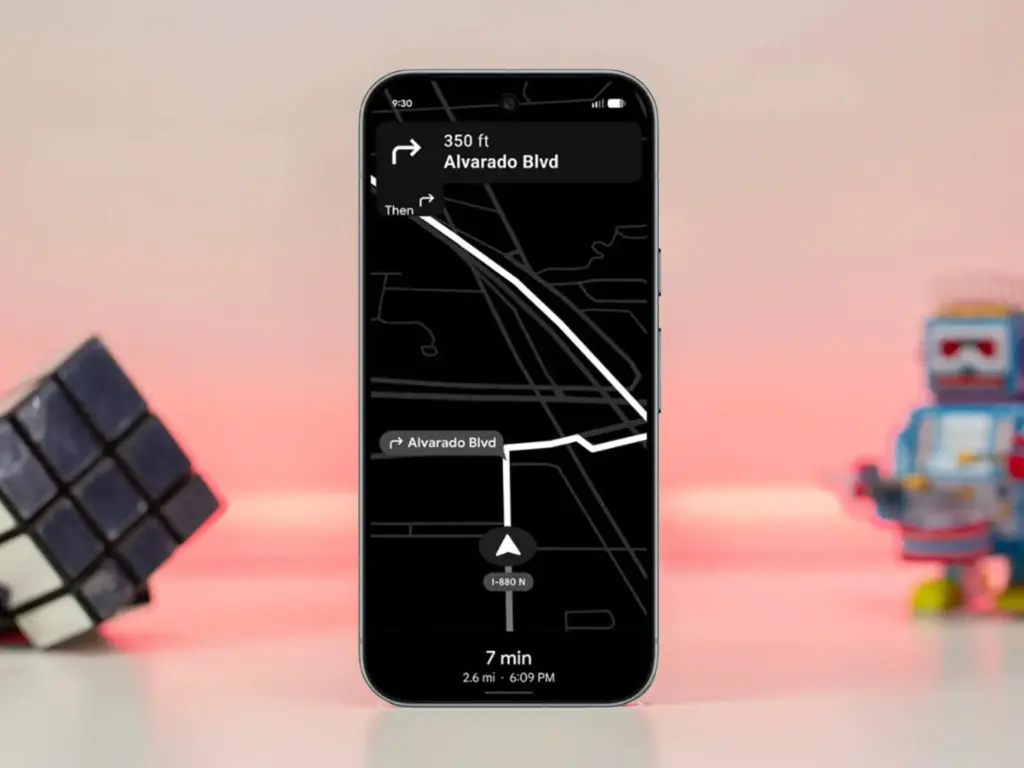
    Is this the end of battery issues on Pixel smartphones? The November update includes a power‑saving mode that employs the always‑on display to conserve energy, providing greater screen time for navigation and daily use. Here’s how it works.

    Compared to other competing smartphones, Pixel handsets are not known for having the best battery life. However, Google has progressively added intelligent features over the years to help stretch screen time. The most recent is a new Google Maps power-saving function that was added with the November update and is currently being made available to more Pixel 10 owners.

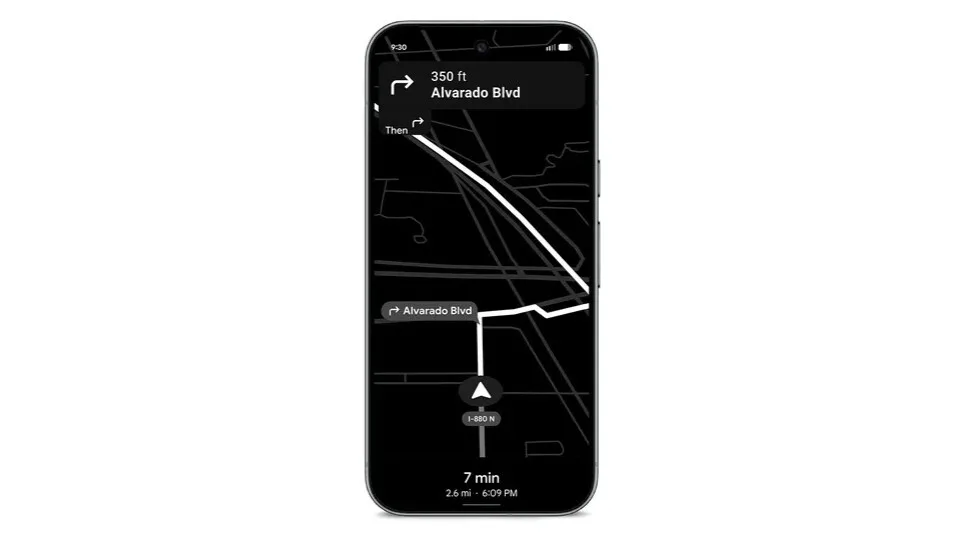
    google pixel 10 pro with power saver mode maps to save battery life

    How to save battery while using Google Maps

    The addition, as its name suggests, offers a power saver mode to Google Maps. In theory, it makes use of the Pixel 10’s always-on display when navigating. This saves battery compared to fully utilizing the normal OLED panel, since most elements transition to black and white with inactive pixels switched off.

    In addition, the mode lowers the screen refresh rate and brightness to further preserve power. Some UI components and metrics in Google Maps won’t be available when enabled, and only portrait orientation is supported.

    Google Maps Power Saver: how to turn it on

    If the feature is accessible on your Pixel 10 or Pixel 10 Pro, you’ll see a pop‑up card pointing you to the option in driving settings. Alternatively, you may manually activate it by going into Maps settings and finding it under driving choices.

    It’s unclear why Google is limiting the feature to the Pixel 10 series, especially given earlier versions like the Pixel 9 and Pixel 9 Pro use the same LTPO OLED displays. However, it’s feasible that Google will increase support later on.

    Google is also working on another battery‑saving feature for Pixel and Android devices: a smarter always‑on display that automatically shuts off when the device isn’t in use or after a specified duration.

  • Pixel Watch 4: battery life takes center stage

    Pixel Watch 4: battery life takes center stage

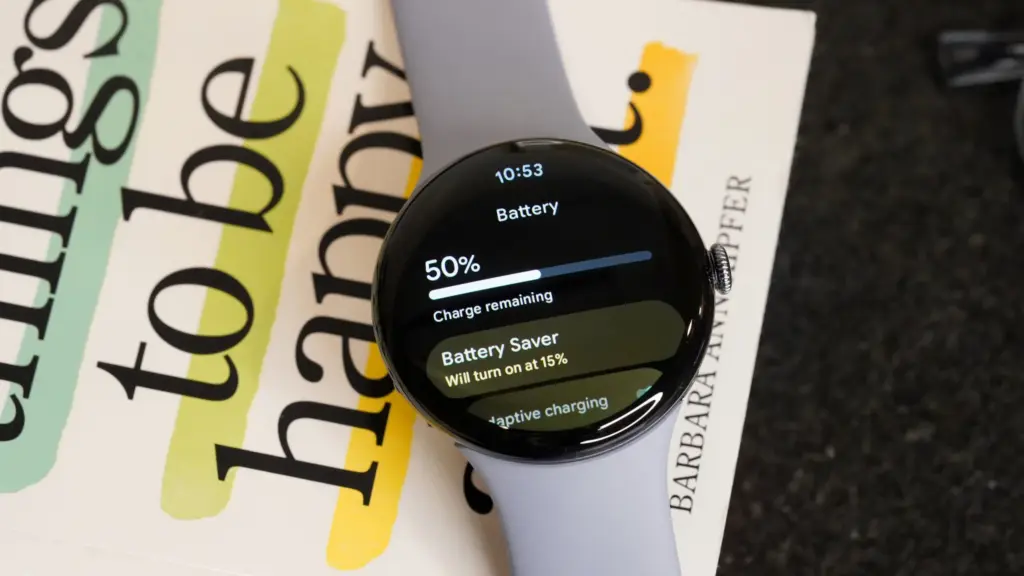
    The battery life would be the main justification for purchasing a Pixel Watch 4. Yes, this device has many useful features, but since I reviewed it, the battery life has improved, and I’ve seen a lot of positive reviews for Google’s newest wristwatch.

    Referring back to my evaluation from early October, I found that the Pixel Watch 4‘s battery life (on the 45mm variant) was as good as Google had promised, with some days being shockingly long. Thus, we’re talking about using the always-on display for around 40 hours and turning it off for about 48 hours. However, there were a few crazy days when I used the watch extensively—5.5 hours of exercise and complete sleep tracking—and it lasted more than 48 hours.

    pixel watch 4 battery

    As I said in my review, the moment I switched on the “Raise to talk” feature, which activates Gemini, the battery life dropped from that high. I subsequently reduced the sensitivity significantly before turning it off entirely. Both of those have been beneficial. I’m not sure if I’m back to that degree of battery madness, but I’ve noticed that I think about battery life far less and that the watch is on the charger much less frequently each week.

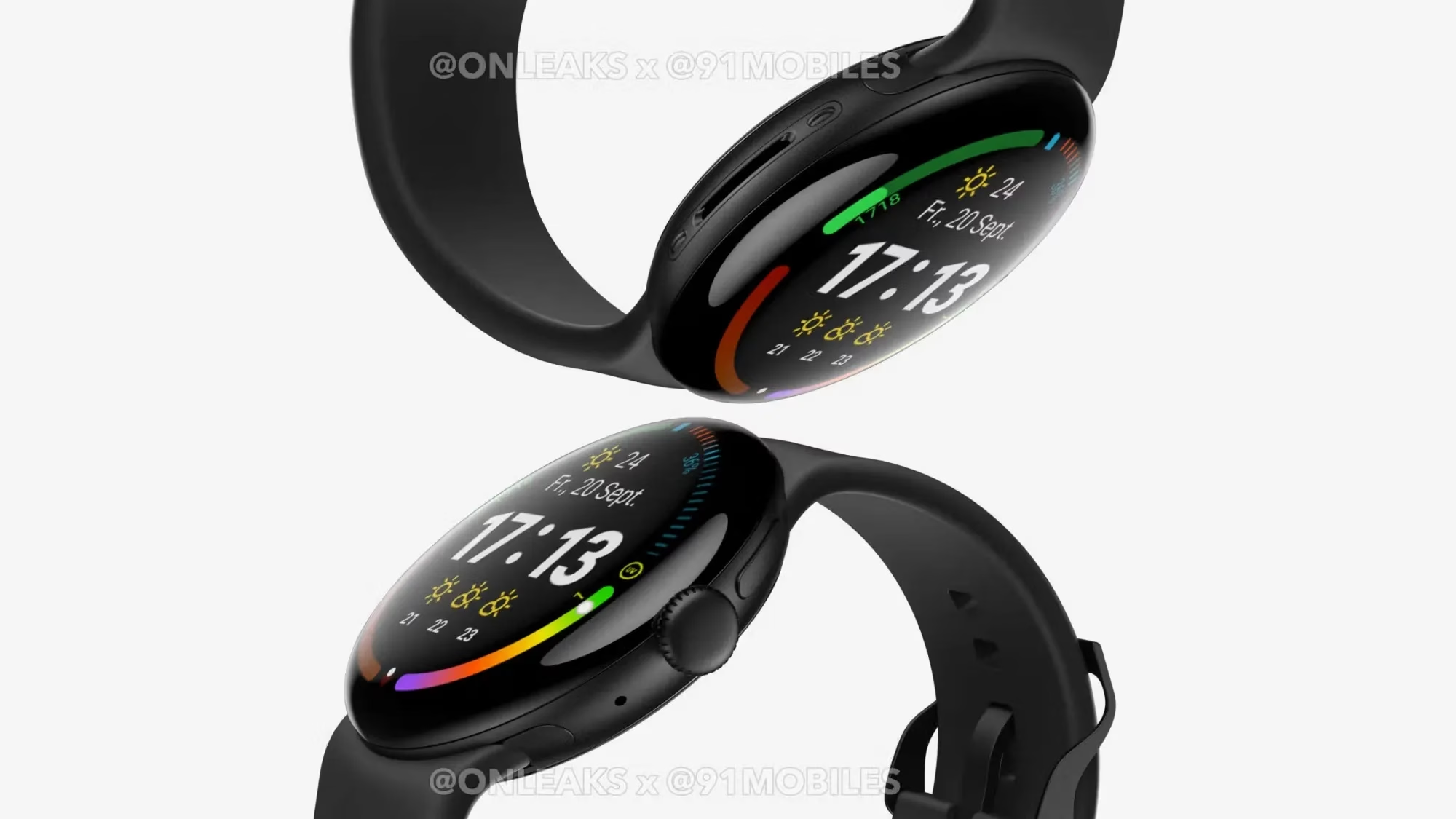
    google pixel watch 4 leak 2

    Google Pixel Watch 4

    The Google Pixel Watch 4 is a stunning display of precision craftsmanship, with Gemini, your built-in AI assistant, Google’s longest-lasting battery, and comprehensive tools for next-level health and fitness performance

    $399.99Amazon

    I’m not by myself either. A user displayed a 76% battery left status in a Reddit discussion after 16 hours without a charger and with AOD activated. Some were dubious, but after looking at my own stats in the last few weeks, I think it’s true. In same discussion, another user attested to the fact that their usage was either comparable to or significantly less than that of the Pixel Watch 3.

    One user described battery life as “amazing” in another discussion before praising the excellent charging conditions. I also discussed that in my review. Compared to earlier Pixel Watch versions, nearly all of which took more than an hour to fully charge, I was able to charge from 20% to 100% in about 40 minutes. According to a different Redditor, they tested the charger twice between 0 and 100% and essentially reached the 40-minute threshold. Additionally, the innovative magnetic charger transforms your tiny watch into a little desk or bedside clock and is incredibly easy to use.

  • Does charging your battery to 80% really extend its lifespan?

    Does charging your battery to 80% really extend its lifespan?

    Manufacturers are beginning to realize that battery health is a major concern for contemporary smartphones due to longer update commitments. In an effort to extend battery life, Android 15 added an optional 80% charging limit in addition to long-standing features like adaptive charging. Similar features were first introduced by Apple with the iPhone 15, and many Android phones now have them as well.

    However, doesn’t 80% seem like a pretty arbitrary number? Why would you want to cap yourself below your maximum capacity? It’s time to go through more fiction and truths about batteries. Here are some things to be aware of.

    Keeping batteries healthy for longer

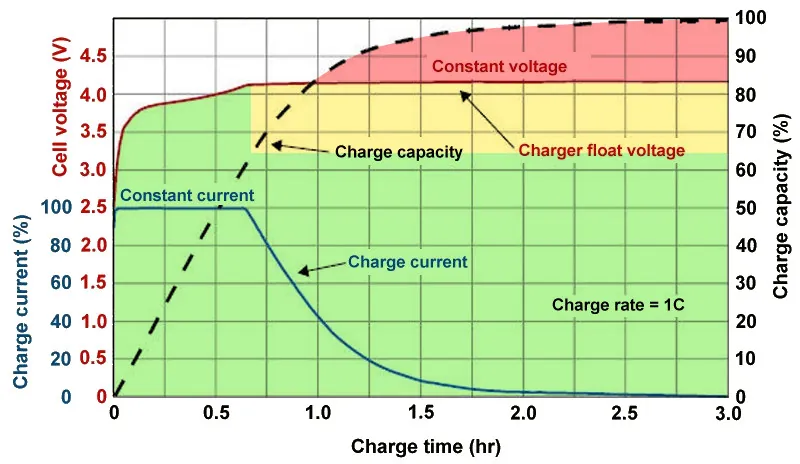
    Heat and voltage are the two main enemies of battery health. Keeping your phone off of a hot dashboard, avoiding charging it beneath your pillow, and using slower charging when you don’t need a quick top-up are the main ways to manage the former. However, the user cannot effectively regulate voltage wear; voltage stress is merely a consequence of battery charging.

    As you can see, the voltage of a nearly depleted battery is lower than that of a full one. Because there is some wiggle area below the peak voltage, which increases tolerance for voltage peaks brought on by large currents, this voltage gap can actually be exploited to accelerate charging. Many lightning-fast charging solutions operate in this way without damaging your battery. There is less tolerance between the immediate and maximum voltages, though, because a battery’s voltage rises as it fills up. Li-ion batteries will explode if their rated voltage is ever exceeded! To fully charge a battery, you must go slowly and carefully.

    Battery Charge Voltage vs Time.jpg

    Although charging engineers take precautions to prevent battery explosions, wear can still happen simply by raising the battery’s voltage. The battery’s available lithium capacity eventually decreases due to anode saturation. When electrolytes are highly charged, they can also slowly break down into gases, and the cathode of the battery can also dissolve into the electrolyte. In a single case, none of this is concerning and is partly inevitable nevertheless, but over time, the additional wear accumulates and causes the battery’s capacity to gradually decrease more quickly than is ideal.

    The first 60% of a battery’s voltage usually increases the fastest, after which it gradually increases until it reaches full. Stopping at around 80% is a nice halfway house because the battery is sufficiently charged to last for hours even if it isn’t quite at its peak voltage, which is where the most harm happens. The seemingly arbitrary 80% measure has a lot of sound research behind it, but is it truly helpful in real-world situations?

    Should I only charge my phone to 80%?

    increase battery life charrge to 80%

    The truth is that no matter what you do, your phone’s battery will ultimately deteriorate; the best way to handle this gradual decline will depend on your demands. The most careful chargers who maintain their phone’s temperature and adhere to the 80% rule may be able to increase the battery’s life by a year or more, which is unquestionably valuable. Whether artificially restricting oneself to 80% now is worth the long-term benefits is a personal decision.

    Let’s examine the worst scenario. While many of today’s higher-end smartphones have ratings of 1,000 or even 2,000 cycles, modern smartphone batteries are typically rated for at least 500 charge cycles before depleting to 80% of their initial capacity. In the worst scenario, that amounts to about a year and a half of charging your phone every day from empty to full—a modest routine—and for longer-lasting phones, it may continue for several years. The majority of customers will most likely wait two to three years before detecting a decline in battery life, and much longer before it becomes a serious issue. And that’s assuming no additional safety measures are taken.

    A year or more could pass before you need to replace your battery if you limit yourself to 80% charge.

    Fortunately, most modern phones come with some built-in assistance. Taking your phone from the plug as soon as possible helps prevent stress from idle charging because phones tend to trickle charge for a time after displaying the completely charged notification, so the 100% charged notification is rarely actually quite full. By maintaining the battery at a reduced capacity and voltage until just before you normally unplug your phone in the morning, using Adaptive Charging or Optimized Charging—depending on the manufacturer of your phone—will help even more. Maintaining healthy habits like this could help your battery reach the three-year mark with ease.

    Google’s latest Pixels go one step further, using Battery Health Assistance to gradually limit charging pace and battery capacity in software to keep a lid on long-term health and safety.

    battery life

    However, many people without extremely demanding workloads could still benefit from just charging their laptops, phones, and other devices to 80% charge (where possible) if they truly want to extend the life of their batteries. This can help you get through a normal day while also enhancing battery health. However, if you want to use your phone for the entire day, I wouldn’t advise unplugging it from the charger before 70%.

    Worrying about an 80% restriction isn’t worth the battery concern if you frequently run out of juice by the end of the day, play a lot of games, or (like me) have strange charging patterns where your phone is rarely full anyway. In order to further customize the maximum restriction to your requirements, certain phones additionally provide 85%, 90%, and 95% settings. In any event, use your phone whatever you like, but be mindful that the battery will need to be changed after a few years. Don’t worry, you will need a new battery for your phone whether you intend to keep it for five, six, or seven years.

    Fortunately, even for older phones, Apple, Google, and Samsung all have competitive battery replacement programs. It’s not awful to spend about $80 to keep a phone functional for many more years. However, in some areas, you may have to pay more than you should, and other brands’ availability and costs differ significantly.

    With long-term ownership, these expenses are unavoidable; the only question is how many months you can try to avoid them. Adhering to the 80% rule will undoubtedly be beneficial.

  • 7 settings to drasticaly improve battery life on any Samsung device

    7 settings to drasticaly improve battery life on any Samsung device

    Because of their full of features and efficient software, Samsung’s Galaxy smartphones are among the best Android phones on the market right now. However, the majority of Samsung phones, particularly premium models like the Galaxy S25 Ultra, Galaxy Z Fold 6, and Z Flip 6, include extravagant features that you might not utilize on a regular basis. There are ways to maximize what you have without degrading the user experience if your new Galaxy phone is not able to last a full day between charges.

    Here are seven ways to extend your Galaxy phone‘s battery life. Do not worry, I will not be Captain Obvious and suggest that you use your phone at a lower refresh rate or lower the screen resolution. The suggestions on this list ought to enhance your quality of life while optimizing the functionality of your phone.

    Use Dark Mode

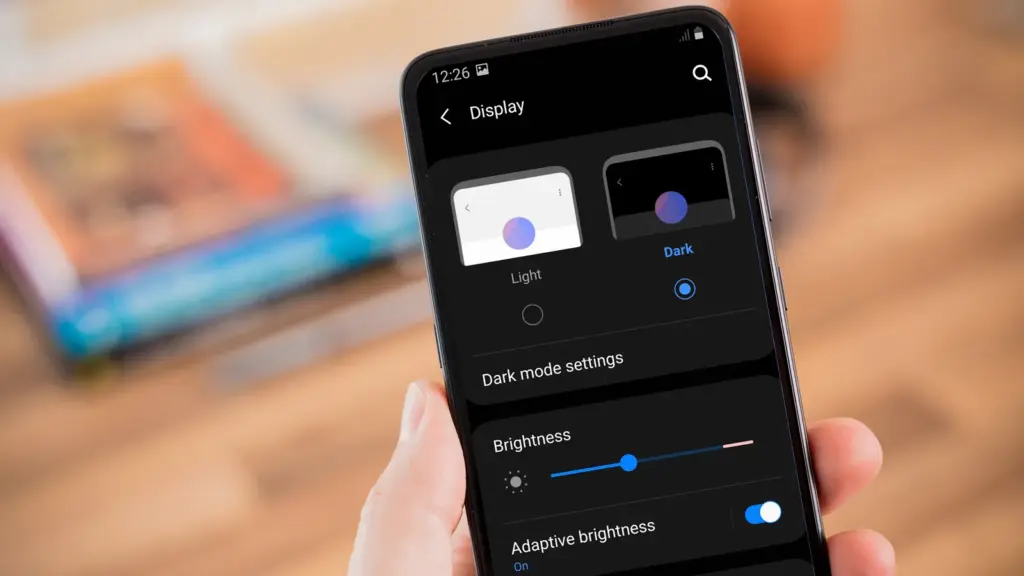
    AMOLED screens, which can light individual pixels, are seen on the majority of Samsung phones. Therefore, the area of the screen that must remain black will not activate those pixels when you choose a dark theme or dark wallpaper. As a result, your screen uses less power and your battery lasts a little longer.

    dark mode enable 2

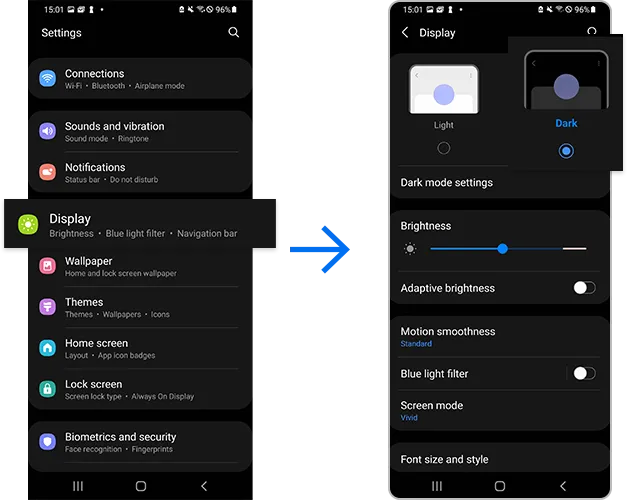
    How to do it: Go to Settings > Display. Two cards for Light and Dark will be dealt to you. Press the Dark option. Changing the system wallpaper and sticking with the light theme is an alternative, but it will not have the same impact on energy life as switching to dark mode.

    Use Adaptive Brightness

    Although this feature should ideally be turned on by default, some individuals disable it because it is not always reliable. Nonetheless, the quality of Samsung’s ambient light sensor has increased over time. Your Galaxy phone is capable of accurately detecting ambient illumination and adjusting the screen brightness on its own. By doing this, you can make sure your display is more effective and not overly bright.

    Toggle on Adaptive Brightness by going to Settings > Display. Although it should function in most settings, you can use the Quick Settings panel to slide down to change the brightness if necessary.

    Force stop or uninstall power-draining apps

    Many applications, including Facebook, Microsoft 365, OneDrive, and numerous Samsung and Google apps, are pre-installed on Samsung devices. To stop them from running in the background, find the ones you do not need and either remove them or force-disable them.

    For instance, not everyone requires OneDrive or the Samsung Smart TV app. I remove those two apps along with others like Facebook, Outlook, Microsoft 365, Tutor, and more when I set up a new Galaxy phone.

    How to: Tap and hold the app you want to uninstall. A pop-up menu will appear. Tap Uninstall. As a result, none of these non-required apps will use your battery.

    Identify power-draining apps

    Depending on your location, 5G connectivity, and background usage, some apps need more power. To assist you reduce unnecessary battery usage, Samsung allows you to recognize certain power-hungry programs.

    By selecting Settings > Battery and Device care > Battery > Background usage limits, you may find and disable power-draining apps on your device.

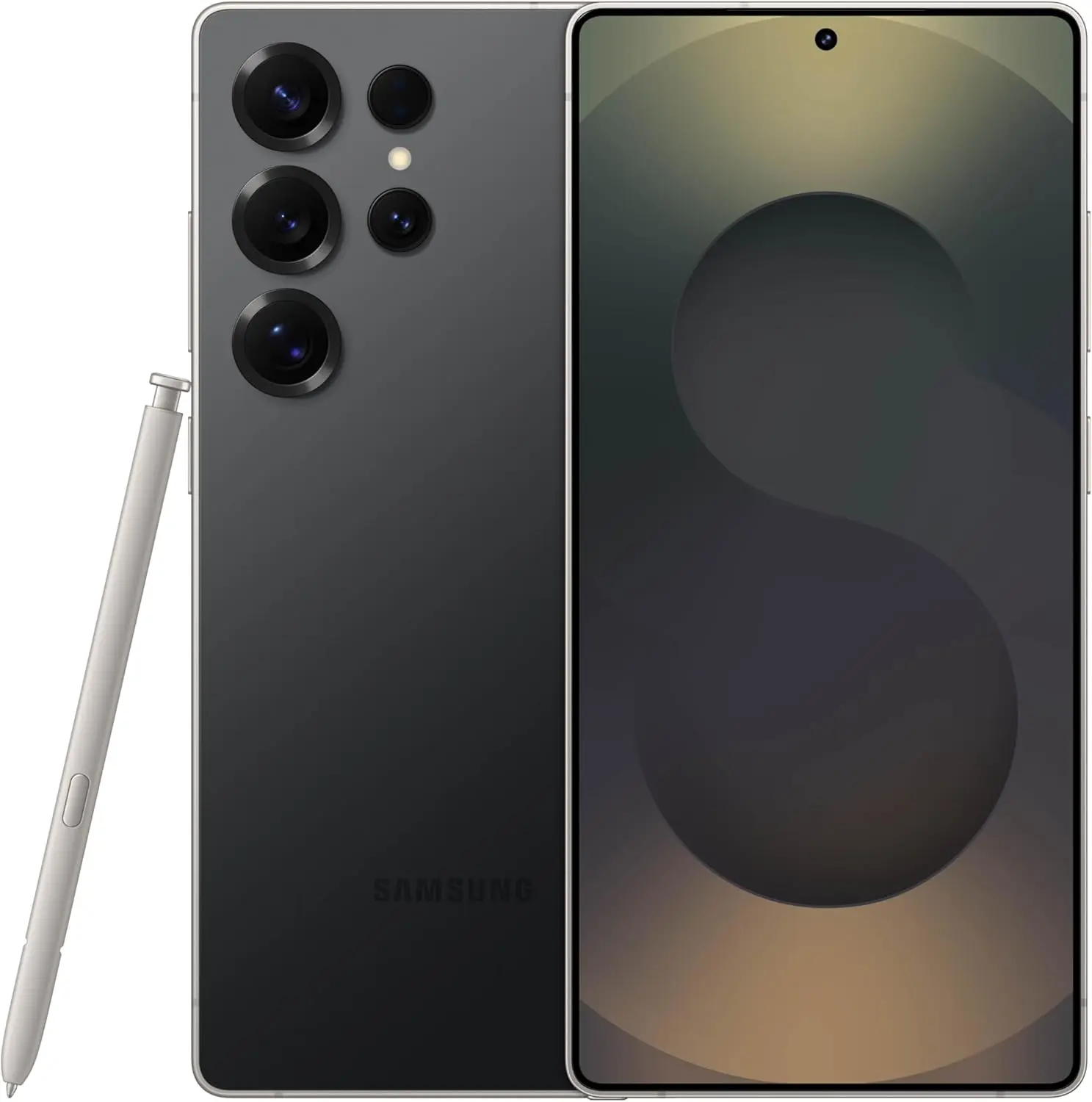
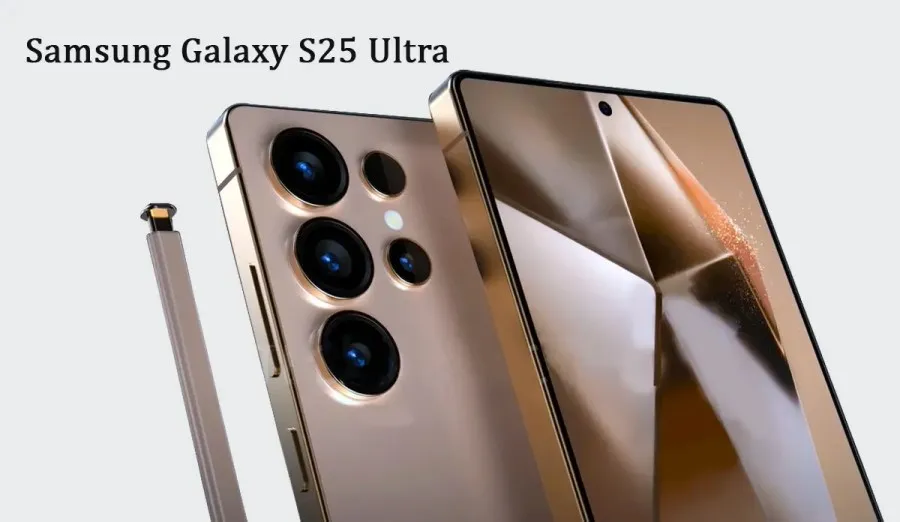
    samsung galaxy s25 ultra

    Samsung Galaxy S25 Ultra

    Streamline your day with an assistant that gets you. Ask it to Google search for a pet-friendly vegan restaurant nearby and text it to your friend – your Galaxy S25 Ultra handles multiple tasks with a single ask.

    $1,299.99$1,067.99See It

    Scheduled Always-On Display

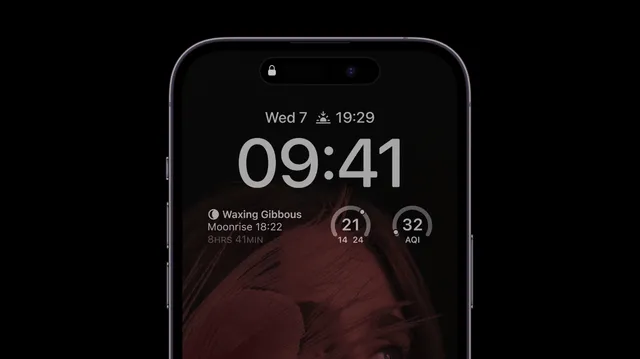
    I like my Galaxy S25 Ultra’s Always-On Display (AOD). For efficiency, its LTPO display lowers to 1Hz, which is useful for functions like AOD. Using AOD may not be as effective if your Galaxy phone is midrange and has a minimum refresh rate of 60 Hz. You can use it wisely, though, by planning AOD for when it is required.

    samsung aod battery life

    How to: Go to Settings > Lock Screen and AOD > Tap on Always On Display > When to show > As scheduled. While you’re at it, also turn off the Show lock screen wallpaper within AOD settings.

    Use Performance profile

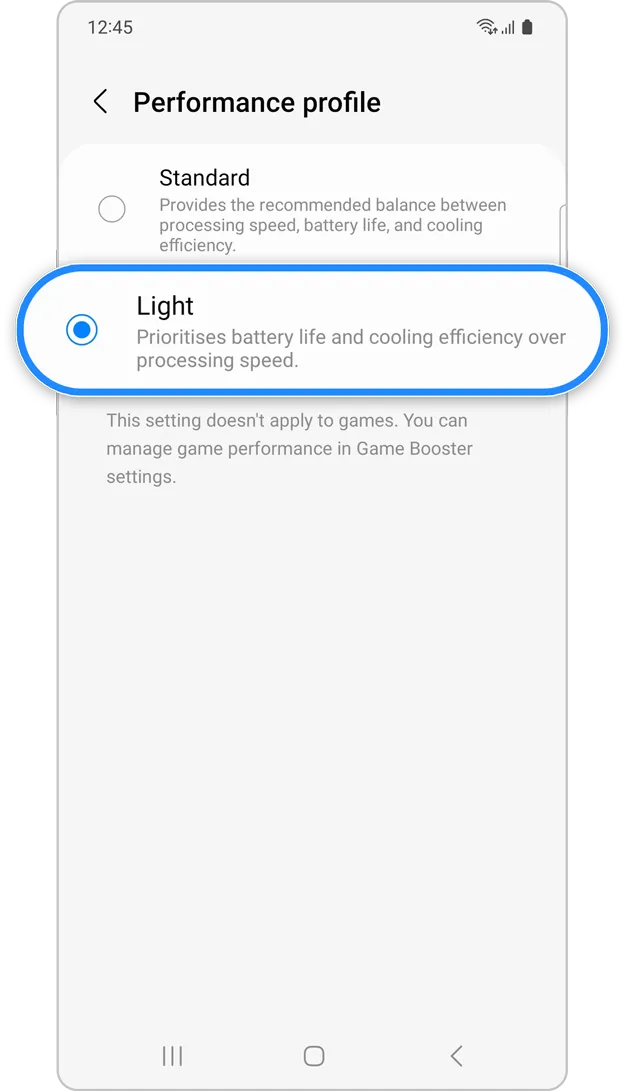
    Samsung lets you select a performance profile according on how you use it. The Light Performance profile is a better option than the Standard if you do not play games and use your phone mostly for everyday activities like surfing and making calls. It will put cooling and battery life ahead of processing performance.

    samsung performance profile

    How to: Open the Settings app and go to Device care > Performance profile and select Light. This is ideal for average phone users.

    Download offline content before travel

    It is a good idea to download such stuff offline if you listen to the same podcasts and playlists or travel the same path every day. Google Maps and the majority of streaming apps use a lot of battery power over 5G and LTE. It may also cause your phone to feel warm to the touch when you are outside. With a little advance forethought, you can handle this: Before you leave the house, use Wi-Fi to download your favorite music or maps.

    How to: Go to the streaming apps you want to download content from and follow the in-app steps. For instance, YouTube has a download button on videos, and Spotify lets you download complete playlists.

    What should you do if the battery on Galaxy phone runs low?

    The seven settings above will not hinder your user experience and will retain the best Galaxy phone features. However, if you’re out and your phone is low on battery, you should:

    • Turn on Power Saving
    • Toggle off data roaming
    • Turn off location services
    • Switch off AOD altogether

    When your phone’s battery is less than 15% and you are still a few hours away from a charger, I advise activating these options. The Samsung settings listed above will also help you get the most out of your Galaxy phone’s battery.

    samsung galaxy s25 ultra

    Samsung Galaxy S25 Ultra

    Streamline your day with an assistant that gets you. Ask it to Google search for a pet-friendly vegan restaurant nearby and text it to your friend – your Galaxy S25 Ultra handles multiple tasks with a single ask.

    $1,299.99$1,067.99See It
  • Increase battery life on Android: 9 settings you need to change now

    Increase battery life on Android: 9 settings you need to change now

    I have spent a significant chunk of my life looking for ways to extend the battery life of my Android phones. That may sound dramatic, but growing up with only inexpensive models meant I was constantly modifying device settings to get the most out of their batteries. Thanks to this micromanaging, I was able to drive the batteries on all of my previous devices to their utmost limits. I do not want to keep this knowledge for myself, so I chose to share it with everyone.

    There are numerous strategies for extending battery life. However, there are 12 important options that can be changed right now to see immediate results. The following list highlights the most effective, simple, and quick modifications to boost device longevity regardless of the Android phone you are using, whether it is the latest Samsung model, a luxury Google Pixel, or a cutting-edge OnePlus 13. Furthermore, you will not have to compromise the high-quality experience of using your phone.

    Although the power settings are nearly identical on every Android phone available, the procedure of changing them varies by device. Keep this in mind when following the procedures I have outlined, as the technique may alter slightly based on the model you are using.

    Turn off the always-on display

    Turn off the always-on display to increase battery life

    The always-on display is one of the largest battery drainers on any smartphone. Companies frequently claim that this display setting only consumes 1% to 2% per hour, but let us be honest: it is always far more. It may be convenient to check the time on your phone while it is sitting on a table, but it is unlikely to be worth the sacrifice of battery life.

    Open the Settings app and navigate to the Lock Screen section. This section will most likely be found in the main Settings list or under “Display.” From there, look for the option to “always show info” or a simple toggle to enable the Always On Display. In any case, disable the option and ensure that when you lock your device, it turns absolutely blank.

    Switch to dark mode

    Switch to dark mode on Android devices

    Over the last few years, many midrange and inexpensive Android phones have followed in the footsteps of their flagship counterparts, adopting OLED displays. When not in use, the technology allows individual pixels to fade or turn entirely off. This feature is considerably more efficient for battery life than typical LCD screens with a single large backlight. By switching to your phone’s dark theme, those pixels will get dimmer much more frequently, saving some battery life.

    Go to Settings > Display on your Android device. There are options to choose between a light and dark theme, as well as to have dark mode turn on automatically at specific times of day. To get the most out of your battery, I recommend having dark mode on constantly.

    Remove unused accounts

    We have all done it: you open a new account for a social networking app or email service (which you subsequently forget about) and then create another account to serve as your primary account for that service or platform. I have been through this process several times. If you create accounts on your phone, all previous accounts stay, constantly refreshing and depleting your battery life in the background. I strongly advocate uninstalling some outdated accounts from your smartphone as soon as possible.

    Go to the Settings app and find the accounts section (on Samsung phones, it’s called “Accounts and backup” while Pixel phones use “Passwords & accounts“). You’ll find a list of all the accounts synced to your phone. Tap on one of them and scroll down to the “Remove account” button. Tap it, and the account will disappear.

    Reduce the screen’s refresh rate.

    adjust refresh rate2

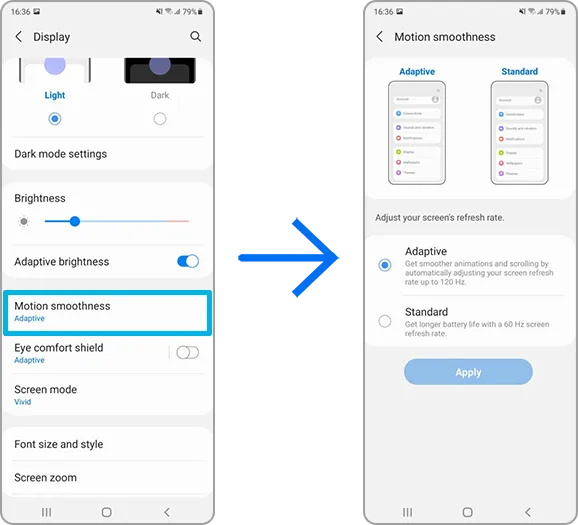
    Phone screens have improved dramatically in recent years, thanks in part to quicker refresh rates implemented by manufacturers. Increasing the frequency with which a screen refreshes, whether at 90Hz, 120Hz, or even faster, makes animations, scrolling social media, and everyday activities feel smoother and more responsive. Unfortunately, a fast refresh rate consumes more battery power; you may be better off removing the option in some cases.

    Open the Settings app and go to the Display section. Here you will find the options for configuring your refresh rate. Most smartphones refer to the function differently; for example, Google refers to it as “Smooth Display” whereas Samsung refers to it as “Motion Smoothness” Find the refresh rate setting and reset it to the regular rate. Your screen will most certainly appear choppier as a result, but this is totally normal. It simply means that it operates at 60Hz, which was the pace at which even the greatest phones ran a few years ago.

    Turn off “Hey Google”

    hey google header

    If your phone is always listening for you to say, “Hey, Google,” your battery is probably running low. Your microphone is engaged, waiting to hear you utter the two magic phrases that activate the digital assistant, and running that procedure all day consumes a significant amount of energy. Anyone who does not utilize the Assistant on a daily basis should disable the feature without hesitation. And let us be honest: how many of us use the assistance every day?

    Open the Google app on your phone and select your profile photo from the top-right corner. Then, go to Settings > Google Assistant > Hey Google & Voice Match, and turn off “Hey Google” Now, your phone will only activate the Assistant if you hold down the power button or use another method.

    Block apps to send notifications

    You may not realize it, but notifications can be one of the most significant drains on your phone’s battery life. Not only does your phone buzz and ding all day, but the applications themselves are continually refreshing in the background, looking for new notifications to transmit to you. Most apps provide options for reducing the number of alerts you receive, but the simplest way to turn them off is through your phone’s Settings app.

    Go to Settings > Notifications > App notifications to see a list of all the apps installed on your phone. Next to each entry are toggles that, when flipped, will disable all notifications for that particular app.

    Keyboard sounds and haptics

    Keyboard sounds and haptics android

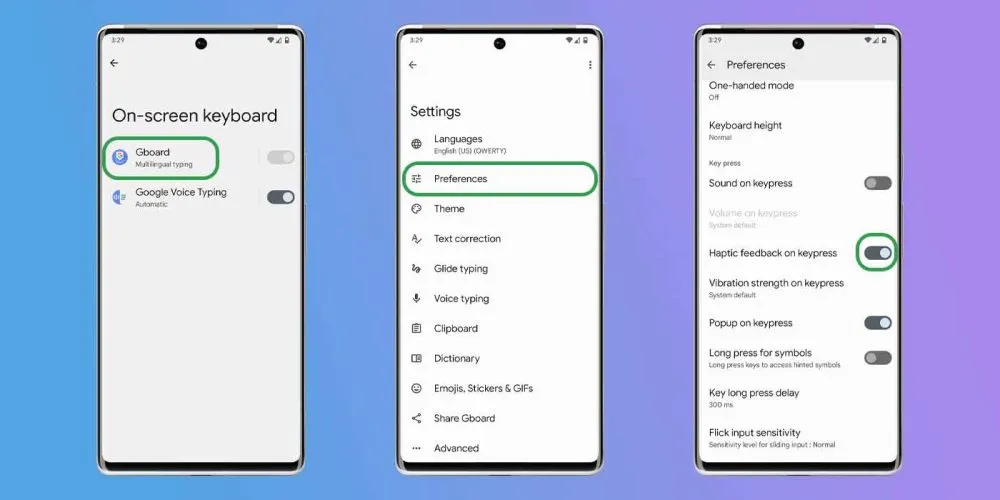
    If you are using your phone, you are probably typing on the keyboard a lot, whether it is to post on social media or answer to messages from friends. If you activate sound and haptic feedback, your phone’s battery life may suffer since it must produce a succession of vibrations and noises each time you tap a letter. Hearing and feeling the keyboard as you type is a pleasant experience, but it is not ideal for getting the most out of a fully charged battery.

    Open the Settings app and navigate to “Language and input” This section contains your keyboard settings. Find the place where you may select your default keyboard and hit the gear icon next to it to modify settings. If you use Gboard (like most people), go to Preferences > Keypress and turn off “Sound on Keypress” and “Haptic feedback on Keypress

    Enable Adaptive Battery

    android adaptive battery AM AH

    Android include a useful function called Adaptive Battery, which is available on most handsets. Adaptive Battery may automatically control your phone’s performance and efficiency in the background, extending battery life through specific methods. For example, when you do not need maximum speed for something as basic as browsing through your inbox, the setting will slow things down and save you some battery life.

    Go to Settings > Battery > Adaptive preferences and check to ensure “Adaptive battery” is enabled. If it’s not, flick it on.

    Use battery saver to increase battery life

    Battery Saver mode, like Adaptive Battery, is a useful function that helps increase the life of your smartphone between charges. The function makes significant modifications to your device’s firmware, including as limiting visual effects, restricting background apps, and putting on dark mode if it is not already enabled.

    Most, if not all, Android phones have a Battery Saver feature, albeit it may have a different name. On Galaxy phones, for example, it is known as Power Saving Mode. Some may refer to it as low-power mode. For assistance with your specific model, check your phone manufacturer’s support website.

    On Pixel phones, go to Settings > Battery > Battery Saver. You can also choose a schedule for when the feature will activate or turn off automatically. On Galaxy phones, go to Settings > Battery and Device Care > Battery. Flip the toggle switch next to Power Saving to activate the feature.

    Our recommendations

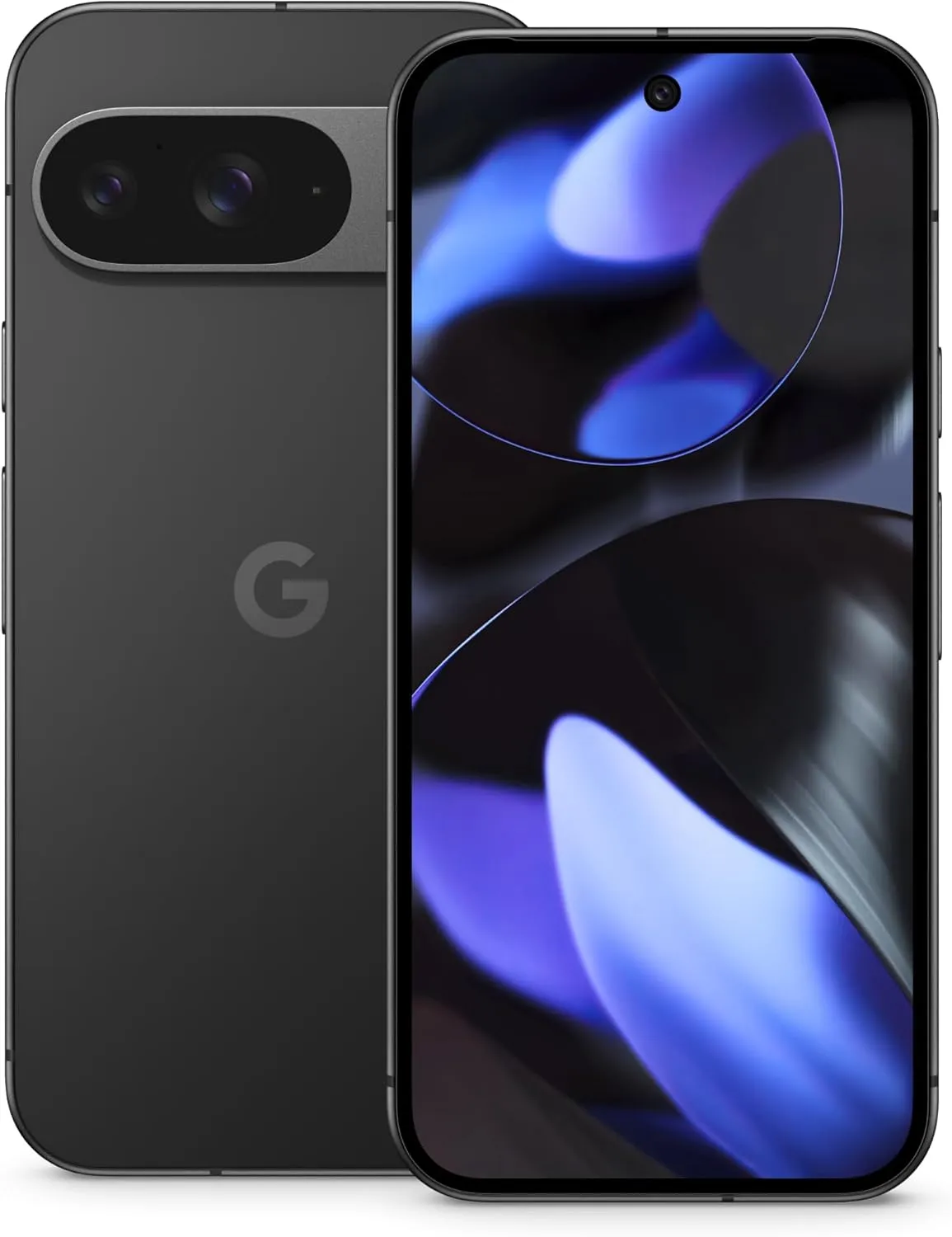
    Google Pixel 9
    $99 $629.99Buy on Amazon
    Google Pixel 9 Pro
    SAMSUNG Galaxy S25 Ultra
    $1,419.99$1,188.50Buy on Amazon
    SAMSUNG Galaxy S25+
    $1,119.99 $1,019.99Buy on Amazon