Tag: iphone

  • Temporarily free Android and IOS apps

    Temporarily free Android and IOS apps

    This is a list of paid apps that are temporarily free to download on the iOS and Android platforms.Read on to find the top free app offers available for download from the Apple App Store and Google Play Store.

    Download and install any apps you find that you would want to have but do not require right now. It would be seen as “purchased,” and even if you immediately remove it from your smartphone, it will always remain in your app library.

    Android apps and games that are free for a limited time

    Android apps for productivity and lifestyle

    • Corluma ($0.49): If you have smart lights at home, how about using this third-party app to control them? 
    • KX Music Player Pro ($2.99): Want a standalone music playback app? This one gets the job done without any frills.
    • Stitch Photos ($2.99): If there ever was a need to capture a really long screenshot, why not capture multiple ones and stitch them together?
    • 3D Earth Pro ($29.99): Don’t just find out what the weather is like, do so in style with this graphics-intensive app!

    Free Android games

    • Sudoku Premium ($1.99): Tickle your brain with this digital Sudoku game.
    • SPHAZE ($0.99): A beautifully crafted puzzle game with science fiction elements from the future.
    • Survival Dungeon ($0.49): Start from the very bottom in this roguelike survival RPG, where you grow in power and strength by defeating monsters and picking up loot.
    • Crossword Quest Premium ($2.99): Do you think you have what it takes to solve one crossword puzzle after another? Try this one out for size.
    • Burning Sky ($1.99): A shoot ’em up that is never short on adrenaline, where you test your reflexes against waves of enemies.

    iOS apps that are free for a short time

    iOS apps for productivity and lifestyle

    • Auto Enhance Photo Filters ($2.99): Up the ante the next time you shoot photos with your iPhone by using a range of filters.
    • mySymptoms Food Diary ($7.99): Keep a list of stuff you eat so that you can avoid wolfing down something that triggers your allergies.
    • Timestamp Cam ($9.99): Add the date and GPS location to your photos and videos.
    • weather+ ($0.99): Find out what the weather will be like for the day before you leave the house.
    • Light Meter ($3.99): Let this app detect the amount of light in the area so that you can capture the best-looking photos.

    Free games for the iPhone and iPad

    • AirCoaster ($0.99): Think you have what it takes to build a roller coaster ride for the ages? Try this out!
    • Light ‘Em Up ($0.99): A casual puzzle game that requires you to get all the circuits connected to light up the same colored lights.
    • Cafe ($5.99): Let your little ones kindle their love for whipping up delicious dishes in this pizza-making game.
    • My City: Star Horse Stable ($3.99): Let your little one experience what life is like having to take care of a virtual horse.
    • My City: New York ($3.99): Want to explore the city of New York safely? do so through this game.

    As of the date of publication, the deals were active. Please let us know in the comments if you came upon an offer that is no longer available. We advise you to review the app’s details in the Play Store or App Store before downloading any of the aforementioned apps. This is crucial since some of these free apps can have unique features or drawbacks of their own.

    Your personal information may be collected and shared by a variety of applications. It is critical to carefully consider the permissions that each application requests in order to secure your privacy. For example, why would an alarm clock app require access to your contact list or camera? You may greatly improve the security of your data by limiting the permissions you grant.
  • Free apps for iPhone and Android this weekend

    Free apps for iPhone and Android this weekend

    Once again, the weekend has arrived, which means it is that time of the week when we bring back a selection of premium apps that are only accessible for iOS and Android for a short period of time.See the top app sales in the Apple App Store and Google Play Store by reading on.

    Download and install any apps you find that you would want to have but do not require right now. It would be seen as “purchased,” and even if you immediately remove it from your smartphone, it will always remain in your app library.

    Android apps and games that are free for a limited time

    Android apps for productivity and lifestyle

    • Open Tracks ($3.49): A sports tracking app that keeps track of all your physical activities so you can work towards having a lovely record.
    • Image to PDF ($2.99): Just as the name implies, transform images into PDF format for easy printing across platforms.
    • Passport Photo ($4.99): Use this app to compose and print the perfect passport photo before you head off to your next holiday destination.
    • Matrix Determinant ($0.99): If you love math, surely you would have had experience with the dreaded matrix. Use this app to make your problem-solving adventures easier.

    Free Android games

    • Traffic Jam Cars Parking ($4.99): Can you make sure traffic becomes smooth again by solving numerous puzzles here?
    • Defense Legend 5 Pro: Epic TD ($1.99): A tower defense game that takes on a modern outlook with mechs and other futuristic machines dominating the battlefield.
    • Cooking Kawaii ($0.99): Cook up a storm in this game to keep your customers happy so that they return, which in turn gives you more profit to grow your business.
    • Theme Park Simulator ($0.99): Curious to know how a theme park works and operates? Find out in this game and see just how good your management skills are.
    • Word Tower Premium Puzzle ($2.99): How powerful is your vocabulary? Find out in this game that does not feature any annoying ads, allowing you to play offline, too.

    iOS apps that are free for a short time

    iOS apps for productivity and lifestyle

    • Brushstroke ($7.99): Transform your photos into nice-looking paintings with this app. 
    • Interval Timer for Tasks ($6.99): Remain more focused on your work by working on one task at a time without getting sidetracked or distracted.
    • Tiny Planner ($19.99): Need to get your life back on track without being pulled in all directions? This planner gets the job done.
    • The Wonder Weeks ($5.99): It is a miracle to follow your baby’s growth from birth until the present day. Never miss a moment by jotting it down here!

    Free games for the iPhone and iPad

    • Kingdom Rush: Tower Defense HD ($5.99): The enemy is storming the gates, and you and your ragtag team of defenders have to strategize to hold them off.
    • Macrocosm ($3.99): Talk about humble beginnings. This game sees the journey of a single atom to that on a galactic scale. How will you chart its growth?
    • Catenaccio Football Manager ($2.99): Think you have what it takes to be the perfect football manager? Try this game on for size! 
    • My City: Star Horse Stable ($3.99): Fancy owning your own horse? Why not give this game a try and see how well you can care for one?
    • Dirt Trackin’ 2 ($3.99): Indulge in some rally goodness with all the thrills and spills, minus the real-world damage to your ride!

    As of the date of publication, the deals were active. Please share any expired deals you come across in the comments section below.

    We advise you to review the app’s details in the Play Store or App Store before downloading any of the aforementioned apps. This is crucial since some of these free apps can have unique features or drawbacks of their own.

    In the constantly changing world of mobile applications, there are a few dishonest ones that use clever strategies to make money off of collecting and sharing your personal data. But do not worry, tech-savvy readers—we have some priceless tips to assist you strengthen the protection of your priceless data. We strongly advise you to be cautious while giving installed programs permissions.

    Why, after all, would a simple alarm clock require access to your contacts or camera? Furthermore, why would a flashlight app need to know your precise location? You may successfully protect your personal information from prying eyes by choosing which permissions to provide with caution.

    With the knowledge that your data is safe and secure, you may explore the wide selection of free apps that are available for download on your iOS or Android device.

  • US Carriers that enabled RCS messaging for iPhones

    US Carriers that enabled RCS messaging for iPhones

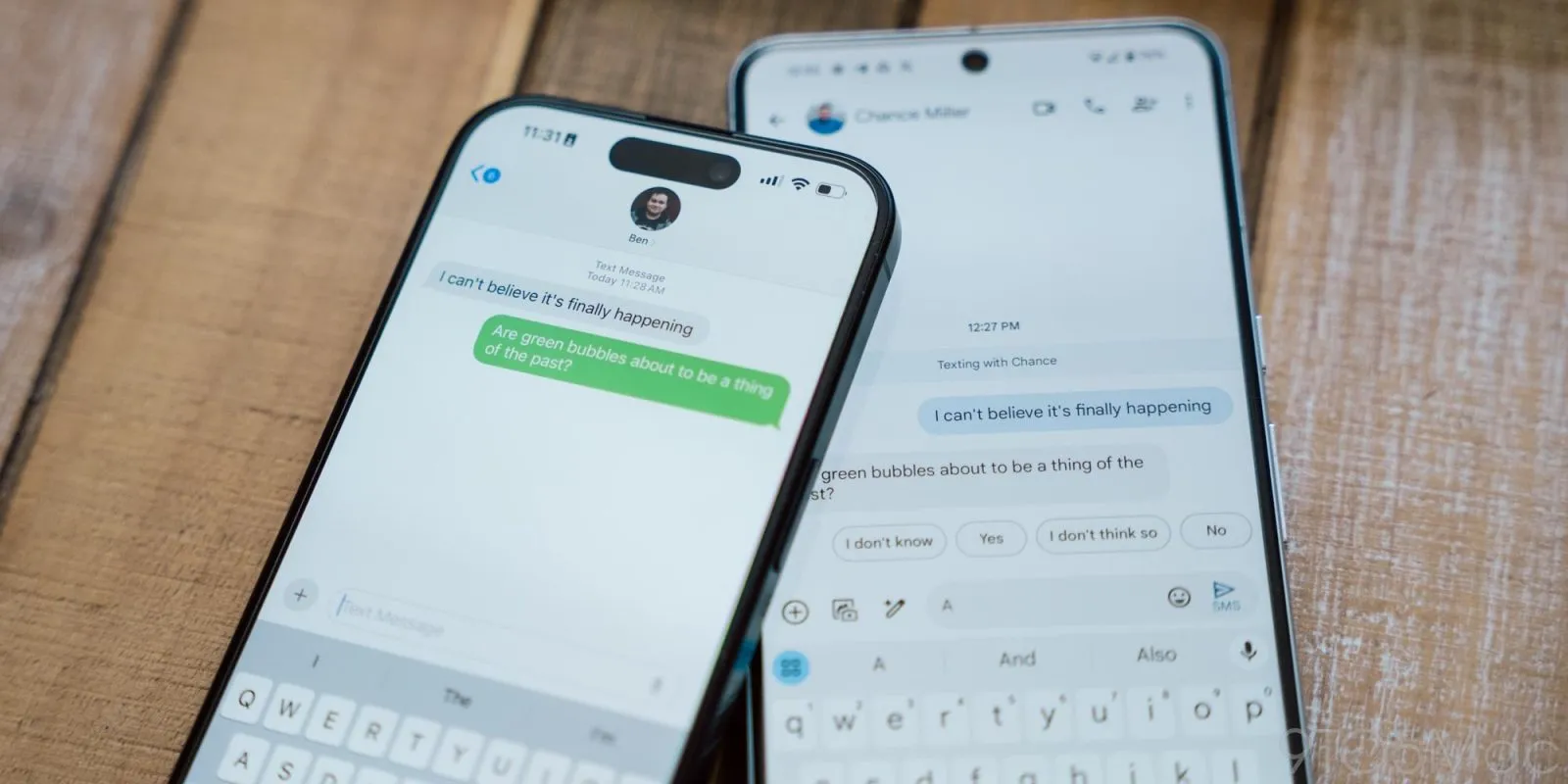
    This week, Apple unveiled iOS 18, which includes a number of improvements, including the long-awaited Rich Communication Services, or RCS. The iPhone 16 was also announced alongside iOS 18. Since carrier activation is necessary for the messaging service to function, not all American networks will offer it at launch. The most recent list of carriers that support RCS on iPhones can be found on Droid Tools.

    Since Google originally implemented RCS on iPhones a few years ago, it has been a frequently desired feature. This messaging protocol was created to take the place of SMS and MMS on mobile or cellular phones. This has several capabilities including sending and receiving high-resolution photos, read receipts, typing indicators, and improved group chat management, even if it does not eliminate the green bubbles from Android messages.

    How to turn on RCS on an iPhone

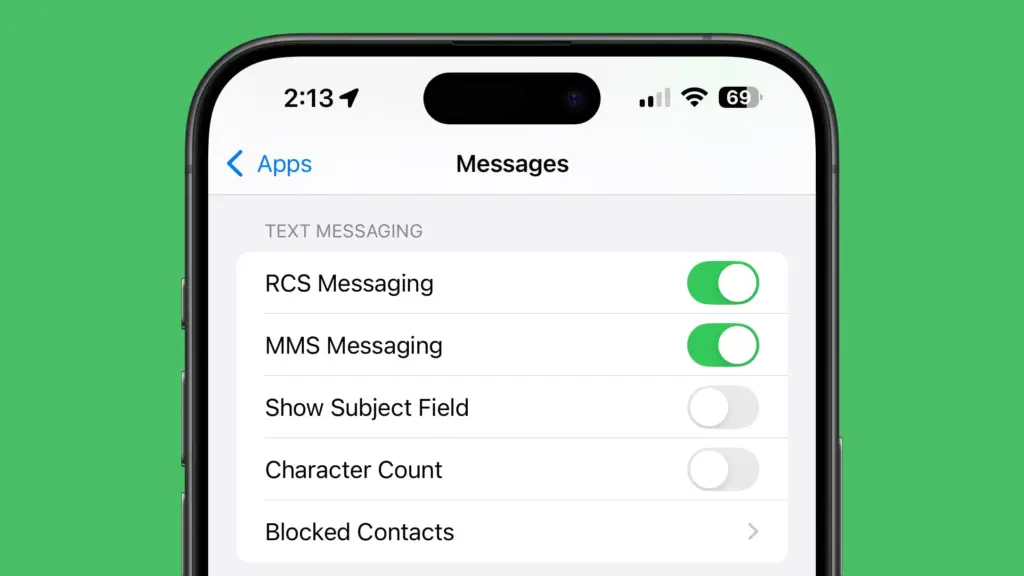
    Even after updating to iOS 18, RCS messaging is disabled by default. Users of upgraded iPhones will need to activate it through the settings. How to do it is as follows:

    1. Open the Settings app on your iPhone.
    2. Scroll down and tap Apps.
    3. Select Messages from the menu.
    4. Toggle on RCS.
    5. Exit the window to save changes.
    RCS messaging

    Which US carriers offer RCS for iPhones?

    Only a few carriers have enabled RCS since iOS 18 was released for compatible iPhones. Major carriers have been on the list, nevertheless, since the beginning. The carriers listed below provide RCS for iPhones.

    1. AT&T
    2. T-Mobile
    3. Verizon
    4. Metro by T-Mobile
    5. U.S. Cellular
    6. Cricket
    7. Spectrum
    8. TracFone
    9. Straight Talk
    10. Xfinity Mobile
    11. C Spire
    12. Consumer Cellular
    13. FirstNet
    14. PureTalk
    15. Red Pocket
    16. Visible

    There is no confirmation yet when other telco operators like Mint and Boost will enable RCS on their network.

    Which Canadian carriers offer RCS for iPhones?

    If you’re residing in Canada or traveling there, most major carriers there offer RCS on iPhones as well. You can find the list below.

    1. Bell
    2. Rogers
    3. Telus
    4. Fido
    5. Virgin Mobile
    6. Freedom Mobile
    7. Koodo
    8. Lucky Mobile
    9. Videotron
    10. Chatr

    If you would rather see it in a more organized manner, Apple’s support page has a list of several wireless providers in various nations and areas that have already integrated RCS into their networks.

  • Temporary free Android And iOS apps this week

    Temporary free Android And iOS apps this week

    Without apps, a phone is useless. If you are not sure what to put on your phone, do not worry—we have a free iOS and Android Apps of the Week column that updates you on a variety of productivity and gaming apps that might be of interest to you every two weeks!

    android and ios apps

    When the developers decide to revert back to their paid status, we have no idea when these games and applications will be made accessible for free. If you find a listed program that is no longer free, please let us know so we can update the appropriate information.

    Tip: If you find an app that you want to have but do not need right now, download and install it first. It will stay in your app library forever, even if you remove it from your smartphone right away. This way, the program will be regarded as “purchased.”

    Android apps that are free for a short time

    Android apps for productivity and lifestyle

    • English for All Pro ($0.99): Want to master the English language? This app might help you out.
    • Reminder Pro ($3.49): Ever felt as though you keep on forgetting stuff? Here’s an app that will help you remember things…

    Android games

    • Legend of the Moon ($0.99):  A 2D side-scroller where you explore dungeon after dungeon, leveling up to be more powerful.
    • Defense Zone 3 Ultra HD ($2.99): Tower defense with extremely realistic graphics to keep you occupied.
    • SPHAZE ($0.99): A sci-fi puzzle game that looks great while tickling your grey matter.
    • Ruby Square: Puzzle Game ($0.99): With over 700 brain-teasers to choose from, you will definitely find this game worth your while if you love puzzlers.
    • Minesweeper Pro ($1.49): This is a classic game that everyone should experience at least once in their lives.

    iOS apps that are free for a short time

    iOS apps for productivity and lifestyle

    • FABULUS ($3.99): If you have trouble figuring out the chord to a particular song, this app might just be of help.
    • Dollar Bill Origami ($1.99): Your humble dollar bill is way more useful than just for monetary transactions… 
    • Streakly ($4.99): It is not too late to get started on your New Year resolutions yet. Why not get this app’s help to form new and positive habits?
    • ChatGo AI bot ($0.99): AI is taking over the world, so why not let it take over your phone?

    iOS games

    • Demetrios ($2.99): A visual novel that comes with plenty of silly jokes. This is the perfect pick-me-up if you’re ever feeling down.
    • Legacy 3: The Hidden Relic ($1.99): A 3D point-and-click adventure game that will certainly require you to think more than usual.
    • Agile 3 ($1.99): Test your reflexes and dexterity in this uniquely designed game. 
    • 2 Players 1 Device ($0.99): This is how you remedy a situation when you have two kids fighting over a single device… 

    What drew your attention this week? Which apps on the list—games or productivity—is your favorite? Share your opinions in the comments below.

  • Huawei & Xiaomi surpass iPhone sales in China

    Huawei & Xiaomi surpass iPhone sales in China

    Over the course of the holiday sales period, Huawei and Xiaomi handsets outsold Apple’s iPhones in the Chinese market. Local firms appear to have benefited the most from China’s Singles Day sale, which is held on November 11.

    Huawei Xiaomi phones beat out th

    Huawei and Xiaomi register outperform Apple in China

    The latest iPhone 15 lineup from the Cupertino-based company was surpassed in sales by the Chinese tech giants, according to a Counterpoint Research report. The report also noted that domestic brands’ smartphones saw higher sales during the 11.11 shopping period, while iPhone sales fell by 4 percent in the two weeks from October 30 to November 12.

    However, Xiaomi also saw a notable 28 percent increase during this same period. Notably, the two domestic companies’ jump in sales also boosted the local market’s smartphone sales overall by 5 percent year on year during the Singles’ Day sales period. Huawei, on the other hand, saw a sizeable 66 percent year on year increase in its Singles’ Day sales, driven primarily by its latest flagship 5G series (the Mate 60 lineup).

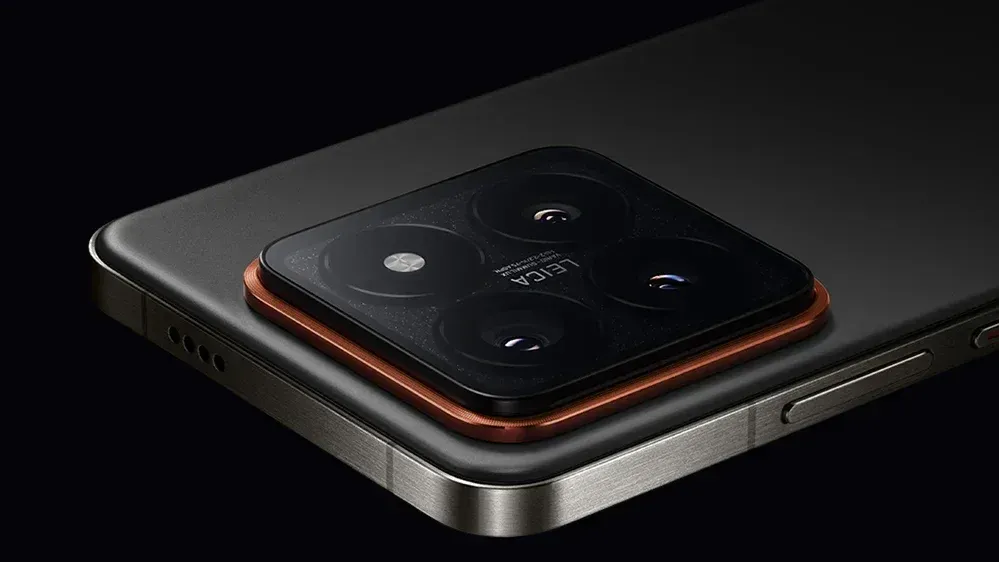
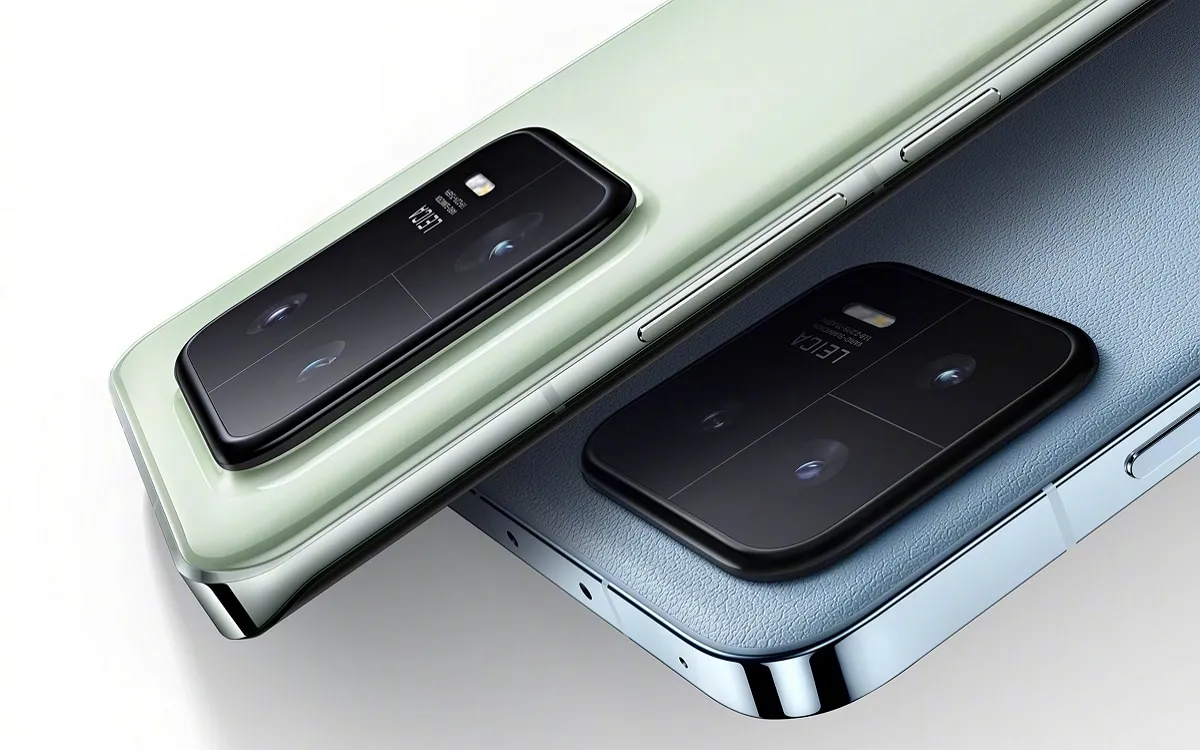
    In terms of pricing, the Huawei Mate 60 series is priced at 5,499 Yuan, or approximately 775 US dollars, starting at 3,999 Yuan, or roughly 563 US dollars, while the Xiaomi 14 lineup is priced at 5,999 Yuan, or approximately 845 US dollars. Xiaomi even revealed sales figures from the shopping festival, stating that sales totaled over 22 billion Yuan, or approximately 3 billion US dollars.

  • How to Crop a Video on an iPhone: A Brief Guide

    How to Crop a Video on an iPhone: A Brief Guide

    Do you want to get creative with videos and crop them to share online? If so, you’ve come to the right place.

    Let us show you how to edit a video on iPhone with just a few taps. And since this task only takes a few minutes to complete, you can create fun and exciting videos in no time!

    All you need to do is follow our brief guide, and you’ll have the perfect cropped video in no time at all. So keep reading!

    crop a video on a iphone

    Navigating the Video Cropping Feature on iPhone

    To crop a video on an iPhone, start by opening the Photos app. Select the video you wish to crop, and tap on it to open.

    Next, click on ‘Edit’ found in the top right corner. Once you have entered the editing mode, you can select from the available editing features near the bottom of the screen.

    Select ‘Crop’ and adjust the video framing to the desired size. After making your desired changes, click Done in the top right corner and save the changes.

    Your cropped video is ready to be watched, shared, and more! To save the modified video, tap’ Done’ in the upper right corner, and the cropped video will be saved in your Camera Roll.

    Tips on Adjusting Cropping Parameters

    If you want to crop a video on an iPhone, these tips on adjusting cropping parameters can help you do so quickly and hassle-free.

    To zoom in and out, use a two-finger pinch gesture on the video until it is framed as desired, then tap Done. If you want to adjust the size of the crop, tap the crop icon found in the upper-right corner of your iPhone’s screen and enter specific dimensions.

    After you make your desired adjustment, tap Done.

    Adding Text and Other Elements to Your Cropped Video

    To add text and other elements to your cropped video, launch the iMovie or Clips app, select the video, and tap the ‘Text’ button.

    Choose the desired type of text, enter the desired words, and tap ‘Done.’ You can also add image or video clips, stickers, background colors, and other elements. To move elements around, use the ‘Edit’ button.

    When you’re happy with the look of your video, tap ‘Done’ to save your work.

    Best Practices for Sharing Your Cropped Video

    The best practices for sharing your cropped video include making sure the size of your frame corresponds to the platform where you want to share the video. For example, if you plan to upload to YouTube, your frame should be 16:9.

    Additionally, pay attention to any guidelines for the length specified by the platform, and consider your audience. For example, it’s a good idea to include closed captions or subtitles if you plan to share your cropped video with a global audience.

    You must also ensure the video file types are in the correct format. Usually, mp4 is the desired type. So be sure to use the best MP4 converter offerings for awesome results.

    Finally, review the video one last time before sharing it to ensure you are happy with the final product.

    Learn How to Crop a Video on iPhone Today

    Cropping a video on an iPhone is incredibly easy to do just open your editing app, select the video you’d like to crop, and make your adjustments. Now that you know how to crop a video on iPhone, go ahead and give it a try!

    Experiment with the different effects and get creative with your video projects!

  • Xiaomi 13 Pro vs  iPhone 14 Pro Max –  Snapdragon 8 Gen 2 wins real-world gaming testing

    Xiaomi 13 Pro vs iPhone 14 Pro Max – Snapdragon 8 Gen 2 wins real-world gaming testing

    After making its debut in November, the new Snapdragon 8 Gen 2 is now slowly making its way into the market. The new Xiaomi 13 series is powered by the company’s flagship processor, and the Xiaomi 13 Pro has just been put to the test in a competitive gaming environment.

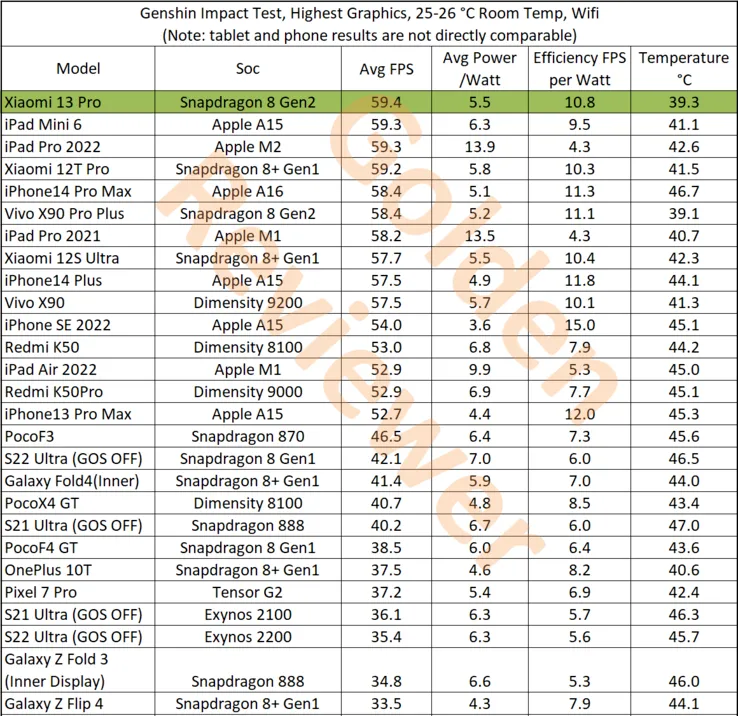
    This test, conducted by Golden Reviewer on the well-known game Genshin Impact, demonstrates the Snapdragon 8 Gen 2 in the Xiaomi 13 Pro’s performance, which easily exceeds all competitors. The Xiaomi 13 Pro has the highest tested raw performance, averaging 59.4 frames per second (FPS). Comparatively, the Dimensity 9200 on the Vivo X90 achieves 57.5 FPS while the iPhone 14 Pro Max and its A16 Bionic accomplish 58.4 FPS.

    With higher efficiency scores and lower power consumption than the Dimensity 9200, the Xiaomi 13 Pro and Snapdragon 8 Gen 2 also outperform it in terms of efficiency. However, the iPhone 14 Pro Max does have a slight edge in some areas. Most impressively, though, is that the Xiaomi 13 Pro achieves these performance benchmarks while remaining cooler than every other tested tablet. It only reaches a maximum temperature of 39.3°C. In contrast, the iPhone 14 Pro Max achieves a maximum temperature of 46.7°C, while a tablet like the iPad Pro 2022 only hits 42.6°C.

    Snapdragon

    Source: Golden Reviewer

  • Things iPhone 14 stole from Android

    Things iPhone 14 stole from Android

    Since Apple’s official unveiling of the iPhone 14 range has not yet settled, several of the announcements caught us off guard. Although I’ll reserve my opinions on the Apple Watch Ultra for another time, I do have some thoughts on it. Instead, I’m going to discuss a few features that the iPhone 14, namely the Pro and Pro Max, “stole” from earlier Android devices.

    Dynamic Island from LG V10

    iPhone 14 stole dinamic island

    The debut of the Dynamic Island along with the iPhone 14 Pro and Pro Max was perhaps the announcement made during Apple’s “Far Out” event that sparked the most heated debate. Since the release of the iPhone X, everyone has been requesting that Apple remove the notch, and they have finally done so. Although it’s still present on the iPhone 14 and iPhone 14 Plus, it makes sense from the standpoint of Apple wanting to provide a feature that sets its non-Pro and Pro models apart.

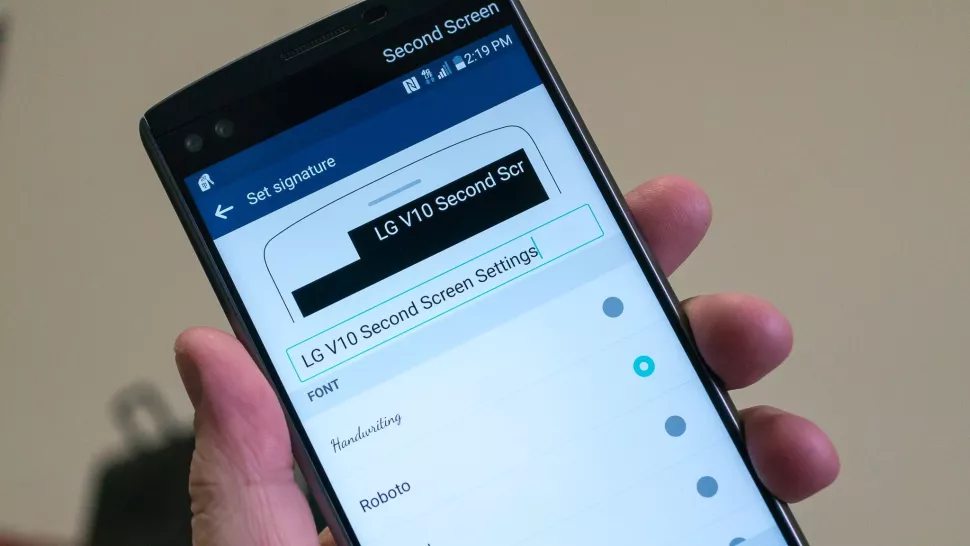
    While the Dynamic Island may appear to be a ground-breaking new feature, LG actually arrived first with the LG V10, despite the fact that this is accurate to some extent. LG introduced the “Second Screen,” which allowed users to read incoming notifications, make shortcuts for contacts, and control any music that was playing without using the primary display, in an effort to provide users a another method to interact with their alerts.

    It was one of those instances where LG tried to do something different, but the overall implementation and lack of support doomed the Second Screen from the start. The LG V20 kept the Second Screen around, providing essentially the same implementation, but it was still met with mixed results. Some V20 owners found this to be extremely convenient, while others found that “it doesn’t really add much to the experience.”

    Apple’s implementation of Dynamic Island merely operates in a completely different manner as opposed to introducing a new screen. The “Island” will display “Dynamic” information, such as the song’s album art, when you start playing music and quit the app. Additionally, instead of taking up your full screen for simple notifications like when FaceID is required, it turns them into a drop-down image tied to the Island.

    Although Dynamic Island isn’t an identical copy of LG’s Second Screen, it’s very obvious that there is some inspiration.

    Hole-punch selfie camera

    Hole-punch selfie camera

    Speaking of the notch, we were aware that Apple wouldn’t use it indefinitely. It was only a matter of time before the company made the “revolutionary” decision to use a hole-punched selfie camera cutout. Apple had to alter the modules it uses because of the different sensors that are integrated into the notch, and there are actually two cuts. The selfie camera is in one, while the proximity sensor and other Face ID-related components are housed in the other.

    With the Huawei Nova 4, the first business to completely do away with the notch, Huawei introduced the hole-punch selfie camera. However, it has been more difficult to find a smartphone that doesn’t include one since then. Many of the top Android smartphones are included in this, including the Galaxy S22 series, Pixel 6, ASUS ZenFone 9, and others.

    Apple is obviously falling behind the curve here, as a few phone manufacturers are starting to adopt an under-display selfie camera. Notably, the Galaxy Z Fold 4 and ZTE Axon 40 Ultra are two of the most recent models with a UDC; nevertheless, it wouldn’t be surprising to see further phones produced in the near future with such a change.

    Always-On Display

    Always on display

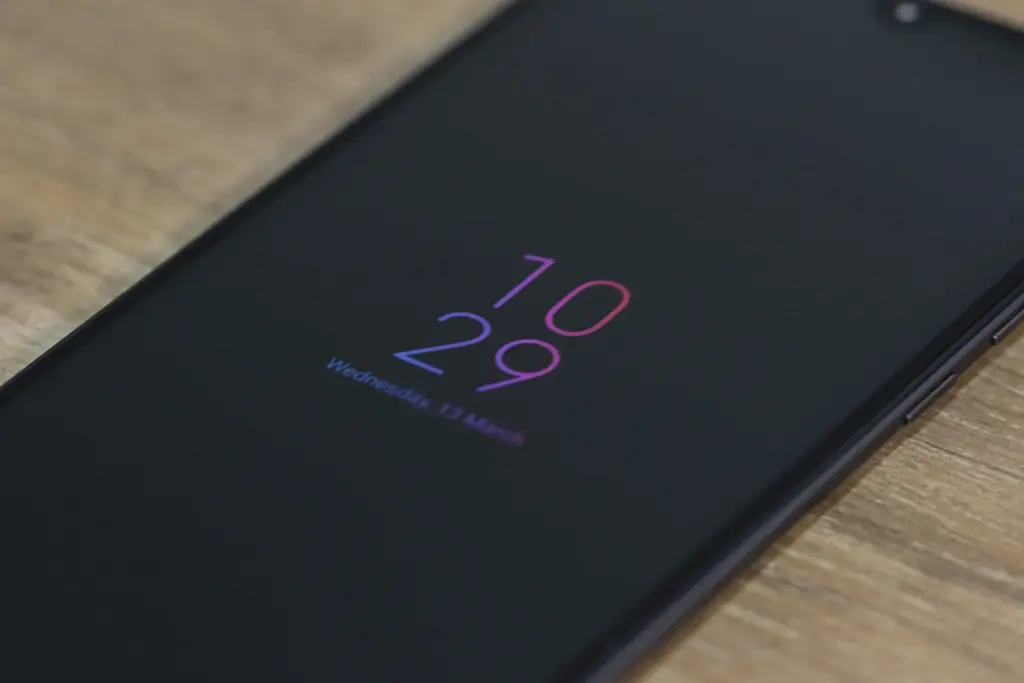
    Consider how long Apple has taken to provide a feature that it ought to have done years ago. Android phones have long had the Always-On Display (AOD), which allows users to quickly and easily see the time and any unread alerts. Following the announcement of iOS 16 and the addition of lock screen widgets, the writing was already on the wall.

    Then, one of the iOS 16 Developer Beta builds kind of let the cat out of the bag when several users discovered that the UI on their iPhone lock screens was unfamiliar. In actuality, Apple was simply putting the software in place to support the Always-On Display.

    In true Apple fashion, this isn’t available on all four iPhone 14 models, as the AOD is reserved solely for the iPhone 14 Pro and Pro Max.

    Dynamic Refresh Rate

    It’s still remarkable that Apple waited so long to implement quicker refresh rates and dynamic refresh rates considering how long Android users have enjoyed this privilege. ProMotion was created because we anticipated Apple would substitute “dynamic refresh rates” with some fancy marketing word. The iPhone 13 Pro and Pro Max from last year were the first devices to feature this, but they could only refresh the screen between 24Hz and 120Hz.

    Apple decided it was high time to slow things down even further with the release of the iPhone 14 Pro and Pro Max with the Always-On Display. With its ProMotion display, the iPhone 14 Pro range can now dynamically refresh the screen all the way down to 1Hz instead of bottoming out at 24Hz. Since stale content doesn’t need to be refreshed as frequently, the obvious benefit is to prevent battery drain anytime the AOD is shown on the iPhone.

    Due to the LTPO display, the OnePlus 9 Pro and Oppo Find X3 Pro were two of the first smartphones to provide dynamic refresh rates between 1Hz and 120Hz. And as you might anticipate, this has appeared on additional gadgets, like the Galaxy S22 Ultra and the current generation of iPhone 14 Pro models.

    Car Crash Detection

    crash dectection

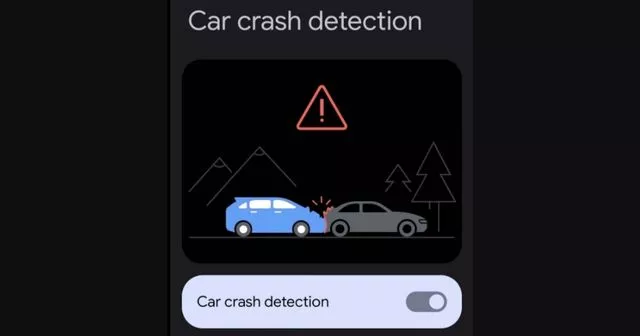
    If you were able to endure the full “Far Out” event, you might have become weary of the numerous commercials showcasing the positive effects the Apple Watch and iPhone have had on people’ lives. One new feature, though, is something that everyone should be grateful to Google for introducing with the Pixel back in 2020. As part of the March 2020 Feature Drop for owners of the Pixel 2, 3, and 4, Car Crash Detection was initially integrated to Android.

    The many motion sensors and ambient sounds on your Pixel phone were used to make this feasible. Your phone can sound an alarm in the event of a car mishap, prompting you to decide whether you require additional assistance. If no response is given, emergency services will be contacted and their location will be given by your Pixel.

    Apple is adding this to all of its iPhone 14 models, but the Apple Watch Series 8 is also the first wearable to do so. Apple has updated its three-axis gyroscope and combined it with a “high g-force accelerometer” that can measure up to 256 gs of force to enable this. Once an algorithm has determined whether an accident has happened, the iPhone and/or Apple Watch will inform emergency contacts and services if no answer is received within 10 seconds.

    In June 2022, it was discovered that the Car Crash Detection feature might not be exclusive to Pixel phones for much longer. Hidden code within Google’s Personal Safety app suggests that this functionality could make its way to other Android phones in a future update. But at the time of this writing, it looks like Google and Apple will be the only phone makers with this available.