Tag: gcam

  • How to activate secret Pixel camera setting that enhances the vibrancy of your images

    How to activate secret Pixel camera setting that enhances the vibrancy of your images

    The camera on the Pixel phones is one factor contributing to its success. Most phone cameras are unable to match the depth, clarity, and vivid/accurate colors.

    With each new edition of the Pixel camera, Google aims to surpass itself. Google first debuted the P3 wide gamut capture feature with the Pixel 8, which was accompanied by the Ultra HDR format of Android 14. Photos truly come to life with color thanks to the Display P3’s wide gamut capture.

    Display P3: What is it?

    Display P3 is a color space that combines the following:

    • DCI-P3 color gamut
    • D65 white point
    • sRGB gamma curve

    Gamma is a nonlinear operation that is used to encode and decode brightness in images and videos, for those who were not present at the popular photography club table over lunch. Gamma is defined as the relationship between the luminance and the numerical value of a pixel, which is an even simpler description. Your photographs would not capture color as your eyes perceive it if gamma were not present.

    A camera can prevent color and light tint by using white point, often known as white balance. Consider it in terms of the temperature of color. Are you recording in warm inside light or in the daylight? Your images may appear amber or blue if the white point is set incorrectly.

    The range of colors in a color space that a device can replicate is known as the color gamut.

    The Society of Motion Picture and Television Engineers and the Digital Cinema Initiatives developed Display P3, or DCI-P3, as a color space in an effort to standardize colors used in motion pictures. P3 focuses on what you see in movies. The coordinates of the red (x =.68, y =.332), green (x =.265, y =.69), blue (x =.15, y =.06), and white points (x =.134, y =.351) are even charted.

    Anyone wishing to improve their smartphone photography skills should think about utilizing Display P3, as it gives a far wider variety of colors than sRGB. All of the phones in that range support P3, so if you own a Google Pixel 8 or 9, you are in luck.

    How to enable P3 in the Pixel camera app

    A Pixel 8 or 9 phone is all you will need for this. It may be XL, Pro, or ordinary.

    • Open the Camera app – to begin, unlock your phone and open the camera app.
    • Open Settings – Ttap the gear icon in the lower left corner of the window to open Settings.
    • Open More Settings – From the Settings pop-up, tap “More settings.”
    • Enable P3 – Move the On/Off slider for that entry until it’s in the On position. You can now back out of settings. 
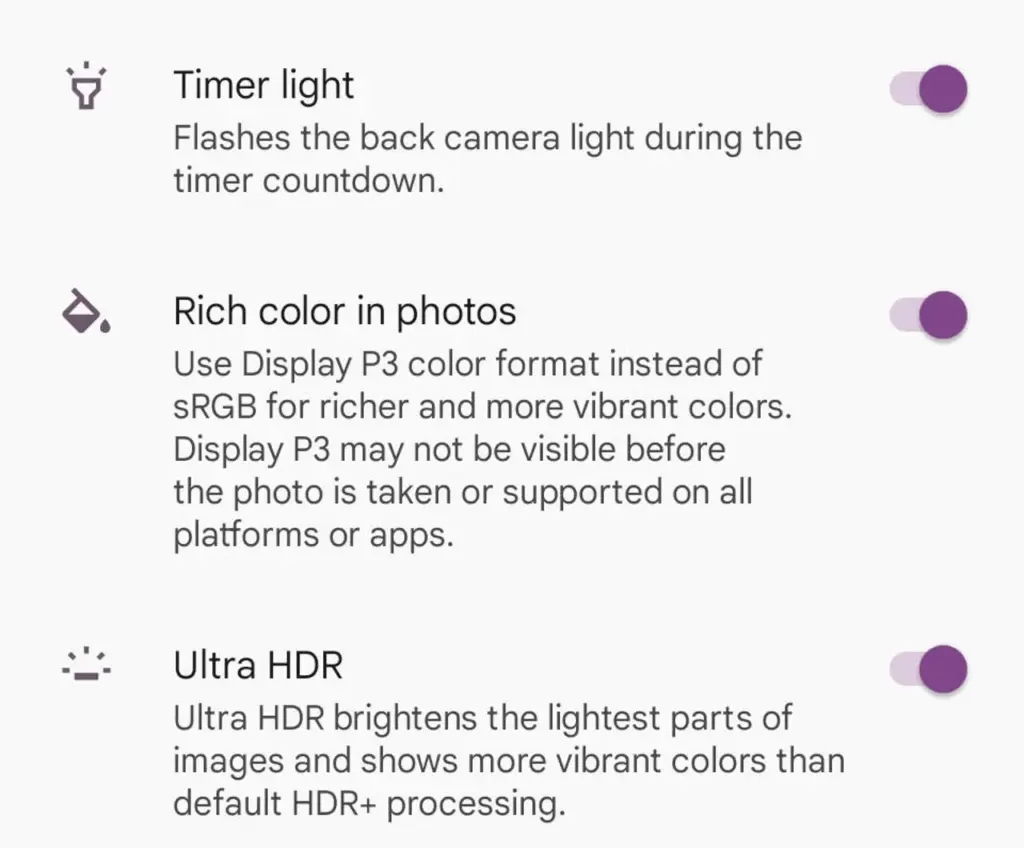
    pixel camera setting

    The color enhancement may appear mild on some devices and striking on others when you take pictures.

    It should be noted that not all devices are compatible with P3. You may use the P3 gamut to snap a picture and then send it to someone whose device does not support it. The shot will not look nearly as good on their device as it does on yours.
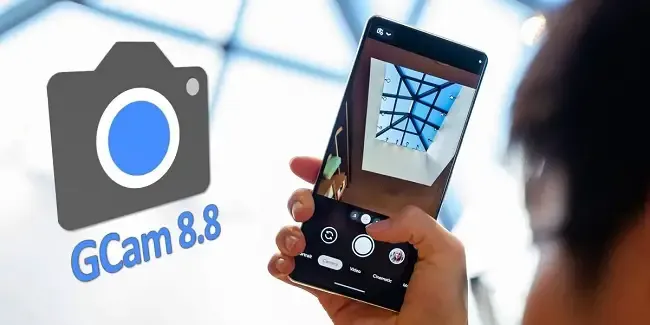
  • GCAM 8.8 – great potential with a lot of improvements

    GCAM 8.8 – great potential with a lot of improvements

    The best photography applications are found on Google Pixel smartphones, which begs the issue of whether they may also be used on other Android devices. The solution is found in GCam, a customized version of the Google camera that makes camera app capabilities available on mobile devices other than Pixel models. This includes the most recent 8.8 version of Shamim, a robust and extremely flexible program.

    Modders that are committed to providing their own versions of the Pixel camera app in the form of GCam do likewise as Google keeps updating it. For the majority of devices, the most recent version, 8.8, offers a variety of fantastic possibilities. Iterations in the past, such as the one from BSG, were among the first to be made available but lacked the sophisticated tuning possibilities present in the app. Shamim’s 8.8 version, however, offers a lot more customization.

    32 techweek

    Gcam 8.8 unlocks the potential of your mobile

    As soon as Google Camera 8.8 was released, the first modders started to release their own versions of the software, which is still under development. While one of the most well-known modders, Arnova8G2, has yet to release the current version beta, others are steadily updating their improvements. Shamim, whose GCam 8.8 is highly thorough, is one among them.

    Shamim’s 8.8 update brings the app’s foundation up to date with the most recent Google camera version and includes a number of sophisticated settings. Interestingly, it also provides XML configuration options for every user. allowing anyone to quickly and easily customize the GCam to their device. Simply download the XML from the phone and apply it to the GCam settings to accomplish this.

    On most phones, images taken using Shamim’s app have a tendency to be a little dark by default and occasionally have greenish tones. This was noticed after the app was installed on a Xiaomi handset. It is advised to go to Celso Azevedo’s website to find an XML file appropriate for a certain phone.

    Once you download the file to the mobile device, move it to the “SGCAM/8.8.224/XML” folder. Shamim’s GCam will then automatically load the file upon starting and restart with the most appropriate settings for the phone. According to tests, this method works correctly, at least as far as a modified Google camera apk can function. If the XML does not work or requires more precise adjustments, users can delve into the advanced settings until they achieve their desired results.

    Loaded with improvements

    Shamim’s 8.8 stable version is available for download on Celso Azevedo’s webpage. As is often the case with GCam, the app may not function correctly on all Android devices. Users must try their luck and adjust the parameters as much as possible. It is also worthwhile to locate the configuration XML file for the mobile device installing the GCam, as this can save time and typically yields better results.

    For its outstanding quality, the Google Pixel camera app is well-known. Some Android devices have been modified by modders. One such adaptation is GCam. For phones other than Pixels, Shamim’s 8.8 version offers powerful, highly customizable camera software. New and upgraded versions of this app constantly offer increased capabilities and customization choices.

    For those interested in trying this camera app on their Android device, Shamim’s 8.8 stable version can be downloaded from Celso Azevedo’s webpage. Results may vary on different devices, but users can adjust parameters and find the right XML file for better results. GCam is constantly evolving, so Android users can expect even more powerful camera software in the future.

    Overall, the GCam is a great option for anyone looking to improve the camera experience on their non Pixel Android device. And with the latest release, it’s easier than ever to configure the app to your specific phone. Why settle for a bad camera app? Google’s software is great – why not use it on your device? Give the GCam a try today.

  • Download and install Google Camera for Xiaomi Poco F4 | GCam APK

    Download and install Google Camera for Xiaomi Poco F4 | GCam APK

    Xiaomi Poco F4

    With a Qualcomm Snapdragon 870 SoC and a 6.67-inch full-HD+ AMOLED screen with a 120Hz refresh rate, the Poco F4 5G was introduced in India. The gadget is powered by MIUI 13 on top of Android 12. Triple rear cameras on the Poco F4 include a 64 MP primary sensor, an 8 MP ultra-wide camera, and a 2 MP macro camera.

    We will share the most recent Google Camera for the Poco F4 with you in this article. The Google Pixel’s default camera app is called Google Camera. The camera uses the most recent HDR+ technology, which enhances image quality, particularly on low- and mid-end smartphones. The app also offers slow motion, lens blur, 60 frames per second video, portrait mode, motion photographs, and Night Sight.

    This tutorial is for you if you want to install the Google Camera on your Poco F4. Thank you to a few talented and dedicated developers, namely Arnova8G2, BSG, and Urnyx05, who are working hard to port GCam APK files to the majority of devices out there. The Poco F4 devices now support the Google Camera port.

    Xiaomi Poco F4 Device Overview

    The 6.67-inch AMOLED display on the Xiaomi Poco F4 has a refresh rate of 120 Hz. It has a 20:9 aspect ratio and an FHD+ display with a resolution of 1080 x 2400 pixels. Peak brightness for the screen is 1300 nits. The Qualcomm Snapdragon 870 processor is housed inside and was created using a 7nm manufacturing technique. One Kryo 585 core runs at 3.2 GHz, three Kryo 585 cores run at 2.42 GHz, and four Kryo 585 cores run at 1.8 GHz, making it an octa-core CPU. We have the Adreno 650 to handle activities that require a lot of graphics. The smartphone comes pre-installed with the MIUI 13 skin over Android 12.

    In terms of optics, we have a single selfie camera up front and a triple camera arrangement at the back. The 64 MP primary sensor and f/1.8 lens on the triple rear camera system are joined by an 8 MP ultrawide sensor and f/2.2 lens, and a 2 MP macro sensor and f/2.4 lens. The front-facing selfie camera has a 20 MP main sensor and an f/2.5 lens. The front camera can only record videos in 1080p while the rear camera arrangement can shoot 4K videos at 60 frames per second.

    The smartphone comes in four storage options: 128GB internal storage + 6GB RAM, 128GB internal storage + 8GB RAM, 256GB internal storage + 8GB RAM, and 256GB internal storage + 12GB RAM. We do not get a MicroSD slot for storage expansion. In terms of communications, we get Wi-Fi 802.11 a/b/g/n/ac/6, Bluetooth 5.2, GPS, NFC, Infrared port, and USB Type-C 2.0. And for sensors, we get a side-mounted fingerprint sensor, accelerometer, gyro, proximity, and compass.

    Powering it all is a 4500 mAh battery that can be topped up quickly using a 67W power adapter. The company claims that the phone can go from 0% to 100% in just 38 mins. The smartphone is available in three color options: Moonlight Silver, Night Black, and Nebula Green.

    Download Google Camera Port for Poco F4

    Also Read: Download Google Camera 8.0 APK from Pixel 5 | GCam 8.0 APK Mod

    Steps to install Google Camera on Poco F4

    The Google Camera APK file installation process is as simple as installing any other third-party APK file. You don’t have to root your device for this.

    • Download the GCam APK file from the download link above and tap on it.
    • Make sure that the Unknown Sources option is enabled on your device. To do this, go to the device Settings menu > Security/Privacy > enable it. [If already enabled, skip to the installation]
    • It will launch the package installer and tap on the Install button.
    • Once the installation is done, open and use it.
    • Enjoy!

    Still, if the camera app doesn’t work, enable the Camera2api by using build.prop (Not for every device)

    Persist.vender.camera.HAL3.enable=1

    I hope this guide will help you a lot, and you have now successfully installed the Google Camera ported app on your Poco F4 handset. If you’re facing any trouble, feel free to write it down in the comments below.

  • Download latest GCam port for your device

    Download latest GCam port for your device

    The software power in image and video processing is one of Google and its products’ most intriguing potentials. The ports of the Google Camera are therefore much sought after by other Android smartphone manufacturers. In actuality, a lot of customers like installing and utilizing the Google Camera ports over the Stock Camera applications developed by other manufacturers.

    Google Camera (Gcam), often known as Pixel Camera, is an Android camera phone application. It is evident that GCAM creates images that are more faithful to the source and have a wider dynamic range than the typical camera. It is renowned primarily for its incredible features that enable users to generate “Photo Spheres,” 360-degree panorama photos, etc.

    gcam google camera port

    How to download GCam 8.5.3 on your device

    The latest version of the GCam, 8.5.300, is available thanks to the developer BSG one of the most active since the beginning in the attempts to make the software available for non-Pixel devices; given that you meet the aforementioned requirements. In reality, for the attempted series it does not harm, the application could be functional even with devices equipped with previous Android versions.

    You only need two requirements: run Android 10 or higher and have the Camera2 API. The main requirement for using the mod is that the device supports the Camera2 API. You can check this using a special application.

    Download GCam 8.5.300 APK

    Disclaimer: This application provided by BSG. If the application is not installed on your mobile or there is any problem with your mobile being installed then we will not be responsible for it. [Install own your risk]

    Changelog:

    • First release 8.5.300
    • General settings are added: “Interface”, “Hardware Level”, “Activate HDRNET”, google AWB and DEV settings.
    • Added settings divided into modules: “model”, “preview format”.

    If you meet both requirements, you have almost everything done. Installing the GCam 8.5.3 is something extremely easy that you can do in a few steps:

    1. Enter the BSG repository and click on ‘Download
    2. Once the APK has been downloaded, you can install it.
    3. Open the GCam app installed on your smartphone and you’re done

    The process is as simple as downloading the APK and installing it. You shouldn’t do anything else. Of course, depending on the device you have, you will be able to access some functions or others of the GCam. Not all sections are compatible with all smartphones.

  • Google Camera (GCam) Mod for all Devices [v8.4.6]

    Google Camera (GCam) Mod for all Devices [v8.4.6]

    google camera app

    Download Google Camera (GCam) Mod For All Android Smartphones [v8.4.6] – Google Camera (Gcam), also called Pixel Camera, is a camera phone application developed by Google for Android. In comparison with the normal camera, it becomes clear that GCAM produces pictures that are true to the source and has a better dynamic range. It is chiefly known for its awesome features that allow the user to create a ‘Photo Sphere’, a 360-degree panorama photo, etc.

    Today we have very good news: the GCam version 8.4.6 is now available with a MOD compatible with a large part of Android phones. We’ll tell you everything you need to know and how to install it!

    You only need two requirements: run Android 10 or higher and have the Camera2 API. The main requirement for using the mod is that the device supports the Camera2 API. You can check this using a special application.

    If you meet both requirements, you have almost everything done. Installing the GCam 8.4.6 is something extremely easy that you can do in a few steps:

    1. Enter the BSG repository and click on ‘Download
    2. Once the APK has been downloaded, you can install it.
    3. Open the GCam app installed on your smartphone and you’re done

    The process is as simple as downloading the APK and installing it. You shouldn’t do anything else. Of course, depending on the device you have, you will be able to access some functions or others of the GCam. Not all sections are compatible with all smartphones.

  • Download Google Camera (Gcam) for Exynos devices

    Download Google Camera (Gcam) for Exynos devices

    If you enjoy mobile photography, particularly on Android devices, you should be aware of the GCam app. The Google Camera (GCam) app does not require any introduction because it is one of the best third-party camera apps for a non-Pixel Android device. Whether you have a mid-range or flagship Android device with a better camera, most images will lack crisp details and color accuracy if you don’t have the Google Camera app. We’ve included a link to download Gcam for all Samsung Exynos devices [GCam ZCam APK] below.

    If you don’t know, you might be wondering why Samsung Exynos? Because the majority of Samsung devices (global) use Exynos processors, users are unable to find a compatible or stable Gcam app for those specific models. While Snapdragon-powered devices are more developer-friendly than Exynos variants. As a result, you will receive GCam ported APK files for the majority of Snapdragon Samsung Galaxy devices. However, you can download a ZCam ported APK file of GCam for the Samsung Galaxy Exynos variant from the link provided below.

    google camera

    We all know that Samsung Galaxy smartphones have excellent cameras with a variety of modes and features such as Portrait mode, Slow-Motion mode, Panorama mode, improved hybrid zooming capability, and more. While newer Samsung Galaxy devices also include super steady video recording, night mode, sharp daylight images, up to 8K video recording, up to 100x hybrid zoom, and other features. However, when it comes to the Google Camera app, no other stock camera apps stand out from the crowd.

    With the help of powerful software development, the Gcam app delivers a stunning color contrast ratio with a better dynamic range, exposure level, etc. It features a simple camera interface with loads of advanced settings, Google Lens integration, Night Sight mode, Portrait mode with focus slider, Slow-Motion, HDR+, HDR+ Enhanced, Playground (AR Stickers), Lens Blur, PhotoSphere, RAW image option, improved video stabilization, etc.

    The GCam app also provides better edge detection in portrait shots, nice shadow & depth in low lighting conditions, and color levels that are close to reality, all of which contribute to capturing a better image. At the time of writing, ZGCam Exynos had shared ZGCam 692. (latest version). This developer deserves all of the credit. Now, without further ado, let’s get to the download link and installation instructions.

    Download Link

    • Google Camera 8.1 for Samsung Exynos: Download
    • Google Camera 7.4 for Samsung Exynos v1.03359: Download
    • Google Camera 7.4 for Samsung Exynos V1.03344: Download
    • Google Camera Samsung Exynos 3.8.01149: Download
    • Google Camera Samsung Exynos 3.8.01106: Download
    • Google Camera Samsung Exynos 3.8.01024: Download
    • Google Camera Samsung Exynos 3.8.00990: Download
    • Google Camera Samsung Exynos 3.8.00917: Download
    • Google Camera Samsung Exynos 3.8.00838: Download
    • Google Camera Samsung Exynos 3.8.00703: Download
    • Google Camera Samsung Exynos 3.8.00692: Download

    Download Config for ZGCAM

    Google Camera Samsung Exynos Installation

    1. Download the GCam APK file on your device.
    2. Now, enable Unknown Sources options from the device Settings > Security or Privacy.
    3. Tap on the GCam APK file again to install it.
    4. Launch the GCam app and give all the required permissions.
    5. You’re done.

    We hope you’ve found this article useful and you can now use the GCam ported app on any of your Samsung Galaxy Exynos variant devices. Feel free to ask in the comments below for any queries.

  • Install GCAM 8.0 MOD for all Android devices

    Install GCAM 8.0 MOD for all Android devices

    One of the best apps for Android smartphones out there is Google Camera from the Pixel line up. A brand new Google Camera 8.0 APK with stunning features was launched by the search engine giant with the launch of Pixel 5G and Pixel 4a 5G. While you might not be able to mount the original Google Camera on third-party phones, all from Pixel 5, here is the newest Gcam 8.0 Mod for all Android smartphones by renowned developer Arnova.

    Ultrawide lens support or Google Cameras, Cinematic Pan for images, Night Sight in Portrait Mode, Portrait Light, New Google Photos Editor, and many more are some of the main features of Google Camera 8.0 as mentioned in our previous article. New features in the Pixel 5 camera app include

    We already detailed the original Google Camera 8.0 in our previous post, along with a Gcam 8.0 Mod by the developer cstark. Here is the universal GCAM 8.0 Mod by Arnova that can work with many modern smartphones running Android 11, 10, 9 Pie, or even older. The app has been tested working on the following Android devices from Google’s Pixel lineup to many third-party OEM smartphones from Samsung, OnePlus, Xiaomi, Huawei, Asus, Moto, Nokia, and more.

    • Oneplus 8 Pro, Oneplus 7 Pro, Oneplus 7T Pro, Oneplus 8T, Oneplus Nord, S20 Ultra, Oneplus 7
    • ZenFone 6, Poco x3, Redmi Note 7 Pro
    • Mi9TPro, Mi 10 ultra, Mi Note 10 pro, Mi Note 10 lite, Mi 10, Redmi Note 9 Pro, Oppo Find x2 Pro, Realmex2pro
    • redfin Pixel5, bramble Pixel4a(5G), sunfish Pixel4a, coral Pixel4XL, flame Pixel4,
    • bonito Pixel3aXL, sargo Pixel3a, crosshatch Pixel3XL, blueline Pixel3,
    • taimen Pixel2XL, walleye Pixel2

    Download Latest GCAM 8.0 MOD APK For All Android Smartphones

    Here is the first stable Gcam 8.0 mod for all Android devices by the renowned developer Arnova. The stable Gcam 8.0 mod by BSG (or MSG) is also listed. It has been tested on 44 Android smartphones. The latest Gcam supports Android 11, 10, or even older 9 Pie. As for the Pixel smartphones, you can install the Google camera app by developer cstark.

  • 4K 60fps video capture mode will be available on Pixel

    4K 60fps video capture mode will be available on Pixel

    Google’s Pixel portfolio has raised the bar when it comes to mobile image manipulation the past few years, but the company has struggled to offer a comparable experience when it comes to filming images. The 2018 Pixel 3 suffered from a bad audio recording problem and last year’s Pixel 4 entered the market with 4 K video capture which was limited at 30fps while most other 2019 flagship smartphones were capable of 4 K video capture at 60fps.

    google camera pixel 4

    Once the Pixel 4 was introduced, Google said that the feature was not incorporated solely because 4 K video capturing on smartphones wasn’t nearly as commonplace as 1080p. This may certainly be accurate, but a later study showed that the Pixel 4 actually didn’t have enough bandwidth to handle simultaneous 4 K 60fps feeds from the phone’s two rear cameras. Other manufacturers have gotten around this issue by limiting 4K/60 video capture to just one camera or reducing the bit rate slightly.

    Since the Pixel 4 just receive a feature drop this past week, if Google doesn’t figure out a way to implement 4K/60 video capture on the Pixel 4, don’t expect it to show up until later this spring. If the feature is only made available on the Pixel 4a, Google will have some explaining to do.

  • Install GCam 7.3 on any Android device

    Install GCam 7.3 on any Android device

    One of the wonders of Android devices is the Google Phone. It is Google Pixel smartphones ‘ holy grail. After all, while other companies rely on multiple-cameras to produce high quality images, powerful software supports Google Pixels. This technology has blessed pixel smartphones making them some of the best smartphones in the photography industry. They have official support for advanced features such as portrait and astrophotography mode. Recently Google rolled out the Google Camera App v7.3 with several new features and enhancements. The group is strong and now all Android smartphones have Gcam 7.3 app.

    Gcam?

    In short, Gcam is a plugin aimed at bringing the Google Camera app to multiple smartphones and ensuring all features work with them. There are several variations of Gcam. Some are intended for multiple Android devices, while others are specifically designed for a single smartphone. Multiple developers are working on Gcam and we have today an active community of users using the Mod.

    gcam

    Gcam 7.3 features:

    • Automatic DND mode while using video-recording.
    • Re-arranged settings UI.
    • 24FPS video recording.
    • Exposure controls to adjust brightness and HDR of your photo.
    • Astrophotography implemented to Night Sight.
    • Received Frequent Faces to help you capture Top Shot photos.
    • Touch and Hold shortcut in the shutter button to capture Top Shot photos.

    How to install Gcam 7.3 on your device:

    1. Download the APK provided (It’s a beta build, so might carry some bugs) (Click Save As)
    2. Select and Install it ( You’ll be prompted with the request for allowing app installation from external sources, don’t worry the app is safe).
    3. Open the Google Camera once the icon appears in your launcher
    4. Done!
    5. For older versions of Android, you can try and download Gcam 7.2, 7.1 or any mod that is compatible with your version.