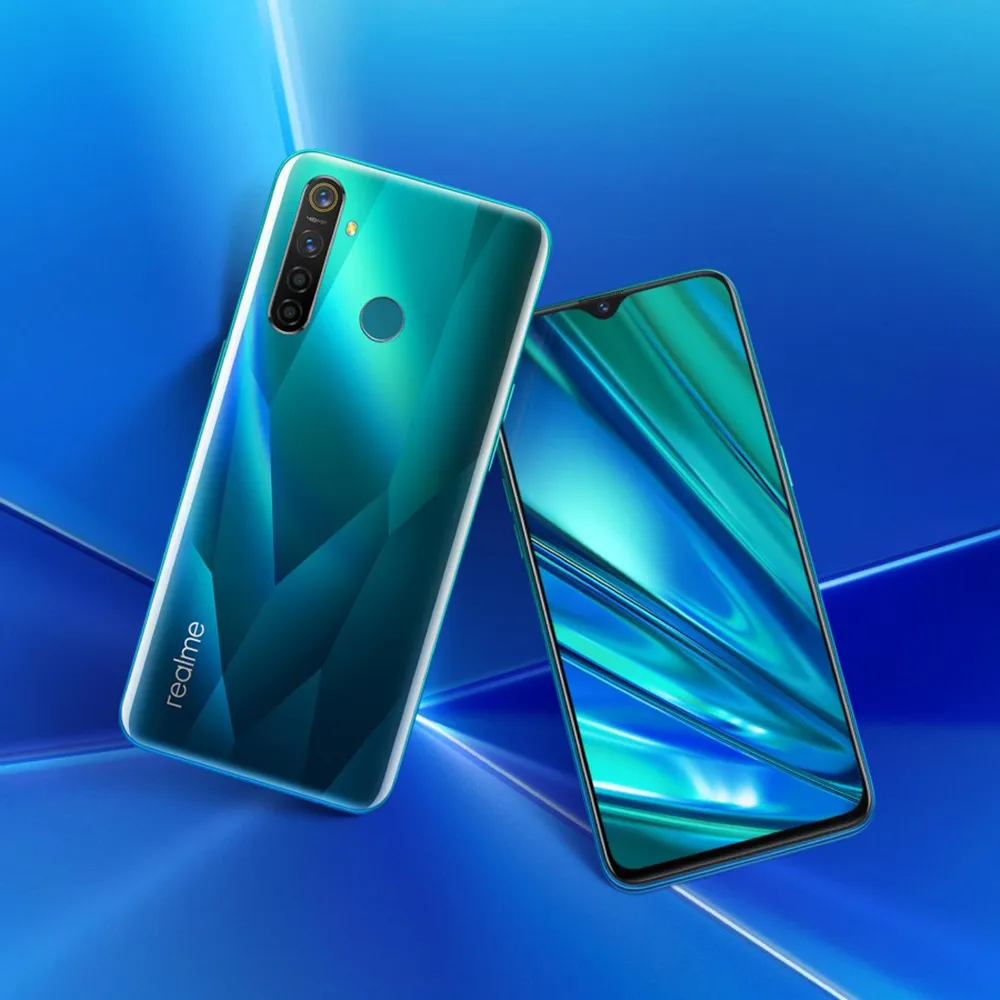
Tag: experience

  • 10 settings you need to change to improve your Pixel experience

    10 settings you need to change to improve your Pixel experience

    While Pixel phones offer many beneficial features by default, altering these specific settings can drastically affect The Google Pixel 9a could be the best-value phone of 2025, especially now that it has flagship-level AI capabilities, a dazzling 120Hz display, and a large battery at a more inexpensive price. However, like with every Pixel phone, the most useful functions are frequently disabled by default.

    These suggestions are for a Pixel 9a running Android 15. The specific menu locations may differ slightly depending on the Pixel model and Android version you’re using, but the settings are broadly available throughout recent Pixel generations.Enhance your user experience.

    Use smooth display

    Pixels continue to ship with a dazzling Actua 120Hz OLED panel, which is set to a more cautious 60Hz by default. It’s fine for battery conservation, but if you prefer buttery-smooth scrolling and animations that showcase the screen’s full capability, enable Smooth Display.
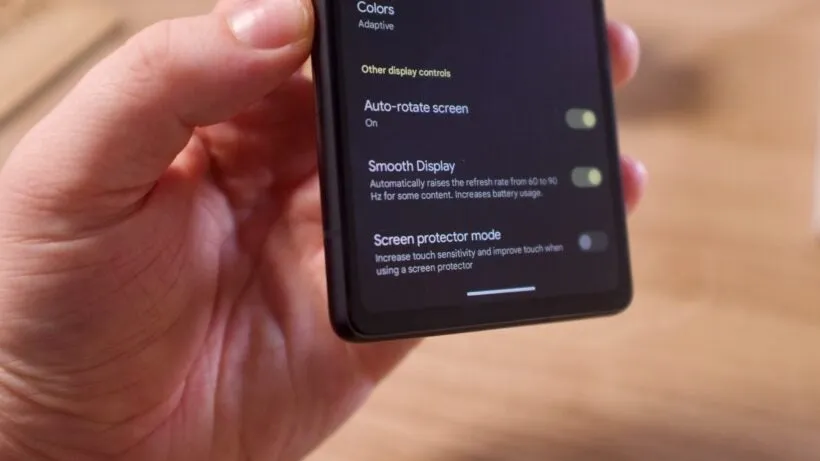
    pixel smooth display

    Go to Settings > Display > Smooth Display and turn it on. You’ll notice an immediate improvement in responsiveness when scrolling through social networks or navigating the UI.

    Use “At a Glance”

    When you enable the Pixel’s smart widgets, the lock screen may transform into a small command center. At a Glance displays travel information, weather alerts, calendar events, and more.
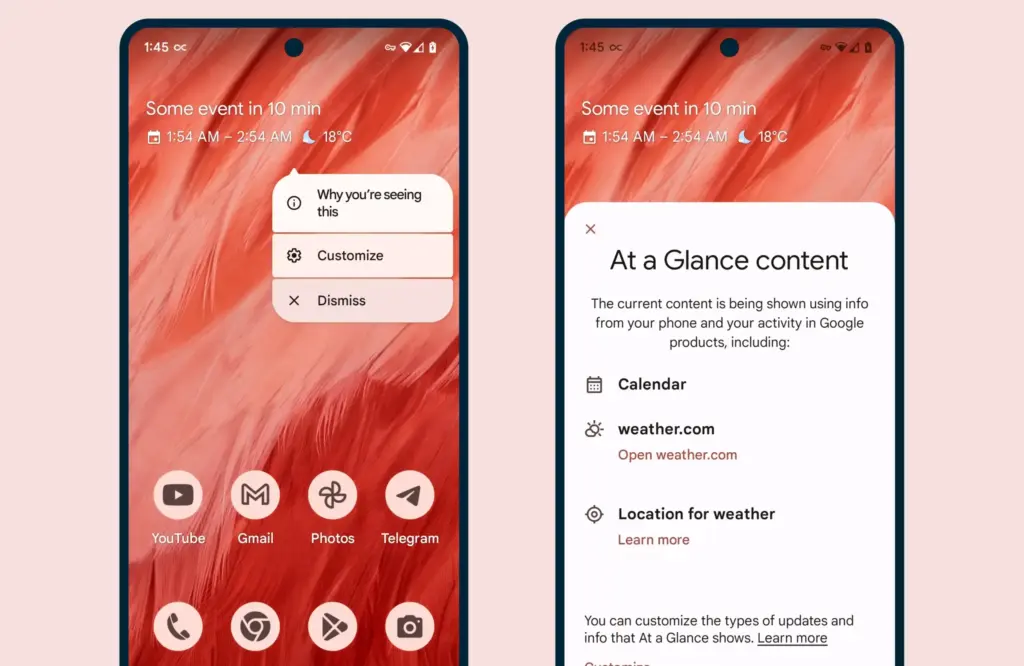
    at a glance

    All of this happens via the Pixel Launcher. Tap and hold any available space on the home screen, then pick Home settings, followed by the At a Glance settings button. There, you may control what kind of information display and what data sources it uses (with your permission, of course).

    As an added bonus, the At a Glance widget on your home screen will display this information, increasing your chances of receiving notifications and updates.
    Pixel 9 pro

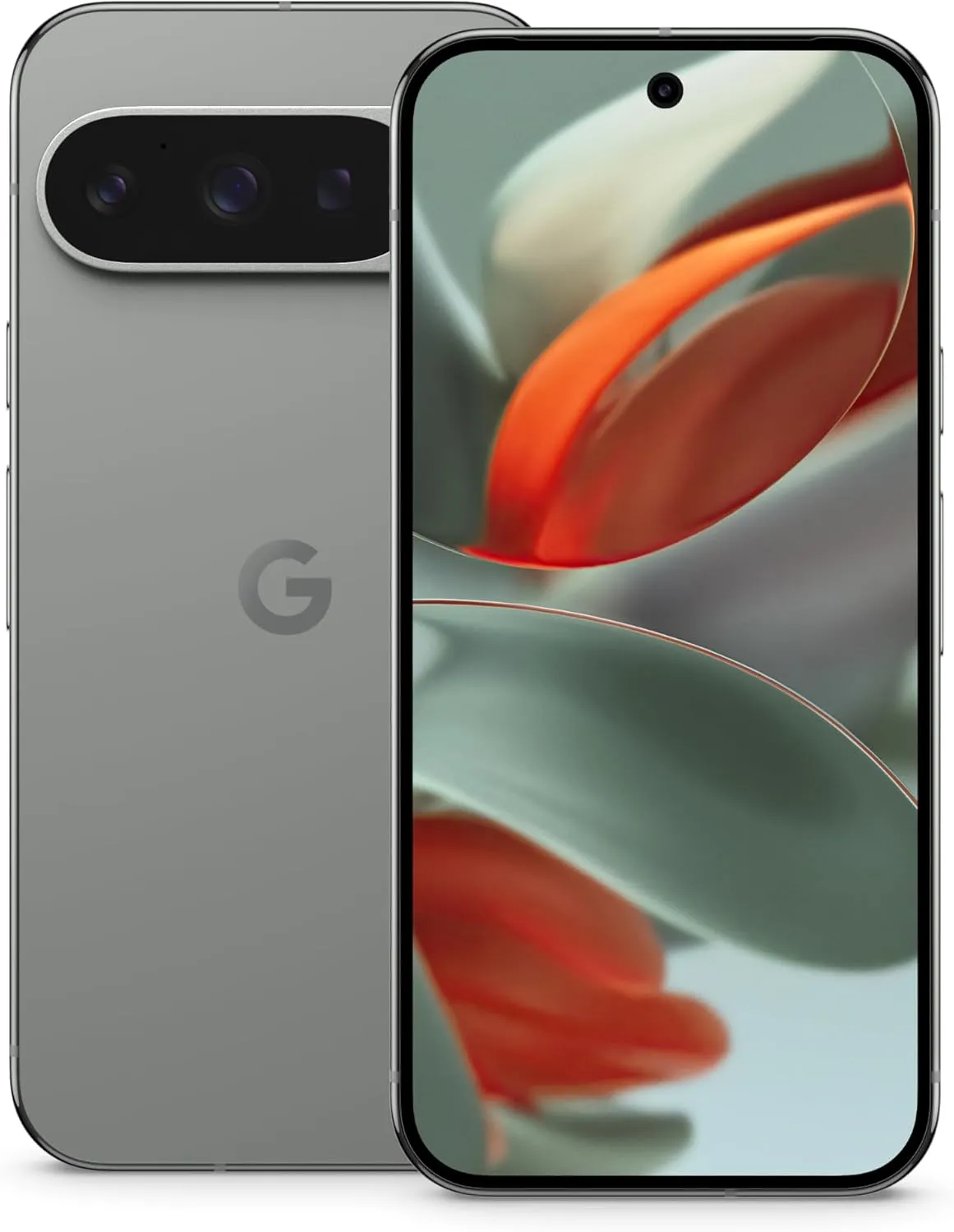
    Google Pixel 9 Pro

    Pixel 9 Pro with Gemini is the most powerful Pixel yet, and now comes in two sizes; it has a pro-level camera and it’s engineered by Google, so it gets the best of Google AI first

    $999$799Amazon

    Use caller ID and spam ID to save your time

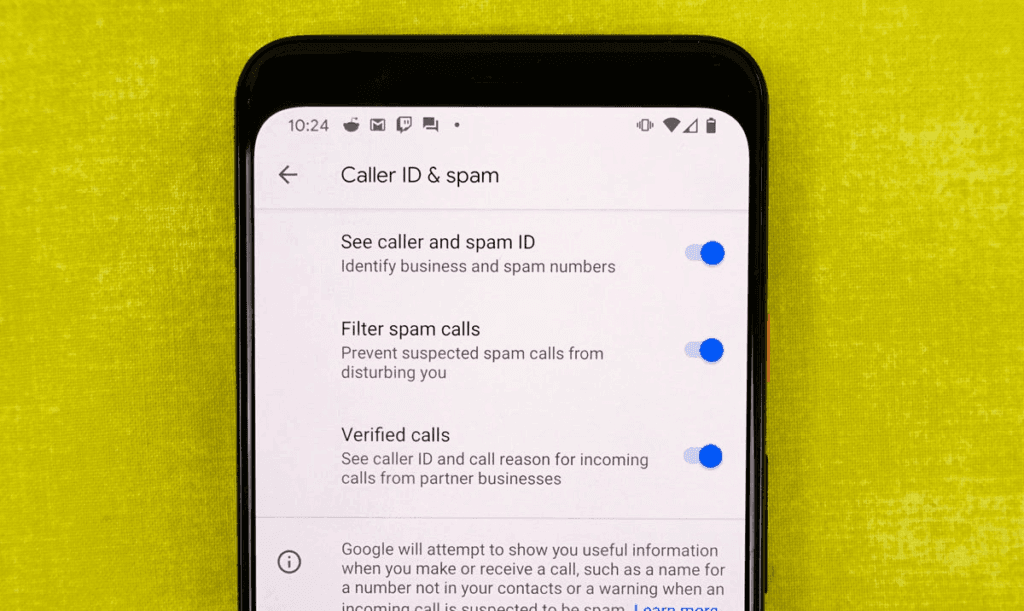
    Pixel phones actively filter out spam and unrecognized numbers. Google’s Caller ID and Spam feature detects robocalls and other unwanted calls before you answer.
    caller ID and spam ID

    Open the Phone app and navigate to Settings > Caller ID and Spam. Enable See caller and spam ID, and incoming calls will have a vivid red alert that cannot be ignored. If your Pixel has the option to filter spam calls, I recommend turning it on, as this prevents those calls from ringing your phone and instead sends them directly to voicemail.

    Dismiss notifications across Pixel devices

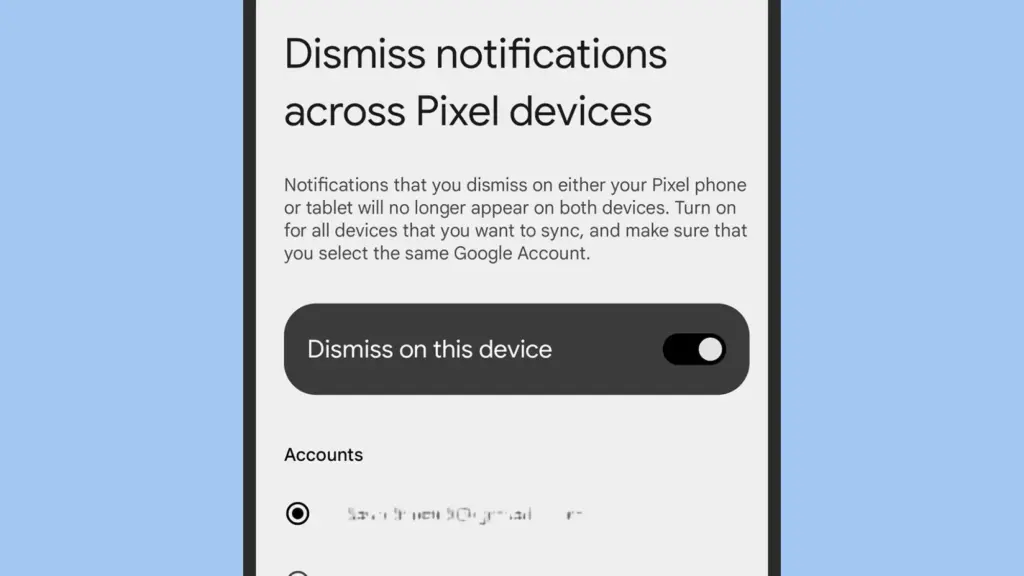
    This one is for the Pixel fanatics out there. If you have multiple Pixel devices signed in with the same Google account, you can sync notification dismissals between them.
    Dismiss notifications across Pixel devices

    Go to Settings > Notifications > Dismiss notifications from all Pixel devices. Toggle Dismiss on this device, grant notification access, and select the apps you wish to sync. Repeat the process on all of your Pixel devices to ensure that you never see the same notice twice.

    Enable app suggestions on the home screen

    The Pixel Launcher may provide app suggestions based on personal information such as location, time of day, and usage habits.

    android app suggestion

    Tap and hold an available space on the home screen to access Home Settings > Suggestions. Enable Suggestions on Home Screen, then remove at least one static symbol from the bottom row of your Home Screen. That location will turn yellow and begin to change dynamically based on usage trends. You may even do this on the entire row if you like.

    Increase battery life using Adaptive Battery and Extreme Saver.

    Pixels already have a long battery life, but Google’s battery-saving features extend it much further. Adaptive Battery learns which apps you use the most and reduces power to the others. Extreme Battery Saver turns down non-essential apps to save power for days.

    Enable both under Settings > Battery > Battery Saver > Adaptive Battery and Battery Saver > Extreme Battery Saver. You can also set schedules so that they activate automatically when needed.

    Use Pixel Quick Tap feature

    The Pixel’s Quick Tap function allows you to double-tap anywhere on the phone’s back to perform customized actions, but it is not activated by default. You can configure it to start the camera, take a screenshot, pause music, or open your preferred app.

    Go to Settings > System > Gestures > Quick Tap, then enable it and select your chosen shortcut. Mine is set to toggle the flashlight, which is quite useful.

    Enhance Now Playing on your lockscreen

    Now Playing is a great tool that automatically recognizes songs that are playing around you. The phone displays that information on your lock screen in a passive manner. Even though the database is remarkable and entirely on-device, it cannot identify every song out there. This is where Google Search comes in.

    636427227765739451 742d249ba0

    Go to Settings > Display > Lock Screen > Now Playing and select Identify Songs Playing Nearby. Then, enable the Show search button on Lock Screen. The next time Now Playing fails, hit the lock screen icon to transmit the audio fingerprint to Google Search for a second viewpoint. It does not always work, but when it does, you will be glad you tried.

    Change your lock screen privacy settings

    By default, notifications appear on your lock screen, so others may view your messages. I always change this option on my new devices.

    Go to Settings > Notifications and turn Sensitive notifications off. This keeps the sender and app visible while hiding the message contents. To ensure utmost privacy, go to Notifications on the lock screen and select Don’t show any notifications.

    Make use of Live Translate and Interpreter Mode

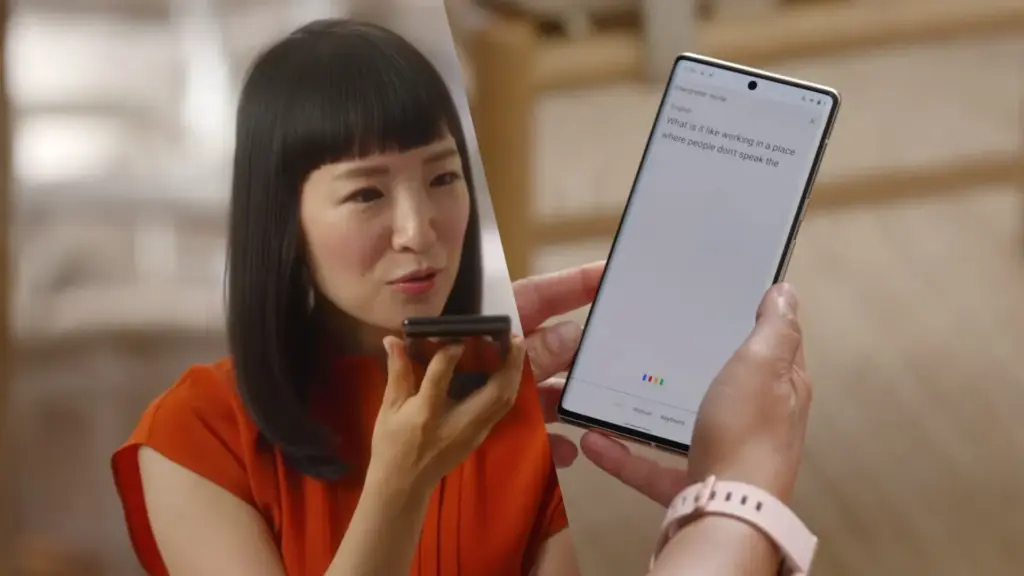
    Tensor-powered Pixels offer offline translation tools. Live Translate enables you to automatically translate text messages in real time.
    pixel 6 live translate

    Go to Settings > System > Live Translate, then Add a language. Depending on your choices, you’ll have access to services such as in-message translation, camera view translation, and live captioning for videos. Interpreter mode still requires Google Assistant, which is becoming less important now that Gemini has taken over.
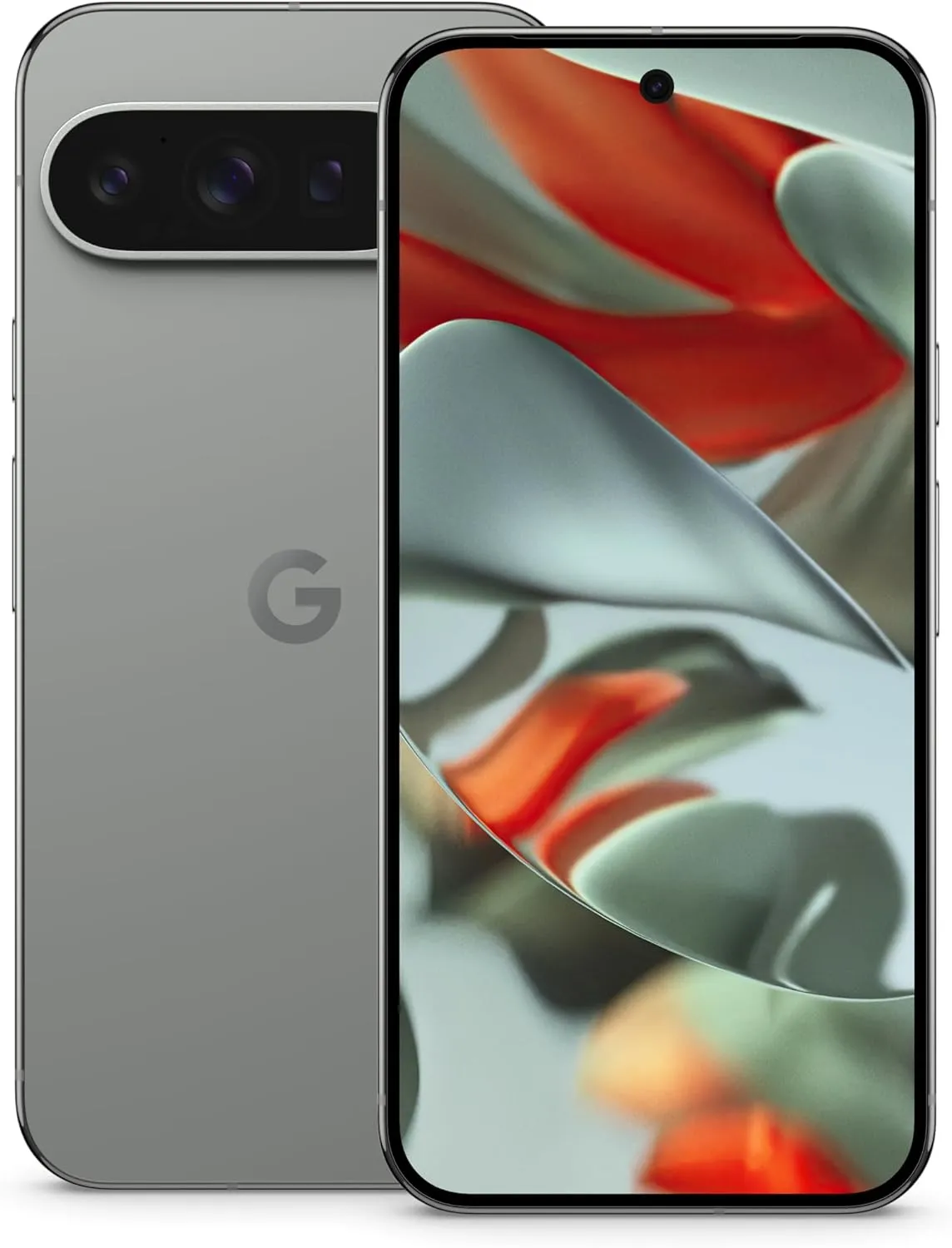
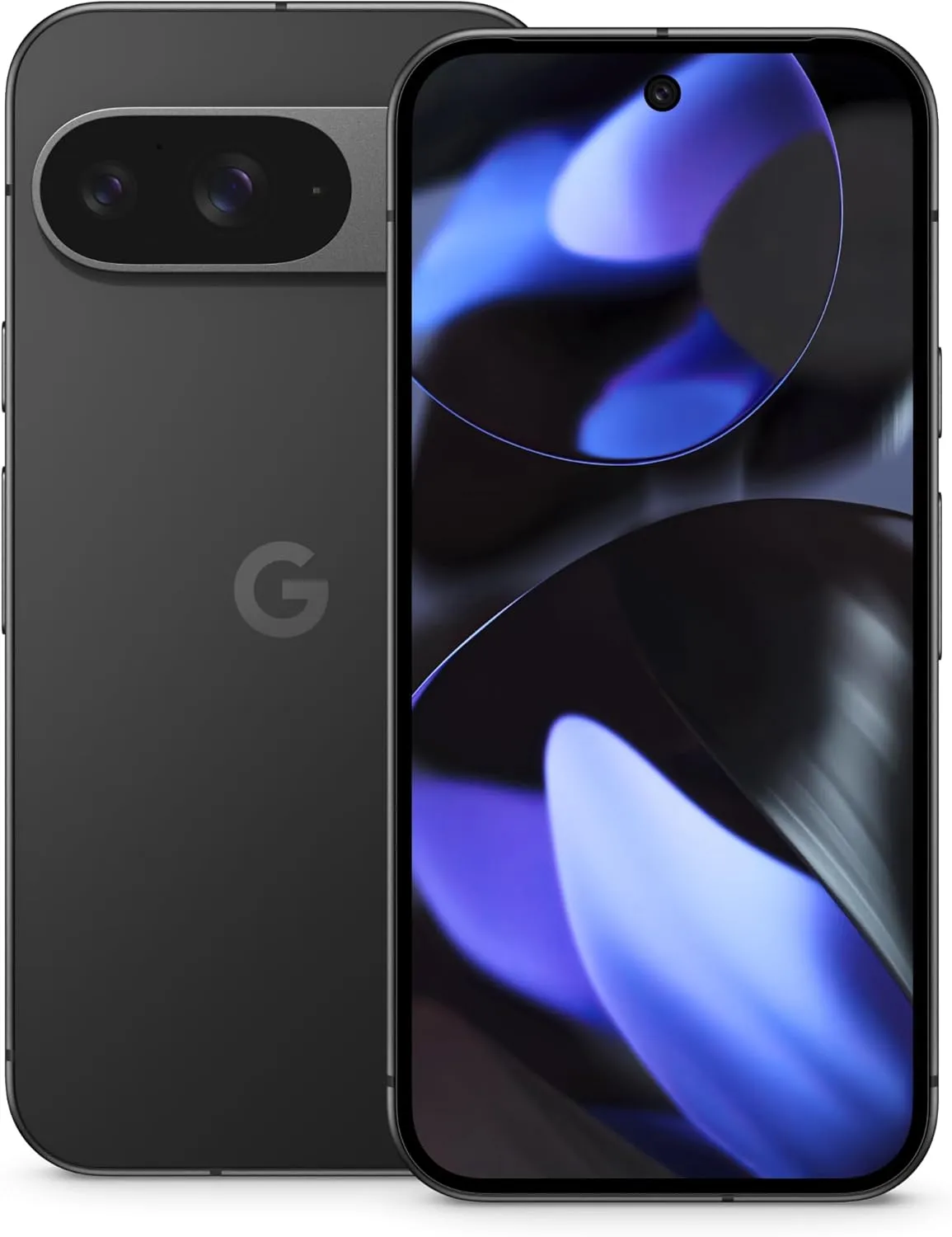
    Google Pixel 9 Pro XL
    $1,099.0$899.00Amazon
    Google Pixel 9 Pro
    $999.00$799.00Amazon
    Google Pixel 9
    $799.00$599.00Amazon
    Google Pixel 9a
    $499.00Amazon

    A few small changes can help your new Pixel feel faster, smarter, and more personal. Whether this is your first Pixel or you’ve lost count by now, taking the time to explore these options unlocks some of the best of what Google has to offer.
  • Drastically improve the user experience on any Samsung with OneUI

    Drastically improve the user experience on any Samsung with OneUI

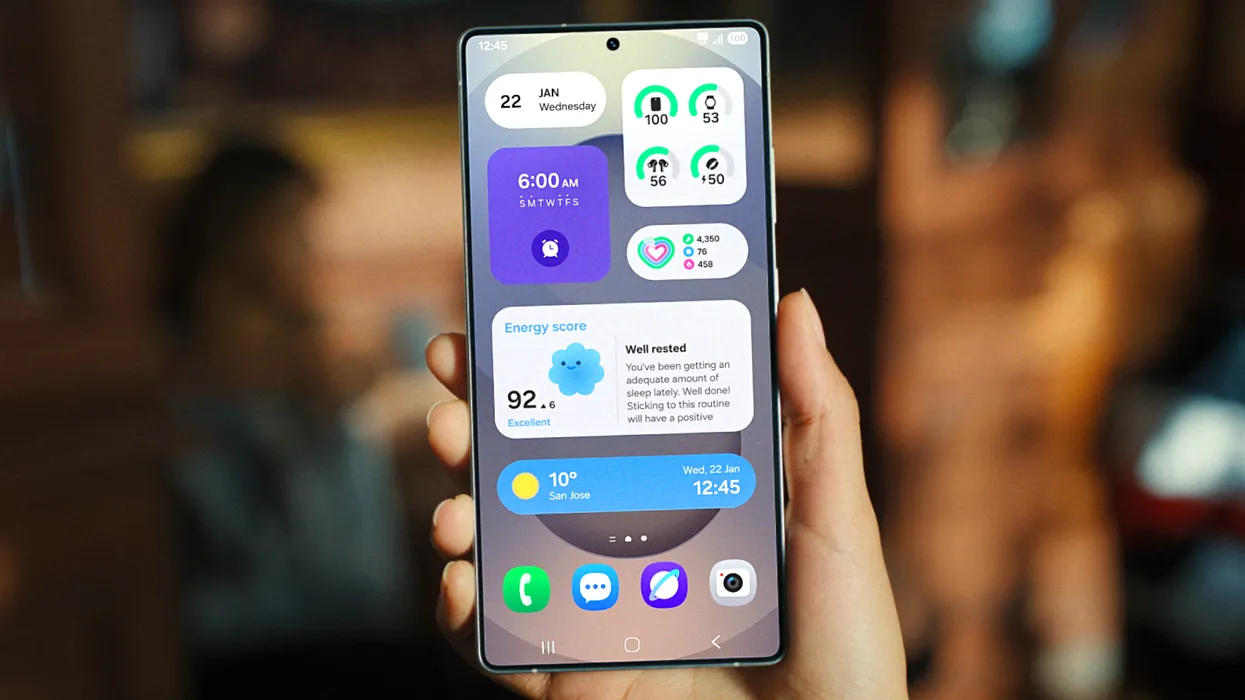
    Samsung’s One UI 7 is now my favorite Android skin. It is quick, responsive, and simple. However, nothing is pre-programmed for your specific experience. You should personalize your smartphone to make it more appealing. I modify about a dozen settings on each Samsung Galaxy phone to better fit my needs, and I believe these will improve your user experience as well.

    Here are some OneUI settings that I recommend adjusting to improve your Galaxy phone experience, ranging from selecting the highest attainable screen resolution to adding extra privacy-focused features. Please be aware that some settings may be phone-specific.

    Switch to gesture navigation

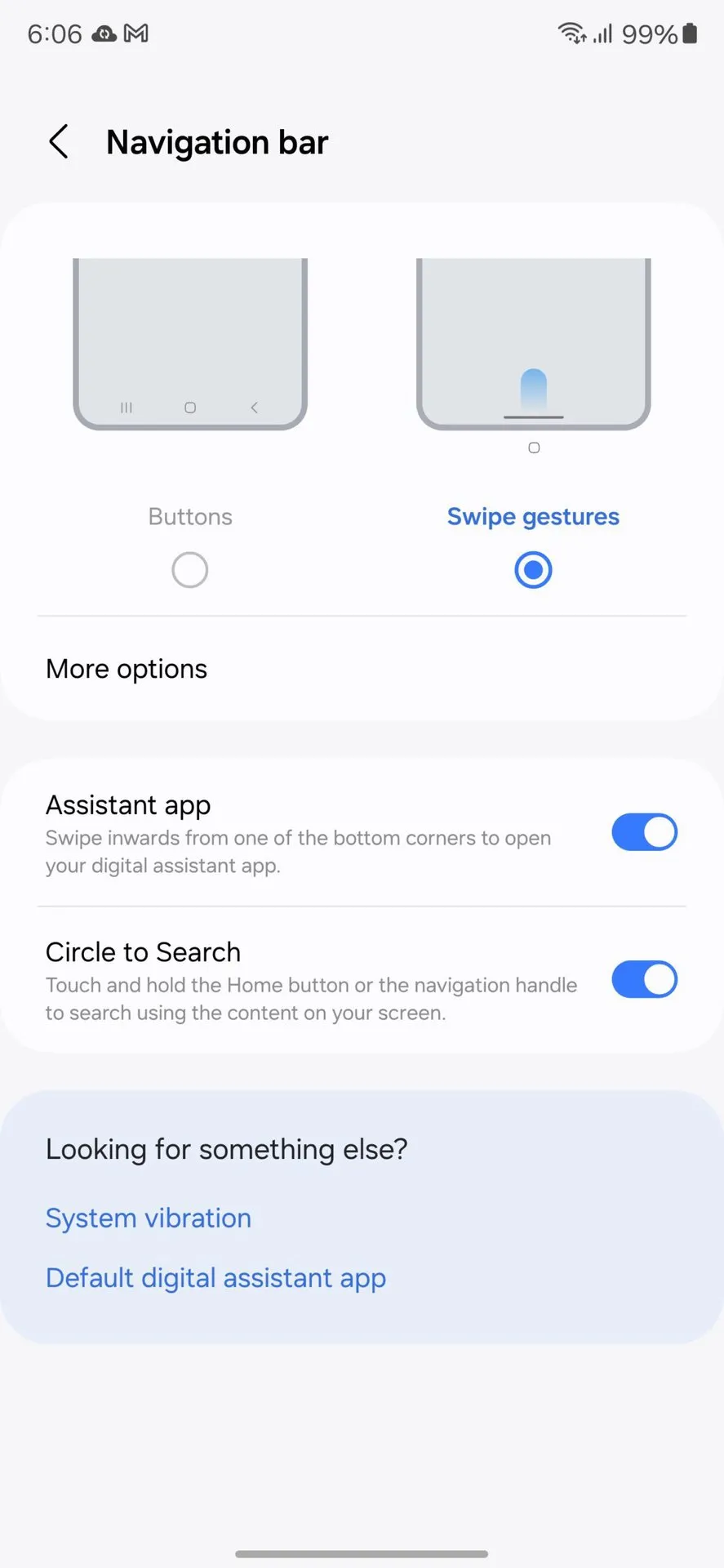
    Unless you are setting up your new Samsung Galaxy phone from an older model, it will use the outdated three-button navigation mechanism. If you enjoy it, that is OK. However, I find Android’s gesture navigation more intuitive—everything is a swipe away rather than an on-screen button.

    If you want that, you can change the system navigation to gestures by going to Settings > Display > Navigation bar > Swipe gestures.

    OneUI Navigation gestures

    Set screen resolution to high – QHD+

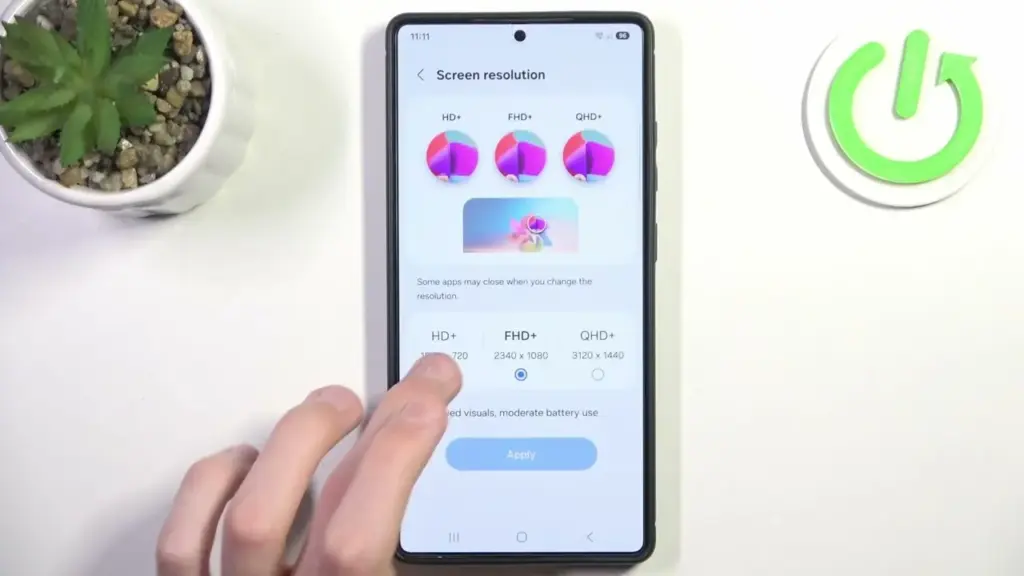
    The Samsung Galaxy S25 Ultra boasts the finest smartphone display available right now. It is less reflective and has better color display than its predecessor, thanks to second-generation Gorilla Armour. You have a great QHD+ screen, but it is not set to that resolution by default.

    To have the best possible viewing experience, navigate to Settings > viewing > Screen resolution. The Ultra will consume more battery, but it is an efficient smartphone. Even after maxing out the screen resolution, I still have an all-day battery life.

    samsung oneui change screen resoltuion to QHD+

    Adjust the lock screen notifications.

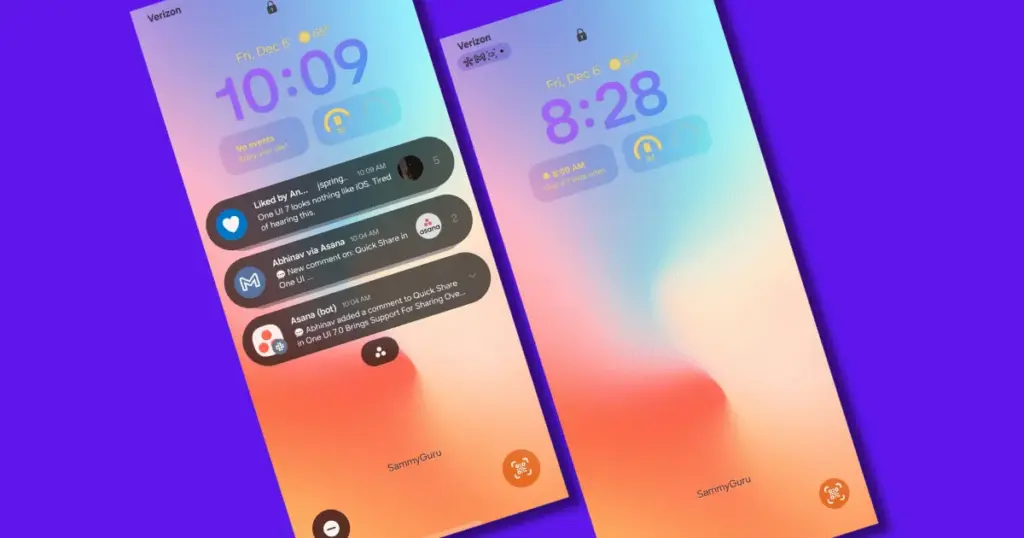
    One UI 7 has modified the way notifications appear on your lock screen. It is set to display icons in the top left corner by default, which is a significant departure from the prior card view. I prefer that apps display notifications in the latter way. To modify this, navigate to Settings > Notifications > Lock screen notifications > Cards.

    I also hide important notification content on the lock screen since I do not want anyone walking up to my phone and reading my personal communications. To modify this setting, select Hide content from the same Lock screen notifications menu.

    Adjust the lock screen notifications. oneui Samsung galaxy

    Uninstall the bloatware

    Samsung Galaxy phones provide numerous apps that you may not utilize. Unlike prior years, you may now remove or disable them to conserve memory. For example, I do not own a Samsung TV and do not want the Microsoft CoPilot app on my phone, so I uninstall both TV and CoPilot. Other programs that I disable or uninstall include Facebook, Samsung Tutor, and OneDrive.

    Always-on display

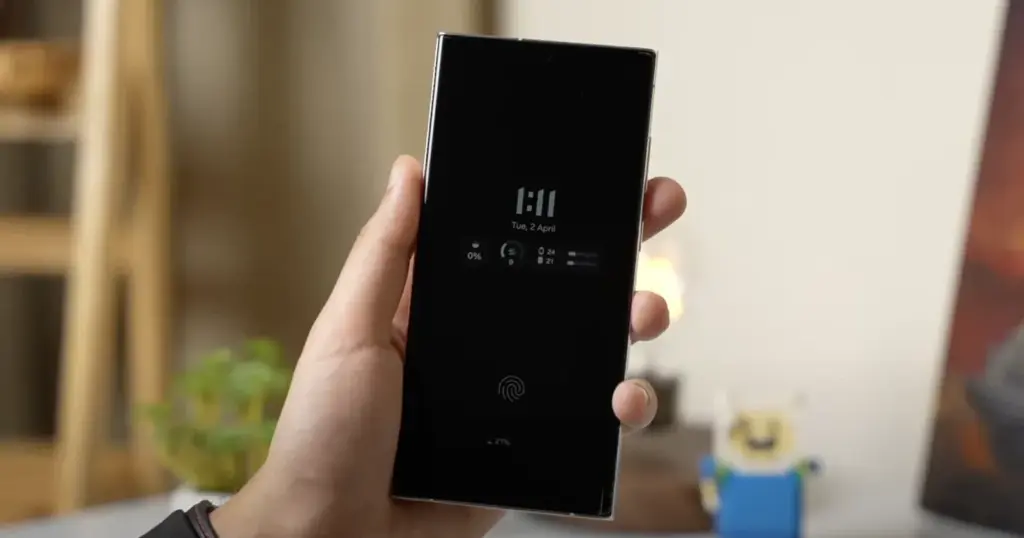
    Samsung phones have efficient screens; make the most of them by enabling everything, including the Always On display. I enjoy having the time, day, and date information there on the screen, accessible at a look. Samsung defaults to the Tap to see setting, which requires you to tap on the screen to access information.

    I recommend altering that to Always to make it more useful. Navigate to Settings > Lock Screen and AOD > Always-On Display > Always. You may select whether or not to display the wallpaper; I have set it to only display a black screen to save battery life.

    Always-on display on Samsung and oneui7

    Homescreen customization

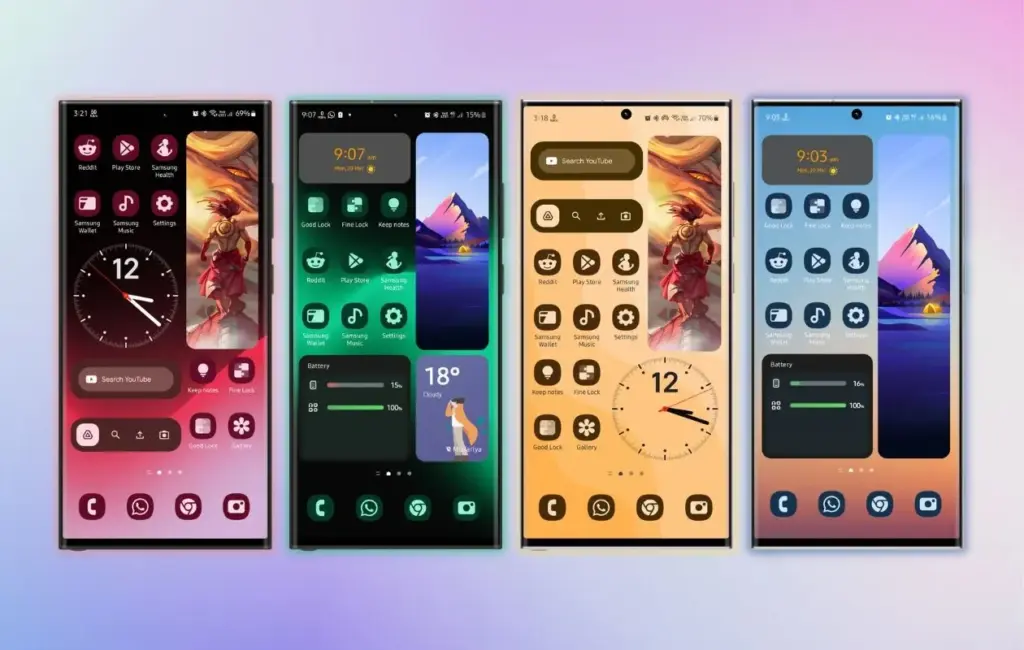
    Samsung’s phone widgets are among the best available. I enjoy the Calendar widget since I can change the transparency. As a consequence, it looks nicer and retains functionality while preserving the structure of my home screen. I set it at the top so that everything is just a glance away, but it never asks for attention, unlike other opaque Calendar widgets.

    Also, change the icon grid to a 5×5 layout to permit more icons in the bottom row. They are only a thumb tap away. In addition, I apply my wallpaper color tones to the program icons for a more appealing appearance. To apply wallpaper colors to the entire system, navigate to Wallpaper and Style > Color Palette and turn it on. It is not flawless, and some icons may still be unsupported. However, it appears better than the standard colors.

    Homescreen customization on Samsung galaxy phone with OneUI
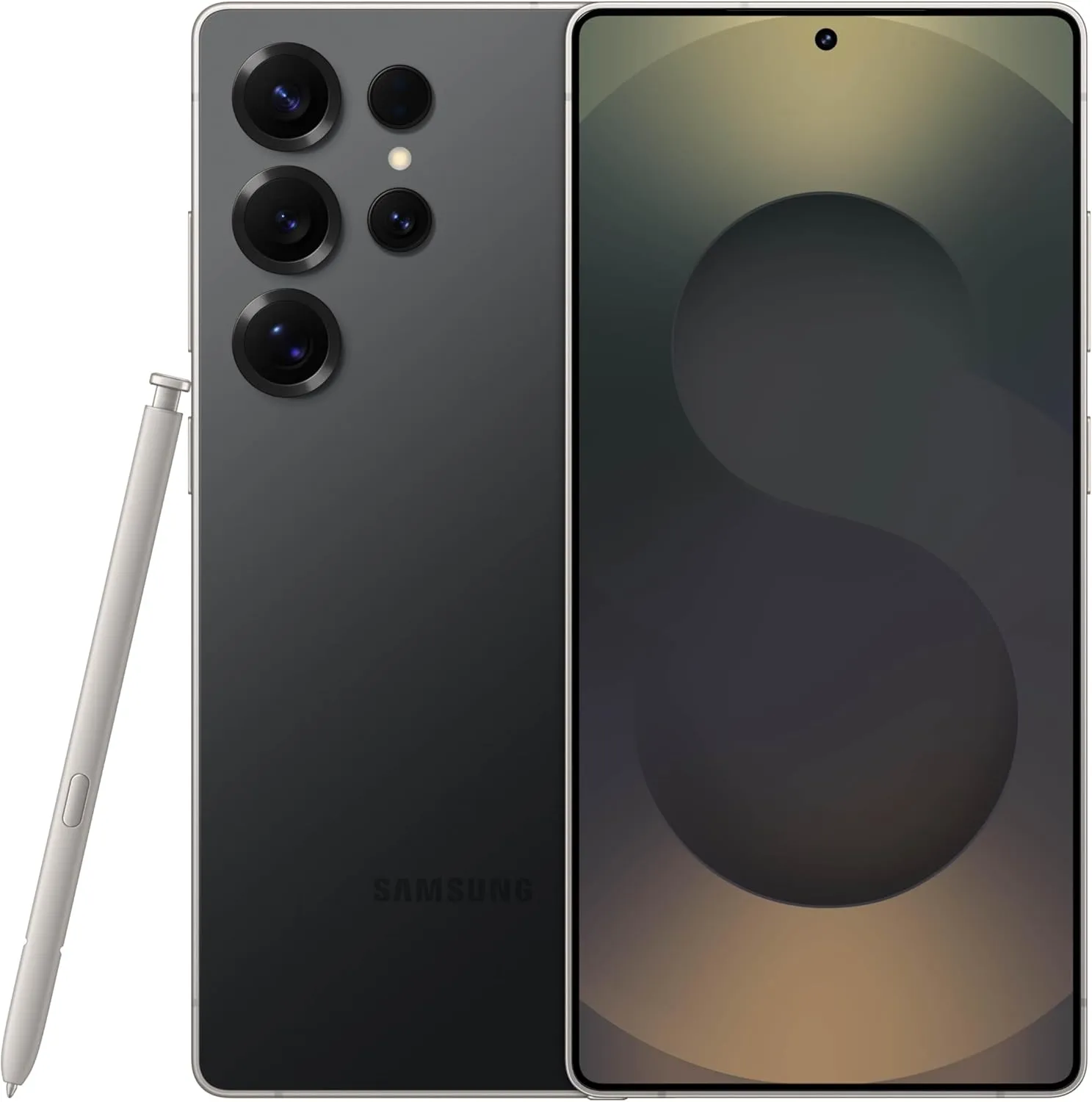
    samsung galaxy s25 ultra

    SAMSUNG Galaxy S25 Ultra

     Streamline your day with an assistant that gets you. Ask it to Google search for a pet-friendly vegan restaurant nearby and text it to your friend— your Galaxy S25 Ultra handles multiple tasks with a single ask.

    Best choice
    $1,299.99$1,141.75See It

    Other things I do on my Galaxy phones include switching to Google Keyboard and organizing the home drawer icons alphabetically for easier navigation. Samsung phones are among the best on the market. While they do not promise groundbreaking features, they are dependable and provide the most refined user interface with One UI. Simply modify these few options, and you will be all set.

  • Popular custom Android ROM Pixel Experience is shutting down

    Popular custom Android ROM Pixel Experience is shutting down

    What happens if you like the Google Pixel phone’s software but not the hardware? Using a modified Android ROM to give other OEM phones the Pixel experience is the best method to get around this problem.

    Precisely what the Pixel Experience ROM accomplished. Regretfully, however, the project’s lead developer declared today that he is ending the work. He clarified in a short blog post that while he will not be making any further builds, prior versions of the ROM will still be accessible.

    José Henrique wrote in the post, “I share crucial information with you today with a feeling of thankfulness.” “After giving it some thought, I decided to finish developing Pixel Experience.

    It is interesting that Henrique chose not to directly address why he chose to end things. It is probable he does not have the time because he is too busy with other initiatives. Another possibility is that he is not as excited about the idea as he once was. It is odd that he does not explain the sudden decision—if only partially.

    In any case, it is feasible that a different developer will take up the project or start a new one with comparable objectives. Although the community for custom ROMs has dwindled over the last ten years, people who want to flash alternate builds on their Android smartphones will always exist.

    Check Web Design Tralee if you need a nice design for your website.

  • Realme 5 PRO received Pixel Experience custom ROM

    Realme 5 PRO received Pixel Experience custom ROM

    Warning Disclaimer: Droid Tools is not responsible for any damage or loss caused to your device.

    Droid Tools

    Realme launched Realme 5 Pro to India with Android 9 Pie in tow. The handset later became known in China as Realme Q. Remember that the handset received Android 10-based Reame UI 1.0 during this week. While the brand new app of Realme comes with a host of new features like dual earphone link, animated wallpapers, customizable icon design, new charging animation, Realme Share and more. The firm is promising a close-to-vanilla Android approach with Realme UI, but we all know this isn’t exactly the case.

    Although Realme UI is designed to provide an Android experience close to stock, it still feels like ColorOS. There’s good news for you in case you want to enjoy a real pixel like Android experience on your 5 Pro. The Realme 5 Pro finally gets official support for Pixel Experience (based on Android 10). If you are not aware, Pixel Experience is a custom ROM that brings to the supported smartphones all the Pixel features, sounds, boot animations. If you like Realme 5 Pro hardware but aren’t a software fan, now is the time to enjoy a true Android vanilla experience.

    To flash a custom ROM, users will need to unlock the bootloader of their devices. Then, the next step is to flash a custom recovery. Worth noting that flashing a custom ROM does not affect the warranty of the Realme devices. After all, the company is very friendly to Custom ROM developers

    Whats working:

    • Wifi
    • RIL
    • Mobile data
    • GPS
    • Camera
    • Flashlight
    • Camcorder
    • Bluetooth
    • FMRadio

    No reported bugs until.

    Flash Pixel Experience on Realme 5 PRO

    1. Unlock bootloader.
    2. Flash recovery over fastboot mode. Follow this guide here
    3. Download rom and copy it into sdcard (not internal memory).
    4. Put your device into recovery mode.
    5. Flash rom from sdcard
    6. Format data (factory reset).
    7. Come back fastboot mode and flash vbmeta.img
    8. Reboot system.