Tag: drain

  • Do the background apps on your phone use up your battery more quickly?

    Do the background apps on your phone use up your battery more quickly?

    In terms of convenience, smartphones have advanced significantly. You can communicate with your loved ones online using a variety of instant messaging apps, such as Facebook Messenger and WhatsApp. Additionally, with almost every phone release in recent years, there has been an increase in AI-assisted features. These include smart object removal, precise transcriptions, and even the ability to screen and handle incoming calls for you.

    The our phones manage and communicate information to us continuously through notifications. Have you received a text on iMessage? On your iPhone, a notice appears instantly. Since leaving an app open all the time would have been the alternative, this is really convenient and, to be honest, taken for granted.

    The ability to upload huge files to Google Drive and switch between apps without stopping or terminating the upload is also made possible via background app activity. It’s reasonable to believe that most of the apps on your phone have access to background data given the volume of notifications it receives, but how? When not in use, do all apps burn up the same amount of battery life? Viewing and controlling background apps is really simple in recent iterations of iOS and Android. Here’s how to optimize your phone to extend its battery life.

    Android background app management
    managing background apps on android 1754413851

    Android largely divides battery consumption based on three states of an app — foreground app when in use, foreground service that isn’t visible, and background parts of an app. Phones running Android 13 and newer are equipped with a power consumption tracker that monitors and alerts users if any foreground or background service has been consuming more battery than usual.

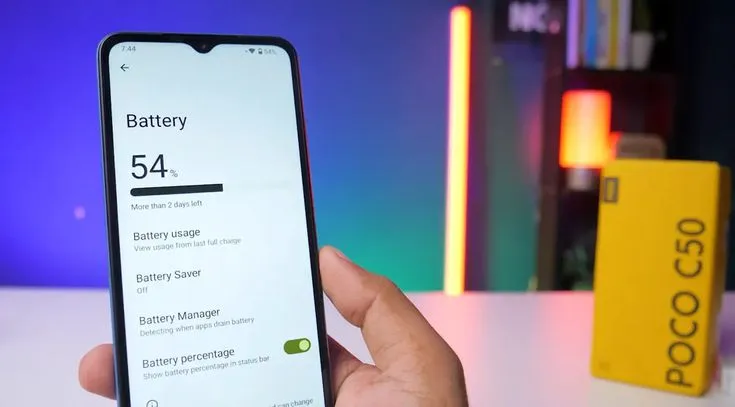
    Pulling down to reach the quick controls for phones running a vanilla Android experience, such as Pixel or Motorola smartphones, will display a list of apps that are now active. Here, you can see how long each background program has been running and use a simple press to end it. By going to Settings > Battery > Battery Usage, you can also see how much battery your apps have been using. Keep in mind that the manufacturer and model of your phone will have a minor impact on the precise menu titles.

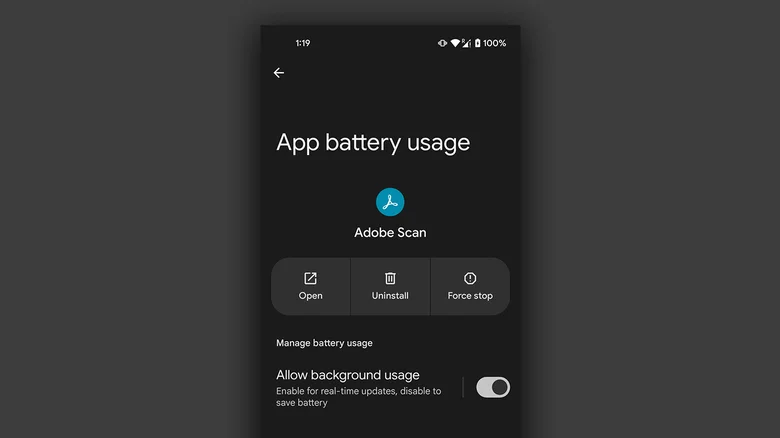
    On Android, you can manually disable an app’s background usage if you discover that it has been using excessive amounts of battery power even when it is not in use.

    • On your Android phone, launch the Settings app.
    • Navigate to Apps > See all apps, and select the one that has been draining your phone’s battery.
    • Tap on “App battery usage” and uncheck the “Allow background usage” toggle.

    Note that certain services like messaging apps require background activity to function properly and send you notifications in real time.

    Managing background apps on iOS
    managing background apps on ios 1754413851

    When it comes to power management and app speed, iPhones have generally improved over time, but malicious actors may still consume excessive resources in the background. Although iOS does not alert users when an app is using more battery than is necessary, it does include safeguards against this. This is in contrast to Android.

    The “open app to finish upload” prompt may occasionally appear on iOS due to the substantially stricter operation of background services. To see how much battery life your iPhone or iPad has used, go to Settings > Battery and scroll down to see a list of the apps that have used up the most in the last 24 hours. Additionally, you can see how long an app has been running in the background and how well your iPhone’s battery is doing.

    If you find a culprit that has been draining way more juice than it needs to, chances are that it has been consuming a lot of resources in the background.

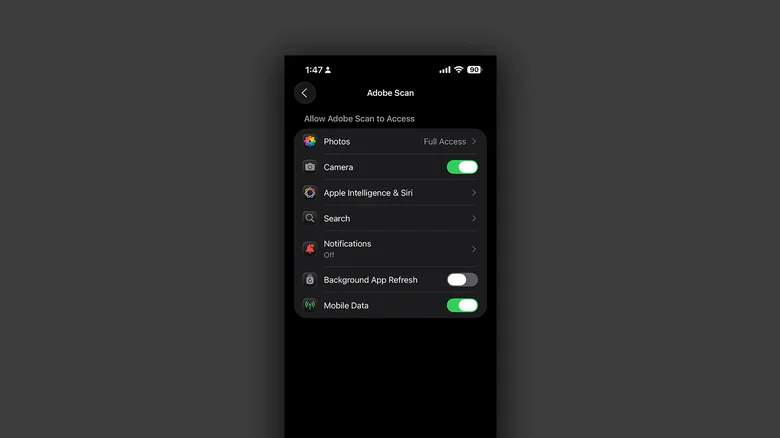
    • On your iPhone, launch the Settings app.
    • Navigate to Apps and select the one that has been causing you battery issues.
    • Tap the “Background App Refresh” toggle to turn it off.

    Once more, this will prevent the app from updating data in the background, which is undesirable if you rely significantly on real-time updates from a service, such as location sharing or navigation.
  • Did Samsung fixed battery drain bug with June 2025 patch?

    Did Samsung fixed battery drain bug with June 2025 patch?

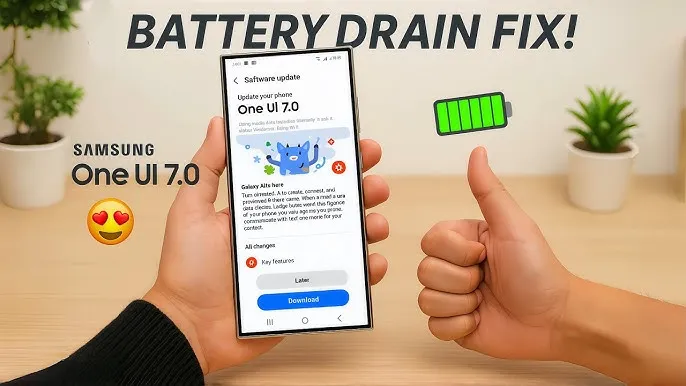
    Many Samsung Galaxy users reported that their phones’ batteries began to drain more quickly than normal after updating to One UI 7. This problem primarily impacted premium phones such as the Galaxy Z Fold 5 and S24 series. According to recent data, the most recent security patch has resolved the One UI 7 devices’ battery depletion problem.

    Despite One UI 7’s improved appearance and additional functions, some phones’ batteries died significantly more quickly than they used to. It appears that Samsung may have quietly resolved this issue with the June 2025 security patch.

    Users of the Z Fold 5 and Galaxy S24 have reported that installing the June 2025 security update significantly improved their battery life. One user even claimed that the battery life of his Galaxy Z Fold 5 had increased by “400%.” Users of the Galaxy S24 and S24+ also reported gains, albeit they weren’t that significant.

    samsung battery drain fix

    Earlier this month, the June update for the Galaxy Z Fold 5 and S24 series models began to trickle out. With this update, consumers are now seeing longer battery life.

    Security updates are typically created to address vulnerabilities and issues. However, occasionally they also aid in enhancing the phone’s functionality, such as battery life. In order to include new features, bug repairs, and upgrades, it also updates a number of apps to the most recent version.

    Although Samsung has not formally addressed the battery problem, several customers think the update was helpful. You might wish to see if the June update is available for your phone if the battery has been rapidly depleting after the One UI 7 update. Better battery life is already being noticed by certain users.

    Has your phone improved with the upgrade, or are you still having battery problems? Share your experience with us by leaving a comment on our social media platforms.

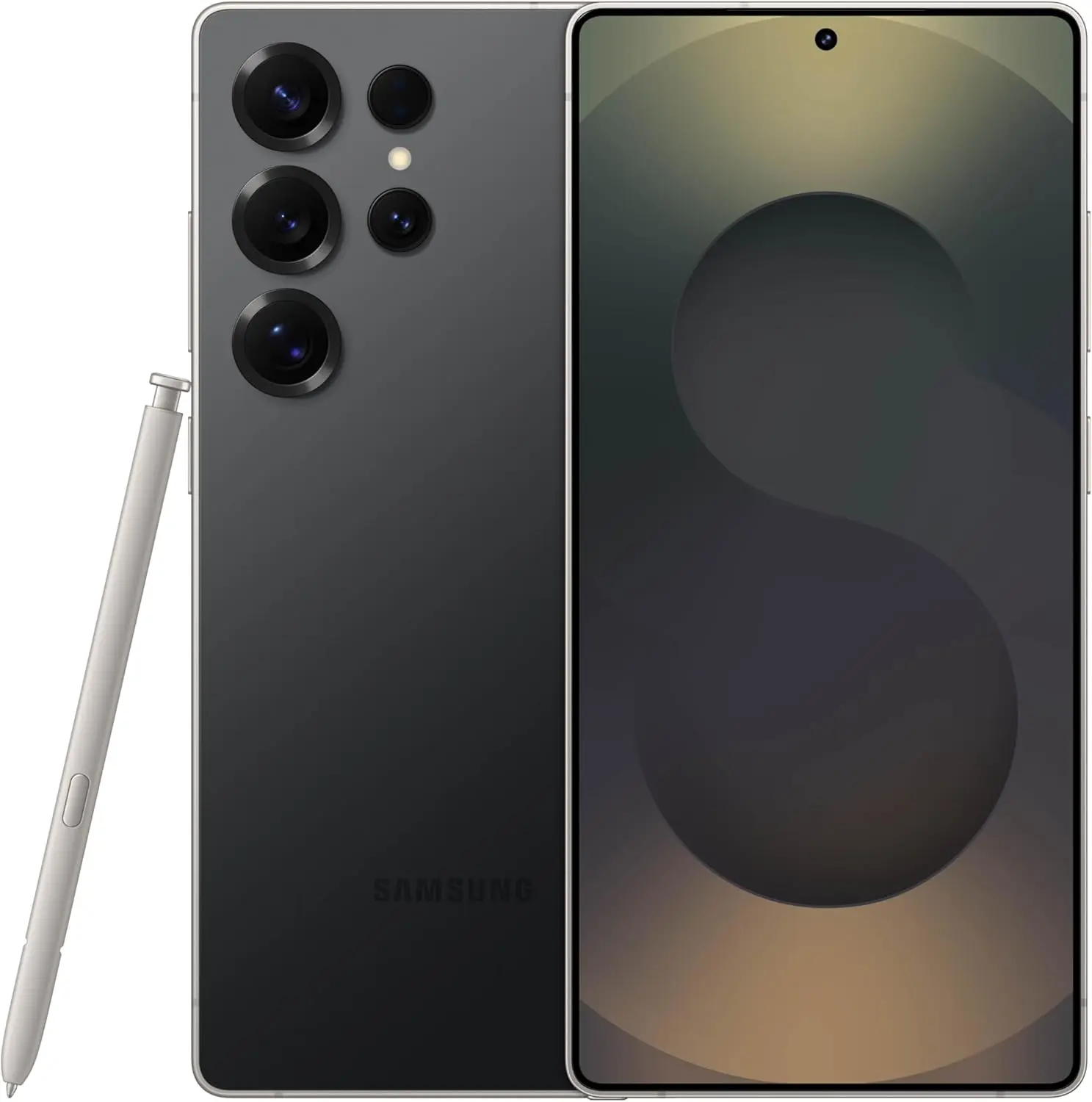
    samsung galaxy s25 ultra

    Samsung Galaxy ​S25 Ultra

    This phone is Unlocked for GSM Carriers in USA like T-Mobile (Excluding Verizon, Sprint, and US Cellular) and not compatible with any CDMA Network Carriers. Dual-SIM (2x Nano-SIM + or Nano-SIM + eSIM or Dual eSIM)

    $1,033.00Get It Now

    Stay connected with the latest from Droid Tools—follow us on X @droid_tools, like our page on Facebook, check out our updates on Instagram, and follow us on Google News for real-time news, device tips, and mobile tech insights.

  • There is a solution for Instagram’s battery drain on Android devices

    There is a solution for Instagram’s battery drain on Android devices

    Have you noticed that the battery life of your Android smartphone has been declining more quickly than usual lately? The offender might have been found.

    Reddit users on Android have been claiming that the Instagram app is to blame for the significant power drain they have been observing in recent weeks. When compared to other apps, Meta’s social media app seemed to be using a lot more battery life than it should given how frequently it is used.

    Using a Samsung Galaxy A53, one Redditor observed that 49 minutes of WhatsApp screen time utilized just 2.4% of their battery capacity, compared to 12.4% for 54 minutes of Instagram screen time.

    instagram abttery drain on samsung

    Now, Google has reportedly intervened to validate the suspicions of many. A Google community manager named Instagram as the source of battery drain on Android devices in an advisory article titled “Battery drain on Android devices” that was posted on the Android support website. The manager advised Android users to update their Instagram app right away.

    How to fix the Instagram battery drain

    As of this writing, the most recent version of the app (build 382.0.0.49.84) seems to fix the problem, so it’s definitely worth making sure you’ve downloaded it if you’ve been seeing your smartphone draining its battery more quickly than usual.

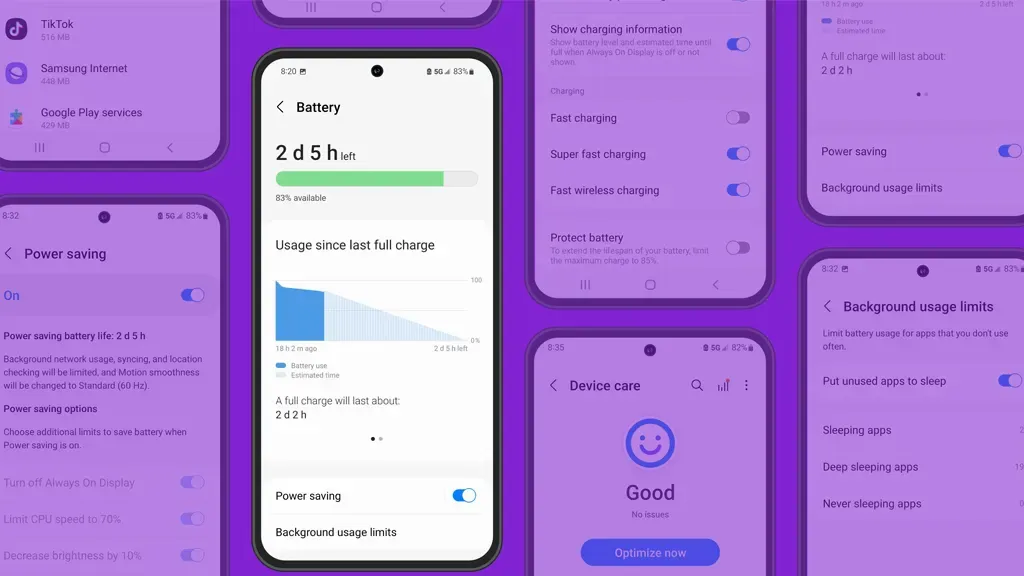
    There are, of course, several additional methods to prolong the life of your battery. These include using Dark Mode or Power Saving, as well as putting unwanted apps to sleep (click to Settings > Battery > Background Usage Limits).

    Check out our instructions below to keep your Android phone running as long as possible if you’re still experiencing power issues after the update (or if you don’t even use Instagram).

    Stay connected with the latest from Droid Tools—follow us on X @droid_tools, like our page on Facebook, check out our updates on Instagram, and follow us on Google News for real-time news, device tips, and mobile tech insights.

  • How to fix the battery drain on Samsung Galaxy devices running One UI 7

    How to fix the battery drain on Samsung Galaxy devices running One UI 7

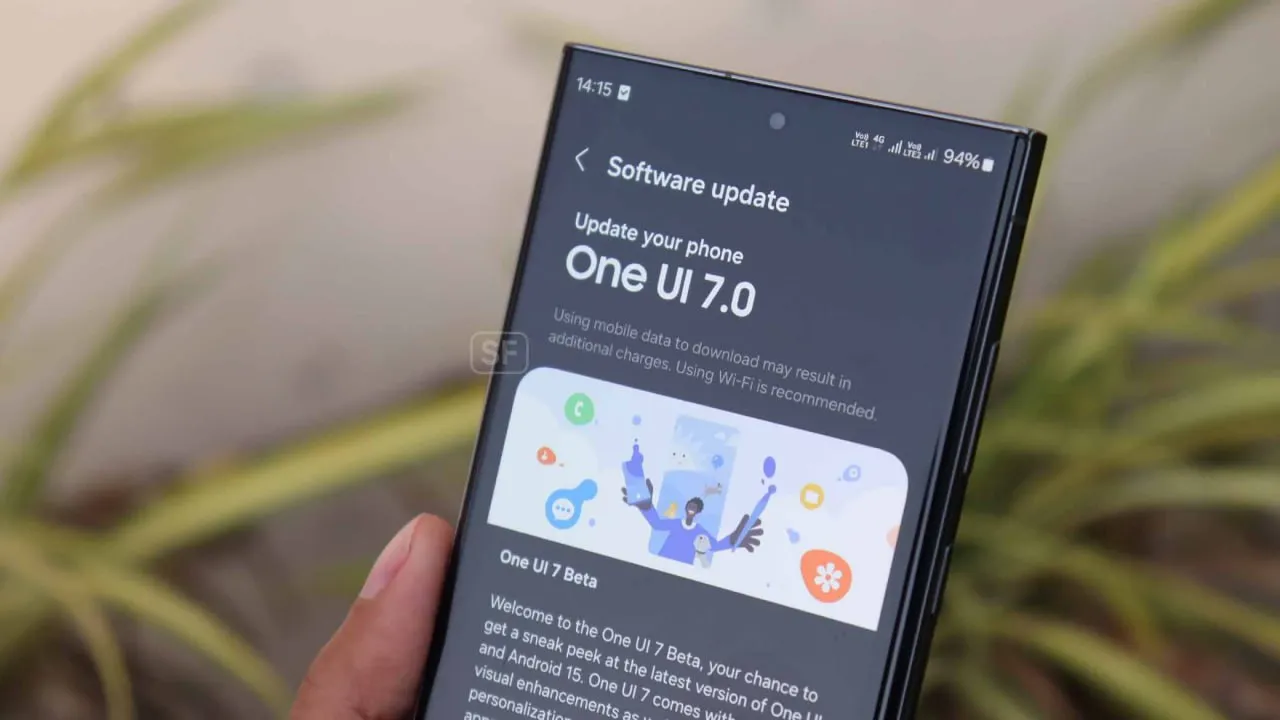
    Running on Android 15, Samsung’s One UI 7 version boasts a new interface along with several new capabilities. One of the unanticipated issues that many customers have seen with the One UI 7 is shorter battery life.

    Even with minimal use, Samsung customers report that their Galaxy phones are having trouble lasting a full day. This article examines the sources of the battery life issues that were noticed following the One UI 7 update, as well as solutions.

    One UI 7 battery drain isssues from the rollout

    Owners of Samsung devices have frequently complained about severe battery drain on websites such as Reddit, X/Twitter, and Samsung Community Forums.

    One user of a Galaxy S24 Ultra, for example, reported that the screen-on time of their phone decreased to roughly 5 hours from 6–7 hours before to the update.

    Another owner of a Galaxy Z Fold 6 claimed that by the end of the day, their battery had dropped from 45 to 50 percent to 20 to 25 percent.

    battery drain issue samsung one ui 7

    Some users of the Galaxy S23 series have claimed similar issues, requiring two or even three daily charges for simple tasks like browsing or viewing movies.
    Rephrase

    As the device becomes used to the new software, the post-update optimization period typically lasts a few days to a week, but the problem seems to last longer.

    Users have also reported related issues, like slower app loading times or phones that run warmer than normal, which could be a factor in the higher power usage.

    Why is the drain occurring?

    While Samsung has not officially confirmed the cause, several factors could explain the battery drain. Since One UI 7 is a major software update, its new features, animations, and background processes may have been demanding more power.

    User-installed third-party apps may not have been fully optimized with the new OS, causing battery drain. Another possibility is that background processes, such as system optimizations or data syncing, are running more frequently than needed.

    oneui 7 battery drain how to

    The solution

    If you’re experiencing battery drain after updating to One UI 7, here are some practical steps to try:

    Clear the cache:

    • Go to Settings > Device Care > Storage and clear the cache for apps.

    Enable Light Performance Profile:

    • Found in Settings > Battery and Device Care, this mode reduces performance to save power.

    Turn off AOD:

    • Disable Always On Display, reduce screen brightness indoors, or switch to Dark Mode to conserve battery.

    Update Apps:

    • Ensure all apps are updated, as outdated versions may not work well with One UI 7.

    Factory Reset (last resort):

    • Some users report improved battery life after a factory reset, though this requires backing up data and reinstalling apps.

    You’re not alone if the One UI 7 upgrade has caused your Galaxy device’s battery life to suffer. You can handle the problem while you wait for a possible solution by attempting the aforementioned procedures and keeping an eye on Samsung’s reaction.

    Stay connected with the latest from Droid Tools—follow us on X @droid_tools, like our page on Facebook, check out our updates on Instagram, and follow us on Google News for real-time news, device tips, and mobile tech insights.

  • How to Fix Battery Drain Issues in One UI 7

    How to Fix Battery Drain Issues in One UI 7

    Experiencing battery drain after updating to One UI 7 on your Samsung Galaxy device? This comprehensive guide explains why battery drain happens, how to fix it, and the best settings to optimize battery life on One UI 7. Follow these proven steps to restore your phone’s battery performance and enjoy the latest features without compromise.

    Battery drain after a major update like One UI 7 is common. Your device may use more power due to background optimization, app updates, and new features. Additionally, system apps such as location services may run more often, impacting battery life.

    1. Allow System Optimization

    It may take up to 14 days for your Galaxy phone to optimize battery usage after downloading One UI 7. Avoid making significant modifications during this time, and keep an eye out for any natural improvements in battery life.

    samsung galaxy s25 ultra

    Samsung Galaxy S25 Ultra

    Streamline your day with an assistant that gets you. Ask it to Google search for a pet-friendly vegan restaurant nearby and text it to your friend – your Galaxy S25 Ultra handles multiple tasks with a single ask.

    Best choice
    $1,299.99$1,067.99Get It Now

    2. Wipe Cache Partition

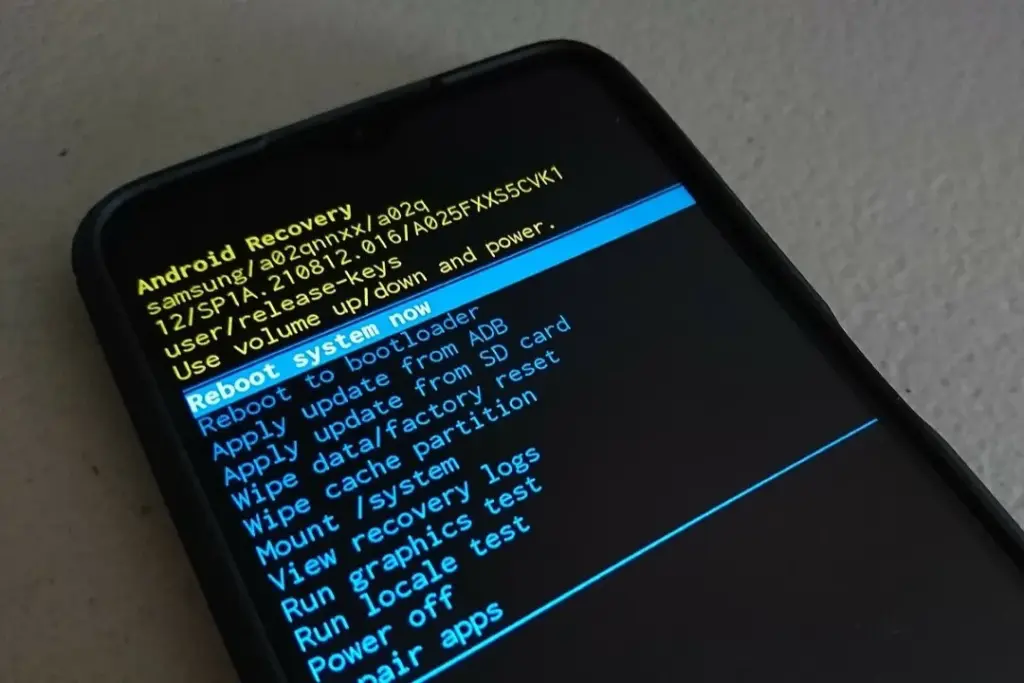
    wipe cache to fix battery drain

    After an update, a damaged cache may result in excessive battery consumption. One secure method to fix this without erasing sensitive information is to wipe the cache partition.

    How to Wipe Cache Partition:

    • Turn off your Galaxy device.
    • Connect it to a computer via USB.
    • Hold Power + Volume Up until the Samsung logo appears.
    • Use the volume buttons to highlight “Wipe cache partition” and press Power.
    • Confirm and reboot.

    3. Update All Apps

    Older apps might not be One UI 7 compatible. To guarantee compatibility and effectiveness, update every app from the Google Play Store and Galaxy Store.

    4. Check Battery and Location Settings

    • To find out which apps use the most power, navigate to Settings > Battery & Device Care > Battery.
    • Limit background activity for apps that use a lot of resources.
    • For apps that do not require continuous access, check location permissions and turn off “Allow all the time.”

    5. Use One UI 7 Battery Protection Features

    One UI 7 introduces new battery protection tools:

    • Adaptive Mode: Limits charging to 80% overnight, topping up before you wake.
    • Maximum Mode: Set a custom maximum charge (80%, 85%, 90%, 95%) to extend battery lifespan.
    • Auto Dim Screen: Automatically dims the display when battery drops below 5%.

    Access these in Settings > Battery > Battery Protection and Settings > Display > Auto Dim Screen.

    6. Factory Reset as a Last Resort

    If other solutions fail, a factory reset can resolve persistent battery drain. Back up your data before proceeding.

    Extra Tips to Extend Battery Life on One UI 7

    • Turn off functions you do not use, such as background sync, fast refresh rate, and always-on display.
    • Reduce screen timeout and screen brightness.
    • When necessary, activate power-saving modes.

    Frequently Asked Questions (FAQ)

    How long does it take for battery life to stabilize after updating to One UI 7?

    It can take up to two weeks for your device to optimize battery usage after a major update.

    Will wiping the cache partition delete my personal data?

    No, wiping the cache partition only clears temporary system files and does not affect your personal data.

    Why is my location icon always on after the update?

    Some apps may have gained new permissions. Review your location settings and restrict access where unnecessary.

    Quick Fixes for One UI 7 Battery Drain

    SolutionEffectivenessData Loss RiskDifficulty
    Wait for optimizationModerateNoneEasy
    Wipe cache partitionHighNoneMedium
    Update all appsModerateNoneEasy
    Adjust battery settingsModerateNoneEasy
    Factory resetHighYesHard

    If you’re still experiencing battery drain after trying these steps, keep your device updated and monitor community forums for official fixes. Reporting your issue helps Samsung identify and resolve widespread problems faster.

    samsung galaxy s25 ultra

    Samsung Galaxy S25 Ultra

    Streamline your day with an assistant that gets you. Ask it to Google search for a pet-friendly vegan restaurant nearby and text it to your friend – your Galaxy S25 Ultra handles multiple tasks with a single ask.

    Best choice
    $1,299.99$1,067.99Get It Now
  • Google’s new tool will solve battery issues on Xiaomi devices

    Google’s new tool will solve battery issues on Xiaomi devices

    Google announced an amazing beta feature that addresses one of Android’s most long-standing issues: battery drain. The innovation is significant for Xiaomi consumers who prioritize battery performance in their daily smartphone usage. The functionality works by tracking “excessive wake locks” in Android’s Vitals panel, assisting developers in identifying and correcting programs that secretly waste battery power in the background.

    For those who do not aware, “wake locks” are system-level capabilities that allow applications to keep your phone awake when in background operations. Although valid in some applications, such as music or navigation, overuse can severely deplete your Xiaomi device’s battery without providing any value in terms of how you view your experience.

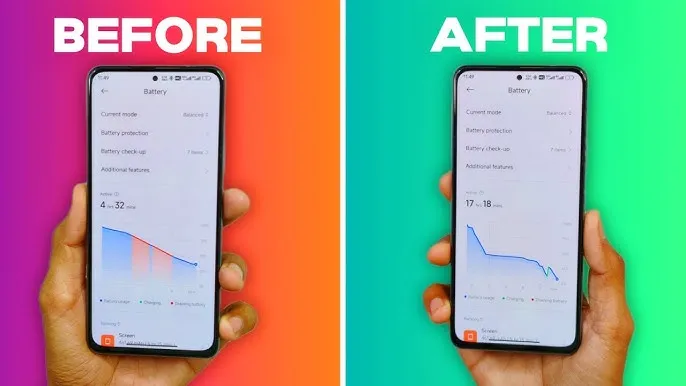
    hyperos battery drain fix

    How Does Google’s New Tool Work?

    This approach is specifically designed for applications with active foreground processes that are running in the background. If such programs maintain a “wake lock” for more than three hours in a single 24-hour cycle, regulators consider them harmful. This accurate identification enables developers to address battery usage issues before they reach a large number of consumers.

    This methodology provides app developers with more realistic views of how their applications function in real-world circumstances rather than laboratory-like test scenarios.

    Partnership with Key Manufacturers

    Google is not operating alone in this initiative. The internet behemoth is working with key smartphone manufacturers like Samsung to define “good” performance in a more consistent manner across the Android platform.

    This collaboration aims to help developers create more optimized applications that run as easily as possible across a wide range of phone models from all brands, from Xiaomi’s large array of cheap options in Redmi to premium flagships in Mi.

    Android Future Plan for Optimisation

    This battery monitoring tool is just the beginning of Google’s multi-year strategy to provide developers with deeper insights into real-world app performance. Looking ahead, Google plans to:

    • Roll out more metrics for performance optimization
    • Develop and launch new battery life measurement tools.
    • Potentially release an updated Play Store to promote highly optimized apps

    For Xiaomi users who consider battery life to be an important feature, these innovations hold out hope for an era when third-party applications are more efficient to use under HyperOS and other Android-based platforms.

    What It Means for Xiaomi Users

    Xiaomi has continually focused energy optimization in its devices, including larger batteries and advanced power management in HyperOS. Google’s new developer tools support these efforts by addressing the software side of the problem, potentially improving Xiaomi phones’ outstanding battery life.

    The “excessive wake lock” monitoring tool is currently in the testing phase, with Google actively seeking developer feedback to improve its capabilities before a wider release.

  • Xiaomi HyperOS battery drain issue will soon be resolved.

    Xiaomi HyperOS battery drain issue will soon be resolved.

    One of the most important factors for many smartphone users is battery performance, and several recent HyperOS updates have been reported to cause significant battery drain for some Xiaomi handsets. Fortunately, that has been resolved.

    HyperOS Battery Drain Issue

    During regular use, users saw a rapid loss of the battery. This problem was particularly noticeable in:

    • POCO M6 with OS2.0.2.0.VNTMIXM
    • Redmi 13 with OS2.0.2.0.VNTMIXM

    Xiaomi swiftly fixed the problem in OS2.0.3.0.VNTMIXM, the next release. This shows the brand’s responsiveness and their high regard for customer pleasure.

    Go to SettingsAbout PhoneSystem Updates to confirm that the most recent version is installed on your smartphone. Avoid using excessively power-hungry apps until all adjustments have been made. Xiaomi has once again demonstrated through the speedy fix that it values customer feedback and responds quickly to problems.

    More on the Source