Samsung recently established a clear schedule for discontinuing Samsung Messages, establishing Google Messages as the default messaging software on Galaxy phones.
While this is ultimately a welcome shift, the fact that Samsung Messages no longer supports RCS has left some longstanding users wanting the customisation tools they were accustomed to.
It appears that Google has taken note and is working on adding some fun features that Samsung Messages users will recognize.
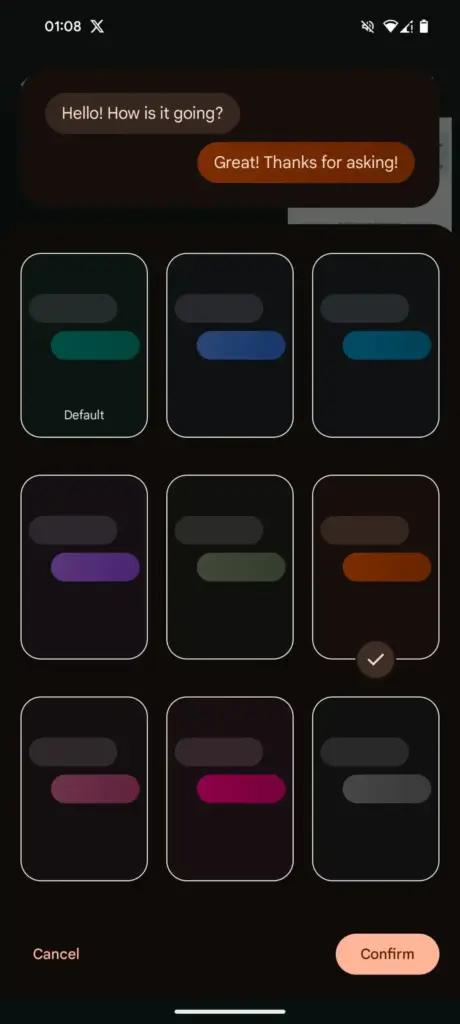
Currently, the only way to modify RCS chats in Google Messages is to use the “Change colors” option from the three-dot menu. This option allows you to alter the backdrop and chat bubble colors simultaneously, but that’s all the personalization you can do in individual or group chats.
In comparison, Samsung Messages supports more advanced customization, such as the option to color and decorate chat rooms using photographs from your phone’s gallery. Using Theme Park (via Samsung’s Good Lock module) provides even more customization options, such as altering bubble colors, modifying contrast, applying wallpaper-based themes, and more.
As Samsung app is being phased out, customers who rely on custom theme packs have begun to express dissatisfaction with Google Messages‘ lack of customisation choices. Google appears to have been paying heed, since a new customisation option for its messaging app is now under development.
More customization coming for Google Messages
In the most recent beta release of Google (messages.android_20260410_02_RC00.phone.openbeta_dynamic), we discovered many additional lines pointing to extended theme controls within the app.
The new strings indicate that Google is planning a full “Custom” theme section, where users may be able to change backdrop patterns, bubble colors, and, most importantly, upload their own photographs to use as chat wallpapers. References to “Upload photo” and “Your photographs” definitely suggest a Google photographs integration, although options such as “Theme Preview” and “Apply” indicate a more involved customization experience.
There are also talks of separate areas for backgrounds and bubble colors, implying that users could mix and match aspects rather than relying on pre-set themes.
If this option becomes available, it would be a significant step toward allowing users greater choice over how their chats appear, which has been glaringly absent from the app thus far.
Oppo’s ColorOS is the operating system that has produced the most feature-rich Android skins. The user experience is now significantly enhanced by the AI tools. Now, Oppo users are looking forward to the release of ColorOS 16. The most recent version of Android 16 will serve as its foundation. More efficiency, more features. This post will be helpful if you are currently considering an Oppo phone, such as the forthcoming Find X9 series. Additionally, this post will assist you in determining whether your current Oppo phone is eligible for the update. Let’s dissect all the information we require.
ColorOS 16 release date and rollout
On October 15, 2025, the ColorOS 16 was most recently announced worldwide. It will make its debut alongside the upcoming Find X9 series. Regarding the current devices, they will also progressively get the update. For devices like the Find X8 Pro, beta versions have already begun to roll out in a number of countries, including Malaysia, Indonesia, and India. Most likely, the stable update will be released on October 30, 2025. However, it won’t be accessible in India right away. It will be initially applied to China’s flagship gadgets. In India, the first stable ColorOS 16 upgrade is anticipated in Q1 2026.
Therefore, in order to avoid the wait when purchasing a new phone, opt for models that come pre-installed with ColorOS 16.
ColorOS 16 Features
We may claim that the core of Oppo’s ColorOS 16 is “Smart & Smooth” performance. Thus, anticipate speedier daily tasks, simpler multitasking, and assistance for content production. This may indicate that you should get an Oppo cellphone running ColorOS 16 if you want AI integration and smoothness over standard Android.
Performance
Oppo has concentrated on creating a sense of instantaneity in interactions. This one also uses ColorOS 15’s Parallel Animation, albeit with a minor improvement. Seamless Animation is a new feature in ColorOS 16. Here, your touch point is the natural starting point for gestures and app transitions.
It is powered by some important technology, such as:
Luminous Rendering Engine: Renders visuals in parallel for lag-free animations.
Trinity Engine: Optimises resources for gaming and heavy tasks.
Tide Engine: Reduces power use (by 13%) and lowers temperature (by 4.1°C).
Overall, we get faster boot times, smoother app launches and scrolling, and quicker tap responses.
Ai integration
Whether you agree or not, AI has made a significant impact. incorporating time-saving and productivity-boosting tools? Bring it on! If you use your phone for artistic or professional purposes, it will be ideal.
AI One-Tap Flash Note: Captures and organises notes from documents, videos, or bills. Also, summarises videos into chapters and automates expense tracking.
Xiaobu AI Assistant: Offers personalised briefings (weather, tasks, news). Suggestions based on your habits, real-scene dialogues via voice/gestures. Gives portrait lighting for better photos.
Productivity suite: AI Recording for transcriptions, AI Writing for drafts (emails, docs), AI Notes for templates. There’s handwriting conversion, and AI Calendar for task timelines too.
ColorOS 16’s AI improvements are its highlights. Anyone who believes that these AI tools may simplify their life by taking care of routine duties ought to give this operating system a try.
Additionally, there are some similarities to Google’s Gemini integration. The only difference is that this one is customized for the Oppo environment.
UI and Customisation
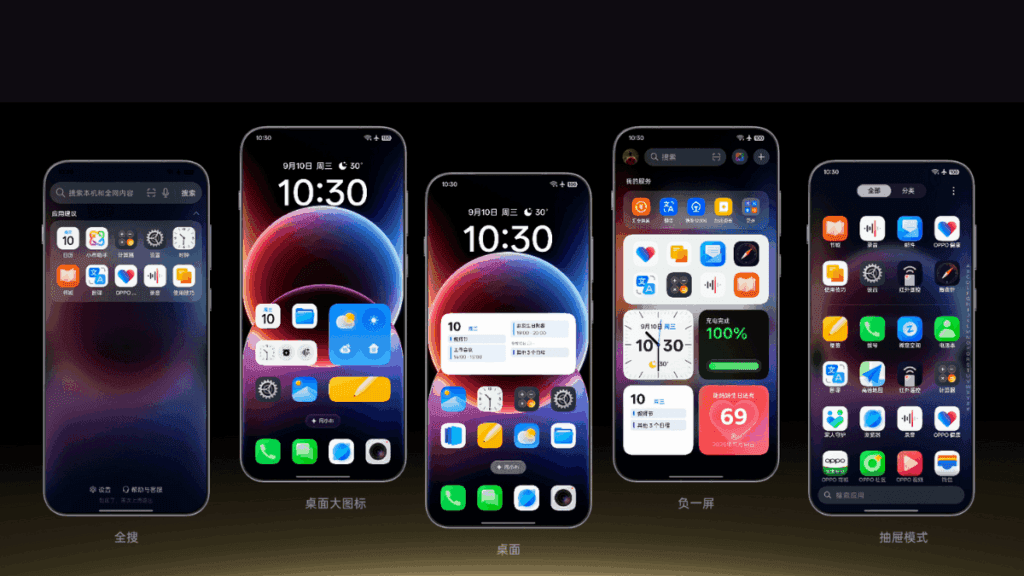
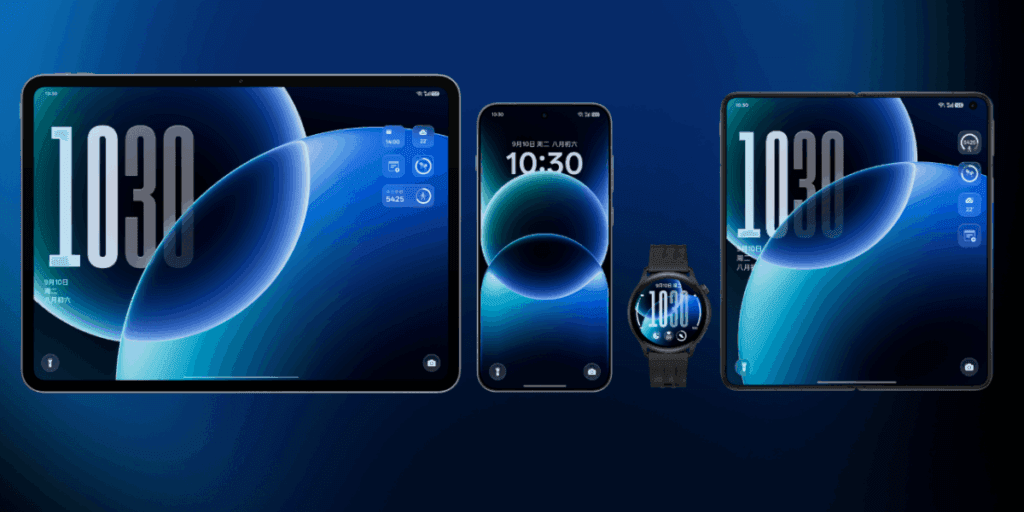
An OS’s user interface and degree of customization reveal a lot about it. Natural light and shadows served as inspiration for the ColorOS 16. Gradients, halos, and glows are used in the design to create a simple, intuitive appearance.
The notable ones are as follows:
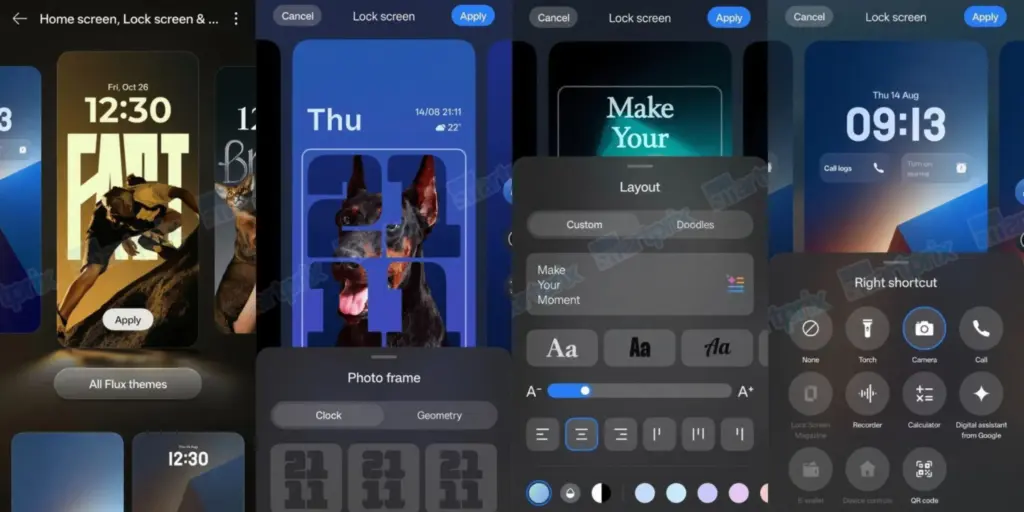
Flux Home Screen: Resize icons, folders, and cards dynamically. The layout adapts with fluid animations.
Full-Screen AOD: View your wallpaper with key info on the always-on display.
Personalisation: AI-generated themes, animated wallpapers from static images, and auto-matching icon colours.
Compared to many other competitors, these alternatives offer greater versatility if you enjoy playing with the look of your phone.
Photo and Video Editing
For people interested in photography, ColorOS 16 upgrades the Photos app with:
AI Portrait Glow: Enhances low-light portraits by optimising skin tones.
Other AI tools: Eraser, Unblur, and Reflection Remover.
Video editing: Master Cut for trimming, music, filters, and adjustments.
For those seeking effortless photography, some enjoyable settings include slow-motion effects, live collages, and collections of human and pet photos.
Cross-Device Connectivity
Seamless integration across ecosystems is a highlight:
O+ Connect: Manage files and remote control between phone, Mac, or Windows PC.
Screen Mirroring: Cast up to five apps and control with a mouse/keyboard.
One-Tap Share: Transfer docs, notes, and more, including health data from Apple Watch.
Additional benefits include PC-level WPS Office, vehicle connectivity, customizable control center, and floating windows for multitasking.
There will still be seamless connectivity between your various devices if you have a mixed Apple/Android configuration.
Find N3 series Find X7 series Reno14 series Reno13 series Pad 4 Pro Pad 3 Pro OnePlus 12 Ace 3/5 series Pad Pro
December 2025
Find N2 series Find X6 series K13 Turbo series OnePlus 11 Ace 2 series
Q1 2026
Find X5 series Reno12 / 11 / 10 / 9 series (select models) K13 / K12 series Pad 3 / 2 / SE OnePlus 10 Pro Pad series
Your device might not get ColorOS 16 if it isn’t listed (for example, if it’s older than Find X5 or Reno9). If you truly enjoy them, you might want to upgrade to the newest features.
ColorOS 16 vs ColorOS 15
Since the current OS update isn’t that old, many people wonder if it’s worthwhile to upgrade to the next one. Check out the distinctions between ColorOS 16 and its predecessor ColorOS 15 if you’re experiencing the same confusion:
AI One-Tap Flash Note, Xiaobu (Briefing, Dialogue, Lighting), AI Writing/Notes/Calendar
AI Editor (Clarity, Eraser), AI Toolbox, Gemini Integration
UI Customisation
Flux Home Screen, Full-Screen AOD, AI themes
Aesthetic upgrades, smoother icons/widgets
Performance
Tide Engine (13% less power), Project Breeze for entry-level
Snappy responsiveness, fluid multitasking
Cross-Device
O+ Connect (Mac/Windows), 5-app mirroring
Touch to Share (iOS), basic multitasking
Photo/Video
AI Portrait Glow, Master Cut
AI Eraser/Unblur, basic editing
For deeper AI and efficiency advantages, especially on older hardware, ColorOS 15 is a worthy upgrade.
Every Oppo user has been waiting for ColorOS 16’s level of novelty. It combines customization, AI tools, and performance in more than subtle ways. Because of this, it is an appealing option for upgraders or new purchasers. For the complete experience, think about smartphones like the Find X9 if you’re in the market. Or upgrade your current gadget to make it last longer. Keep checking back here for more information about devices that qualify.
HyperOS 3 has generated a lot of interest, particularly because of its revamped Control Center, which is obviously more useful and aesthetically pleasing than HyperOS 2. Users are asking whether it’s possible to extend the new Control Center experience to their existing HyperOS 2 devices, which is understandable given the excitement.
To put it simply, that’s not feasible. You cannot just install the HyperOS 3 Control Center as a stand-alone feature. Because it depends on improved user interface elements, animations, and fundamental optimizations not seen in HyperOS 2, it is closely interwoven with the system. If you try to install it on an outdated system, you run the risk of software instability or, in the worst case, the device being unusable.
Although it is not possible to migrate the actual Control Center from HyperOS 3 to HyperOS 2, there is a useful workaround for those that desire a comparable appearance. A variety of themes that visually update icons, the Control Center interface, and wallpapers to closely mirror the most recent design are available in the Xiaomi Themes shop, some of which are specifically inspired by HyperOS 3.
It is crucial to remember that this is only a cosmetic remedy. You won’t get the new functionality or underlying speed improvements of HyperOS 3, just the redesigned graphics.
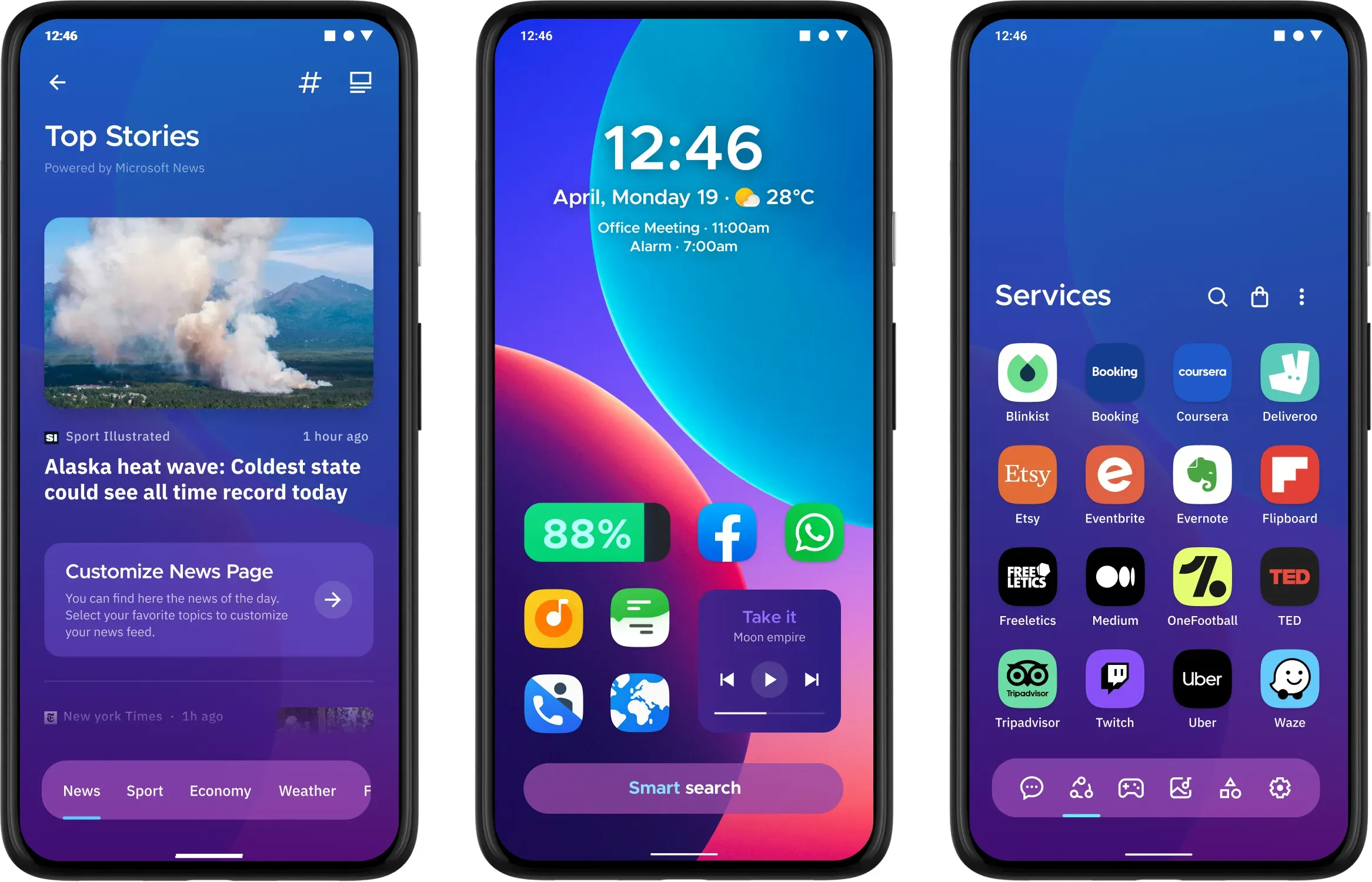
The top Android launchers are the best resources for making your Android experience unique. One of the best features of the Android ecosystem has always been user choice, and launchers make it even better. They allow you to customize the greatest Android phones in ways that Google and stock launchers could only imagine.
While some of the top launchers are made for a more minimalist experience, others allow you to customize nearly every aspect of Android. If you’re not like that, however, there are launchers that offer a rainbow of colors that rivals the hardware store’s painting section.
Whatever you decide, a launcher is the ideal option to update the appearance and feel of your phone without having to spend money on a new device. The only thing left to do is choose one, and we’ve been evaluating the top Android launchers to assist you in doing so.
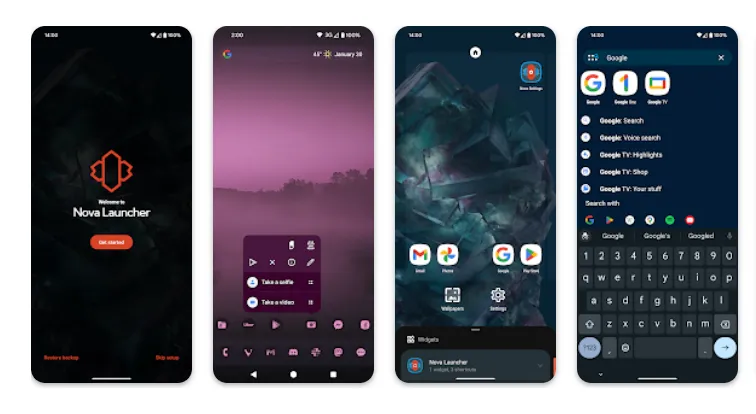
Nova Launcher
It would be impossible to discuss the top Android launchers without mentioning Nova Launcher. Nova Launcher is quick, svelte, and incredibly customizable. It strikes a compromise between a wide range of utility and look customizations and a low performance impact, allowing you to customize your home screen without sacrificing speed.
Color themes, icon packs, scrollable docks, app drawer modifications, folder settings, and endless scrolling are just a few of the many possibilities available. Sesame Shortcuts, animations, and other enhancements are just a few of the new features that the Nova team is constantly developing since they are never satisfied with what they have.
Choose Nova Launcher Prime, a $4.99 edition that has more functionality than the free download, if you want the most potent features.
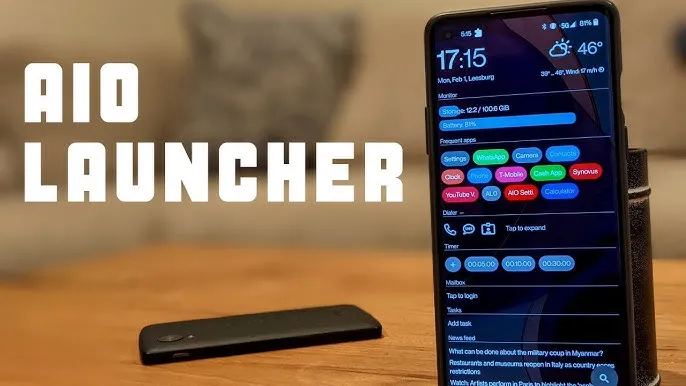
AIO Launcher focuses on packing as much information as possible into a comparatively simple format on your screen, while other launchers could include decluttering cosmetic changes.
In addition to system statistics, recently received calls, texts, and emails, the app shows your most used apps, upcoming calendar events, and more.
on-app purchases enable additional features like widget support, app icons, and Android notifications on the home screen stream, even though AIO Launcher is free. Even if it doesn’t have the most user-friendly design among the top Android launchers, if you don’t mind information density, it’s still a compelling option.
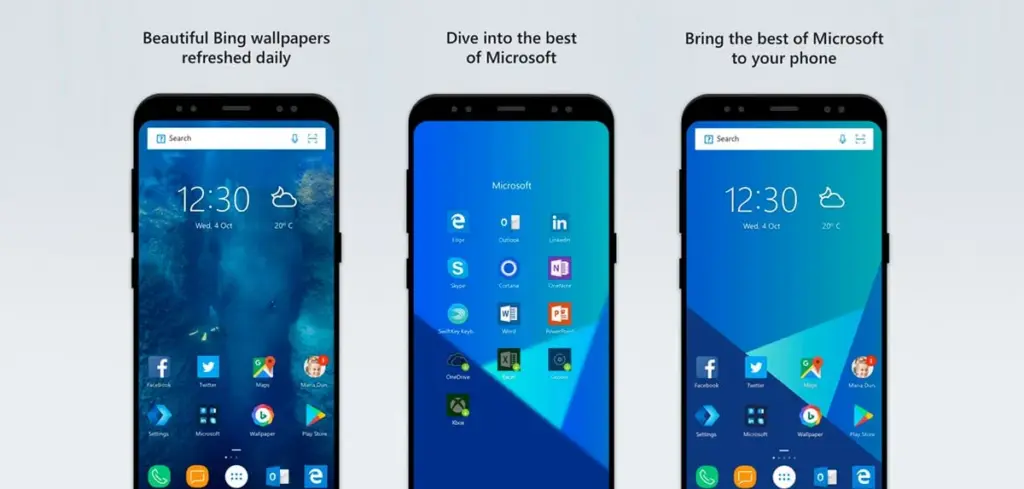
In addition to retaining Arrow’s small, context-sensitive app pages and customisable feed, Microsoft rebranded their fantastic Arrow Launcher as the Microsoft Launcher. The company is also aiming to enhance the interaction between your Android phone and Windows computer.
In addition to opening online links from mobile devices to PC Edge, users may rapidly take pictures with their phones and view them on their desktop. They can also begin editing Office 365 documents on their PC and continue while on the road using their mobile device.
This is all on top of Microsoft’s adjustable themes, universal search bar, and gesture controls.
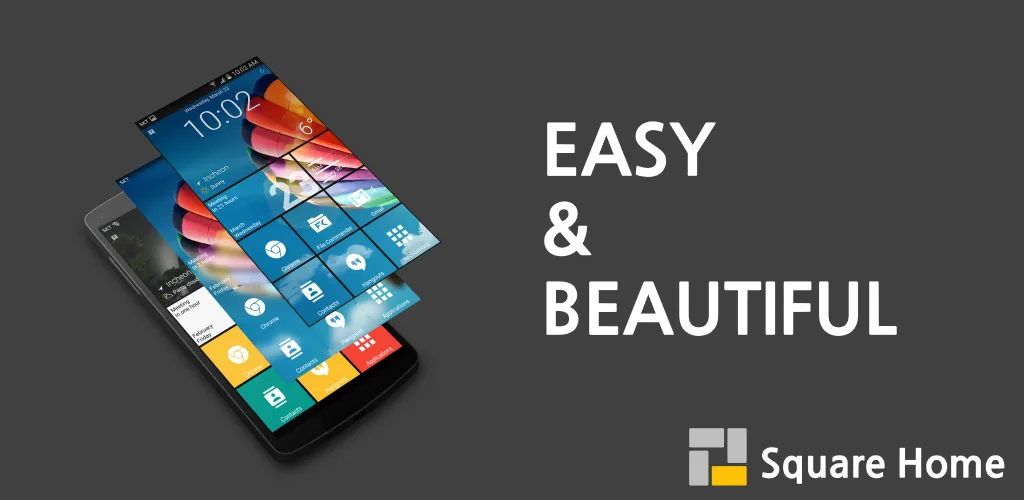
Square Home might be for you if you want a more traditional, or perhaps we should say Microsoft-inspired, mobile experience. Although its design isn’t exactly the same as Windows Phone 8, it does include a squared-off grid structure that should bring back fond memories of Microsoft’s doomed handsets.
If Microsoft hadn’t discontinued Windows Phone ten years ago, I like to think this is how it may have looked. For those of you who miss that specific design element, there is support for Live Tiles, home screen widgets, and a “Tiles on a Cube” system that allows you to swipe between tiles in a manner similar to twisting the top of a Rubik’s cube. Even better, it works with both foldables and Android tablets.
The downside? It’s not free for more than 2 weeks. After your 14-day trial you’ll be asked to unlock the full version of the app with even more features — which is a one-off $5 payment.
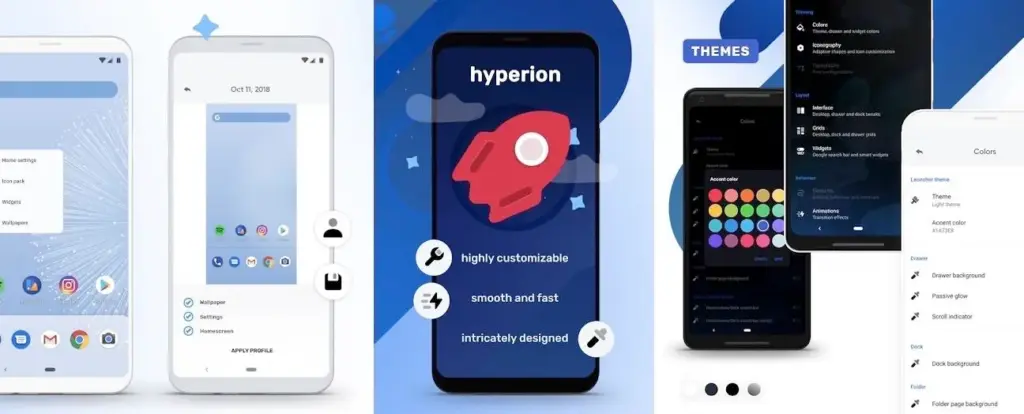
The developers of the well-known Substratum theming engine created Hyperion Launcher, a Pixel-like Android launcher that offers a wide range of customization options.
Users can customize a wide range of options for themes, folders, transparencies, animations, icon packs, and adaptive icons in addition to the normal wallpapers and widgets. Many of Hyperion’s features are available for free, while the Pro edition requires an in-app purchase to enable others, such as launcher-level font changes and custom gestures.
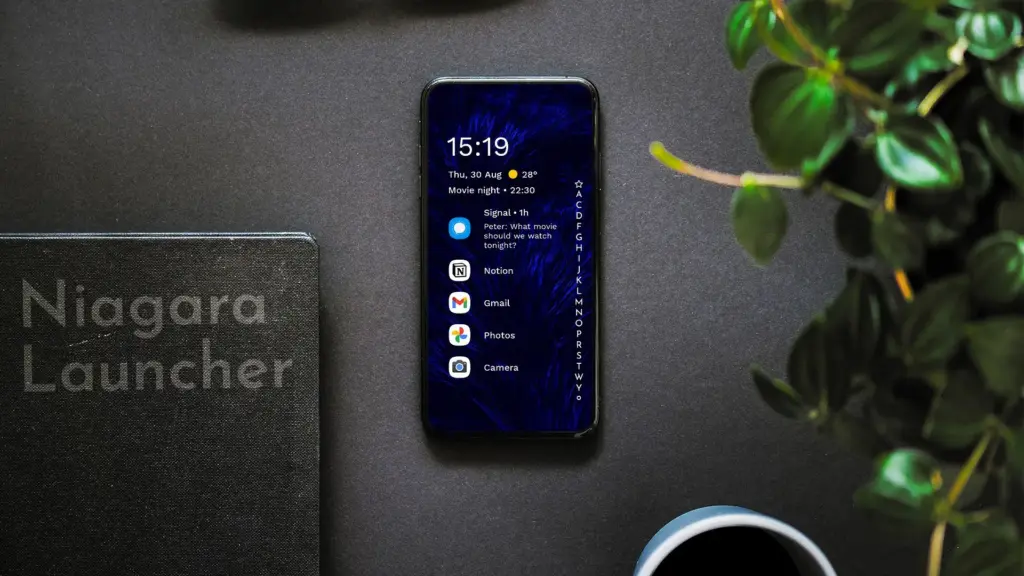
Niagara is a slim Android launcher made to minimize other distractions while emphasizing your apps and alerts. Spam and persistent notifications are automatically filtered out of the notifications that are shown on your home screen. In addition to offering convenient alphabetical shortcuts, the app drawer instantly brings up your preferred apps.
However, because of Niagara’s extreme simplicity, you shouldn’t anticipate any of the odd visual extras and features that you might anticipate from the majority of third-party launchers. It has a lot of promise and is often updated.
We evaluated each launcher on this list using a variety of criteria during our hands-on experience with them. In particular, their features, design decisions, and genuine comparisons to standard Android versions.
However, launchers are highly individualized, and what suits one user might not suit another. Therefore, ranking these rockets according to our perceptions and experiences was not the aim. Rather, we concentrated on the launcher’s goals and how successfully it achieved them.
Giving the user as much functionality and autonomy as they like is the main goal of several launchers, such as Nova. Others, such as Square Home, are designed to provide a very particular experience; whether or not that is effective depends on the individual’s preferences.
These launchers are ultimately just a small sampling of what is available. However, they do provide a great deal of choice and functionality in a number of areas. That’s why they’re so attractive. However, you are the only one who can decide which one is best for you, so make sure to try a few out for yourself.
Samsung’s One UI 7 is now my favorite Android skin. It is quick, responsive, and simple. However, nothing is pre-programmed for your specific experience. You should personalize your smartphone to make it more appealing. I modify about a dozen settings on each Samsung Galaxy phone to better fit my needs, and I believe these will improve your user experience as well.
Here are some OneUI settings that I recommend adjusting to improve your Galaxy phone experience, ranging from selecting the highest attainable screen resolution to adding extra privacy-focused features. Please be aware that some settings may be phone-specific.
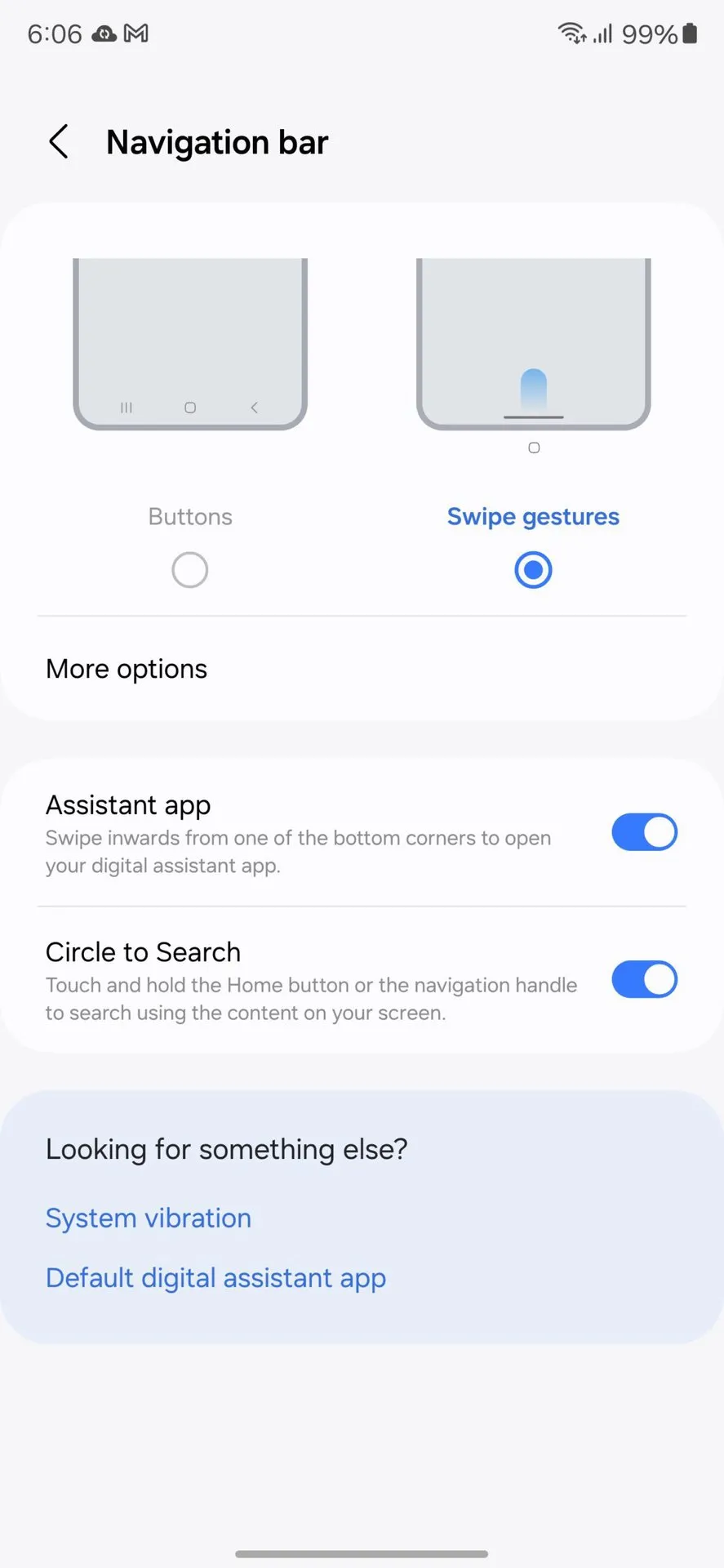
Switch to gesture navigation
Unless you are setting up your new Samsung Galaxy phone from an older model, it will use the outdated three-button navigation mechanism. If you enjoy it, that is OK. However, I find Android’s gesture navigation more intuitive—everything is a swipe away rather than an on-screen button.
If you want that, you can change the system navigation to gestures by going to Settings > Display > Navigation bar > Swipe gestures.
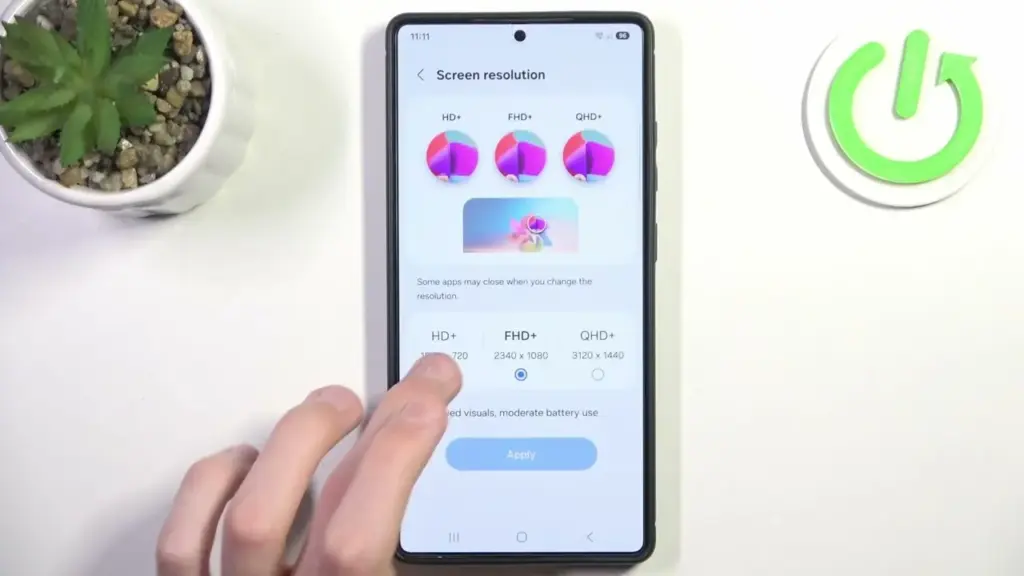
Set screen resolution to high – QHD+
The Samsung Galaxy S25 Ultra boasts the finest smartphone display available right now. It is less reflective and has better color display than its predecessor, thanks to second-generation Gorilla Armour. You have a great QHD+ screen, but it is not set to that resolution by default.
To have the best possible viewing experience, navigate to Settings > viewing > Screen resolution. The Ultra will consume more battery, but it is an efficient smartphone. Even after maxing out the screen resolution, I still have an all-day battery life.
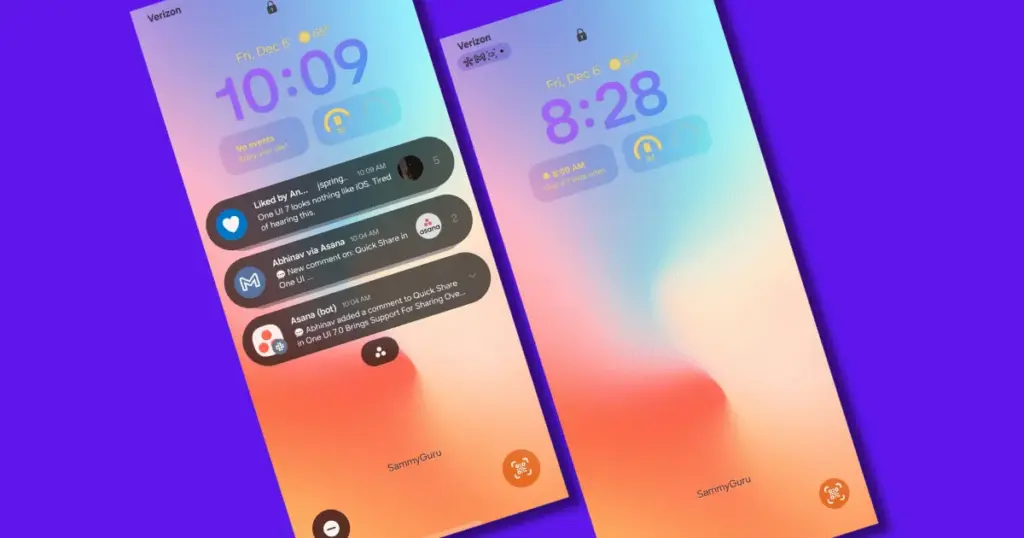
Adjust the lock screen notifications.
One UI 7 has modified the way notifications appear on your lock screen. It is set to display icons in the top left corner by default, which is a significant departure from the prior card view. I prefer that apps display notifications in the latter way. To modify this, navigate to Settings > Notifications > Lock screen notifications > Cards.
I also hide important notification content on the lock screen since I do not want anyone walking up to my phone and reading my personal communications. To modify this setting, select Hide content from the same Lock screen notifications menu.
Uninstall the bloatware
Samsung Galaxy phones provide numerous apps that you may not utilize. Unlike prior years, you may now remove or disable them to conserve memory. For example, I do not own a Samsung TV and do not want the Microsoft CoPilot app on my phone, so I uninstall both TV and CoPilot. Other programs that I disable or uninstall include Facebook, Samsung Tutor, and OneDrive.
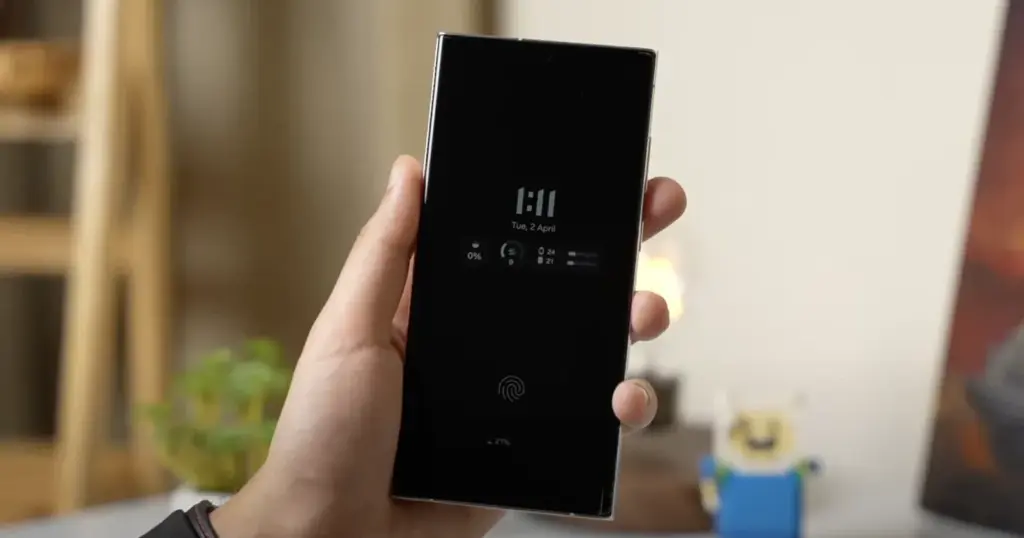
Always-on display
Samsung phones have efficient screens; make the most of them by enabling everything, including the Always On display. I enjoy having the time, day, and date information there on the screen, accessible at a look. Samsung defaults to the Tap to see setting, which requires you to tap on the screen to access information.
I recommend altering that to Always to make it more useful. Navigate to Settings > Lock Screen and AOD > Always-On Display > Always. You may select whether or not to display the wallpaper; I have set it to only display a black screen to save battery life.
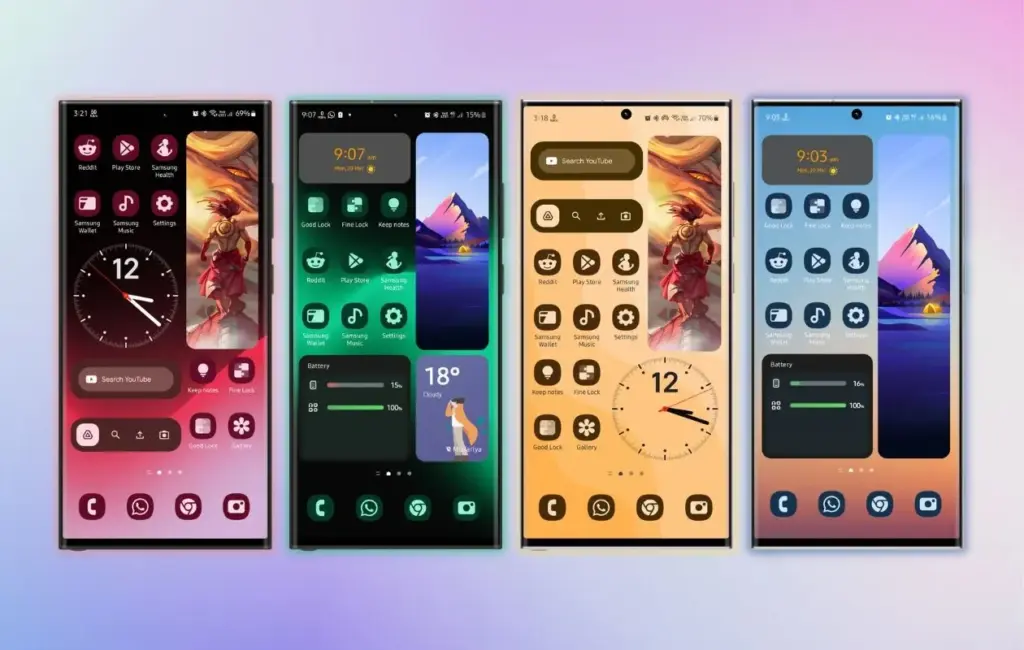
Homescreen customization
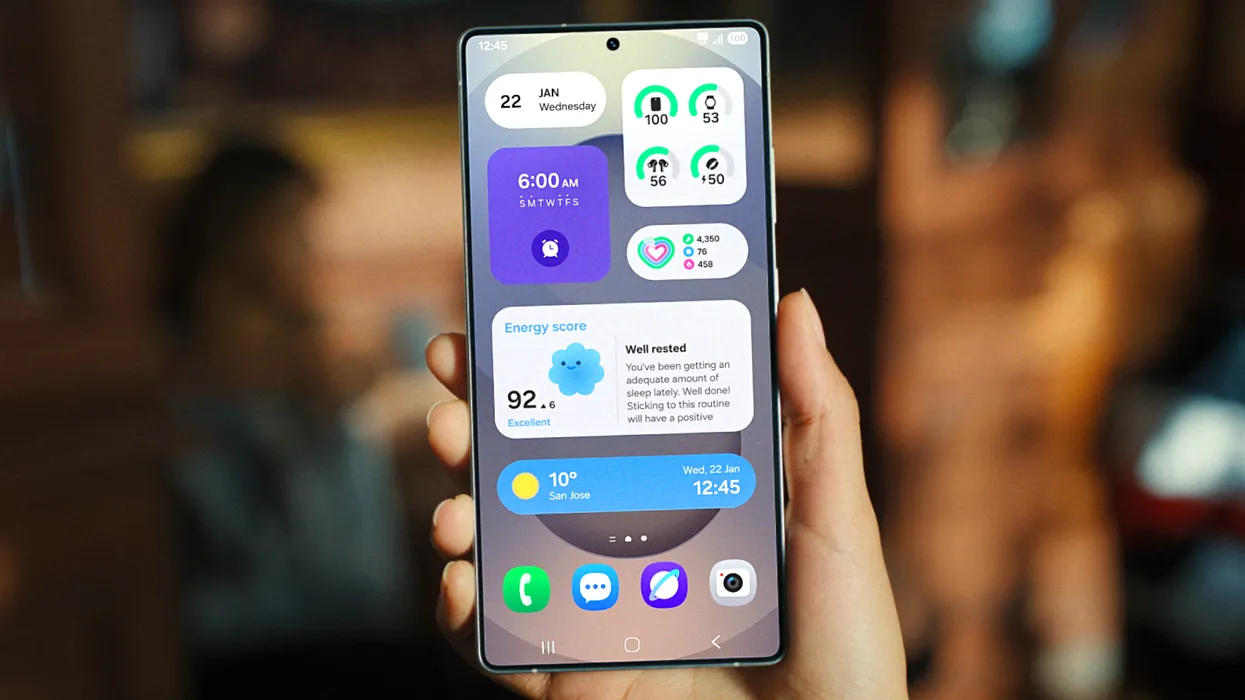
Samsung’s phone widgets are among the best available. I enjoy the Calendar widget since I can change the transparency. As a consequence, it looks nicer and retains functionality while preserving the structure of my home screen. I set it at the top so that everything is just a glance away, but it never asks for attention, unlike other opaque Calendar widgets.
Also, change the icon grid to a 5×5 layout to permit more icons in the bottom row. They are only a thumb tap away. In addition, I apply my wallpaper color tones to the program icons for a more appealing appearance. To apply wallpaper colors to the entire system, navigate to Wallpaper and Style > Color Palette and turn it on. It is not flawless, and some icons may still be unsupported. However, it appears better than the standard colors.
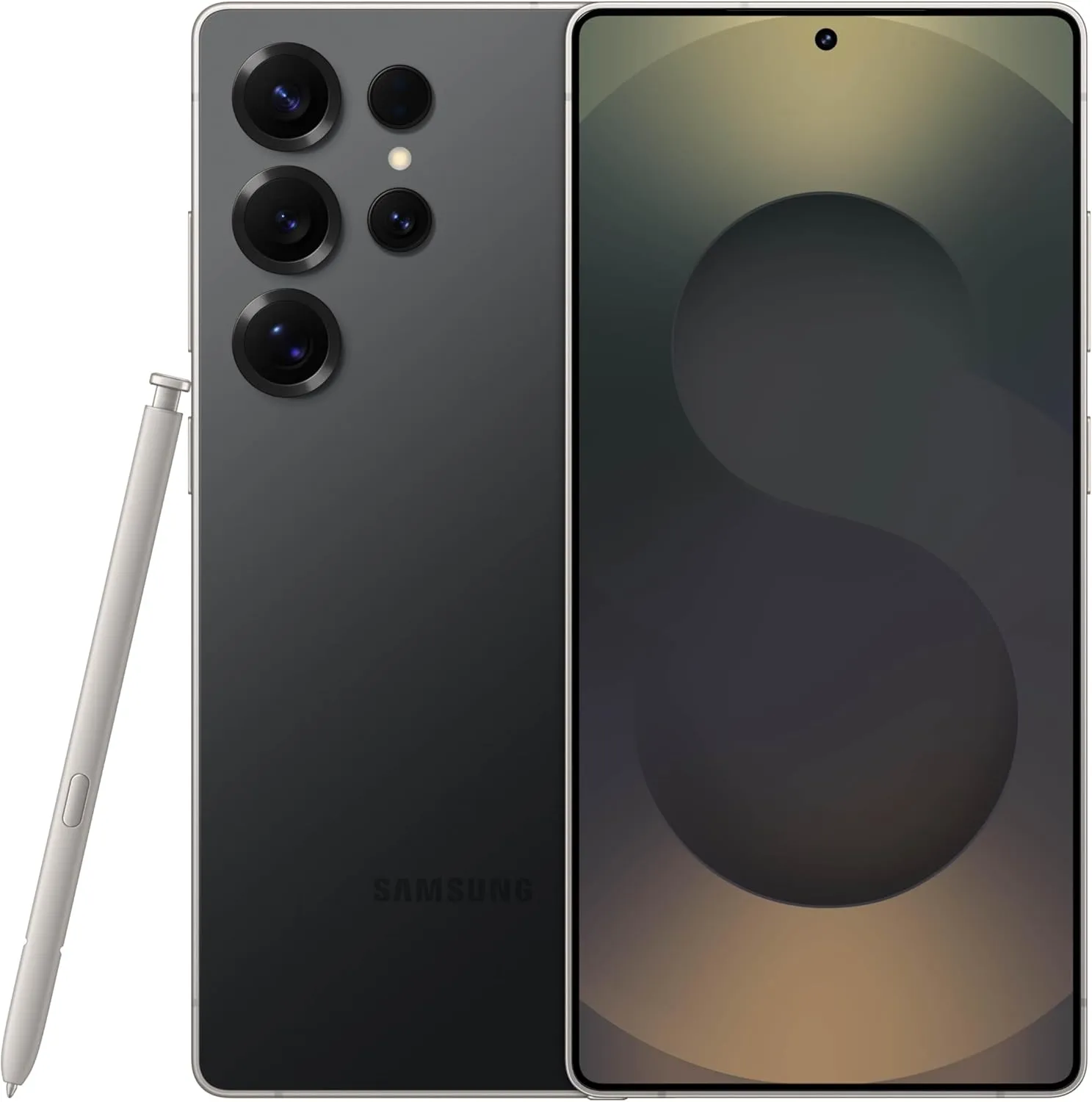
SAMSUNG Galaxy S25 Ultra
Streamline your day with an assistant that gets you. Ask it to Google search for a pet-friendly vegan restaurant nearby and text it to your friend— your Galaxy S25 Ultra handles multiple tasks with a single ask.
Other things I do on my Galaxy phones include switching to Google Keyboard and organizing the home drawer icons alphabetically for easier navigation. Samsung phones are among the best on the market. While they do not promise groundbreaking features, they are dependable and provide the most refined user interface with One UI. Simply modify these few options, and you will be all set.
Full status bar customisation is a groundbreaking feature that has been on wish lists for years, and Xiaomi has finally released the eagerly anticipated HyperOS 2.2. As demonstrated by our previous coverage of HyperOS features, customers now have total control over their notification system thanks to this much anticipated upgrade that was released overnight.
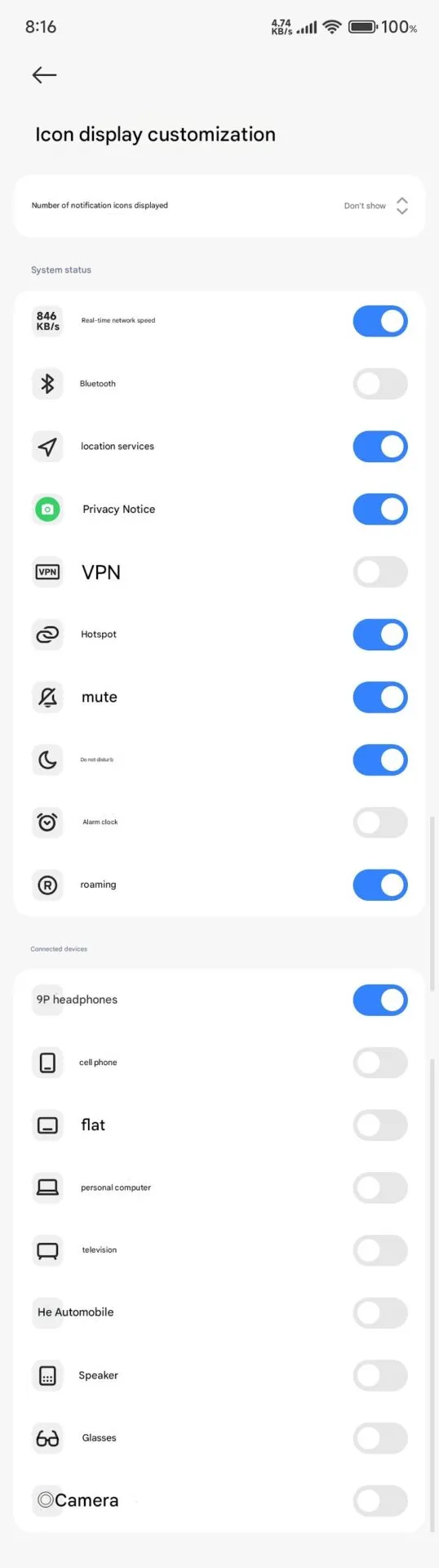
The new “Status Bar Icon Display Customization” is a tip of the hat to customization options that debuted with AOSP Android 6, but with Xiaomi polish and attention to detail that we’ve come to expect with their software updates and UI improvements.
Customization of status bar: what is new
The latest update brings unprecedented freedom to personalize your status bar on your device:
Control of Notification Icons: Select precisely how many notification icons are displayed
System Status Toggles: Toggle system status indicators on and off individually
Cleaner Interface: Keep it clean by hiding unnecessary icons
The downside is that it can’t be personalized and will be shown each time that you activate NFC.
Additional improvements
The customization of the status bar is not isolated in this update. HyperOS 2.2 OS2.0.200 Beta release includes a series of other enhancements:
Enhanced System Animations: Smooth transition through the interface
Blurred Wallpaper Enhancements: Improved visual quality for background objects
Signal HD Icon Fix: HD icon no longer remains in the status bar
Currently, Xiaomi 15 series phones running HyperOS 2.2 OS2.0.200 Beta support the feature. Although there are no set dates, more phones in their lineup will gain this feature in the upcoming weeks. Xiaomi’s ongoing dedication to enabling customers to customize their devices is reflected in this much-anticipated feature.
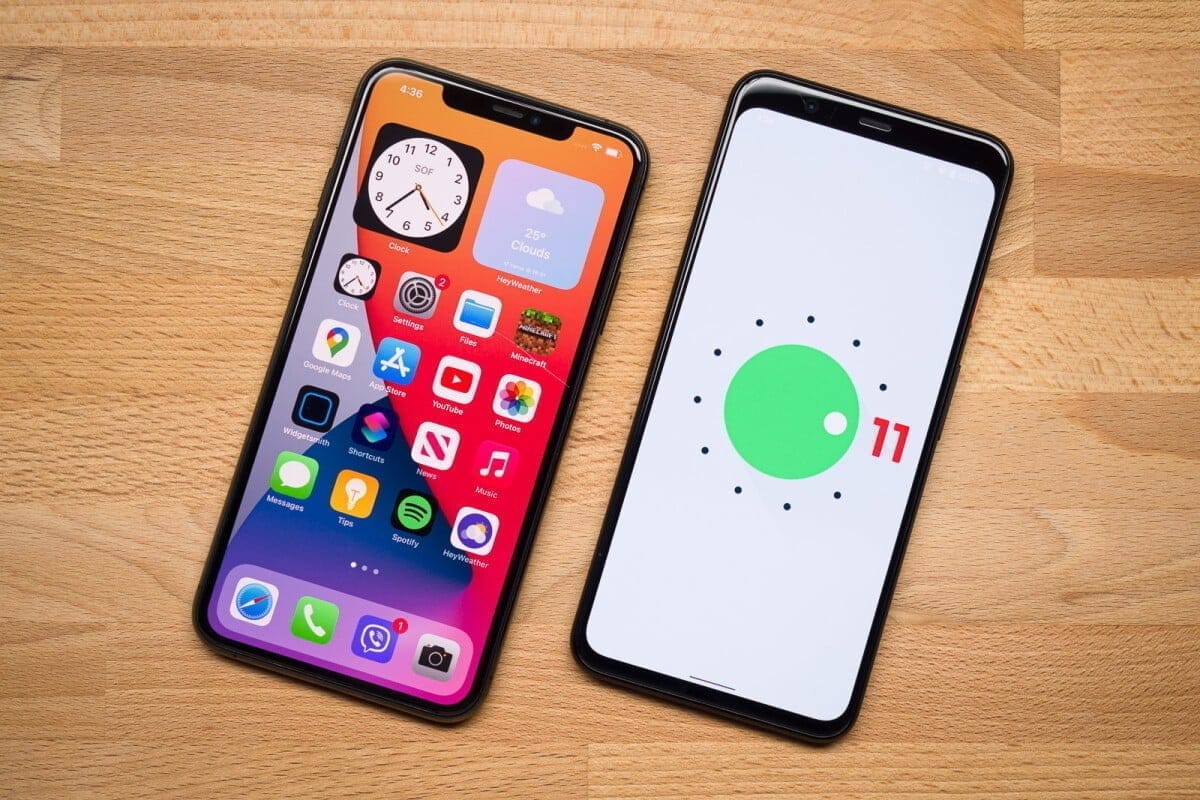
One of the most fiercely fought fights in the entire mobile tech room is Android vs. iOS, and chances are, that will not change any time soon. There are some individuals that love Android completely, others who can’t use anything but iOS, and that causes a lot of back-and-forth.
We’re certainly not here to suggest that Android is objectively better than iOS in any way, but we do want to take a closer look at the new Android 11 and iOS 14 updates. On top of a familiar base, the former provides small enhancements here and there, while the latter presents a full makeover that makes iOS more close to Android than it has ever been before.
iOS 14 is an impressive bit of software that does a lot of things really well, but if you ask us, there are certain things that Android 11 continues to be better at. To explain what we’re talking about, here are five reasons why Android 11 is the better operating system compared to iOS 14.
Better notifications
How it manages alerts is one of the strongest points people make in favor of Android. For a while now, updates on iOS have been really mediocre, and Google took an even bigger lead with Android 11 than it already had.
Android 11 separates your notification tray into three different parts, ranging from Conversations, Updates, and Silent as a priority. In Android 10, Alerts and Silent already existed, and with the introduction of Conversations, compared to anything else that pings your phone, it’s now much easier to see stuff like texts and telegram messages. Stuff labeled as conversation messages are moved to the top of your notification tray and show the profile picture of the person who sent you the message (along with an indicator of which messaging app the message came from).
It’s a small change, but I still feel like I’m doing a great job of keeping on top of updates with the Android phone as someone who carries two phones everyday, one with Android 11 and one with iOS 14. Things are clearly ordered, I can see easily if a new message is waiting for me and I usually feel like I have control of what’s happening.
There aren’t things I can say about the notification management of iOS 14, which all these years later appears to be a jumbled mess.
Chat bubbles – multiple conversation organizer
Speaking of conversations, chat bubbles are another major addition to Android 11. There’s an icon on the notification when you look at a contact notification that expands it out of the notification tray and into a floating bubble on your home screen, aka a chat bubble.
A glimpse of the ongoing conversation is shown by clicking on the chat bubble, enabling you to scroll through previous messages, type a new one, etc. Tapping it again reduces it back to the bubble button, which can be moved on either side of your screen anywhere.
Chat bubbles work with a number of messaging tools, including things such as Facebook Messenger, Google Messages, Telegram, and others. You can have several conversations packed in one chat bubble from various applications, making it easy to hop back and forth between conversations no matter where they take place.
At first, chat bubbles may seem a little gimmicky, but if you’re someone who does a lot of texting on your phone, even if you have a ton of other alerts pouring in during the day, they’re a genuinely nice way to keep things organized and within control. IOS 14 does not deliver anything comparable to chat bubbles, and for the near future, that will probably be the case.
Powerful permissions
It’s still something we’re going to recommend to take care of your digital privacy, and one of the easiest ways to start doing this is by taking control of device permissions on your devices. When downloading a new app, it’s just too easy to just grant all permissions, but the fact is that most applications do not require access to anything they ask for.
To its credit, iOS 14 has very strong controls on permissions. For any app installed from your Settings, you can look at permissions, with toggles to easily activate and disable permissions as you please. When you open a new app that asks for anything like your place, you will also be asked whether you only want to allow access once or anytime you use the app.
For Google with Android 11, permissions were a major priority, with them seeing a few main changes. The first takes Android up to iOS feature parity, with Android 11 now enabling an app to only give position authorization once. However, Android goes a step further by providing this one-time feature for requests for microphones and cameras, too.
Auto-resetting permissions are something else only found in Android 11. If you have granted permissions for an app that has not been used in a couple of months, those permissions will be revoked automatically. Next time you open the app, you can re-grant them, so it’s a way to guarantee that forgotten users don’t have access to things they don’t need.
Quick controls
Chances are that you have some smart home devices in your house/apartment, whether it’s light bulbs, your thermostat, or a wall socket. It is extremely nice to be able to monitor your lights when you are on holiday or kick on the heater on your way home from work, but juggling a bunch of different applications to do all that is anything but.
Google and Apple have already done a decent job by putting all these controls between the Google Home and Apple Home apps into one central location, but Android 11 makes it even better by making you incorporate your most-used controls right into your power menu.
No matter what you do on your screen, the redesigned power menu will be exposed by keeping the power button down. You still have the normal power controls, but this location is now used by Android 11 to also showcase your favorite Google Pay card and any smart home controls you want. Now it is possible to switch on the kitchen lights or change the temperature by simply keeping your power button and pressing the shortcut you have added.
Thanks to how many items I have related, my Google Home app is kind of a cluttered mess, so it is so much easier to have easy access to my most-used controls this way. With the latest shortcuts in your easy settings, iOS 14 also provides fast access to smart home toggles, but that still includes turning on the device and then swiping down. Being able to click the power button at any moment, regardless of whether the screen of my phone is on or off, is a much easier day-to-day experience.
Customizations
Without a doubt, the highlight feature of iOS 14 is its expanded customization. You can hide home screens you don’t want to see, there’s an app drawer to view everything installed on your phone, you can set default apps, and we finally have widgets that can be placed on home pages next to app icons. It’s one of the biggest changes we’ve ever seen for how iOS operates, and the execution is pretty darn great.
Apple deserves a lot of credit for everything it changed in this regard, but even with everything that’s new, Android 11 continues to offer more customization options — and by a long shot.
For instance take default apps. You can update your default web browser and email app with iOS 14 now, but that’s it. That’s not possible right now if you want to change stuff like your default navigation or camera app. In addition, if you ever turn your phone off/restart as Apple resets it all back to its own things, you will need to re-enable those default apps. It’s a much poorer experience compared to the default app setup we’ve had on Android for years.
In iOS 14, custom icons are kind of a thing, but for every single app you want to change the icon for, you need to build a Siri Shortcut. And when you build a Siri Shortcut and don’t directly alter the app icon, you won’t see your custom icon in the app drawer or outside the home screen anywhere on the device. Compare that with Android 11 or any previous edition, where it is as easy to change an app icon as downloading a custom icon pack and diving into the settings of your launcher.
On that note, on iOS 14 you still can’t use a different launcher. You can switch about and add widgets to your applications, but that is it. Android has seemingly infinite third-party launchers that in the blink of an eye can turn your entire home screen, enabling you to really make your phone the way you want it. Everybody on Android gets these comprehensive customization choices, no matter whether you have the best Android phone or not.
Don’t miss out on the sales for Reigns, The Quest, and Danganronpa
After a holiday weekend, it would appear we are starting off this week with a bang. Not only are three separate Reigns titles on sale today, but you can also pick up both Danganronpa mystery games at a drastic discount. There’s also a sale on The Quest, a fantastic RPG that offers a plethora of expansions. As always, I’ve highlighted all of the interesting titles in bold to make discovery easier. So without further ado, here are 19 temporarily free and 57 on-sale apps and games for the beginning of the week.
GravityBox main concept is to make most of the preference changes to be done on the fly without need to reboot a device to achieve custom-ROM like experience. This means it is not possible to “completely deactivate” particular feature if it causes trouble on your device or if you installed GB because you want to use only one particular feature you can’t find elsewhere. This results in issues on ROMs/devices that have parts that are diverting from default Android implementation too much, or are running heavily modified custom ROMs.
GB is a complex module and is not suitable for 1 purpose scenario. This means, if you are running custom ROM built from source, and you are missing a certain feature, your best option is to go ask creators of those ROMs to implement those additional features. Supplementing missing features on well-known custom ROMs built from source by installing xposed modules (especially complex ones) is definitely not a good way to go and can cause more trouble than good. GB being a complex module, it shouldn’t be combined with other complex modules often racing for the same goal. They can conflict/fight on the same playground and there’s no way you can deterministically say which one’s going to win. They can even lose both.
If you experience weird issues after installing GB, even if you didn’t activate a particular feature, it is not because of GB is broken, it is because it is not compatible with your ROM. It is very similar to a situation when you installed ROM built from source for Nexus to some Xperia device – it won’t work.
GravityBox [Q] has been tested on – OnePlus 7 Pro running OxygenOS 10 – Nexus 5X running Pixel Experience 10
The app utilizes Riru and EdXposed Magisk module which uses original Xposed Framework API created by rovo89.
This module utilizes EdXposed Framework which is still in early development stage and may contain bugs or might not be fully compatible with system of your Android device. I take no responsibility for any issues arising from using GravityBox with EdXposed and strongly recommend creating a full backup of your device before activating the module.
This procedure assumes you have working Magisk installation. 1) Install Riru and EdXposed modules using Magisk Manager 2) Install EdXposed Manager app 3) Reboot and open EdXposed Manager app to check if EdXposed works and is active 4) Install GravityBox and enable it in EdXposed Manager 5) Reboot