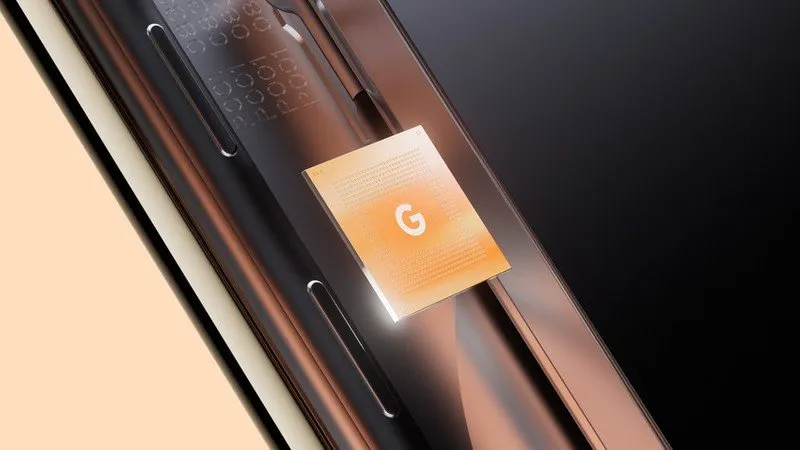
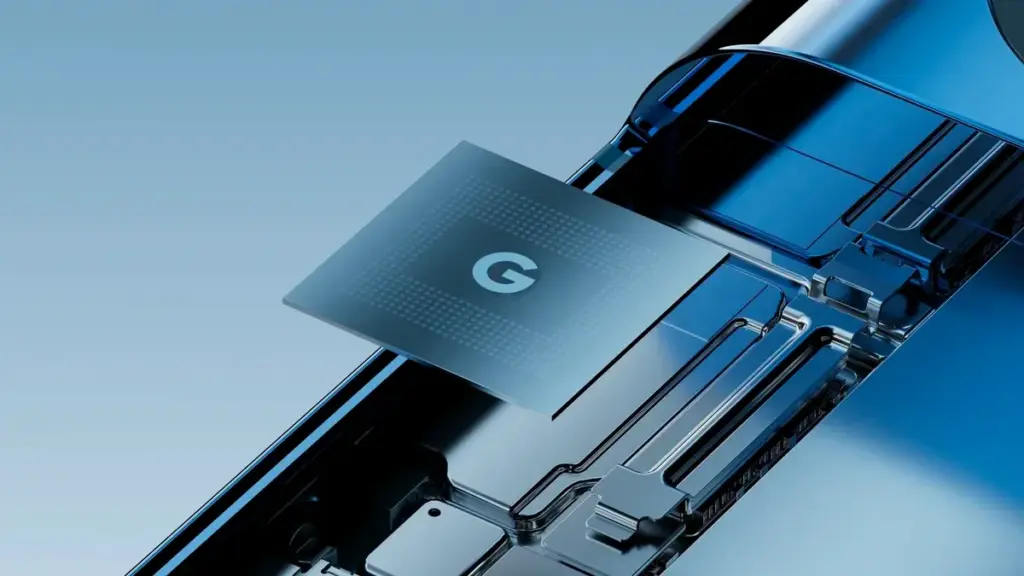
Tensor G5 is expected to include a number of off-the-shelf components to replace Samsung-made parts of previous chips, including the use of a totally bespoke ISP, as part of Google’s decision to move its Tensor production to TSMC for this upcoming generation.
Since the beginning, Tensor chips have mostly been a combination of components created or built by Google and those made by Samsung. This is because Google has used Samsung’s foundry and Exynos chips to help make Tensor a reality. However, as has long been known, Tensor G5 in the Pixel 10 will use TSMC instead of Samsung, creating certain gaps in Google’s chip manufacturing process.
According to a new report from Android Authority, there are a handful of off-the-shelf components that Google will be switching to.
According to reports, Tensor G5 will keep using a number of Google’s current designs (with improvements) that were included in Tensor G4 and other earlier Samsung-made chips, such as the TPU, DSP, memory compressor, and audio processor. However, it will have to swap out a few parts to make room for the switch to TSMC, including:
GPU: Arm Mali > Imagination Technologies DXT
Video codec: Google “BigWave” & Samsung MFC > Chips&Media WAVE677DV
The ISP is the most noticeable change here, since Google is reportedly developing a completely unique approach. Beginning with the 2017 “Pixel Visual Core” in the Pixel 2 series, Google has utilized its own ISP in a number of Snapdragon-powered Pixel phones. Prior to Google releasing the proprietary chip before Tensor’s 2021 launch, that developed into the “Pixel Neural Core” with the Pixel 4.
The end user will not likely notice many of the component changes Google is making, but it will be fascinating to observe if the different swaps have any positive or negative effects. The replacement of the current Samsung choices with a MediaTek modem is another noteworthy change that was previously publicized.
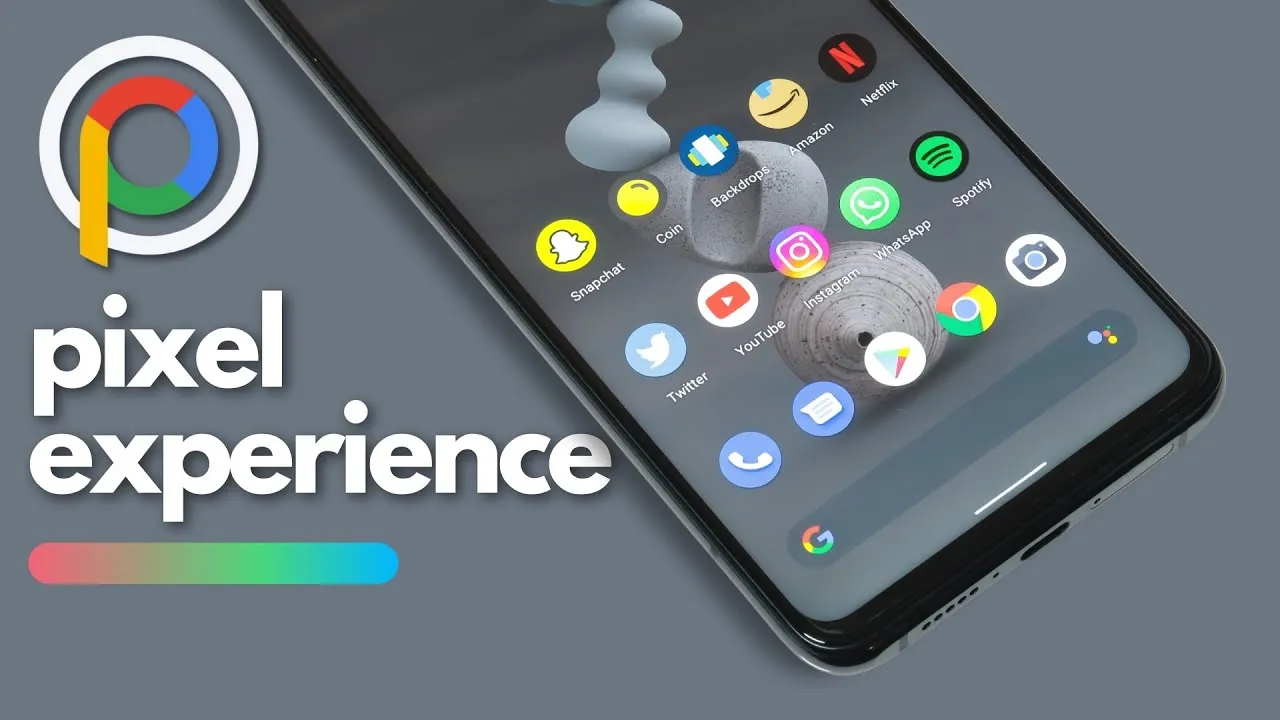
What happens if you like the Google Pixel phone’s software but not the hardware? Using a modified Android ROM to give other OEM phones the Pixel experience is the best method to get around this problem.
Precisely what the Pixel Experience ROM accomplished. Regretfully, however, the project’s lead developer declared today that he is ending the work. He clarified in a short blog post that while he will not be making any further builds, prior versions of the ROM will still be accessible.
José Henrique wrote in the post, “I share crucial information with you today with a feeling of thankfulness.” “After giving it some thought, I decided to finish developing Pixel Experience.
It is interesting that Henrique chose not to directly address why he chose to end things. It is probable he does not have the time because he is too busy with other initiatives. Another possibility is that he is not as excited about the idea as he once was. It is odd that he does not explain the sudden decision—if only partially.
In any case, it is feasible that a different developer will take up the project or start a new one with comparable objectives. Although the community for custom ROMs has dwindled over the last ten years, people who want to flash alternate builds on their Android smartphones will always exist.
Modified versions of the Android operating system known as “custom ROMs” are produced by independent developers or communities. Beyond what is offered by the software from the original manufacturer, these ROMs provide a distinctive and personalized user experience.
What is a custom ROM
Custom ROMs are frequently used by users to enhance performance, unlock new features, or prolong the life of their devices.
The ability to alter a device’s design and functionality is one of the main reasons people prefer custom ROMs. Themes, user interfaces, and the installation of custom kernels and changes to improve performance and battery life are all examples of customization possibilities. These ROMs frequently provide more device control, enabling users to customize their experiences to suit their preferences.
The flexibility custom ROMs offer in terms of software upgrades is another important benefit. Official updates for older or less well-liked devices are occasionally delayed or completely abandoned by manufacturers and carriers.
On the other side, custom ROM developers keep supporting these devices, giving customers the most recent versions of Android long after the official support stops. Users can now take advantage of new features and security updates that they wouldn’t otherwise have access to.
Evolution X
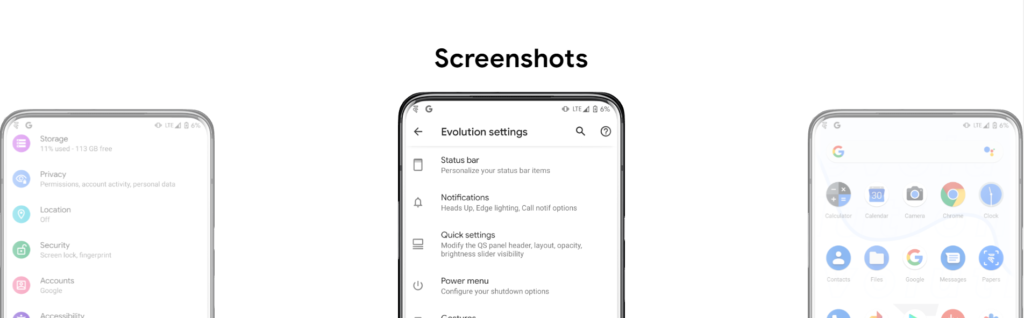
Popular custom ROM Evolution X, which is based on the Android operating system, strives to offer a distinctive and feature-rich user experience. Evolution X, created by a passionate community of enthusiasts, offers a wide range of customization options, performance upgrades, and an easy-to-use interface, all while adhering to the fundamental values of stability and dependability.
Evolution X is fundamentally based on the most recent Android releases, featuring Google’s most recent features and security updates. By doing this, customers are guaranteed access to the most recent features and security measures provided by the Android ecosystem. Even if official manufacturer updates are no longer available, customers can still benefit from a new operating system on their compatible devices with Evolution X.
Another trait of Evolution X is performance optimizations. The ROM includes a number of adjustments and improvements meant to increase the device’s responsiveness, speed, and battery life. Users can fine-tune the performance of their device to suit their preferences by using sophisticated performance settings like undervolting or overclocking. Additionally, Evolution X makes the most of system resources to guarantee fluid animations and seamless multitasking.
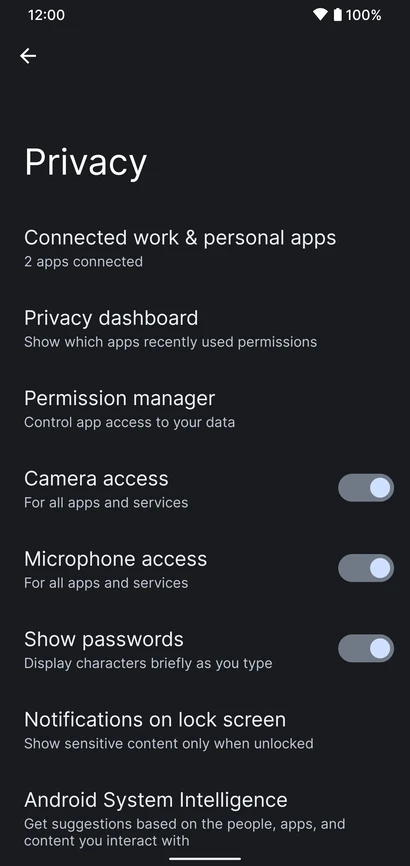
Evolution X also places a strong emphasis on privacy and security. The ROM includes built-in privacy features, such as advanced permission controls and privacy settings, to give users more control over their data and app permissions. Furthermore, Evolution X incorporates the latest security patches and updates to protect users from potential vulnerabilities and ensure a secure browsing and app experience.
Features lists
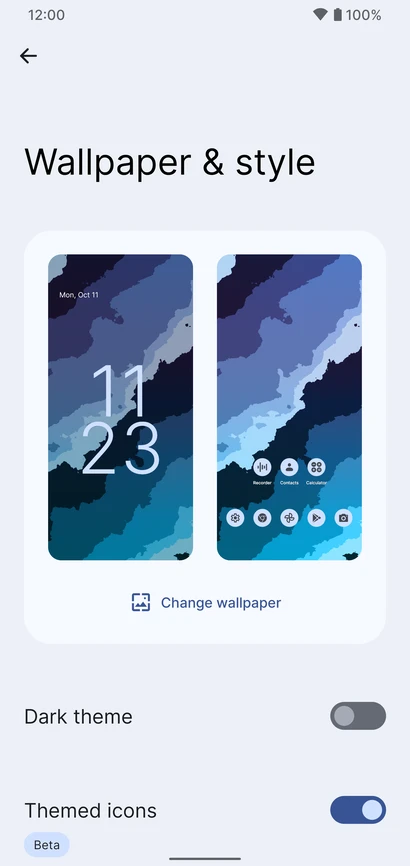
Themes

- Theming Settings (Style, Color Source, Accent Color, Accent Background, Background Color, Luminance, Chroma, Tint Background)
- Custom Themes (Black, Clear, Vivid, Paint In The Snow, Espresso)
- Dark Theme Schedules
- Lock screen Clock Fonts (16 Fonts)
- Headline/Body Fonts (53 Fonts)
- SB Icon Packs (10 Styles)
- SB Signal Icon Packs (14 Styles)
- SB WiFi Icon Packs (10 Styles)
- System Icon Shape Packs (16 Styles)
- 3 Button Navbar Styles (10 Styles)

Status bar

- Status Bar Lyrics
- Clock Styles (Right, Center, Left)
- Clock & Date Configs (Auto Hide, Hide Duration, Show Duration, Seconds, AM/PM, Font Size, Date Position/Case/Format)
- SB Logo Pack (20 Styles, Right/Left)
- Network Traffic Indicators
- Battery Icon Styles (19 Styles)
- Battery Percent (Hidden, Inside Icon, Next To Icon)
- Battery Bar (Thickness, Alignment, Blend Colors, Reverse Direction, Colors, Animation)
- System SB UI Tuner
- Data Disabled Icon (On/Off)
- Old Style Mobile Data
- 4G Instead Of LTE
- Roaming Indicator
- WiFi Type Icon
- Colored Icons
- Notification Count
- Bluetooth Battery Status
- Mic/Camera Privacy Indicator
- Location Privacy Indicator
- Media Projection Privacy Indicator

Notifications

- ReTicker
- App Colored Background For Reticker
- Heads Up (Time Out, Importance Threshold, Less Boring, Stoplist/BlockList)
- Force Expand Notifications
- Notification Sound If Active
- Kill App Button
- Blink Flashlight For Incoming Call (When Ringing, When Silent, When Entierly Silent, Always)
- Blink Flashlight For Notifications
- In-Call-Vibrations (Connect, Waiting, Disconnect)

Quick Settings

- Clock
- Clock Font Size
- Date
- Battery Style (15 Styles)
- Battery Percent Location (Hidden, Inside Icon, Next To Icon)
- Battery Estimates
- Secure QS Tiles Requires Unlocking
- Quick QS Pulldown (Disabled, Right, Left, Always)
- Brightness Slider (Never, Expanded, Always)
- Brightness Slider Position (Top, Bottom)
- Auto Brightness Icon
- Hide Labels
- Label Text Size
- Smart Pulldown
- Vertical Layout
- Columns In Portrait (2-5)
- Columns In Landscape (2-6)
- QS Tile Animation Style (3 Styles)
- QS Tile Animation Druations (3 Speeds)
- QS Tile Animation Interpolator (8 Styles)
- Vibration On Touch
- Vibration On Touch Duration
- QS Footer Warnings
- Show Data Usage
- User Account Icon
- Edit Icon
- Power Menu Shortcut
- Running Services Shortcut
- Settings Shortcut
- Clear All Button (10 Styles, 5 Backgrounds)

Power Menu

- System Settings (Hold PWR Assistant + Hold Duration)
- Disable Power Menu On LS
- Power
- Restart
- Advanced Reboot Options
- Screenshot
- On-The-Go Mode
- Settings
- Lock Down
- Emergency
- Device Controls
- Users
- Logout
- Bug Report

Gestures

- System Settings
- Quick Tap
- Volume Button Playback Control
- Swipe To Screenshot
- Brightness Control
- PWR Button Torch
- Double Tap To Sleep Status Bar
- Double Tap To Sleep Lock screen
- AOSP Gestures
- Pill Length
- Pill Radius
- Hide IME Button Space
- Back Gesture Animation

Lock screen

- Edge Light
- Always On Fingerprint
- UDFPS Icon Picker (55 Styles)
- UDFPS Animation Picker (38 Styles)
- Lock screen Charging Info
- Hide Status Bar
- Hide QS During Secure Lock screen
- Media Cover Art (5 Filters)
- Ripple Effect
- Fingerprint Authentication Vibration
- Fingerprint Error Vibration

Buttons

- Navigation Bar
- Compact Layout
- Invert Layout
- Show Vol Panel On Left
- Per App Vol Control
- On-Screen NavBar
- Reorient Volume
- Volume Rocker Wake
- Keyboard Cursor Control
- Alert Slider Notifications
- Alert Slider Pulse
- Block Alert Slider In Pocket Mode
- Click To Partial Screenshot

Animations

- Screen Off Animation (3 Styles)
- Power Menu Animations (11 Styles)
- Android P Animation Style

Miscellaneous

- AOD Display Schedule
- Google Services
- Game Space
- Smart Pixels
- App Lock
- Launch Music App On Headset Connection
- Unlimited Photos Storage
- Unlock Higher FPS In Games
- Netflix Spoof
- Pulse Music Visualizer (Navbar, LS, Ambient)
- Volume Panel Timeout
- Jitter Test
- Ignore Secure Window Flags
- Show CPU Info
- Toast App Icon
- Sensor Block Per Package
- Wakelock Blocker
- Alarm Blocker
- Default USB Configuration
- Radio Info
First Time Install
1. Download vendor_boot & rom for your device from here
An Android phone stands apart in the market thanks to customization and the freedom to do anything with it. You can replace the phone’s stock UI with a custom ROM if you don’t like it. Once more, if your manufacturer has stopped providing updates for your phone, you can try out custom ROMs that are powered by the newest version of Android. You therefore have significant customization options and control over your smartphone in both situations.
However, a developer of a modified ROM must register the ROM with Google. The device will not be able to use any Google services, including Google apps and services, if it is not registered with Google.
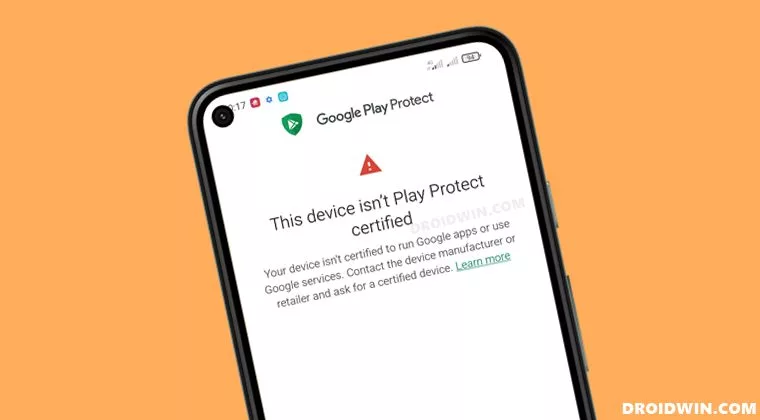
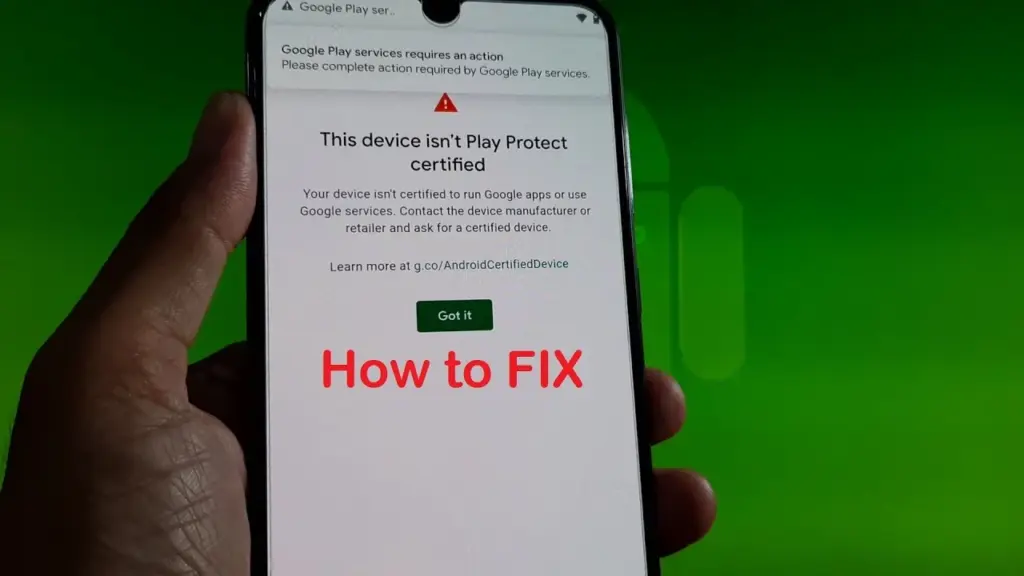
When a device has an unregistered custom ROM installed, they get the “This Device Isn’t Play Protect Certified” error. Now, if you are one of those struggling with such an error message, this article will help you. Here, we have listed how you can fix this. So without any further ado, let’s get into this.
You need to follow the steps for this in a systematic manner. It is exactly as we have mentioned below here. Do not skip any of these steps, and ensure one step is complete before moving to the next one.
How to fix This Device Isn’t Play Protect Certified Error On Custom ROMs?
Install Android SDK:
Download and extract the Android SDK Platform Tools on your PC. Depending on your PC’s OS, download it for Windows, Mac, or Linux. It will be a zip file. Once you have it, extract it in any preferred location. Now, you need to enable USB debugging on your smartphone for that.
Enable USB Debugging:
This step is essential if you want your PC to recognize your device when connecting it via USB in ADB mode.
Open up the settings menu on your phone.
Navigate to About Phone > Build Number. You need to tap on the Build number 7 times. You will see a pop-up on your screen that reads, “You are now a developer.”
Now go back to Settings and Open up System.
Navigate to Advanced > Developer Options > Enable USB Debugging.
And that’s it. Your smartphone is now ready to take in ADB shell commands.
Find Device ID:
Obtaining the device ID used to be a challenging task; users would frequently need to root their phones in order to obtain this data. But that is no longer the case. The Google Play Store offers a program called Device ID that you can download. When you launch it after installation, the device ID details will be visible. After noting the device ID, proceed on to the following action.
Register Your Custom ROM:
You must visit the Google Device registration page for the final registration process.
Click on this link to go to Google’s Device registration page.
Sign in to your account here.
Now type in the device ID under the “Google Service Framework Android ID” section.
Verify the captcha and then click on the Register button below it.
Wait for an hour, and your device should be registered successfully.
Once the registration is complete, your Custom ROM will also be registered, and you won’t see the “This Device Isn’t Play Protect Certified” error on your screen anymore. If you have any questions or queries about this article, comment below, and we will get back to you.
The 2 XL’s update end-of-life date was in December of last year, just a few months after Google introduced Android 11. Even though they’re getting on in years, these phones are still adequate for basic day-to-day use. If you have a Pixel 2 XL and want to try Android 12 out, you can do so right now if you’re ready to take matters into your own hands. The first Android 12-based custom ROM for the Pixel has been launched, and it includes all of the important new features such as Material You, a redesigned Quick Settings panel, new system animations, and privacy improvements.
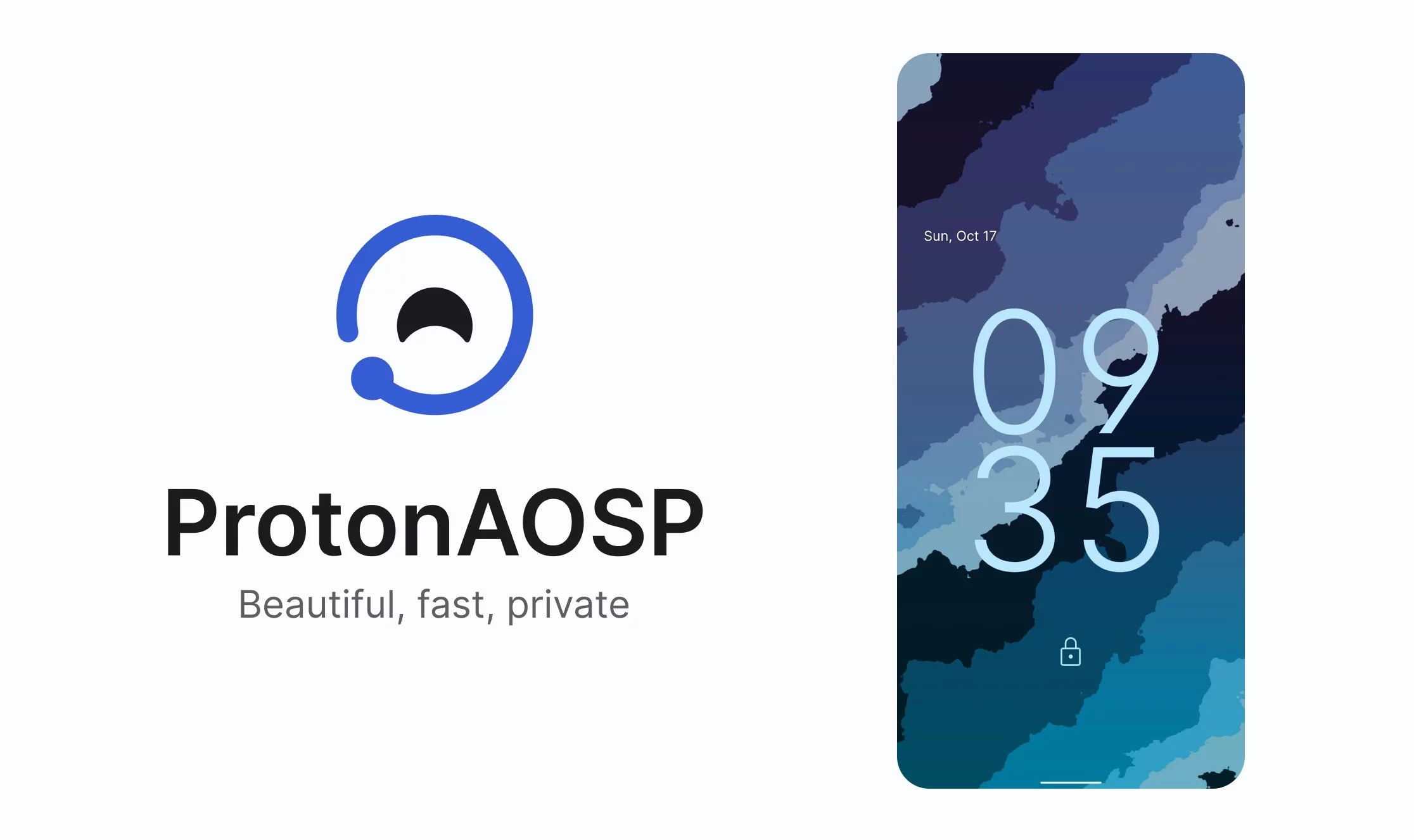
While you can always install the GSI build of Android 12 on your Pixel, the experience isn’t stable enough for everyday use because it’s designed for developers. This is where ProtonAOSP comes in, since it provides a relatively stable option for Pixel 2 XL owners to try out the latest Android update on their aging hardware. The ProtonAOSP Android 12 ROM is currently only available for the Pixel 2 XL, but a build for the smaller Pixel 2 is on the way.
Installing the ProtonAOSP’s Android 12 release is different from other ROMs as it is available as a factory image (see how over at XDA Developers). You’ll need to unlock the bootloader on your Pixel 2 and use the bundled flash-all script to install the ROM. If the installation fails, you may need to repartition and allocate more storage to various system partitions.
If you do install the ProtonAOSP ROM on your Pixel 2 XL, be prepared to run into some bugs and occasional performance issues. The major ones are non-functional Wi-Fi and Permissive SELinux permission in the current build. There are likely other issues as well that haven’t been reported yet. Nonetheless, if you want to try out Android 12 on your Pixel 2 XL, this is your best bet right now.
Manual install ProtonAOSP
This is a guide for installing ProtonAOSP manually, using the command line. The web installer is recommended if you don’t have a specific need for this. Check the list of common misconceptions if you’re not sure.
You can only use a Windows, macOS, or Linux computer for this manual installation; use the web installer if you want to install from a Chromebook or another phone.
Download a build
Download the build you want to install in factory images format.
Prepare your phone
Put your device into bootloader mode by restarting it and holding the volume down button until you see a red warning sign or green Android robot.
Once your device is in bootloader mode, plug it into the computer or device you’re installing from. Make sure you use a high-quality USB cable, as many cables will cause issues. Avoid USB hubs if possible.
Your USB cable needs to be able to copy files. Charging-only cables won’t work.
If you’re switching from the stock OS or another ROM, make sure all your important data is backed up. You’ll need to wipe all your data in order to use ProtonAOSP.
Prepare your system
First, open the “Command Prompt” app from the Start menu.
Next, download the Android SDK Platform Tools and extract them. Navigate to the extracted platform-tools folder in the terminal by typing cd (with the space at the end) and dragging the folder into Command Prompt. Then run the following command:
set PATH=%CD%;%PATH%
If it’s your first time installing from this computer, you also need to install drivers:
Open Settings → Windows Update
Click “Check for updates” and wait
Click “View optional updates”
Select the “Android Bootloader Interface” update (ignore the brand name; it doesn’t matter)
Click “Download and install” and wait for it to finish
If you’re switching from the stock OS or another ROM, you need to wipe all data before installing ProtonAOSP:
fastboot -w
Otherwise, ProtonAOSP won’t boot and your phone will get stuck on the boot animation after the installation.
DANGER
All data on your phone will be lost, so make sure your important files are backed up before doing this.
Install the build
Factory images
Extract factory images
Extract the downloaded factory images package (e.g. proton-aosp_redfin-factory_11.5.0.zip). Navigate to the new folder (e.g. redfin-rq2a.210505.003) by typing cd (with the space at the end) and dragging the folder into your terminal.
Flash factory images
Run the following command to flash the factory images:
Windows
macOS
Linux
./flash-all.sh
Copy
Don’t touch, unplug, or press any buttons on your device during the install. Your phone will restart several times, but don’t touch it. It will automatically boot into ProtonAOSP once the installation process completes.
Finish
You can now delete the factory images package, but don’t delete the platform tools — you’ll need them for updating in the future.
For security, you may also wish to re-lock the bootloader to enforce verified boot, which improves physical security and resistance against persistent attacks.