– Always be safe, make a NAND backup – Be decrypted, else you need to format your data partition. ( an Internal Storage backup is recommended if you are encrypted!!) – Orange Fox Latest/SHRP/TWRP
Installation \~ Clean Flash
– Wipe all except internal, vendor, and OTG – Flash latest Vendor of your region – never crossflash!
– Flash ROM – Flash DFE with or without Magisk – Reboot to system – Be patient during first boot ~ skip DFE if you want encryption (NOT recommended)
Vendors Given Vendor-Firmware files needs to be downloaded and flashed according to your specific region.
*Fixed DC Dimming *Added DC Dimming QS Tile *Added FPS Overlay *Added FPS Tile *Added Digital-style icon for FPSInfo QS tile *Added ringer mode checking for Camera Sound effect *FOD: Added dispparam handling mechanism as fallback *Fixed A2DP when offload is disabled *Improved FOD on AOD *Enabled LED Notifications *Fixed MultiUser Section FC *Switched to April Crosshatch build Fingerprint * Switched to Latest Immensity Kernel
Themes:Accent picker
Theme backup
Theme styles

Notifications:
Heads up options
Charging animation
Edge Lighting
Blink Flashlight on Call

Miscellaneous:
Rounded Corners
System Animations
Scrolling Cache
Expanded screenshot
Gaming Mode
Three Finger Swipe
DT2 Sleep
Signature Spoofing
Sensor block per app package
Screen off animation
Dashboard conditions
Dashboard suggestions
Disable device identifier restrictions

Fingerprint Prefs:
Fingerprint error vibration
Fingerprint authentication Vibration

Lockscreen:
Show status bar on lockscreen
Disable QS when locked
Lockscreen charging info
Lockscreen album art filter
Media artwork blur level
Shortcuts
Charging animation
Lockscreen style
Fod Icon picker
FOD recognising animations
FOD pressed state
Hide lock icon
DT2sleep
Lockscreen visualizer
Media Artwork

Status Bar:
Battery Customization
Charging LED
Battery Estimates Toggle
Battery Icon Style
Battery Percentage
Aggressive Battery
Battery Bar Customization

Carrier Label:
Custom Carrier Label
Carrier Label Fonts, Size, Colors

Clock Customization:
Show clock and date toggle
Auto-hide Clock
Clock Style
AM/PM Style
Show seconds toggle
Date, its position, style, format, size, font color & style
Icon Manager
Statusbar Icons
Custom Logo
Signal Icon Switch
Toast app icon
Bluetooth battery status

Quick Settings:
Quick QS Pulldown
Smart Pulldown
Vibrate on Touch
QS footer text
Customize footer text
Settings icon toggle
Running services icon
User switch icon
Edit icon toggle
QS Tint toggle
Header Images & toggle
QS Blur
Background opacity
QS Layout Customization
QS tile Animations
Brightness Slider Positions and customization

Traffic Indicators:
Traffic Indicator Placement
Activity Layout
Net Type Activity
Net font size customization
Show/Hide arrows toggle
Net activity auto-hide threshold

Ticker:
Ticker toggle
Ticker Animation
Ticker Duration

Hardware:
Buttons
Kill app button
Screen off power button torch
Volume Panel Customization
Music Control
Volume rocker wake
Reorient
Volume rocker wake
Volume key cursor control

Navigation:
On-Screen nav bar
System Navigation
Full Screen gestures
Extended swipe action
Left/Right Swipe Action

Power Menu:
Power menu animation
Restart toggle
Advanced Restart Toggle
Lockdown toggle
Screenshot toggle
Lockscreen visibility

Display:
Ambient Display
Always on
Custom Options
Batter level on bottom
Always on when charging
New notifications toggle
Lift to check phone
Hand wave pulse
Pocket notifications on removal
Brightness options on Ambient
Ambient wake gestures
Ambient music ticker
Night Light
Adaptive Brightness
Styles and wallpapers
Screen Attention
Display Colors
Screen Savers
Screen rotations
D2w
Wake on plug
Game driver preferences
1. Backup 2. Download Corvus Latest ROM Zip 3. Wipe cache/dalvik cache/system/data/vendor 4. Flash ROM Zip (Use latest Orange Fox Recovery) 5. Flash any add-ons if you want to like Gapps, Magisk, Etc. 6. Reboot & enjoy!
Warning Disclaimer: Droid Tools is not responsible for any damage or loss caused to your device.
Droid Tools
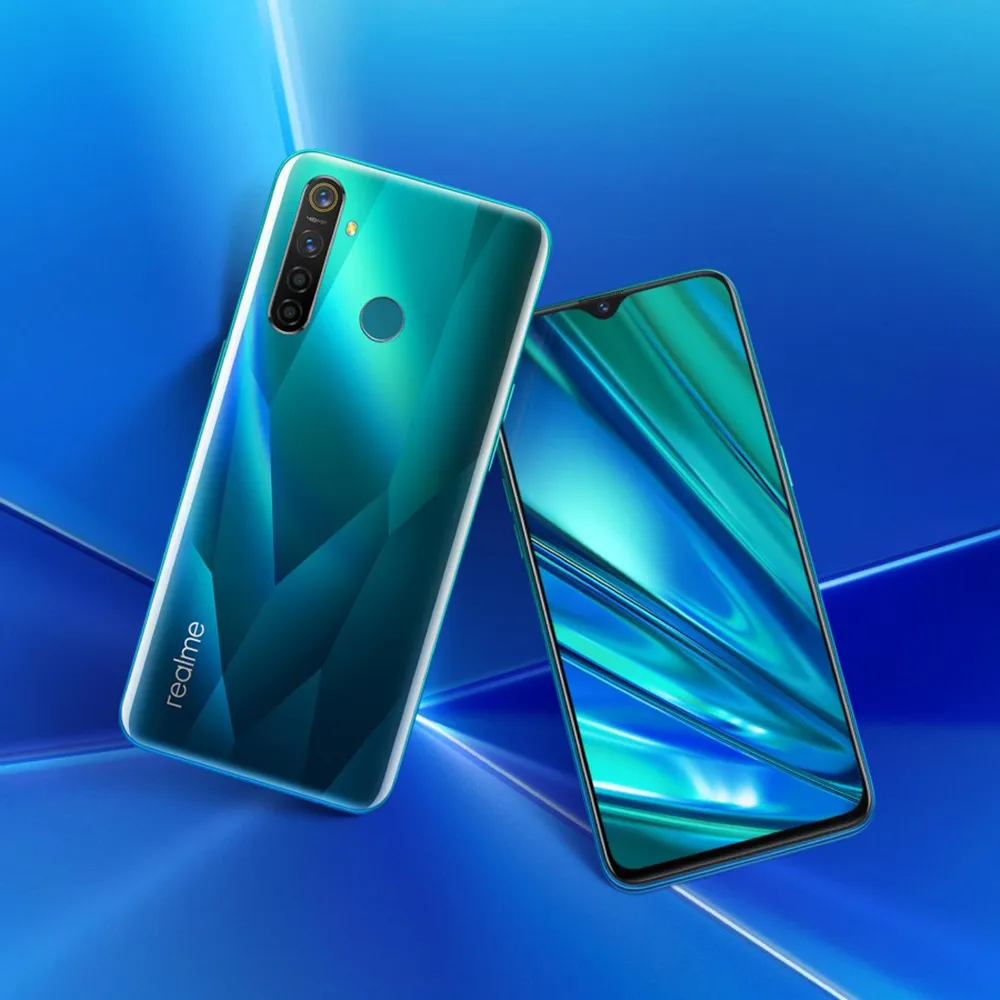
Realme launched Realme 5 Pro to India with Android 9 Pie in tow. The handset later became known in China as Realme Q. Remember that the handset received Android 10-based Reame UI 1.0 during this week. While the brand new app of Realme comes with a host of new features like dual earphone link, animated wallpapers, customizable icon design, new charging animation, Realme Share and more. The firm is promising a close-to-vanilla Android approach with Realme UI, but we all know this isn’t exactly the case.
Although Realme UI is designed to provide an Android experience close to stock, it still feels like ColorOS. There’s good news for you in case you want to enjoy a real pixel like Android experience on your 5 Pro. The Realme 5 Pro finally gets official support for Pixel Experience (based on Android 10). If you are not aware, Pixel Experience is a custom ROM that brings to the supported smartphones all the Pixel features, sounds, boot animations. If you like Realme 5 Pro hardware but aren’t a software fan, now is the time to enjoy a true Android vanilla experience.
To flash a custom ROM, users will need to unlock the bootloader of their devices. Then, the next step is to flash a custom recovery. Worth noting that flashing a custom ROM does not affect the warranty of the Realme devices. After all, the company is very friendly to Custom ROM developers