Tag: cloud

  • HarmonyOS 6 delivers 40% faster performance than previous versions

    HarmonyOS 6 delivers 40% faster performance than previous versions

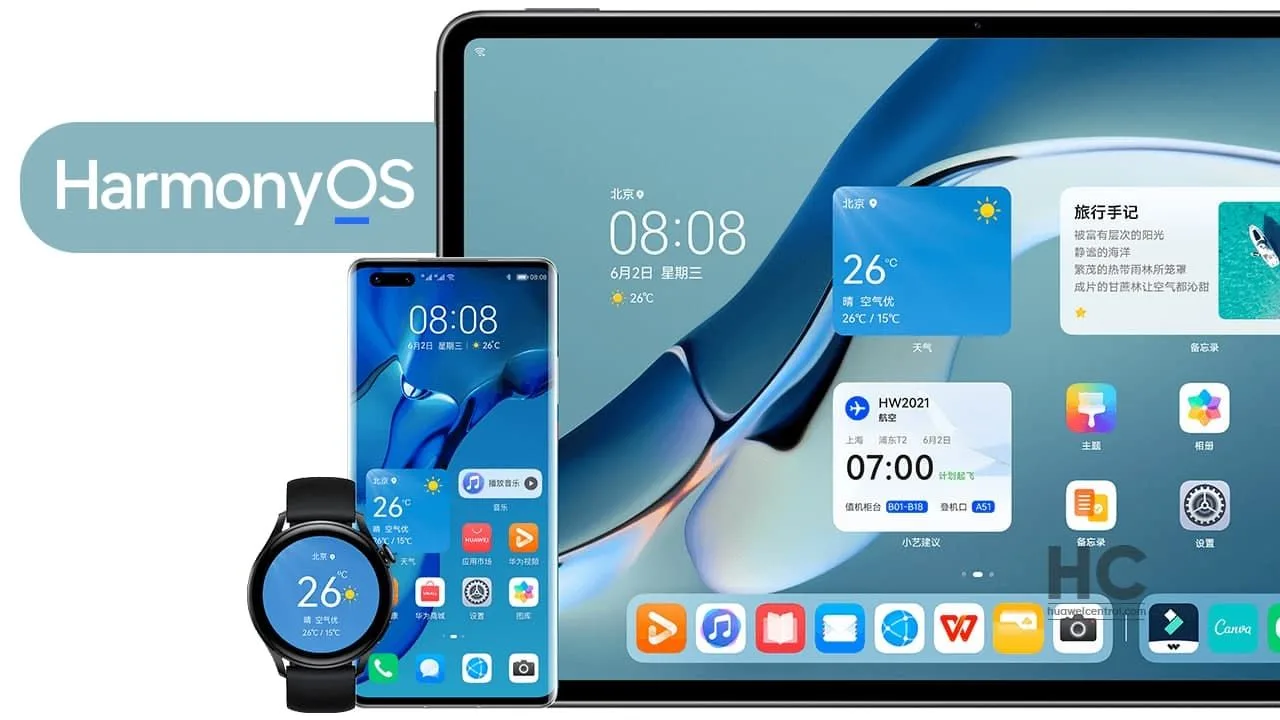
    Although HarmonyOS 6.0 has some unexpected features, its performance—which is 40% faster than the previous build—is perhaps more intriguing. Users will notice a really fluid experience in every way, whether it’s animation or app launches.

    In response to comments and recommendations from two million consumers, the business improved its operating system. It has improved HarmonyOS 6’s performance by 40%, resulting in faster and more fluid device operations.

    Because of the improved Ark Engine, Huawei has reorganized its cloud system-level architecture, hardware core, and software. The company improved the action of app starts, page loads, and renderings by fine-tuning key portions for games and apps.

    To put it simply, the Ark Engine combines cloud, hardware, and software vertically. As a result, it improves multi-device connectivity and increases device performance and battery life by 35 to 51 minutes.

    The new software system’s fluency has significantly changed as a result of this approach. The overall fluency of HarmonyOS 6.0 is 40% higher than that of HarmonyOS 4.0 and 15% higher than that of HarmonyOS 5.

    Increased performance in HarmonyOS 6

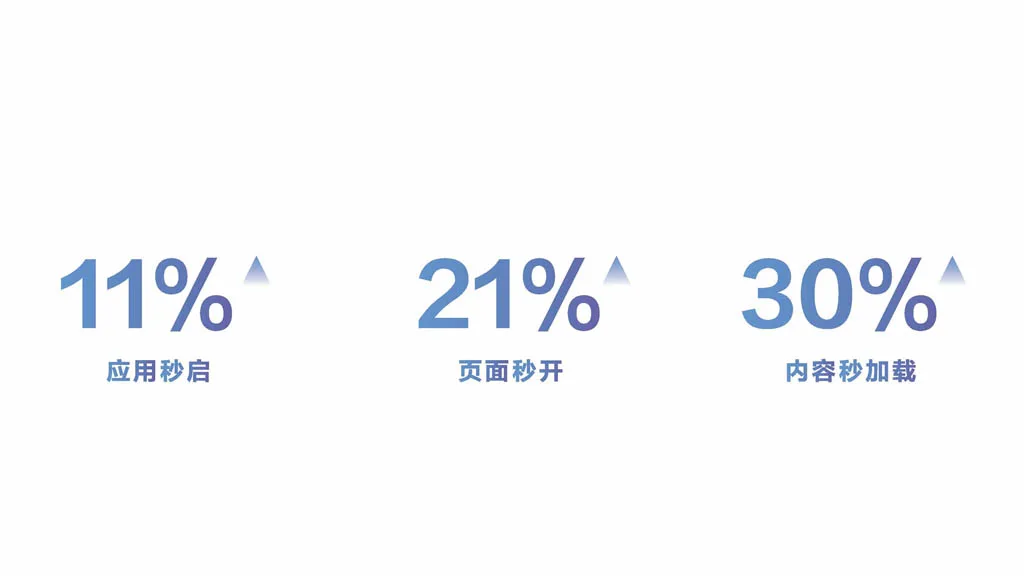
    After the HarmonyOS 6.0 software system has been installed on your device, you will observe that:

    • App launches 11% faster than the previous version
    • Page loading is 21% faster than the previous version
    • Content loads 30% faster than before
    harmonyos 6 performance metrics

    Additionally, users of PCs, phones, and tablets will find it easier to manage big files and complex tasks. Conversely, End-Cloud and Ark Scheduling Engine raise the Delta Operation minimum frame rate by 24%.

    On a full charge, the flagship Mate 70 Pro can play top-tier games like Genshin Impact and others for four hours straight. You can quickly enter the game world by tapping on the “Instant Start” function.

    The HarmonyOS Galaxy Interconnection architecture lowers power consumption by 20% while increasing connectivity by 160MB/s. The speed of payment features has increased by 30%. You will discover fresh vitality and fluidity in each feature.

  • 5 best Android file explorers to manage your phone like a pro

    5 best Android file explorers to manage your phone like a pro

    Every Android smartphone requires a file explorer, and Google Files is the default choice for Pixel smartphones and many others. This lightweight, free tool has all the necessary file management features, and its simple layout makes it simple to examine information in folders or categories. It’s not the greatest file management tool for Android, but it’s an excellent method to get rid of duplicate files and keep your smartphone free of clutter.

    I’ve used a lot of Android file explorers over the years, and these are the greatest substitutes for Google Files since they have more sophisticated capabilities, a more appealing appearance, and more customization choices.

    Cx File Explorer

    With a variety of options to assist users in managing their decreasing storage space, Cx File Explorer focuses primarily on managing the storage on Android devices. Its analysis features, which show the location of storage hogs, the amount of storage used by each file type, and the largest files on the device, are its strongest feature. This feature is very useful to me because it makes it easier to organize the videos I have on my device for offline entertainment and flights.

    In addition to these features, Cx File Explorer has a simple layout with integrated image, video, and audio players, a handy info box showing available storage, and a small icon-based breadcrumbs menu.

    cx file explorer

    Cx File Explorer

    Cx File Explorer is a powerful file manager & storage cleaner app with a clean and intuitive interface. With this file manager app, you can quickly browse and manage the files on your mobile device,

    Mixplorer

    Mixplorer is more extensible and versatile than most file explorers. Having been in development for more than ten years, this is my favorite Android file management software.

    As implied by its name, Mixplorer may easily connect a wide range of storage options, including LAN, Google Drive, OneDrive, external media, internal storage, and other cloud services. You can view all of this info without launching specific apps once it’s set up. Additionally, Mixplorer is compatible with symlinks, which offer even more versatile file access options throughout Android.

    The customizable design of Mixplorer is another well-liked feature. Although the basic layout is easy to use, power users may install skins to customize the software, integrate add-ons for more functionality, and effortlessly navigate between services and folders using the tabbed interface. I adore Mixplorer’s dropdown breadcrumbs menu because it’s a clever design decision that allows you to quickly navigate back to a root folder without taking up much screen real estate.

    mixplorer Android file explorer

    Mixplorer

    MiX Silver is a bundle of MiXplorer file manager and Archiver, Image, Tagger and PDF add-ons as a paid app to support development of MiXplorer.

    Solid Explorer

    In the Android app market, Solid Explorer is likewise quite well-regarded. Solid, a high-end file management program, has many of the same functions as Mixplorer, plus a few extras. Its real-time folder size indicator, which refreshes each directory’s byte count as files are added or removed, is possibly my favorite feature.

    solid explorer

    Solid Explorer File Manager

    Solid Explorer is a file management app inspired by the old school file commander applications.

    Material Files

    Material Files appeals to both Files by Google consumers and power users by striking a mix between an intuitive user interface and a robust feature set. The app feels as though Google themselves could create it because of its heavy reliance on Material You. Its components permit automated Night mode activation based on system settings and take on the color scheme of your device.

    Even though it doesn’t offer the same expandability as Mixplorer, I would contend that its user interface is simpler to use. Nevertheless, the left-hand sidebar has all the information I require. Its dedicated Screenshots shortcut, which takes me straight to screenshots of the programs I frequently use for my articles, is something I really like.

    The program does not let you connect to and access files on Google Drive, for example, but it does enable external storage on physical media or local networks.

    material files file explorer

    Material Files

    An open source Material Design file manager. Lightweight, clean and secure. Follows Material Design guidelines, with attention into details.

    Fossify File Manager

    Finally, Fossify File Manager prioritizes simplicity and privacy and is open-source and free. With more security features, it most likely offers the experience that is closest to Files by Google in that regard. For example, it enables users to secure certain files and folders using a password or fingerprint.

    With multiple color choices for the overall theme, a tab that shows you which file kinds are using up space on your disk, and basic search and organizing tools, the user interface is very user-friendly.

    fosify file manager

    Fossify File Manager

    Tired of file managers that slow you down and invade your privacy? Unlock a lightning-fast, secure, and completely customizable experience with Fossify File Manager.

    Google Files is by no means an inferior app. In fact, Google has created a straightforward and dependable file management solution that ensures constant performance for all Android applications. Consider one of the five programs listed above, though, if you require a few extra capabilities, wish to access local network stores and cloud storage, or want to add protection to your crucial files.
  • How to back up your Android phone

    How to back up your Android phone

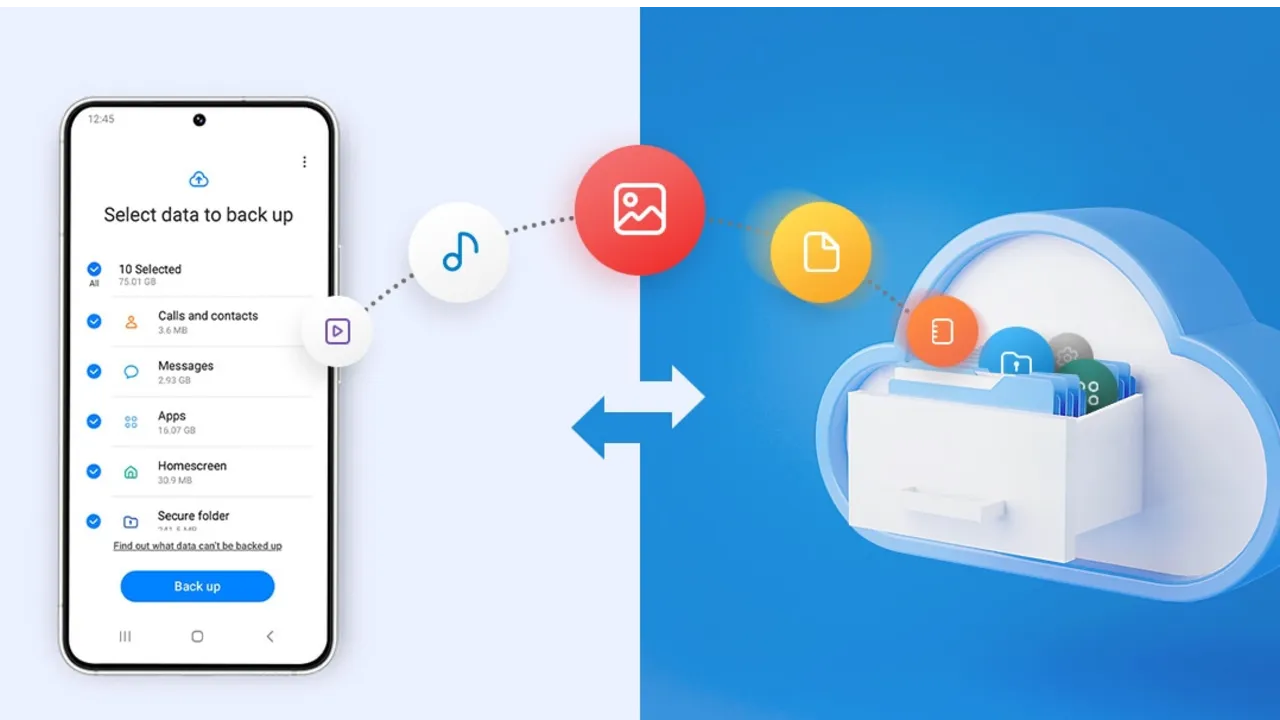
    Backing up your Android phone ensures that your data is safe in case of loss, damage, or switching to a new Android device. Thankfully, Android has a number of built-in security features that secure your contacts, media, apps, and settings without the need for third-party programs.

    Establishing a suitable backup plan is crucial, regardless of whether you’re upgrading your device or getting ready for a factory reset.

    Why it’s important to back up your Android phone

    It’s not just techies who should back up. You run the danger of losing private images, critical messages, app data, and even saved Wi-Fi passwords if your phone is misplaced or broken. Regular backup creation allows you to:

    Use Google backup (cloud-based method)

    google backup data

    Google offers a dependable, integrated backup system that connects to your Google account and stores your important data in the cloud. For the majority of Android users, it is the most practical approach.

    What Google backup saves:

    • App data and preferences
    • Call history
    • Contacts
    • SMS text messages
    • Device settings (Wi-Fi, wallpapers, display preferences)
    • Photos and videos (via Google Photos if enabled)

    How to enable Google backup:

    1. Open Settings on your Android device
    2. Scroll down and tap Google
    3. Tap Backup
    4. Ensure Backup by Google One or Back up to Google Drive is turned on
    5. You’ll see a summary of what’s being backed up. Tap Back up now to trigger an immediate backup

    Once enabled, your phone will automatically back up daily when connected to Wi-Fi and charging.

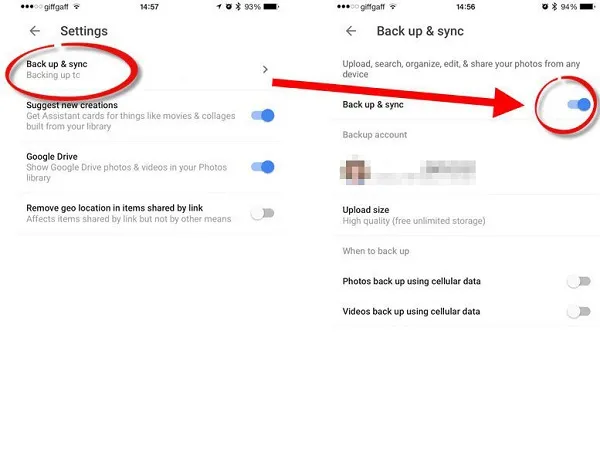
    Back up photos and videos using Google Photos

    Your videos and pictures frequently include priceless memories. To make sure your media files are securely backed up and available on multiple devices, Google Photos offers a quick and safe solution. It’s among the most dependable ways to preserve your graphic information without requiring complicated instruments or extra hardware.

    Google Photos is a robust cloud-based platform that automatically stores and arranges your images and videos, making it more than simply a gallery app. Once activated, it will sync your media to your Google Account continually, so your memories will be preserved even if your device is lost or damaged.

    Steps to back up media:

    1. Open the Google Photos app
    2. Tap your profile icon in the top right
    3. Choose Photos settings > Backup
    4. Toggle Backup to on
    5. Choose your preferred upload size (Storage saver or Original quality)
    google photos enable back upyour Android devices photos and videos

    All your photos and videos will sync to the cloud, and you can access them on any device logged into your Google account.

    Back up files manually to a PC

    Although cloud storage services like Google Drive and Google Photos are convenient, backing up your Android files to a PC by hand offers you more control, privacy, and independence from internet connectivity. It’s a simple process that guarantees you have a hard copy of all of your vital information, including documents, films, images, and more, safely saved on your computer.

    Here’s how:

    1. Connect your Android phone to your PC using a USB cable
    2. On your phone, choose File Transfer / MTP mode when prompted
    3. Open File Explorer on your computer
    4. Locate your device, open it, and navigate to folders like DCIM, Downloads, Pictures, or Documents
    5. Copy and paste the desired files to a safe folder on your PC

    This method is ideal for archiving large files or performing a one-time back up your Android without an internet connection.

    Use Samsung Cloud or manufacturer tools (for Samsung, Xiaomi, etc.)

    Some manufacturers offer their own back up your Android device solutions in addition to Google’s.

    For Samsung users:

    1. Go to Settings > Accounts and backup
    2. Tap Samsung Cloud
    3. Choose what to back up (contacts, calendar, settings, etc.)
    4. Tap Back up now

    You can restore this data to any Samsung device later using the same Samsung account.

    Xiaomi users:

    Use Mi Cloud by going to Settings > Mi Account > Mi Cloud and enabling the backup options available for your account.

    Always ensure you’re connected to Wi-Fi and have enough cloud storage before initiating the process.

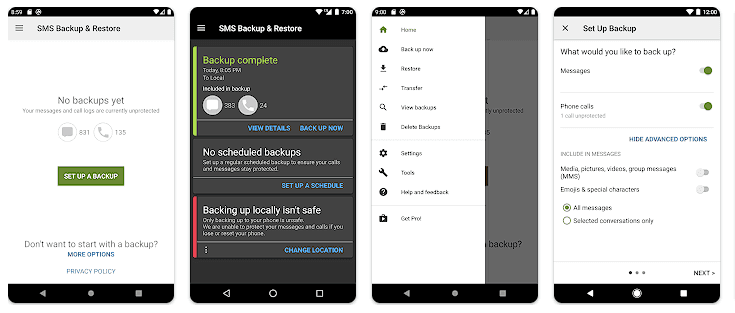
    Backup apps like SMS and call logs (optional)

    Most devices now have SMS and call history included in Google’s backup system, but if you have an older phone or want more redundancy, apps like SMS Backup & Restore can give you more flexibility.

    back up your Android

    How to restore your data

    When setting up a new Android phone:

    1. Log in with the same Google account used for backup
    2. During the setup process, Android will detect the backup
    3. Choose what you want to restore—apps, settings, contacts, etc.
    4. Wait for the process to complete; some data may take time to sync

    For manufacturer backups, you’ll need to use the brand-specific restore method (Samsung Cloud, Mi Cloud, etc.).

    Tips for reliable Android backups

    • Always use a stable Wi-Fi connection before backing up
    • Keep automatic backups turned on for peace of mind
    • Occasionally perform a manual backup if you’re making major changes
    • Regularly check if Google Photos is syncing properly
    • For local backups, organize files by folders and label your backups by date

    Back up your Android device is easy and doesn’t require technical expertise. The majority of your crucial data is handled by Google’s reliable, automated solution, but you also have more flexibility with local and manufacturer-specific solutions. Having a backup guarantees that your data is never completely lost, whether you’re changing phones or simply staying secure.

  • Top 5 best Android Apps to Backup Mobile Data

    Top 5 best Android Apps to Backup Mobile Data

    One of our worst fears is losing all of our precious files and irreplaceable data from our Android devices. Hence always make a backup of your files. It’s one of the most crucial things a person can do with their gadgets. You never know when things will go wrong, and you certainly don’t want to lose any of your belongings if this happens. Fortunately, there are numerous options for backing up your files and apps on Android.

    The following is a compilation of apps that we believe will get the job done efficiently and securely.

    Titanium Backup

    titanium backup

    For root users, Titanium Backup is a must-have tool. It’s been around for a long time, gets regular upgrades, and has a ton of features. Titanium Backup, unlike many other backup programs, is almost entirely for root users, with few capabilities for non-rooted devices. Bloatware may be frozen and uninstalled; apps (along with app data) can be backed up to cloud storage, and much more.

    The Pro edition which is for $5.99 includes significantly more capabilities, such as 1-click batch restoration, cloud storage syncing, and much more. This is the king of backup programs for root users in the past and present, and everyone knows it.

    Buggy Backup Pro

    buggy backup

    Buggy Backup Pro is truly a good application backup app. It can copy APK files to your local storage or the cloud as needed. Those are the real APKs, and they work properly. At the very least, they installed without a hitch throughout our testing. You may also share APKs and look up information like the package name, software version, and date installed.

    Aside from that, there’s an uninstall option, Material Design, and an auto-backup tool if you want to be lazy. This isn’t nearly as strong as backup apps that require root access, such as Titanium Backup. Non-root users, on the other hand, will find this to be about as excellent as it gets. Please make sure to follow the app’s instructions, as some people have lost all of their data as a result of not doing so.

    G Cloud Backup

    google cloud backup

    G Cloud is a cloud storage service that specializes in device backups. It can backup your SMS messages, contacts, photographs, movies, music, documents, call logs, and other items automatically or manually. In some circumstances, it can even back up your settings. You may set up automatic backups for convenient times, such as when your device is charging and connected to WiFi.

    The program provides you with 1GB of free storage, and you can earn more by playing various games on the app. It also has a $3.99 unlimited storage option. This isn’t Google Drive, OneDrive, or any other similar service. It’s a cloud storage service designed exclusively for phone backups, which is quite cool. G Cloud is not affiliated with Google in any way.

    Google Photos

    google cloud backup

    Google Photos can be considered cloud storage in several ways. It backs up and restores your photos to Google Drive automatically. It does require actual Google Drive space (beginning June 2021), but it’s a quick, hands-free, and automated way to do so.

    The software also offers a few extra capabilities, such as seeing images on your device, removing images from your device if they’ve previously been backed up, and automatically sorting things into albums.

    Backup Your Mobile

    Backup Your Mobile is a simple backup option for folks who don’t want a lot of functionality. Apps, system settings, SMS, MMS, call logs, and more can all be backed up with it. The user interface is straightforward, and backing up your files should just take a few minutes of exploration. Although it appears to be outdated, you are unlikely to use this app more than a few times. Easily restore your data without any worries.

    Bottom Line

    Any one of the apps mentioned above will do a fair job and back up your data in no time. Check these apps and let us know which one works best for you.