Tag: clear

  • Guide on how to clear cache of any Android device

    Guide on how to clear cache of any Android device

    Your device may slow down as a result of cached data that builds up, corrupts, or just becomes out of date over time. Although a targeted cache clear is a quick fix that doesn’t require updating hardware, restarting your phone frequently helps.

    In June, Google introduced Android 16 to Pixel devices and a few OEMs, bringing with it new Material You updates, performance enhancements, and other improvements. Clearing the cache on your Android phone or tablet can give it a new boost and free up some storage space if you want to attempt this update but are concerned since you’ve observed it already feels too sluggish.

    Although each manufacturer may have somewhat different processes, the overall procedure is the same.

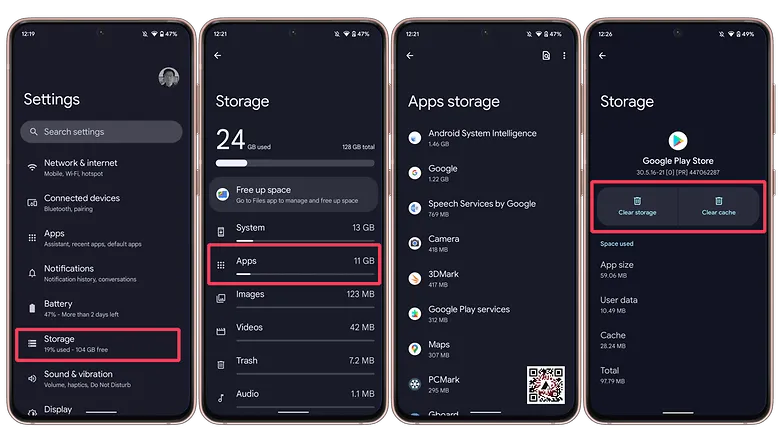
    Navigate to Storage in Settings, then select Apps. If there isn’t a specific Apps entry, you may easily locate it in Settings by using the search bar.

    Some Android devices now offer a “Free up space” option through the Google Files app in the Storage menu as well. This can be used by opening Files, selecting Clean from the three-line menu in the top-left. Examine each recommendation (such as duplicates, huge files, and useless apps), then follow the instructions to remove any files you no longer require.
    clear cache android

    (Avoid system services) press an installed app, choose “Storage and cache,” and then press “Clear cache.” Tap “Clear storage” only if you wish to fully reset the application.
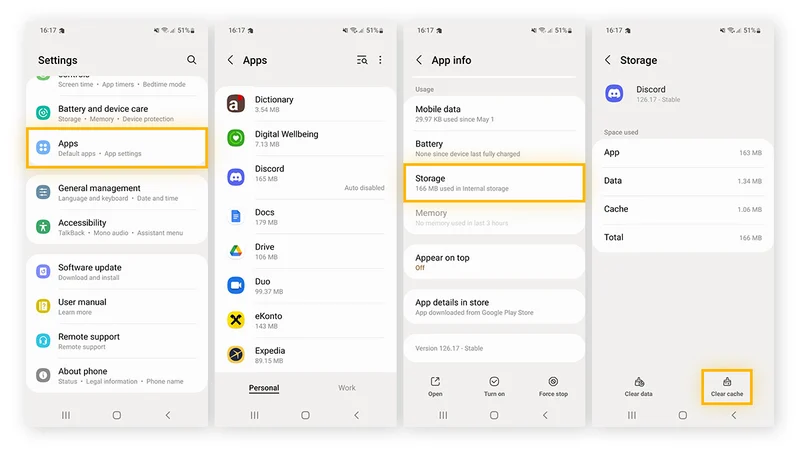
    Clear cache for individual apps

    Do the same with any programs that consume a lot of storage. Data-hungry hogs like social apps and streaming services are a good place to start.

    Additionally, some Android versions make it simple to view which apps are using the most space when you’re in the Apps menu. Just choose Sort by Size from the three-dot menu that appears in the upper-right corner.

    Note: There may be an integrated clear-all-cache feature on some Android phones. There should be a ‘Select All’ button at the top under Settings > Storage > and App Cache.

    How to clear cache from Chrome
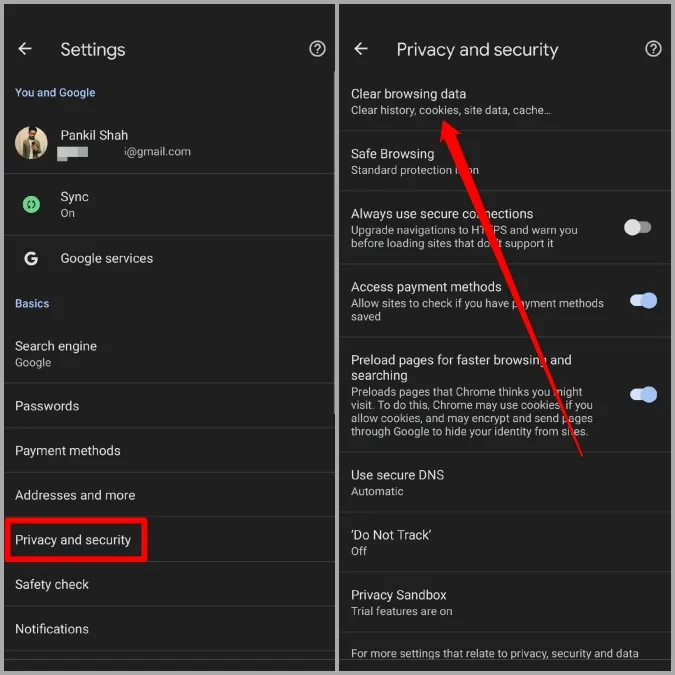
    Open Chrome, tap the three-dot menu Settings > History > Clear browsing data.

    Check “Cached pictures and files” (as well as anything else you want to delete) after choosing the time frame. Next, select “Clear data.”

    Every choice describes its function and how it impacts your experience. removing cached files and pictures may result in Chrome loading images more slowly the next time you visit a website, while removing cookies and site data will log you out of many or all websites.

    In recent versions of Chrome for Android, hitting the menu button brings up the Clear Browsing Data option. When you choose this, a pop-up window requesting that you delete your browsing history from a certain time frame will show up. Selecting More Options will bring up the Browsing Data screen, where you can pick which data to remove and what time period to use.

  • How to clear cache on Android

    How to clear cache on Android

    Your phone’s capacity is limited and can fill up quickly. Regularly, the apps you use to build new files to store information.

    These temporary data files are known as a cache, and cache files take up a reasonable chunk of your Android phone’s storage space. Let’s look at the cache’s purpose, how to clear it out and more.

    What are cache files

    When you open an app, your phone uses the temporary data stored in cache files to recall the associated information more quickly. For example, Spotify might cache your most frequently accessed playlists so they don’t have to load their list of songs every time you open them.

    A cache file is useful to the associated program only, so for instance, Spotify has no use for Instagram’s cache. In most cases it discards the accompanying cache files once an app decides that the stored temporary information is no longer useful. Websites, applications, and games all use cache files to provide you with a faster browsing experience.

    Clearing cache benefits

    Cache files are critical and you don’t usually have to screw them up. Deleting cache files from your phone manually, however, is often useful.

    This can help in a few ways:

    • In the short term, clearing cache helps you save storage space on your phone. But this is a temporary solution, since new cache files are created every time you use apps.
    • Sometimes, old cache files can become corrupted. When this happens, apps can start experiencing problems. Deleting the corrupted cache files can solve these issues.
    • Old cache files can potentially pose security and privacy threats. Web pages cached in your browser may contain sensitive information. If an unauthorized person accessed these files, they could steal personal details.
    • If a browser or other app refuses to fetch the latest version of a page, clearing cache can force it to update.

    Should You do it regularly?

    Now that you know the advantages of clearing cache, you might think on a schedule that you should clear the cache manually. But in reality this is counter-productive. Keep in mind that cache files have the useful function of speeding access to the content you currently use.

    That is why deleting old cache files by hand is not a good idea. Android also has a built-in feature to delete unused files, which usually works very well. The key occasions to remove cache files manually occur when:

    • An app’s cache files are corrupted, causing the app to misbehave.
    • You want to delete files containing personal information to protect your privacy.
    • You’re running out of storage space on your phone and don’t want to delete your videos, pictures, and apps.
    (adsbygoogle = window.adsbygoogle || []).push({});

    How to delete cache files on Android

    For new versions of Android, the cache files for each device need to be removed individually. Notice that all of the cache is seldom removed. Clearing the cache from a few problematic apps can in most cases solve storage or performance problems.

    1. Open Settings and select Storage.
    2. In the resulting list, tap the Other Apps entry. This will take you to a list of all the apps installed on your phone.
    3. Choose an app that holds a lot of cache files. You can tap the three-dot menu in the top-right and choose Sort by size to see which apps take up the most space. We’ll use Chrome as an example.
    4. On the app’s info page, tap the Clear Cache option.
    clear cache

    That’s all you need to do to clear the cache files for any app on your phone. If you tap Clear Storage instead, you’ll remove all data from the app. This essentially resets it to a fresh state.Advertisement

    Older Android versions gave you the option to delete all cached files at once by going to Settings > Storage > Cached Data. From there, simply tap OK when you see the option to delete all cache files.

    What happens after clearing cache?

    After you clear the cache files, you’ll regain some storage space and the app will continue to work as normal. However, all the data it used to smooth out performance is gone, so it may take some extra time to browse around at first. Over time, the app will build up cache again based on your usage.

    Clearing cache files will not force you to log into apps again. You won’t lose data like game progress, browser bookmarks, or similar.


    Your Android phone’s storage space is a precious commodity. Clearing unused cache files is a decent way to free up space temporarily or troubleshoot app issues. But it’s not something you should do often, or through unreliable third-party apps.