You can link your driver’s license or state ID to your Google Wallet in certain US states. It is a practical way to carry and show your ID, however there are some restrictions. Google has caught up to Apple, which was the first to introduce this feature in 2021.
You can add your driver’s license to Google Wallet if you know how to add your credit card. We let you know if you can add your driver’s license or state ID to Google Wallet and walk you through the process of adding and removing it. Google Wallet works with devices other than smartphones. With any of our favorite smartwatches, you can show your ID right from your wrist.
Where you can use your ID from Google Wallet
The only US states that permit IDs to be kept in the Google Wallet app are Arizona, Colorado, Georgia, and Maryland. Additionally, several states permit the storage of their IDs in Apple Wallet.
Since Google must collaborate with each state to integrate its IDs into Google Wallet, the rollout to more states is sluggish. The process is slowed substantially by the fact that every state handles IDs differently. Since Arizona and Georgia partnered with Apple in 2021, just six states have implemented digital ID systems.
The driver license can be added to Google Wallet too
Georgian and Maryland digital IDs saved in Google Wallet are accepted at a few participating airports nationwide. Colorado and Utah IDs are accepted in more contexts, such as when demonstrating your age at a restaurant. However, in any circumstance where your digital ID is approved, you must always carry your physical ID with you.
California and Utah, if you reside there, have their own digital ID applications and regulations regarding where you can use your ID. Whether Google Wallet will be supported in these states is unknown.
Is safe to store your ID in Google Wallet?
Although a digital copy of your driver’s license or state ID may appear less secure, there are steps in the process that ensure the security of your personal information. These components guarantee that only you have access to your personal information, however part of this is because of the setup procedure (which we will take you through soon).
- Your digital ID is encrypted on your phone.
- It can only be accessed with biometric authentication.
- You choose what data is shared each time you show your ID.
- Your digital ID can be deleted remotely.
How to add the ID or driver’s license to Google Wallet
You will know how to begin if you have added credit cards, transport passes, or rewards cards to Google Wallet before. But adding your driver’s license or state ID requires a more extensive procedure.
- Open the Google Wallet app.
- Tap Add to Wallet in the lower-right corner of your screen.
- Tap ID card. This option only appears if you live in the US.
- Tap your state ID.
- Scan the front and back of your ID.
- Record a short video where you’ll turn to show the front, sides, and bottom of your face.
- Submit your application to the state.
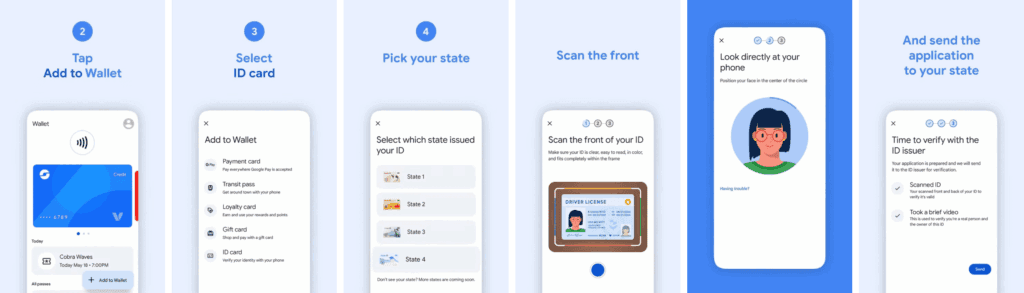
Your application takes a few minutes to process. Your driver’s license is ready to view in Google Wallet when you receive the confirmation notification.
How to remove your state ID or driver’s license from Google Wallet
It only takes a few touches to delete your driver’s license or state ID if you are worried about its security. You can delete it remotely using the same technique as taking any digital card out of your wallet.
Remove your digital ID from the Google Wallet app
- Open Google Wallet
- Tap your ID card.
- Tap the three-dot button in the upper-right corner of the screen.
- Tap Remove.
Remove your digital ID remotely
- Login to your Google Account page on any browser.
- Click Personal info from the top of your screen.
- Scroll down and click Manage digital ID.
- Click Delete next to your ID.
How to provide your electronic identification at TSA PreCheck
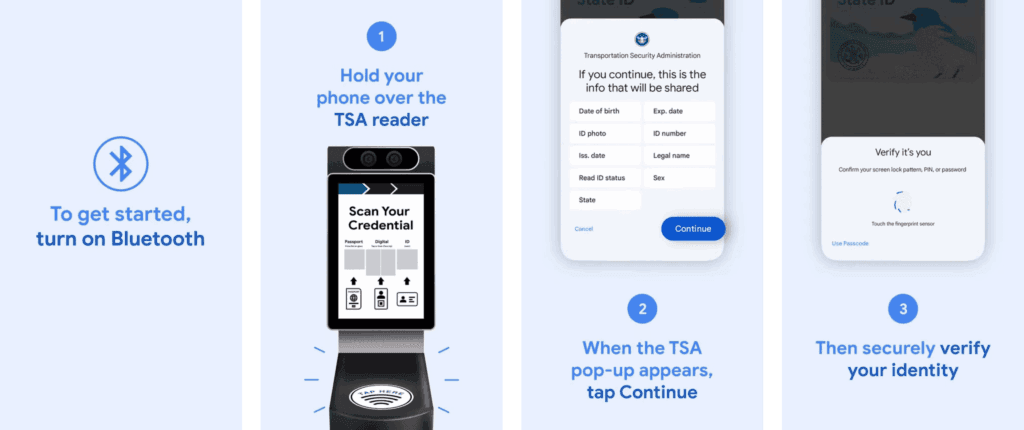
You can display a QR code or utilize NFC with tap-to-pay to use your digital ID card. First, you must schedule an in-person visit at an enrollment location to register for TSA PreCheck. To utilize your digital ID after registering, take the following actions:
- Turn on Bluetooth on your phone.
- Hold your phone over the TSA reader terminal. The reader automatically pulls up your ID.
- Confirm the data you are sharing by tapping Continue in the lower-right corner of your phone screen.
- Verify your identity using biometric identification.
Display your ID safely and conveniently
There are numerous benefits to carrying your driver’s license on your phone as opposed to a physical card. It eliminates the need to carry your wallet to bars, though employees may refuse to serve you if they think it is inappropriate. You can only present the necessary documentation.
NFC communication is the backbone behind sharing your digital ID.