Tag: charger

  • Battery life myths vs facts: how to make your phone last all day

    Battery life myths vs facts: how to make your phone last all day

    Battery Life is the one Android topic where everyone has an opinion—and somehow, half of those opinions are stuck in 2011. You’ve probably heard “drain it to zero,” “never charge overnight,” or “close every app or your battery will melt.” Meanwhile, your phone still hits 18% before dinner.

    This guide is here to cleanly separate Battery Life myths from the real fixes that make a difference. Not miracle tricks. Not “turn off everything until your phone is basically a calculator.” Practical stuff you can do today, plus a few habits that keep your battery healthier over time.​

    Battery Life tips for Android users checking settings

    Why Battery Life Feels Random (But Usually Isn’t)

    Battery Life can feel unpredictable because it’s influenced by things you don’t notice in the moment—signal strength, background syncing, location services, screen brightness, and heat. Sometimes you change one setting, your phone lasts longer, and you assume you found “the secret.” Other times you do everything right and it still drains fast.

    On the one hand, modern Android is genuinely good at managing power in the background. But here’s the catch: one badly-behaved app, a weak 5G signal, or a hot charging session can undo all that smart optimization. So the goal isn’t perfection. It’s control.

    Before we fix anything, let’s kill the myths that waste your time.

    Myth #1: “You Must Drain Your Phone to 0% to Keep the Battery Healthy”

    This one is everywhere, and it sounds logical… until you remember: modern phones use lithium-ion batteries, not the older battery types that suffered from “memory effect.” Deep discharges can stress lithium-ion batteries over time, which is why many guides recommend avoiding constant 0% runs.​

    What to do instead (realistic version):

    • Try not to make 0% a daily habit.​
    • If your day usually ends around 20–30%, that’s a pretty comfortable routine for both Battery Life and battery longevity.

    Small nuance: letting your phone hit 0% occasionally isn’t a crime. It’s the repeated “red zone lifestyle” that tends to age batteries faster.

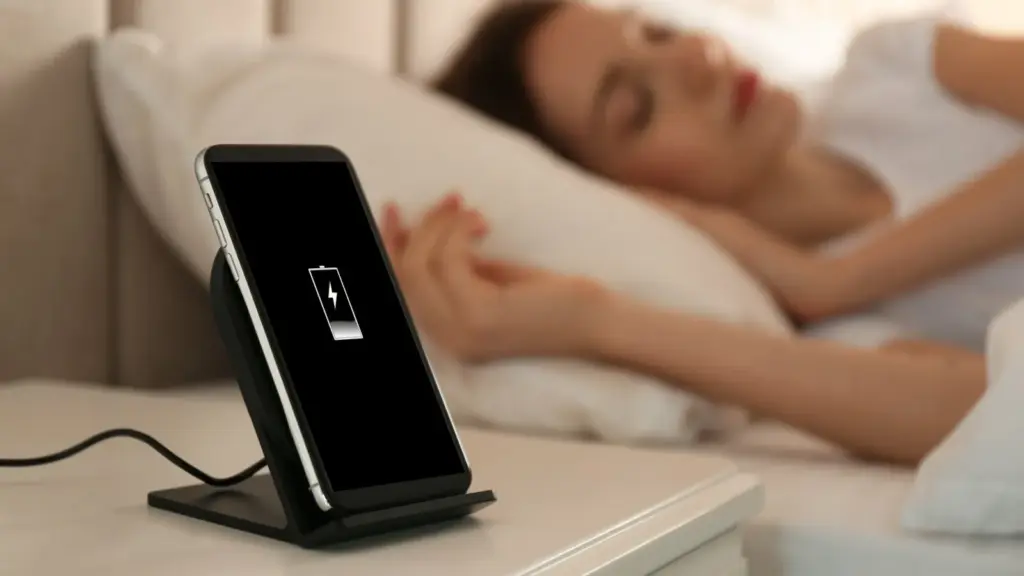
    Myth #2: “Charging Overnight Overcharges and Ruins Your Battery”

    Modern phones are designed to stop charging at 100%, so the old-school “overcharging” fear is mostly outdated. Overnight charging, by itself, isn’t automatically destructive.

    But—and this is where people get it half-right—keeping a battery sitting at 100% for hours can add stress over the long term, especially if the phone is warm while charging. That’s why features like adaptive/optimized charging and charge limits exist.​

    Real fix:

    • Turn on “Adaptive Charging” / “Optimized Charging” if your phone offers it.
    • If there’s a “Protect Battery” or “Charge to 80–85%” option, use it when you can (especially if you keep phones for 2+ years).​

    Myth #3: “Closing All Apps Saves a Ton of Battery”

    This is the classic “swipe everything away” habit.

    Sometimes it feels like it helps, because your phone looks “clean.” But Android often manages background apps efficiently on its own, and constantly force-closing apps can even add overhead because apps need to reload again and again. (It’s like turning your car off at every red light to save fuel—technically it changes consumption, but not in the way you want.)

    When it actually helps: when a specific app is misbehaving—running in the background, looping, overheating, or abusing location. In that case, the fix isn’t “close everything.” It’s “find the one problem app and deal with it.”​

    Myth #4: “Fast Charging Always Kills Batteries”

    Fast charging is not automatically a battery death sentence. Real-world testing and good charging management have improved a lot. But here’s the catch: heat is the enemy.

    Fast charging can create more heat depending on the charger, phone design, and environment. Heat accelerates battery wear, so it’s not the speed itself you fear—it’s the temperature that sometimes comes with it.​

    Practical approach:

    • Use fast charging when you need it (workdays, travel).
    • Use slower charging when you don’t (overnight, desk time), especially if your phone tends to run warm.​

    Myth #5: “Wi‑Fi and Bluetooth Should Always Be Off”

    This used to be decent advice years ago. Today it’s more “it depends.”

    Wi‑Fi can actually be more power-efficient than mobile data in many situations, and modern Bluetooth is generally low energy. The bigger issue is constant scanning, weak signals, and background activity triggered by connectivity.

    Real fix:

    • Keep Wi‑Fi on if you’re in stable coverage; it can help Battery Life compared to a phone fighting for cellular signal.
    • Turn off unnecessary scanning settings if you don’t need them (varies by Android version/brand).
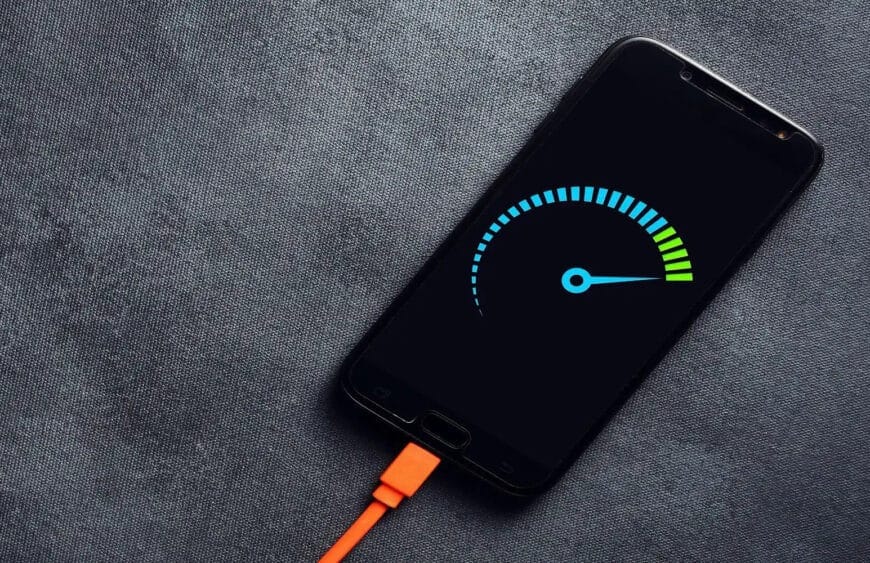
    Battery Life myth busting with a phone on charger

    The Real Fixes: What Actually Improves Battery Life (Without Making Life Miserable)

    Now the part that matters. These are the changes that most people can feel within 24–72 hours.

    Fix #1: Control the Screen (Brightness and Sleep Timer)

    For many users, the display is the biggest Battery Life drain. Not because your phone is “bad,” but because modern screens are bright and we keep them on longer than we realize.​

    Try this:

    • Enable Adaptive Brightness (so you’re not blasting 100% indoors).
    • Lower brightness one notch more than you think you need.
    • Reduce screen timeout (sleep) to something sensible (30 seconds to 1 minute).
    • Use Dark Mode if you like it—especially helpful on OLED screens.​

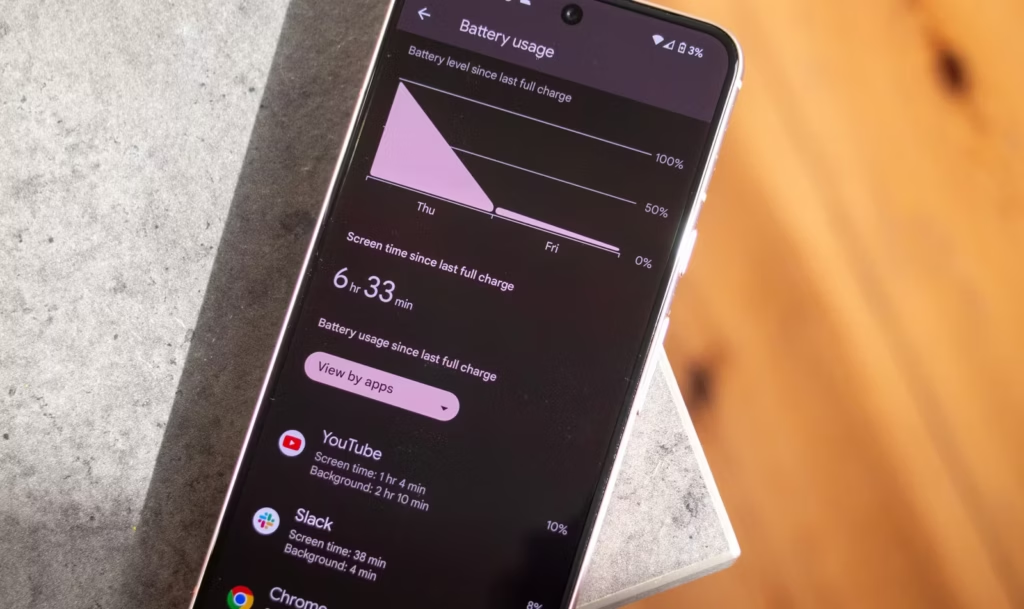
    Fix #2: Find Your “Battery Vampire” App

    Guessing wastes time. Checking takes two minutes.

    Go to:

    • Settings → Battery → Battery usage (wording varies)

    Look for:

    • One app with unusually high background use
    • An app you barely use but that’s always near the top

    Then do one of these:

    • Update it (bad versions happen).
    • Restrict background activity (if Android offers it).
    • Remove it if it’s not essential.

    This is not anti-app paranoia. It’s basic hygiene. Even reputable apps can bug out after updates.

    Fix #3: Fix Location Permissions (Quiet Drain, Big Impact)

    Location is one of the easiest Battery Life drains to miss, because it doesn’t always “look active.”

    Set most apps to:

    • “While in use”

    Only keep “Always” for apps that truly need it:

    • navigation while driving (if you want alerts)
    • family safety apps (if you use them intentionally)

    Also consider turning off “precise location” for apps that don’t need it. Your weather app doesn’t need to know which side of the couch you’re on.

    Fix #4: Signal Strength Matters More Than People Think

    Here’s a sneaky Battery Life killer: poor signal.

    When your phone struggles to maintain connection, it works harder—especially on unstable 5G. If you’re in a weak coverage area, your battery can drop faster even if you’re barely using the phone.

    Try:

    • Use Wi‑Fi calling (if available).
    • Prefer Wi‑Fi when you’re home/work instead of letting mobile data do everything.
    • If 5G is unreliable in your area, test LTE for a day and compare Battery Life.

    Fix #5: Use Battery Saver Earlier (Not Only at 10%)

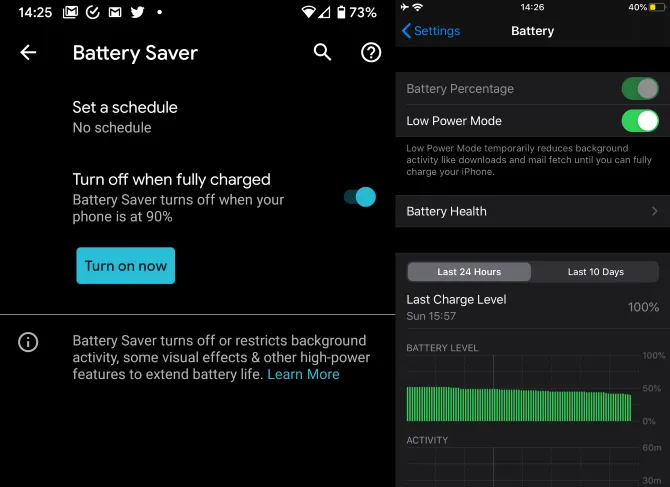
    Battery Saver isn’t only for emergencies. It’s a tool for predictable long days.

    Try:

    • Turn Battery Saver on at 30–40% if you know you’ll be away from a charger.
    • Use “Extreme Battery Saver” only when you truly need survival mode.

    This doesn’t mean living in Battery Saver forever. It means using it strategically—like carrying an umbrella when the sky looks suspicious.

    What Most People Get Wrong About Battery Life (A Quick Reality Check)

    Let’s call it out plainly:

    • People optimize the wrong things (closing apps constantly) and ignore the big drains (screen and signal).
    • People chase magic numbers (“always 80%”) but ignore heat, which often matters more.​
    • People think “new phone = perfect Battery Life,” but a single app or a bad network environment can wreck it.
    • People don’t verify backups/updates and blame “Android” when it’s actually one app misbehaving.

    And yes—sometimes the battery is simply aging. No setting can reverse chemistry.

    Battery Life Checklist (Do This Today)

    Quick checklist, no nesting, no drama:

    • Turn on Adaptive Brightness and reduce screen timeout.​
    • Check Battery usage and identify the top 3 apps.
    • Restrict or remove the top “background drain” app you don’t trust.
    • Review Location permissions and switch most apps to “While in use.”
    • Enable Adaptive/Optimized Charging or an 80–85% limit if available.​
    • Keep the phone cool while charging (no blankets, no hot car).
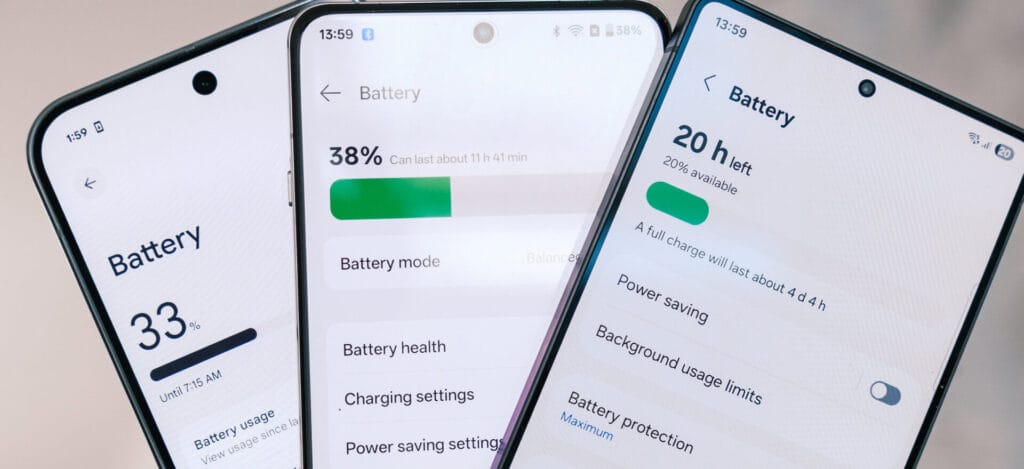
    Battery Life improvement checklist on an Android phone

    Charging Habits That Protect Battery Life Long-Term

    Battery Life today is one thing. Battery health over two years is another.

    A few habits that help longevity without making you obsessive:

    Keep heat low (the boring but true advice)

    Heat accelerates battery wear, so avoid:

    • charging under a pillow
    • gaming while charging
    • leaving the phone in direct sun while charging

    This isn’t fear-mongering. It’s just how batteries age.​

    Use the “80% rule” as a tool, not a prison

    Many sources recommend a “20–80%” or “30–80%” range for slower battery aging, but the exact number isn’t magical. The point is reducing time spent at very high charge levels, especially with heat.​

    If you’re traveling or need maximum Battery Life that day, charge to 100%. No guilt. Just don’t keep it sitting at 100% hot for hours every single day.​

    When It’s Not Settings: Signs Your Battery Is Actually Worn Out

    Sometimes your Battery Life issues aren’t fixable with tweaks because the battery has aged.

    Common signs:

    • Sudden drops from 30% to 10%
    • Random shutdowns at 15–20%
    • Noticeable heat during light tasks
    • Battery percentage behaving “jumpy”

    At that point, consider:

    • battery replacement (often worth it on mid/high-end phones)
    • or upgrading if the phone is old and already struggling with performance

    No shame either way. Batteries are consumables.

    FAQs

    1) Is it bad to charge my phone overnight?

    Modern phones prevent classic “overcharging,” but staying at 100% for hours—especially with heat—can contribute to wear over time, so adaptive charging or charge limits are helpful.​

    2) Should I always charge only to 80% for better Battery Life?

    Charging to 80–85% can reduce stress for long-term battery health, but it’s not mandatory. Use it when convenient, and charge to 100% when you need full-day Battery Life.​

    3) Does closing apps improve Battery Life?

    Not usually in a big way. It helps mainly when an app is misbehaving and draining battery in the background.​

    4) Does Dark Mode improve Battery Life?

    It can help, especially on OLED screens, because darker pixels can use less power. The impact varies by device and brightness.​

    5) Why does my Battery Life get worse in places with poor signal?

    Your phone works harder to maintain a connection when coverage is weak, which increases power use—even if you’re not actively using the phone.
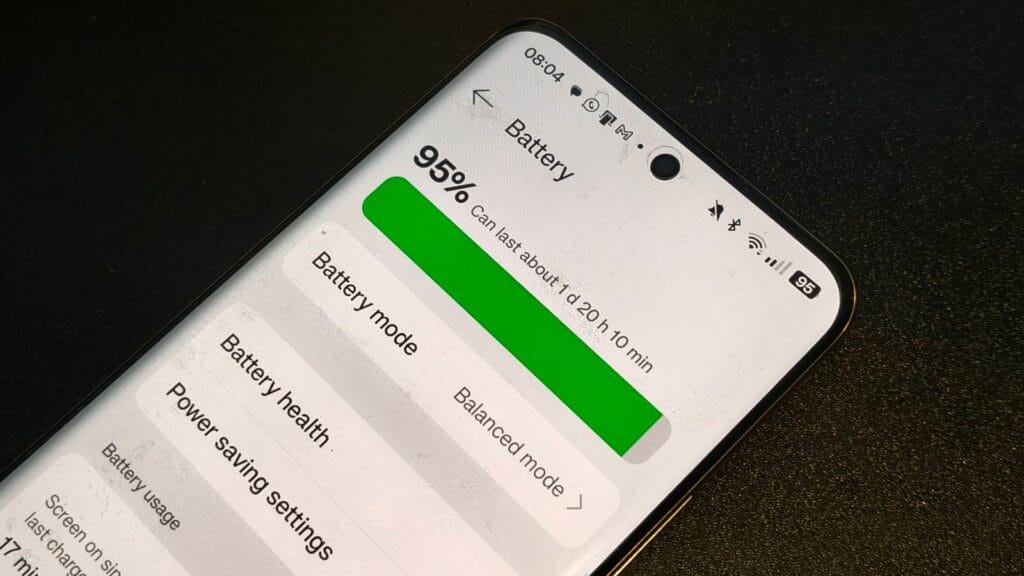
    battery life on an android phone

    What to Do Next

    If Battery Life has been frustrating lately, don’t try to fix everything at once. Do this in order:

    1. Check Battery usage and identify the top drainers.
    2. Reduce screen drain (brightness + timeout).
    3. Fix location permissions and notifications.
    4. Watch heat while charging for a week.
    5. If nothing improves, consider battery wear and replacement.

    Give it 2–3 days after changes and compare. Battery Life improvements are often “quiet,” not dramatic—but they’re real when you focus on the big levers.
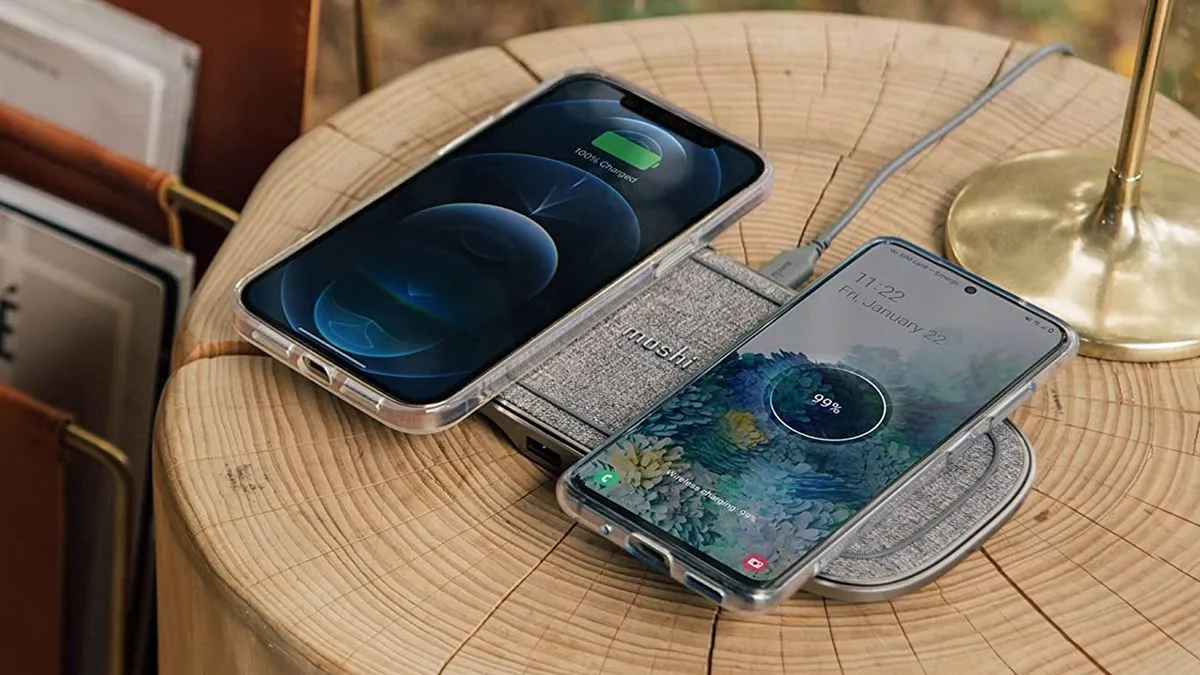
  • Most common smartphone charging myths debugged

    Most common smartphone charging myths debugged

    Android smartphones nowadays are available in a wide variety of sizes, styles, and form factors. There is a large market with many possibilities for foldable phones in addition to the traditional slab flagship smartphones and all-around mid-range smartphones.

    However, battery life has always been a problem for all Android users, regardless of the device they use. The majority of Android users are concerned about how long their phone will last between charges. Many people adopt practices based more on misconceptions than facts in an effort to maintain battery health.

    Although many old pieces of advise still exist, Android phones have become much more intelligent. Here are some typical fallacies about charging that people still hold onto, along with the actual facts.

    Only the original charger for your phone brand should be used.

    charging smartphone

    The majority of smartphone manufacturers have followed Apple’s example and ceased included a charger in the box since the release of the iPhone 12 in 2020. Additionally, they frequently encourage you to purchase their official charger, which is typically more expensive than alternatives found on Amazon or Best Buy. However, that isn’t the complete story.

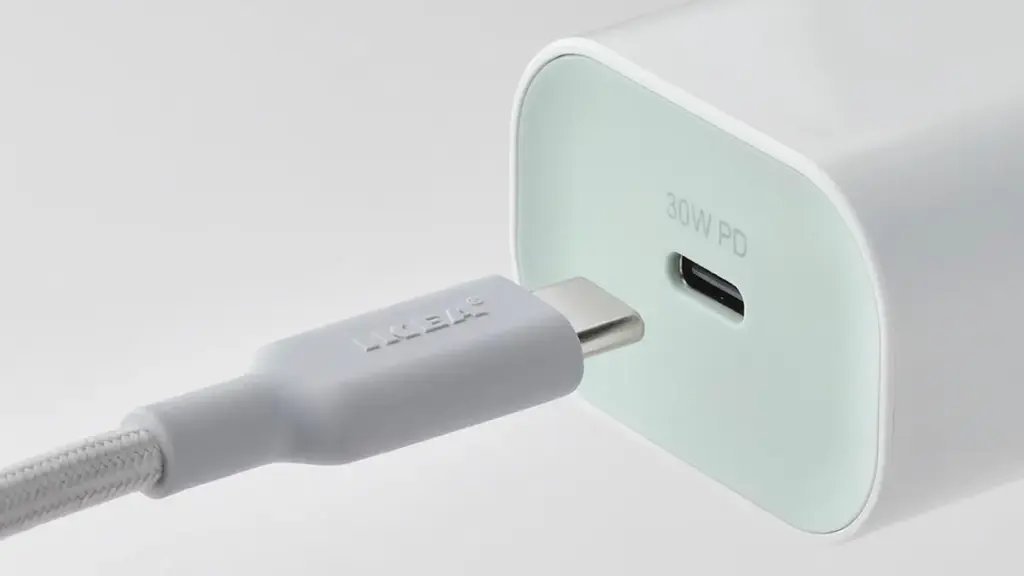
    For a quick and safe charge, you don’t have to use the same brand of charger. In addition to meeting all safety and charging requirements, certified third-party chargers from companies like Anker, Belkin, Spigen, and UGreen are less expensive than those offered by phone OEMs.

    Additionally, the majority of these brands’ chargers support the majority of fast charging protocols, including USB-PD, PPS, and Quick Charge. It’s likely that a decent third-party charger will function perfectly unless your handset uses extremely specialized proprietary charging technology, like as Xiaomi’s HyperCharge or OnePlus’ SuperVOOC.

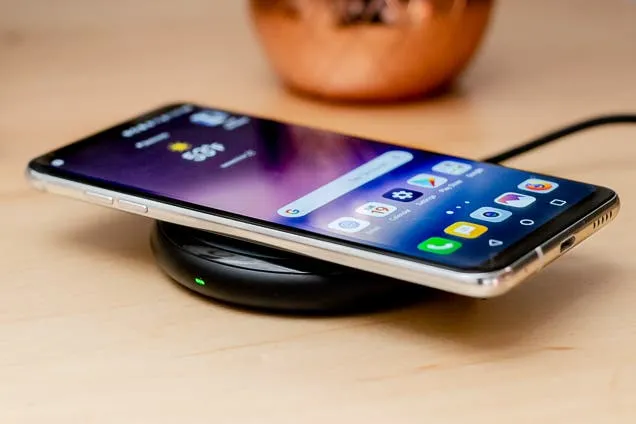
    Wireless charging is incredibly effective and safe.

    wireless charging android

    Wireless charging is now supported by the majority of Android flagship handsets, and although it’s a handy feature, it’s not necessarily the best option for battery health. Compared to wired charging, wireless charging produces more heat. Your battery may lose some of its original charge over time due to the accelerated degradation caused by excessive heat.

    Therefore, try to avoid using wireless charging on a regular basis. Although it’s acceptable on occasion, if you would rather use a Qi-certified charger on a regular basis, take into account wireless chargers with integrated fans or temperature control, as these features aid in lowering heat production. Despite this, cable charging is still one of the greatest choices (and it’s typically faster, too).

    Your phone’s battery will die if you leave it plugged in all night.

    The idea that leaving cellphones plugged in overnight will “overcharge” the battery, damage it, and accelerate its depletion is one of the most widespread misconceptions regarding charging. However, that is untrue. These days, Android devices are intelligent enough to charge overnight without causing battery damage.

    myth - Your phone's battery will die if you leave it plugged in all night.

    Nowadays, the majority of phones have intelligent battery optimizations that learn your usage and cut off charging when the battery reaches 80%. These optimizations are frequently AI-enabled. To reduce battery stress, the last 20% is charged right before you usually disconnect your phone.

    However, charging to 100% on a regular basis is also not recommended. When left fully charged for extended periods of time, lithium-ion batteries—found in phones like the Google Pixel 9 Pro and Samsung Galaxy S25 Ultra—degrade more quickly. Setting a charge restriction, such as stopping at 80%, is a better long-term habit if your phone allows it.

    It’s not good to charge your phone several times a day.

    It's not good to charge your phone several times a day.

    Another widespread misconception is that you should only charge your phone when battery reaches 0% and that charging it more than once a day is detrimental. However, that is untrue. Frequently charging lithium-ion batteries is not a problem for them. Actually, tapping 0% repeatedly may cause more damage than good to these cells.

    For the optimum battery health, you should try to keep your phone within the 20% to 80% range, as this is where lithium-ion batteries are meant to operate. Charging your phone in short bursts throughout the day is less stressful on the battery than completely draining it to nothing.

    Every phone is compatible with every fast charger.

    fast charging

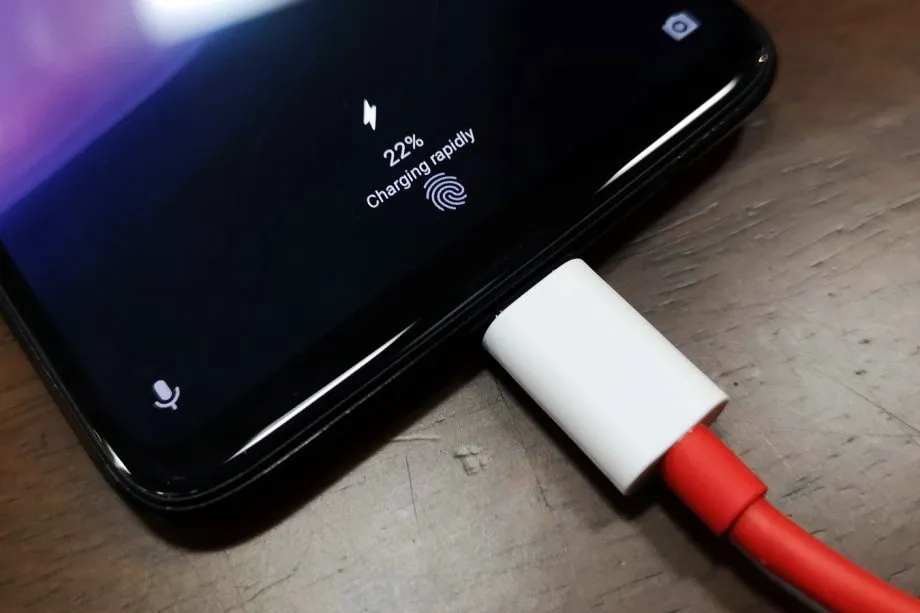
    Fast charging is supported by almost all Android devices nowadays, although it is unrealistic to expect all fast chargers to function in the same manner. The charger you’re using might not function as intended because the majority of Android OEMs utilize different fast charging protocols. There are numerous rapid charging protocols, such as USB-PD, PPS, and OnePlus’s proprietary SuperVOOC.

    An incompatible fast charger won’t harm your phone’s port, but it probably won’t provide rapid charging. Using the correct charger will charge your phone as intended. You won’t receive the speed you’re hoping for if you don’t check your phone’s supported charging protocol before purchasing a new charger.

    Did you knew all these?

    Overall, we still hold onto several widespread myths about charging gadgets, many of which date back to the 2000s. However, cellphones have advanced significantly over time, and thanks to a number of clever features, they can now control charging more effectively.

    Beyond being aware of these facts, you can really extend the battery life of your phone by incorporating a few simple tips into your daily routine.

    Stay connected with the latest from Droid Tools—follow us on X @droid_tools, like our page on Facebook, check out our updates on Instagram, and follow us on Google News for real-time news, device tips, and mobile tech insights.

  • How to boost your phone charging speed

    How to boost your phone charging speed

    You are not alone if you have ever found yourself tethered to a charger, watching the battery bar slowly but surely creep towards a usable level. But fear not, fellow Android users – this guide is your road map to victory, filled with useful tips and tricks to turn your phone into a charging champion!

    Gone are the days of excruciatingly slow refills and battery anxiety—we are about to unlock the secrets to lightning-fast boosts that get you back online, streaming, and snapping in no time at all! Say hello to a world of stress-free power-ups!

    Wire will charge you faster.

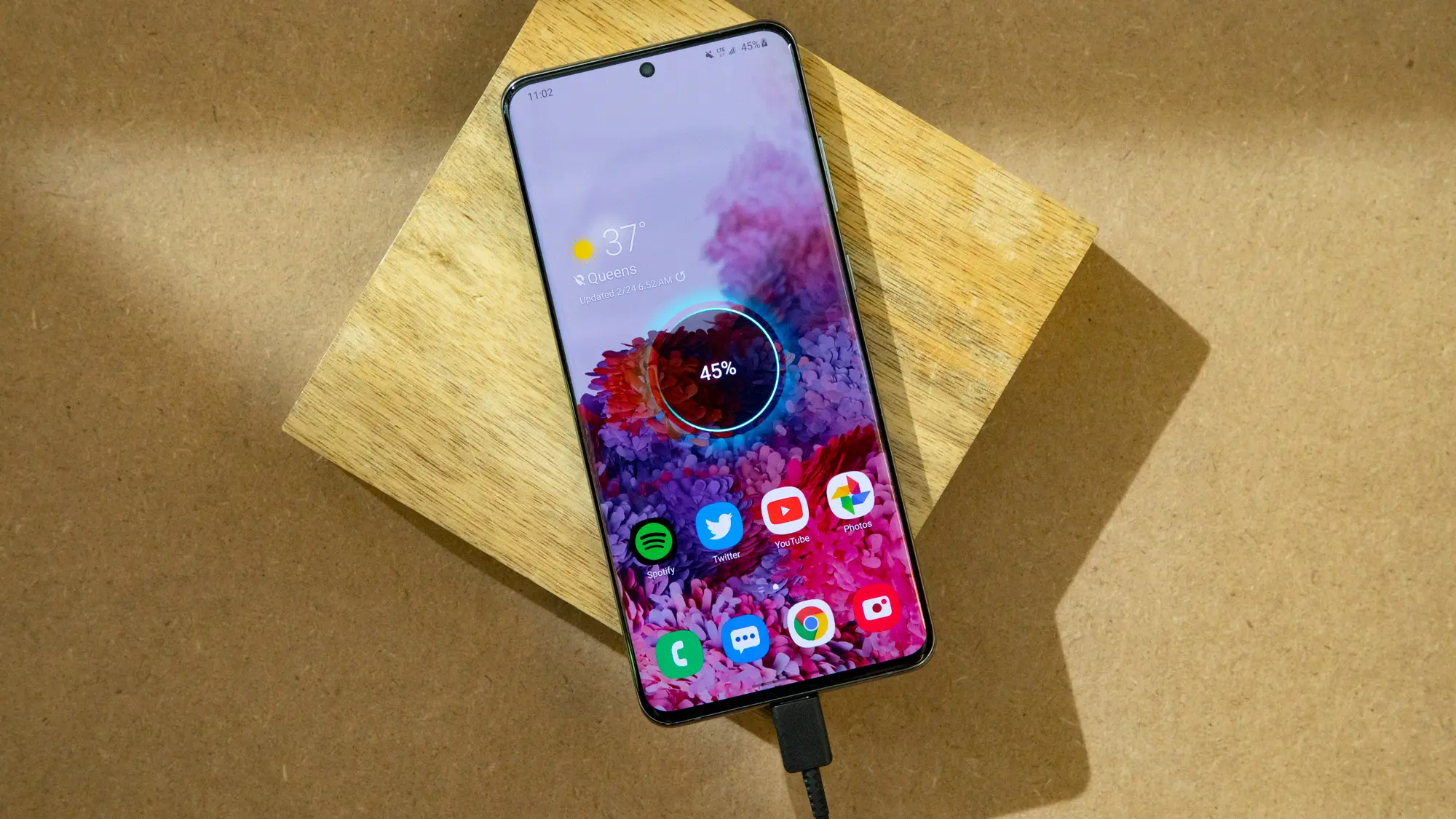
    The Realme GT 3 boosts an impressive 240W charging speed, theoretically allowing a 0 to 100% charge in less than 10 minutes. Some Samsung phones can reach 45W with USB charging. Wired charging is normally faster than wireless charging. Android phones typically reach their highest charging speeds through USB-C, often reaching speeds of over 20W. In contrast, wireless charging is usually limited to 10 to 15W.

    Additionally, USB-C is generally regarded as more dependable than wireless charging. While technologies like Qi2 with magnetic locking aim to address these issues, USB-C remains the more robust and dependable option. Wireless chargers rely on precise coil alignment for efficiency, and there is always a chance that a slight bump will displace your phone or knock it off the charger completely.

    If at all possible, turn off your smartphone to expedite the charging process.

    The best way to reduce battery life is to completely shut down your phone. Even in this case, it should continue to charge as fast as possible, so when it is connected to a compatible charger (which we cover in the next section), this provides the fastest possible charging scenario. The disadvantage is that you can not keep track of how fast your phone is charging, and you can not use apps or check notifications, so some people may decide not to use this option. If you are worried about receiving important messages from family or work, we strongly advise against using this method.

    Use a direct power brick instead of a power bank or computer.

    1. Only dedicated chargers guarantee fast wired charging:

    • While newer USB 3.x and 4.x ports can support super-fast charging (up to 240W) using a technology called USB-PD, they rarely reach that speed.
    • Most computer USB ports and portable power banks, even fancy ones, usually offer much slower charging than your phone’s dedicated charger. This is because they often lack the necessary power output capabilities.

    2. Dedicated chargers are the safest and most reliable option:

    • While exceptions like the Anker Prime exist, relying on non-dedicated chargers for fast charging introduces risk and uncertainty.
    • Your phone’s original charger or a high-quality replacement designed for your specific model are the safest and most reliable way to ensure optimal charging speed without damaging your phone’s battery.

    So, for the best, fastest, and most reliable wired charging experience, stick with your phone’s dedicated charger whenever possible.

    charge speed and schedule

    Low power mode (also known as Battery Saver on most Android devices, though the name may differ on your phone) is the best option if you do not want to or are unable to turn off your phone. It helps save battery life by turning off certain functions and background activities, extending the time between charges.

    The low power mode on your phone can do a number of things, like accelerating the screen’s shut-off time, decreasing background sync activity, downgrading from 5G to 4G, and restricting the use of power-hungry apps. Pixel phones also have an Extreme Battery Saver mode that goes one step further, decreasing CPU speed and disabling notifications for apps that are paused. You may not use it constantly, but it is a way to concentrate on charging while maintaining access to critical features.

    Disable unused features

    While a phone’s screen and processor use up a lot of energy, wireless technology can also consume a significant amount, especially if your phone is frequently downloading files or searching for available networks.

    Using Airplane Mode is the easiest way to turn off wireless radios, but it is not always the best option because it usually disables Bluetooth and Wi-Fi in addition to cellular data, which can be problematic if you need to use wireless earbuds or have an internet connection. You may need to adjust the Airplane Mode settings or use Quick Settings to turn off individual radios that are not in use. For example, if you are going to be away from home, you can probably disable Wi-Fi unless you need it for hotspots or Android Auto.

    To increase the charging speed, do not use your smartphone while it is charging.

    Playing 3D games like Fortnite or PUBG Mobile can severely deplete your phone’s battery. It is important to emphasize that the more tasks your phone completes, the more power it will use. If at all possible, find something else to do with your time until you need to respond to important calls and messages.

    Keep your phone cool while charging

    The ideal temperature range for charging a phone is between 50 and 86°F (10 and 30°C). To make sure your phone stays in this range, try moving it out of direct sunlight, putting it near a fan, or taking it out of its case—especially if the case is insulating, like a leather wallet case. Keep in mind that your phone naturally warms up during charging, so if it is already close to the upper limit, charging could push it out of the ideal zone.

    In other cases, you might need to warm up your phone; for instance, a case that might be problematic in a Texas summer could be ideal for a cold winter in Ontario.

  • Public phone chargers are a security risk FBI says

    Public phone chargers are a security risk FBI says

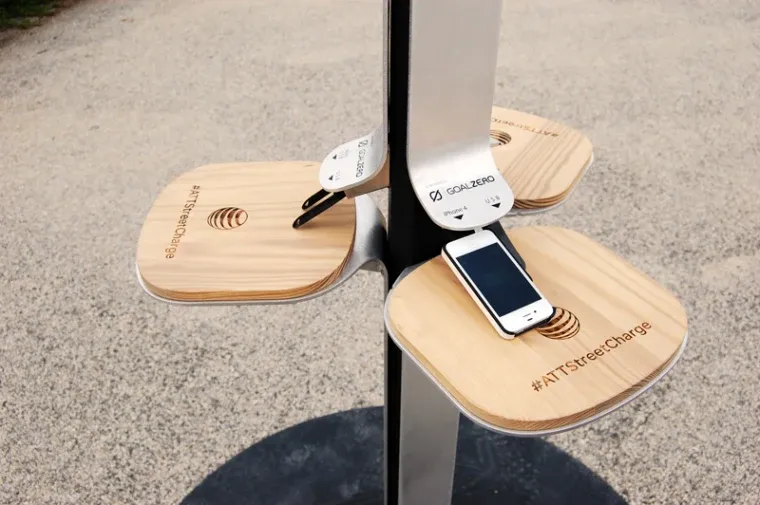
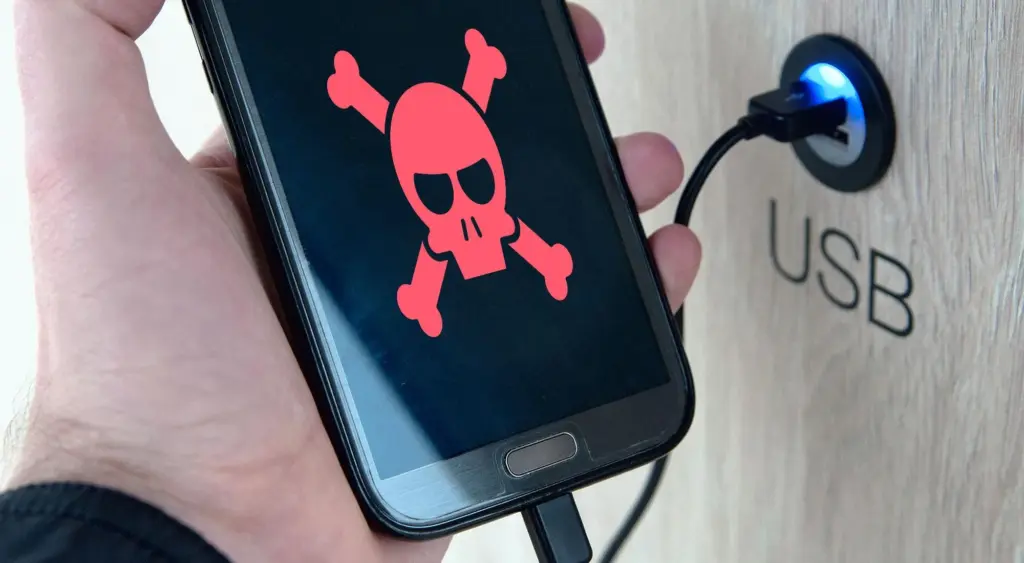
    The FBI has issued a warning on public charges that may be found in malls, airports, and other places and requests that nobody make use of them. When traveling or doing other things, it’s a good idea to utilize your own portable charger or power bank since you’re not confined to one place.

    The FBI claims that criminals have discovered a way to use USB connections available in these places to install malware and monitoring software onto devices. and advises everyone to use an electrical outlet instead and bring their own charger and USB wire.

    security risk

    Juice jacking is the term used to describe this practice. This is how malicious software can be added to public charging stations by hackers. It gives them the ability to view, steal, and even track the data from your mobile devices. Regrettably, iOS devices are not immune to juice jacking; Android smartphones are more likely to be affected.

    So how can juice jacking be prevented? The simplest solution is to always travel with your own USB cord and charger. For this reason, we advise getting a battery pack for your gadget. There are numerous solutions available for this as well.

    This can be avoided

    The simplest method is to use a battery pack. Since you are not required to remain confined to one outlet, you can carry it in your pocket and wander around the mall, airport, or anywhere else. Also, it functions when you need to charge your phone but are not in certain areas.

    Although this is quite frightening, it is quite simple to avoid. It’s difficult to use one of those USB ports when you’re at the airport because they’re normally all occupied. But right now, you need to steer clear of them.

  • MagDart magnetic wireless charging devices from Realme

    MagDart magnetic wireless charging devices from Realme

    Realme is developing a magnetic wireless charging method for its Android phones, as The Verge reported last week, and the company has now announced a whole line of goods that will employ the new technology.

    MagDart

    MagDart

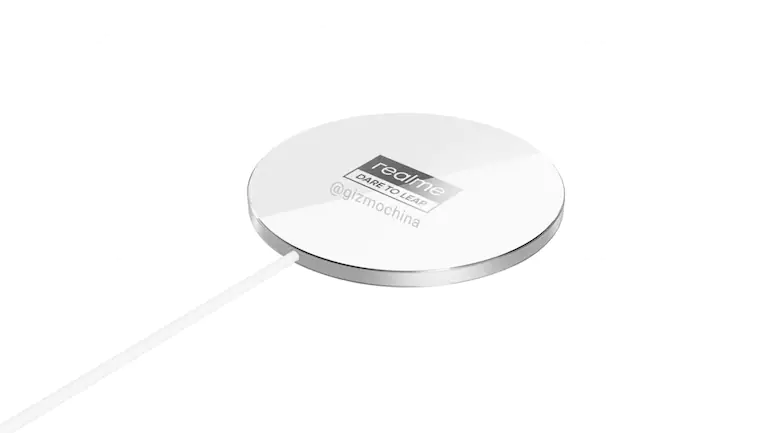
    The wireless charging device is known as MagDart by Realme, and it’s essentially a more powerful version of Apple’s MagSafe system for the iPhone 12 series of phones. The 50W MagDart charger, which Realme claims are the world’s fastest magnetic wireless charger, is the star of the show. It features an unavoidably hefty cuboid form to accommodate a cooling fan, but Realme is betting that users will accept this trade-off in exchange for faster-charging speeds.

    Realme claims that when plugged into the company’s 65W SuperDart wired charger, the MagDart charger would charge a 4,500mAh phone battery to 100% in 54 minutes. That’s almost as quick as the 50W wired charger from Realme. Realme is also working on a 15W MagDart charger, which looks similar to Apple’s MagSafe puck but is 26.4 percent slimmer and claims quicker charging speeds if you don’t want to have to put a charging brick into a charging brick.

    According to Realme, it can charge a 4,500mAh battery in 90 minutes, which is far faster than Apple’s 15W option. Aside from the simplicity of wireless charging, a magnetic design like MagDart and MagSafe opens up the possibility of elegant port-less accessories, and Realme has a slew of them.

    The MagDart Power Bank is comparable to Apple’s recently launched MagSafe Battery Pack, except it has a dock that allows you to utilize the battery as a phone stand. The MagDart Shell is a carbon fiber-style case featuring a pass-through USB-C port and headphone jack, as well as built-in MagDart connectivity, for the new Realme GT flagship phone. The MagDart Wallet is a three-card sleeve that looks a lot like Apple’s MagSafe wallet. This one, though, features a kickstand.

    The MagDart Beauty Light, a selfie-ready flip-up ring light powered by reverse wireless charging, is perhaps the best of the bunch. It contains 60 tiny LEDs and a separate control button for adjusting brightness and color temperature, among other things.

    Availability and Price

    Realme hasn’t announced a release date or price for any of these goods, and the Realme GT is the only phone that has been confirmed to operate with a MagDart gadget that is capable of carrying out iOS transfers as well- and that’s only if you buy the specific case

    For what is essentially the debut of a large new ecosystem of products, that’s a fairly big catch. However, if Realme incorporates MagDart into future phones, that might be a significant distinction.

    What can we expect?

    Wireless charging is one of the most common exclusions from Chinese phones with otherwise outstanding spec sheets – Oppo was one of the first to adopt the technology, and Vivo has yet to follow suit. And, given that Oppo’s VOOC fast-charging mechanism was ported to OnePlus and Realme phones thanks to the firms’ shared ownership and supply chain, MagDart may follow suit.

  • 7 tips and tricks to charge smartphone faster

    7 tips and tricks to charge smartphone faster

    In the smartphone industry now many smartphones have a large battery capacity of about 5000 mAh. With regular use, they can last up to 10 hours of full battery life, such as surfing, normal games, etc. Instead of a larger battery, modern smartphone companies are investing more in making fast chargers. In this guide, even if you don’t have easy charger help, we’ll show you how to charge a phone faster. These are 7 tips and tricks that have been tested and followed by users who operate perfectly with every smartphone in the world.

    To check your current charging speed, use the Ampere app. Simply install Ampere on Android or iPhone and Plug-in the charger cable and wait for a second to measure the current input. At a normal 5V/2A charger, it would be approximately less than 2000mA showing in the app.

    Tips and Tricks To Charge a Phone Faster

    1. Turn ON Flight Mode

    airplane mode

    The first thing you should try is to turn on flight mode on your smartphone. Flight mode disables all incoming outgoing radio signals through the smartphone and significantly improves the charging speed. Alternatively, turn off other connectivities such as WiFi, Internet Data set to be off, Bluetooth, Hotspot, etc. Still, flight mode is more effective.

    2. Do not charge your phone with Laptop

    charge on laptop

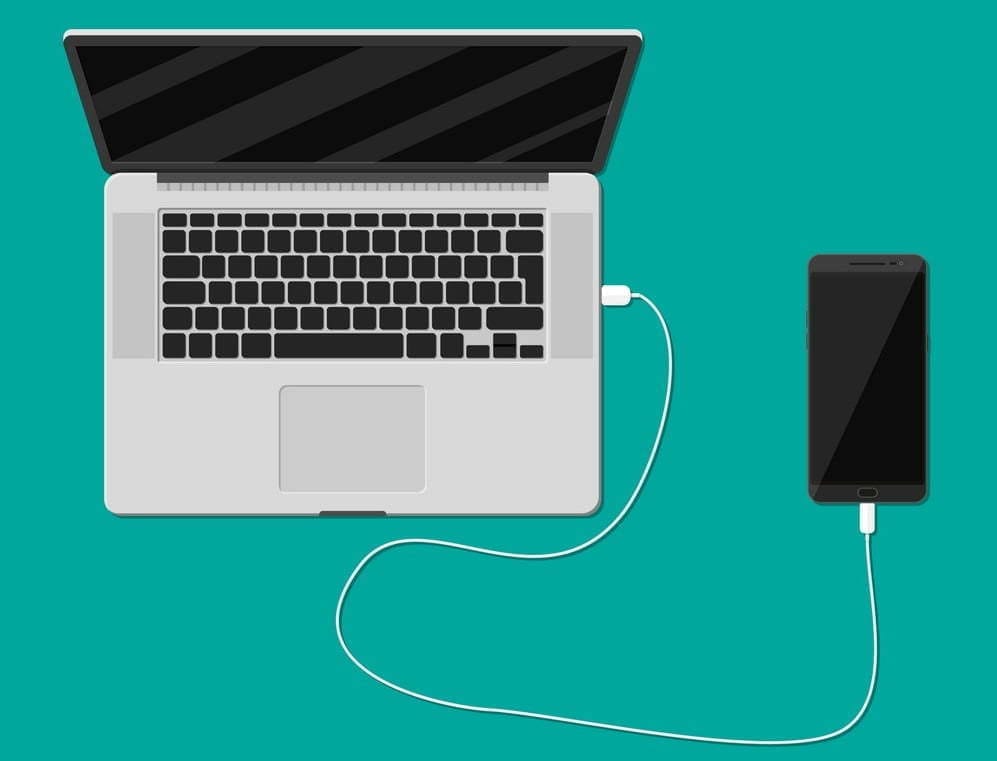
    Charging your phone with a laptop could be a bad idea. When you charge your phone with an adapter, the charging speed mostly depends upon the power output of the adapter. A fast charger adapter produces from 20 to 55-watt output. Whereas, when you charge your phone using a laptop, the USB port is the current output source. And, mostly laptop’s USB ports produces 1 to 5-watt output. That’s why it would be a bad idea to charge a phone with a laptop. Instead, use a better fast charging cable and adapter.

    3. Stop Background Running Apps

    The reason why your battery percentage drops so quickly is running apps. There might be a few apps running in the background on the phone that result low in performance as well as slow charging speed. To prevent it, clear the recent apps from the menu and uninstall unused apps from your phone.

    One more tip, do not install battery saver apps or similar apps. Those are useless apps and cut your charging speed and battery life along with smartphone performance.

    4. Buy A Fast Charger

    fast charger

    Generally, smartphone brands provide a normal 10-watt slow charge out of the box. However, if your phone supports fast charging, you should look for a quick charger with maximum output. Quick Charger 3.0 charges the battery pretty fast from 0 to 100%.

    Purchase the fast charger from here:

    1. Mi 18W Fast Charging Adapter you can get it under 499rs.
    2. Super Flash 18W Quick Charge 3.0 –under 990rs.
    3. Stuffcool Type C Power Bank with Qualcomm Quick Charge 3.0

    5. Stop Charging your Phone while Gaming

    There are some hardcore gamers who like to play games all the time. Even when the smartphone is plugged-in to the charger. Doing this, you’re not only charging your phone at a very slow speed but also overheating can damager your phone or its battery. I highly recommend to not use your phone while charging, you better leave it idle.

    6. Turn On Power Saving Mode

    power saving mode

    Batter saver or power saver mode is an inbuilt feature in Android and iPhones both. By turning on power save, you can expand your smartphone battery life as well as charge your phone faster. However, this mode turns off background running applications and background data usage in some cases.

    To turn on Power saver in Android, go to Settings > Battery > Battery Saver > Tap to Enable. Power saver mode for iPhones, go to Settings > Battery > Turn Power Mode on.

    7. Turn Off Your Phone to Charge Faster

    Lastly, turn off your smartphone and plug-in to the charger. Switching off your smartphone disables almost every functionality and disconnects every connection. Hence, this is the most effective way to charge your smartphone’s battery at peak speed.

    However, this wouldn’t be possible for users who receive important phone calls frequently