Two groups of researchers have found two new, distinct types of malware that function similarly and are embedded in a variety of programs that are accessible through different channels. Worst of all, the standard advice to “don’t install apps from strange sites” is less helpful because some of them are even available on the Google Play Store.
Although these two pieces of malware appear to be distinct, they function similarly. They exploit the functions of your phone to click on advertisements nonstop, slowing it down and significantly depleting its battery.
Virtual screens, real ads
Researchers at the mobile security company Dr.Web found the latest recent spyware, which has not yet been named. Bleeping Computer revealed the discovery. This malware makes use of the TensorFlow.js framework that Google distributed with Android phones to enable machine learning operations in browsers.
And it works: when the malware is activated, it creates a virtual (false) screen where it shows and clicks on advertisements. Compared to more traditional ad-clickers, the clicks appear far more natural due to the usage of a machine learning technique. However, it has an equally detrimental effect on your device as earlier malware, with notable effects on battery life and processing speed.
Even worse, the app allows attackers to interact with the fake display as needed by opening a permanent livestream on your device.
Interestingly, Xiaomi’s GetApps software catalog is where the apps originates. Dr.Web claims that the malware is introduced after the apps are uploaded, avoiding all possible security measures.
inevitably, third-party app websites like Apkmody and Moddroid have also been severely compromised by the malware. Researchers assert that both the latter’s Editor’s Choice list and “premium” versions of apps like Spotify that may be accessible on Telegram channels are rife with compromised apps.
Online ads can be annoying, whether you are watching YouTube, perusing a news website, or using a free software. Aside from being unpleasant, they can slow down your device, use bandwidth, and compromise your privacy. Fortunately, you can disable most advertising on Android without rooting your device or installing costly apps. This comprehensive guide describes the best ways to block advertisements on websites, applications, and games using free and secure techniques.
Why should you block ads on your device?
Blocking ads on your Android phone does more than merely improve the user experience. There are practical advantages that improve device performance, privacy, and security. Here’s why many users prefer to block advertisements:
1. Improved Performance
Ads frequently load media-rich material such as photos, animations, and videos, which eat memory and CPU cycles. On smartphones with limited resources, this might result in slower loading times, slowness, and even app crashes. Blocking advertisements frees up system resources and improves program responsiveness.
2. Better Battery Life
Since many ads are dynamic and constantly update, they continue running in the background, which drains the battery. Blocking these elements can significantly extend battery life, especially on older devices.
3. Reduced Data Usage
When an ad loads, it consumes bandwidth. For individuals with limited data plans, this may result in higher mobile bills or throttling. Blocking advertising helps you save your monthly data allowance.
4. Enhanced Privacy and Security
Ads sometimes include tracking scripts that track your activity across apps and websites. Malicious advertising (malvertising) can occasionally lead consumers to phishing or malware-infected websites. Blocking advertisements reduces the likelihood of tracking and exposure to hazardous content.
Block ads in browsers with Brave or Firefox + uBlock Origin
Use Brave browser with built-In ad blocking
The Brave browser prioritizes privacy and includes built-in ad and tracker blocking. Unlike Chrome, which does not enable ad-blocking, Brave automatically removes the majority of advertisements and tracking scripts from websites.
How to use Brave:
Go to the Google Play Store and install Brave Browser.
Open the app and begin browsing — ad blocking is enabled by default.
To customize settings, go to Brave’s menu > Settings > Shields. You can adjust how strictly ads and trackers are blocked.
Brave also provides other settings such as script blocking, cookie control, and HTTPS upgrades to improve your surfing privacy even further.
Best Use Case: Blocking ads on most websites instantly, without needing any extensions or additional configuration.
Use Firefox with the uBlock Origin Add-On
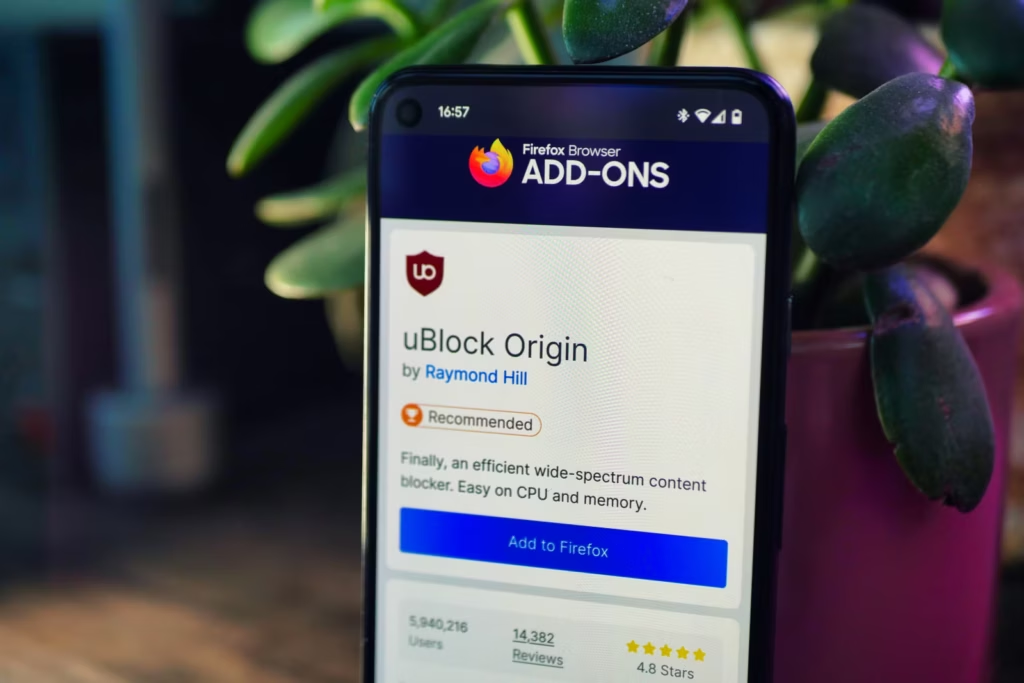
If you prefer Firefox, it provides a more personalized experience by supporting third-party add-ons such as uBlock Origin, one of the most powerful ad blocks accessible.
Steps to set up uBlock Origin on Firefox:
Install the latest version of Firefox for Android.
Visit addons.mozilla.org from within the browser.
Search for “uBlock Origin” and add it to Firefox.
Once installed, uBlock Origin will immediately begin filtering ads on websites.
You may set up custom filters, activate regional ad lists, and block certain aspects on a webpage. This level of control makes Firefox with uBlock Origin excellent for users seeking extensive filtering options.
Best Use Case: Users who want granular control over what gets blocked and which filters are applied.
Use private DNS to block ads system-wide (Android 9+)
Since Android 9 (Pie), users can use a feature known as Private DNS. It connects you to a DNS provider, which filters out known ad-serving domains before they load, essentially blocking advertisements in all browsers and many apps.
Steps to enable Private DNS:
Open Settings on your phone.
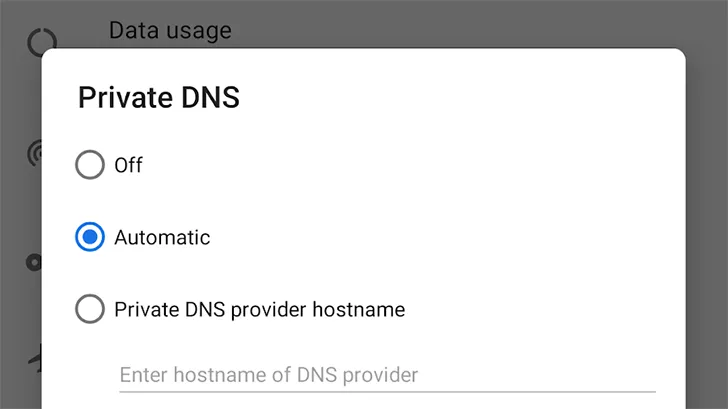
Navigate to Network & Internet > Private DNS.
Select “Private DNS provider hostname”
Enter the hostname of a DNS provider that supports ad blocking.
Save the changes.
Popular Ad-Blocking DNS Providers:
Provider
Hostname
Description
AdGuard DNS
dns.adguard.com
Blocks most ads and trackers
NextDNS
dns.nextdns.io/your-config-id
Highly customizable with user-defined filters
Control D Free
freedns.controld.com
Offers ad/tracker filtering without an account
Advantages:
Blocks ads across apps, not just in browsers
Doesn’t require any apps or root access
Improves loading speeds and reduces unwanted traffic
Limitations:
May not block all in-app ads or YouTube ads
Some mobile networks may not support encrypted DNS
Best Use Case: Non-root system-wide ad blocking with minimal setup effort.
Use AdGuard content blocker for supported browsers
The AdGuard Content Blocker is a free application that disables advertisements in browsers such as Samsung Internet and Yandex Browser without having root access.
How to install and use AdGuard Content Blocker:
Download the app from the official AdGuard website or from F-Droid.
Open the app and select the browser you use (Samsung Internet or Yandex).
Enable content filters like EasyList or AdGuard Base Filter.
Ads will be blocked while browsing within the supported browser.
Best Use Case: Samsung or Yandex browser users seeking browser-specific ad blocking without full system-wide solutions.
Use a custom hosts file or DNS66 (No Root Required)
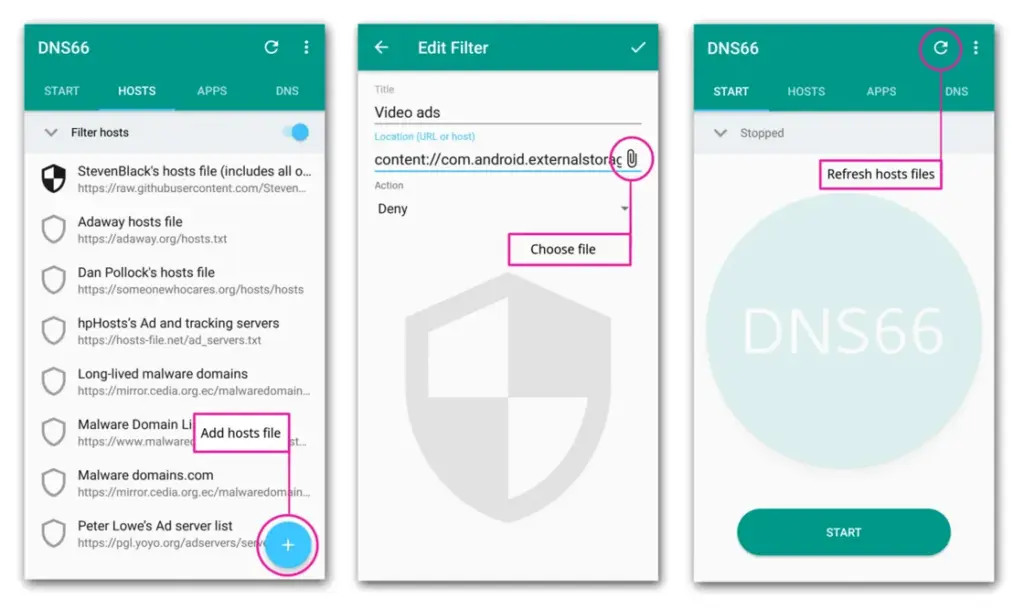
Tech-savvy users may prefer to utilize a custom hosts file that redirects known ad-serving domains to a blank IP address. DNS66, for example, provides this capabilities without the need for root access.
How it works:
DNS66 creates a local VPN tunnel and uses a custom hosts file.
Any requests to known ad servers are blocked at the DNS level.
It filters traffic system-wide, including ads in apps and games.
Steps to use DNS66:
Download DNS66 from F-Droid (it’s not available on the Play Store).
Launch the app and configure which hosts files to use (e.g., AdAway or Energized).
Start the VPN service and allow the app to block domains across the system.
Best Use Case: Advanced users who want fine-tuned control over DNS-level ad blocking without root.
Note: Since DNS66 uses a local VPN, you cannot run other VPNs at the same time.
What about YouTube ads?
YouTube uses server-side ad distribution, which makes it difficult to prevent adverts in the official YouTube app. However, there are various workarounds available:
Option 1: watch YouTube in Brave or Firefox with Ad Blocking
Open YouTube.com in Brave or Firefox with uBlock Origin enabled.
Ads will be stripped from videos on the web interface.
You can even use picture-in-picture mode on supported devices.
Option 2: Use YouTube Vanced or ReVanced
YouTube Vanced (now discontinued) and its successor, ReVanced, offer modified YouTube apps with built-in ad-blocking and background playback.
Important Notes:
These apps must be sideloaded and are not available on the Play Store.
Use trusted sources such as GitHub or community forums to avoid malware.
YouTube may update its API to block these apps in the future.
Best Use Case: Users who regularly watch YouTube and want a consistent ad-free experience without paying for YouTube Premium.
Additional tips to reduce ads and trackers on Android devices
If you want even more control over your privacy and device experience, consider these extra steps:
Use a privacy-focused VPN with built-in ad and malware blocking (e.g., Proton VPN, NordVPN, Surfshark).
Enable Data Saver or Lite Mode in Chrome to minimize ad-heavy content.
Regularly clear app cache and browsing data to remove trackers.
Turn off personalized ads by visiting Google Ad Settings and disabling ad personalization.
Final Thoughts
Blocking ads on Android no longer necessitates technical knowledge or rooting the device. The majority of advertisements may be removed from your browsing and app experience using browser-based blockers, DNS-based filtering, and content-blocking applications.
These methods are safe, effective, and frequently free. Whether you are concerned about performance, data use, or privacy, using these ad-blocking tactics will significantly enhance your Android experience.
The internet is now a vital component of our daily routine. But pesky ads could make browsing irritating. These ads vary from pop-ups to autoplay videos, interfering with our web use and posing hazards including malware and phishing. The good news is that there’s a fix: ad blocking using DNS.
Understanding DNS
What is DNS?
DNS, or Domain Name System, serves like an online phone book. It changes domain names into IP addresses, so instead of dealing with complicated numbers, you can use easy-to-remember names.
How DNS Works in Simple Terms
When you enter a web address into your browser, your device sends a request to a DNS server. The server then finds the matching IP address. Once it has the IP address, it connects your device to the server for that webpage and allows it to load.
DNS Role in Website Access
If DNS did not exist, using the internet would be as tough as wandering around a foreign country without any guides. Simply put, DNS guarantees smooth communication between gadgets and web servers, and forms a vital part of the internet infrastructure.
Problems Caused by Ads
Kinds of Annoying Ads
Ads can disrupt our browsing in many forms, such as popups, banners, and autoplay videos, making concentration on content challenging.
Negative Impacts of Annoying Ads on User Experience
In addition to being disruptive, annoying ads might slow down the web page loading speed, use excessive data, and divert your attention from what you really want to watch.
Potential Dangers of Clicking on Certain Ads
When you click on ads, you might unintentionally download malware or become a victim of phishing scams. These potential dangers highlight why it’s crucial to minimize ad encounters.
How DNS Can Block Ads
What is DNS-based Ad Blocking?
DNS-based ad blocking means using DNS servers that filter out ad domains. This stops ads from being loaded on website pages.
How It Is Different From Regular Ad Blockers
Regular ad blocker software or extensions work in your browser, but DNS-based blocking works at the network level. This makes it applicable across all gadgets connected to that network.
Perks of Using DNS for Ads Blocking
DNS-based ad blocking comes with various pros, like fast browsing speeds, device performance improvement, and thorough blocking of ads on all devices, such as smartphones and IoTs.
Setting Up DNS-Based Ad Blocking
Choosing a DNS-Based Ad Blocking Service or Software
Choosing a DNS-based ad blocking service or software can be a game-changer for your browsing experience. By configuring your devices to use ad blocking DNS, you can enjoy a cleaner and more secure online environment.
A Detailed Guide to Adjusting DNS Settings
The way you adjust DNS settings might vary according to your device and its OS. Generally, it involves going into your network settings, adding in the DNS server addresses given by your ad blocking service, and saving the changes made.
Troubleshooting Regular Problems While Setting Up
When facing setup issues like connection issues or DNS error messages, check the problem solving guides given by your ad blocking service or ask for help in online forums and communities.
Boost Privacy with a VPN
If you want additional privacy and security while surfing the web, consider a VPN (Virtual Private Network) like Windscribe VPN. VPN services encrypt your internet connection and cover your IP address, which stops outsiders from tracing your online activities. Using a DNS-based ad blocker improves your browsing, but pairing it with a VPN gives you more thorough protection from online risks and privacy breaches.
In addition to DNS-based ad blocking, there are alternative methods such as browser extensions and host file modifications. Explore these options to find the best solution for your needs.
Possible Downsides of DNS-Based Ad Blocking
DNS-based ad blocking has many advantages, but there may be some negatives, such as unintentionally blocking acceptable content or causing privacy worries. Keep these factors in mind when setting up ad blocking systems.
Tips for Improving Ad Blocking
To better ad blocking without risking performance or safety, keep your adblocking software updated, mark trusted sites as safe, and think about supporting content creators in other ways like subscriptions or donations.
To sum up, DNS-based ad blocking is a potent tool to block irritating advertisements and improve internet surfing functions. With the knowledge of DNS operations and the application of ad blockade, you can again gain power over your web experience for a neater, safer digital space.
Experience the benefits of DNS-based ad blocking firsthand and notice the improvement in your browsing habits.
Bloatware consumes storage on your smartphone. The worst part is that you can’t immediately uninstall them from your Huawei smartphone; they go by the name of tools. This bloatware typically comes preinstalled on your device. However, occasionally they do originate from different places, such as downloading dangerous links or third-party apps. Here is a simple tutorial on how to use ADB commands to debloat or remove bloatware from Huawei.
You must be sick and tired of the bloatware that comes pre-installed on your Huawei smartphones. And as you would have guessed, the majority of them serve no purpose other than to promote Huawei and occasionally steal your data.
Why You Should Remove Bloatware Apps
Bloatware is generally in your device to consume a lot of valuable resources, including battery juice. While it is running in the background of your device, it affects your device’s performance. It could fill your lock screen with Ads, or even your internet browser.
How To Debloat Or Remove Bloatware From Huawei Using ADB
Below mentioned steps are there to help you in removing the bloatware from the device. You need to follow these steps very thoroughly and successfully remove the bloatware from the device.
Step 1: Download and install Android SDK
The baby step toward this guide is to download the Android SDK tool from this link. This is the official tool provided by Google. The Android SDK tool is a software development kit used to develop Android applications.
Here is how you can install the Android SDK platform Packages and tool
Start the Android Studio
Select Configure>SDK Manager
In the default setting dialog box, click these tabs to install Android SDK platform packages.
Click apply and then click OK.
Or you can just download it directly from this link.
Step 2: Enable USB debugging
The next step is making your device readable by the ADB software to make changes in the ADB mode. Head on to the settings>about and enable developer mode by tapping on the build number seven times.
Your smartphone’s developer option will be turned on.
Now go to Settings > System > Advanced > Developer Option, scroll down and look for the USB debugging and turn it on.
Step 3: Make sure to establish the ADB shell Connection
The ADB command does a variety of device actions, such as installing and debugging an App and when you are about to debloat your smartphone from all the bloatware preset, Establishing an ADB shell connection is a must; here is how you can do it.
Advertisements
Connect your smartphone with the PC using the USB cable.
Now look for the platform tool folder in the Android Studio SDK manager, in the path android_sdk/platform-tools
In the platform tool folder, launch the Command Prompt, by typing the CMD in the address bar
Now type “adb devices” in the command window to verify the ADB connection.
You will get the device ID (If not, try again with correct spellings). Now type “adb shell” to establish the shell environment.
Your device codename will be listed, which means the shell connection is established.
Step 4: Type in the ADB commands to remove bloatware from Huawei phone
Now you can start removing bloatware apps from your device follow the below commands.
Type “pm list packages” in the command line. This will give the list of all the available packages and apps on your Huawei device.
Type “pm uninstall – –user 0 PackagenName” command for removing the bloatware from the Huawei device, the command is generic.
Advertisement
You can replace the PackageName with the actual package name. If you want to uninstall the Huawei stock app market, just type in “pm uninstall – –user 0 com.Huawei.appmarket” to uninstall the app market application.
List of Huawei Bloatware Packages
Below is the list of all the packages in your Huawei phone in the form of bloatware. You can remove all these applications and packages by just typing the package name.
Huawei Built in Application Package
com.huawei.android.tips | Huawei Tips/Tricks com.huawei.android.totemweather | Huawei Weather com.huawei.arengine.service | Augmented reality service com.huawei.browser | Huawei Browser com.huawei.contactscamcard | Business card reader com.huawei.compass | Huawei Compass com.huawei.desktop.explorer | Desktop Service com.huawei.fido.uafclient | Fast ID Online function com.huawei.gameassistant | Huawei Game Suite (HiGame) com.huawei.geofence | Geofence service com.baidu.input_huawei | Built in keyboard com.huawei.appmarket | Huawei Market com.huawei.android.chr | HwChrService com.huawei.android.FloatTasks | Floating dock com.huawei.android.hsf | Huawei own Services Framework com.huawei.android.hwpay | Huawei Payement app com.huawei.android.karaoke | karaoke entertainment app com.huawei.android.mirrorshare | MirrorShare from Huawei com.huawei.android.remotecontroller | Huawei Smart Controller com.huawei.search | HiSearch app com.huawei.stylus.floatmenu | Floating menu com.huawei.hdiw | Huawei ID app com.huawei.hifolder | Huawei Online Cloud folder service com.huawei.himovie.overseas | Huawei Videos App com.huawei.hitouch | Floating dock by Huawei com.huawei.hwdetectrepair | Huawei Smart diagnosis app com.huawei.iaware | Huawei info app com.huawei.livewallpaper.paradise | Live wallpaper service com.huawei.parentcontrol | Parental controls functions com.huawei.pcassistant | HiSuite service com.huawei.phoneservice | HiCare app com.huawei.mirror | Huawei Mirror app com.huawei.screenrecorder | Huawei Screen recorder feature com.huawei.vassistant | Huawei Voice Assistant com.huawei.videoeditor | Video editor function com.huawei.wallet | Huawei Wallet com.huawei.watch.sync | Huawei Watch sync function com.iflytek.speechsuite | Default voice input method
Bloatware Package List
com.android.bips | Print Service com.android.calculator2 | Calculator app com.android.calendar | Calendar app com.android.carrierconfig | Carrier-specific configuration com.android.cellbroadcastreceiver | Cell Broadcast com.android.dreams.basic | Screensaver mode com.android.dreams.phototable | Photo screensaver com.android.egg |Android build’s easter egg feature com.android.email | Stock email app com.android.emergency | Emergency Contacts com.android.exchange | Non-Gmail email support com.android.gallery3d | Gallery com.android.htmlviewer | In-built HTML viewer com.android.hotwordenrollment.okgoogle | OK Google detection service com.android.magicsmoke | Live wallpaper com.android.managedprovisioning | Managing App com.android.mediacenter | Huawei Music app com.android.mms | SMS app com.android.mms.service | MMS app com.android.noisefield | Live wallpaper com.android.phasebeam | Wallpaper com.android.printservice.reccomendation | Mobile Printing service com.android.pacprocessor | Proxy auto-configuration com.android.phone.recorder | Call recorder com.android.providers.blockednumber | Storage of blocked numbers com.android.providers.calendar | Calendar sync com.android.providers.partnerbookmarks | bookmarking service com.android.providers.userdictionary | Dictionary com.android.quicksearchbox | Quick Search box com.android.soundrecorder | Sound recorder com.android.stk | SIM Toolkit com.android.vending | Google Play Store com.android.voicedialer | Voice search com.android.vpndialogs | VPN system com.android.wallpaper.holospiral | Live wallpaper com.android.wallpaper.livepicker | Wallpaper picker com.android.wallpapercropper | Wallpaper cropper com.example.android.notepad | Notepad
Apps from Google in Huawei smartphone
com.google.android.apps.books | Google Books com.google.android.apps.cloudprint | Cloud print com.google.android.apps.currents | Currents com.google.android.apps.docs | Google Drive com.google.android.apps.fitness | Google Fit com.google.android.apps.mapps | Google Maps com.google.android.apps.photos | Google Photos com.google.android.apps.tachyon | Google Duo com.google.android.apps.wallpaper | Google Wallpapers com.google.android.apps.wellbeing | Digital Wellbeing com.google.android.feedback | Google Feedback com.google.android.googlequicksearchbox | Google Search com.google.android.gm | Gmail com.google.ar.core | Google ARCore com.google.marvin.talkback | Talkback com.google.android.play.games | Google Play Games com.google.android.street | Google Street View com.google.android.videos | Google Play Movies com.google.android.youtube | YouTube com.google.tango.measure | Google Measure
These days, bloatware is a common feature on Huawei devices, thus you should debloat or uninstall bloatware apps from your cellphone to free up space or simply to safeguard your privacy. You may quickly remove the bloatware from your Huawei smartphone if you complete all of these procedures and type all of the commands.
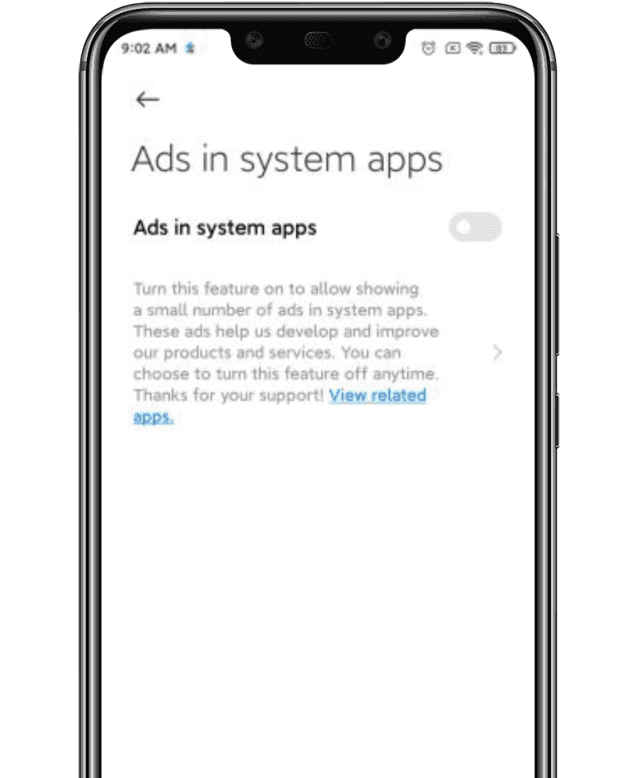
MIUI advertisements are commonplace. They are pervasive, invasive, and the user experience is labelled. For this exact cause, some folks walk away from Xiaomi phones. Still, since it is the key source of Xiaomi ‘s income, MIUI is married to advertising.
Lei Jun, the company’s CEO, announced last year that MIUI would clamp down on advertising , especially lewd ones. Well, we finally have a function for getting rid of the ads in the new MIUI 12. Today , the new version is being released internationally. In a swarm of functionality, the one that many of us are excited about is the latest ad treatment.
Now, you just have to follow these three simple steps to get the same thing done:
Open the Settings page and click on the account option, followed by Privacy Policy.
2. Within Privacy Policy, you’ll see an option called “System Ads”.
3. Toggle off that option to disable the ads.
Disable Ads
You had to opt-out of the User Interface Program in earlier MIUI models, reject automated diagnostic data transfer, and turn off recommended / personalized content settings on all Mi apps. The measures are now truncated to just three.