Blog

  • SkyDragon OS – OnePlus 6T custom ROM

    SkyDragon OS – OnePlus 6T custom ROM

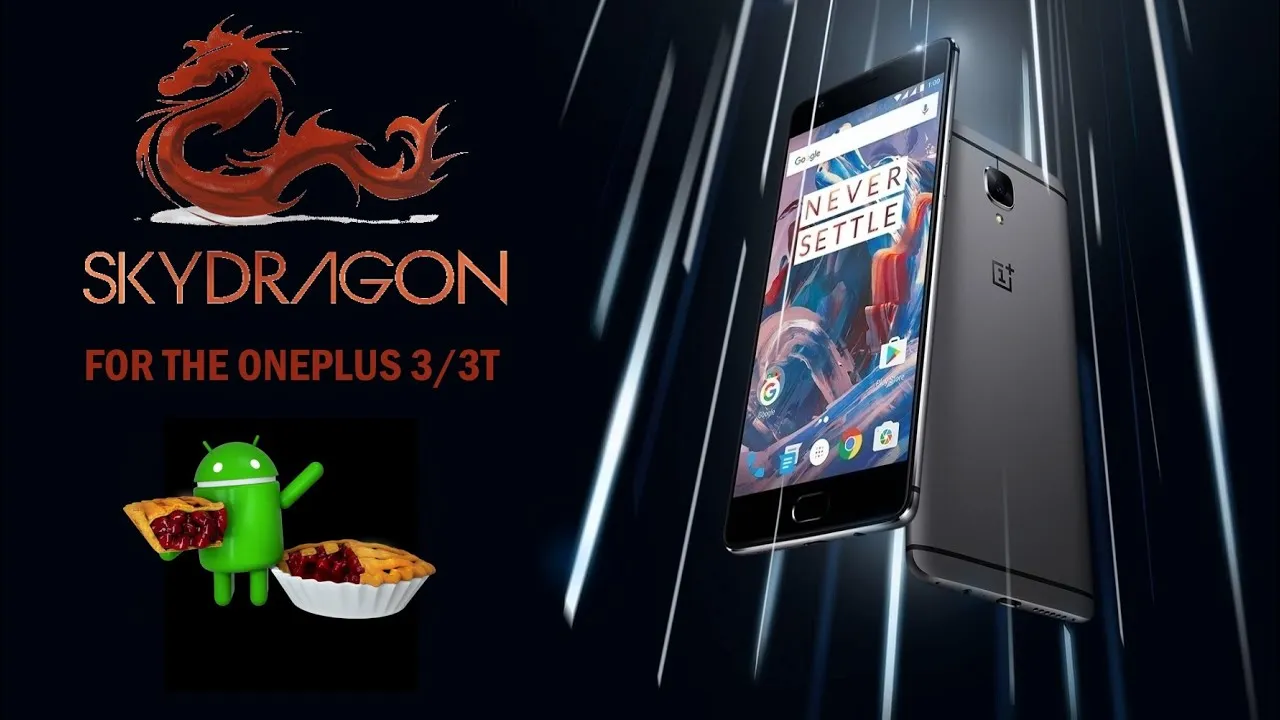
    This ROM is based on AOSP source that optimized specifically for the Snapdragon 845.
    Is paired it with an already optimized kernel.

    About SkyDragon OS

    Based on AOSP
    Android Version: 9.0 PQ3B.190605.006
    Actually Optimized specifically for SDM845(SD845)
    LightningZap! Kernel Built-in Refer here
    SkyDragon Boot animation

    SkyDragon OS Features:

    Custom Theme Support
    - Accents (Amber, Black, Cerulean, Crimson, Deep Purple, Emerald, Fuchsia, Green, Grey, Hot Pink, Light Blue, Lime, Maroon, Mexican Sunset, Pink, Pixel, Pumpkin, Teal, White, Yello)
    - Primary/Base (Almost Black, Dark Blue, Pitch Black, White)
    - Notification (Dark, Light, Match Primary)
    
    Volume Rocker Customization
    - Rocker Playback Control
    - Rocker Wake Control
    - Rocker Cursor Key Control
    - Rocker Answer Key
    
    Gestures
    - Jump to camera on unlock (Double tap power button)
    - Prevent ringing
    - OP6 Navigation Gestures
    - Screen-off power button Torch(long press power button)
    
    Lock Screen Customization
    - Change lockscreen bottom shortcuts
    - Double tap to sleep anywhere on lockscreen
    - Lockscreen charging info toggle
    - Fingerprint authentication vibration toggle
    - Fingerpint unlock on first boot toggle
    - Lockscreen media cover art
    
    Navigation Bar
    - Navbar button layout customization (Normal, Compact, Left-leaning, Right-leaning)
    - Extra left/right button customization
    - Invert navbar layout
    - Navbar burn-in protection toggle with shift configurable
    
    Notifications
    - Heads-up toggle
    -- Heads-up time-out selectable (2/4/5/6/8/10 seconds)
    -- Heads-up snooze timer selectable (Disabled/1/5/10/15/20 minutes)
    -- Heads-up stoplist (block while in chosen apps)
    -- Heads-up blacklist (black from apps)
    - Notification light per-app configurable
    - Battery charging light toggle
    -- Battery light in DND mode toggle
    -- Battery light blink when low toggle
    -- Battery light colors
    - Disable notifications while screen on toggle
    - In-call vibrate on connect toggle
    - In-call vibrate on call waiting toggle
    - In-call vibrate on disconnect toggle
    
    Power menu customization
    - Disable on lockscreen toggle
    - Menu options (Power/Restart/Advanced restart(Shortpress recovery/longpress bootloader)/Screenshot/Flashlight/Airplane/Settings/Lock Down/Users/Logout)
    
    Quick Settings Customization
    - Brightness slider toggle
    - Brightness slider on bottom toggle
    - QS Footer toggle
    - Vibrate on qs tile touch
    - Running Services Toggle
    - Bluetooth battery status toggle
    
    Recents Apps Customization
    - Recents Apps Style (AOSP/PIE)
    - Clear-all button toggle
    - Clear-all location 
    - Memory Bar toggle
    
    Status Bar Customization
    - Status bar items configurable
    - Double tap to sleep toggle
    - Battery Icon choices (Portrait/Circle/Dotted Circle/Text/Hidden)
    -- Battery percentage in icon
    - Battery bar customization
    -- Location (Status bar/top of navbar/bottom of navbar)
    -- Battery bar style (Regular/Center-Mirrored/Reversed)
    -- Battery bar thickness (1/2/3/4 dp)
    -- Charging animation
    -- Colors (Charging/low-high battery)
    - Bluetooth battery status toggle
    - Clock and Date toggle
    -- Clock style (Left/Center/Right)
    -- AM/PM style (Hidden/Small/Normal)
    -- Show Seconds toggle
    -- Date (Hidden/Small font/Normal font)
    -- Date style (Normal/Lowercase/Uppercase)
    -- Date format
    - ADB Notification toggle
    - Network Traffic toggle
    -- Network traffic activity threshold configurable
    - Disable VoLTE Icon
    - Use oreo style mobile icons
    - Use 4G instead of LTE toggle
    
    Weather
    - System service toggle
    -- Update interval
    -- Provider (OpenWeather Map)
    -- Unit (F/C)
    -- Custom Location
    - Icon pack
    - Statusbar Weather toggle (Hidden/Temp with image and scale/Temp with image/Temp with scale/Temp/Image)
    - Lockscreen Weather toggle
    - Show City Name on lockscreen
    - Show Temperatue on lockscreen
    
    Miscellaneous
    - App Ops
    - Sensor block per-package toggle
    - System Wakelock blocker
    - System alarm blocker
    - Wake up on charger connected toggle
    - Scrolling cache selection (Force enable/Default enable/Default disable/Force disable)
    - Doze Settings configurable
    -- Preset profiles (Aggressive/SkyDragon)
    - Aggressive Battery Toggle
    
    Device Features
    - OP Off-screen gestures 
    -- Proximity check toggle
    -- Tap to wake toggle
    - Swap HW Keys toggle (Back/Recents)
    - Vibration strength configurable
    - HW Slider position customization
    - Panel Modes (sRGB/Soft Color/Wide Color/HighBrightness Mode)
    - Ambient Display configuration
    -- Pickup toggle
    -- Hand-wave toggle
    -- Pocket toggle
    
    Wifi and Network
    - Sim cards toggle
    - Auto hide unprovisioned sim slots
    
    Apps & Notifications
    - Show package version
    
    Battery
    - Auto reset battery stats at %99
    - Reset battery stats toggle
    
    Display
    - Extra font sizes
    - Extra display sizes
    - Dashboard conditions toggle
    - Dashboard summaries toggle
    
    Security & Location
    - Scramble Pin layout
    - Quick unlock on correct pin/pass toggle
    
    About Phone
    - Viewable Changelog
    - Phone Info button (*#*#4636#*#*)

    How to install:

    • Download ROM
    • Flash OOS 9.0.XX Stock (Not BETA)
    • Flash twrp-fajita-3.2.3-XX-installer
    • Reboot To Recovery
    • Flash ROM + TWRP
    • Reboot To Recovery
    • Wipe (Swipe To Perform Factory Reset)
    • Note: If your first boot results in a bootloop, you WILL need to FORMAT data.
    • This will wipe ALL you data including your sdcard. MAKE A BACKUP!
    • Flash OpenGapps ARM64 9.0 Pico/Nano
    • Flash Magisk
    • Boot To OS

    How to update:

    • Wipe Cache/Dalvik
    • Flash ROM + TWRP
    • Reboot To Recovery
    • Flash Gapps
    • Flash Magisk
    • Boot To OS
  • What you need to know about custom kernels

    What you need to know about custom kernels

    With an incredible 13 million lines of code, the Linux kernel is one of the biggest open source projects in the world, possibly. Initially put together by Trovalds, the originally intended Linux kernel currently supports about 30 different architectures with no cross-platform intentions.

    If you’re on XDA, you probably have heard about kernels before. The amazing custom kernel that offers a lot of features including but not limited to, more battery life, a smoother interface, maybe exFAT or OTG support, custom color controls, wake-up gestures etc. So, what exactly are custom kernels, and where did a kernel’s entire image get into Android?

    Since the inception of computers and devices, there has been a three-tier interaction model.

    android kernel

    As you can see, either way the kernel arrives at the second tier. That means that the kernel is the middle man if there is any contact between the operating system and the hardware (such as a volume increase trigger) or between the hardware and the operating system (such as an insertion of a USB device).

    So, the next time you increase the volume on your Android device, what actually happens is that Android sends a request to the kernel indicating that the volume needs to be increased, and since the kernel manages the hardware, it raises the voltage for the speaker (which translates loosely into sending a request for a volume increase ‘ to the speaker); or the time you plug-in a USB device into your OTG-enab

    The boot sequence for an Android device looks something like this:

    BIOS->Bootloader->Kernel->Operating System.

    Google wanted to go with the linux kernel when Android was brought up, a move that was rightly made. The’ mainline’ linux kernel is the kernel used in desktops that can be compiled and run from the linux branch of Trovalds, whereas the kernel of Android is a fork with (relatively) few additions off this mainline kernel. The key reason we can’t run the mainline kernel (the one running on desktops) is due to the lack of support for some of those elements that are required for Android.

    1. The android binder, an Android-specific interprocess communication mechanism, and remote method invocation system. If android decides to write to the display, the OS and the GPU talk through the binder. That should fairly give the idea that *almost* all communications are made through binders.
    2. ashmem/pmem/ion: memory allocators specifically designed for android
    3. logger: to write various logs like kmsg, radio, events, etc.
    4. wakelocks: ever wondered why you get that facebook message on your phone even though it seems to be turned off? voilà. wakelocks at work. (psst. the facebook for Android application holds a LOT of wakelocks, but that’s discussion for another day)
    5. oom handling: OOM stands for Out Of Memory. Since Android devices run low on memory, this is a process killer, the Linux LMK (Low Memory Killer). This is what prevents the device from hanging up by clearing a few running background apps when you open too many of them.
    6. support for YAFFS/JFFS/ file systems: If you’re running older devices, you are probably running a device with flash file systems. These are different from the conventional ext2/3 file systems, and need to be supported by the kernel.

    There are various custom kernels to choose from, giving you a plethora of choices. You can either go for a high-performance, overclocked gaming kernel or a battery booster under-clocked, or go with a fair share of both. If you can’t decide, you can go ahead very well and build your own custom kernel with the features that you like since most OEMS release the kernel sources for their devices.

  • OnePlus 6T custom kernel – Omega Kernel

    OnePlus 6T custom kernel – Omega Kernel

    Why You Should Consider Using A Custom Android Kernel

    Do you want your Android device to offer best performance? Or is it true that you want the best battery life? If you have already rooted your device, or even installed a custom ROM on it, checking out the domain of custom kernels might be a good idea.

    The kernel is the piece of software that bridges the gap between the operating system (and applications installed) and the device’s hardware. The kernel is involved in everything that you do on your computer. Greater volume while playing a video? Android isn’t asking the speakers specifically to increase output. Alternatively, it tells the kernel it wants to increase the volume and the kernel is talking to the speaker to increase their performance.

    Omega Kernel features

    • Up to date with OxygenOS 10 source
    • Compiled with GCC 9.2.0 for maximum stability, with all warnings and errors fixed
    • Many tweaks under the hood for smoother UX, lower battery drain, etc.
    • Kernel uses CAF’s WiFi module for sdm845
    • Westwood as the default congestion algorithm
    • Hides bootloader unlock from SafetyNet
    • Includes latest WireGuard kernel module
    • Available to flash with AnyKernel3

    More disscusion: https://forum.xda-developers.com/oneplus-6t/development/kernel-aoxp-kernel-1-0-t3905381

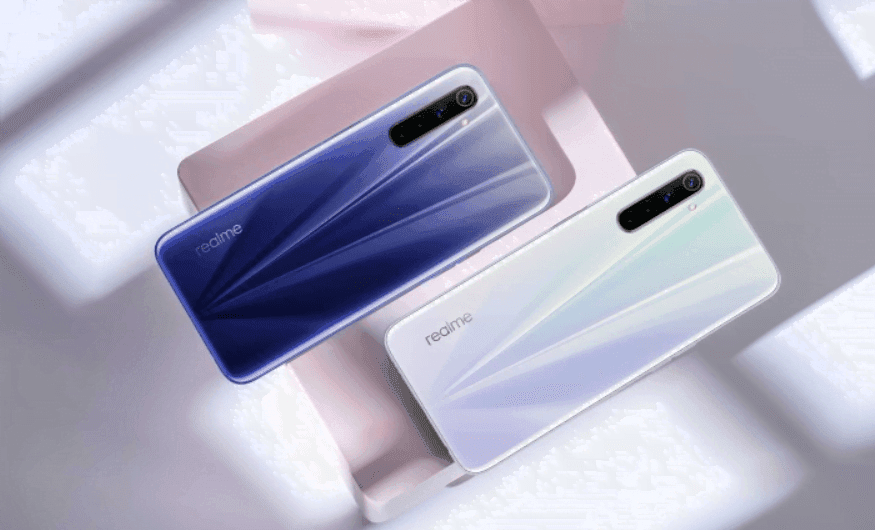
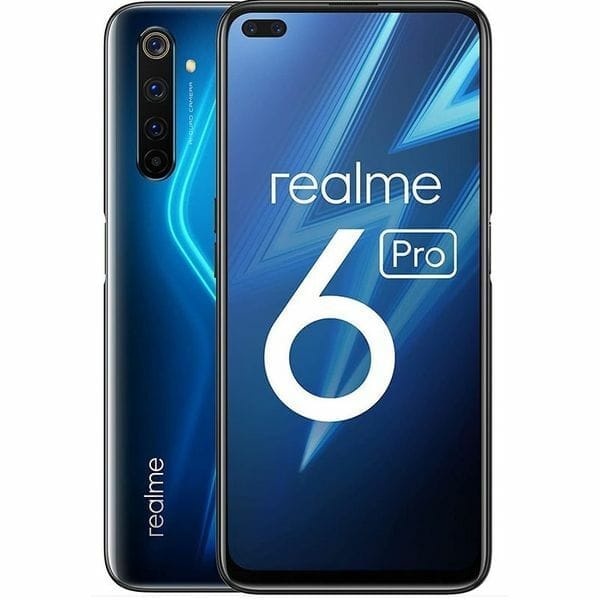
  • The Realme 6 Pro offers 64MP quad cameras, 90Hz screen for under $200

    The Realme 6 Pro offers 64MP quad cameras, 90Hz screen for under $200

    Realme has rapidly become an arch-rival of Xiaomi in India’s likes, providing plenty of bang for your buck. Now the company has launched the Realme 6 and Realme 6 Pro, targeting the range of Redmi Notes.

    Yet Realme says the Realme 6 is simply a successor to the Realme 5 Pro, and suggests that the Realme 6 Pro is a follow-up to the upper mid-range Realme X. This has some price implications, but more on that in a bit.

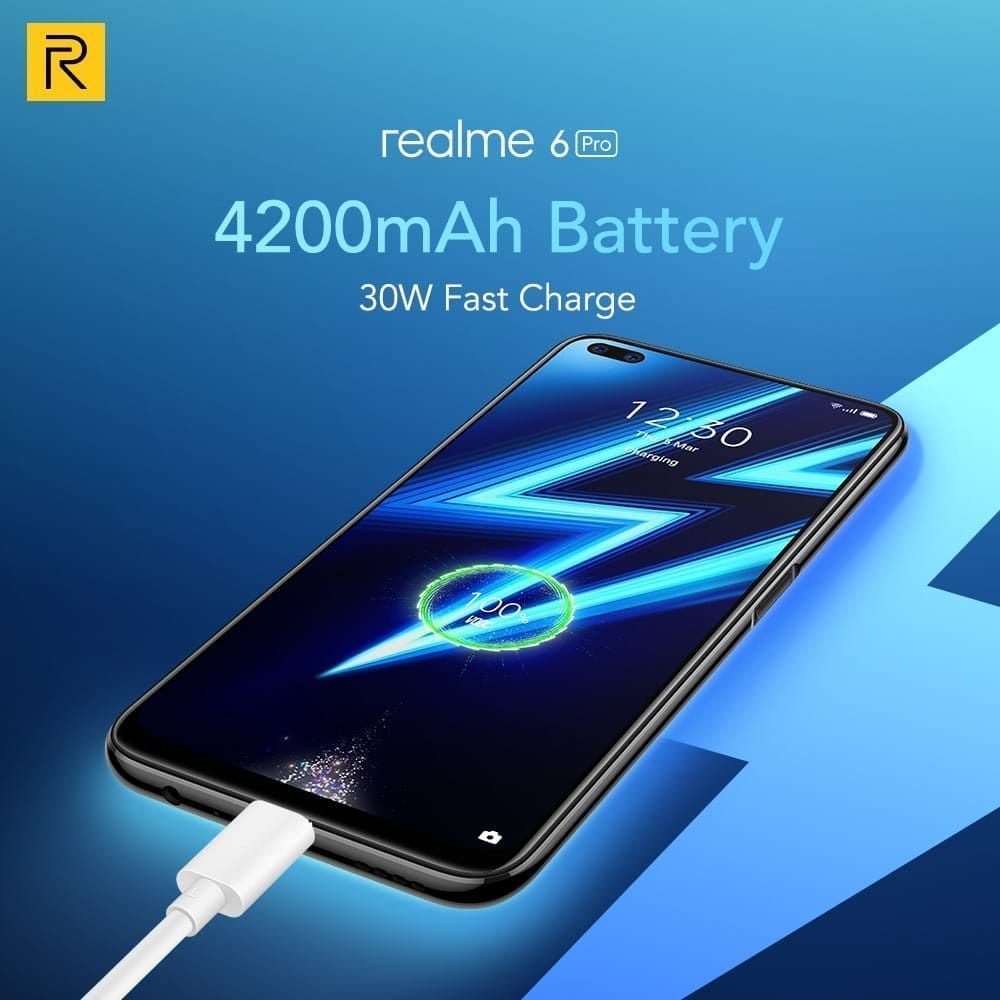
    Both phones offer 90Hz FHD+ LCD screens with punch-hole cutouts, 4,300mAh batteries, side fingerprint scanners, storage expansion, splash resistance, Realme UI atop Android 10, and 30W charging. The latter feature means you can expect a full charge in an hour, according to Realme.

    Differences?

    The Realme 6 Pro differs from the standard model by offering a Snapdragon 720G chipset, dual-frequency GPS, and two selfie cameras (16MP + 8MP wide). Meanwhile, the Realme 6 packs a capable Helio G90T processor, and a 16MP selfie snapper.

    The Realme 6 and Realme 6 Pro both feature quad cameras with a 64MP main camera, 8MP ultra-wide snapper, and 2MP macro camera. But the Pro model features a 12MP telephoto camera as the fourth shooter, while the standard Realme 6 sports a 2MP monochrome sensor.

    As for the substantial price? The 4GB/64 GB Realme 6 starts at Rs 12,999 (~$178), the Rs 14,999 (~$205) 6GB/128 GB model retails, while the 8GB/128 GB version sets you back Rs 15,999 (~$219). The Realme 6 in Comet Blue and Comet White will be available from Flipkart and participating retailers on March 11.

    Meanwhile the Realme 6 Pro starts at Rs 16,999 (~$232) for the version 6GB/64 GB, Rs 17,999 (~$246) for the standard 6GB/128 GB, and Rs 18,999 (~$260) for the variant 8GB/128 GB. The Realme 6 Pro in Lightning Orange and Lightning Blue will be available from Flipkart and participating retailers on March 13.

    Verdict

    Realme 6 Pro is a medium-range smartphone that offers a wide variety of features. Starting from massive storage capacity, healthy battery back up, amazing camera to a stylish punch-hole display, the smartphone has it all. Overall, it is an amazing smartphone around this budget

  • Galaxy S20 clock app lets you set Spotify as the alarm

    Galaxy S20 clock app lets you set Spotify as the alarm

    Samsung finally lifted the covers off the Galaxy S20 series early last month after weeks of leaks and speculation about her flagships for 2020. Like last year, as a part of the series, the company launched three devices including the Galaxy S20, Galaxy S20+, and Galaxy S20 Ultra. As you would imagine, with the high-end Galaxy S20 Ultra featuring a 100x Space Zoom feature, the smartphones sport top-of – the-line specifications. Samsung also rolled out One UI 2.1 along with the Galaxy S20 series— their latest Android-based software update 10.

    samsung spotify alarm

    While One UI 2.1 is largely the same as One UI 2.0, some additional features that are not yet available on older devices are packaged. These include features such as Quick Share, which is an alternative for Samsung to Apple’s AirDrop which allows you to easily share images or files with other users with a supported device. The update to One UI 2.1 also includes redesigned AR Emoji, a new feature of Music Share, and simplified integration with Google Duo. This isn’t all that is fresh in One UI 2.1 though.

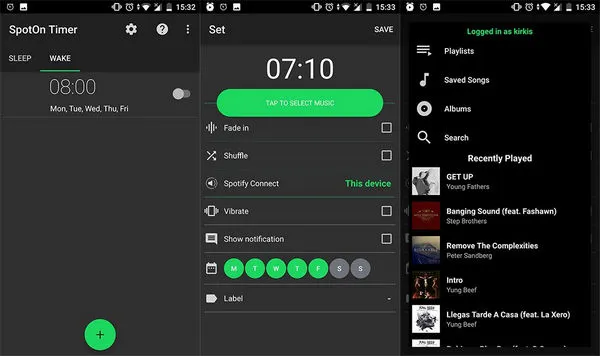
    Samsung has also updated its stock Clock app in One UI 2.1 and it now gives users the ability to choose “Spotify” as the alarm sound. As you’d expect, choosing the streaming service as your alarm will allow you to wake up to your favorite songs, which is always better than using the stock alarm sounds included on the device. The new feature can be found in the “Alarm sound” settings within the Clock app on all Galaxy S20 devices. It goes without saying that you’ll also need to install the Spotify app on your device in order to use this feature.

  • Fastest wireless charging – Xiaomi breaks a record

    Fastest wireless charging – Xiaomi breaks a record

    Xiaomi Vice President Chang Cheng announced on Weibo this afternoon that Xiaomi Wireless Charging’s charging rate has improved in recent years from 10W-30W mode. The company is however currently developing a new wireless charging that breaks its current 30W power. The company has a new 40W wireless fast charging system, according to Xiaomi VP, Chang Cheng. The Xiaomi 40W wireless charging capability is fairly impressive.

    The new Xiaomi smartphone uses a wireless 30W charging system. Now, the company is doing more to make future flagships more appealing. Wireless charging is clearly going to be a big growth field this year. The aim of Xiaomi is to achieve charging speeds which some OEMs are struggling to achieve with wired charging.

    Xiaomi’s latest flagships, Xiaomi Mi 10 and Xiaomi Mi 10 Pro but uses fast wireless charging solutions. The Xiaomi Mi 10 comes with a 4780 mAh custom strip fast charge battery, which supports 30W wired fast flash charging + 30W wireless fast flash charging + 10W wireless reverse charging. On the other hand, the Xiaomi Mi 10 Pro uses a 4500 mAh strip battery. However, it comes with a faster 50W fast flash charging technology. This charging solution achieves a full charge in just 45 minutes. In addition, it uses Xiaomi’s latest 30W wireless charging solution which is quite fast.

  • Install GCam 7.3 on any Android device

    Install GCam 7.3 on any Android device

    One of the wonders of Android devices is the Google Phone. It is Google Pixel smartphones ‘ holy grail. After all, while other companies rely on multiple-cameras to produce high quality images, powerful software supports Google Pixels. This technology has blessed pixel smartphones making them some of the best smartphones in the photography industry. They have official support for advanced features such as portrait and astrophotography mode. Recently Google rolled out the Google Camera App v7.3 with several new features and enhancements. The group is strong and now all Android smartphones have Gcam 7.3 app.

    Gcam?

    In short, Gcam is a plugin aimed at bringing the Google Camera app to multiple smartphones and ensuring all features work with them. There are several variations of Gcam. Some are intended for multiple Android devices, while others are specifically designed for a single smartphone. Multiple developers are working on Gcam and we have today an active community of users using the Mod.

    gcam

    Gcam 7.3 features:

    • Automatic DND mode while using video-recording.
    • Re-arranged settings UI.
    • 24FPS video recording.
    • Exposure controls to adjust brightness and HDR of your photo.
    • Astrophotography implemented to Night Sight.
    • Received Frequent Faces to help you capture Top Shot photos.
    • Touch and Hold shortcut in the shutter button to capture Top Shot photos.

    How to install Gcam 7.3 on your device:

    1. Download the APK provided (It’s a beta build, so might carry some bugs) (Click Save As)
    2. Select and Install it ( You’ll be prompted with the request for allowing app installation from external sources, don’t worry the app is safe).
    3. Open the Google Camera once the icon appears in your launcher
    4. Done!
    5. For older versions of Android, you can try and download Gcam 7.2, 7.1 or any mod that is compatible with your version.
  • Xiaomi Mi A3 updates to Android 10

    Xiaomi Mi A3 updates to Android 10

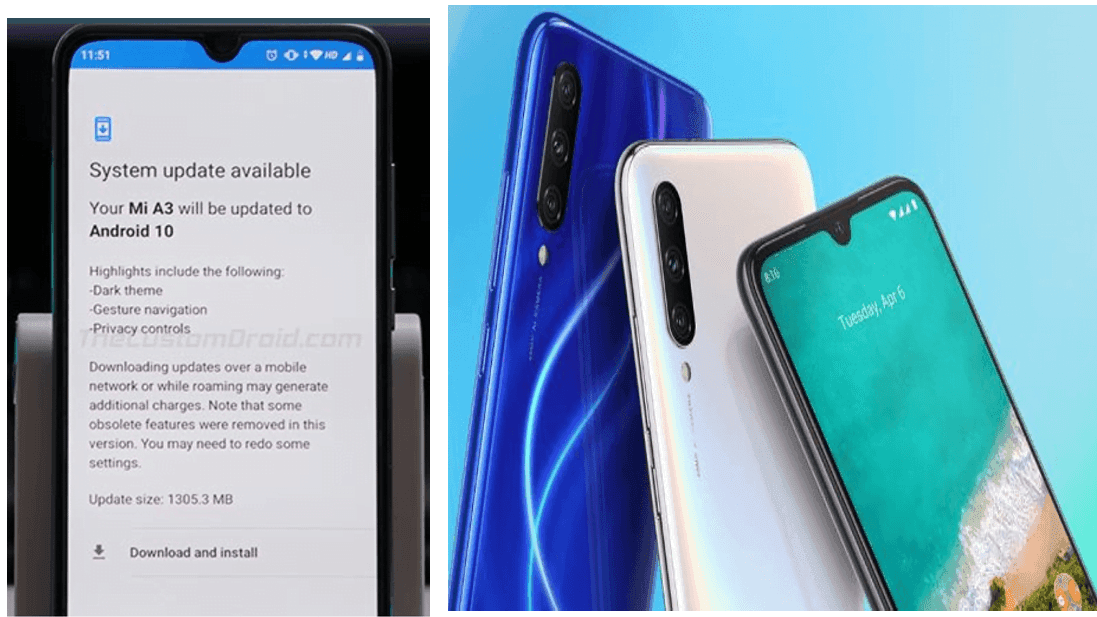
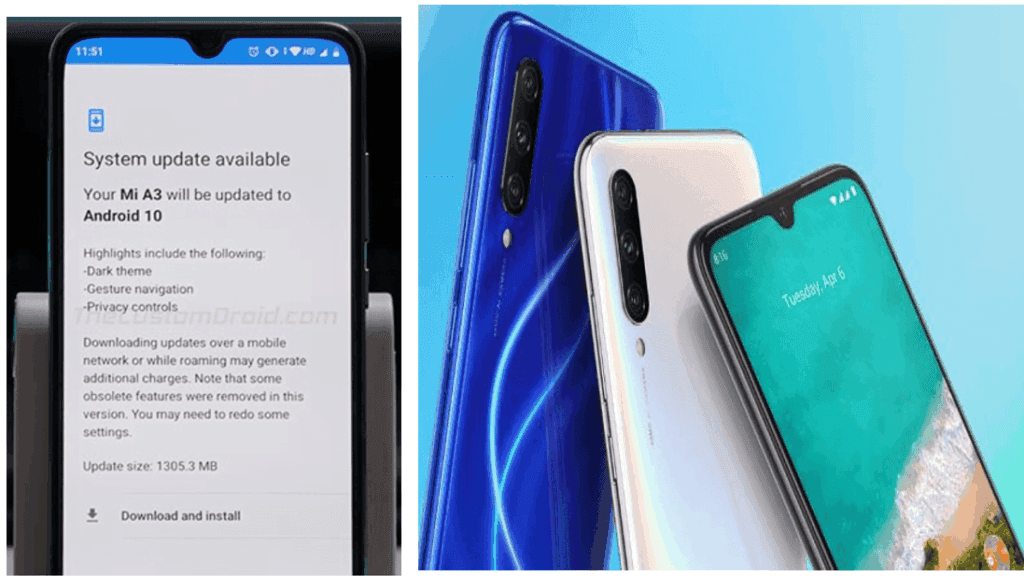
    After rolling out last month’s Android 10 update for the Mi A2 smartphone, Xiaomi today started rolling out the update for its latest Mi A3 smartphone after a slight delay, even though last month it released Android 10-based Kernel Sources for that app. Last year in August the smartphone debuted running Android 9.0 (Pie).

    Android 10 provides users with a number of additional privacy and security features, including Dark Theme, Smart Reaction, Focus mode, dedicated’ Privacy’ portion, and much more. After the update, you need to select “Show fingerprint icon when the screen if off” option in the fingerprint settings so that the fingerprint icon appears in the lockscreen when you raise the device or tap the screen. Xiaomi claims this raises power consumption though.

  • Install Google apps on Huawei

    Install Google apps on Huawei

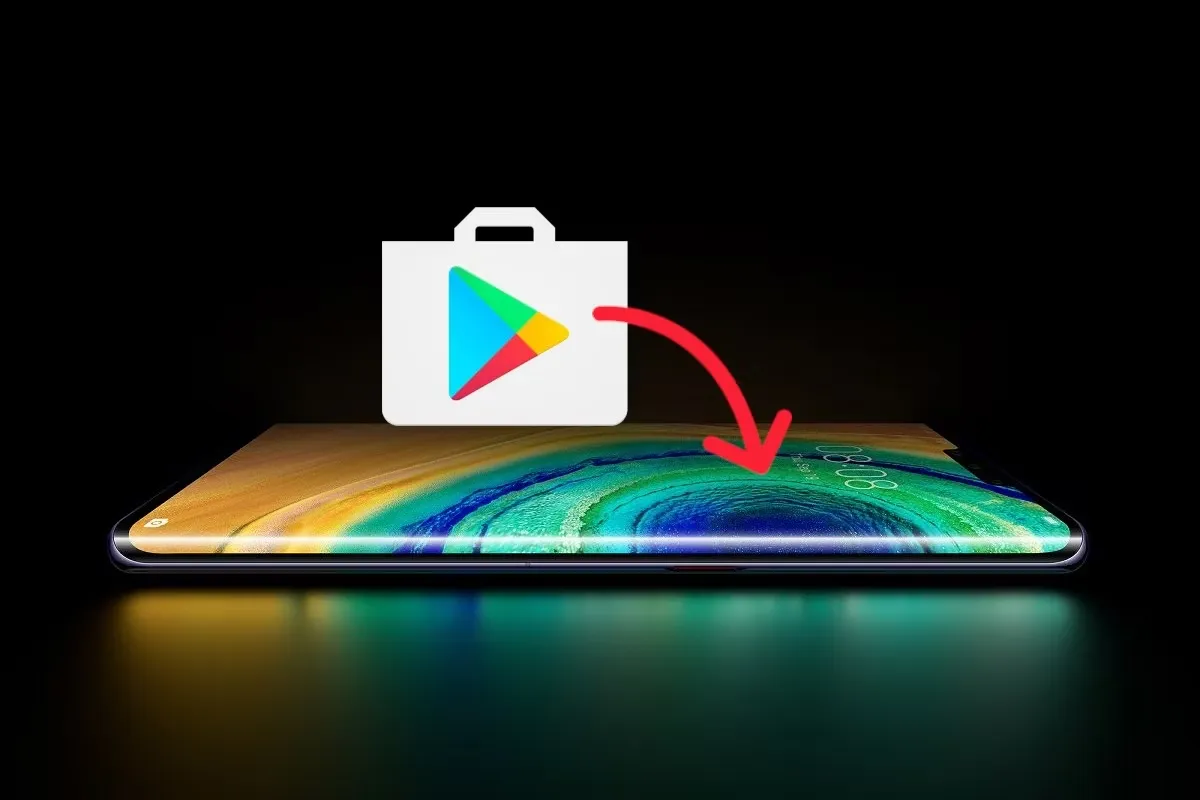
    There is no official way for Google apps to be enabled on Huawei smartphones, like the Mate 30 Pro. We want to make this clear from the start. And this is where you should stop reading if you were expecting an official way. Yet there are other ways to do this that give us an alternative way. That’s an open secret. Most of Google’s applications are also free online and easy to use

    Installation takes less than 5 minutes to complete. No protection is assured, however, because the circumstances surrounding the situation in Google–Huawei attract people with malicious intent. Copy security specifications for HD streaming of different services can not be enabled. Furthermore, you can not install Google Bill, too.

    Install Google Service

    All you need is the Chat Partner app. Only a few clicks, you can install mobile services on Google more easily than ever before. No prior experience, technical know-how or accessories are needed. Download Partner Chat app HERE

    • Download, install & start the app
    • Follow the instructions in the app (see screenshots above)
    • – Detect device
    • – Repair Now
    • – Activate
    • Restart (!)
    • Log in to the installed Google Play Store (again) with a Google account
    • Create additional Google accounts or install Google Apps via the Play Store
    Youtube video

    Notes!

    • Despite our extensive tests, app appraisal and observation of possible illegal account activity in the days after the installation, we received a legitimate security
    • Notice: The login via Webview can be potentially unsafe.
    • It also seems to be possible to skip this step and restart the device directly in order to then create a Google account via the Play Store or the system settings (secure).
    • So far, we have not been able to test whether this will lead to restrictions in subsequent use – which we do not assume, however.
    • The app can also be uninstalled after achieving your goal.
  • Realme 5 PRO received Pixel Experience custom ROM

    Realme 5 PRO received Pixel Experience custom ROM

    Warning Disclaimer: Droid Tools is not responsible for any damage or loss caused to your device.

    Droid Tools

    Realme launched Realme 5 Pro to India with Android 9 Pie in tow. The handset later became known in China as Realme Q. Remember that the handset received Android 10-based Reame UI 1.0 during this week. While the brand new app of Realme comes with a host of new features like dual earphone link, animated wallpapers, customizable icon design, new charging animation, Realme Share and more. The firm is promising a close-to-vanilla Android approach with Realme UI, but we all know this isn’t exactly the case.

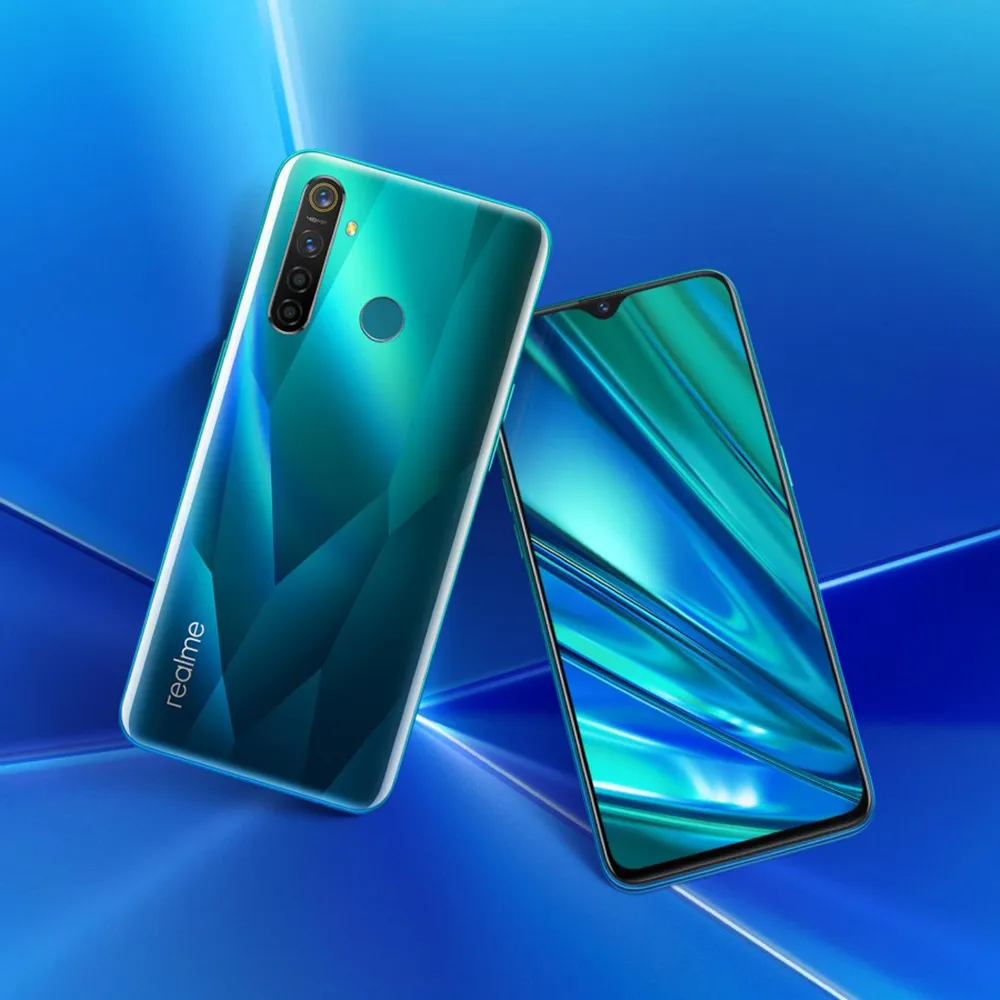
    Although Realme UI is designed to provide an Android experience close to stock, it still feels like ColorOS. There’s good news for you in case you want to enjoy a real pixel like Android experience on your 5 Pro. The Realme 5 Pro finally gets official support for Pixel Experience (based on Android 10). If you are not aware, Pixel Experience is a custom ROM that brings to the supported smartphones all the Pixel features, sounds, boot animations. If you like Realme 5 Pro hardware but aren’t a software fan, now is the time to enjoy a true Android vanilla experience.

    To flash a custom ROM, users will need to unlock the bootloader of their devices. Then, the next step is to flash a custom recovery. Worth noting that flashing a custom ROM does not affect the warranty of the Realme devices. After all, the company is very friendly to Custom ROM developers

    Whats working:

    • Wifi
    • RIL
    • Mobile data
    • GPS
    • Camera
    • Flashlight
    • Camcorder
    • Bluetooth
    • FMRadio

    No reported bugs until.

    Flash Pixel Experience on Realme 5 PRO

    1. Unlock bootloader.
    2. Flash recovery over fastboot mode. Follow this guide here
    3. Download rom and copy it into sdcard (not internal memory).
    4. Put your device into recovery mode.
    5. Flash rom from sdcard
    6. Format data (factory reset).
    7. Come back fastboot mode and flash vbmeta.img
    8. Reboot system.