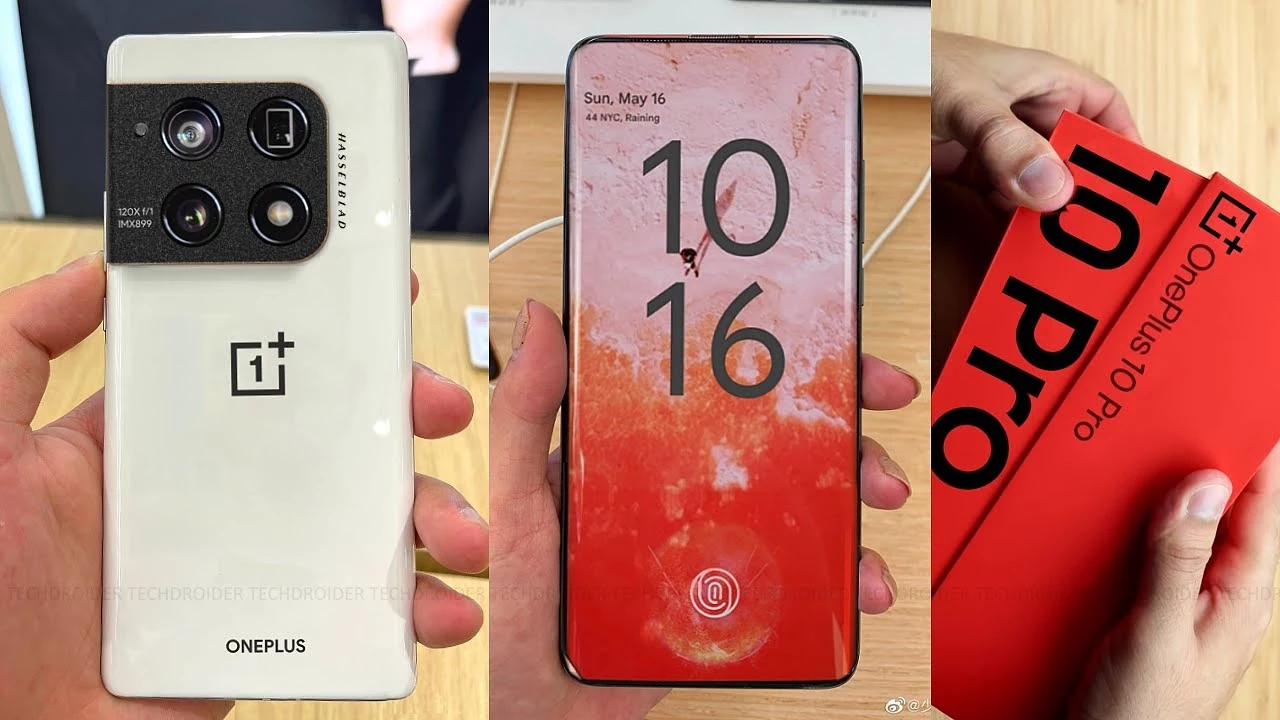
The OnePlus 10 Pro, which will successor the OnePlus 9 Pro, will be one of the most interesting Android phones of next year. Many of the device’s internal specifications have now been revealed by rumors, allowing us to adjust our expectations accordingly.
The OnePlus 10 Pro is up against some stiff competition. The device’s expectations have been raised by its predecessor’s exceptional performance, which currently holds the title of “best gaming android phone” in our rankings.
This is an incredible achievement, given that the Android device competes with niche gaming smartphones such as the ASUS ROG Phone 5 and yet manages to win, owing to its low price and well-balanced collection of features. According to the fresh information released by OnLeaks (via 91mobiles), we can already envisage what the future battle for flagship supremacy will look like.
The OnePlus 10 Pro that is expected to launch globally by April, is going to feature a wide set of specs that already place it at the top of the phone food chain. According to the leak the device is coming with a huge, 5000mAh battery, a Snapdragon 8 Gen1 by Qualcomm, and a high refresh rate, QHD+ 120Hz screen at 6.7 inches.
According to reports, the device will be available in two memory/storage configurations: 8GB/128GB and 12GB/256GB. The memory will be combined with the Qualcomm Snapdragon 8 Gen1 processor, which will be released soon (on November 30th) and marks a significant shift in Qualcomm’s naming strategy.
Speculating further, the OnePlus 10 Pro is said to have a 48MP primary shooter, a 50MP ultra-wide and, an 8MP telephoto with 3.3x zoom on a square camera bump. On the selfie side, we expect to see a 32MP camera inside the typical punch-hole cutout that we have been seeing for a few years now on devices.
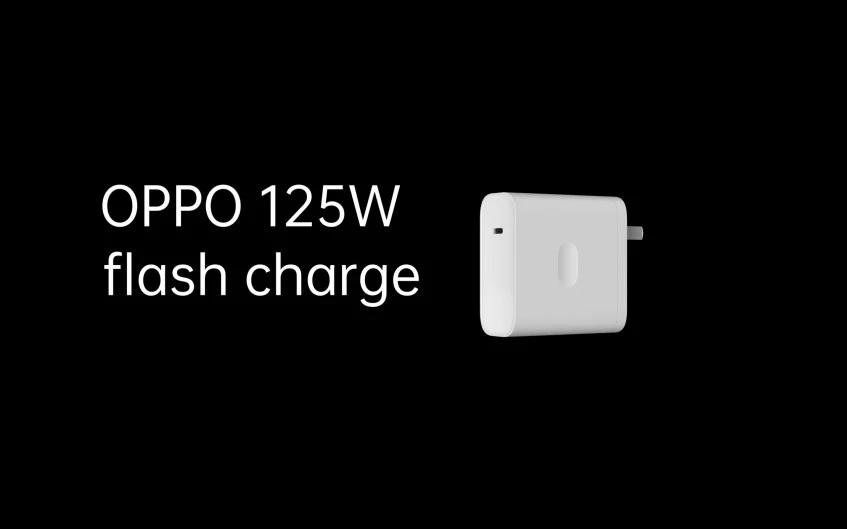
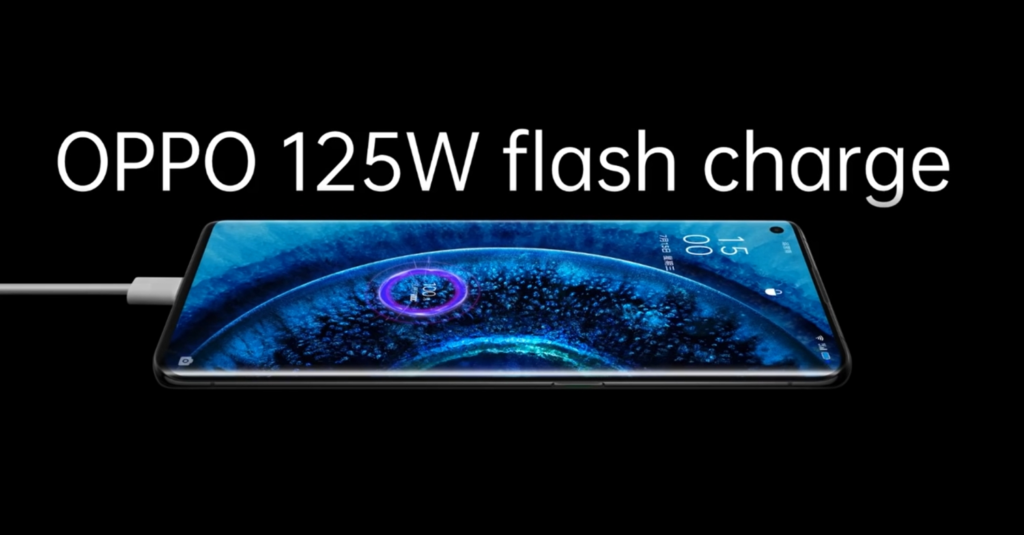
Some extra information points to a 125W charging capacity, but details about the fast charging capabilities are not yet known, but the OnePlus 10 Pro will be IP68 rated for that provides a little extra protection for this massive battery.
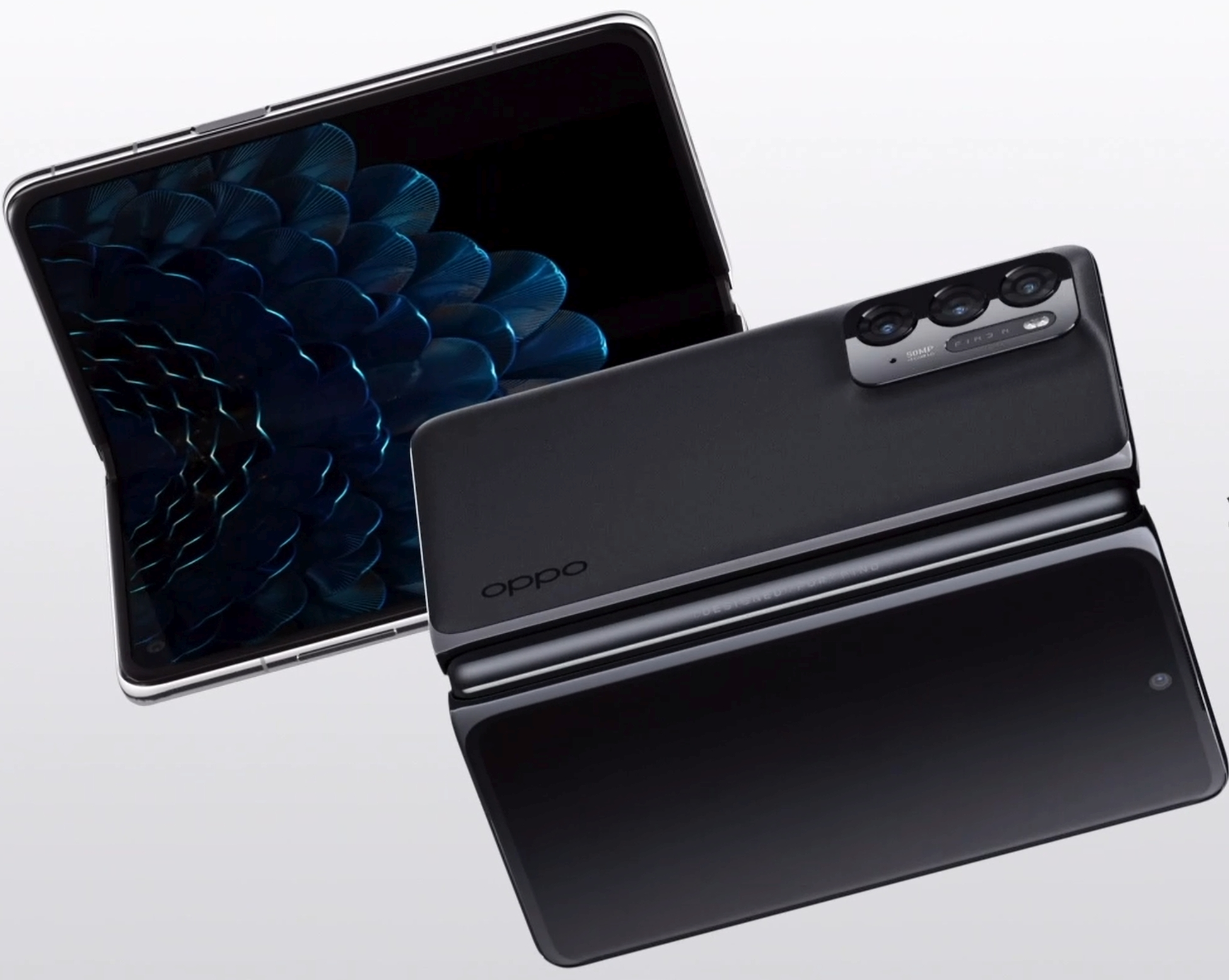
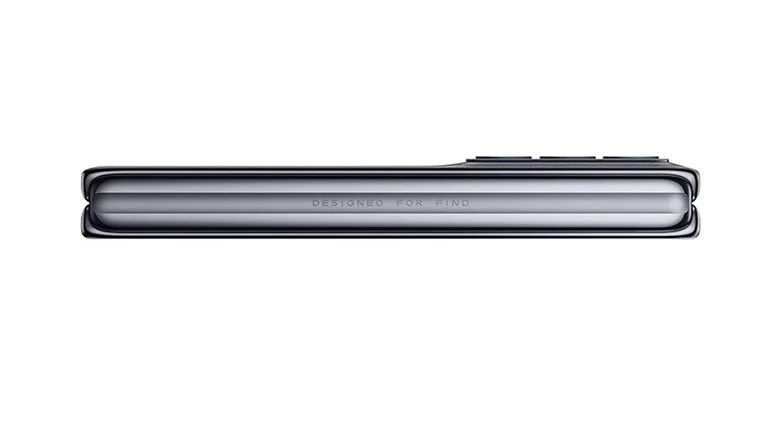
Foldable cellphones will become a popular trend by 2021. The upcoming Oppo Find N was teased in a recent blog post by Pete Lau, Oppo’s head of product and CEO of OnePlus. It will be Oppo’s first foldable phone, and it will be released on December 15, 2021.
Oppo’s new foldable smartphone will be unveiled on the second day of next week’s “Inno Day” event. Pete Lau admits in his blog post that Oppo is late to the foldable market. However, he also mentions that lack of services, limited durability, and user experience have all been issues with foldable cellphones thus far. Oppo first debuted its prototype in 2019 and has been working on it ever since to finally release the first gadget.
Although a handful of other brands have already launched foldable devices to the market, barriers such as utility, durability, and user experience continue to prevent foldable devices from becoming a more feasible daily driver for most people.
A single display surrounded the smartphone in the first prototype. The new Find N, on the other hand, is rumored to have a huge screen on the inside and a little smaller display on the back. As a result, Oppo appears to be working on a rival to Samsung’s Galaxy Z Fold 3. Oppo’s goal, according to Lau, is to create a smartphone that is not only beautiful to look at and feel nice in the hand, but also simple to operate.
Find N to be released soon
Oppo has produced six further prototypes after revealing its debut in 2018. This procedure is thought to culminate with the Find N. According to Lau, the quality of a gadget is more essential to Oppo than following every trend. As a result, he said, development has been put on hold, albeit the Find N is expected to provide users with a unique experience.
At the Inno Days event, Oppo will be unveiling other products apart from the Find N. Among other things, the Oppo X 2021, AR glasses and a smartphone with a retractable camera will be presented. We’ll be bringing you all the essential info about Inno Day on Droid Tools, so be sure to check it out!
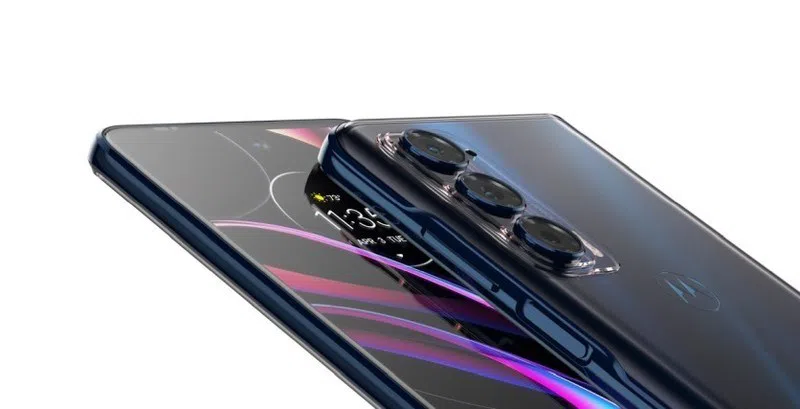
Motorola has a second-generation Motorola Edge phone with some of the most up-to-date flagship features at a great price. With a 108MP camera that captures incredible detail, this Nebula Blue phone places a heavy emphasis on photography. The display, which has a 144Hz refresh rate, is another important feature of this device. On this phone, your media will look ultra-smooth, making it an excellent choice for mobile gamers.
When you order this phone from the Motorola website, you can save $100 with the current price. When the discount is applied, the total amounts to $599.99. This makes it a very affordable phone when compared to phones with similar specifications. This phone provides a fantastic opportunity for users to get their hands on some of the most cutting-edge smartphone capabilities without having to pay $1,000 or more for a flagship phone.
6.8-inch “Max Vision” LCDFull HD+ resolutionUp to 144Hz refresh rate
SoC
Qualcomm Snapdragon 778G
RAM & Storage
6/8GB RAM128/256GB storage
Battery & Charging
5000mAh30W wired charging
Rear Camera(s)
Sensors108MP Ultra Pixel camera8MP ultra wide-angle camera2MP depth sensor; f/2.4 aperture; 1.75μm pixel sizeVideoUp to 4K resolution at 30fpsUp to 720p resolution at 960fps Super Slow Motion
Front Camera(s)
32MP with Quad Pixel technologyHDR in portrait mode
Connectivity
Wi-Fi 6EBluetooth 5.2NFC
Software
Android 11 out of the box
On the Motorola Edge 2021 edition, the main camera is a 108MP sensor. Capture photographs that are true to life in terms of detail and clarity. Utilize the ultrawide lens to obtain 4x more content in your photo, or use the macro capability to get close-up shots of little items. The depth sensor allows you to customize the amount of background blur in your shots, resulting in some stunning bokeh.
The main camera arrangement consists of three sensors, but the selfie camera is equally excellent. The front-facing 32MP camera employs Quad Pixel technology to create detailed photographs in low light. A built-in Face Beauty mode will help you take the perfect selfie while also smoothing out wrinkles and imperfections that are typically accentuated by smartphone cameras.
Video can be captured in 4K while using plenty of different camera modes to get the perfect shot. The Super Slow Mo feature will let you capture footage at 960FPS, creating amazing video. Check out the video below to see it in action.
The Motorola Edge boasts a huge 6.8-inch display with a 1080×2460 resolution. While the resolution is typical for phones in this price range, the refresh rate elevates the display to a new level. The Android operating system is shown to you in a way you may not have seen before, thanks to 144Hz of buttery smooth images. On the Motorola edge, scrolling through apps, playing games, and watching videos all look fantastic. When you combine the 144Hz refresh rate with HDR10 support, you’ve got one of the greatest smartphone displays available in 2021.
Performace
In order for you to get the most out of this phone’s amazing display, Motorola has fitted it with the specifications you’ll need for optimal performance. 8GB of RAM and 256GB of storage are standard with the Snapdragon 778G 5G. You’ll be able to keep a lot of media and apps on your device while still having great performance.
Enjoy elite gaming and up to 55% faster graphics and processing with the Qualcomm Snapdragon 778G Mobile Platform. Connect with 5G1 networks for superfast downloading and streaming, plus enjoy 3x faster speeds with Wi-Fi 6.
Motorola
Discount:
Take advantage of the $100 discount on the 2021 motorola edge, and order one today from the official website here.
Not only is there a boatload of sales available today, but I also have a few standouts worth highlighting. First up is Hook, a fantastic minimal puzzler that’s currently free. Next, I have Peace Death, a quirky arcade simulator that’s perfect for killing time. Last but not least is Slaughter 2: Prison Assault, a slick shooter that offers fantastic graphics. As always, I’ve highlighted all of the interesting titles in bold in order to make discovery easier. So without further ado, here are temporarily free and on-sale apps and games for the beginning of the week.
We have a plump list of sales today, including some noteworthy games. First up is Florence, a well-reviewed casual story-rich adventure game. Next, I have 911 Operator, a popular 911 simulation game where you fill the role of a 911 operator. Last but not least is Dungeon Warfare, an older but still enjoyable tower defense game. As always, I’ve highlighted all of the interesting titles in bold in order to make discovery easier. So without further ado, here are 26 temporarily free and 52 on-sale apps and games for the beginning of the week.
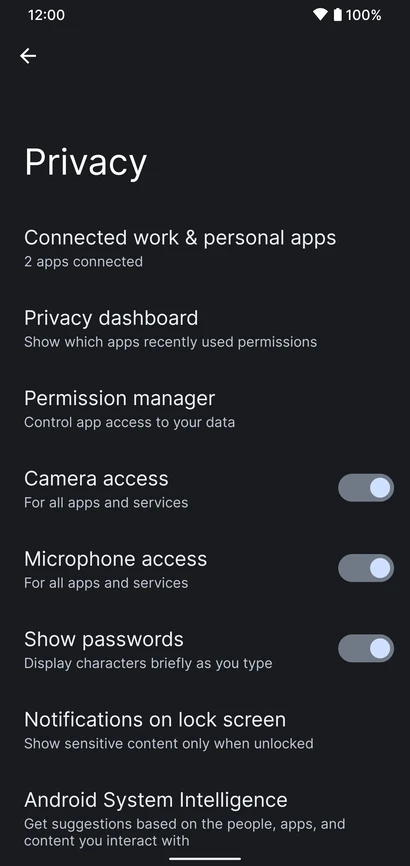
The 2 XL’s update end-of-life date was in December of last year, just a few months after Google introduced Android 11. Even though they’re getting on in years, these phones are still adequate for basic day-to-day use. If you have a Pixel 2 XL and want to try Android 12 out, you can do so right now if you’re ready to take matters into your own hands. The first Android 12-based custom ROM for the Pixel has been launched, and it includes all of the important new features such as Material You, a redesigned Quick Settings panel, new system animations, and privacy improvements.
While you can always install the GSI build of Android 12 on your Pixel, the experience isn’t stable enough for everyday use because it’s designed for developers. This is where ProtonAOSP comes in, since it provides a relatively stable option for Pixel 2 XL owners to try out the latest Android update on their aging hardware. The ProtonAOSP Android 12 ROM is currently only available for the Pixel 2 XL, but a build for the smaller Pixel 2 is on the way.
Installing the ProtonAOSP’s Android 12 release is different from other ROMs as it is available as a factory image (see how over at XDA Developers). You’ll need to unlock the bootloader on your Pixel 2 and use the bundled flash-all script to install the ROM. If the installation fails, you may need to repartition and allocate more storage to various system partitions.
If you do install the ProtonAOSP ROM on your Pixel 2 XL, be prepared to run into some bugs and occasional performance issues. The major ones are non-functional Wi-Fi and Permissive SELinux permission in the current build. There are likely other issues as well that haven’t been reported yet. Nonetheless, if you want to try out Android 12 on your Pixel 2 XL, this is your best bet right now.
Manual install ProtonAOSP
This is a guide for installing ProtonAOSP manually, using the command line. The web installer is recommended if you don’t have a specific need for this. Check the list of common misconceptions if you’re not sure.
You can only use a Windows, macOS, or Linux computer for this manual installation; use the web installer if you want to install from a Chromebook or another phone.
Download a build
Download the build you want to install in factory images format.
Prepare your phone
Put your device into bootloader mode by restarting it and holding the volume down button until you see a red warning sign or green Android robot.
Once your device is in bootloader mode, plug it into the computer or device you’re installing from. Make sure you use a high-quality USB cable, as many cables will cause issues. Avoid USB hubs if possible.
Your USB cable needs to be able to copy files. Charging-only cables won’t work.
If you’re switching from the stock OS or another ROM, make sure all your important data is backed up. You’ll need to wipe all your data in order to use ProtonAOSP.
Prepare your system
First, open the “Command Prompt” app from the Start menu.
Next, download the Android SDK Platform Tools and extract them. Navigate to the extracted platform-tools folder in the terminal by typing cd (with the space at the end) and dragging the folder into Command Prompt. Then run the following command:
set PATH=%CD%;%PATH%
If it’s your first time installing from this computer, you also need to install drivers:
Open Settings → Windows Update
Click “Check for updates” and wait
Click “View optional updates”
Select the “Android Bootloader Interface” update (ignore the brand name; it doesn’t matter)
Click “Download and install” and wait for it to finish
If you’re switching from the stock OS or another ROM, you need to wipe all data before installing ProtonAOSP:
fastboot -w
Otherwise, ProtonAOSP won’t boot and your phone will get stuck on the boot animation after the installation.
DANGER
All data on your phone will be lost, so make sure your important files are backed up before doing this.
Install the build
Factory images
Extract factory images
Extract the downloaded factory images package (e.g. proton-aosp_redfin-factory_11.5.0.zip). Navigate to the new folder (e.g. redfin-rq2a.210505.003) by typing cd (with the space at the end) and dragging the folder into your terminal.
Flash factory images
Run the following command to flash the factory images:
Windows
macOS
Linux
./flash-all.sh
Copy
Don’t touch, unplug, or press any buttons on your device during the install. Your phone will restart several times, but don’t touch it. It will automatically boot into ProtonAOSP once the installation process completes.
Finish
You can now delete the factory images package, but don’t delete the platform tools — you’ll need them for updating in the future.
For security, you may also wish to re-lock the bootloader to enforce verified boot, which improves physical security and resistance against persistent attacks.
During the annual Firebase Summit, Google revealed more simple extensions and improved support for macOS and Flutter apps, as well as the beta launch of Firebase Personalization.
If you’re unfamiliar with Firebase, it’s a set of cloud-based app development tools from Google that provide developers access to things like a database, storage, hosting, crash analytics, and more.
Google launched “Extensions” for Firebase in 2019, allowing developers to simplify common use cases and potentially connect their Firebase project to other services. Building on the previously implemented Algolia extension, an Elastic App Search extension has been created to make your database searchable. There are also new extensions for adding Google Pay and/or Stripe payments to your app.
Flutter developers can start experimenting with Firebase APIs right now without having to install anything. You can now test Firebase code in Flutter Web projects directly from your web browser using the DartPad web app, and the same code will work in Flutter Android and iOS applications as well.
Firebase is also increasing its reach into Apple’s ecosystem today, with support for macOS and tvOS coming in Beta, the stage Google considers ready for production apps. The ability to use several of Firebase’s C++ libraries in Apple TV apps is also part of the new tvOS beta support, with Google recommending it for usage with Apple Arcade games.
Developers can alter how certain aspects of their apps function without having to push a new update to the Play Store or App Store using the long-standing Firebase Remote Config. The options of Remote Config can now be picked automatically in a fashion that’s personalized to each individual user, thanks to “Personalization,” which is available in Beta today. While Firebase Personalization can be used in a variety of ways, Fruit Ninja creator Halfbrick found it to be effective in increasing ad revenue from one of their games without increasing negative ratings.
For Android developers, Firebase is also releasing new documentation about the privacy disclosures necessary for each of Firebase’s tools. These are going to be especially helpful for the new “Data safety” section coming to the Play Store, which is set to become a requirement by April of next year. To get more details about what’s new in Firebase, like real-time alerts from Firebase Performance Monitoring, be sure to check out the Firebase Blog or watch the full Firebase Summit stream.
The Find X series from Oppo is the company’s most premium smartphone brand, with previous models including the groundbreaking Oppo Find X with pop-up cameras, followed by the more basic but still impressive Find X2 and Find X3. Every year around March, Oppo refreshes the Find X series. That’s still a ways off, but we already have our first reliable leak (via GSMArena) about a potential Find X4 function. The next Oppo Find X4 could have the fastest charging of any smartphone, according to Digital Chat Station, a well-known Weibo tipster.
While a few companies have demonstrated 125W rapid charging, we have yet to see it in a consumer device. Unless another manufacturer releases a phone with a 125W fast charging capability sooner, Oppo will be the first to provide this incredible charging speed. With 120W wired charging support, the Xiaomi 11T Pro is now the market leader.
Oppo announced the 125W charger a few months ago, along with a 50W wall charger, a 65W AirVOOC wireless pad, and a 110W compact flash charger. To deliver the 125W, the 125W full-size flash charger that Oppo showed us earlier this year supplies 20V and 6.25A to the phone. The phone will be able to charge from 0% to 100% in just 20 minutes using this charger (for a 4,000mAh battery).
Oppo’s Find X3 series supports 65W fast charging, so the company is clearly seeking to up the ante with its next-generation handset. Apart from the rumored charging speed of the Oppo Find X4, there is currently no other information, but we can expect the device to feature the latest Qualcomm chipset. Oppo seemingly has a plan to follow in the footsteps of Samsung, Huawei, Google, and Apple by designing its own processors, though production isn’t tipped until 2023 at the earliest.
Xiaomi is actively developing MIUI 13, its upcoming Android skin. Remember that the MIUI 12 system was notoriously buggy, and the business had to cope with a slew of issues. In fact, Xiaomi will have to release an improved version of MIUI 12.5 to address the majority of the flaws. As it optimizes the MIUI 13 system, the Chinese maker keeps this in mind. Despite its flaws, MIUI is still one of the greatest Android skins created by Chinese manufacturers. MIUI is making every effort to improve and will undoubtedly perform better,” Xiaomi CEO Lei Jun said.
Furthermore, Lu Weibing, general manager of the Redmi brand, credits MIUI’s work with the Redmi Note 11 Pro’s exceptional battery performance. The Redmi Note 11 Pro battery, he claims, gets people more excited about the MIUI system. These remarks from Xiaomi executives have sparked suspicion that the MIUI 13 operating system may include a slew of new features. Of course, it’s reasonable to expect a significant number of changes in MIUI 13. This is due to the fact that its predecessor did not do much, so it will have a lot to deal with.
Furthermore, popular Weibo leakster, @DCS claims that the MIUI 13 comes with tons of changes. He further claims that many of the system interfaces have new UX. This Android skin will be based on Android 11 as well as Android 12.
MIUI 13 – launch at the end of the year
Not long ago, the Xiaomi MIUI team set up a pioneer team to fix various bugs and complaints coming from users. According to many user feedbacks, with the efforts of the MIUI pioneer team for several weeks, the current lagging and issues of many models have significantly reduced. The fluency and stability of the system are now gradually increasing.
Font Awesome is a widely used icon toolkit that may be found on a variety of websites. It features both a free and a paid icon collection, but the free collection has the majority of the icons. Unicode () will be used to represent each icon. In TextView, we utilize this unicode to display the icon. All text styling elements (color, size, paddings, etc.) can be added because it’s a regular TextView.
If you wish to display the android Robot logo, for example, you can use unicode as the TextView value.
To use the Font Awesome icon collection, simply add the font awesome font files to your assets and apply the relevant fontFace to the TextView, which is a much easier operation. However, we’d like the icons to appear in other widgets as well, such as Buttons, Menus, Bottom Navigation, and Navigation Drawer. It requires some effort to display an icon in a non-textual view. As a result, I created a library that has all of the essential methods for rendering icons in numerous widgets.
To get started, include the fontawesome in your build.gradle and sync your project.
dependencies {
    // font awesome
    implementation 'info.androidhive:fontawesome:0.0.5'
}
Using the FontTextView text and specifying the proper icon name as text value is the simplest way to display the font icon. Because this widget is derived from AppCompatTextView, it inherits all of the text view properties.
solid_icon: To display solid icon, set this value as true.
brand_icon: To display brand icon, set this value as true.
Using FontDrawable
Using the icon in xml layout is easy, but if you want to use the icon for other widget like button or menu, you can use the FontDrawable element to apply the icon.
For an example, if you want to use the font awesome icon to Floating Action Button, you can use the FontDrawable as shown below.
FloatingActionButton fab = findViewById(R.id.fab);

// using paper plane icon for FAB
FontDrawable drawable = new FontDrawable(this, R.string.fa_paper_plane_solid, true, false);

// white color to icon
drawable.setTextColor(ContextCompat.getColor(this, android.R.color.white));
fab.setImageDrawable(drawable);
Using in Menus (Bottom Navigation, Navigation Drawer etc.,)
You can also use font icons in widgets that use the menu file to generate elements like Toolbar icons, Bottom Navigation, and Navigation Drawer, among others. You can use the FontDrawable to configure the icons in menus, however it requires a few hacks using java code.
The below example shows rending the font awesome icons in Navigation Drawer menu. Full example can be found here.
public class MainActivity extends AppCompatActivity
        implements NavigationView.OnNavigationItemSelectedListener {
    @Override
    protected void onCreate(Bundle savedInstanceState) {
        super.onCreate(savedInstanceState);
        setContentView(R.layout.activity_main);

        intDrawerLayout();
    }

    /**
     * Changing navigation drawer icons
     * This involves looping through menu items and applying icons
     */
    private void intDrawerLayout() {
        NavigationView navigationView = findViewById(R.id.nav_view);
        navigationView.setNavigationItemSelectedListener(this);

        ImageView iconHeader = navigationView.getHeaderView(0).findViewById(R.id.nav_header_icon);
        FontDrawable drawable = new FontDrawable(this, R.string.fa_font_awesome, false, true);
        drawable.setTextColor(ContextCompat.getColor(this, android.R.color.white));
        drawable.setTextSize(50);
        iconHeader.setImageDrawable(drawable);

        int[] icons = {
                R.string.fa_home_solid, R.string.fa_calendar_alt_solid, R.string.fa_user_solid,
                R.string.fa_heart_solid, R.string.fa_comment_solid, R.string.fa_dollar_sign_solid, R.string.fa_gift_solid
        };
        renderMenuIcons(navigationView.getMenu(), icons, true, false);

        int[] iconsSubmenu = {R.string.fa_cog_solid, R.string.fa_sign_out_alt_solid};

        renderMenuIcons(navigationView.getMenu().getItem(7).getSubMenu(), iconsSubmenu, true, false);
    }

    /**
     * Looping through menu icons are applying font drawable
     */
    private void renderMenuIcons(Menu menu, int[] icons, boolean isSolid, boolean isBrand) {
        for (int i = 0; i < menu.size(); i++) {
            MenuItem menuItem = menu.getItem(i);
            if (!menuItem.hasSubMenu()) {
                FontDrawable drawable = new FontDrawable(this, icons[i], isSolid, isBrand);
                drawable.setTextColor(ContextCompat.getColor(this, R.color.icon_nav_drawer));
                drawable.setTextSize(22);
                menu.getItem(i).setIcon(drawable);
            }
        }
    }
}