Tag: video

  • HyperOS 2.2 just got some exciting new features

    HyperOS 2.2 just got some exciting new features

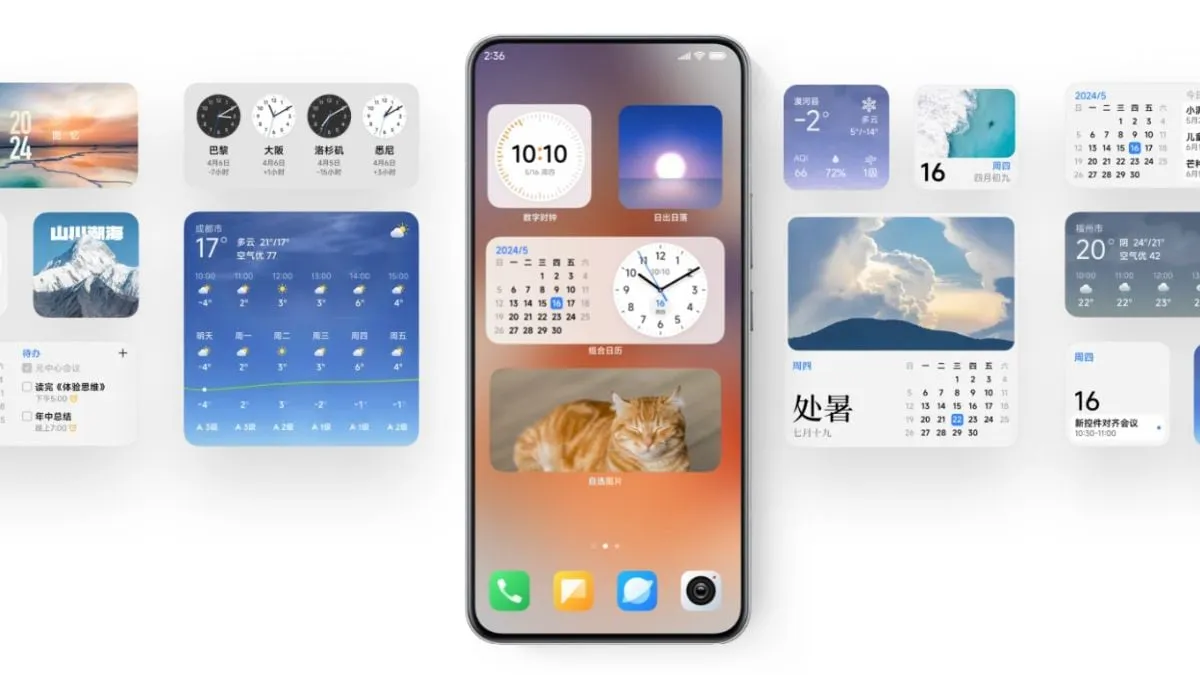
    With a remarkable array of new features in HyperOS 2.2, Xiaomi is once again redefining smartphone innovation. These recent advancements further cement Xiaomi’s position as a mobile technology behemoth by spanning the domains of photography, artificial intelligence, and automotive connection. Explore the exciting new features that will completely transform your Xiaomi experience.

    Photo and video editing capabilities

    With HyperOS 2.2, you may alter your visual memories in a whole new way. The new anti-glare feature, which can instantly remove reflections from your photos, is its main attraction. Getting those pictures in the window or in difficult lighting situations is now easier than ever thanks to this technology, which adjusts to various kinds of reflections.

    The update offers video enthusiasts beauty editing features specifically designed for altering portrait videos. With this tool, you can retouch your video recordings to the same level of personalization that was previously only possible with images. The Album app offers immediate access to these editing features through the Album-Clip-Beauty path for films and the Edit-AI-Anti-glare path for images.
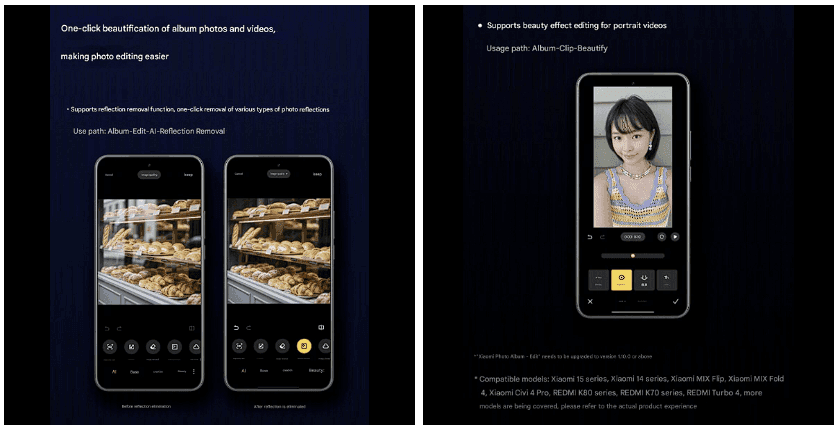
    xiaomi hyperos photo and video editing

    These advanced editing capabilities will come to high-end Xiaomi models, including the Xiaomi 15 series, Xiaomi 14 series, Xiaomi MIX Flip, Xiaomi MIX Fold 4, Xiaomi Civi 4 Pro, REDMI K80 series, REDMI K70 series, and REDMI Turbo 4.

    AI-Powered schedule management

    The AI scheduling clever extraction tool is one of HyperOS 2.2’s most useful enhancements. Instead of requiring you to manually enter scheduling information, this function will identify and display it in your text messages.

    The system accommodates a variety of schedule types, including:

    • Train reservations
    • Flight information
    • Hotel booking
    • Restaurant reservations
    • Performance tickets
    • Movie tickets

    To turn on this handy functionality, simply go to Calendar-Settings and turn on “AI Schedule Extraction.” Be aware that the feature is only supported on Xiaomi HyperAI-enabled models.
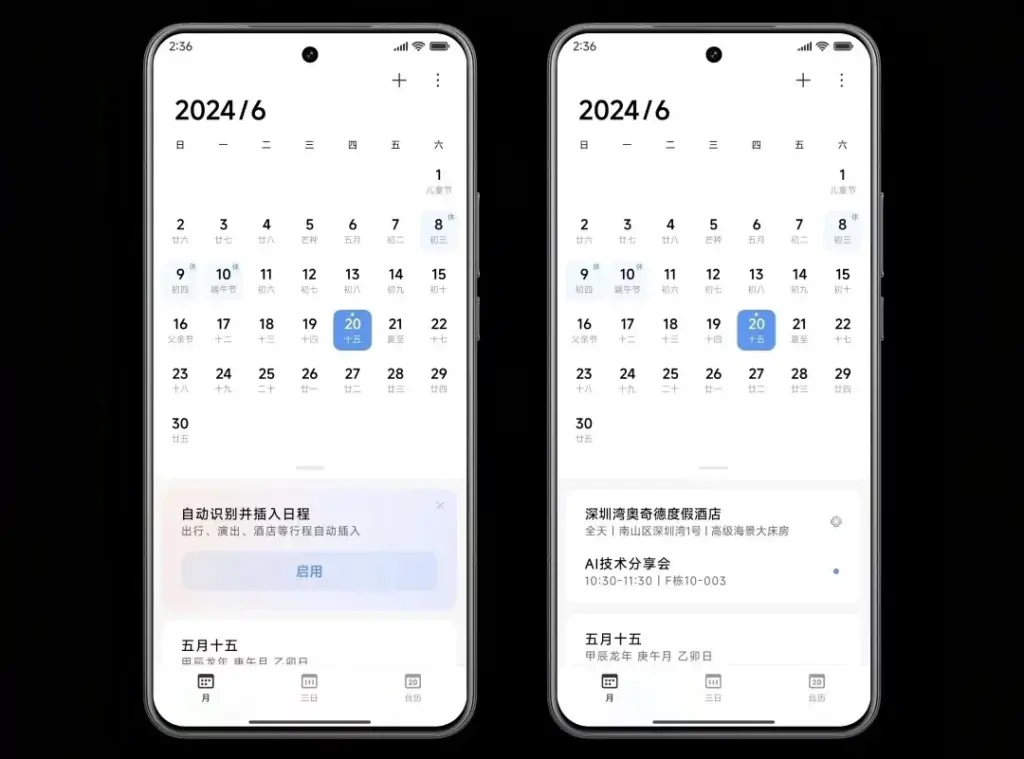
    AI-Powered schedule management

    Enhanced CarWith functionality

    HyperOS 2.2 significantly improves CarWith, transforming Xiaomi users’ in-car experiences. A new “Navigation intersection zoom” style improves navigation by making information at road intersections easier to read and making it simpler to understand turns and exits up ahead.

    A new frosted glass design further improves the visual experience, giving the car terminal a high-end aspect and feel. The dark mode/light mode can also switch automatically with dawn and sunset for added convenience, reducing eye strain both throughout the day and at night.

    Additional improvements to car connectivity are:

    • Car screen recording capability
    • Map dragging and zooming on the homepage card of Amap
    • Full screen map phone notifications Compatibility with the music player Saltplayer
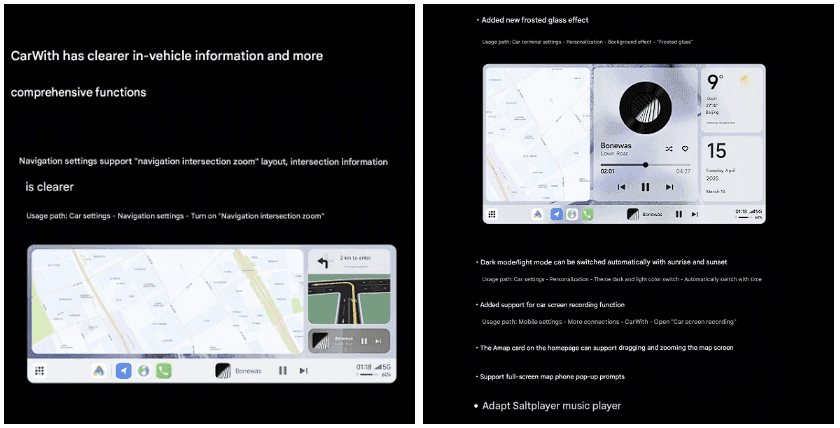
    xiaomi CarWith

    System-Wide optimizations

    Beyond these major improvements, HyperOS 2.2 includes several quality-of-life enhancements throughout the system:

    • Recorder app includes support for category browsing, highlighting of key points, and copying of text created by AI voice recognition
    • AI search shows activity of local AI processing and provides support to photo albums, file management, recorders, notes, and texts
    • Mijia App homepage device cards are now free to drag and resize
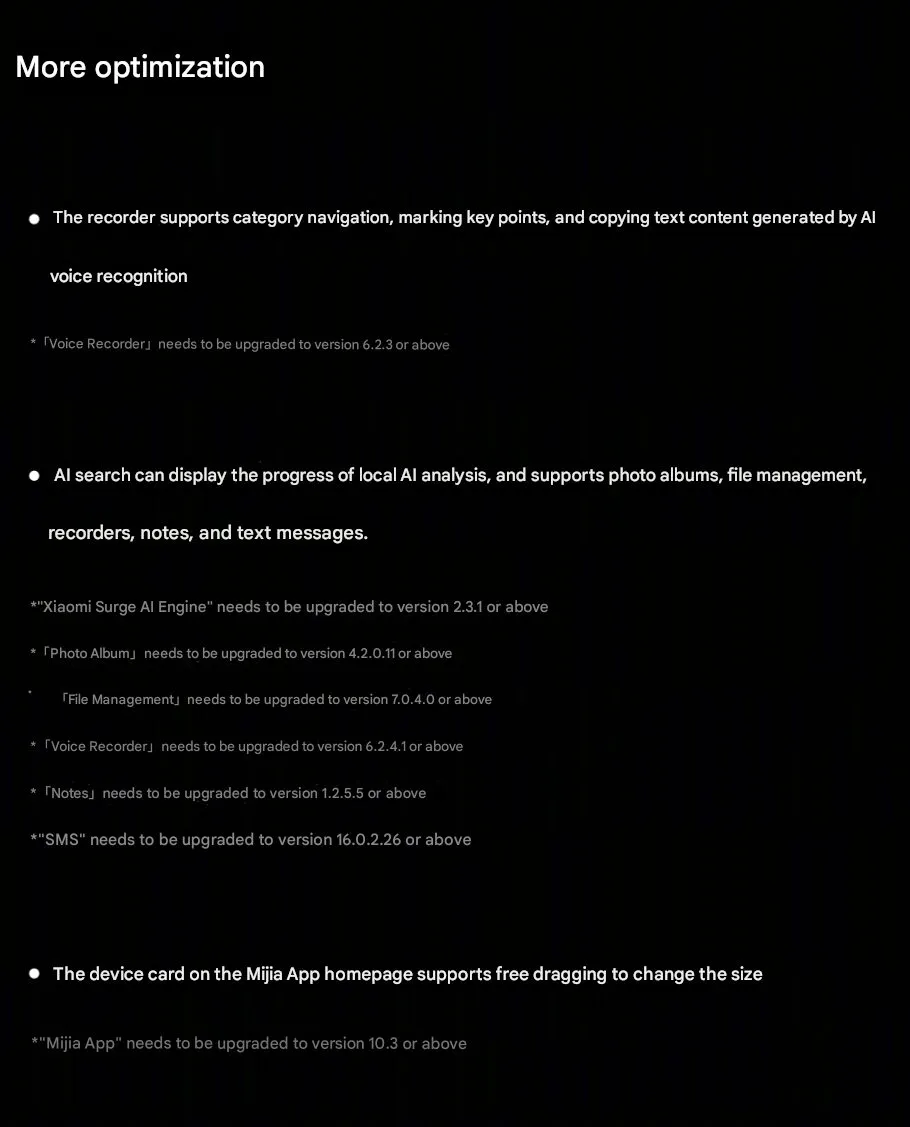
    Hyperos 2.2 System-Wide optimizations

  • How to Crop a Video on an iPhone: A Brief Guide

    How to Crop a Video on an iPhone: A Brief Guide

    Do you want to get creative with videos and crop them to share online? If so, you’ve come to the right place.

    Let us show you how to edit a video on iPhone with just a few taps. And since this task only takes a few minutes to complete, you can create fun and exciting videos in no time!

    All you need to do is follow our brief guide, and you’ll have the perfect cropped video in no time at all. So keep reading!

    crop a video on a iphone

    Navigating the Video Cropping Feature on iPhone

    To crop a video on an iPhone, start by opening the Photos app. Select the video you wish to crop, and tap on it to open.

    Next, click on ‘Edit’ found in the top right corner. Once you have entered the editing mode, you can select from the available editing features near the bottom of the screen.

    Select ‘Crop’ and adjust the video framing to the desired size. After making your desired changes, click Done in the top right corner and save the changes.

    Your cropped video is ready to be watched, shared, and more! To save the modified video, tap’ Done’ in the upper right corner, and the cropped video will be saved in your Camera Roll.

    Tips on Adjusting Cropping Parameters

    If you want to crop a video on an iPhone, these tips on adjusting cropping parameters can help you do so quickly and hassle-free.

    To zoom in and out, use a two-finger pinch gesture on the video until it is framed as desired, then tap Done. If you want to adjust the size of the crop, tap the crop icon found in the upper-right corner of your iPhone’s screen and enter specific dimensions.

    After you make your desired adjustment, tap Done.

    Adding Text and Other Elements to Your Cropped Video

    To add text and other elements to your cropped video, launch the iMovie or Clips app, select the video, and tap the ‘Text’ button.

    Choose the desired type of text, enter the desired words, and tap ‘Done.’ You can also add image or video clips, stickers, background colors, and other elements. To move elements around, use the ‘Edit’ button.

    When you’re happy with the look of your video, tap ‘Done’ to save your work.

    Best Practices for Sharing Your Cropped Video

    The best practices for sharing your cropped video include making sure the size of your frame corresponds to the platform where you want to share the video. For example, if you plan to upload to YouTube, your frame should be 16:9.

    Additionally, pay attention to any guidelines for the length specified by the platform, and consider your audience. For example, it’s a good idea to include closed captions or subtitles if you plan to share your cropped video with a global audience.

    You must also ensure the video file types are in the correct format. Usually, mp4 is the desired type. So be sure to use the best MP4 converter offerings for awesome results.

    Finally, review the video one last time before sharing it to ensure you are happy with the final product.

    Learn How to Crop a Video on iPhone Today

    Cropping a video on an iPhone is incredibly easy to do just open your editing app, select the video you’d like to crop, and make your adjustments. Now that you know how to crop a video on iPhone, go ahead and give it a try!

    Experiment with the different effects and get creative with your video projects!

  • 4K 60fps video capture mode will be available on Pixel

    4K 60fps video capture mode will be available on Pixel

    Google’s Pixel portfolio has raised the bar when it comes to mobile image manipulation the past few years, but the company has struggled to offer a comparable experience when it comes to filming images. The 2018 Pixel 3 suffered from a bad audio recording problem and last year’s Pixel 4 entered the market with 4 K video capture which was limited at 30fps while most other 2019 flagship smartphones were capable of 4 K video capture at 60fps.

    google camera pixel 4

    Once the Pixel 4 was introduced, Google said that the feature was not incorporated solely because 4 K video capturing on smartphones wasn’t nearly as commonplace as 1080p. This may certainly be accurate, but a later study showed that the Pixel 4 actually didn’t have enough bandwidth to handle simultaneous 4 K 60fps feeds from the phone’s two rear cameras. Other manufacturers have gotten around this issue by limiting 4K/60 video capture to just one camera or reducing the bit rate slightly.

    Since the Pixel 4 just receive a feature drop this past week, if Google doesn’t figure out a way to implement 4K/60 video capture on the Pixel 4, don’t expect it to show up until later this spring. If the feature is only made available on the Pixel 4a, Google will have some explaining to do.