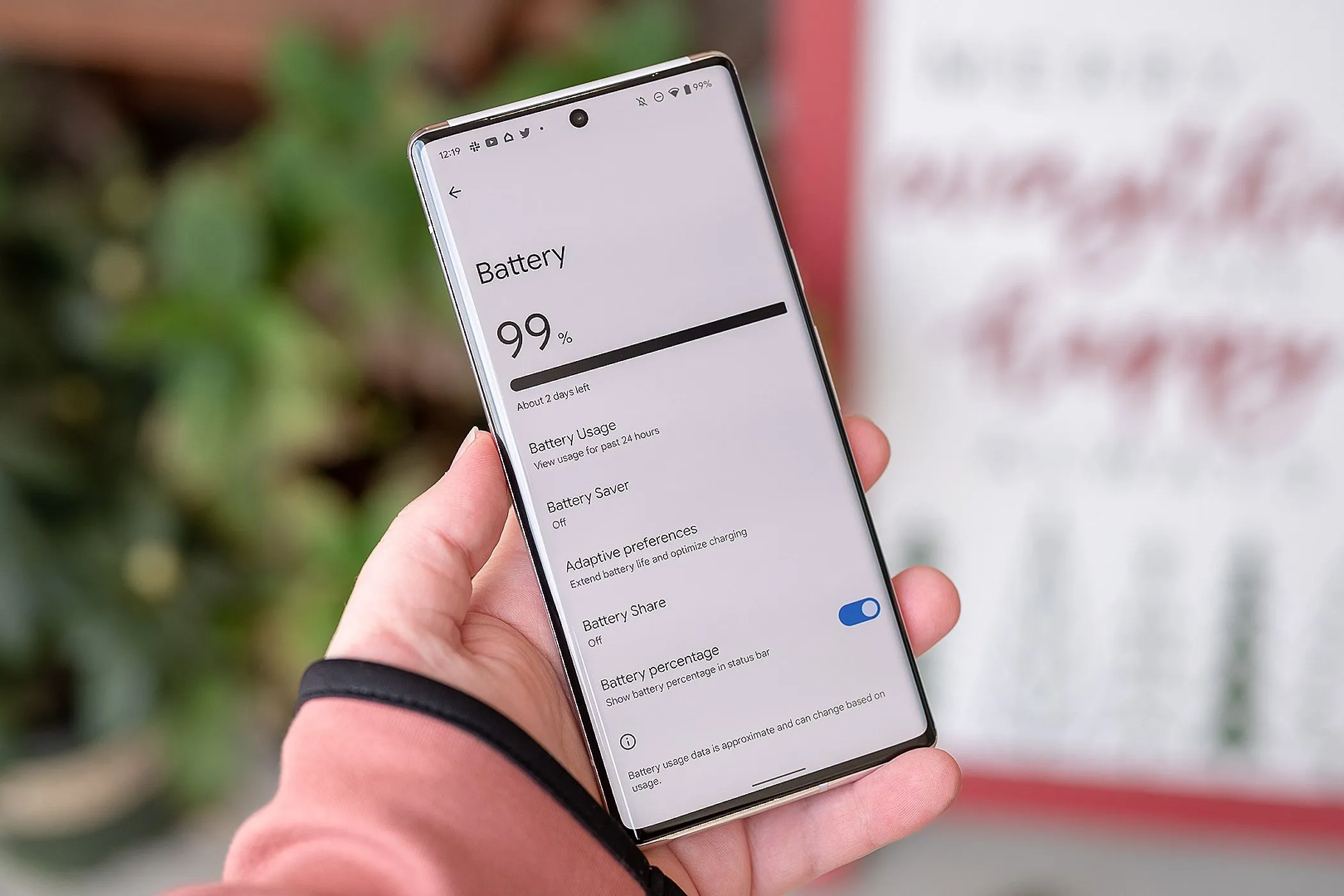
It’s likely that you carry an Android phone in your pocket if you’re not using an iPhone. Google’s mobile operating system, Android, powers a variety of phones, including the Google Pixel and Samsung Galaxy. The lithium-ion battery is a feature shared by almost all Android phones. Only when these batteries are in good health can they be strong and effective. Your phone may start to drain more quickly, take longer to charge, or even shut down without warning as it ages or wears out. Because of this, monitoring the condition of your battery is more crucial than you may imagine.
You can check the condition of your Android phone’s battery in two major ways. You can access your phone’s diagnostics by dialing a code. But not every phone can use this dial code. You can also utilize a third-party or internal app, such as Samsung’s Members app, to keep an eye on the condition of your phone’s battery.
Using a dial code to check the battery health
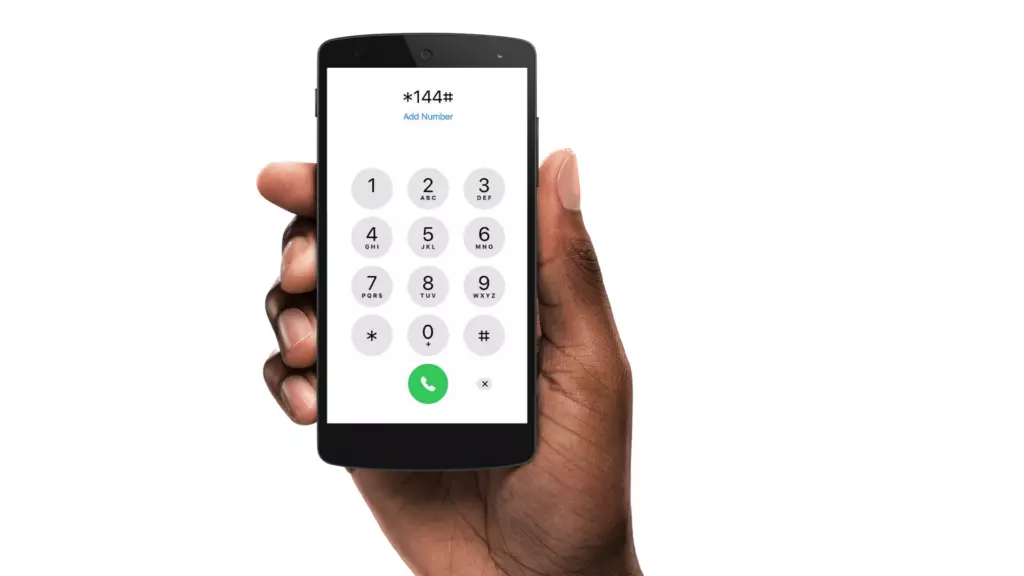
A dial code is a string of characters and digits that you enter as though you were making a phone call. You can access an automated system that gives you a summary of your phone’s diagnostics by dialing a code on compatible phones. This will cover the temperature and condition of the battery.
Enter ##4636## on the dial screen of your phone. After that, access your battery health diagnostics by navigating through the menu. In the menu, this is typically called Battery Information. Depending on the phone kind you own, the options could change.
Regretfully, not all Android smartphones are compatible with this code. Some are in favor of it, while others are not. You can determine whether the model of your phone supports this dial code in advance if you still have the manual or can get it online. However, just dialing it and seeing what happens might be quicker.
Using an app to check the battery health
To check the health of the battery, several Android phones offer a personal app option. The Samsung Members app is available from Samsung. You navigate to Support and then Phone Diagnostics using that app. From there, you can test the phone’s battery and other systems.
AccuBattery
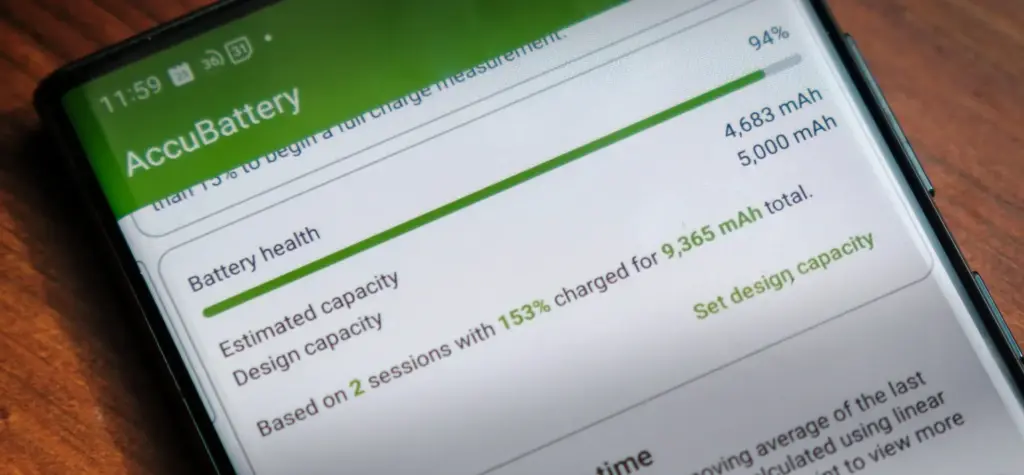
AccuBattery displays battery usage information, and measures battery capacity (mAh) based on science.
Another option is to use a third-party app, such as AccuBattery. AccuBattery can be downloaded from the Google Play Store. To demonstrate how well the battery is charging, it has a health monitor. Additionally, it offers up-to-date information about the battery life of your phone. This can help you maximize the battery’s performance and extend its lifespan.
Maintaining the health of your Android’s battery is essential to its long-term functionality. The dial code is a fast way to check the battery, but not all phones can use it. By downloading an app, you can keep an eye on the condition of your battery and receive real-time reports to improve battery performance. With these resources at your disposal, you can properly care for your phone.
These codes can be divided into two categories: USSD codes and MMI codes. While these hidden codes are rarely useful to the average smartphone owner, they can be used to pique your interest once in a while. As a result, the goal of this article is to compile a comprehensive list of these secret codes for Android devices.
What is the USSD and MMI code?
While the average user may not need to know the distinction between these two, it is always useful to be aware of them. Both USSD and MMI codes are typically preceded by an asterisk or a pound symbol/hashtag. These codes are regularly updated as new versions of Android software are released, and some manufacturers have their own special codes as well.
The code entry procedure is straightforward, requiring only that you bring up your dialer keypad and enter the appropriate number sequence. It’s worth noting that some codes are carrier-specific, which means they won’t work on all devices. So, if your phone doesn’t respond to a code, don’t dwell on it; instead, move on and try again.
USSD code
USSD is an abbreviation for Unstructured Supplementary Service Data, and these codes are commonly used to communicate between your smartphone and your mobile network operator. This also means that in order for USSD codes to work, you must almost always be connected to your carrier.
Previously, USSD codes were used to initiate and terminate specific value-added services. They were also helpful in informing you of your data usage and prepaid balance, as well as providing access to a wealth of carrier-specific information.
fWhile smartphone enthusiasts continue to use them, USSD codes have largely fallen out of favor with general users because most carriers have their own app/website where most of this information can be easily accessed. USSD codes are typically carrier-specific and vary from one carrier to the next. You will need to contact your carrier to find out which ones apply to you.
MMI Codes
MMI codes, on the other hand, are part of the Man Machine Interface schema and are typically unique to a smartphone brand or model. MMI codes provide access to a variety of interesting features on your smartphone, ranging from your IMEI number and SAR values to hidden menus commonly used by smartphone engineers and repair services.
Several smartphones, for example, allow users to enter an MMI code to access a ‘test’ menu. This menu allows users to quickly perform various tests on their smartphone, such as camera and vibration motor tests, as well as speaker and display tests.
Note that there are only a few MMI codes that typically work on all Android smartphones. We have listed the most popular ones in the generic list of codes below.
Info Codes
Generic secret codes for Android phones (Info codes)
CODE
FUNCTION
*#06#
Show phone’s IMEI
*#07#
Displays the Specific Absorption Rate (SAR) value of the device
*#*#225#*#*
Displays calendar storage info
*#*#426#*#*
Google Play Services info or Firebase Cloud Messaging diagnostics (Select devices only)
*#*#759#*#*
Access Rlz Debug UI (Select devices only)
*#0*#
Info menu (Select devices only)
*#*#4636#*#*
Info menu (Select devices only)
*#*#34971539#*#*
Camera info (Select devices only)
*#*#1111#*#*
FTA software version (Select devices only)
*#*#1234#*#*
PDA software version
*#12580*369#
Software and hardware info
*#7465625#
Device lock status
*#*#232338#*#*
MAC address
*#*#2663#*#*
Touchscreen version
*#*#3264#*#*
RAM version
*#*#232337#*#
Bluetooth address
*#*#2222#*#*
Hardware version
*#*#44336#*#*
Software version and update info
*#*#273282*255*663282*#*#*
Backup all media
Testing codes
CODE
FUNCTION
*#*#197328640#*#*
Test mode
*#*#232339#*#*
Wi-Fi test
*#*#0842#*#*
Brightness and vibration test
*#*#2664#*#*
Touchscreen test
*#*#232331#*#*
Bluetooth test
*#*#7262626#*#*
Field test
*#*#1472365#*#*
GPS quick test
*#*#1575#*#*
Full GPS test
*#*#0283#*#*
Packet loopback test
*#*#0*#*#*
LCD display test
*#*#0289#*#*
Audio test
*#*#0588#*#*
Proximity sensor test
Configuration codes
CODE
FUNCTION
*#9090#
Diagnostics settings
*#301279#
HSDPA/HSUPA settings
*#872564#
USB logging settings
Developer codes
CODE
FUNCTION
*#9900#
System dump mode
##778 (+green/call button)
EPST menu
Manufacturer-specific codes
Samsung codes
CODE
FUNCTION
*#0*#
Access diagnostics
*#011#
Network details and serving cell information
*#0228#
Battery status
*#0283#
Loopback Test menu
*#0808#
USB Settings
*#1234#
Software version/ Model details
*#2663#
Firmware details (Advanced)
*#7353#
Quick test menu
*#9090#
Advanced debugging tools
*#9900#
SysDump
*#2683662#
Service mode (Advanced)
*#34971539#
Camera firmware details
Xiaomi Codes
CODE
FUNCTION
*#*#64663#*#*
Access test menu
Realme codes
CODE
FUNCTION
*#800#
Feedback menu
*#888#
Engineer mode – displays PCB number
*#6776#
Software version
OnePlus codes
CODE
FUNCTION
*#66#
Encrypted IMEI
*#888#
Engineer mode – displays PCB number
*#1234#
Software version
1+= (In stock calculator app)
Displays ‘NEVER SETTLE’ on the calculator app
*#*#2947322243#*#*
Wipes internal memory
Asus codes
CODE
FUNCTION
*#07#
Regulatory labels
.12345+= (In calculator)
Open engineering mode
Motorola
CODE
FUNCTION
*#*#2486#*#*
Opens engineering mode
*#07#
Shows regulatory information
##7764726
Hidden Motorola Droid menu
HTC
CODE
FUNCTION
*#*#3424#*#*
HTC test program
##786#
(Caution!) Phone reset menu
##3282#
EPST menu
##3424#
Diagnostic mode
##33284#
Field test
##8626337#
Launch Vocoder
*#*#4636#*#*
HTC info menu
Sony codes
CODE
FUNCTION
*#*#73788423#*#*
Access service menu
*#07#
Certification details
Nokia codes
CODE
FUNCTION
*#*#372733#*#*
Open service menu (FQC Menu)
Other codes
CODE
FUNCTION
*#7780#
(Caution!) Factory reset
*2767*3855#
(Caution!) Full factory reset
*#*#7594#*#*
Power off the phone
*#*#8351#*#*
Activate dialer log mode
#*#8350#*#*
Deactivate dialer log mode
Stay away from these codes! Think before using!
CODE
FUNCTION
*#*#7780#*#*
(Caution! Risk of data loss and rendering phone useless) Factory data partition reset
*2767*3855#
(Caution! Risk of data loss and rendering phone useless) Format device
USSD codes for US carriers
These aren’t exactly hidden, but they’re not widely known either. Once dialed, USSD, or Unstructured Supplementary Service Data, codes connect to the phone’s network to perform specific functions, such as determining how much credit is left on your prepaid phone or how much data you’ve used this month. They change frequently, and the codes differ from carrier to carrier. Here are some examples for some of the major US carriers, along with links to more carrier-specific codes:
AT&T
Check your data and SMS usage: *3282#
Verizon
Check your data and SMS usage: #3282
T-Mobile
Check your data usage: #932#
Sprint
Check minutes, messages, and other usage stats: *4
There’s a good chance you’ll never need to use most of these codes, but if you do, then now you know where to find them.