Tag: unlock

  • Unlock powerful hidden tools in Android 12 developer options

    Unlock powerful hidden tools in Android 12 developer options

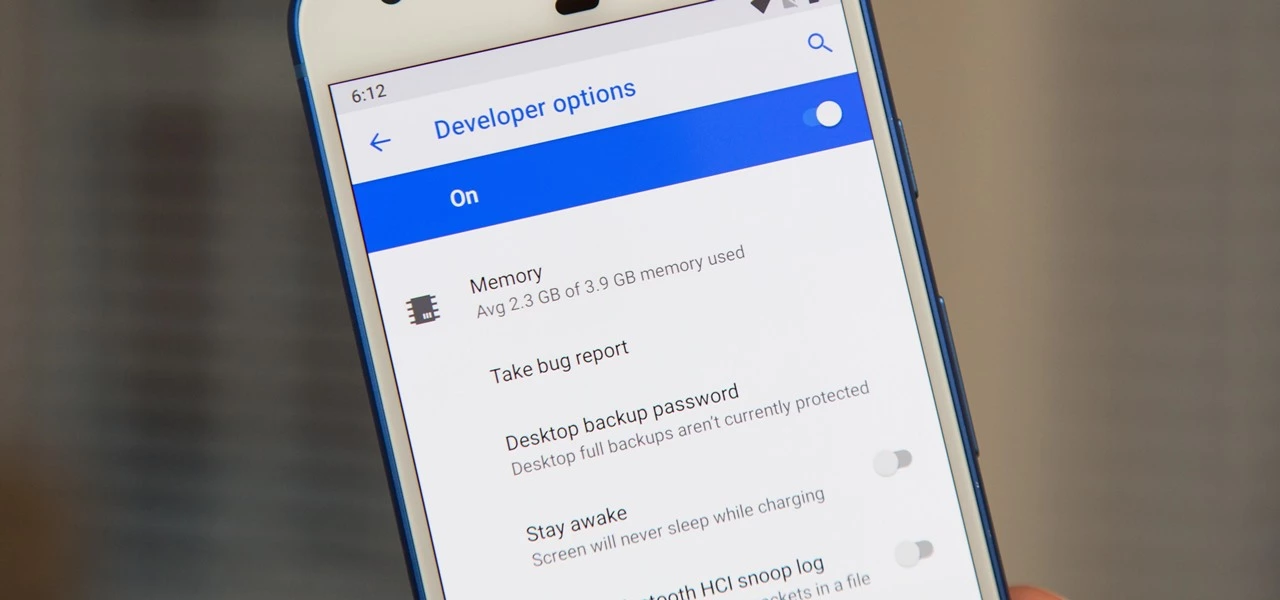
    One of the first things you should do when you get your new Google Pixel 6 or 6 Pro is open the hidden “Developer options” menu. Don’t be put off by the word “developer” because this hidden Android 12 menu contains functionality that any Android user can use.

    If you don’t have a Pixel 6 or 6 Pro, you can still access the “Developer options” menu on any other Pixel model, as well as devices from other OEMs such as Samsung. If you haven’t updated your system or purchased a Pixel 6 or 6 Pro, I’ll teach you how to accomplish it on Android 12. If you haven’t updated your system or purchased a Pixel 6 or 6 Pro, the process is basically the same on older Android versions.

    android developer tools

    Enable developer options in Android 12

    Open up your Settings app and tap “About phone” from the list. To get to this menu even faster, use the new search tool in Android 12 from your app library (swipe up on the home screen), search for “about,” and select “About phone” from the results.

    After that, scroll down to “Build number.” This is the backdoor to revealing the “Developer options” menu. Simply tap “Build number” at least seven times in a row, then confirm you want to unlock the menu by entering your PIN. (The PIN interface is concealed in screenshots, as shown below.)

    For a few moment, you should see “You are now a developer!” appear to let you know it worked. You’ve already unlocked the menu if it reads, “No need, you’re already a developer.”

    Newly unlocked developer options

    Return to your Settings app’s main menu, hit “System,” and then select “Developer options” from the bottom of the list. Unlike “About phone,” you can’t search for “developer” in your app library’s search bar to get there right away, but you can locate it in Settings’ search bar.

    In “Developer options,” there are plenty of things to explore. While there are plenty of reasons to unlock “Developer options” on your Pixel in Android 12, some quick ones to note include keeping your screen awake while charging, starting the process for unlocking your bootloader, making software updates install themselves when your device restarts, and showing a dot on the screen for each tap you make.

    USB debugging is another popular setting that lets you use ADB to talk to and issue commands to your Android device from your computer.

    Reset the developer options

    Let’s say you suspect that something you enabled in “Developer settings” is causing your Pixel to malfunction or produce unexpected results, but you have no idea what the issue is. In that situation, you may quickly restore the developer menu to its previous state.

    To do so, open the menu and untick the “Developer options” checkbox at the top. Then, on the “Allow development settings” prompt, toggle it back on and tap “OK.” Everything you changed in the menu earlier will be reset to their settings on Android.

    Hide the developer options

    You can hide the “Developer options” menu if you no longer want to utilize it. Toggle off the “Developer options” switch at the top of the menu by opening it. You won’t be able to get back into the menu unless you repeat Step 1 above.
    If you later re-enable “Developer options,” it will revert to its default settings, so any tools and preferences you specified before will have to be redone.
  • Detailed guide to unlock the bootloader on Xiaomi devices

    Detailed guide to unlock the bootloader on Xiaomi devices

    Many are asking about to update/upgrade to MIUI 12 ROM from MIUI 11 or want to downgrade ROM from MIUI 12 to MIUI 11, but will have issue with unlocking the bootloader.


    After you unlock the device, it will become less secure. Your personal data might be leaked or lost. So we do not advise and encourage you to Unlock your device. So please proceed at your own risk, and you are held responsible for your own device.


    miui bootloader

    Visit http://en.miui.com/unlock and apply for unlocking your device.  

    Download Mi Unlock tool to your PC & Extract it.

    mi unlock tooldirect download link

    Go to Setting > About Phone > All Specs and tap on MIUI Version 7 times

     Enable Enable USB Debugging and Enable OEM Unlocking. Go to Setting > Additional Setting > Developer Options > Enable USB Debugging and Enable OEM Unlocking.

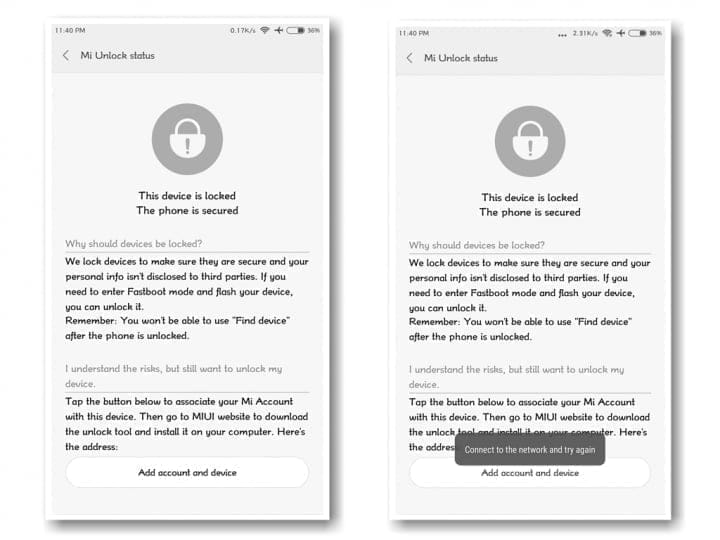
    Now from Developer Option  add your account to “Mi Unlock status”. Disable Wi-Fi connection and bind your account.

    bf58c16d 3ef0 4068 9cc3 7f5545314007

    After, reboot your device into fastboot , for this just restart your device and keep push volume down ( – ) button. Then connect the device to the Windows PC/laptop via a micro USB cable.

    Launch Mi Unlock Tool via run as administrator.

    mi accound unlock

    Follow the steps from the app and unlock your bootloader.

  • Unlock bootloader on Samsung Galaxy Series

    Bootloader?

    A device bootloader is a code which packs in an operating system to run every time we turn on our device. It basically tells the operating system and kernel to whether run recovery mode or initiate the boot process.

    Because Android is open-source, it’s quite easy to unlock the bootloader. By unlocking it, you will be able to flash any third-party Custom ROM, Root, Mod files, Custom Recovery,etc ….

    This is a simple access to you to tweak your device. Don`t worry, you can even lock the bootloader again.

    PreRequisite

    • PC / Laptop / Mac.
    • charged phone.
    • working USB cable.
    • download and install ADB Fastboot Tools.

    Before you proceed to unlock the bootloader of your device, you should do a complete back-up of the system. The unlocking process will sweep all the data of Android. So it is important to backup any photos, videos, app data or other files on your device to a computer, an SD card or the online cloud. Backup everything you want to keep, then continue to the next step.

    Let`s unlock!

    Enable Developer options and OEM Unlock at first on your handset.

    samsung

    Then you need to enable the USB Debugging as well from the Developer options to connect with your PC.

    enable usb debugging samsung

    Connect your phone to the PC via the USB cable

    Once the device is connected, switch off your phone and open the fastboot mode. You can do this by opening the command prompt pressing Shift Key + Right Mouse Click on a blank area in the ADB & Fastboot folder on your PC and typing: “adb devices” and then “adb reboot bootloader” (without quotes).

    You may get a pop up to allow USB Debugging on your phone. Just tap on OK button.

    Please Note: this will delete all the device data completely.

    Once your phone is recognized follow the next command: fastboot oem unlock

    You’re done. To reboot your device into the main system, type the following command and hit enter button: fastboot reboot

    Your phone will reboot into the system. Wait for the complete boot process and enjoy.