Tag: unistall

  • List of Samsung Galaxy preinstalled apps you can safely delete

    List of Samsung Galaxy preinstalled apps you can safely delete

    After setting up a new Samsung Galaxy, you should think about the apps you use and don’t use.

    There are many unnecessary preinstalled apps on your phone that don’t always enhance the user experience. Therefore, it is safe to remove any bloatware and superfluous apps.

    These apps clog your home screen, suck up storage space, and slow down your phone.

    All of Samsung’s devices, from the most recent high-end Galaxy phones to the most affordable variants, come with these apps.

    When setting your Samsung Galaxy device, stay away from adding bloatware.

    samsung bloatware remove unused apps

    You are prompted to install extra apps when you set up a new Samsung device.

    Take your time and uncheck the apps you don’t need because it automatically chooses the ones on that list. This is a simple method of avoiding additional bloatware.

    If not, you’ll have to take them out by hand when you decide they’re useless.

    Which apps on your Samsung Galaxy phone are safe to remove or deactivate?

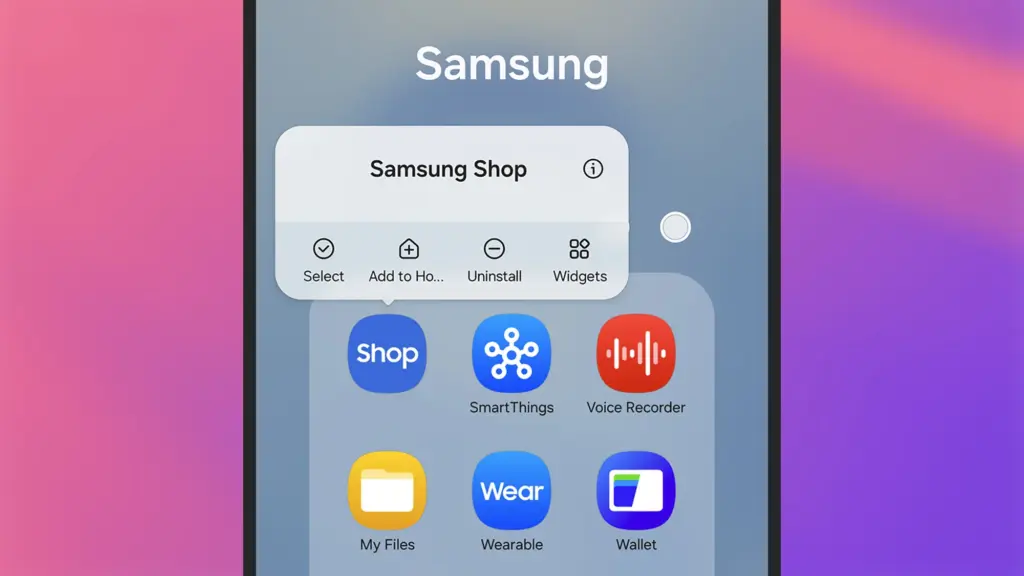
    On a Samsung phone, deleting and uninstalling apps is simple. The Settings menu allows you to remove or deactivate the majority of apps; for others, you can use ADB commands.

    Many preloaded system-related apps can be securely removed, although we don’t advise the typical user to do so.
    hero image

    Although these apps don’t take up much space, you may need to factory reset your phone in order to restore it if you remove the incorrect one.

    Additionally, you are unable to remove or disable apps that are essential to the phone’s operation. Put them in a different folder if you want them hidden.

    The popular apps that you can remove or disable from your Samsung Galaxy phone are listed below. You might see different apps than those on this list depending on your area or carrier.

    Smart SwitchSamsung Pass
    SmartThingsSamsung Members
    Samsung WalletSamsung DeX
    Game LauncherSamsung Kids
    Samsung HealthSamsung Global Goals
    Galaxy StoreFind My Mobile
    Samsung InternetSamsung Health Monitor
    Samsung CloudPENUP
    Galaxy ThemesMicrosoft Office
    Samsung NotesMicrosoft Outlook
    BixbyLinkedIn
    Google WalletGoogle Maps
    Google DriveGoogle TV
    Google PhotosGalaxy Wearable
    Google CalculatorGame Booster Plus
    GmailYouTube

    Many of them are Samsung’s substitutes for Google apps like Drive or Chrome. Since they don’t interfere with how your device functions, you can safely uninstall them—especially if you like Google’s app suite.

    These are some great alternatives that you can download from the Play Store if you don’t want to utilize Google or Samsung apps.

    Get the best possible performance out of your new Samsung Galaxy mobile.

    One of the first things you should do when configuring your Samsung Galaxy phone is to remove any unneeded software. Performance can be enhanced, particularly on low-cost Samsung phones.

    Additionally, removing bloatware frees up space on your Samsung phone. Installing Good Lock modules will help you take advantage of this.

    Exclusive to Samsung phones, these customization options provide access to intriguing features.
  • How to uninstall system apps on Android (without root)

    How to uninstall system apps on Android (without root)

    Unnecessary system apps and bloatware can be annoying. They drain your battery, take up important storage, operate in the background, and are frequently impossible to remove with standard methods. Although rooting your Android device gives you complete control over system programs, most users are not advised to do so because it violates your warranty and jeopardizes security.

    Thankfully, there are secure and efficient methods for disabling or removing system programs without rooting, particularly when using ADB (Android Debug Bridge). We will go over every technique in this article, from basic settings adjustments to more sophisticated (yet secure) desktop tools.

    android system apps unistall with adb

    What are system apps and why can’t you delete them easily

    Applications that are pre-installed by the manufacturer or carrier of the device are known as system apps. These consist include third-party programs like Facebook or Netflix that OEMs package, stock utilities, or branded services.

    They cannot be removed using the standard app menu since they are installed in the system partition. ADB commands, however, can be used to disable or even uninstall many.

    Common examples of pre-installed system apps include:

    • Duplicate media players or browsers
    • OEM app stores
    • Partner bloatware like Amazon Shopping, LinkedIn, or TikTok
    • Preloaded games or theme services

    Disable system apps from settings

    This is the simplest method and doesn’t require a PC.

    Steps:

    1. Open Settings > Apps.
    2. Tap See all apps to view the complete list.
    3. Select the system app you want to disable.
    4. Tap Disable. You may be asked to confirm your choice.

    What happens when you disable an app:

    • It is removed from the app drawer.
    • It can no longer run in the background.
    • It won’t receive updates or use system resources.
    • The app is still stored on your device but rendered inactive.

    Limitations:

    • Not all system apps can be disabled (depends on OEM).
    • Disabled apps can be re-enabled manually.

    This is the safest approach for beginners.

    Uninstall system apps using ADB (no root)

    You can use ADB to perform advanced commands on your Android device by connecting it to a computer. This technique allows you to remove system programs for the current user without requiring root access.

    Step 1: Set up ADB on your computer

    1. Download the Android SDK Platform Tools for Windows, macOS, or Linux from Google’s official site.
    2. Extract the contents to a folder (e.g., C:\adb).

    Step 2: Enable developer options and USB debugging

    1. Go to Settings > About phone.
    2. Tap Build number 7 times until you see a message saying “You are now a developer.”
    3. Go back to Settings > System > Developer options.
    4. Enable USB debugging.

    Step 3: Connect your phone to your PC

    • Use a USB cable to connect your device.
    • When prompted on your phone, allow USB debugging.

    Step 4: Open ADB and check the connection

    1. Open a terminal or command prompt in the ADB folder.
    2. Type: adb devices – you should see your device listed.

    Step 5: Find the package name of the app

    To uninstall an app, you need its package name. You can find this using:

    adb shell pm list packages | grep [app name]

    For example, to find Facebook‘s package name:

    adb shell pm list packages | grep facebook

    Step 6: Uninstall the app

    Use the following command:

    adb shell pm uninstall --user 0 com.facebook.katana

    That command will remove Facebook from your user profile, freeing up memory and removing it from the interface.

    Note: The app is only removed for the current user, not deleted from the system partition.

    Method 3: Use a no-root app debloater tool (GUI)

    If you’re not comfortable with the command line, you can use a graphical tool like:

    • Universal Android Debloater (UAD)
    • ADB AppControl
    • Android Debloater by XDA Developers

    These tools allow you to:

    • Browse installed system apps
    • Uninstall or disable them safely
    • See app names with friendly UI
    • Restore apps if needed

    Most tools require:

    • ADB installed on your system
    • USB debugging enabled
    • Windows PC (some versions work with Linux/macOS)

    They’re beginner-friendly and support a wide range of devices.

    Should you uninstall or disable every system app?

    No. Some system apps are critical to core Android functions. Removing them may cause:

    • Boot loops
    • Broken system features (e.g., notifications, calls, camera)
    • Incompatibility with future updates

    Always check what a system app does before removing it. You can research package names or use a debloater tool with built-in safety warnings.

    Safe-to-remove examples:

    • Social media bloatware
    • OEM-specific cloud services you don’t use
    • Built-in browser (if you use Chrome)
    • AR apps, Game Launcher, or duplicate music players

    Unsafe-to-remove examples:

    • com.android.systemui
    • com.google.android.gms
    • com.android.providers.*

    How to restore system apps uninstalled via ADB

    If you want to bring back an app removed via ADB:

    adb shell cmd package install-existing [package name]

    For example:

    adb shell cmd package install-existing com.facebook.katana

    This will restore the app for the current user, assuming it wasn’t fully deleted from the system partition.

    Uninstalling system apps without root gives you more control over your Android phone without compromising safety. ADB is a powerful tool that helps remove bloatware, reclaim storage, and speed up your device. If you’re cautious and avoid critical system packages, you can safely declutter your phone and enjoy a cleaner experience.

    Whether you’re using the built-in disable function or running ADB commands, you don’t need root access to take control of your device anymore.