Tag: transfer

  • How to transfer files from Android to PC (no cable needed)

    How to transfer files from Android to PC (no cable needed)

    Gone are the days when a USB cable was the only way to move files between your Android phone and computer. Whether you’re transferring photos, documents, or videos, there are now several wireless methods that make the process faster and more convenient — no cables, no drivers, and no hassle.

    In this article, you’ll discover how to transfer files from Android to your PC wirelessly utilizing free built-in utilities and reliable third-party apps. All ways are easy, secure, and don’t need rooting your smartphone.

    Why Go Wireless?

    Here’s why transferring files without a cable is the smarter choice:

    • No need to carry cables or adapters
    • Works on all modern Windows, macOS, and Linux PCs
    • Faster for frequent transfers
    • No risk of physical damage to USB ports

    1. Use Google Drive (Cloud Sync)

    If you have a Google account, you already have access to Google Drive — one of the easiest ways to transfer files wirelessly.

    Steps:

    1. Open the Google Drive app on your Android device.
    2. Tap the “+” icon, then select Upload.
    3. Choose the file(s) you want to send.
    4. Wait for the upload to complete.
    5. On your PC, go to https://drive.google.com and log in.
    6. Download the files to your computer.

    Pros:

    • Seamless for documents and photos
    • Files are stored in the cloud, so they’re safe even if your phone is lost
    • Works across devices and operating systems

    Cons:

    • Requires an internet connection
    • File size limits apply (15GB free storage per Google account)

    2. Send via Nearby Share (Best for Windows)
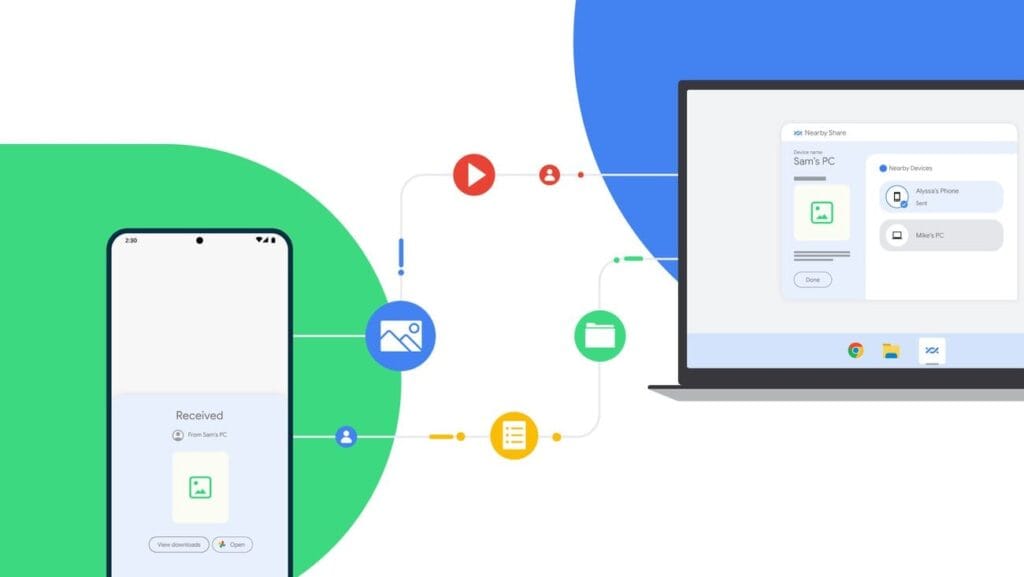
    Nearby Share for transfer files

    Currently fully supported on Windows 10/11, Nearby Share is Google’s AirDrop-style solution for sharing files instantly between Android and Windows devices.

    Set It Up:

    1. On your Android, go to Settings > Google > Devices & sharing > Nearby Share and turn it on.
    2. On your PC, install the official Nearby Share for Windows app from Google’s website.
    3. Connect both devices to the same Wi-Fi network and ensure Bluetooth is on.

    Send Files:

    1. Select a file on your Android device.
    2. Tap the Share icon and choose Nearby Share.
    3. Your PC should appear in the list — tap it to send the file.
    4. Accept the transfer on your computer.

    Pros:

    • Fast and secure
    • Works offline (local Wi-Fi or Bluetooth)
    • No cloud storage needed

    Cons:

    • Not available on older PCs or operating systems
    • Some routers may block discovery if firewall settings are strict

    Method 3: Transfer with File Sharing Apps (like Send Anywhere)

    Direct wireless transfers between your computer and phone are possible through Wi-Fi thanks to apps like Xender, Feem, and Send Anywhere.

    Using Send Anywhere:

    1. Install Send Anywhere on your Android from the Play Store.
    2. Visit https://send-anywhere.com on your PC.
    3. On your phone, select the files you want to send.
    4. You’ll get a 6-digit code — enter this on your PC to receive the files.

    Pros:

    • Works on any OS and browser
    • No account required
    • Fast local transfer via Wi-Fi Direct (not over the internet)

    Cons:

    • Ads in the free version
    • Interface might be confusing for first-time users

    Method 4: FTP File Transfer via File Manager Apps

    If you prefer full control over file navigation, FTP (File Transfer Protocol) is a powerful option — no internet needed.

    Using Solid Explorer or ES File Explorer:

    1. Install a file manager that supports FTP (e.g., Solid Explorer).
    2. Open the app and go to Network > FTP Server.
    3. Start the server — the app will display an IP address like ftp://192.168.1.10:1234.
    4. On your PC, open a browser or FTP client (like FileZilla) and enter the address.
    5. Browse your phone’s storage and download files directly.

    Pros:

    • Full control over folders and files
    • High-speed transfers over local network
    • No cloud or apps required on the PC

    Cons:

    • Not user-friendly for beginners
    • Must stay on the same Wi-Fi network

    Method 5: Microsoft Phone Link (Windows 10/11)
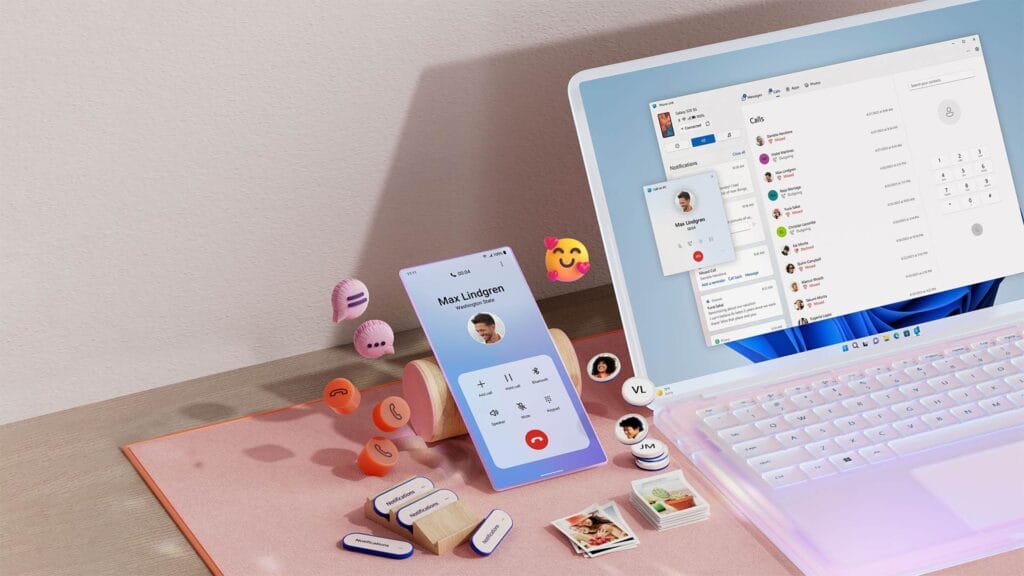
    msft open laptop with mobile phone floating emojis RW10WBx

    Microsoft’s Phone Link app (previously “Your Phone”) enables seamless connectivity between Android and Windows.

    Setup:

    1. On your Android, install the Link to Windows app.
    2. On your PC, open the Phone Link app (pre-installed on Windows 10/11).
    3. Follow on-screen instructions to link the two devices.

    Features:

    • Access photos, messages, notifications, and files
    • Drag-and-drop files directly between phone and PC

    Pros:

    • Seamless experience for Samsung and Surface users
    • Files transfer instantly without cables

    Cons:

    • Requires Microsoft account
    • Full feature set limited to specific models (Samsung, Honor)

    Bonus: Email, Telegram, or WhatsApp (for Small Files)

    For documents or images under 100MB, you can simply email them to yourself or use Telegram’s Saved Messages to transfer between devices.

    • Email: Attach files and send them to your own address.
    • Telegram: Send the file to yourself from your Android and download it on your PC.
    • WhatsApp Web: Share with a trusted contact and download via WhatsApp Web on PC.

    What’s the Best Option?

    MethodSpeedInternet RequiredSetup ComplexityBest For
    Google DriveMedium✅ YesLowBackups & multi-device use
    Nearby ShareHigh❌ NoMediumWindows 10/11 users
    Send AnywhereHigh✅/❌ OptionalMediumFast wireless transfers
    FTP via File ManagerVery High❌ NoHighTech-savvy users
    Microsoft Phone LinkHigh✅ YesMediumWindows users w/ Samsung

    You no longer require a USB cable to transfer data between your Android phone and computer. Whether you want to backup your gallery, transfer work documents, or send huge films, wireless solutions make the process simple and effective.

    Nearby Share and Google Drive are the most user-friendly solutions. If you desire speed and complete control, FTP or Send Anywhere would suffice, as they do not require cloud storage.

    Experiment with the way that best suits your workflow; once you go wireless, you will not want to plug in again.
  • App data transfer between Xiaomi, Vivo  and Oppo now possible

    App data transfer between Xiaomi, Vivo and Oppo now possible

    Whether you’re switching from an iPhone or an Android device, Google has improved data transfers from old smartphones to new ones for years. The information is mainly restricted to contact information, user account information, and default settings. As a result, third-party apps are no longer supported and require configuration. Thankfully, Xiaomi and Oppo have now made this possible on Android.

    transfer

    Certain iOS and Android apps currently allow for the movement of third-party data, but doing so necessitates synchronizing your account and putting the necessary data in the cloud. However, there are additional processes like downloading the appropriate apps and entering your security information again on a new phone. Several of these laborious processes are being eliminated by the most recent Chinese OEM program.

    Third-party data transfer on Android

    The three Android device makers, including Vivo, declared that they would simplify data switching and migration between their products, beginning in China. Incidentally, upon starting a transfer, data from third-party Android apps, such as recorded chat messages, will also be moved.

    It was not stated which specific smartphones from these companies will be compatible or if there are plans to expand the availability of this feature to further nations and areas. To be safe, it might also only be available for the most recent models that make use of more advanced communication technologies like UWB (ultra wideband) or Bluetooth LE, on which Google’s Quick Pair is built.

    It’s also unknown whether Google will later, maybe with Android 14, introduce a comparable feature to Android. Also, the feature appears to have been developed jointly by the three Chinese firms, so the search engine giant will probably need to contact other significant producers like Samsung to make it possible for a larger acceptance rate.

    Via:9to5GoogleSource:Weibo

  • Use Nearby Share with Chromebook

    Use Nearby Share with Chromebook

    Chromebooks haven’t had any cross-device synergy with Android devices for nearly a decade. With its Better Together features, Google attempted to bridge the gap between its devices, but it felt like an afterthought when compared to Apple’s Mac-to-iPhone connection. That all changed with the introduction of Phone Hub in Chrome OS 89, and with OS 91, Google finally made it possible to exchange family memories, documents, and files between Chromebooks and Android devices with Nearby Share. Here’s how to utilize it to transfer data between your Google devices without a hitch.

    The Setup

    First impressions are key, and Google continues to amaze with its onboarding process. The setup UI for Nearby Share makes it easy to get started by providing a fun experience. Open the settings on your Chrome OS device to get started with Nearby Share. Nearby Share can be found on the first page, under Connected devices. Select Set up from the drop-down menu.

    Nearby Share is no exception to Google’s love of integrating its simple UI everywhere. The onboarding UI functions as a compass to guide you through the process of installing Nearby Share on your Chromebook. It’s quite easy to use, and the Google-style illustrations keep you entertained while you’re setting it up.

    nearby share setup

    You can modify your privacy so that all or some of your contacts can view your Chrome OS device after you’ve given it a name. If you choose “hidden,” your gadget will remain hidden until you enable it from the shelf. When the setup is finished, you’ll be taken to Nearby Share’s settings to review. Before you transmit data, make sure both of your devices are nearby and have Bluetooth and location turned on.

    Transfer files to Chromebook

    It can be difficult to send files to your Chromebook. Nearby Share streamlines the process and reduces the amount of time spent attempting to share a file. We’ll use Google Photos to share an image using my Chromebook in this tutorial.

    neaby share transfer files

    To send a photo, tap on the share button at the bottom left of your phone’s screen, and select Nearby Share in the share sheet. Your phone should recognize your Chromebook — tapping “Accept” will begin transferring the photo. You can also share an assortment of documents and files with your Chromebook, too.

    Transfer files to your smartphone

    You can transfer a document or a photo from your Chromebook to your phone if you want to take it with you. Sharing files from your Chromebook to your Android smartphone is a breeze. In the Chrome OS file manager, right-click any file and choose “Share” from the menu. Select your phone from the list by clicking Nearby Share.

    save nearby share

    It may take a few tries for it to detect your device; launching Nearby Share from Android’s quick settings can help.

    When the transfer is complete, your file should appear in your phone’s download directory.

    Nearby Share can also be used to transfer files from one Chrome OS device to another. You can access Nearby Share by right-clicking a file in the Chrome OS files app and selecting “share.” After the receiving party accepts the file from the system tray, the file transfer will begin. My gadgets required a few tries to connect, but once they did, the data transferred quickly. Nearby Share will be available to PWAs that implement the Web Share API, such as PhotoStack.