Tag: tips

  • Speed up Xiaomi devices – make cheap devices fast

    Speed up Xiaomi devices – make cheap devices fast

    There are much more entry-level cellphones than flagships on the market. Because of the low-end specifications of these cellphones, it is highly typical for them to have poor speeds. Even tiny apps can cause the smartphone to hang on low-end hardware. Furthermore, many web pages may take a long time to load. If you have a Xiaomi entry-level smartphone, though, you’re in luck. There are a few basic things you can do to boost the speed of your smartphone. Xiaomi’s most popular smartphones are entry-level models. As a result, they come with insufficient hardware, which may cause them to slow while under strain. You can make the MIUI UI run faster and prevent these smartphones from hanging or freezing.

    Boost MIUI speed

    1. Extend your memory

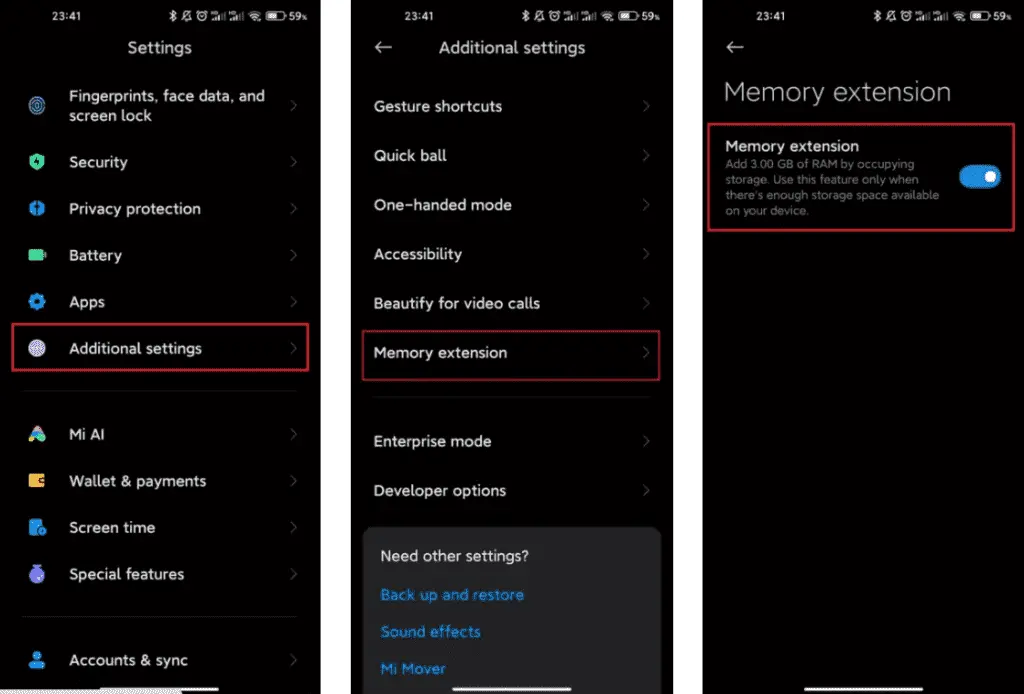
    Xiaomi, a Chinese company, has added a feature to its devices that may be of assistance. This is where the RAM expansion feature comes in. This capability has been available for the company’s smartphones since last year. This feature frees up RAM by using internal storage to create SWAP storage space. If you can activate this option, you’ll be able to boost the MIUI system’s speed. Although it is not as fast as physical RAM, it is a significant improvement.
    xiaomi extend memory

    2. Clean cache

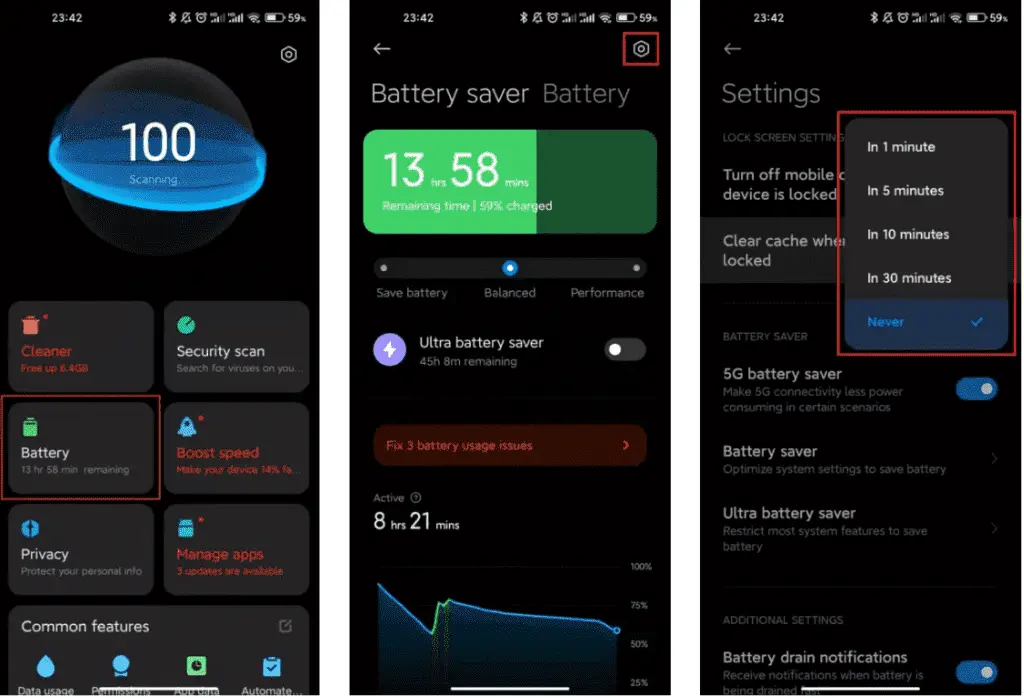
    Whethere its a smartphone, tablet or even a desktop, clearing cache is very good for operation. When the cache storage is too heavy, it could cause the device to lag. The rate at which your cache storage fills up depends on how you use your device. With the automatic cache clearing feature, it is now very easy to clear cache. You no longer need to clear the cache via recovery mode.
    MIUI Memory a 1024x698 1

    Xiaomi MIUI automatic cache cleaning feature ensures that your cache is always clear. Whenever you lock your smartphone screen, this feature clears the cache. Furthermore, you can manually set this feature to clear the cache at intervals. Thus, whether your hardware is insufficient, clearing the cache will ensure that all its limited resources are spent on relevant operations.

    3. Disable system apps and ads

    You may have noticed that the MIUI system app has in-built advertisements when you run it. It’s vital to realize that these adverts consume some hardware resources. This means that it has the potential to slow down the smartphone. They can create delays in the opening of some functionalities since they require system resources. Xiaomi makes it optional to see these advertising because they might be quite unpleasant.

    MIUI Memory b 1024x697 1

    You may quickly disable advertising that you don’t want to see, and they won’t appear again. All you need to do is set up a private DNS server. In the private DNS provider, type “dns.adguard.com.” Then, just to be sure, look to see if these adverts are still visible. This will free up some hardware resources while also speeding up the MIUI system.

    4. Disable system animations

    This solution is compatible with any smartphone operating system. For entry-level cellphones, some functions are a great luxury. One of these features is system animation. Deactivating this feature is a common technique for making the operating system run faster. Make certain that the animation scales are set to 0 or 0.5. These animations will be faster than before, and MIUI itself will speed up.

    MIUI Memory c 1024x699 1

    5. Keep the storage clean

    Obviously, filling your storage with “crap” is a recipe for disaster. This is because the storage capacity of your smartphone has a big impact on its use. This is also not unique to MIUI devices, but rather to all gadgets.

    MIUI Memory d 473x1024 1

    The pace of the smartphone slows down when the internal storage is full. You may notice minor latency and the device freezing at this stage. This can be avoided by keeping storage as basic as possible.
  • 7 tips and tricks to charge smartphone faster

    7 tips and tricks to charge smartphone faster

    In the smartphone industry now many smartphones have a large battery capacity of about 5000 mAh. With regular use, they can last up to 10 hours of full battery life, such as surfing, normal games, etc. Instead of a larger battery, modern smartphone companies are investing more in making fast chargers. In this guide, even if you don’t have easy charger help, we’ll show you how to charge a phone faster. These are 7 tips and tricks that have been tested and followed by users who operate perfectly with every smartphone in the world.

    To check your current charging speed, use the Ampere app. Simply install Ampere on Android or iPhone and Plug-in the charger cable and wait for a second to measure the current input. At a normal 5V/2A charger, it would be approximately less than 2000mA showing in the app.

    Tips and Tricks To Charge a Phone Faster

    1. Turn ON Flight Mode

    airplane mode

    The first thing you should try is to turn on flight mode on your smartphone. Flight mode disables all incoming outgoing radio signals through the smartphone and significantly improves the charging speed. Alternatively, turn off other connectivities such as WiFi, Internet Data set to be off, Bluetooth, Hotspot, etc. Still, flight mode is more effective.

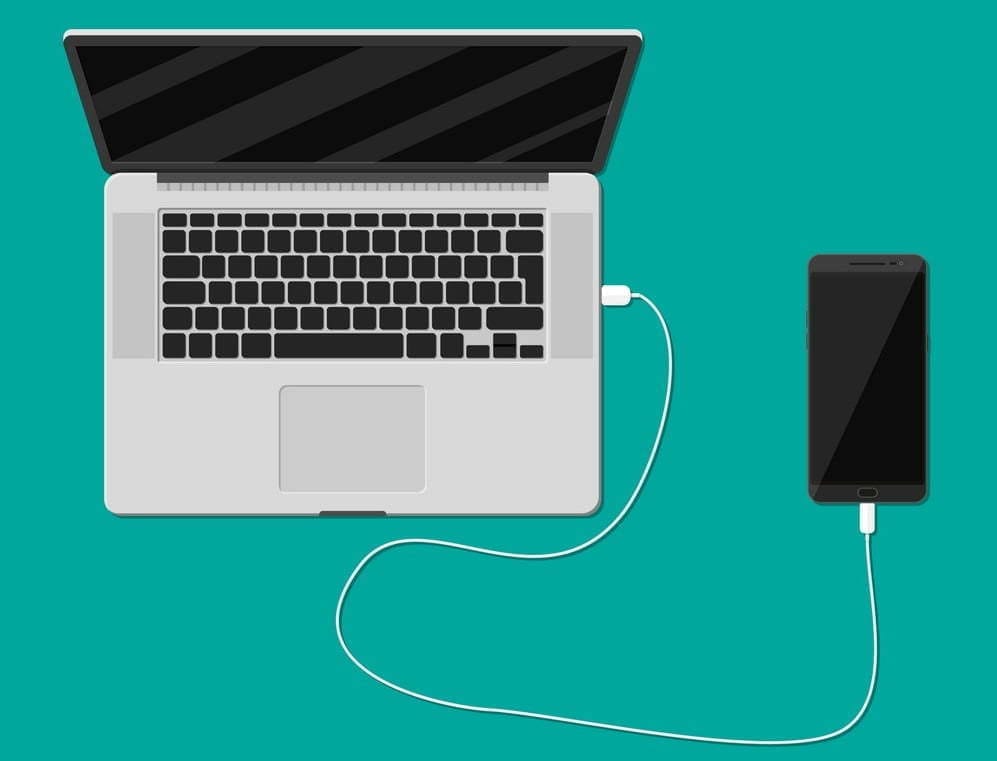
    2. Do not charge your phone with Laptop

    charge on laptop

    Charging your phone with a laptop could be a bad idea. When you charge your phone with an adapter, the charging speed mostly depends upon the power output of the adapter. A fast charger adapter produces from 20 to 55-watt output. Whereas, when you charge your phone using a laptop, the USB port is the current output source. And, mostly laptop’s USB ports produces 1 to 5-watt output. That’s why it would be a bad idea to charge a phone with a laptop. Instead, use a better fast charging cable and adapter.

    3. Stop Background Running Apps

    The reason why your battery percentage drops so quickly is running apps. There might be a few apps running in the background on the phone that result low in performance as well as slow charging speed. To prevent it, clear the recent apps from the menu and uninstall unused apps from your phone.

    One more tip, do not install battery saver apps or similar apps. Those are useless apps and cut your charging speed and battery life along with smartphone performance.

    4. Buy A Fast Charger

    fast charger

    Generally, smartphone brands provide a normal 10-watt slow charge out of the box. However, if your phone supports fast charging, you should look for a quick charger with maximum output. Quick Charger 3.0 charges the battery pretty fast from 0 to 100%.

    Purchase the fast charger from here:

    1. Mi 18W Fast Charging Adapter you can get it under 499rs.
    2. Super Flash 18W Quick Charge 3.0 –under 990rs.
    3. Stuffcool Type C Power Bank with Qualcomm Quick Charge 3.0

    5. Stop Charging your Phone while Gaming

    There are some hardcore gamers who like to play games all the time. Even when the smartphone is plugged-in to the charger. Doing this, you’re not only charging your phone at a very slow speed but also overheating can damager your phone or its battery. I highly recommend to not use your phone while charging, you better leave it idle.

    6. Turn On Power Saving Mode

    power saving mode

    Batter saver or power saver mode is an inbuilt feature in Android and iPhones both. By turning on power save, you can expand your smartphone battery life as well as charge your phone faster. However, this mode turns off background running applications and background data usage in some cases.

    To turn on Power saver in Android, go to Settings > Battery > Battery Saver > Tap to Enable. Power saver mode for iPhones, go to Settings > Battery > Turn Power Mode on.

    7. Turn Off Your Phone to Charge Faster

    Lastly, turn off your smartphone and plug-in to the charger. Switching off your smartphone disables almost every functionality and disconnects every connection. Hence, this is the most effective way to charge your smartphone’s battery at peak speed.

    However, this wouldn’t be possible for users who receive important phone calls frequently

  • Tips to boost your smartphone performance

    Tips to boost your smartphone performance

    In the previous post, we discussed how by following some tips & tricks, you can boost the battery of your Android smartphone.

    There are so many reasons why the performance of an Android smartphone would slow down. For instance, Android is too old, with low RAM & ROM, full storage, etc. Today, to get the best output from an Android phone, we’ll look at every problem and try to solve all of them. So, as you might have guessed, following are some smartphone tips to instantly enhance your Android smarthphone performance.

    Uninstall unused apps

    google apps

    This is one of the reasons why it’s very sluggish on your Android. In general people install lots of Android applications even though they are not using them on their smartphone. Not only does having so many apps require room, but it also slows down performance. Just go to your smartphone settings then manage apps and uninstall those apps that you’re not using currently.

    Your Android also has certain device bloatware that you can not easily uninstall. However to delete these types of software, I have made a separate post, you can read that from here, How to Uninstall Device Bloatware from Android Phones.

    Keep some storage free

    If your smartphone has a large storage capacity, the chances are it will not lag too much. This is because there will be lots of free spaces in memory to load apps resources. Whereas, there’ll no space to load the resources if your phone has low storage capacity. That’s the main reason for slowing down a smartphone performance. Always make sure that your smartphone has 3GB to 4GB memory free in ROM and slightly less in RAM.

    To free your storage, you can delete the junk files and unnecessary files including useless WhatsApp photos, videos, thumbnails, etc.

    Update your OS

    how to update your mobile to the latest Android version 2

    With every Android update, smartphones still get better. New functionality, bug fixes, optimized performance and other enhancements are included in the update. So to get security updates and overall improved system performance, always keep your system updated.

    An update, however, can often contain a massive bug, but it seldom occurs. You will collect reviews from users about the new update and then decide whether or not to install it.

    Factory reset

    After a long smartphone usage, it looses the performance overtime. Also, whenever smartphone software becomes too old, it loses the smoothness and performance as it was in the brand new smartphone. Which requires to perform a factory reset to fix some errors and clear all the smartphone logs from the memory. Well! there are many ways to reset an Android phone but you can reset your phone Settings > Backup & restore > Reset.

    Do NOT INSTALL speed booster apps

    boot smartphone performance

    From the play store, you can get tons of speed booster apps which promise to increase the performance of Android within a single tap. Oh, NO! Don’t install those kinds of software. Instead as a struggling launch app, that will make your phone much more laggy. They have clear frequent cache memory for multi-tasking, which is fine. In a nutshell, do not use boosters for speed.

    Try new launcher

    Some issues cause the output of the smartphone to slow down after using the default Android launcher for a long time. Well! Well! Oh! You’ve got too many launchers at the play store there. The best launcher, in my opinion, is Nova. See if your Android performance improves after upgrading to a new launcher, then follow other tips to stick with it.

    Clear apps data or cache

    An app increases its size when you start using it. And, sometimes size grows massive large to 1GB or more. Cache data are vital to load apps faster but creates problems when it stores than usual data that are no longer in use. And, it’s our responsibility to clear cache memory to free the useless filled storage. It makes smartphone fast as light. To clear cache of Android apps at once, go to Settings then tap Storage, choose Cache and delete them. Another way to do this, go to manage apps from settings and choose apps and clear data & cache one by one.

    Increase animation speed

    Increasing animation speed doesn’t directly increase the smartphone performance, however, it gives a feeling of fast performance. You can adjust the animation speed from Android developer settings. To get developer options, Go to Settings > About > Build number > tap 7 times.

    Now, open developer settings and find these three options and set their value to 0.5 or turn it off completely.

    1. Window animation scale
    2. Transition animation scale
    3. Animator duration scale
  • Protect your privacy from Google Assistant – 5 settings to disable

    Protect your privacy from Google Assistant – 5 settings to disable

    In recent months, Google Assistant has grown a lot and is one of the most innovative online voice assistants available today. These days, it is also built into all Android smartphones, so it is very popular.

    Voice assistants are often not ideal or not ideal for all, it would be best to disable certain features in some cases to provide a better user experience and protection.

    By disabling some Google Assistant settings, not only for better protection for our privacy but also we will be able to make the use of the big G-assistant more comfortably, compared to the basic configuration.

    (adsbygoogle = window.adsbygoogle || []).push({});

    These changes are very simple. In short, the use of Google Assistant can (and should) be customized according to our needs to derive real benefit from it without giving Google complete access to our data.

    To protect your privacy when using Google Assistant, you need to follow these five tips:

    Audio Recordings

    (adsbygoogle = window.adsbygoogle || []).push({});

    The new Google privacy settings updates do not automatically record what we are asking the Assistant to do. In the past, these recordings were sent to research teams composed of actual people who listened to our words to see whether the algorithm had reacted effectively. 

    If we want to manually disable (or enable) these recordings, we need to open Google Assistant by pressing the home button for a long time (or you can also install the Google Home app, but it’s easier to disable it via Google Assistant). 

    Google Assistant

    Open Google Assistant, tap on the profile picture at the top right of your computer to go to the settings. Then go to the “You” tab and “Your data in the assistant.

    Scrolling down, you will find “Audio recordings.”

    From there, you will be able to see what Google Assistant has recorded, delete the audio clips, and choose whether to turn off the recordings entirely or pause it, etc.

    (adsbygoogle = window.adsbygoogle || []).push({});

    Continued Conversation

    After the Assistant replies, the phone’s microphone is reactivated while Continued Conversation is active, to hear any other questions. We would not have to say the activation expression “Hey Google” again this way.

    continuos conversation

    To disable this Google Assistant feature, after opening the Google Assistant settings, go to the ‘Assistant’ tab. Then tap on “Continued Conversation,” and you can disable or activate it there.

    Assistant Sensitivity

    (adsbygoogle = window.adsbygoogle || []).push({});

    In certain smart devices, such as speakers, the Google Assistant often activates for no reason, or it often takes too long to activate. This is due to an incorrect configuration of the activation phrase sensitivity.

    You can adjust this sensitivity by going to ‘Assistant settings > Assistant tab’ and then selecting the computer that the Assistant is active on (if you have more than one linked to the same Google account).

    Then tap the Settings button, and you can find and change “Hey Google Sensitivity.” This function may be restricted or absent depending on the language you are using the Assistant. For smartphones, this option is not open. It is primarily for other devices that are smart.

    Video Camera

    If we use a smart display with a camera, then this hardware part can be accessed by Google Assistant to, for example, start a video call.

    Even if we do not call anyone, some smart displays hold the camera running, and this might become a privacy problem. The management of this part is therefore important, but unfortunately, it differs from model to smart display model.

    Therefore, after the purchase, you can automatically search for a way to set the camera so that it does not work until it is really necessary.

    (adsbygoogle = window.adsbygoogle || []).push({});

    Activity Management

    Via the Google Home app, you will know exactly what Google tracks, just open it and tap the profile picture first and then the menu.

    You’ll find “Google Activity Controls” here and pick the “Manage Activity” option after opening it, and you’ll see an interface displaying all the things you’ve done online: websites, games, etc.

    So, yeah, Google knows what you do, but by trying the options listed above, you can cover those things. So next time, in order to protect your privacy, better disable these Google Assistant settings.