Tag: system

  • Google’s Latest System Update Improves Android in Subtle Ways You’ll Notice

    Google’s Latest System Update Improves Android in Subtle Ways You’ll Notice

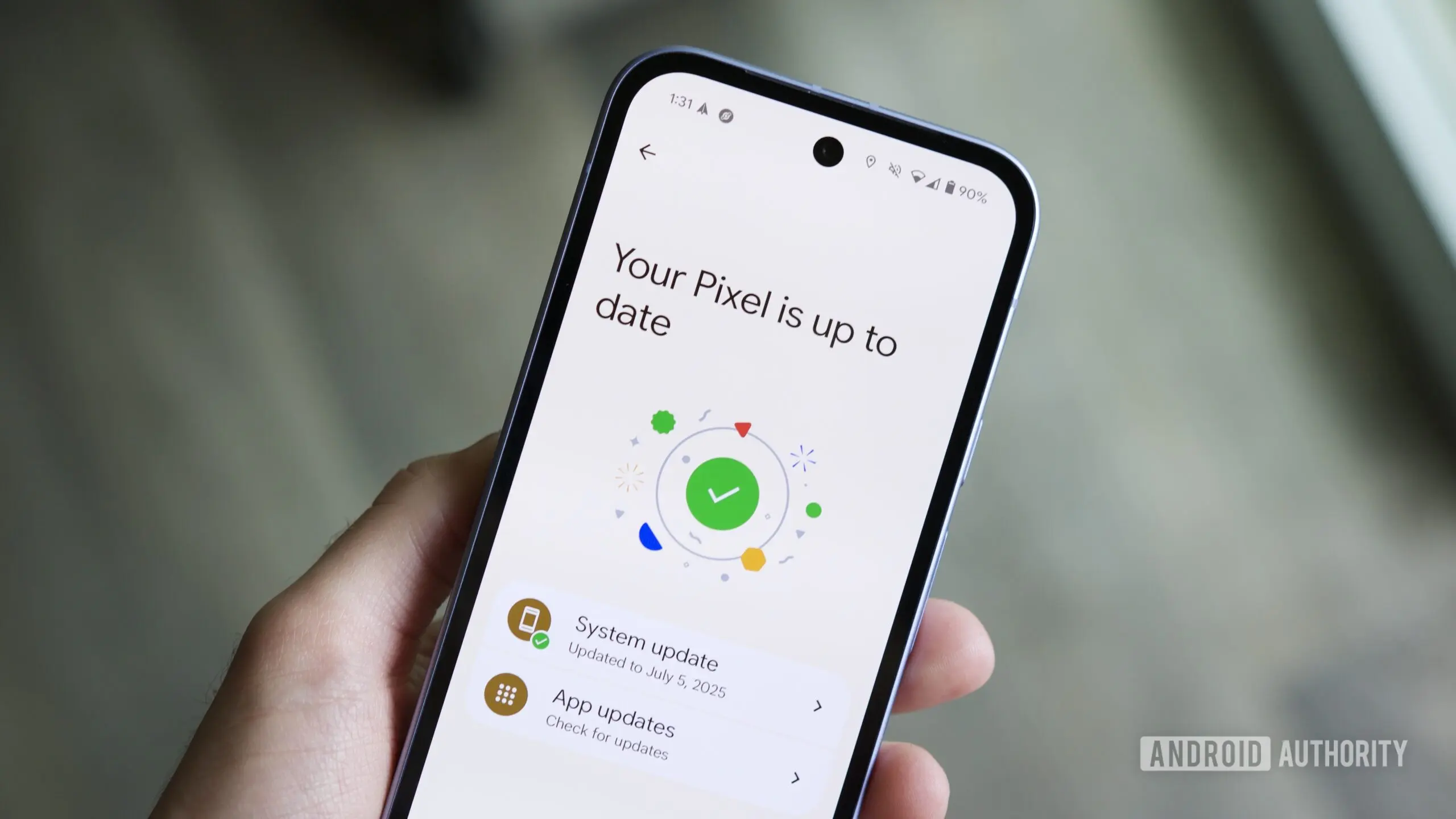
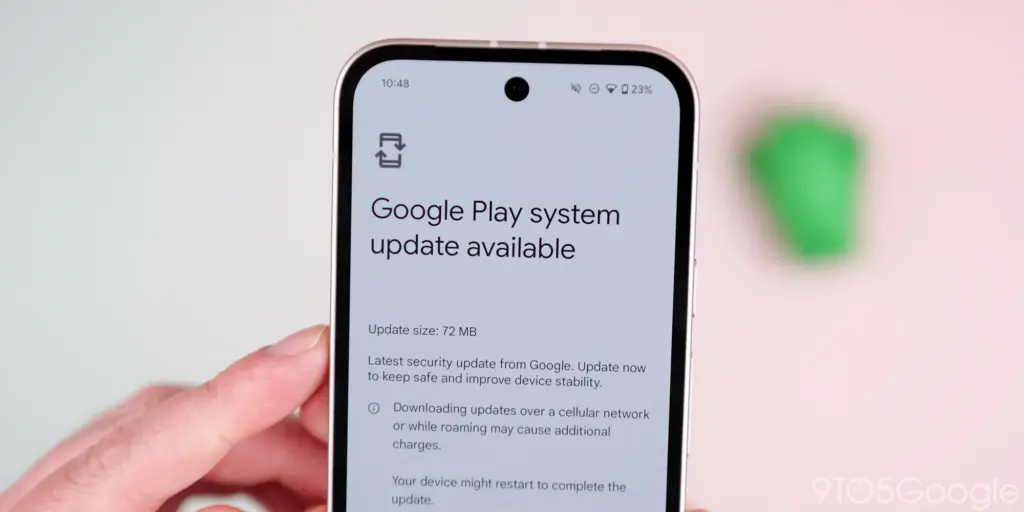
    The Play services, Play Store, and Play system update for Android phones and tablets, Wear OS, Google/Android TV, Auto, and PC are the main topics covered in the monthly “Google System Release Notes.” While certain features are intended for developers, others are applicable to end users.
    Google Play System update 3

    The “Google System” is made up of the following third-party apps:

    To update, launch the Settings app, press your name at the top of the “Google services” page, then select All services > Privacy & security > System services.

    A feature is not necessarily publicly accessible just because it appears in the changelog. The full launch of some capabilities takes months.

    Google Play services v26.15 (2026-04-20)

    Device Connectivity

    • [Auto, Phone, Wear] Bug fixes for Device Connections and System Management & Diagnostics related services.

    Location & Context

    • [Phone] Bug fixes for Location Services related services.

    Wallet

    • [Phone] With this update, a message at the bottom of the screen tells the user how to add a card to Wallet.
    • [Phone] With this update, you’ll get a new entry point for MyCommute.

    Android System Intelligence B.24 (2026-04-16)

    • [Phone] Maintenance changes.

    Google Play services v26.14 (2026-04-13)

    Account Management

    • [Phone] With this update, you’ll get a faster way to set up your device when you transfer accounts and settings from an existing device.

    System Management

    • [Auto, PC, Phone, TV, Wear] You can now find open source licenses for Android Pulse in GMS Core.

    Wallet

    • [Phone] You can now control how private passes in Wallet work with other Google services like Autofill through new per-pass privacy settings.
    • [Phone] You can now use a redesigned Wallet interface for quick access, search, and discovery.

    Google Play Store v51.0 (2026-04-13)

    • [Phone] You can now provide feedback on AI-generated summaries of user reviews.
    • [Phone] You can now create a Gamer Profile directly from You tab.
    • [Phone] You can now play some games on the You tab with no install required.

    Google Play services v26.13 (2026-04-06)

    Account Management

    • [Auto] When a user signs in to their Google account on Android Automotive devices via QR code, the sign-in confirmation displays the requesting device’s name.

    Device Connectivity

    • [Phone] New developer features for Google and third party app developers to support Device Connectivity related processes in their apps.

    Location & Context

    • [Phone] With this update, Location Sharing APIs are refined and new location requests are introduced.
    • [Phone] With this update, On-Device Location History Store Visits processes more frequently.

    System Management

    • [Auto, PC, Phone, TV, Wear] Updates to system management services that improve Security and Stability.

    Wallet

    • [Phone] Bug fixes for Wallet related services.

    Google Play Store v50.9 (2026-04-06)

    • [Phone] This update adds download numbers to some app and game ads to help you make informed choices.
    • [Phone] You can now join and compete in Play Games Leagues directly from the You tab.
  • How to uninstall system apps on Android (without root)

    How to uninstall system apps on Android (without root)

    Unnecessary system apps and bloatware can be annoying. They drain your battery, take up important storage, operate in the background, and are frequently impossible to remove with standard methods. Although rooting your Android device gives you complete control over system programs, most users are not advised to do so because it violates your warranty and jeopardizes security.

    Thankfully, there are secure and efficient methods for disabling or removing system programs without rooting, particularly when using ADB (Android Debug Bridge). We will go over every technique in this article, from basic settings adjustments to more sophisticated (yet secure) desktop tools.

    android system apps unistall with adb

    What are system apps and why can’t you delete them easily

    Applications that are pre-installed by the manufacturer or carrier of the device are known as system apps. These consist include third-party programs like Facebook or Netflix that OEMs package, stock utilities, or branded services.

    They cannot be removed using the standard app menu since they are installed in the system partition. ADB commands, however, can be used to disable or even uninstall many.

    Common examples of pre-installed system apps include:

    • Duplicate media players or browsers
    • OEM app stores
    • Partner bloatware like Amazon Shopping, LinkedIn, or TikTok
    • Preloaded games or theme services

    Disable system apps from settings

    This is the simplest method and doesn’t require a PC.

    Steps:

    1. Open Settings > Apps.
    2. Tap See all apps to view the complete list.
    3. Select the system app you want to disable.
    4. Tap Disable. You may be asked to confirm your choice.

    What happens when you disable an app:

    • It is removed from the app drawer.
    • It can no longer run in the background.
    • It won’t receive updates or use system resources.
    • The app is still stored on your device but rendered inactive.

    Limitations:

    • Not all system apps can be disabled (depends on OEM).
    • Disabled apps can be re-enabled manually.

    This is the safest approach for beginners.

    Uninstall system apps using ADB (no root)

    You can use ADB to perform advanced commands on your Android device by connecting it to a computer. This technique allows you to remove system programs for the current user without requiring root access.

    Step 1: Set up ADB on your computer

    1. Download the Android SDK Platform Tools for Windows, macOS, or Linux from Google’s official site.
    2. Extract the contents to a folder (e.g., C:\adb).

    Step 2: Enable developer options and USB debugging

    1. Go to Settings > About phone.
    2. Tap Build number 7 times until you see a message saying “You are now a developer.”
    3. Go back to Settings > System > Developer options.
    4. Enable USB debugging.

    Step 3: Connect your phone to your PC

    • Use a USB cable to connect your device.
    • When prompted on your phone, allow USB debugging.

    Step 4: Open ADB and check the connection

    1. Open a terminal or command prompt in the ADB folder.
    2. Type: adb devices – you should see your device listed.

    Step 5: Find the package name of the app

    To uninstall an app, you need its package name. You can find this using:

    adb shell pm list packages | grep [app name]

    For example, to find Facebook‘s package name:

    adb shell pm list packages | grep facebook

    Step 6: Uninstall the app

    Use the following command:

    adb shell pm uninstall --user 0 com.facebook.katana

    That command will remove Facebook from your user profile, freeing up memory and removing it from the interface.

    Note: The app is only removed for the current user, not deleted from the system partition.

    Method 3: Use a no-root app debloater tool (GUI)

    If you’re not comfortable with the command line, you can use a graphical tool like:

    • Universal Android Debloater (UAD)
    • ADB AppControl
    • Android Debloater by XDA Developers

    These tools allow you to:

    • Browse installed system apps
    • Uninstall or disable them safely
    • See app names with friendly UI
    • Restore apps if needed

    Most tools require:

    • ADB installed on your system
    • USB debugging enabled
    • Windows PC (some versions work with Linux/macOS)

    They’re beginner-friendly and support a wide range of devices.

    Should you uninstall or disable every system app?

    No. Some system apps are critical to core Android functions. Removing them may cause:

    • Boot loops
    • Broken system features (e.g., notifications, calls, camera)
    • Incompatibility with future updates

    Always check what a system app does before removing it. You can research package names or use a debloater tool with built-in safety warnings.

    Safe-to-remove examples:

    • Social media bloatware
    • OEM-specific cloud services you don’t use
    • Built-in browser (if you use Chrome)
    • AR apps, Game Launcher, or duplicate music players

    Unsafe-to-remove examples:

    • com.android.systemui
    • com.google.android.gms
    • com.android.providers.*

    How to restore system apps uninstalled via ADB

    If you want to bring back an app removed via ADB:

    adb shell cmd package install-existing [package name]

    For example:

    adb shell cmd package install-existing com.facebook.katana

    This will restore the app for the current user, assuming it wasn’t fully deleted from the system partition.

    Uninstalling system apps without root gives you more control over your Android phone without compromising safety. ADB is a powerful tool that helps remove bloatware, reclaim storage, and speed up your device. If you’re cautious and avoid critical system packages, you can safely declutter your phone and enjoy a cleaner experience.

    Whether you’re using the built-in disable function or running ADB commands, you don’t need root access to take control of your device anymore.

  • April brings critical system app updates for HyperOS 2.2

    April brings critical system app updates for HyperOS 2.2

    For optimal performance and user experience, it is imperative to keep your Xiaomi smartphone updated, especially with the new HyperOS ecosystem. Five essential system apps will receive significant updates in April 2025 that enhance their usability, security, and appearance. All Xiaomi phones will offer a better, more potent experience thanks to these updates, which are made to work perfectly with HyperOS 2.1.

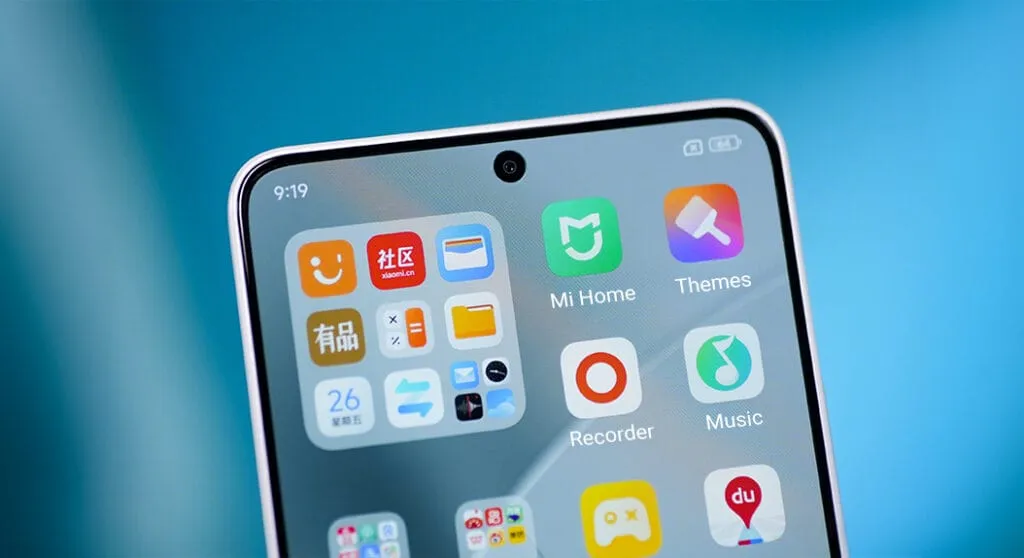
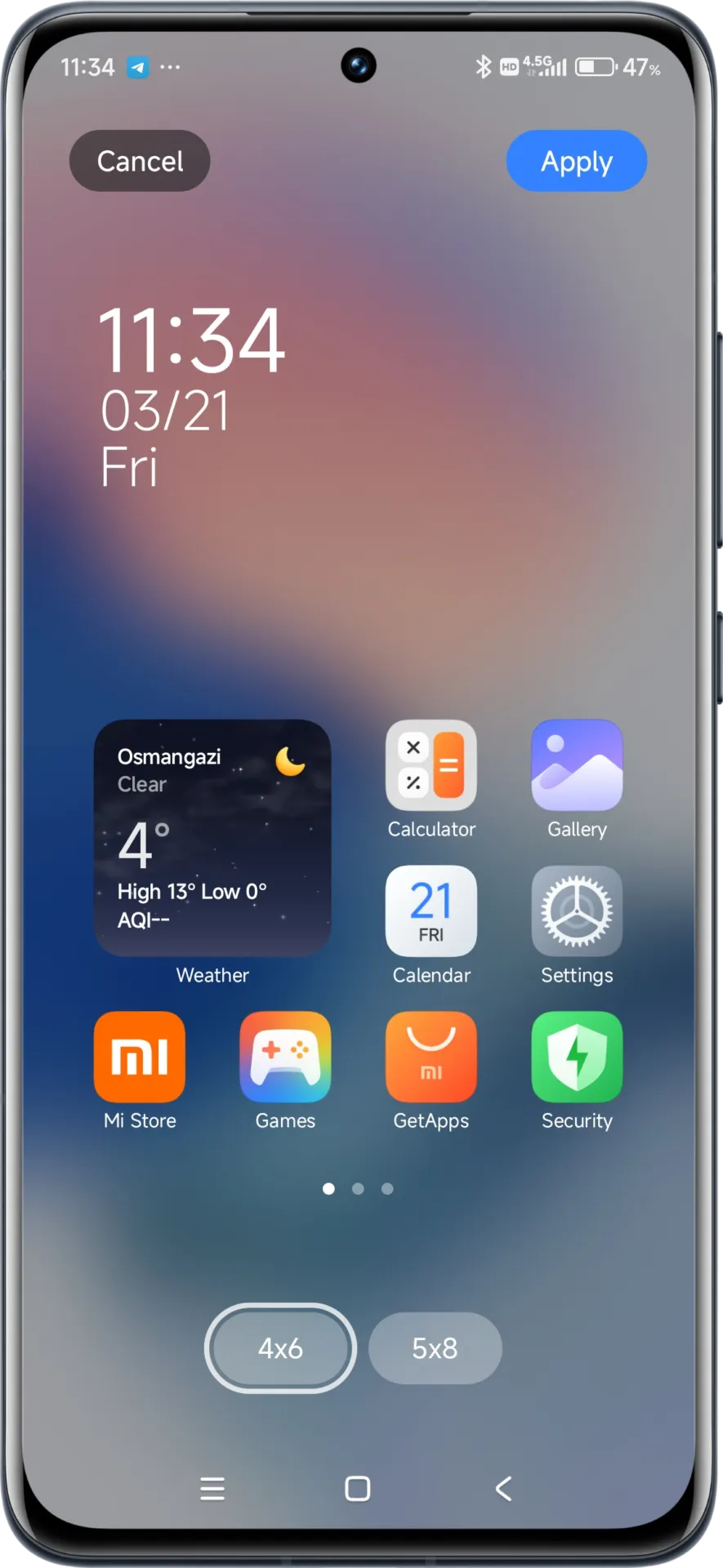
    HyperOS Launcher

    Updated on HyperOS Launcher was overhauled in full with many enhancements:

    • Improved Animations: Better folder animations bring a more refined, pleasing aesthetic experience
    • Enhanced Readability: Large fonts on the top drawer bar improve readability
    • MIUIX V3 UI Library: Implements modern design language for a fresher appearance with more uniform features
    • Adjustable Layout Options:
      • 4×6 layout with search box 4×7 layout without search box
      • 5×8 layout with search box
      • 5×9 layout without search
    • Revamped Menus: Enhanced desktop grid layout, gesture, app vault, and folder edit interfaces
    • 2K Screen Optimization: Popup UI now scaled correctly for high-resolution screens
    hyperos launcher

    The update to the launcher is centered on aesthetics and functionality, resulting in an improved user experience that still offers high performance.

    HyperOS Themes

    The updated HyperOS Themes has a better, more streamlined user interface. The update makes device customisation more comprehensive and accessible, allowing users to alter their gadgets to better reflect their own unique style.

    With improved previewing and classifying capabilities, the simplified interface makes it possible to find and use new themes more quickly and easily.

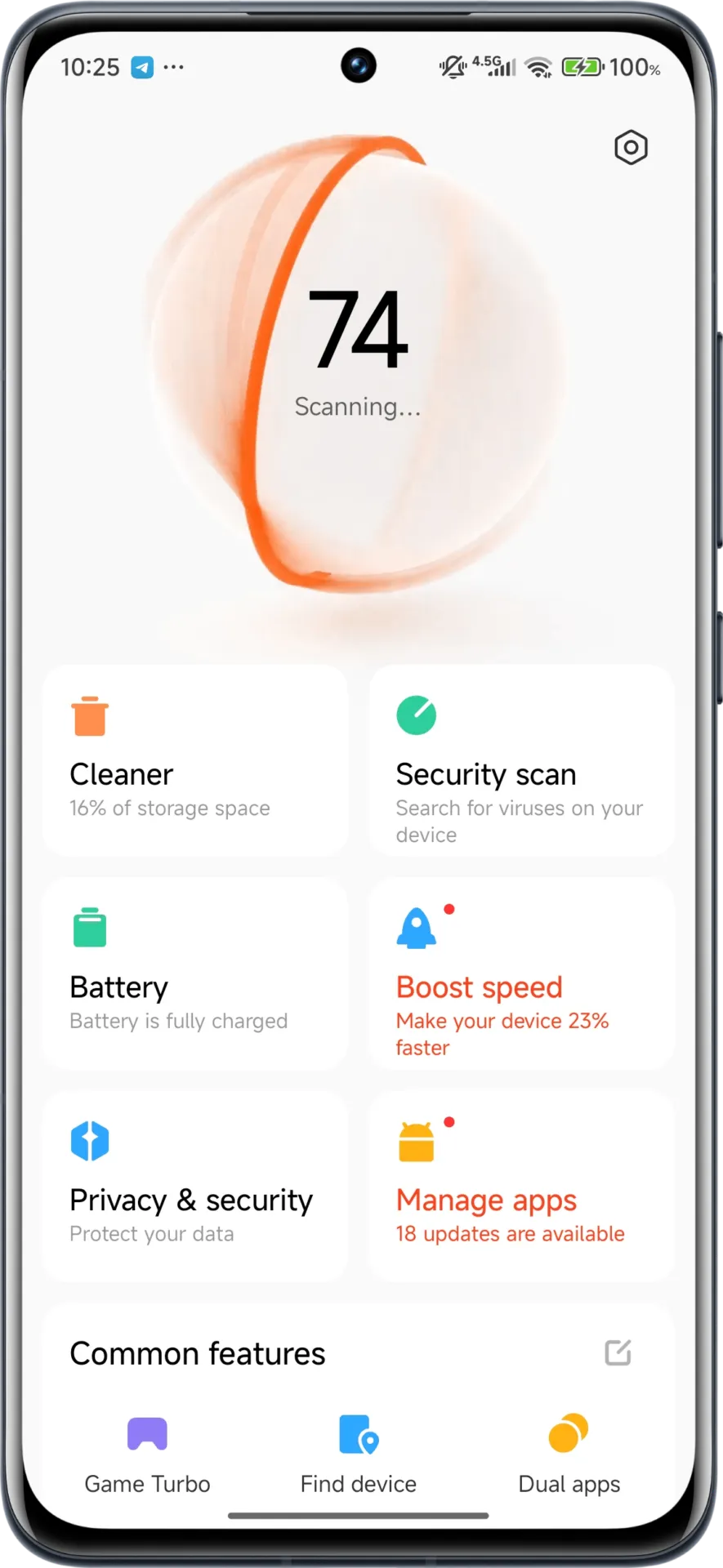
    HyperOS Security

    The HyperOS Security updated for brings essential enhancements to gaming performance and device protection:

    • Turbocharged Game Performance: All-out performance enhancements with advanced optimization capabilities
    • Security Improvements: Several behind-the-scenes updates improve system and data security
    • Performance Optimizations: Enhanced resource allocation to ensure seamless performance even on high-intensity tasks
    • Privacy Controls: Broader choice for controlling app permissions and data access
    hyperos security app

    These security enhancements play a crucial role in shielding personal data while providing stable system performance.

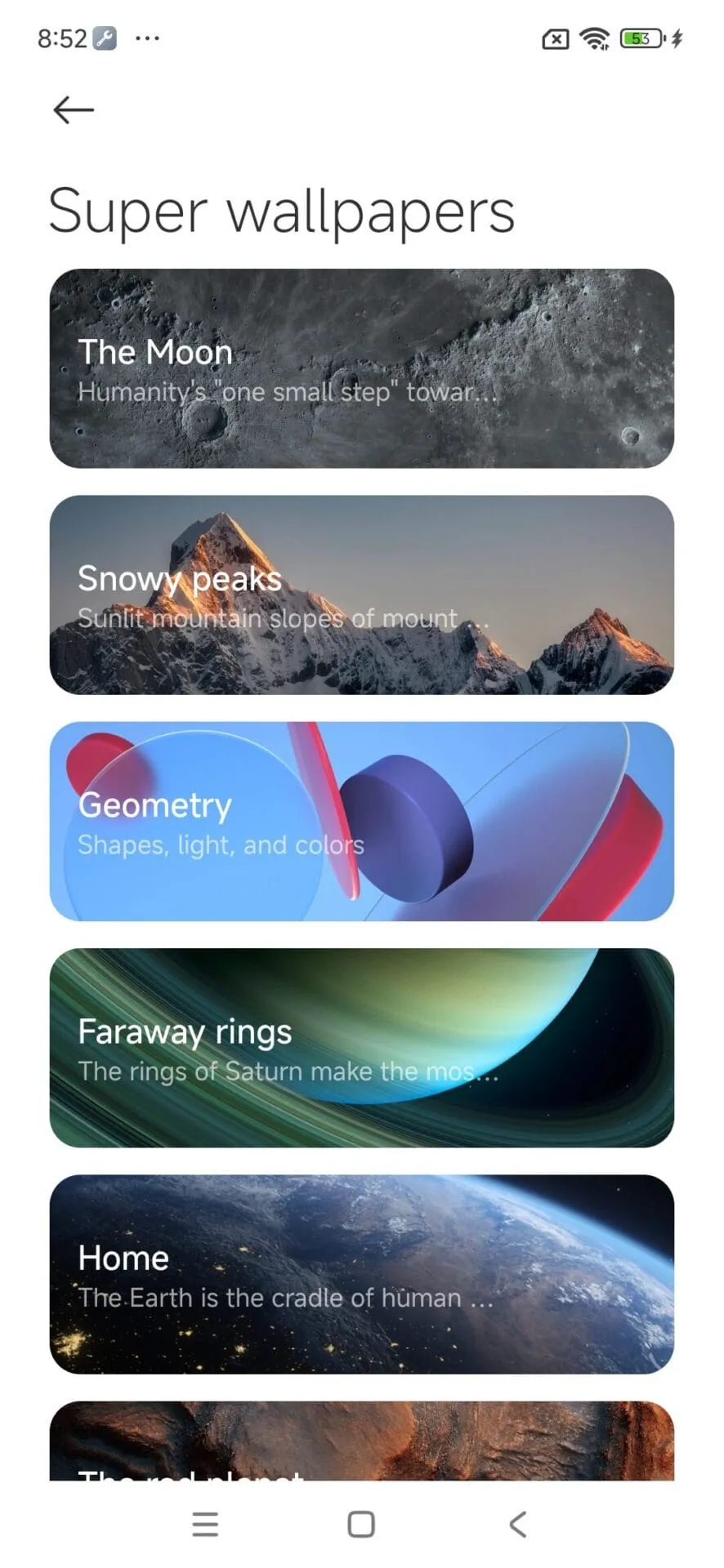
    HyperOS Wallpaper

    Updated on April. This new version emphasizes fixing bugs and performance enhancements. This update also solves problems that were causing lock screen and home screen wallpapers to:

    • Improved fluidity in switching wallpapers Improved stability throughout system transitions
    • Enhanced resource management for reduced battery usage
    • Improved integration with dynamic wallpaper features
    hyperos wallpaper app

    Though mostly an update for maintenance, these changes considerably improve overall Wallpaper experience.

    How to update HyperOS system apps

    For an optimized upgrading process, Xiaomi users have an available HyperOS Downloader app:

    1. Download and install MemeOS Enhancer or directly from HyperOSUpdates.com
    2. Utilize the MemeOS Enhancer function for all installed HyperOS apps
    3. Get early updates before most other users
    4. Find more tools such as GCam integration
    5. Enable secret system features that cannot be accessed via default settings
    6. Updating these five core system apps is the basis for keeping your Xiaomi device in top condition with access to new features plus security upgrades.
    7. Get the latest updates today to unlock HyperOS 2.1’s full capabilities.
  • Kids Space improved with latest Google System Updates

    Kids Space improved with latest Google System Updates

    The September 2022 Google System updates have started to reach Android devices. These updates differ from OTA (over the air) updates that you get for your phone. Instead, these are updates to various underpinning technologies, such as Google Play Services and the Play Store, which serve as the foundation for the Android OS. For a more dependable and secure user experience, the organization releases updates and adjustments to these systems on a regular basis. Each month, it describes their developments. A few major modifications, including some for Kids Space, are brought about by the most recent round of Google System updates.

    This month’s Google System updates bring notable changes to Kids Space

    kids space

    First off, you can now set up Android tablets to install Google Kids Space on a different account. You can now use your tablet to share with your little siblings or children. To prevent your children from downloading or using undesirable apps, you can also hide suggested apps while configuring Kids Space. On Android smartphones, TVs, tablets, Android Auto, and Wear OS devices, the most recent updates significantly improve Google account syncing and recovery.

    Additionally, the Google Play Store is improving. Play-as-you-download, Google Play billing, Play Protect, Play Pass, and Play Points programs are just a few of the features that are getting some optimization. However, if you looked at the organization’s official update tracker for these monthly releases, you would see the identical entries in the changelog for almost every release.

    Improvements are also being made in the Google Play Store. Some enhancements are being made to features including Play-as-you-download, Google Play billing, Play Protect, Play Pass, and Play Points programs. However, if you looked at the changelog for these monthly releases on the company’s official update tracker, you would see the identical entries almost every month. That’s because Google makes these ongoing adjustments for better user experience in the background.

    As part of these monthly Google System updates, Google frequently pushes new updates to Android OS systems throughout the month. So, in the upcoming weeks, it’s possible that the corporation will add new items to the changelog for the most recent edition. We will undoubtedly let you know about anything significant or significant if it happens.

    The aforementioned improvements are now being released alongside Google Play Store version 31.1 and Google Play services version 35.22. It may take a few days for everyone to notice the improvements brought about by this month’s Google System upgrades because the company just issued the most recent version. Although the updates ought to be installed without your intervention, you can always look for them yourself. To check if you have a Google Play services update available, click this page. The About section of Settings, accessed from your avatar in the top right corner of the Play Store home page, allows you to check for updates for the Play Store.