Tag: sideload

  • Google strikes a smart compromise instead of removing Android sideloading

    Google strikes a smart compromise instead of removing Android sideloading

    Since its launch, sideloading has been a crucial component of Android, giving it a great deal of flexibility as well as a feeling of freedom and openness. The community (quite understandably) panicked when Google announced it would make significant changes to sideloading. However, since Google has now demonstrated how its new sideloading flow on Android will operate, I’m not only relieved that sideloading won’t completely disappear, but also that Google’s compromise is as close to ideal as I believe we can get.
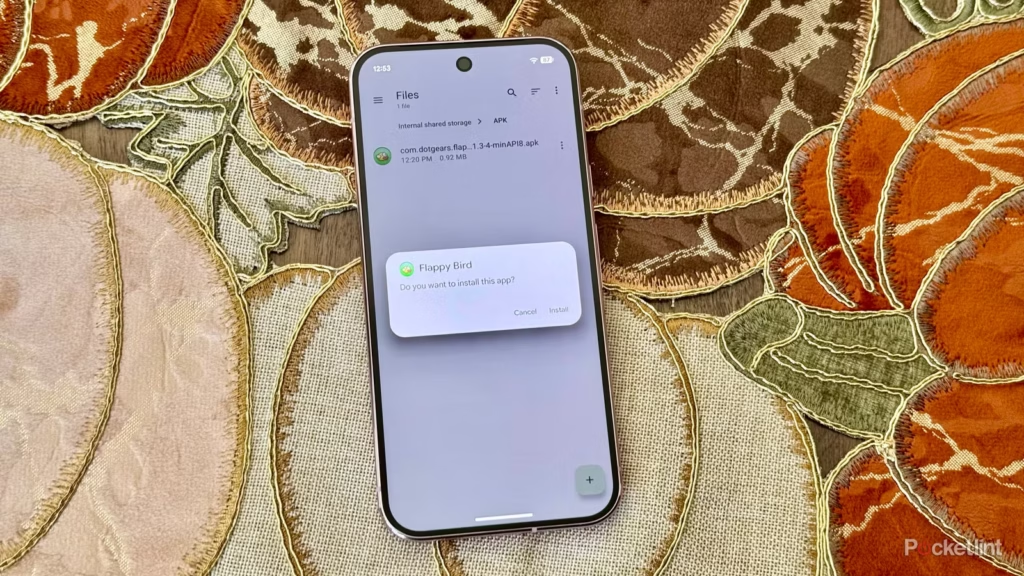
    android sideloading an app

    Some have called “Android Developer Verification” the demise of Android’s open nature. The change, which would require developers to register with Google in order to permit their apps to be installed on Android devices, was introduced by Google last year as a restriction on app installation, including sideloading. At first, Google described this as verifying the “who” of an app, similar to an airport ID check.

    Combating scams, such as “convincing” bogus apps, and reducing malware and other harmful attacks—particularly those caused by sideloading from sources outside the Google Play Store—were always the main priorities here. Over the years, Google has been more aggressively combating Android frauds, with some degree of success. One way it has done this is by preventing sideloaded apps that are used in scams.

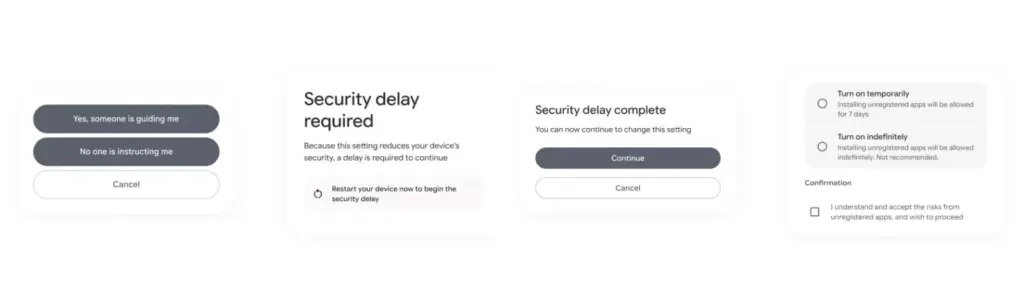
    Google officially unveiled the new “advanced flow” this week, which enables users (and developers) to sideload apps that aren’t created by registered developers.After asking the user to certify that “no one is directing me,” the four-step procedure begins a 24-hour delay. In order to initiate the timer, the user must restart their device. After admitting the risks once more, they can resume the sideloading procedure 24 hours later; if they choose to leave it on “indefinitely,” the delay just occurs once. In actuality, this is really a one-time obstacle. Developer options must be enabled, but you can later disable them, which is the largest “headache.”
    activate android apk sideloading

    Google has stated time and time again that a “crackdown” on sideloading is not about taking away freedom or functionality, but rather about protecting users and, most importantly, stopping scams that are common on Android in particular areas. Google doesn’t prevent developers or even consumers from accomplishing what they truly want to do by restricting sideloading as planned, but it puts a huge barrier in the way of con artists.

    Scammers frequently use timed pressure and a sense of urgency. A waiting period of twenty-four hours with a few additional warnings? That is a difficult barrier against those kinds of frauds. For people who are being duped by more prevalent scams, it’s also a major inconvenience. For instance, a few weeks ago, after purchasing a low-cost fitness tracker, a family member called me to inquire as to why their homescreen had changed. It turns out that the product needed them to sideload an unidentified software in place of their launcher. I guided them through the uninstall process, but a 24-hour wait and all these extra warning screens? The installation would never have taken place.

    It’s a careful method of striking a balance between functionality and user protection. Because developers and enthusiasts who need or want to sideload an app immediately may still utilize the standard ADB tools, whereas the “ordinary Joe” must wait for that 24-hour period to end. Those who truly can’t wait the 24-hour period (which, once again, only needs to be once) still have options, although that is a headache for “regular” users and even more so for fraudsters.

    Not to mention that you won’t often have to deal with this anyhow. After developers apply for Google’s developer verification program, sideloading is no longer a problem and there are no waiting times or other “in the way.”

    How do you feel about Google’s modifications to Android sideloading? There are undoubtedly still many people who disagree with this, but as previously stated, I don’t think there is a better solution.
  • How to use ADB and Fastboot on Android device

    How to use ADB and Fastboot on Android device

    You have probably come across ADB and Fastboot if you have ever rooted an Android device. Although they are a crucial component of the rooting toolset, these utilities can be challenging to grasp, let alone master.

    So read on if you’re interested in learning more about ADB and Fastboot, need assistance setting them up, or want to know what you can do with them.

    What are ADB and Fastboot?

    While your phone is linked to a desktop computer via a USB cable, the tools ADB and Fastboot enable access to the Android operating system. There is no app for this, and while you may use ADB wirelessly, the setup is considerably more difficult, therefore the computer and cord are essential.

    ADB is typically used when Android is active. It gives you access to system folders or lets you change hidden settings that are otherwise inaccessible to users. ADB can be used to copy system files to and from the device. System updates can also be installed via the sideload capability.

    When Android is not active and the device is booted into “Fastboot mode,” Fastboot functions. It gives you access to every partition on your device, including the data partition, boot partition, and others in addition to the Android operating system.

    Fastboot is a diagnostic tool for Android. It is frequently used to install a custom recovery and is necessary if you need to unbrick your phone.

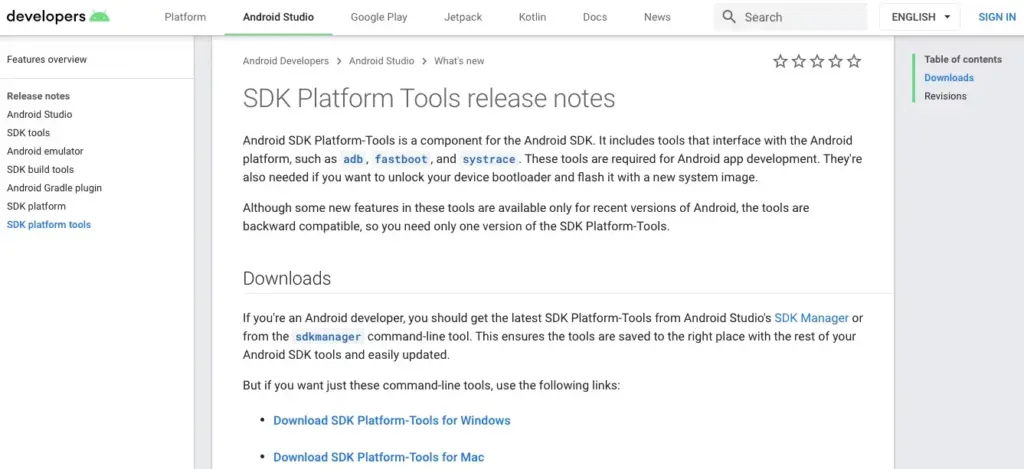
    Both are included in the Platform Tools collection of the Android software development kit.

    android platform tools

    Both tools run through the Command Prompt on Windows, or Terminal on Mac and Linux. This means they aren’t especially user-friendly, even though they are quite easy to get the hang of.

    How to set up ADB and Fastboot

    windows drivers

    First, you need to set up your phone to use the tools. If you haven’t already, enable the Developer Options by going to Settings > About phone and tapping on Build number seven times.

    Then, in Settings > Developer options, check the box next to USB debugging and walk through the dialog box that follows.

    Download ADB and Fastboot from the Android Developer website. When you unzip the download, the contents will be collected together into a folder called platform-tools. There are several other items in the folder, but you can ignore these.

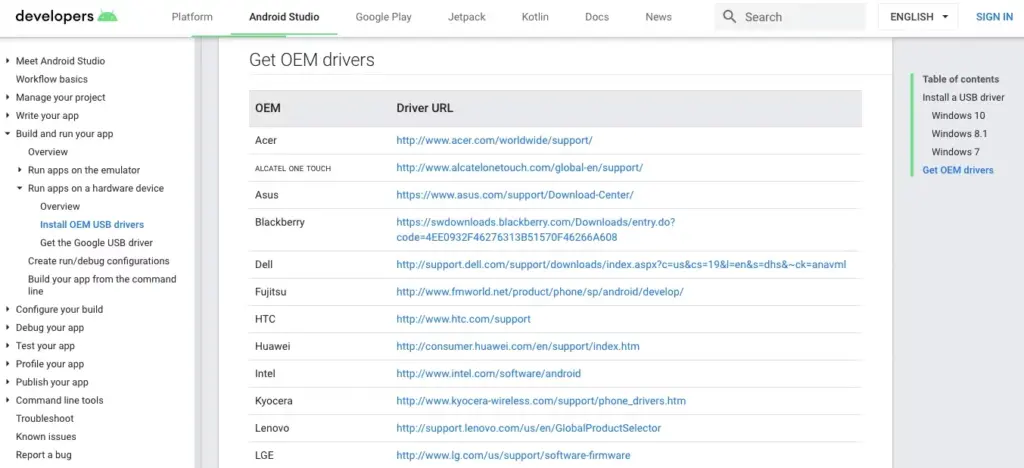
    If you’re on Windows, you will also need to download drivers for your device. There’s a list of links for most popular manufacturers on the Android developer website. Drivers aren’t needed on Mac or Linux.

    Using the command prompt or terminal

    Use the cd command to accomplish this: type cd [path to platform-tools]. The path will automatically fill in for you if you type cd[space] and then drag the platform-tools folder into the Command Prompt window.

    Even simpler, on Windows you may pick Open Command Prompt Here by right-clicking the platform-tools folder while holding the shift key down.

    The difference between Windows and Mac/Linux

    There’s one small but essential difference between using Windows and Mac or Linux. On the latter two, every ADB and Fastboot command must be preceded by a dot-slash.

    So where you type adb on Windows, you must type ./adb on Mac and Linux. And fastboot on Windows needs to be ./fastboot on Mac and Linux.

    For the sake of simplicity, we’ll stick with the Windows commands going forward.

    How to use ADB

    adb devices 1

    Launch Android on your phone, then use a USB cord to connect it to your desktop computer. Open the Command Prompt on your PC and modify the directory to point to the platform-tools folder.

    Hit Enter after entering adb devices. The list of attached devices should now be visible, along with their serial numbers. This indicates that it is effective.

    How to use fastboot

    Fastboot works the same way as ADB, except you need to boot your phone into Fastboot mode instead of Android. You normally do this by holding a combination of the power and volume keys when turning on the phone.

    Alternatively, use ADB and type adb reboot bootloader.

    After that it’s the same. Enter fastboot devices to check that your phone is being recognized. Enter fastboot reboot to relaunch Android.

    Things you can do with ADB and Fastboot

    Now that you know how to use ADB and Fastboot, what can you do with them? Here are a few tools to try:

    • adb pull [path to file] [path to folder] This copies a file stored anywhere on your phone, and saves it to a specified folder on your computer.
    • adb push [path to file] [path to folder] The opposite of pull; send a file from your desktop to your phone.
    • adb install [path to file] Installs an APK app on your phone. This is of most use to app developers.
    • adb uninstall [package name] Uninstalls an app. You need to enter the full package name—usually something along the lines of com.devname.appname—instead of the common app name.
    • adb shell wm density [dpi] Changes the pixel density of your display. A lower number fits more content onto the screen, while a higher number will fit less. For example, older devices like the OnePlus 3 have a native DPI of 480. Setting it to 400 makes text, icons, and everything else smaller.
    • adb sideload [path to update.zip] Sideloads an update.zip firmware update. This one runs via the custom recovery on your phone. Useful if you can’t wait for an update to get pushed to your device.
    • fastboot oem unlock OR fastboot flashing unlock Which command you should use depends on which version of Android you’re running. From Android 6 onwards you also need to enable OEM unlocking in Developer Options. Unlocking the bootloader this way wipes your phone completely.
    • fastboot flash recovery [filename.img] Installs a custom recovery, such as TWRP, on your device. For ease of use, we suggest changing the recovery filename to something easy—twrp.img, for instance—and moving it into the platform-tools folder.
    • fastboot -w Completely wipes your phone in preparation for flashing a custom ROM.
    • fastboot update [path to rom.zip] Flashes a custom ROM. A useful option if you haven’t rooted your phone.

    Why you should learn ADB and Fastboot

    Obviously, the aforementioned instructions are simply meant to provide general direction. On some gadgets, they might not all function. Only use them if you are aware of what they will do and how to reverse any modifications they could cause.

    The Android rooting and modding process depends heavily on ADB and Fastboot. It’s crucial to learn how to use them because doing so will enable you to employ more sophisticated tweaks.

    As previously indicated, you must first enable the Developer Options in order to use ADB and Fastboot. Once you’ve done that, you’ll have access to a number of other handy settings.