Tag: setup

  • How to configure and use Android’s ADB wirelessly

    How to configure and use Android’s ADB wirelessly

    ADB is a command-line tool that makes it easier for your Android smartphone and a PC to communicate. The tool has many more applications besides only rooting and updating Android ROMs (more on this later).

    The traditional method for using ADB entails connecting your Android device to the Desktop through USB. But there is an alternative. Let’s examine at some wireless ADB usage options.

    Set up ADB

    You can skip this step if ADB has previously been configured on your Android and PC. If you haven’t, remember that everything is new to you!

    You must first download and unzip the Android SDK Platform Tools from the Android developer website before you can use ADB on your machine.

    By executing the command: brew install homebrew/cask/android-platform-tools, Mac users can use Homebrew to install ADB.

    Before you may connect your Android smartphone using ADB, you must first enable USB debugging in the developer settings.
    wireless adb setup

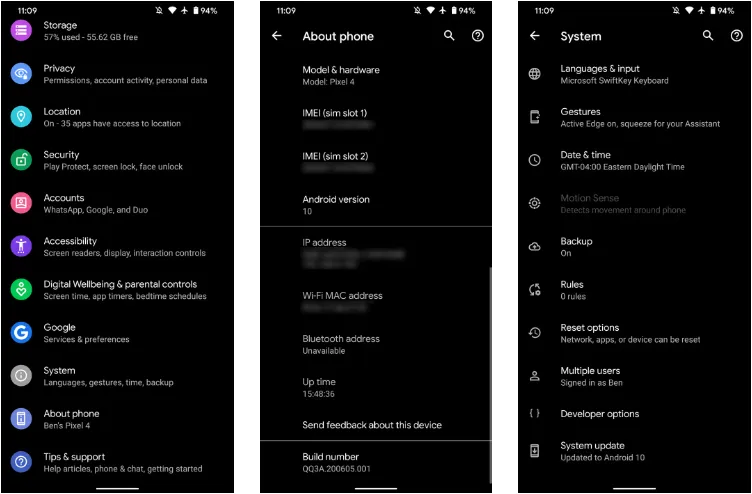
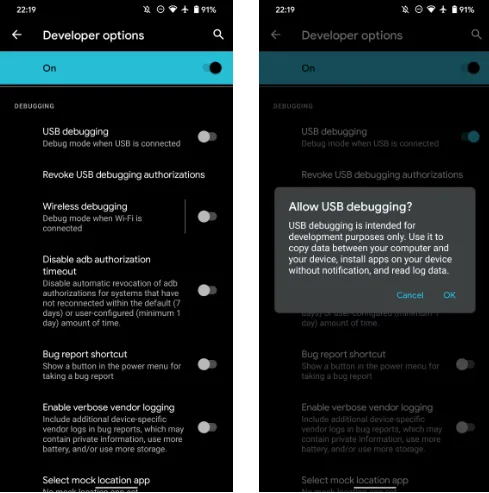
    Go to Settings > About phone then tap on the Build number several times. Once again, go to Settings > Developer options, then toggle on USB debugging.

    Once that is finished, use a USB cord to connect the Android device to your Desktop. You must utilize a cable initially even though we’re going to set up a wireless connection. The USB debugging prompt that will display on your Android device should always be accepted.
    enable usb debugging for ADB

    Open the command line or Terminal and navigate to the Platform Tools folder.

    If you’re on Windows, you can head to the downloaded Platform Tools folder and open the PowerShell window by pressing Shift and right-clicking anywhere in the folder, and selecting Open PowerShell Window here. On a Mac, open the Platform Tools folder and go to Finder > Services > New Terminal at Folder.

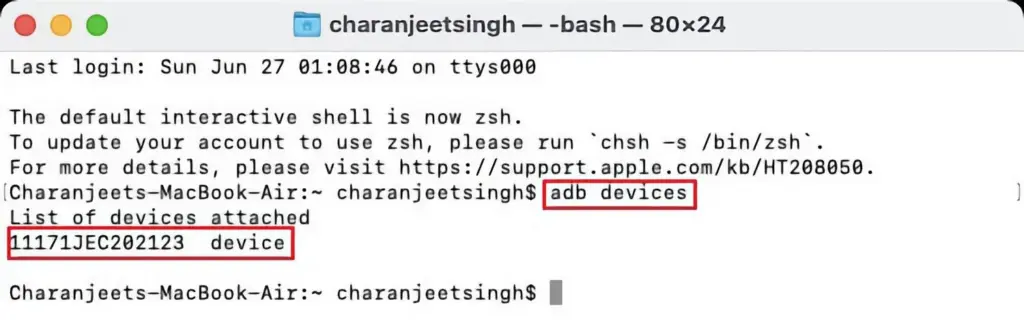
    If you’re using Windows, use the command adb devices into the command prompt. All instructions should be prefixed by a dot-slash on Linux and Mac, so it would be./adb devices.

    You should be able to find your device’s serial number in the list of attached devices if everything functions as it should.
    adb devices

    How to use Android wireless ADB

    The main topic at hand right now is how to connect your Android smartphone wirelessly to an ADB server. To use ADB wirelessly after configuring it and connecting your Android device to your PC, follow the instructions below.

    1. Type adb tcpip 5555 in the command line or Terminal and press Enter.
    2. Find your phone’s IP address in Settings > About Phone > Status > IP Address.
    3. Back in the command line or Terminal, type adb connect [your Android device’s IP address].
    4. Finally, press Enter again.

    The Android device should now be connected to ADB over a wireless connection. You can safely remove the USB cable.

    Is wireless ADB not working?

    Try installing Minimal ADB and Fastboot from the XDA Forums if your Android device won’t connect to Windows using ADB (you are getting errors in the command line). The required Android drivers are installed by this package, which may also assist you in fixing any command line issues.

    You can also utilize WebADB, which transfers all of ADB’s capabilities to your web browser. You can use the online tool to use ADB via Wi-Fi. In other words, you can completely forego installing ADB.

    What is ADB used for?

    The idea that Android ADB is solely helpful when rooting Android is a common one. It, however, is merely one of the several uses for the Android Debug Bridge.

    For example, you can use an ADB command to delete pre-installed apps from your Android device that is not rooted. Unwanted apps may be tough to remove from some Android cellphones, but ADB can assist.

    Without needing to root your device, you may also mirror your Android screen to a Desktop using the command line utility. This can be done using the free program Scrcpy. The tool’s wireless ADB connection results in extremely fantastic performance.

    Is safe to use?

    Using the utility won’t be a problem if you are familiar with ADB commands. There are risks involved with using ADB, especially if you are new to this field. If you are trying to root your device, using the incorrect commands could result in problems or, at worse, brick your phone.

    Although your Android smartphone won’t have any problems once you set up wireless ADB, you should always keep a backup of your data in the cloud or on an external storage device as a safety measure.

    No cables anymore

    Although though you first require a USB cord to set up ADB, the ability to utilize it wirelessly is incredibly useful. It allows you to walk around more freely while you work, allows you to simultaneously charge your phone at full speed, and is just much more practical in general. It’s definitely worth a go if you use ADB.
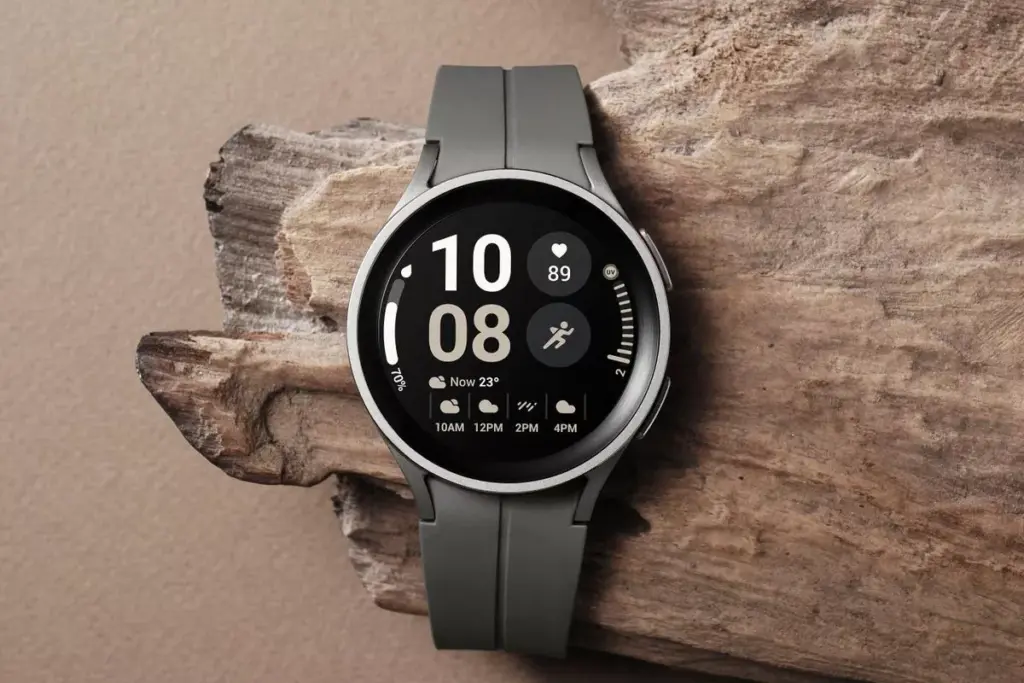
  • Setup fall detection on Galaxy Watch5 and Galaxy Watch5 Pro

    Setup fall detection on Galaxy Watch5 and Galaxy Watch5 Pro

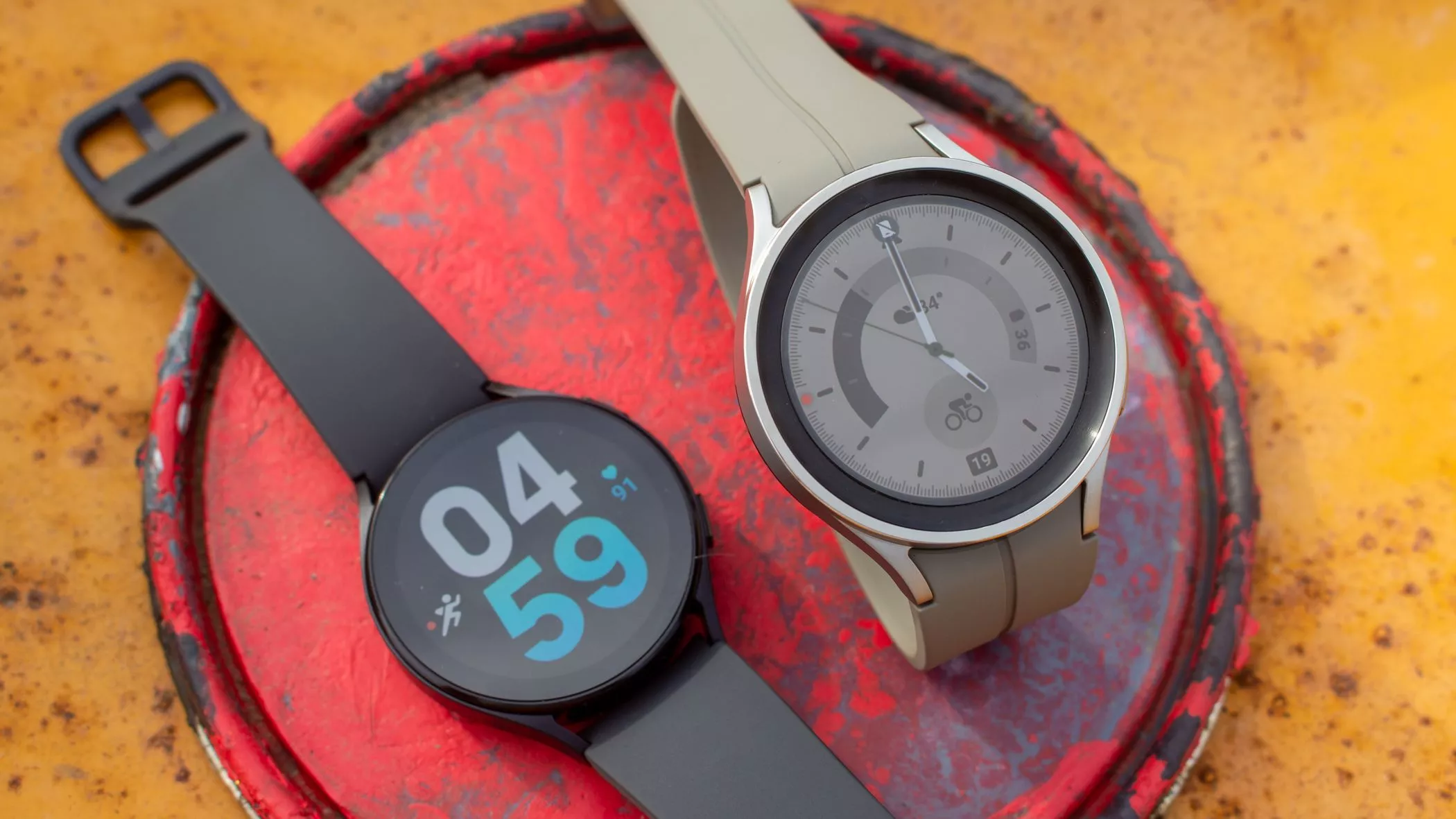
    In response to the popularity of the previous Samsung Galaxy Watch, Samsung recently introduced the Galaxy Watch5 and Watch5 Pro. The most recent Samsung Galaxy Watch uses the same cutting-edge technologies but drastically alters the Battery Life rather than reinventing the wheel. The Samsung Galaxy Watch5 series offers a surplus of health and wellness features, in contrast to its older predecessor. Additionally, the most recent Samsung Galaxy Watch now has a fall detection feature and emergency help.

    You might be wondering what is fall detection feature. It’s a completely life-saving feature that monitors the random or hard falls. It’s equipped with an accelerometer that helps to detect all your body movements. During a hard fall, it will feature emergency assistance. And in case, if you didn’t reply in a design within 60 seconds of time-frame, it will instantly and automatically deliver the SOS alert to the emergency contacts and services. 

    Setup fall detection on Galaxy Watch5 and Galaxy Watch5 Pro

    Can The Samsung Galaxy Watch5 Series Detect A Fall?

    As of now, the Galaxy Watch5 series is craved with a feature known as the Fall detection feature. Here in this guide, we have mentioned step-by-step to set up the fall detection feature on Galaxy Watch5 Pro and Galaxy Watch5

    Steps To Set up Fall Detection On Galaxy Watch5 Series 

    First of all, to use the SOS feature, your watch must be connected to a phone. At the same point, you should keep the Emergency Contact on the list through an application. 

    • Step 1 → Navigate to the Galaxy Wearable App on your device.
    • Step 2 → Choose Watch Settings > Advanced Features.
    • Step 3 → Tap SOS. On the next screen, turn on the When Hard Fall Detected > Continue.
    • Step 4 → Tap Agree > Emergency Contacts.
    • Step 5 → Here you can setup up to 4 Contacts > Done.

    Right after that, click on any contact to create an SOS call right after the messages are sent > Save.

    Samsung Watch That Supports Fall Detection

    • Galaxy Watch Active 2
    • Galaxy Watch3 
    • Galaxy Watch4 
    • Galaxy Watch5 

    Keep Yourself Safe!

    I’m damn sure you are now updated with what is fall detection and how to setup it up on the Galaxy Watch5 series. In case, if your loved one, parent, toddler, or grandmother has Samsung Watch, prompt them to enable the feature as it’s completely life-saving. 

    How Do You Use Fall Detection On Galaxy Watch?

    If you have fall detection compatible Galaxy Watch, you can easily activate “Hard Fall Detection” from the phone settings: Navigate to the Galaxy Wearable App > Watch Settings > SOS > tap on the toggle next Detects Falls.

    Does Samsung Have Hard Fall Detection?

    Thanks to it’s advanced Accelerometer will help alert you when your device attempts random falls.

  • Niagara Launcher – one of the best launcher for Android

    Niagara Launcher – one of the best launcher for Android

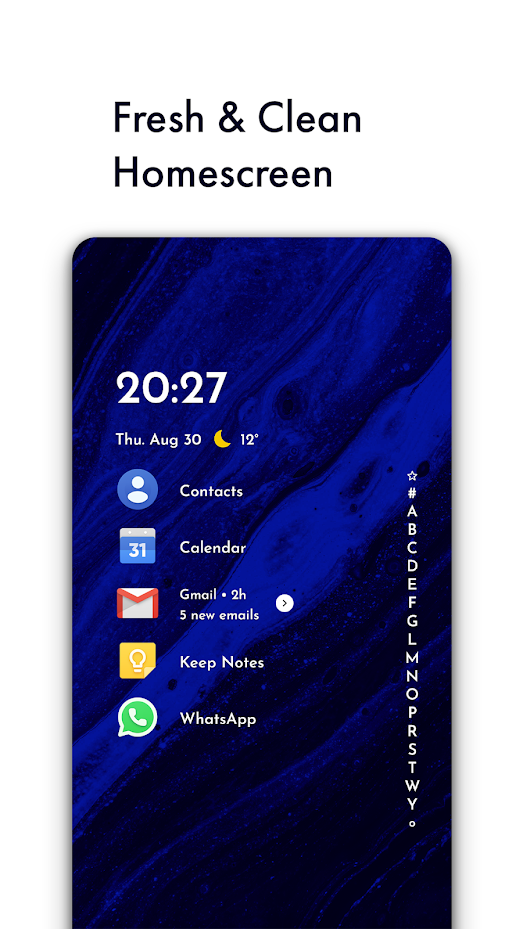
    The subject of launchers can be downright tribal. You become so accustomed to the way your apps are presented that even the tiniest variation in the formula is tremendously disturbing. Even as smartphones have evolved, I’ve kept with the same launcher approach for years. My current homescreen layout can be traced all the way back to 2011, and it’s no longer a tradition; it’s simply a bad habit. But, thanks to folding phones, I’ve had to reconsider everything, and the typical launcher style isn’t suitable to an expanding or tall display – but Niagara Launcher is.

    Some of you may notice that I’m a little late to the party, but Android Police employees like Prasham Parikh have been enjoying it for almost a year. But, like many of our readers, I simply had a preferred method of doing things and didn’t want to change it. Lawnchair Launcher copies the lovely Pixel Launcher while also adding its own useful capabilities to any device, and I’ve had a layout that I’ve used since before I started blogging. And, on the majority of phones, I believe it is the best of the traditional launcher styles. But forcing myself to continue using my phone in the same manner hasn’t worked out. Sticking to the icons-on-a-grid formula wasn’t going to work with my Z Fold3.

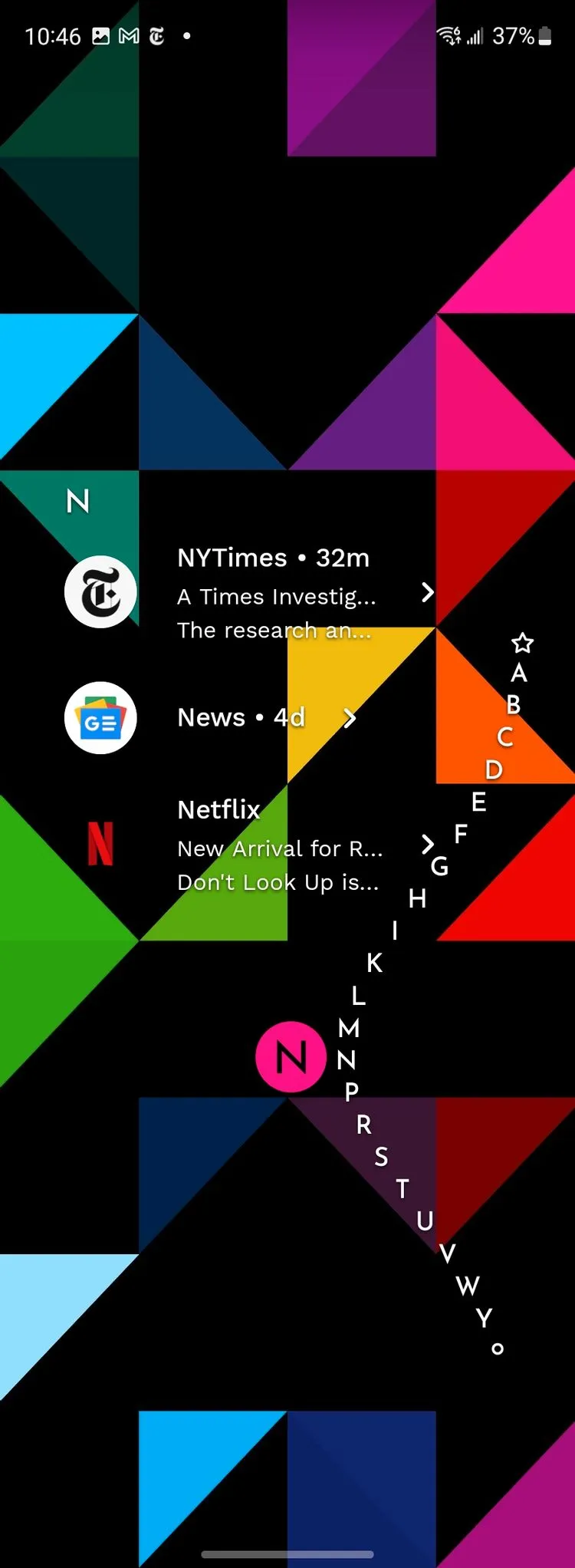
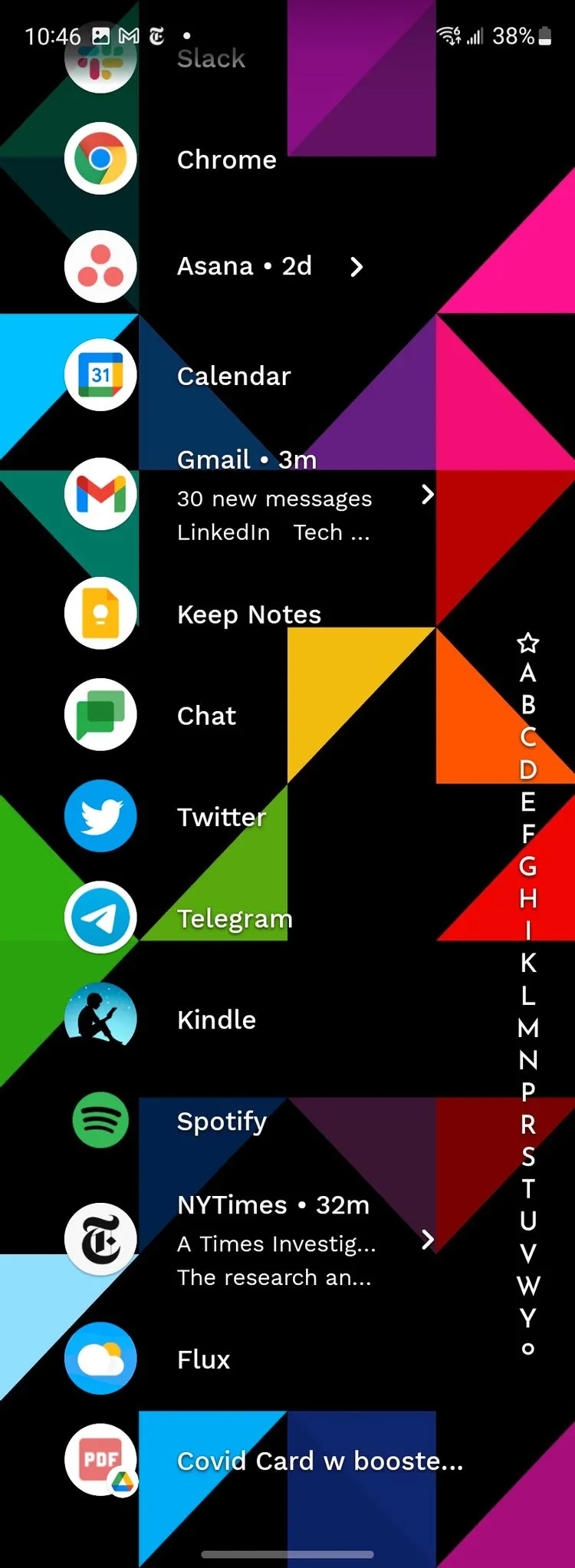
    The problem is two-fold (tee hee), and it affects a number of different phones. To begin with, Samsung’s “cover display” is so tall and narrow that standard icons are rendered useless. It can be a little annoying reaching up to the top of that tall-but-skinny display to hit a little target, just as it is difficult to type on such a thin screen. Sure, you can physically pack a lot of items in there, but reading the descriptions on those icons or actually tapping them can be a pain. However, Niagara easily resolves the problem: In a vertical list, all of your apps display.

    You can scroll effortlessly through an alphabetized app drawer, available at any time on the screen’s edge, and you have a set of favorites that appear by default (nine works best on the Z Fold3’s cover display, but you can do more). If you have an Artem-level list of apps loaded, you can also hide the ones you don’t use very frequently from that scrollable list — they’ll still show up in search, but they won’t slow things down. Niagara even has its own conceptual take on the At-a-glance widget, with the ability to show the time, date, weather, and even forthcoming events, with an expanding agenda view, with a single swipe.

    Although the style isn’t quite Material, it’s similar enough and works well with most modern interfaces, including those found on Samsung phones. Because it’s a single column view, you won’t have any trouble sifting through the incomprehensibly little icons on a field. It took about a week of genuinely forcing myself to use it (and hating every minute of it) for me to warm up to it, and now I’m stuck with it. This is the finest launcher for a display that is quite tall and thin. And, strangely enough, that translates to a very wide screen.

    Because of its column-based technique, two side-by-side columns can easily fit on the inside folding display. Yes, you’ll have fewer apps on your home screen, but it will be lot more usable. It also enables “basic” foldable features such as different backgrounds for the cover and inner displays. It even has its own dynamic theming technology, allowing the program to use the wallpaper’s colors for its own accents. While the Galaxy Z Fold3 may not have access to that aspect of the Material You experience, you may fill in the gaps and enjoy a portion of it without it.

    Your favorites list does not convert well between the folded and unfolded experiences, and your designated favorites persist between the two layouts. Niagara recommends having only enough favorites set so the list doesn’t have to scroll, but the dual-column layout has a lot more space than the single column on the cover display. So, while 14 app favorites fits nicely when unfurled, if you have more than nine, you’ll have to scroll down the cover display. It’s not ideal, but I think it’s still preferable to the sea of icons.

    The traditional smartphone homescreen experience with a grid of icons dates all the way back to the iPhone — and before that, nearly time immemorial in desktop computing. It’s a tried and true, super-intuitive method, but it does break down when it comes to usability a little depending on screen size. Niagara Launcher brings a different approach. I’m not afraid to say: I don’t like it on a “normal” phone. But it’s perfect on foldables. And though there is a pretty rough acclimation period, It’s worth it if you can stick it out.

    niagara launcher

    Niagara Launcher ‧ fresh/clean

    The traditional home screen we know was made more than a decade ago, where phone screens were smaller than your credit card. Smartphones keep growing, but not your fingers. The minimalist Niagara Launcher makes everything accessible with one hand and lets you focus on what matters.