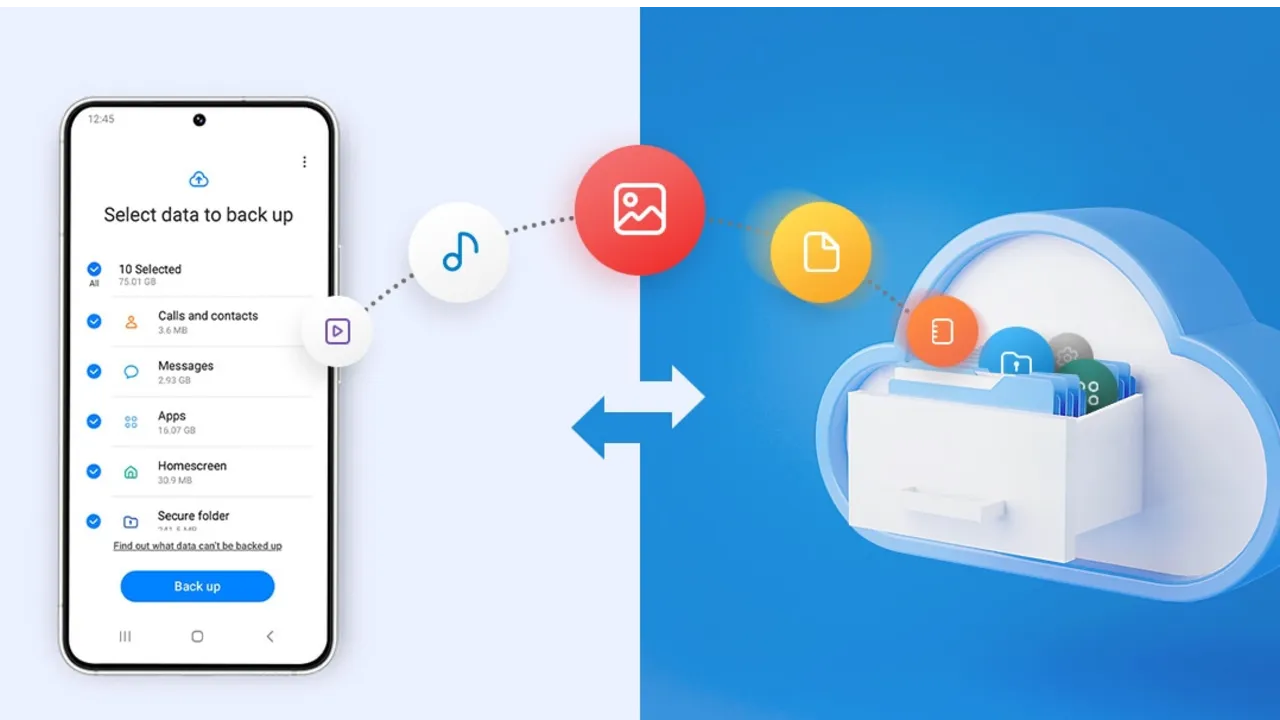
Backing up your Android phone ensures that your data is safe in case of loss, damage, or switching to a new Android device. Thankfully, Android has a number of built-in security features that secure your contacts, media, apps, and settings without the need for third-party programs.
Establishing a suitable backup plan is crucial, regardless of whether you’re upgrading your device or getting ready for a factory reset.
Why it’s important to back up your Android phone
It’s not just techies who should back up. You run the danger of losing private images, critical messages, app data, and even saved Wi-Fi passwords if your phone is misplaced or broken. Regular backup creation allows you to:
- Restore your settings and apps to a new device
- Avoid data loss in case of malfunction or theft
- Free up storage by offloading files to cloud services
Use Google backup (cloud-based method)

Google offers a dependable, integrated backup system that connects to your Google account and stores your important data in the cloud. For the majority of Android users, it is the most practical approach.
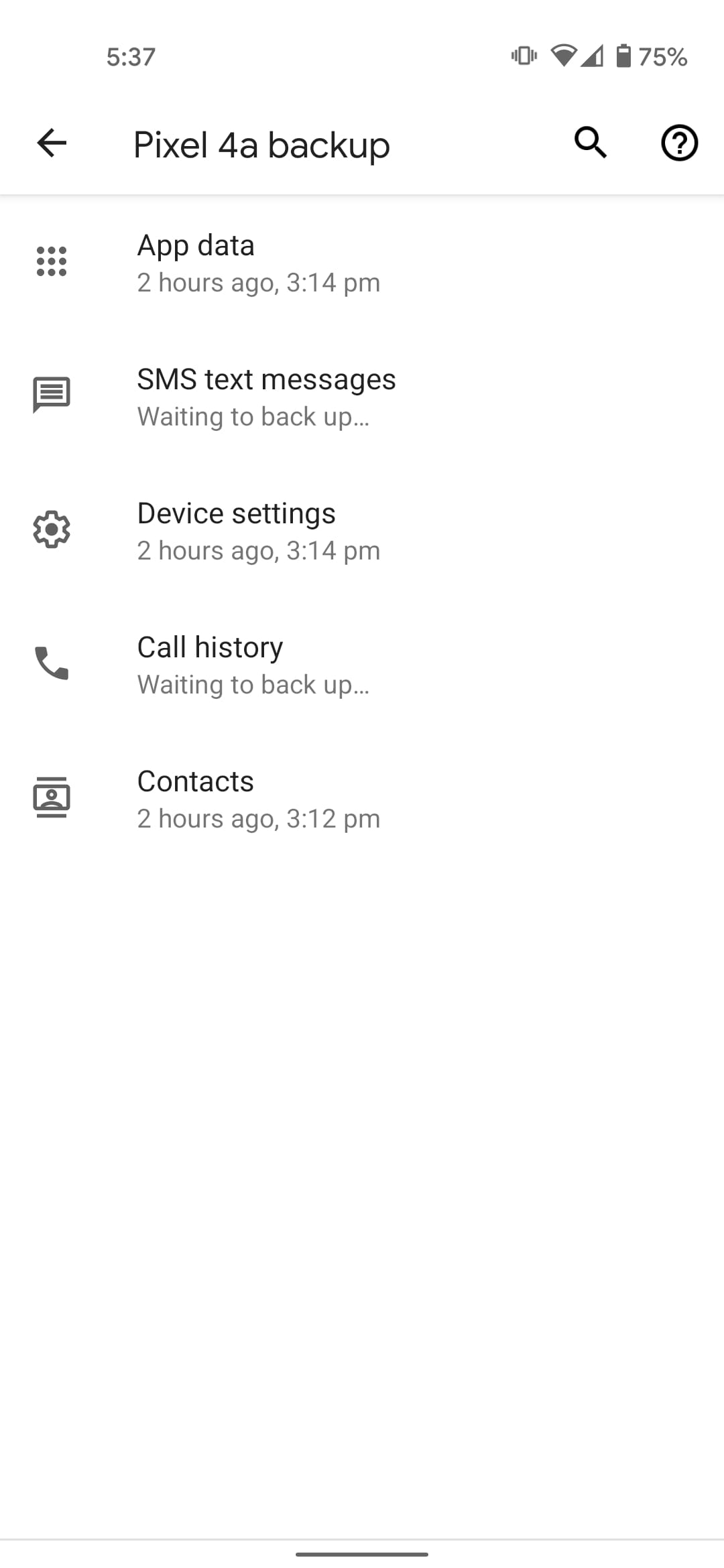
What Google backup saves:
- App data and preferences
- Call history
- Contacts
- SMS text messages
- Device settings (Wi-Fi, wallpapers, display preferences)
- Photos and videos (via Google Photos if enabled)
How to enable Google backup:
- Open Settings on your Android device
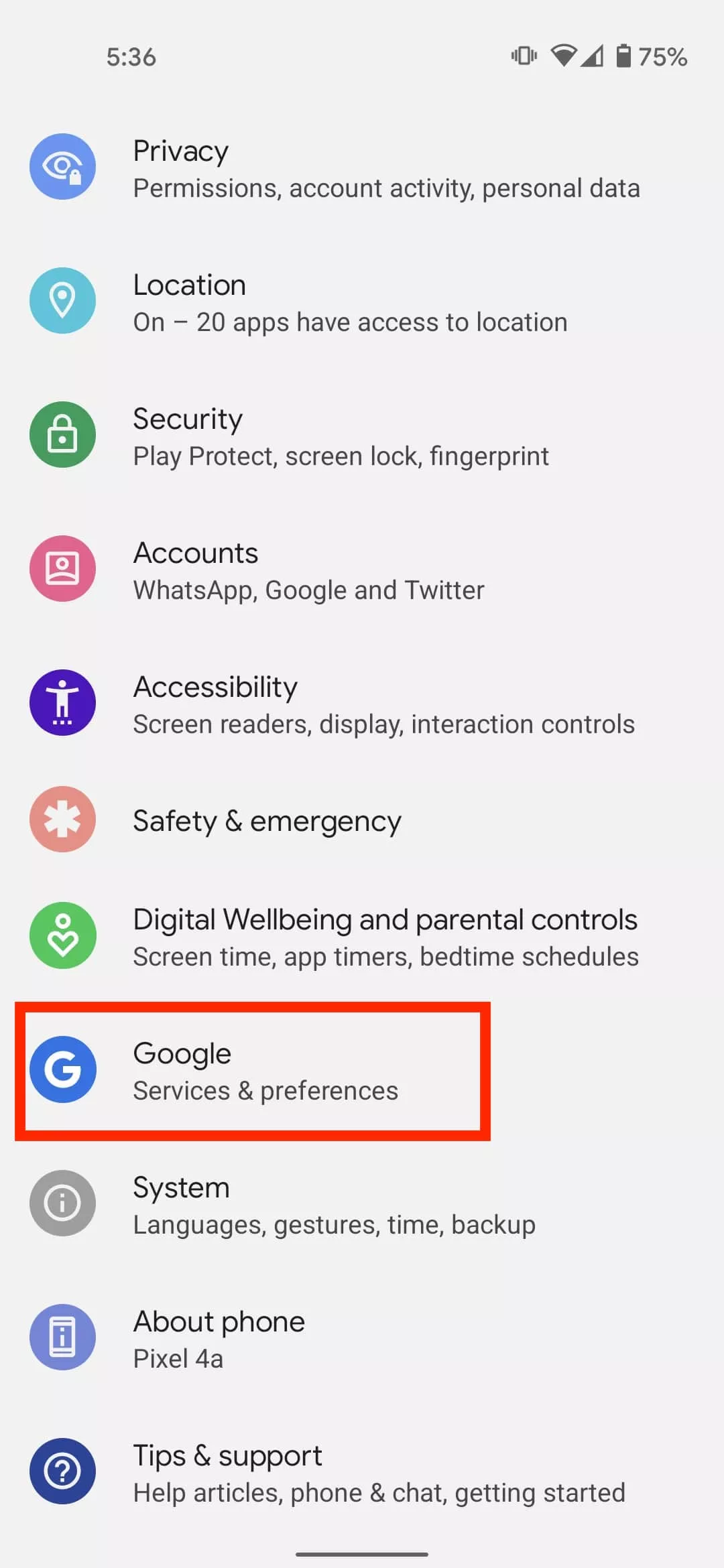
- Scroll down and tap Google
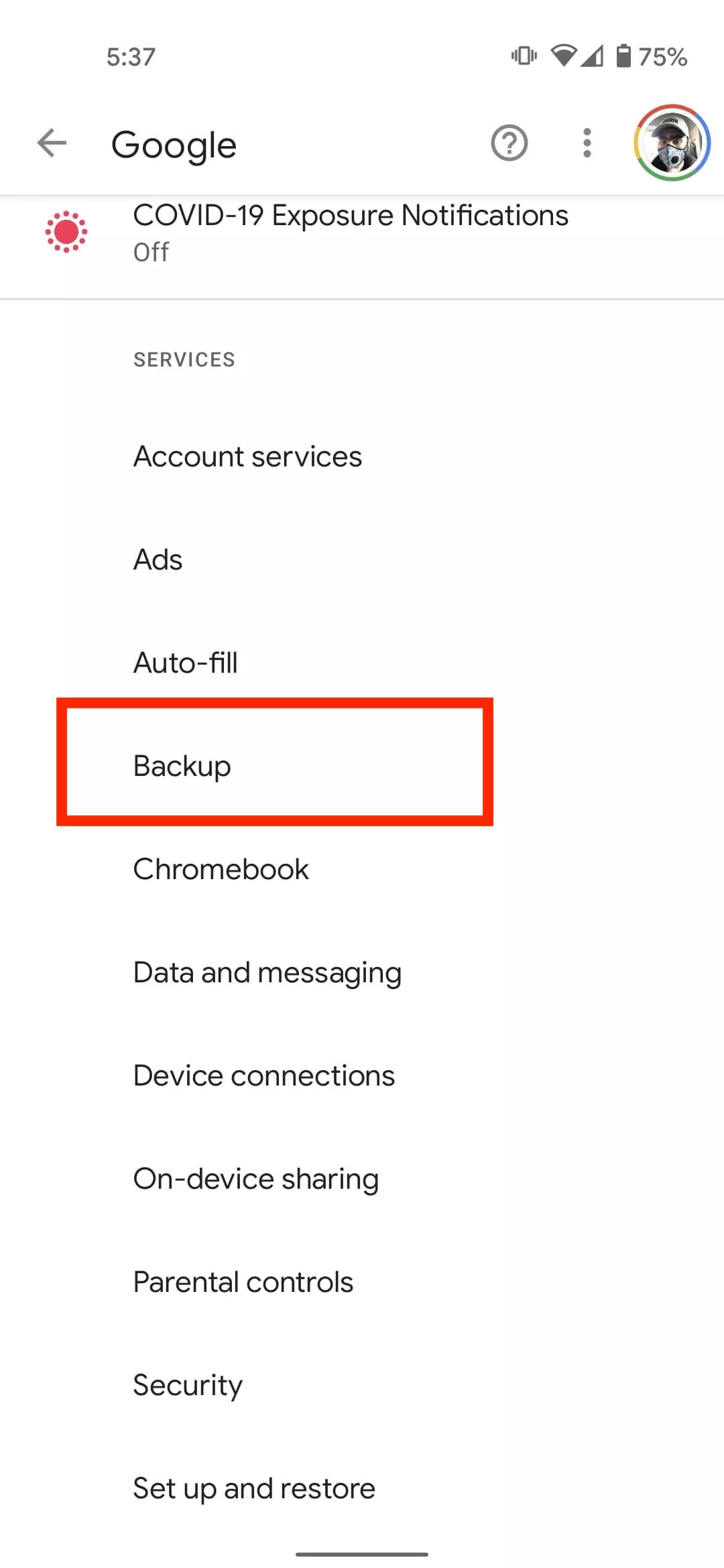
- Tap Backup
- Ensure Backup by Google One or Back up to Google Drive is turned on
- You’ll see a summary of what’s being backed up. Tap Back up now to trigger an immediate backup
Once enabled, your phone will automatically back up daily when connected to Wi-Fi and charging.
Back up photos and videos using Google Photos
Your videos and pictures frequently include priceless memories. To make sure your media files are securely backed up and available on multiple devices, Google Photos offers a quick and safe solution. It’s among the most dependable ways to preserve your graphic information without requiring complicated instruments or extra hardware.
Google Photos is a robust cloud-based platform that automatically stores and arranges your images and videos, making it more than simply a gallery app. Once activated, it will sync your media to your Google Account continually, so your memories will be preserved even if your device is lost or damaged.
Steps to back up media:
- Open the Google Photos app
- Tap your profile icon in the top right
- Choose Photos settings > Backup
- Toggle Backup to on
- Choose your preferred upload size (Storage saver or Original quality)
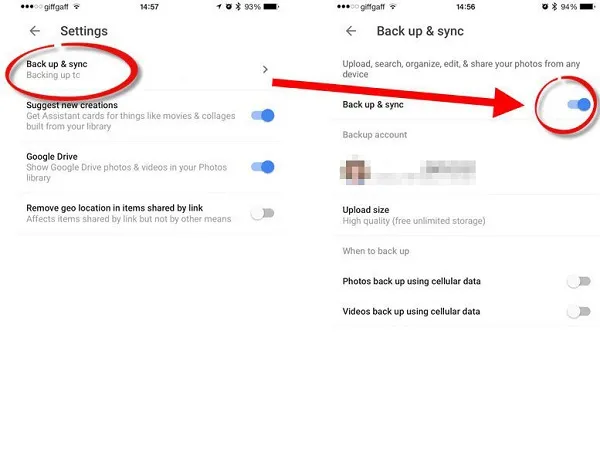
All your photos and videos will sync to the cloud, and you can access them on any device logged into your Google account.
Back up files manually to a PC
Although cloud storage services like Google Drive and Google Photos are convenient, backing up your Android files to a PC by hand offers you more control, privacy, and independence from internet connectivity. It’s a simple process that guarantees you have a hard copy of all of your vital information, including documents, films, images, and more, safely saved on your computer.
Here’s how:
- Connect your Android phone to your PC using a USB cable
- On your phone, choose File Transfer / MTP mode when prompted
- Open File Explorer on your computer
- Locate your device, open it, and navigate to folders like DCIM, Downloads, Pictures, or Documents
- Copy and paste the desired files to a safe folder on your PC
This method is ideal for archiving large files or performing a one-time back up your Android without an internet connection.
Use Samsung Cloud or manufacturer tools (for Samsung, Xiaomi, etc.)
Some manufacturers offer their own back up your Android device solutions in addition to Google’s.
For Samsung users:
- Go to Settings > Accounts and backup
- Tap Samsung Cloud
- Choose what to back up (contacts, calendar, settings, etc.)
- Tap Back up now
You can restore this data to any Samsung device later using the same Samsung account.
Xiaomi users:
Use Mi Cloud by going to Settings > Mi Account > Mi Cloud and enabling the backup options available for your account.
Always ensure you’re connected to Wi-Fi and have enough cloud storage before initiating the process.
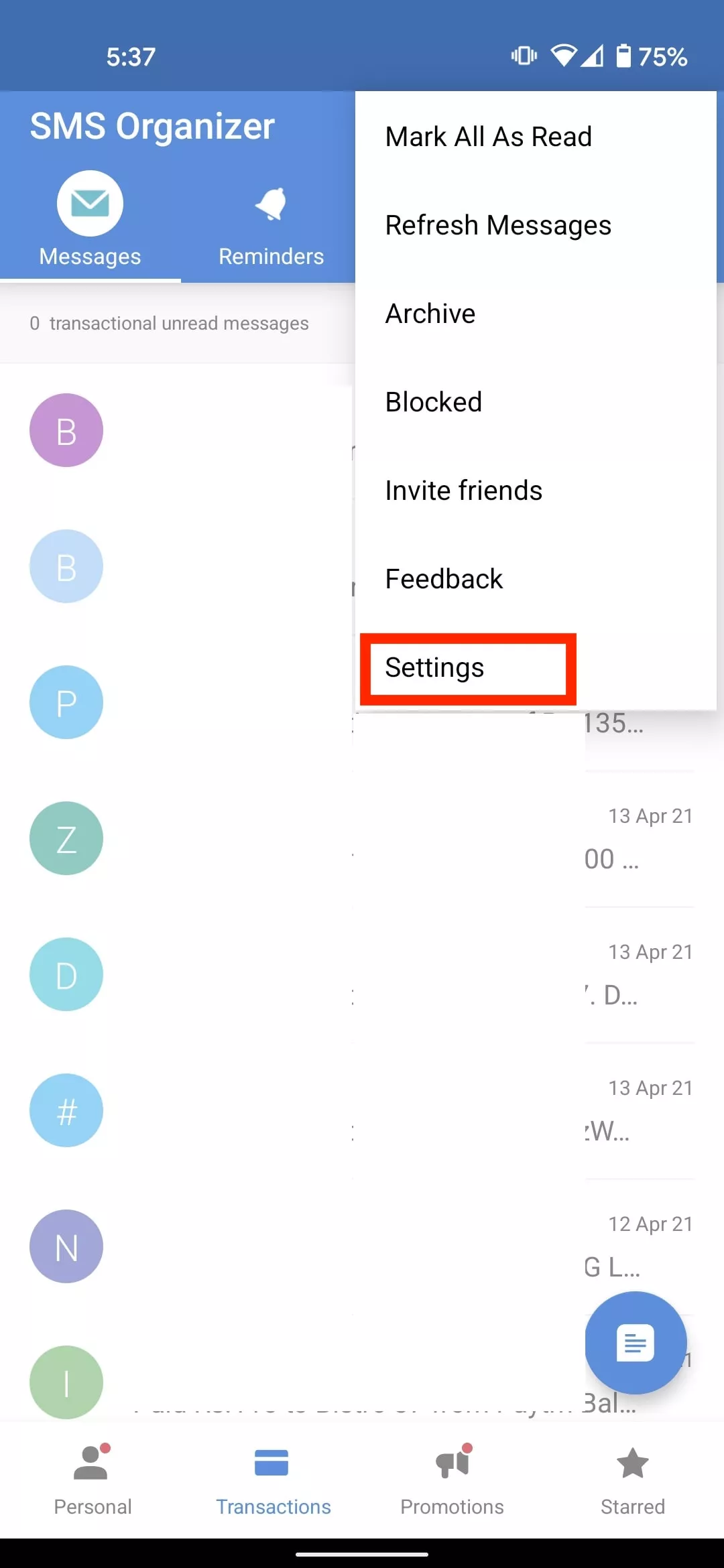
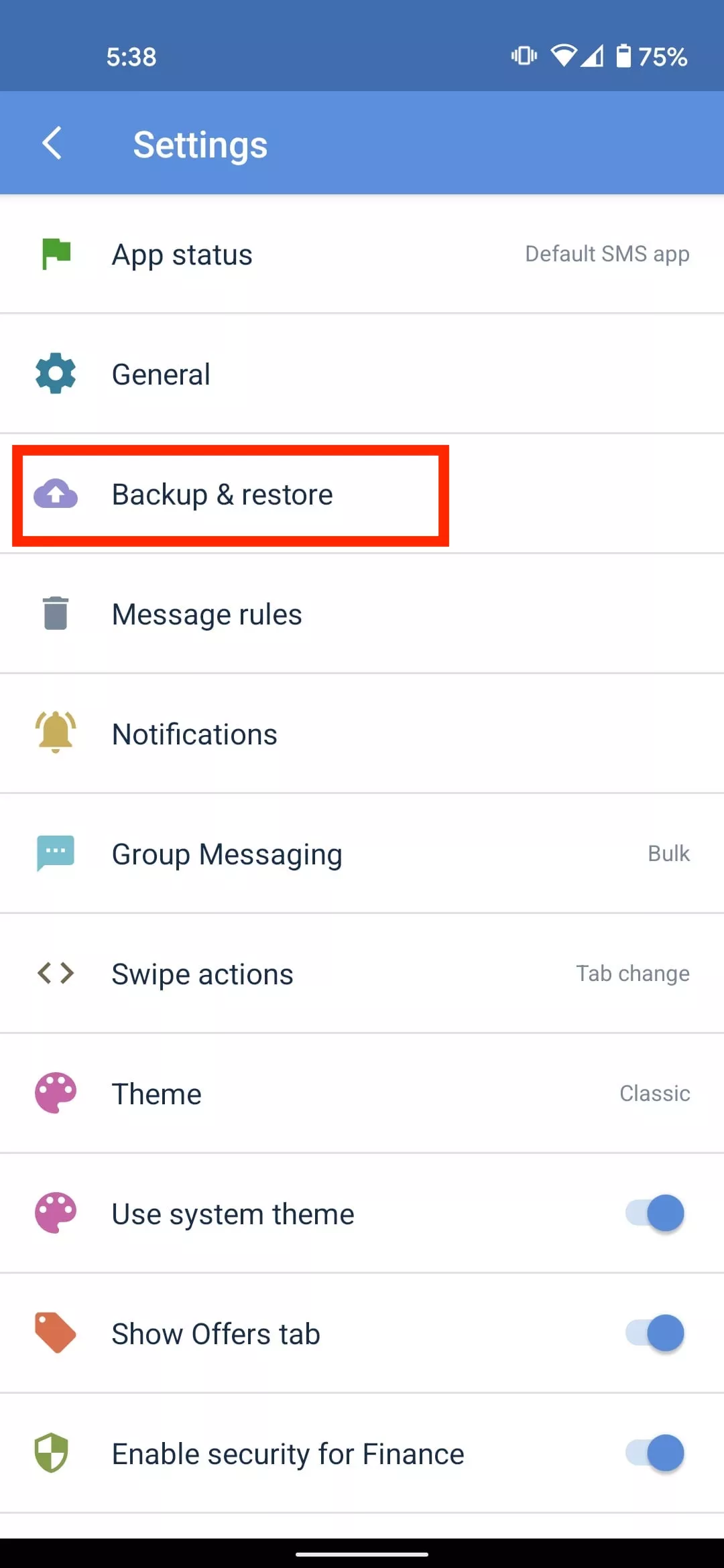
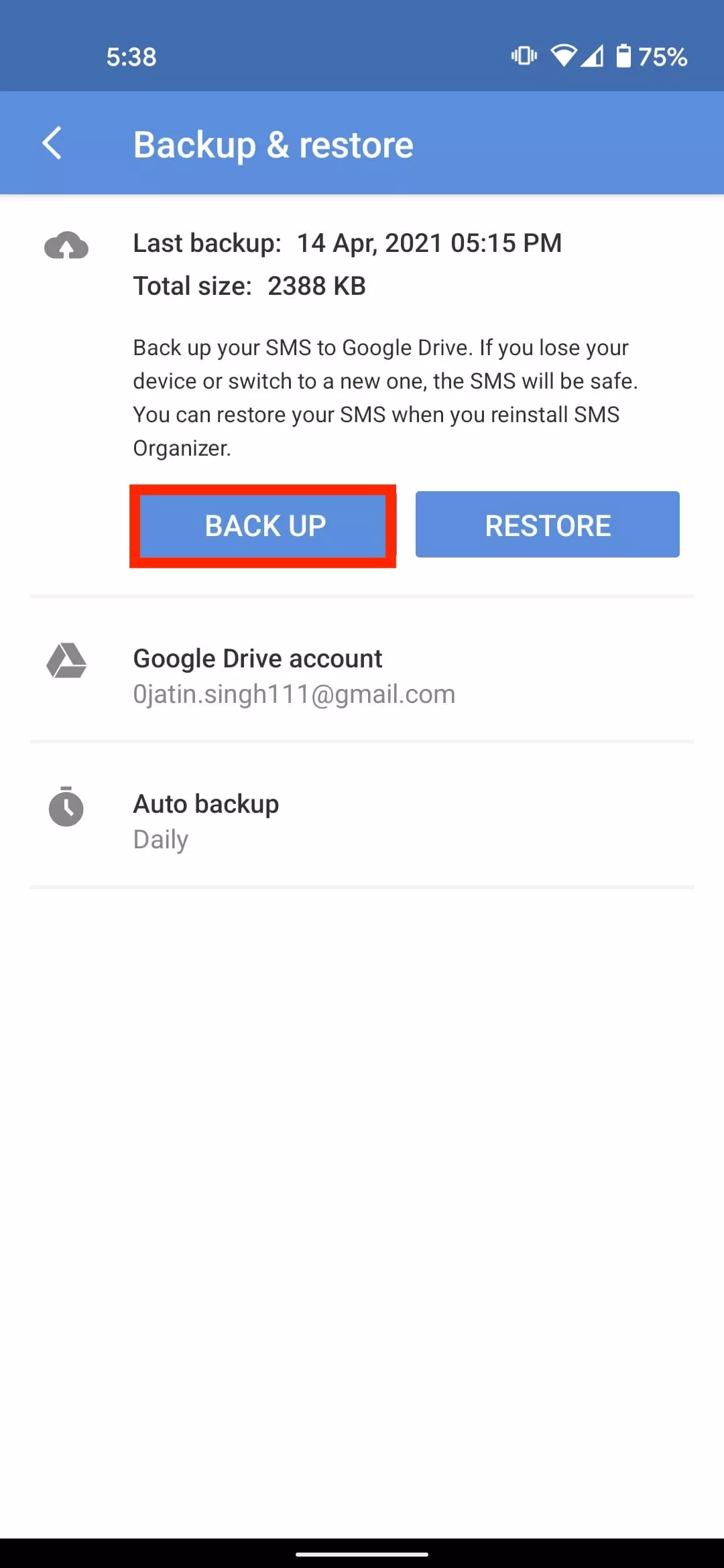
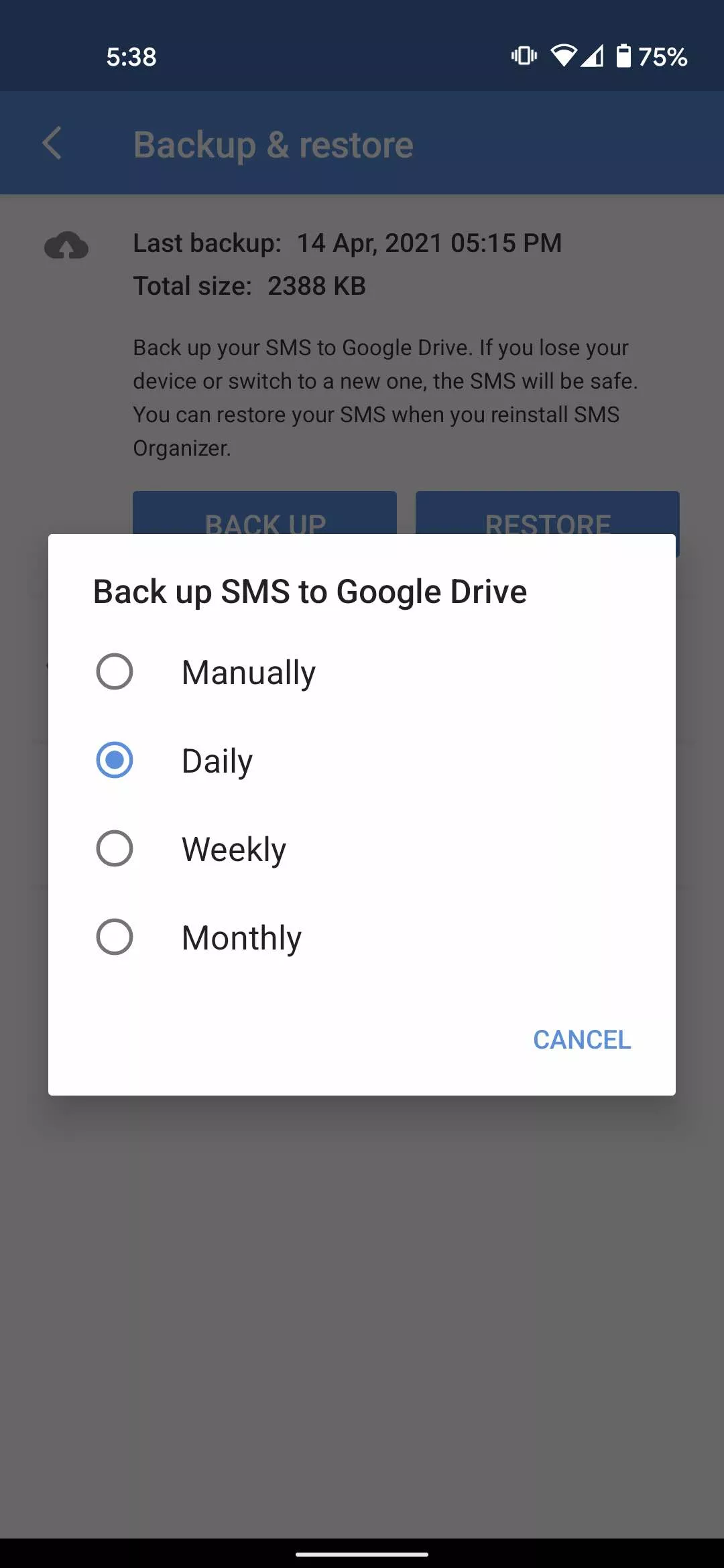
Backup apps like SMS and call logs (optional)
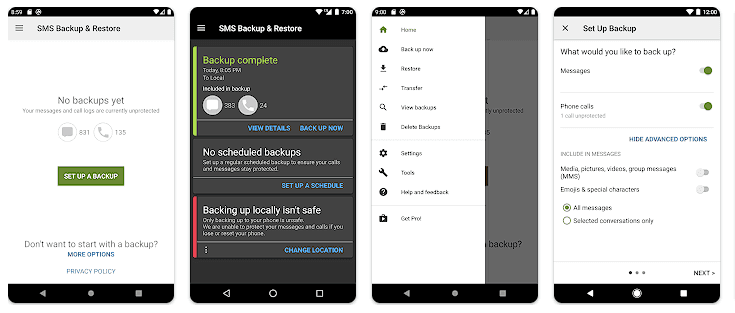
Most devices now have SMS and call history included in Google’s backup system, but if you have an older phone or want more redundancy, apps like SMS Backup & Restore can give you more flexibility.
How to restore your data
When setting up a new Android phone:
- Log in with the same Google account used for backup
- During the setup process, Android will detect the backup
- Choose what you want to restore—apps, settings, contacts, etc.
- Wait for the process to complete; some data may take time to sync
For manufacturer backups, you’ll need to use the brand-specific restore method (Samsung Cloud, Mi Cloud, etc.).
Tips for reliable Android backups
- Always use a stable Wi-Fi connection before backing up
- Keep automatic backups turned on for peace of mind
- Occasionally perform a manual backup if you’re making major changes
- Regularly check if Google Photos is syncing properly
- For local backups, organize files by folders and label your backups by date
Back up your Android device is easy and doesn’t require technical expertise. The majority of your crucial data is handled by Google’s reliable, automated solution, but you also have more flexibility with local and manufacturer-specific solutions. Having a backup guarantees that your data is never completely lost, whether you’re changing phones or simply staying secure.