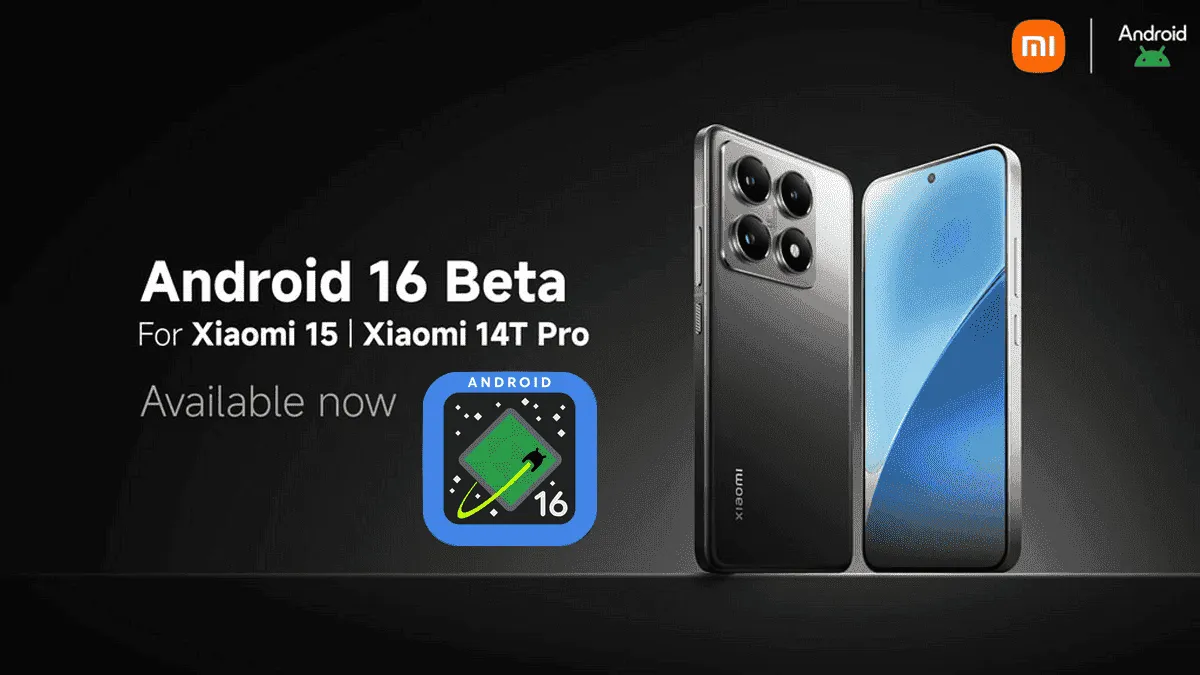
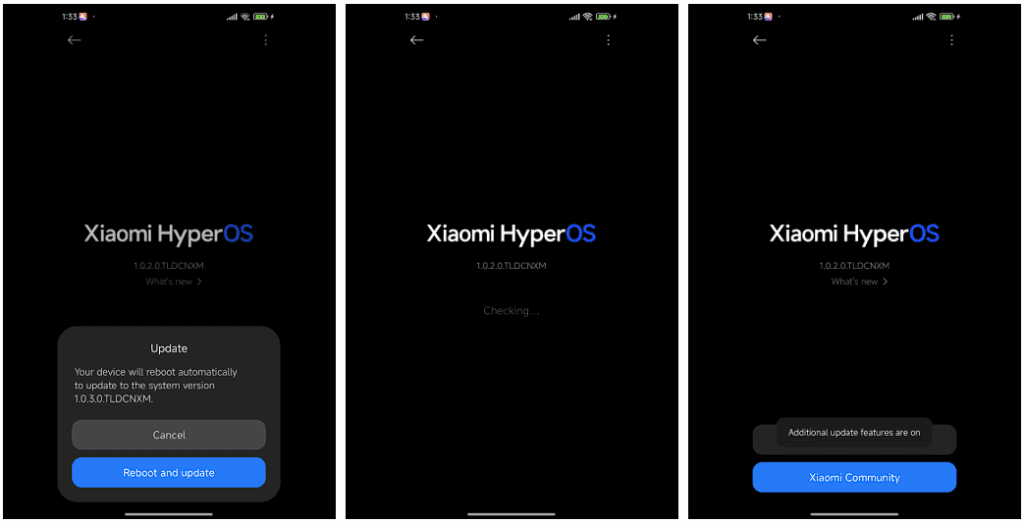
After being first released in China, the exciting HyperOS 2 for some Xiaomi devices running Android 16 Beta 2 is now available globally. The most recent features and improvements are now available to consumers worldwide on the Xiaomi 15 and Xiaomi 14T Pro, which is the international version of China’s Redmi K70 Ultra.
If you are eager to obtain Google’s most recent operating system and cannot wait for the final release, which is scheduled for June 2025, this comprehensive installation guide will walk you through the process.
Supported Devices and Build Numbers
Check your device compatibility before proceeding with the installation and record the correct build number:
Every profession or pastime creates its own own particular jargon for explaining complex concepts in an understandable manner, and the Android world is no exception.
This article is for you if you’ve googled a problem with your Android smartphone or tablet and came across terms like “rooting,” “flashing a custom ROM,” “unlocking the SIM,” or anything similar that you didn’t understand.
This article is a reference for the novice who wants to learn about all the terminology behind our Android nerdiness because Android experts presumably already know what these phrases represent.
What Is Rooting?
Getting access to the system files on your Android device is what it means to root your phone. No Android device comes pre-rooted by default. Therefore, it is probably not rooted if you recently purchased an Android device and did nothing to it.
Manufacturers take this action because allowing everyone root access would cause several issues. You can access files on your device that, if deleted or altered improperly, could damage it if you have root access.
But many people still decide to root their devices because it enables them to make a lot of pretty fascinating adjustments if they know what they’re doing. It should be noted that rooting an Android device would void the warranty.
How you root your device is different for every single model. For some devices, this can prove to be a difficult process involving circumventing the manufacturer’s safety precautions. For others, it can be as simple as plugging your phone into your computer and pressing a button. You can always check out the XDA forums for instructions for your specific device.
You won’t instantly notice any significant changes after your device has been rooted. The excitement is in what you can do with a rooted device. Then, you may utilize root-required apps, flash custom ROMs, modify specific features of your phone, and more—which we’ll go over in more detail later.
For instance, when unrooted, you can remove some bloatware, but rooting your device and using Titanium Backup or a root uninstaller are required to completely remove it.
What Is Unlocking?
Unlocking is a confusing term because there are different things you could unlock.
Unlocking the Network/SIM
A device that has been network/SIM locked was typically purchased through a carrier or for a certain carrier at a discounted price. That phone is then locked by the carrier so that you can only use it with them.
However, if you pay off the phone and decide to switch carriers, the carrier is obligated by law to provide you with the unlock code (at least in the US and the EU). To obtain the code, simply get in touch with your current carrier.
Sometimes, unlocking your device gets more complicated than that, so we have a guide to SIM unlocking. Other times, you buy your phone unsubsidized and unlocked, meaning you can already use it with any carrier.
Unlocking the Bootloader
The bootloader is a piece of software that runs every time you switch on your Android phone, and it is usually locked by the manufacturers. With a locked bootloader, you can’t root your device. Instructions for unlocking your bootloader are found within the instructions for rooting your device.
What Are Custom ROMs?
Read-Only Memory is referred to as ROM, however the term is somewhat misleading today because it has nothing to do with it. A ROM is essentially the software that runs on your device, at least in the Android universe.
Therefore, a Xiaomi smartphone looks and operates differently than a Samsung smartphone when you pick it up. This is so that Xiaomi and Samsung could each create their own ROMs by altering the original Android code. Even though they both run Android, Xiaomi’s ROM and Samsung’s ROM are distinct from one another.
A custom ROM, then, is a ROM that was built not by the manufacturer but by someone else. Sometimes it’s just a lone programmer with some time on their hands and a passion for making ROMs—other times, it’s a bigger group like LineageOS that has a team and intentionally makes a certain type of ROM.
Once you’re rooted, you can flash a custom ROM. Flash, in this case, basically means to load or install. Flashing a custom ROM means you are installing a new ROM on your device and completely wiping the old ROM.
When looking for custom ROMs for your device, there are some names you’re likely to run into:
Pixel Experience: As the name suggests, features a ROM similar to that of Google’s Pixel phones. This ROM is currently one of the most commonly used custom ROMs out there, and for good reasons.
LineageOS: LineageOS, formerly known as CyanogenMod, is one of the most popular custom ROMs you’ll come across. It offers a great feature set and has even featured as the stock ROM for some manufacturers in the past.
AOSP: Android Open Source Project is the version of Android that Google gives to the world, often called stock or stock Android. You might see people say that their ROMs are “AOSP-based” or “based on stock Android,” which just means they took the AOSP code and altered it to their liking.
AOSIP: Android Open Source Illusion Project integrates features from various popular custom ROMs into AOSP ROMs.
However, don’t be hesitant to try ROMs with different names from less well-known people. There are other reliable ones besides these. They’re simply the most well-known in general.
Other Android Terms
Custom recovery
If you enjoy playing around with your Android device, the recovery process could take a while. It’s where you can perform the necessary heavy lifting, create backups, and flash ROMs.
You need a custom recovery because the stock recovery on your device is unable to perform any of those tasks. For installing custom ROMs, TWRP is the preferred custom recovery. Team Win Recovery Project is referred to as TWRP.
Nandroid backup
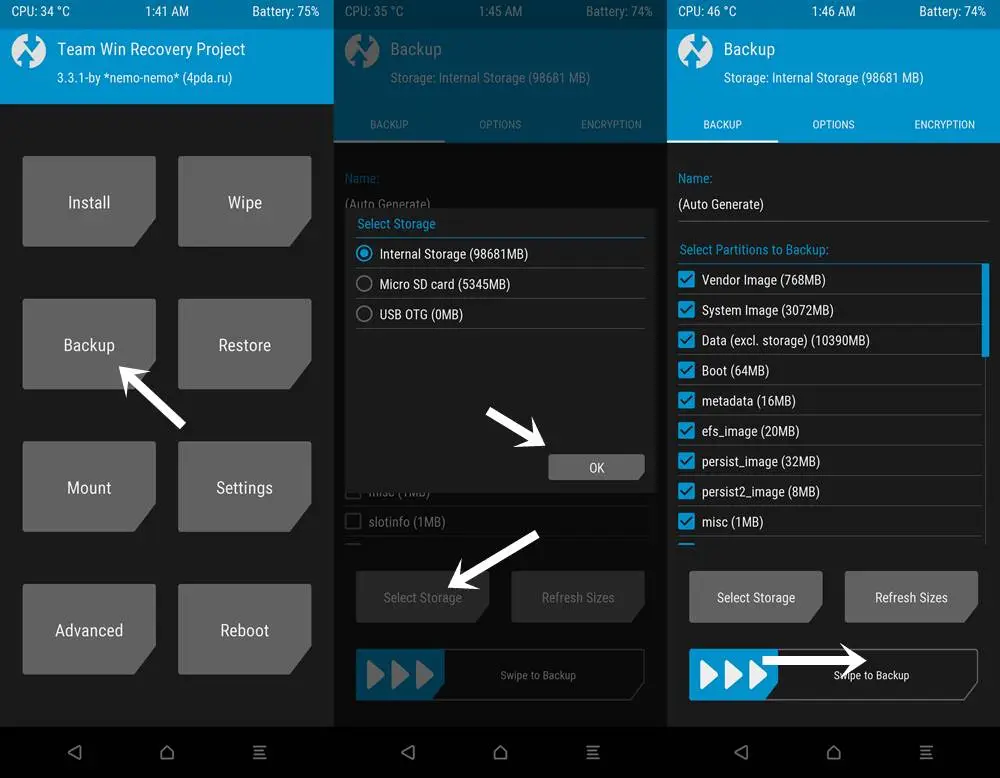
There are, of course, ways to backup your Android device without rooting it, but a Nandroid backup is a complete backup. It essentially makes a full copy of everything on your device and saves it. That way, if you screw up anything (since you have root access and that is possible), you can always just flash your Nandroid backup and return to where you were.
The name is just NAND (a type of flash memory) and Android mashed together.
Kernel
The kernel is like the engine of your operating system—you don’t really see it, but it’s in the background doing all the hard work.
If you want, you can flash a custom kernel. Sometimes these kernels are optimized for performance or battery life—sometimes, they’re just necessary to get some feature to work right. Either way, you can be okay just sticking with your stock kernel unless you really want to change it.
Brick
Bricking your phone is essentially breaking it. If your phone isn’t working anymore, you’ve bricked it. This is generally not a phrase you’re going to be happy to run into.
A soft brick usually means it’s fixable. Maybe you’re stuck in a bootloop (your phone just continually reboots), or you boot it up, but it only displays half the screen properly. That’s generally something you can get out of quite easily.
A hard brick is when the device is toast. You messed with something at a system level that can’t be fixed, and your device is out of commission. Sorry. This is a rare thing to happen, but it can happen—and you’ll see warnings everywhere that no one but yourself is responsible for your device being bricked.
There is no universal way for backing up and restoring Android phones that works for everyone. To keep things simple but effective, many users may choose a cloud-based system with automatic backups. Others, on the other hand, may want to store them offline and manually create backups for safekeeping. There is no right or wrong way to approach things here; depending on what you’re searching for, both options may have trade-offs. In this post, we’ll go over some of the most common techniques for backing up and restoring your Android phone.
Google One Backup
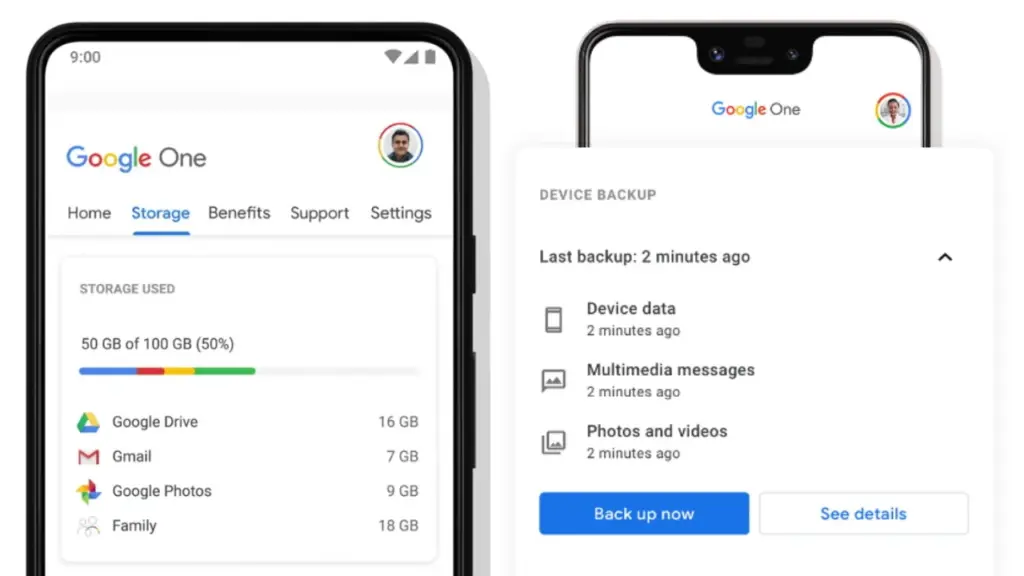
Google One is here to help you keep your life easy if you’re seeking for a fantastic, all-around backup solution for Android. Because Google is the official Android maintainer, it makes reasonable to utilize a first-party mechanism that can be accessed by almost any Android phone. To say the least, backing up your device with Google One allows you to save your images, messages, and a list of loaded apps. After your smartphone has been charging and idle for 2 hours over Wi-Fi, you’ll get automatic cloud backups.
Access Google One using the app
If you have a Pixel phone, Google One comes pre-installed as part of the operating system for quick access. Go to System Backup in the Settings app after opening it. All Google accounts come with 15 GB of free cloud storage for things like photographs, movies, and device backups. Increased storage capacity is available for a few bucks per month if needed. You may install Google One on your Pixel or any other Android phone by following these steps:
Download the Google One app if needed, then open it to continue.
Press the Set up device backup button to begin the process.
Tap Turn on to enable Google One backups for your device.
Hit Continue to grant the proper Google Photos permission as needed for your photos and videos.
You can always press Cancel if you don’t plan on using Google Photos to save your photos and videos.
Tap the Back up now button to begin backing up your device data to Google One.
Once the backup has been completed, you can view more info under the Backup details section.
Although Google One includes this feature during the setup process, it does not imply that you intend to use it. If you just want to back up your photographs and videos, you could always utilize Google Photos as a stand-alone alternative. You can use the Google Photos cloud storage capability by following these steps:
Download the Google Photos app if needed, then open it to continue.
Press the Turn on Backup button to enable the cloud storage feature.
Pick Original quality or Storage saver depending on your needs, then press Confirm.
Swipe through the intro page as needed, then press Done to get to the main screen.
You can also tap Skip to quickly move past the intro and onto the main app.
If you have any photos or videos waiting to be backed up, they should have started uploading now.
Tap your profile icon in the upper right to view the status of your uploads.
You’ll be good to go once it shows the Backup complete message.
After that, all the content that just backed up should appear on the main screen for you to view.
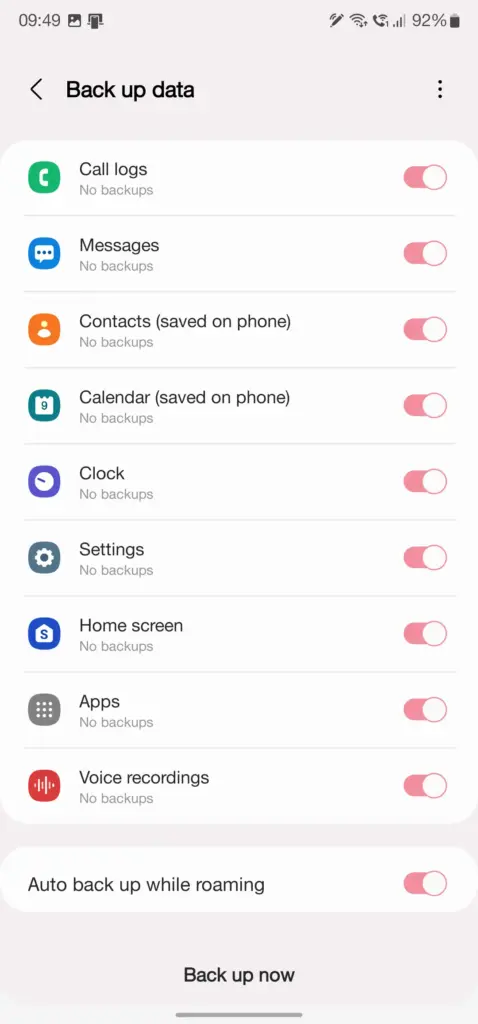
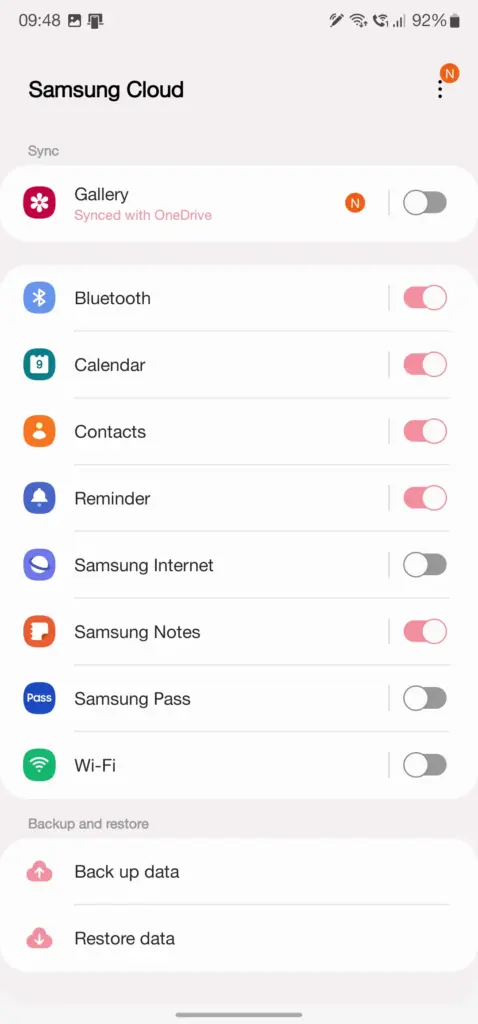
Users who have invested in the Samsung ecosystem can use Samsung Cloud, a dedicated service for their phone. This allows you to back up and restore your Samsung device in the event that it is lost, broken, or reset. System settings, Wi-Fi networks, and the layout of your home screen are just a few of the things you may back up and store in the cloud. The Samsung Cloud Backup app for Android is quick and simple to use, and it works across all of your devices.
When it comes to backing up your Android device, this is one of the most useful third-party apps available right now. With only a few short touches, Swift Backup allows you to perform batch activities. You may choose which apps you wish to store, hit a button, and it will handle the rest. It has a slight learning curve because it works with the Shizuku service, which grants you higher-level system rights. The good news is that many of its better features can be accessed without root access.
You’ll also be able to back up your messages, phone call logs, and device wallpapers in one go. And once the app is set up to your liking, you can create an automatic schedule to keep everything constantly backed up. We’ve personally tested Swift Backup and highly recommend it for offline and cloud-based solutions. If you want to learn more about Swift Backup, we have a guide here that gives you an in-depth view of how to use it.
When it comes to backing up and restoring Android devices, sophisticated users have a handy trick under their sleeves. You can take full system image backups of your smartphone using a custom recovery environment like TWRP. A NANDroid backup in this situation allows you to practically clone your system and restore it exactly as you left it, including all app data. It doesn’t require root access, but it does require an unlocked bootloader, a device that supports TWRP, and some knowledge.
If you can get beyond the learning curve and qualifications, NANDroid backups can make your life easier. Once you’ve done that, all you have to do now is manually save your downloaded media files, images, and videos. Many Pixel, OnePlus, and Exynos variant Samsung phones should be on the list of Android devices that gain TWRP support. Because of the committed developer community, the Pixel 5, OnePlus 9 Pro, and Galaxy S22 Exynos edition all have access to TWRP.
Backing everything up
There are a slew of different proprietary backup alternatives available from Android device manufacturers, as well as a slew of third-party apps on the Play Store. In the above list, we’ve merely highlighted a handful of the more common and effective approaches. Which one you choose is entirely dependent on your personal preferences and requirements for your individual device. And now that you’ve had a good starting point, you should be able to identify the one that works best for you.
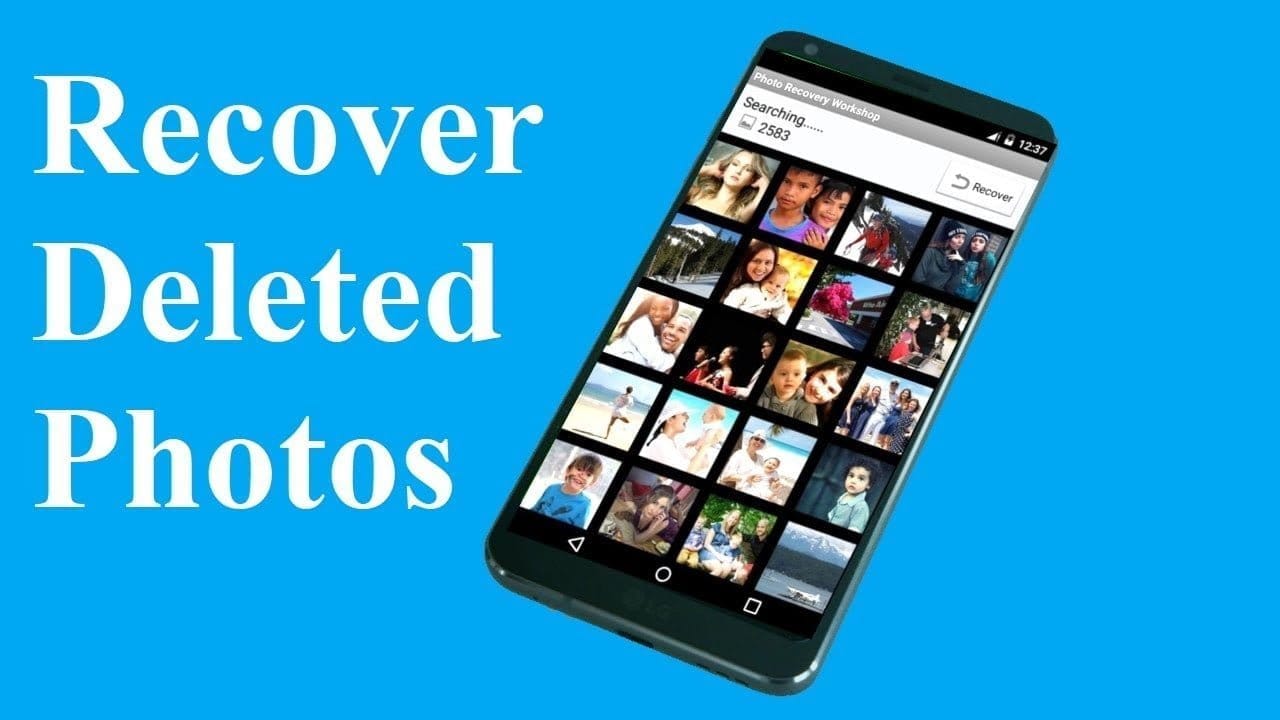
We’ve all deleted pictures on our phones by mistake before, but what if you delete anything absolutely irreplaceable? You don’t have to panic, but to retrieve your files, you do need to act quickly. Just follow our instructions below and you should be able to jiffy your pictures back.
Do not be concerned, it is not too late! If you’re just morbidly curious about what could happen to your pictures, then we can also advise you how to back them up so you never have to feel the panic again.
First, head to the Play Store and grab DiskDigger photo recovery and then run the app. There are a few apps on the Play Store that claim to recover deleted photos, but after our investigation, DiskDigger was not only more reliable, but was less intrusive when it came to serving up ads, too.
When you have the app, it’s helpful to turn off your phone’s Wi-Fi and data connections. The explanation for doing this is that when data is removed, whether images, music or documents, it is not completely removed until something in the device’s memory has been written over it. In addition, it ‘s important that you quickly uninstall all of your phone cleaning applications, since they will permanently erase the files you inadvertently deleted, making them impossible to restore.
NOTE: DiskDigger is limited to retrieving images from your thumbnail caches on a non-rooted computer, meaning the images are likely to be of poorer quality than the original photos or videos. It is only possible to restore the original full-resolution versions of the images or videos by rooting your computer and getting the app’s Pro version. If you don’t know how to root your phone, then refer to our full guide on how to get started with rooting Android.
If you’ve recently deleted your photos, DiskDigger should be able to find those photos, and you’ll be given the option of whether to restore them to a folder on your device, or back them up to a cloud service.
At first, it didn’t look like DiskDigger could locate our images, but our deleted pictures were discovered by a fast dip into its settings and unchecking the minimum file size factor. Like we said above, if you want to recover your images, you’ll need the App’s Pro edition, which can be found at the link below. Less than $4 to get your memories back is a small price to pay.
Be careful if you use the cleanup feature in the app, as some users have deleted all their photos because they didn’t understand that it would delete everything, not just the images they deleted on purpose to save space.
Once you’ve recovered your photos, you’ll want to make sure this never happens again. And we all know prevention is better than the cure.
Back up your photos on Google Photos
Now that we’ve explained how to recover deleted photos on Android, the next step is to prevent this situation from happening again. To do this, we recommend using an app such as Google Photos. It offers unlimited photo storage (so long as the files aren’t too large) and the backup function is easy to set up.
If the app has been enabled, just go to its Settings, then Backup & Sync, and you can choose how much – and by what process – you want your images backed up to. Of course we suggest that you back up as soon as possible.
TWRP is an open source, community project. TWRP development is done by roughly 4 people at this point. We also have a large support community with many people who are willing to answer questions and help people with their devices either through our IRC channel or on forums like xda-developers.
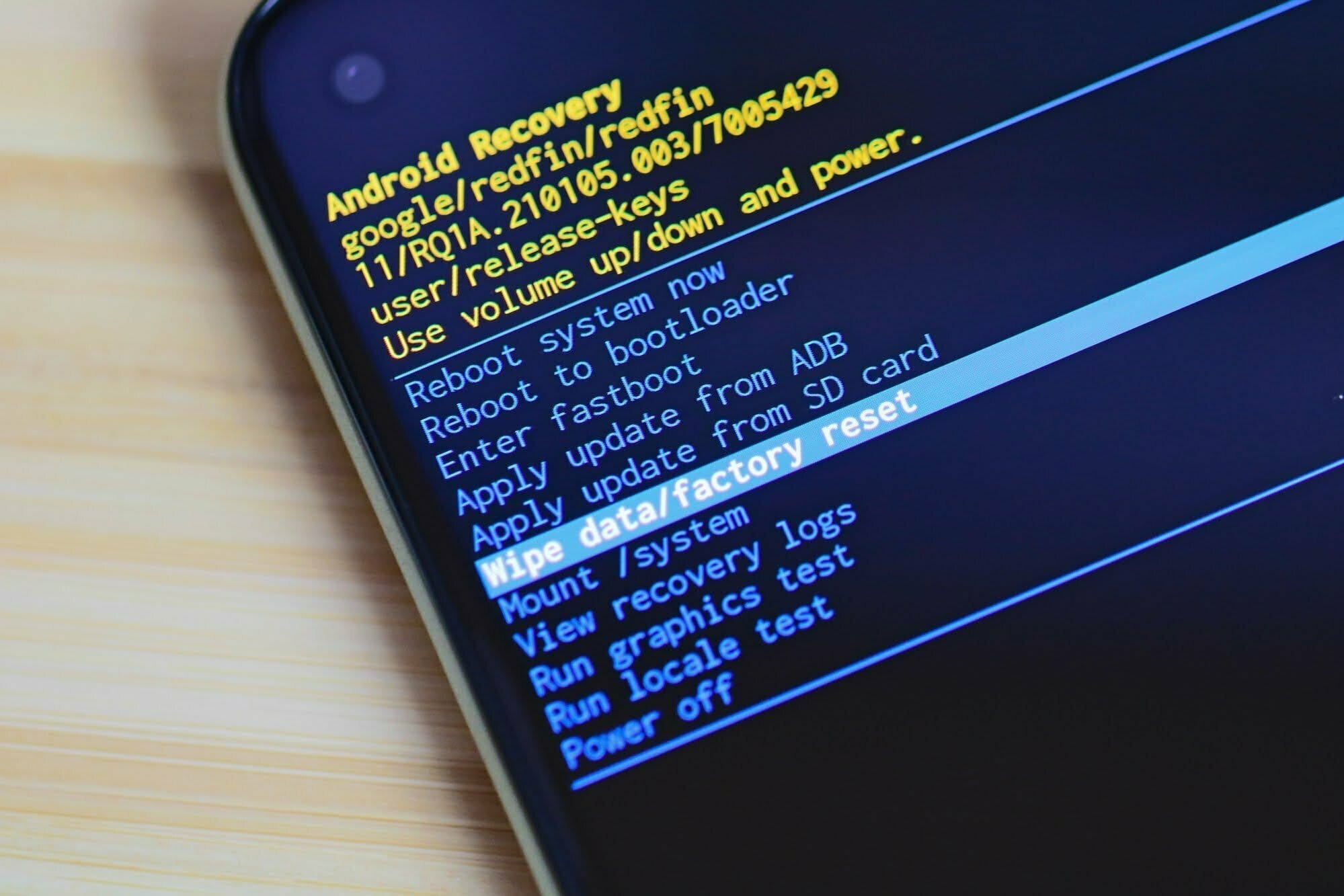
Recovery in Android refers to the dedicated, bootable partition which has mounted the recovery console. A combination of key presses (or command line instructions) will boot your phone back to recovery, where you will find tools to help patch (recover) your computer and install official OS updates. Since Android is open and has the source code available for recovery, it’s also fairly easy to build a customized version with more and different choices.
You can access your phone’s recovery, and perform a number of different functions that are useful to troubleshoot your phone. You can do a factory reset, clear cache, and run system updates with the stock recovery. You can also do system backups and flash. ZIP files like those that will modify your ROM or make big changes to your system if you have a custom recovery.
Press and hold on both the volume up and Bixby buttons (the button just beneath the volume rocker), then press and hold the power button.
Google
Step 1: Long press the power button and volume down button at same time until screen turns on Step 2: Press the volume down button until Recovery mode show Step 3: Press the Power button to enter your Google Pixel 4 XL into recovery mode
Press and hold Volume Up key and Power key simultaneously.
HTC
Navigate to Settings> Battery> Uncheck FASTBOOT. Power phone off Hold VOLUME DOWN + POWER for 5 seconds Release POWER but continue to hold VOLUME DOWN Once you are in the bootloader, use the VOLUME buttons to navigate to RECOVERY Press POWER to select and enter recovery
LG
POWER + VOLUME DOWN Hold until the LG Logo appears Release and immediately press POWER + VOLUME DOWN again until you see the Reset Menu Press the POWER button to hard reset, then you will reboot into recovery
OrangeFox Recovery is one of the most popular custom recoveries, with amazing additional features, fixes and bunch of supported devices.
OrangeFox have been operating for over 18 months. In that time it improved the quality, stability, and device support of the recovery. Today OrangeFox is the leader in stability, UI design, and UX. Installing OrangeFox means being with the latest code and fastest fixes.
OrangeFox recovery features
Supports Treble and non-Treble ROMs
Up-to-date Oreo kernel, built from sources
Increased compatibility with TWRP
Updated with latest TWRP commits
Built-in support for installing init.d functionality