Tag: ram

  • Hidden Android Memory Tool Shows Which Apps Are Using the Most RAM

    Hidden Android Memory Tool Shows Which Apps Are Using the Most RAM

    There comes a point where upgrading your smartphone every year or two just does not make much sense anymore. My Google Pixel 9 Pro from 2024 is still performing well, and unless the next upgrade brings something meaningful, I do not see myself moving to the Pixel 11 Pro either.

    The trade-off for keeping a phone longer is that it slowly starts to feel cluttered. You install the apps you need over time, and unlike the old days of swapping to a fresh device, everything accumulates. At this point, I have well over 100 apps on my phone.

    The issue is that many of these apps keep running in the background, using RAM and other system resources even when they are not open. That can make your phone feel slower, less responsive, or just not as smooth as before.

    Android includes a hidden setting that lets you see exactly how much memory each app is using. It makes it much easier to figure out which apps are worth keeping and which ones are just sitting there eating resources and slowing down your phone.

    You need Developer Options first

    Before you can check this, you need to enable Developer Options on your device, which is probably why you have never run into this setting before.
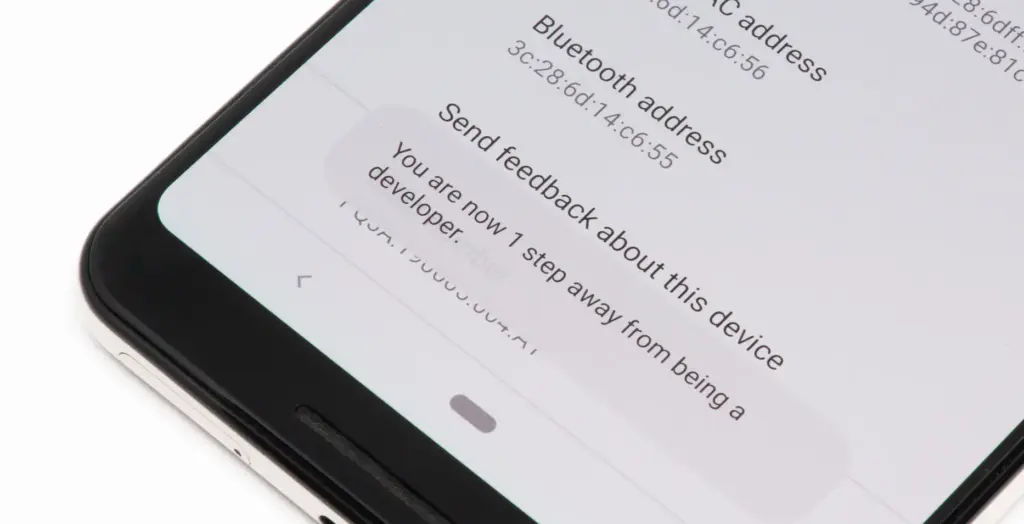
    android developer option enabled

    To turn it on, open the Settings app on your phone, then go to the About Phone section. From there, tap the Build number seven times. After a few taps, you should see a message saying, “Developer options have been enabled.”

    Once that is done, go back to System settings and open Developer Options. Near the top, you will find a Memory section. On some devices, especially Google Pixel phones, memory usage profiling may not be enabled by default, so you may need to switch it on and restart your device before you can use it.

    What the numbers mean

    Inside the Memory section, you will see how much RAM your phone has, how much is being used on average, and a general overview of overall performance.

    If you want to see which apps are using memory, tap the Memory used by apps option. This section lists apps based on how much RAM they have used over the past three hours by default.

    At the top, there is a drop-down menu that lets you change the time frame to three hours, six hours, 12 hours, or one day. In practice, 12 hours or one day gives a much better picture of which apps consistently use the most memory throughout the day.

    In most cases, Android OS will appear at the top, and that is completely normal. The system itself runs several background processes, and all of that gets grouped under Android OS.

    What matters more is spotting third-party apps that are using more RAM than expected. You can tap any app to see details such as its average and peak memory usage.

    For example, I do not currently have a Pixel Watch paired with my Pixel 9 Pro, but the Pixel Watch app and Fitbit app together were using around 250MB of RAM in the background. That is a lot for something I am not even using.

    If you notice similar apps on your phone, you can open their info page and use the three-dot menu to force stop them if needed.
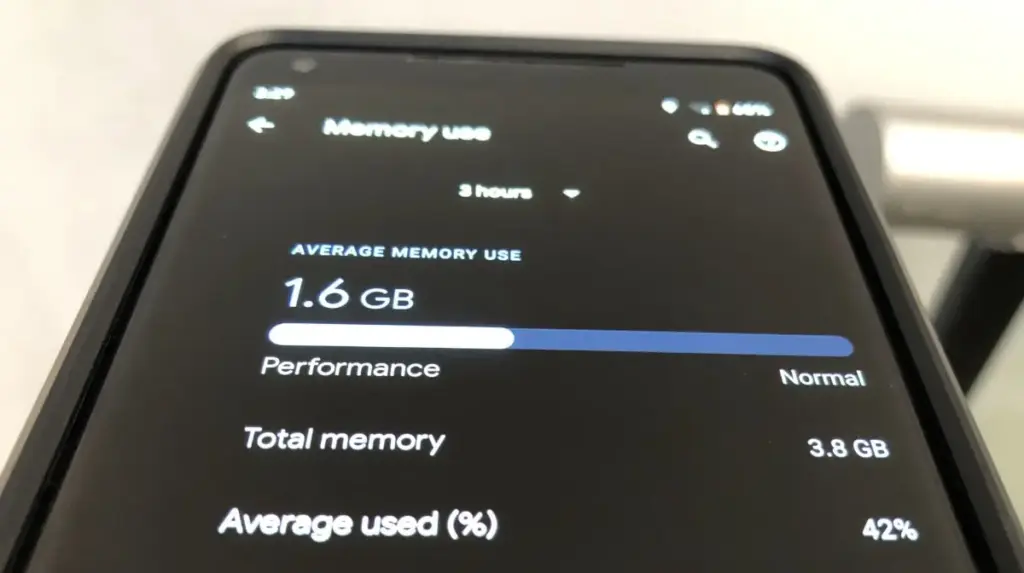
    android memory usage by apps

    RAM use is not always bad

    That said, RAM being used is not automatically a problem.

    Android is designed to use available RAM to keep apps ready in the background, so it does not always mean your phone is wasting resources. The real goal is to identify what is actually unnecessary.

    If you find an app that you do not really use but it is still taking up a lot of memory, you can stop it from this menu. Even better, uninstalling it completely is usually the smarter choice.

    Force stopping only works temporarily, since the app will start using memory again the next time you open it. If you no longer use the app at all, removing it entirely ensures it will not keep using RAM in the future.

    Recent apps are not enough

    If you think the apps in your Recents menu are the only ones using your phone’s resources, closing them will not solve everything.

    Those are just the apps that are currently active, but many Android apps continue running background processes that you do not see in Recents or on the screen.

    That is exactly why this feature shows average memory usage over the past few hours, giving you a much clearer view of what is really using RAM behind the scenes.

    Overall, this tool should help you spot the apps that are using more memory than they actually need. It gives you a clearer sense of what is running in the background and what is worth keeping installed.

    If your phone feels slower or the battery is draining faster than usual, there are also other steps you can take to optimize your Android phone and help it last longer.
  • Performance trick on Xiaomi devices – RAM expansion

    Performance trick on Xiaomi devices – RAM expansion

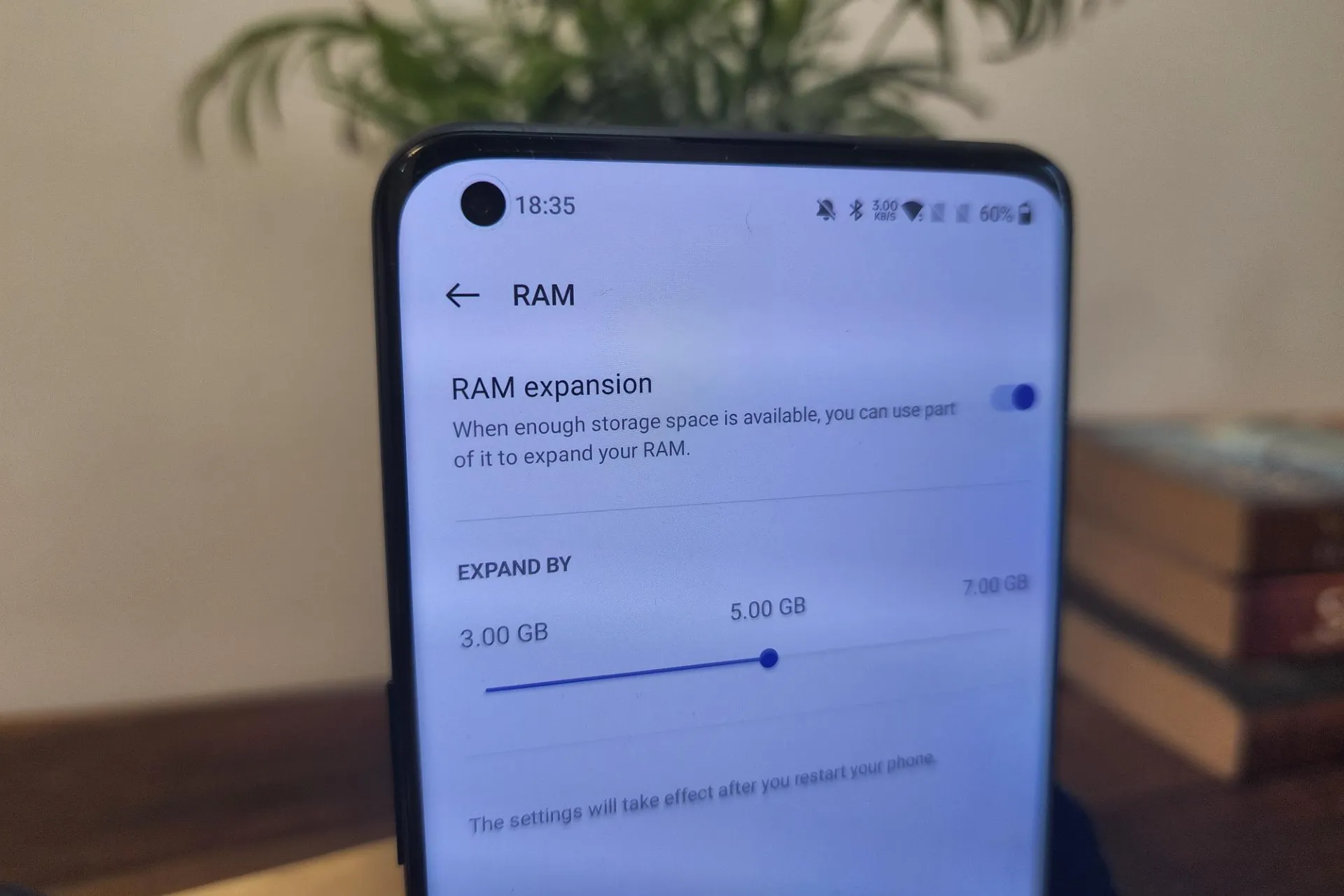
    One of the most frequent complaints from smartphone users is slowdowns brought on by insufficient RAM, which Xiaomi has subtly added. By designating a piece of internal storage as virtual RAM, the Dynamic RAM Expansion function allows Xiaomi, Redmi, and POCO handsets running MIUI or HyperOS to augment their physical RAM. This method is especially cost-effective for both premium and budget-conscious customers since it enables users to improve device performance without spending money on expert services or hardware changes.

    About RAM expansion

    RAM serves as every smartphone’s working memory, facilitating seamless multitasking and quick access to open apps. The increasing sophistication of mobile operating systems and applications puts even more strain on limited memory. Users encounter slowness, slower app transitions, and occasionally even unplanned system restarts when a device’s RAM is low—all of which are unacceptable in a fast-paced work setting.

    By setting aside a piece of internal storage and using it as virtual RAM, dynamic RAM expansion helps to overcome these limitations. For instance, a device having 8GB of physical RAM can be set up to add an additional 4GB from storage, giving users “8+4GB” as shown by system settings. This approach is especially beneficial for companies wishing to prolong the lives of their hardware assets because it doesn’t need any physical intervention or additional costs.

    Throughout the Xiaomi ecosystem, this capability is generally accessible. Dynamic RAM Expansion is available to a wide spectrum of customers, from the top POCO models to affordable Redmi handsets, including mid-tier choices like the Redmi Note 13 Pro 5G. The individual device and available storage determine how much expandable RAM (4GB, 6GB, or 8GB) is needed, providing flexibility for a range of business requirements.

    How to enable Ram expansion

    Enabling the feature is designed to be user-friendly:

    • Open the Settings application
    • Navigate to “Additional Settings”
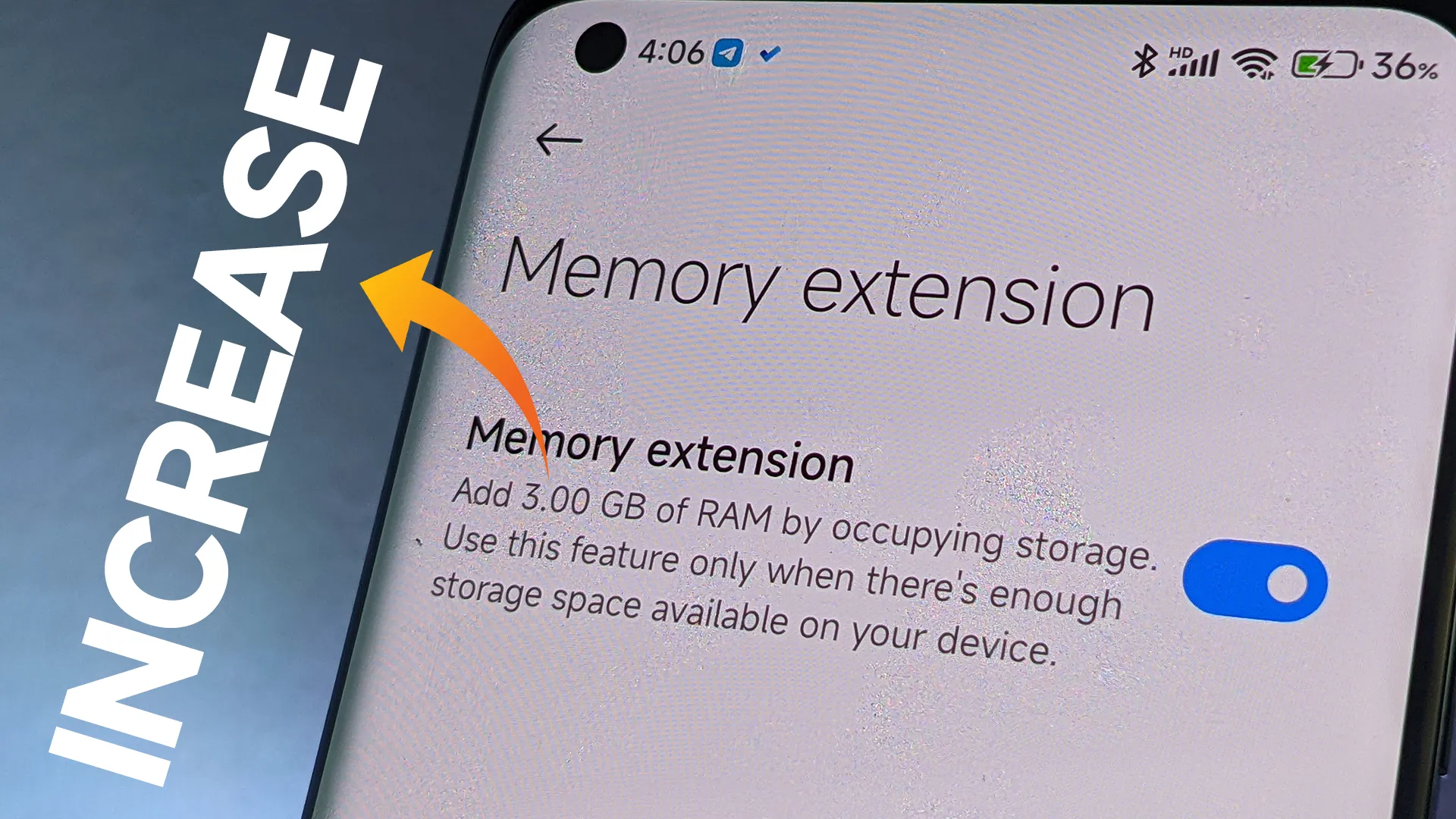
    • Locate and select “Memory Extension” (or “Memory Expansion”)
    • Choose the desired amount of expansion (4GB, 6GB, or 8GB)
    • Confirm and restart the device to activate
    xiaomi RAM expansion

    Users can experience quantifiable increases in device responsiveness in a matter of steps, which is advantageous in settings where productivity is a top priority.

    Even though dynamic RAM expansion has several advantages, it needs enough free storage to work properly. To activate the feature, users might need to make room. It’s also crucial to remember that virtual RAM functions more slowly than real RAM, but for everyday business applications like email, productivity suites, and communication, the difference is usually noticeable.

    Stay connected with the latest from Droid Tools—follow us on X @droid_tools, like our page on Facebook, check out our updates on Instagram, and follow us on Google News for real-time news, device tips, and mobile tech insights.

  • How to increase RAM using virtual memory (Android 13+)

    How to increase RAM using virtual memory (Android 13+)

    Modern Android phones have powerful hardware, but even with high-end components, your handset may slow down while multitasking or gaming. To help with this, Android 13 added virtual RAM, sometimes known as “RAM Plus.” This function enables your device to use a portion of its internal storage as additional RAM, which improves performance in memory-intensive operations.

    This guide explains what virtual memory is, how it works on Android 13+, and how to enable or adjust it.

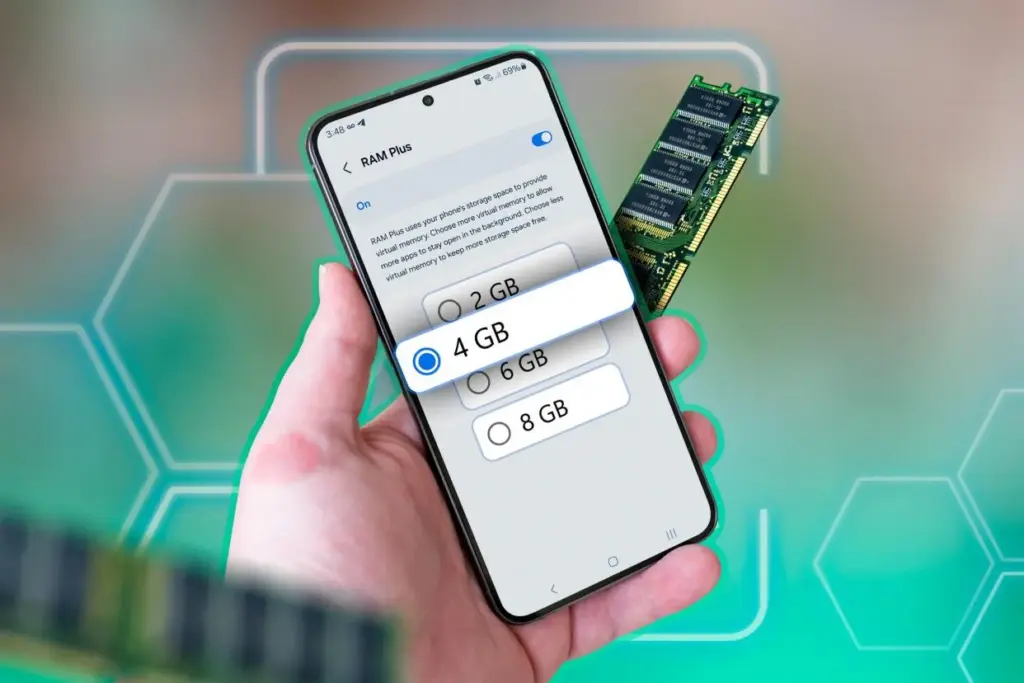
    virtual ram android

    What is virtual RAM and how does it work

    Virtual RAM, also known as virtual memory or swap space, is a technology that allows some of your phone’s internal storage to be used as RAM. While this memory is slower than physical RAM, it allows the system to manage more background processes, keep apps open for longer periods of time, and minimize app reloads.

    In Android 13, many manufacturers added a user-accessible option known as “RAM Plus” or “Memory Expansion.” This feature is particularly handy on phones with 4GB to 6GB of RAM, as multitasking frequently exceeds physical RAM limits.

    How to check if your device supports RAM Plus

    Not every Android smartphone supports RAM increase. It is up to the manufacturer to incorporate the capability in their version of Android 13 or later. Here is how to check:

    1. Go to Settings.
    2. Scroll down and tap Battery & device care or About phone (varies by brand).
    3. Look for an option called RAM Plus, Memory Expansion, or similar.
    4. If it’s available, you’ll be able to view and configure it from here.

    Samsung, Xiaomi, Oppo, Realme, and Vivo are among the brands that offer this feature.

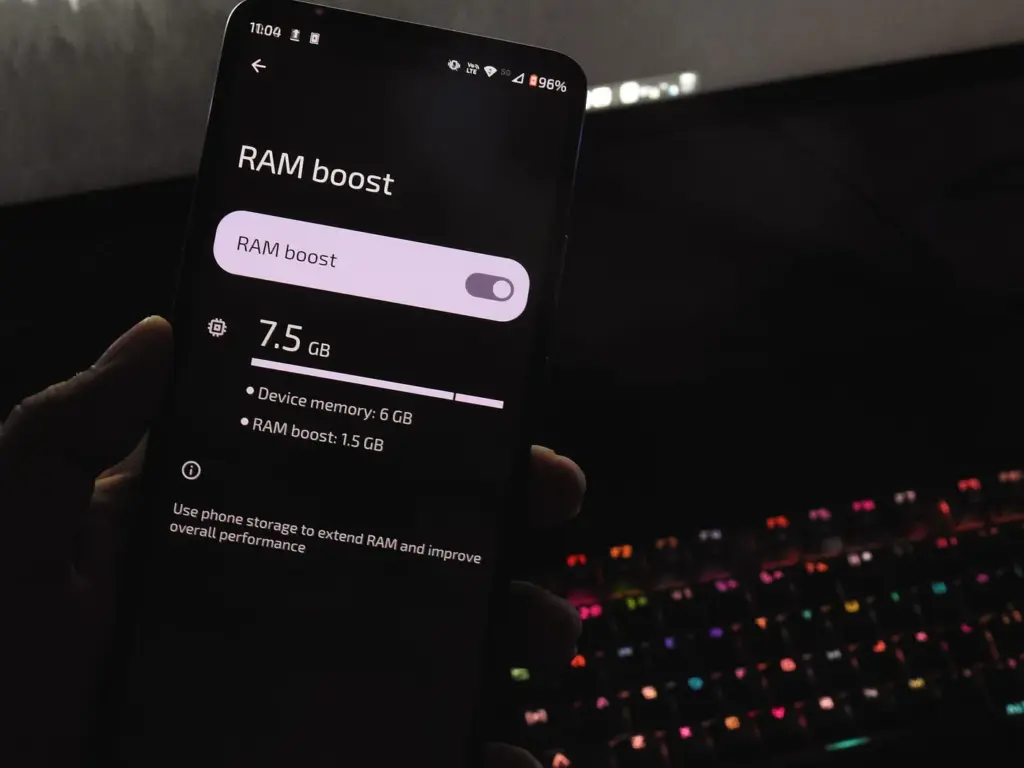
    Android ram boost

    Enable RAM Plus on Samsung devices

    Samsung phones running One UI 4.1 or later (based on Android 13) come with RAM Plus built-in. Here’s how to enable or adjust it:

    1. Open the Settings app.
    2. Scroll to Battery and device care.
    3. Tap Memory.
    4. Select RAM Plus.
    5. Choose the amount of virtual RAM to allocate (2GB, 4GB, 6GB, or 8GB).
    6. Restart your phone if prompted.

    Samsung doesn’t let you disable RAM Plus entirely but allows you to choose the allocation size.

    Enable virtual RAM on Xiaomi/Redmi/POCO phones

    Devices with MIUI 13+ (Android 13-based) often support memory extension:

    1. Open Settings.
    2. Tap Additional settings.
    3. Look for Memory Extension.
    4. Toggle it on and allocate additional storage as virtual RAM.
    5. Restart your phone for changes to take effect.

    The memory extension size is usually fixed depending on the device—commonly 2GB or 3GB.

    Enable virtual RAM on Realme, Oppo, and Vivo devices

    These brands typically offer memory expansion as well:

    • Realme UI/ColorOS:
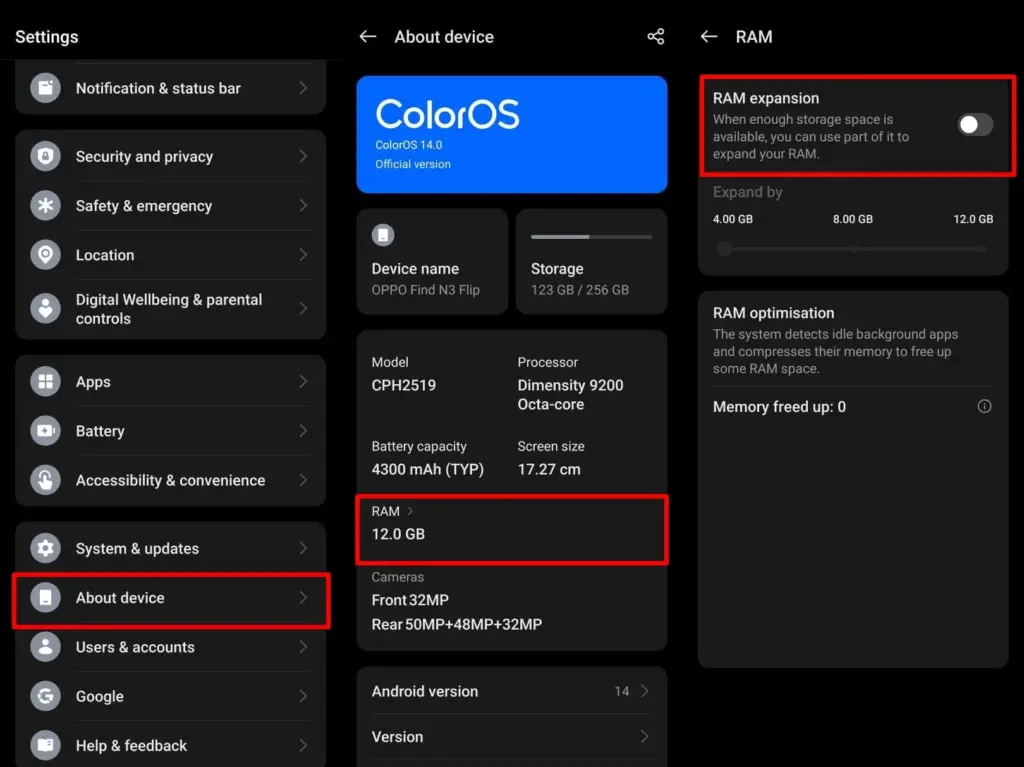
      1. Open Settings.
      2. Tap About Phone > RAM.
      3. Enable RAM Expansion and select a size.
      4. Restart when prompted.
    • Vivo Funtouch OS:
      1. Open Settings.
      2. Tap RAM and storage space.
      3. Tap RAM Expansion.
      4. Turn on and choose the RAM boost size.

    If you can’t find this feature, ensure your phone is running the latest version of Android 13 or consult the manufacturer’s support site.

    color os extend virtual memory

    Does virtual RAM actually improve performance

    Virtual RAM helps in specific scenarios, especially on phones with less physical RAM (4GB or 6GB). Benefits include:

    • Reduced app reloads
    • Smoother multitasking
    • Better background app retention
    • Less lag during memory-heavy tasks

    However, it will not transform an affordable phone into a premium gadget. Because internal storage is slower than actual RAM, the benefit is minimal yet visible during heavy multitasking.

    How much virtual RAM should you use

    The best setting depends on your device’s internal storage space and usage pattern:

    • If your phone has at least 128GB of storage and you multitask often, you can allocate 4GB–6GB.
    • If your storage is nearly full, avoid setting high values to prevent system lag.
    • On 64GB devices, 2GB–3GB is usually safe.

    You can experiment to determine what works best, but keep some open storage space to avoid overall slowdowns.

    Virtual RAM is an excellent technique to increase your phone’s memory capacity without updating the hardware. While it is not a miracle cure, allowing RAM expansion can boost your Android device’s performance and multitasking abilities. If your phone supports it, give it a shot—just do not use up all of your storage space.