Tag: qr

  • Quishing #alert – FBI warns smartphone users about fake QR codes stealing money

    Quishing #alert – FBI warns smartphone users about fake QR codes stealing money

    Smartphone users are now being alerted by the FBI and cybersecurity organizations to a new fraud called “Quishing,” which includes malicious or phony QR codes. Particularly vulnerable are those who often utilize QR codes for logins or payments; some victims have lost thousands of dollars. Here’s what you should know and how to protect yourself.

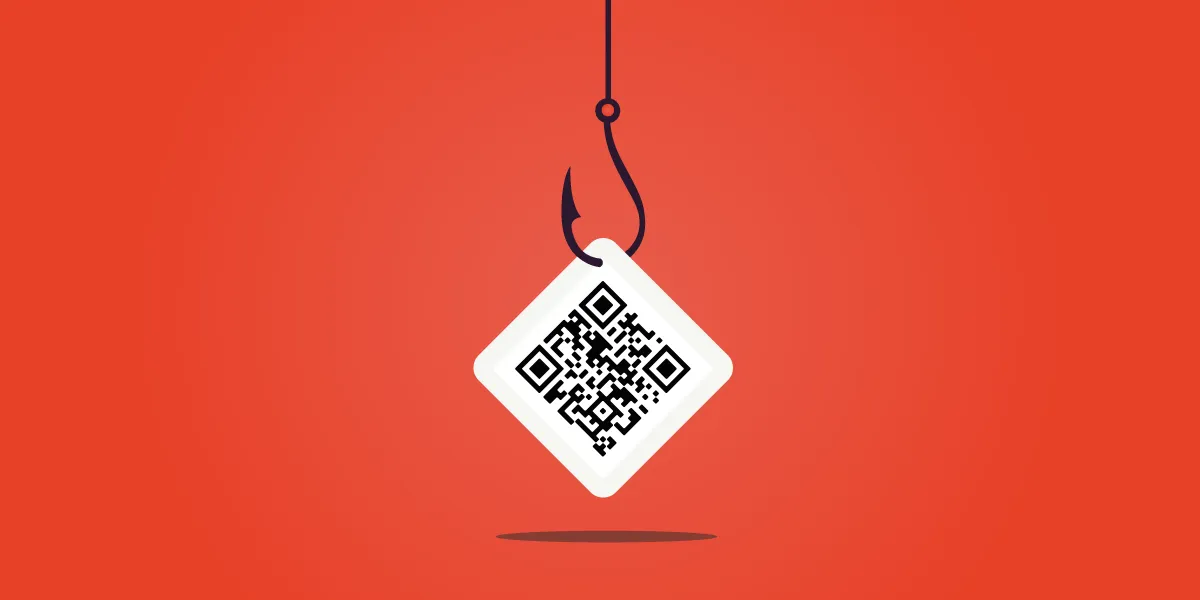
    The FBI and other federal authorities have recently expressed concern over the increase in QR scam attacks, sometimes known as quishing, in which unwanted parcels show up at people’s doorsteps. These packages frequently contain QR codes that, when read by the camera on mobile phones, cause victims to install malware or be redirected to phony websites. Your device may be compromised as a result, and your personal information may be taken.
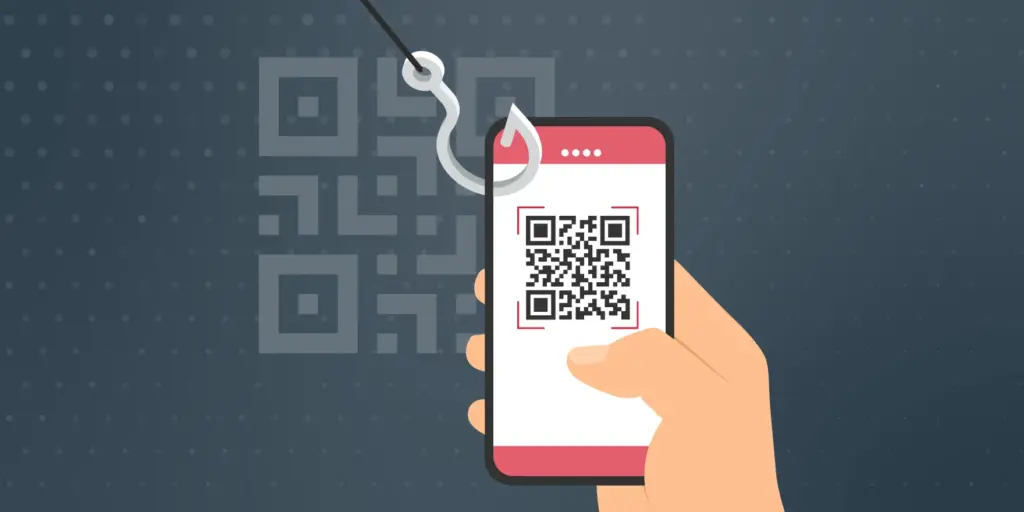
    Quishing scam alert

    Online retailers are targeted by Quishing

    The most recent worry centers on these frauds that prey on people who frequently transact online. In order to steal your data, attackers are creating QR codes that point to dubious websites. These scams can also compromise your bank accounts and phone, enabling scammers to steal your money, according to the Brandenburg Consumer Advice Centre (VZB).

    In one scenario, scammers pose as legitimate customers interested in buying a product. They ask the seller to scan a QR code to start the transaction rather than giving money straight to the seller. By directing the victim to a phony PayPal login screen, this code may fool them into inputting their account information. This strategy is a type of phishing on websites.

    With zero-click tactics that don’t involve any user engagement, some attacks are become even more hazardous. Usually, high-profile people like politicians, journalists, attorneys, and activists are the target of these.

    Cyber Security Coach Online security specialist Alex East cautions that hackers might post phony QR codes in both public and private areas, such convenience store payment terminals or gas pumps. During normal transactions, these codes have the ability to reroute customers to malicious websites.
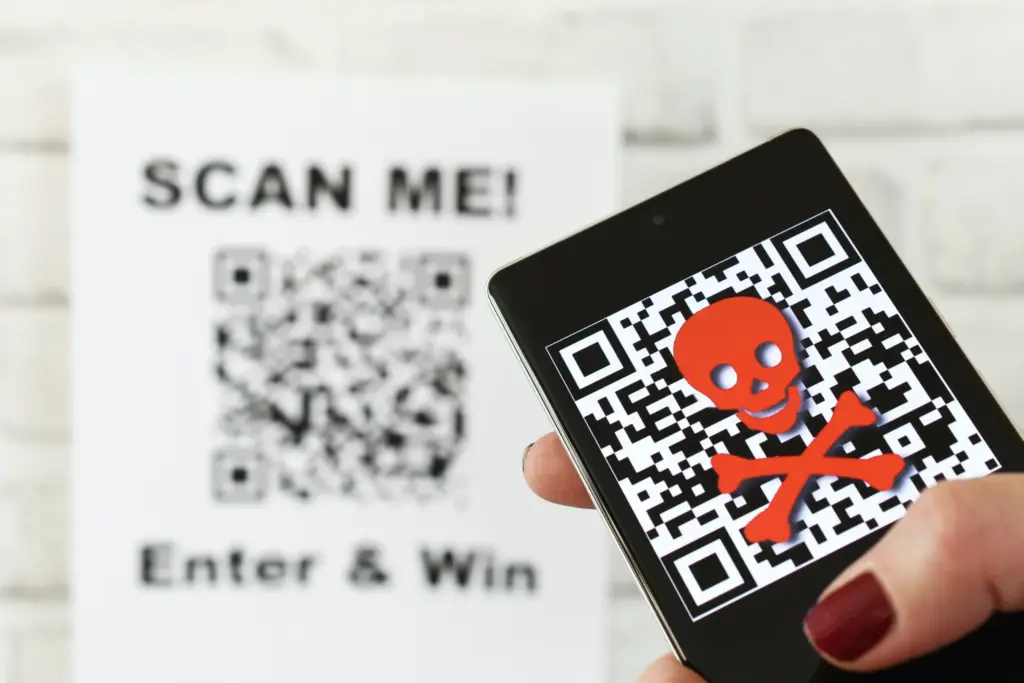
    Quishing alert - warning

    Ways to stay safe

    VZB recommends users to exercise caution when making digital transactions to prevent becoming victims of QR code frauds. It’s crucial to confirm that the vendor is the one displaying the QR code before paying, as opposed to scanning one that has been supplied by another party. Always look for indications of questionable activity on the website you are sent to, such as misspelled domain names or odd layouts.

    Scanning QR codes from unwanted parcels, email attachments, or public places should generally be done with caution as they may direct users to fraudulent websites. It’s even better to stay away from scanning QR codes completely unless you know exactly where they came from.

    It’s also strongly advised to strengthen account security using two-factor authentication (2FA), particularly when money is involved. Consider using passkeys, a more secure login option that is already supported by many websites and apps, for even more security.

    Security features on both iPhones and Android smartphones, such as warnings for phony websites and fraud detection in calls and messages, can aid in spotting scammers. To get the most protection, make sure these features are turned on.
  • 6 useful connectivity features you should know

    6 useful connectivity features you should know

    Connectivity features enable communication between networks and devices. Numerous tools are available on Android, with Bluetooth, Wi-Fi, Near-Field Communication, and mobile hotspot being among the most widely used. There are very few users that do not utilize any of them in a given day.

    You might be using a wireless connection to watch videos or pair your wireless headphones with your phone. You may be surprised to learn that there are more features available to improve your experience. Let’s examine your device’s settings in more detail and get you using them immediately.

    Use QR code to share your internet connection

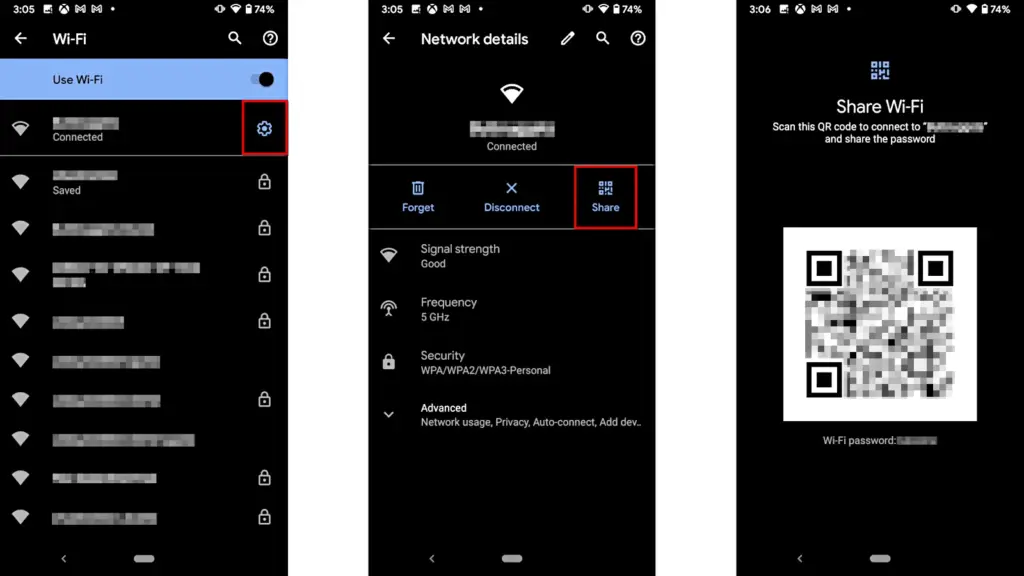
    It’s uncomfortable to pause what you’re doing, type or speak out your Wi-Fi or mobile hotspot password, and ensure sure no one else can see or hear it. Use a QR code if you want to share it more quickly. Here’s how:

    For wi-fi network

    • Go to Settings > Wi-Fi.
    • While your device is connected to a network, tap the information icon beside the network.
    • Tap Share. You may need to enter your security method to continue.
    • You should see a QR code. It’s a square filled with a black and white pattern.
    • From the device you’re sharing to, access the QR code tile from Quick Settings.
    • Scan the QR code to get access immediately.
    android share network password

    Mobile hotspot password

    1. Open Settings.
    2. Go to Network & internet or Connection & sharing.
    3. Tap Hotspot & tethering or Personal hotspot.
    4. Tap the toggle button to enable hotspot.
    5. Tap the tiny QR code icon beside the hotspot name. You should see the enlarged version after entering your security unlock method.
    6. On the other devicce, access the QR code tile from Quick Settings and scan it to gain access.

    Share files to iPhone wirelessly

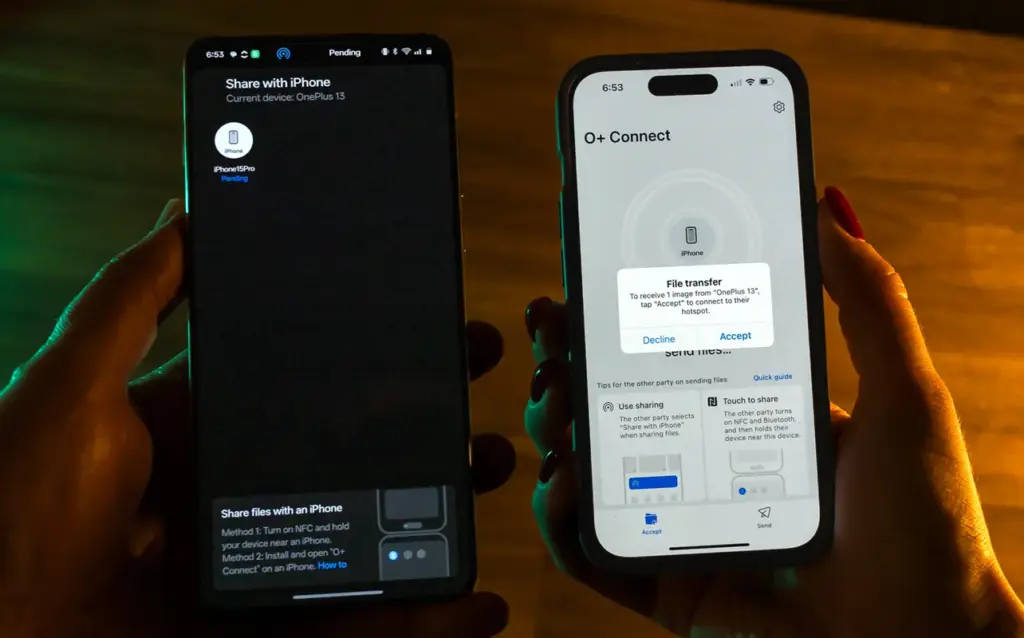
    It can be frustrating and difficult to move files and data between the iOS and Android environments. Due to Apple’s closed-off ecosystem design, cross-platform compatibility necessitates a significant amount of manual labor. Although it is incompatible with iPhones, Quick Share for Android is an alternative to Apple’s AirDrop. But on Android 15, OnePlus’ new Share with iPhone feature unites the worlds of Oppo, Realme, and OnePlus devices. Since the receiving device needs to download the O+ software in order to connect, the solution isn’t entirely native. Nevertheless, it’s quick and not too difficult. To utilize it, follow these steps:

    1. Open Settings.
    2. Go to Connection & sharing.
    3. Select Share with iPhone. Then tap the toggle button to turn on the feature.
    4. On the iPhone, install the O+ Connect app from the Apple App Store. Then open it and turn on Bluetooth.
    5. Select the files you want to send from either phone.
    6. You should see the detected devices while preparing to send them. Tap your preferred device.
    7. Accept the transfer request on the receiving device. The files should arrive in seconds, depending on the size.
    OnePlus 13 share with iPhone

    Use Wi-FI calling and texting

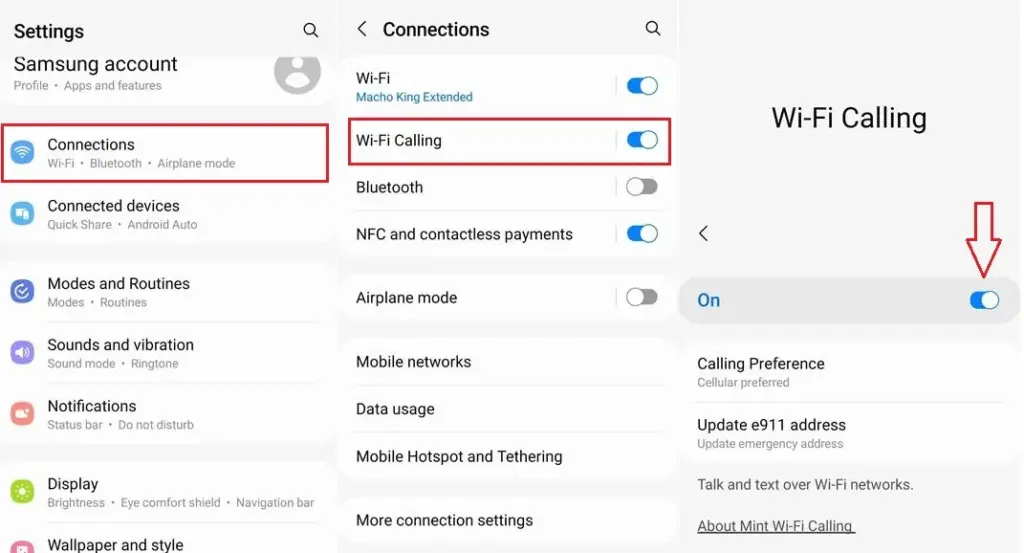
    Signals from routine phone calls and texts travel through cell towers before they are received by the recipient. Connecting with individuals will be difficult if you’re in a rural location far from a cell tower or in a building with high walls. Use Wi-Fi calling instead for better outcomes. Your phone uses Wi-Fi to send a message or make a call over the internet, avoiding the cell tower, as long as you have access to a Wi-Fi network. To utilize it, follow these steps:

    1. Ensure that Wi-Fi is turned on and you’re connected to a network.
    2. Open the Google Phone app.
    3. Tap the three-dot icon in the upper-right corner. Then select Settings.
    4. Tap Calls.
    5. Select Wi-Fi calling.
    6. Turn on the toggle button beside Use Wi-Fi calling.
    enable android wifi calling og

    Use your phone as a PC webcam

    The size of the camera sensor and lens is constrained by the tiny area in the top bezel of a laptop. PC cameras are typically blurry and uninteresting for proper video calls because of this. Thankfully, your phone has more space for wider apertures and larger sensors, which provide sharper images. With Android 14, you can now take advantage of that feature and use your smartphone as a camera. It was enhanced with Android 15’s high-quality mode. To enhance your virtual meetings using the functionality, take the following actions:

    1. Connect your PC and phone with a USB cable. You should see a notification on your phone recognizing the connection.
    2. Tap the notification and choose to use USB for Webcam.
    3. Tap the HQ button in the upper-right corner of the call screen to use High Quality mode.

    Activate Bluetooth automatically every day

    iOS has had automatic Bluetooth activation for many years. It is only temporarily disabled when you disable it from the Control Center. Unless you disable the option from the settings menu, it reactivates. Keep it on if you’re constantly connecting to Bluetooth speakers, earphones, or even your automobile, even though most people find it annoying. The automation setting was first available on Pixel phones running Android 15, and it might eventually be available on other devices. Here’s how to make it active:

    1. Open the Settings app.
    2. Go to Connected devices Connection preferences.
    3. Tap Bluetooth.
    4. Turn on the toggle button beside Bluetooth, then the button beside Automatically turn on tomorrow.

    After you deactivate Bluetooth, it can now turn on by itself the next day. It probably tries to avoid interfering with your short-term preferences and believes you need it during your regular activity hours. As long as you aren’t actively using the linked device, it will drain the battery a little but not significantly. When no music is playing on the speaker or earphones you’re wearing, the connection remains in a low-power mode.

    Android’s best-kept secrets

    Every phone brand on Android has special features that are just waiting to be found, making it a labyrinth of capabilities. What you see on a Samsung may not be the same on a OnePlus or Pixel, and it’s precisely this diversity that adds excitement to the ecosystem. Digging behind those layers will reveal more hidden gems in productivity, privacy, accessibility, and multitasking.