Tag: protect

  • Android device repair prep (stress-free) – the power guide to protect your data

    Android device repair prep (stress-free) – the power guide to protect your data

    Your android device is going in for service or repair, and yeah… it’s easy to tell yourself, “It’s just a screen replacement, what could happen?” Then you remember: your phone is basically your pocket brain. Photos, notes, bank apps, work chats, that one folder you never show anyone—everything.

    So let’s do this properly.

    This guide is a practical, no-drama checklist to prepare your android device before you hand it to a technician. Not the paranoid kind of prep. The smart kind. The kind that prevents data loss, protects your privacy, and makes the repair process smoother.
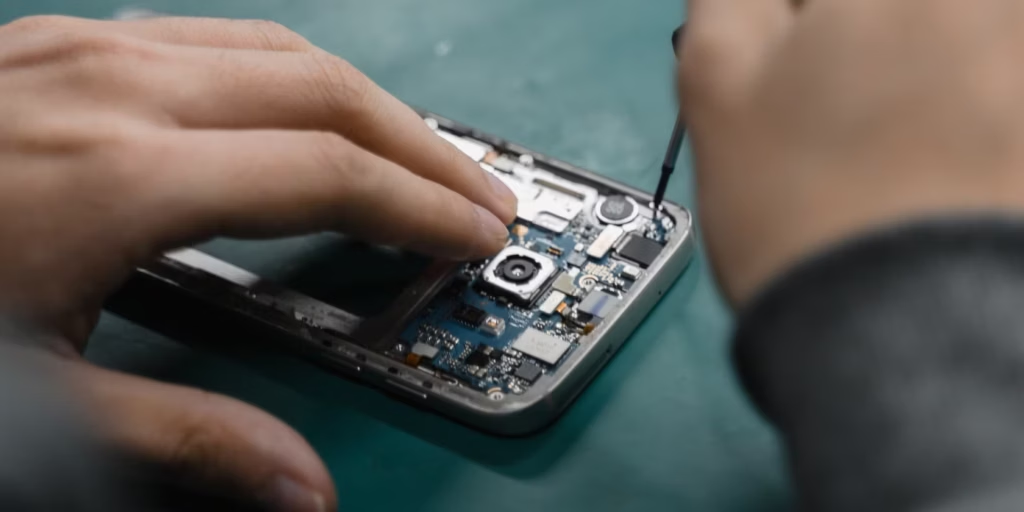
    android device preparation before repair

    Secondary keywords used naturally: Android backup, factory reset, phone repair checklist, protect personal data, Google account removal, SIM card and SD card, Find My Device.

    The “Quick Outline” (Internal, For Flow)

    You’ll go through:

    • Why prep matters (even with trustworthy shops)
    • Backup (cloud + local)
    • Remove SIM/SD and sensitive access
    • Decide on factory reset (and when not to)
    • Document your issue like a grown-up (so repairs go faster)
    • Privacy + security settings that actually matter
    • What to do at drop-off and pickup
    • Common mistakes and a simple final checklist

    Why Preparing an Android Device Before Repair Matters (More Than You Think)

    Here’s the uncomfortable truth: even honest repair shops can cause data loss.

    Not because they’re evil. Because diagnosing problems often involves resets, firmware updates, battery disconnects, or tests that can corrupt storage. And if your android device is acting weird already (boot loops, overheating, random restarts), the risk of “it died during testing” is real.

    Also, there’s privacy. Most technicians don’t care about your personal life. But your phone is still unlocked data sitting in someone else’s hands. It’s like leaving your house keys on the counter and hoping nobody opens the wrong door.

    You don’t need to be anxious. You just need a process.

    Step 1: Back Up Your Android Device (Cloud First, Local Second)
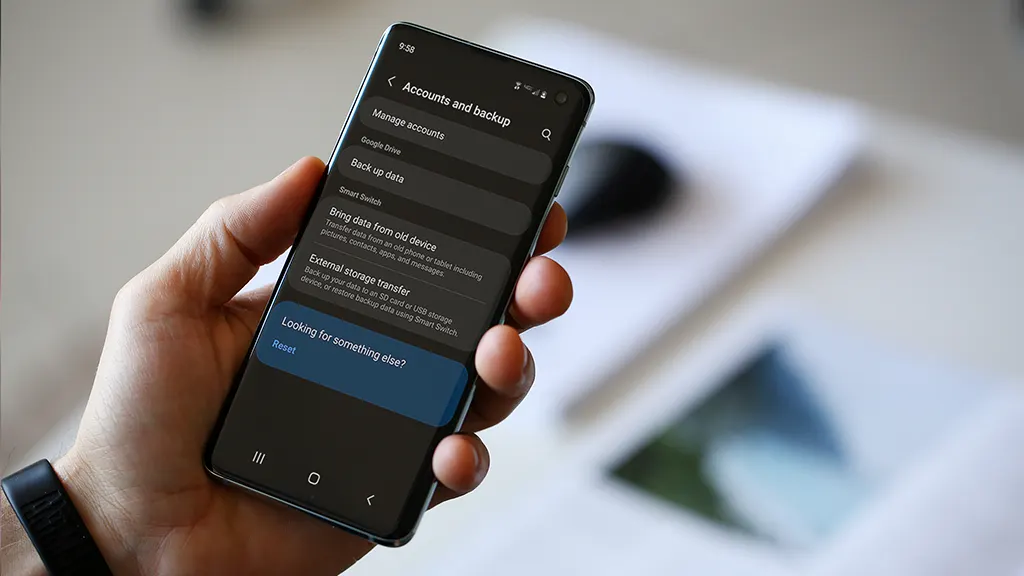
    android device backup

    If you only do one thing, do this.

    Use Google Backup (Fast and Built-In)

    On most phones:

    • Settings → Google → Backup
      or
    • Settings → System → Backup

    Turn it on and let it run. Then check the backup timestamp. Don’t assume it worked “at some point.”

    What it usually covers:

    • App list and some app data
    • Call history
    • Contacts (often via Google Contacts sync)
    • Device settings
    • SMS/MMS (on many devices)

    But – small contradiction – Google backup is both great and not enough. It’s reliable for basics, but it’s not a perfect clone of your phone.

    Back Up Photos and Videos

    If you use Google Photos:

    • Open Google Photos → profile icon → Photos settings → Backup

    Then scroll your gallery and confirm recent photos actually uploaded. People think they’re backed up… until they aren’t.

    Make a Local Copy (Because Clouds Have Limits)

    Plug your android device into a laptop/PC:

    • Select “File Transfer” (MTP)
    • Copy these folders:
      • DCIM (camera photos/videos)
      • Pictures
      • Download
      • Documents
      • WhatsApp/Telegram media folders (if you use them heavily)

    If you don’t have a PC, use:

    • An external USB drive with an OTG adapter
    • A microSD card (if your phone supports it)

    Local backup feels old-school. But it’s the “seatbelt” you’ll appreciate if the cloud fails.

    [img here – alt: android device backup before service]

    Don’t Forget Two “Annoying” Things

    These are the ones that hurt most when they’re gone:

    • Notes (Google Keep / Samsung Notes / third-party apps)
    • Authenticators (2FA apps)

    For authenticator apps, check inside the app for export/transfer options before your device gets wiped. Otherwise you might lock yourself out of accounts. Not fun.

    Step 2: Remove SIM Card and SD Card (Small Action, Big Protection)

    This part is quick and oddly satisfying.

    • Remove the SIM card (your number and carrier access)
    • Remove the SD card (your personal files and media)

    Even if the repair shop is trustworthy, SIM/SD cards can be misplaced. They’re tiny. Things happen.

    Also, if your SD card has photos—don’t leave it in the phone. Just don’t.

    Step 3: Decide If You Should Factory Reset the Android Device
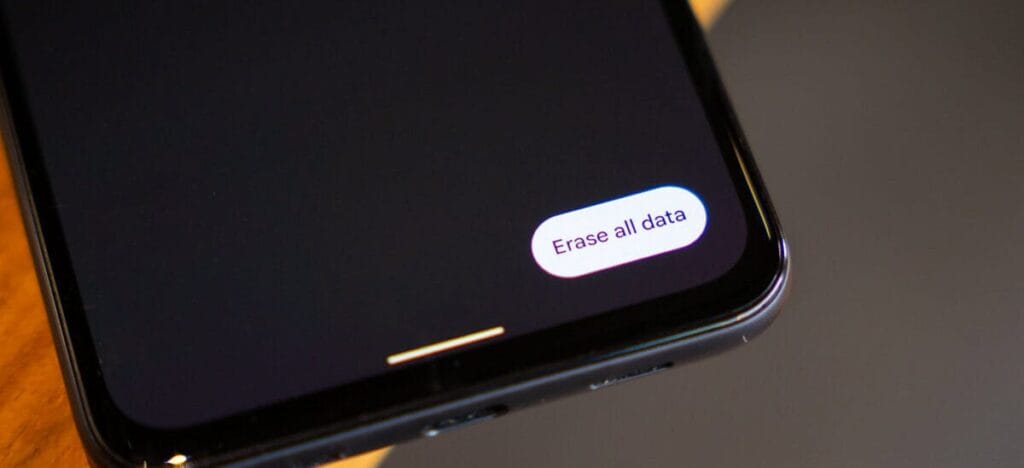
    Android factory reset e1768831900326

    This is where people get stuck.

    When a Factory Reset Makes Sense

    A factory reset is smart when:

    • The repair is software-related (crashes, freezing, weird bugs)
    • You’re shipping the phone to a service center
    • You don’t want anyone to access anything—even by accident
    • You’re okay with restoring everything later

    Path usually looks like:

    • Settings → System → Reset options → Erase all data (factory reset)

    When You Shouldn’t Reset Yet

    Don’t reset if:

    • You need to show the issue (random reboots, screen glitch, camera error)
    • The repair center asks you not to (rare, but possible)
    • You rely on on-device data that you can’t back up properly

    Here’s the clarification: privacy matters, but so does diagnosis. If the technician can’t reproduce the issue, you might get the dreaded “no fault found” result. So sometimes you keep the data… but you lock it down.

    Step 4: Lock Down Access (Without Making the Repair Impossible)

    If you’re not factory resetting, this part is essential.

    Use a Strong Lock Screen

    Set a PIN (not 0000, please).
    Disable “Smart Lock” features that keep the phone unlocked at home or near a watch.

    Pause or Remove Highly Sensitive Apps

    For apps like:

    • Banking
    • Crypto wallets
    • Password managers

    At minimum:

    • Sign out
    • Remove biometric login
    • Consider uninstalling temporarily (after backup)

    Technicians don’t need that access to replace a screen.

    Keep “Find My Device” Enabled (Usually)

    If the phone is lost during transit or at a large facility, Find My Device can help locate it. Just make sure you remember your Google login.

    Step 5: Write a Simple Repair Note (This Speeds Everything Up)

    A good repair note is like giving the mechanic a clean description of the engine noise.

    Create a note (or email) with:

    • Phone model (e.g., “Samsung Galaxy A54”)
    • Android version (Settings → About phone)
    • What’s wrong (specific symptoms)
    • When it happens (after charging? after updates? only on Wi‑Fi?)
    • What you already tried (restart, safe mode, clearing cache, uninstalling an app)

    Example (copy style, not text):

    • “Screen goes black during calls, but touch still works. Happens 3–4 times/day. Started after last system update. Restart fixes temporarily.”

    That’s gold for technicians.

    Step 6: Clean Up “Embarrassing” Stuff (No Shame, Just Practical)

    This isn’t about being dramatic. It’s about comfort.

    Before service:

    • Close private tabs in your browser
    • Remove sensitive photos from the main gallery (move to a secure folder or cloud)
    • Turn off notification previews on lock screen

    Even if your phone stays locked, notifications can reveal a lot.

    [img here – alt: android device privacy before repair]

    Step 7: At Drop-Off—Ask the Right Questions (Politely)

    A simple script:

    • “Will you need my unlock code?”
    • “Is a factory reset likely?”
    • “Do you keep devices overnight, and how are they stored?”
    • “Can you note the condition (scratches/dents) on the intake form?”

    Also: take quick photos of your phone from all angles before you hand it over. It’s not accusatory. It’s just smart.

    Step 8: After Repair—Test Before You Leave

    Don’t rush out. Do a 2-minute test:

    • Screen touch everywhere
    • Charging port
    • Speaker and mic (quick voice recording)
    • Camera front/back
    • Wi‑Fi and Bluetooth
    • Fingerprint sensor (if you use it)

    If anything feels off, say it immediately. Fixes are easier on the spot.

    Common Mistakes People Make (So You Don’t)

    • Backing up “later” (and then forgetting)
    • Assuming Google Photos uploaded everything
    • Leaving the SIM/SD in the phone
    • Handing over a phone with banking apps logged in
    • Not writing down the symptoms (leading to “we can’t reproduce it”)
    • Forgetting 2FA authenticator migration
    • Not taking photos of device condition before drop-off

    The Final Checklist (Print This Mentally)

    Before service or repair:

    • Backup complete (cloud + local copy)
    • Photos verified in cloud
    • 2FA/authenticator transferred or backed up
    • SIM removed
    • SD card removed
    • Banking/password apps logged out or removed
    • Strong lock screen enabled (or factory reset done)
    • Repair note written (symptoms + model + what you tried)
    • Photos taken of device condition

    That’s it. That’s the whole play.
  • WhatsApp warning: A simple trick compromised 3.5 billion accounts

    WhatsApp warning: A simple trick compromised 3.5 billion accounts

    There may be hidden risks to billions of WhatsApp accounts. According to a recent analysis, there are major security flaws in the privacy of the communications that hackers might take advantage of.

    With merely their phone number, finding someone on WhatsApp is very simple for many users, and the frequency of searches appears to be limitless. However, according to a recent analysis, this has turned into a significant security flaw that leaves 3.5 billion users of the messaging program vulnerable to assault.

    Big WhatsApp security risk

    Through a study carried out between December 2024 and April 2025, security researchers at the University of Vienna in Austria found the vulnerability. The primary cause of the problem is WhatsApp’s long-standing built-in capability for locating and adding contacts.

    In theory, the app will display whether a number has an account if you add it and then search it up. Additionally, anyone with an active phone number is able to send messages to public accounts and view the profile.

    WhatsApp warning

    A program known as “libphonegen,” which creates combinations of account numbers from other nations that may be registered on WhatsApp, was used by the team to carry out this procedure.

    They were able to produce 63 billion possible accounts and 100 million numbers each hour in their study. 3.5 billion accounts were taken out of those. Of these, 29% had written profiles with sensitive information including political and religious affiliations and links to other social media accounts, while 57% had their profile images made public.

    The vulnerability Is alarming

    The results show how this WhatsApp security vulnerability could be exploited by malevolent parties, including fraudsters and attackers. For example, the encryption in the messaging app is weakened since public and identification keys are reusable rather than unique. Attackers might intercept and decrypt messages if security was compromised.

    The identical WhatsApp vulnerability was discovered in 2017, but Meta has not been able to fix the flaw.

    Following the discoveries, Meta was contacted by the security research group. The company verified that it implemented system modifications in October that restrict the number of account searches that may be done within the app.

    How to protect yourself

    Users with public profiles, however, are still vulnerable because others can still read their profile images and text. Making their WhatsApp profile private is advised for those who are worried about security and privacy.

    Additionally, Meta has added new security and privacy features. A monthly message cap and automatically muting calls and messages from strangers are two of these that are presently being testing.

  • Simple tips to extend your phone’s lifespan

    Simple tips to extend your phone’s lifespan

    The Samsung Galaxy S25 Ultra and iPhone 17 Pro are two of the greatest phones available right now because of their incredible cameras and powerful processors. Even though these high-end flagships could be the best mobile devices available right now, getting them will cost you a fortune. Even phones that are affordable, like the Google Pixel 9A, are still expensive, and since people’s budgets are getting tighter everywhere, it’s more crucial than ever to get the most out of your purchases. Instead of updating more frequently, the simplest approach to achieve that is to just stay using your phone longer, spreading out that expensive purchase across the years.

    Not only is it better for your wallet, but it’s also much better for the environment. If you upgrade your phone less frequently, fewer phones will be made and distributed, and fewer old phones will wind up in landfills. The good news is that manufacturers such as Apple, Google, Samsung, and others are extending the support period for their phones’ software updates, so the phone you purchase today will continue to be safe to use for many years to come.

    You are responsible for the remainder. It takes some work, a lot of attention, and a few crucial tactics to keep your phone in good operating order for the seven or eight years of software support it may receive.

    Therefore, these are the best ways to extend the life of your phone.

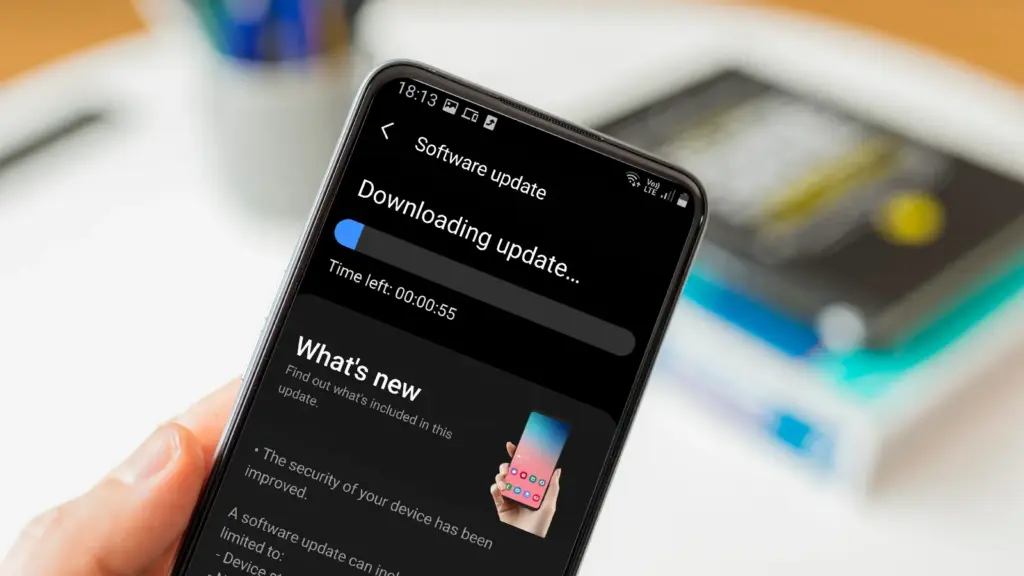
    Update the software

    Avoid using a phone that isn’t receiving security upgrades since it’s just not safe. Phones like the Google Pixel 9 series now come with seven years of software support, whereas before it was typical for many Android manufacturers to support new phones for only two to three years. Unfortunately, some less expensive phones, such as the recently released OnePlus Nord CE4 Lite, only get upgrades for a few years. When purchasing a new phone, be sure to inquire about its support duration since this will provide you with greater value during the phone’s lifetime.

    best brands for android updates

    Keeping your phone up to date with the most recent security update will help prevent hackers and remove any dangerous software that might infiltrate and cause your phone to lag. If you have an older phone, go to the settings menu, scroll down to Software Update, and click to see if there is an update available. Most phones will automatically ask you to install the most recent upgrades, and you sh

    This also applies to your apps, which must be updated to stay compatible with the iOS or Android version you’re using. Allowing apps to update automatically in the background is a good idea, but if you don’t, make sure you’re running the most recent versions by going into your preferred app store.

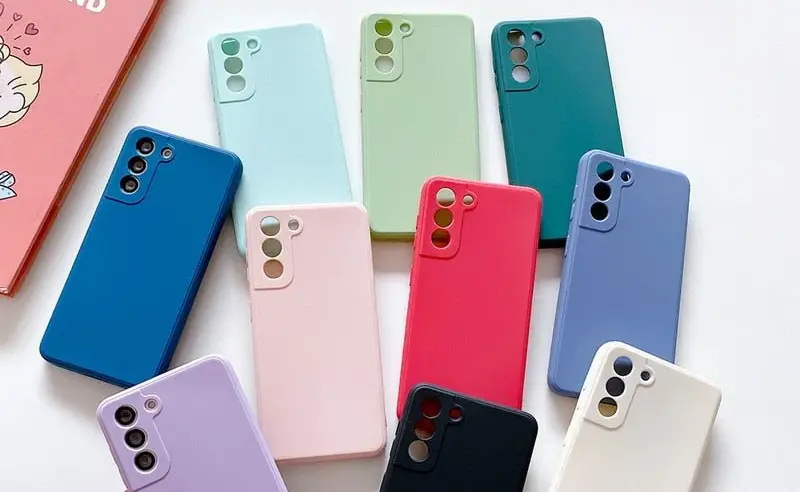
    Protect it with a case

    If you recently purchased a brand-new iPhone, installing a case right away is the best way to preserve it physically. In addition to protecting it in the event that you drop it, it will also assist prevent it from absorbing tiny scratches from your pocket’s coins or keys.

    matte silicone samsung galaxy a series phone case 521848 e1758974780610

    Since there isn’t much you can do to repair your phone’s screen after it becomes damaged, a screen protector is also a smart option. You can easily change a screen protector if it gets a severe scratch, keeping the phone itself looking brand new for many years to come. When it’s time to update, keeping your phone looking new could help you sell it for more money on the used market, even if you don’t intend to keep it for many years.

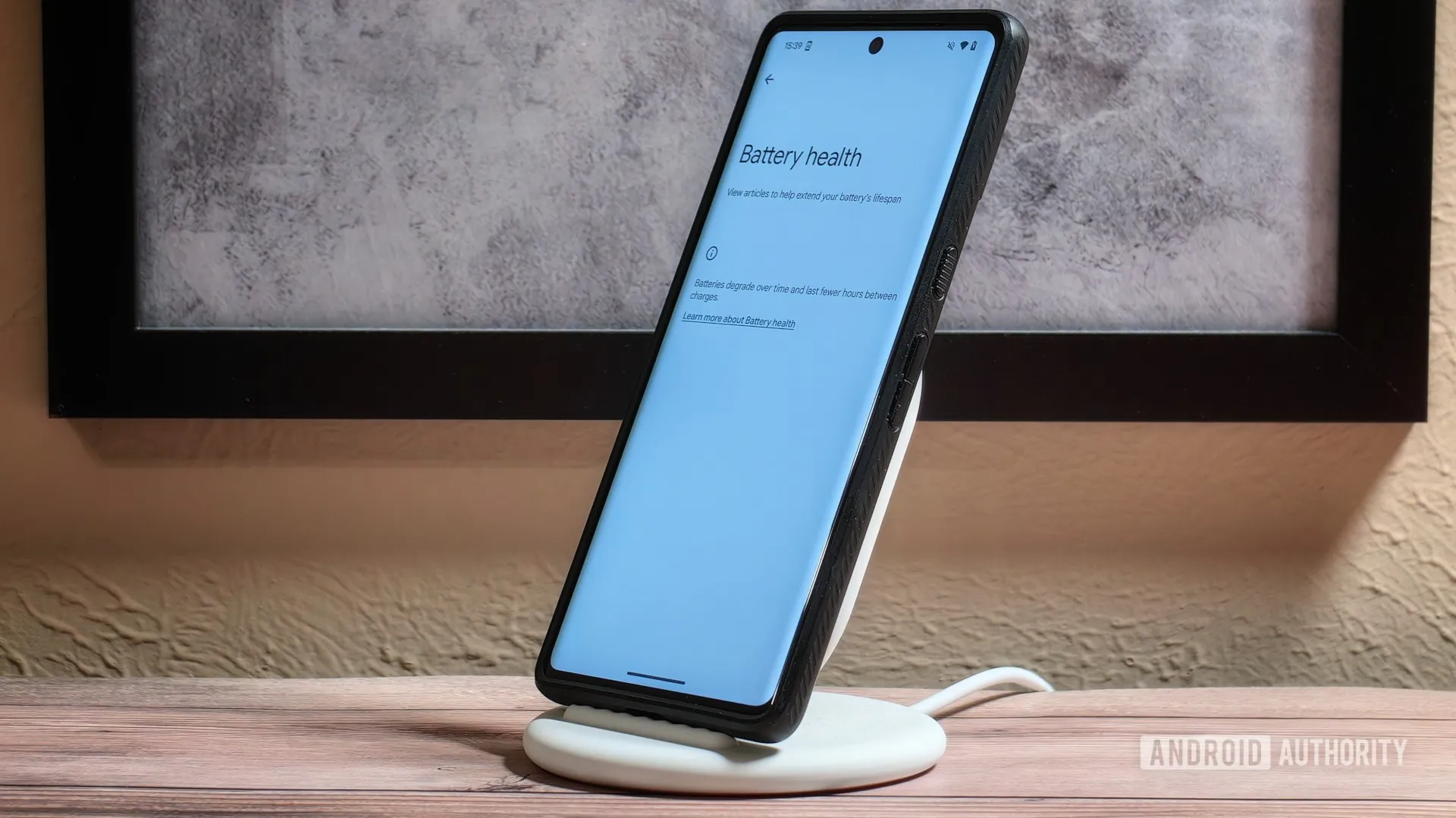
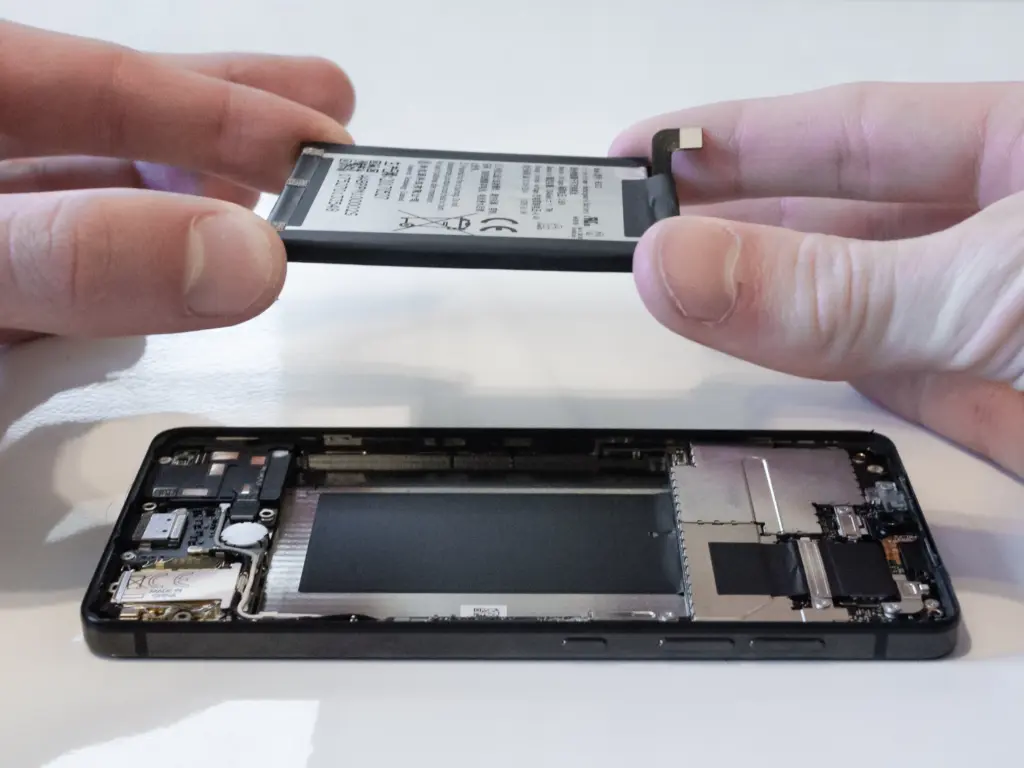
    Replace the battery

    Over time, the battery in your phone will progressively degrade, giving it less life between charges than it did when it was brand-new. All phones are like this. Batteries in certain older phones might only provide 50% of their previous capacity. Your phone may even alert you when it senses that your battery isn’t providing enough power, in which case it may limit your processor to make up for it.

    replace battery on a nothing phone

    Don’t worry; most phones have a battery that is rather simple to change on your own to give it a fresh lease on life. If your battery is about to die, it could be worth trying to repair it yourself. iFixit offers a wide range of kits and third-party replacement batteries to fit a large number of phones.

    If you’re not very confident with your screwdriver skills, this might be a nice alternative to think about. There are a number of places you can take your phone to have your battery replaced, or even other components like a broken screen. However, not all of them are really legitimate.

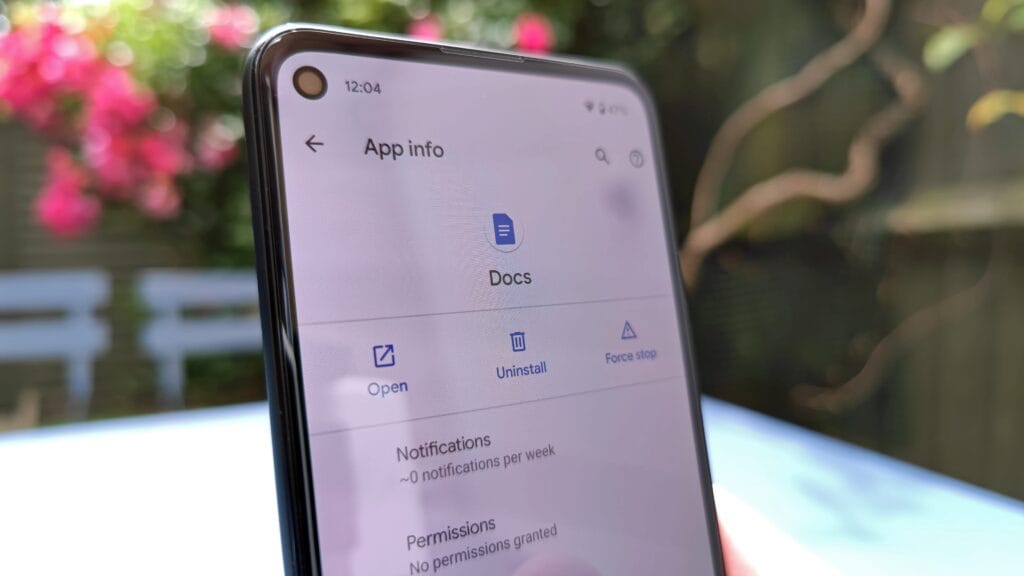
    Remove old apps that you are not using anymore

    Your phone is probably cluttered with thousands of pictures of your friends, pets, or the plates of food you’ve consumed over the years if you’ve owned it for a long time. You probably have a number of outdated apps and games that you downloaded on the spur of the moment, played for a few bus rides, and then switched to the newest mobile gaming craze.

    remove old apps on Android phone

    In addition to negatively impacting your phone’s general performance, a shortage of storage may also make it more difficult to install important software updates. It’s worthwhile to look through your archives, remove anything from your phone that is wasting space, and backup any pictures and movies you wish to store to the cloud.

    It might even be worth backing up all of your crucial data and performing a complete factory reset, starting over, and only installing the necessary apps if your phone has been slow for a long period.

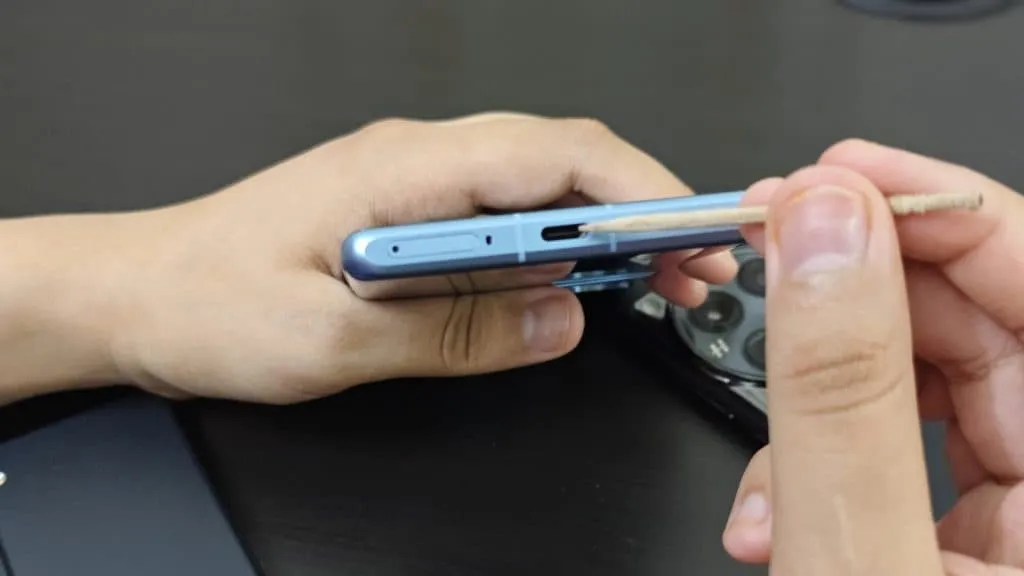
    Clean out your ports

    Last but not least, cleaning your phone can offer unexpected benefits. Your phone may suffer greatly from pocket fluff, especially when it comes to the charging connector, which frequently becomes clogged with bits of junk. As a result, your phone won’t charge when you plug in your charger because it can’t connect completely.

    cleaning charging port

    It’s tempting to assume that something has broken, like the cable or the charging port itself, but it could just be that the port is overflowing with lint. To make sure your charger fits without requiring forceful wriggling, occasionally insert a wooden toothpick into the area and try to ease out any dirt or debris you notice.

    To make sure you can clearly hear—and be heard—during your phone calls, it’s also worthwhile to carefully brush away any debris you may discover near the speakers and microphones with an old toothbrush that has been cleaned and dried.

  • Best cases for the Google Pixel Fold

    Best cases for the Google Pixel Fold

    It has always been difficult to find cases for folding phones, but with the Google Pixel Fold, we can skip the hassles of older cases and get right to reliable, secure protection. Manufacturers have jumped right into production of their Pixel Fold cases after years of continuously improving Samsung Z Fold series cases.

    For Google’s most avant-garde phone yet, we’ve got the finest of the best—from clear to crushproof, from heavy-duty to hotly designed.

    poetic spartan pixel fold case

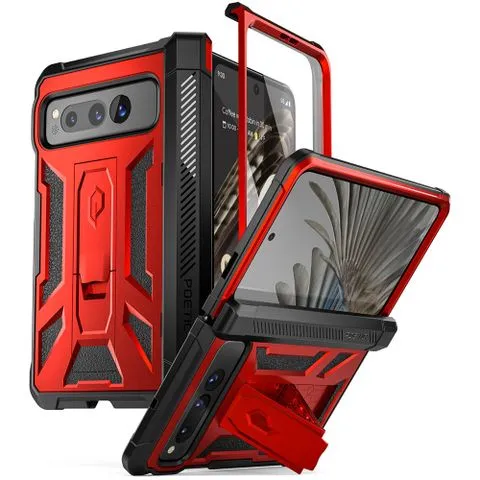
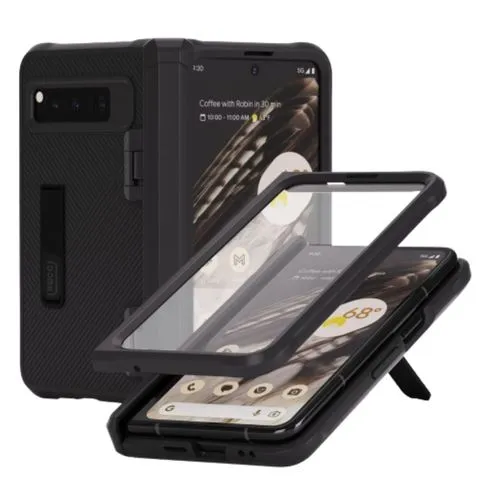
    Poetic Spartan for Pixel FoldBest overallI’m not gonna mince words: this is a chunky case. This absolute unit features a heavy-duty hinge protector, a kickstand built into the back (rather than the hinge), and a claim of 20-foot impact resistance. This kickstand should work whether your Fold is closed or open. Though when it’s open, you’ll want to rotate the Fold from landscape to vertical.$60 at Amazon

    casetify impact series pixel fol

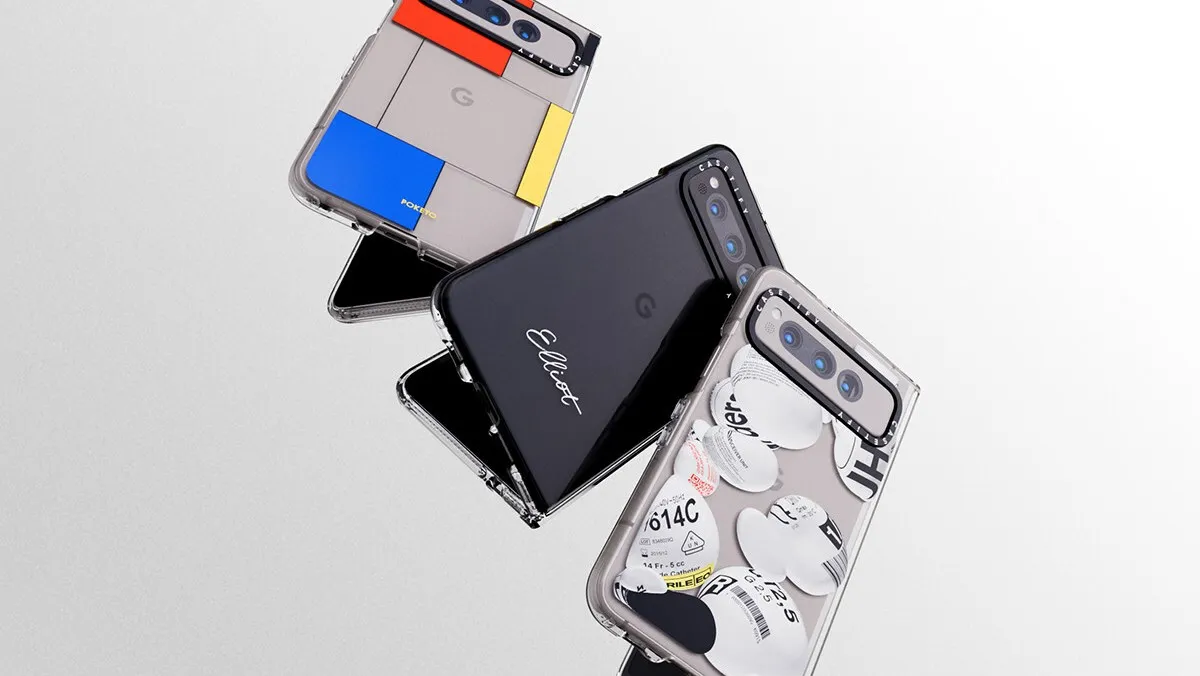
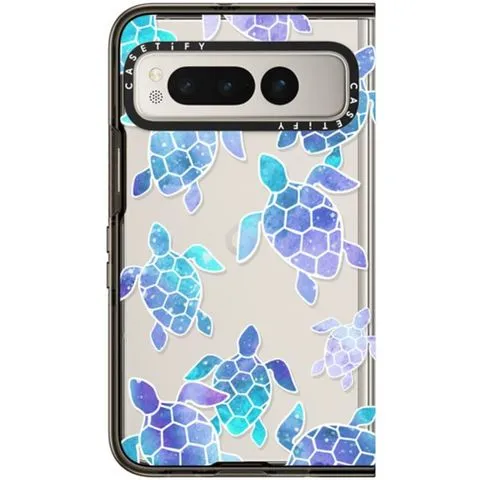
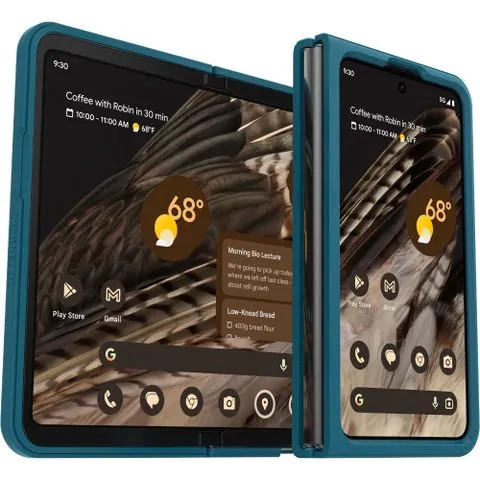
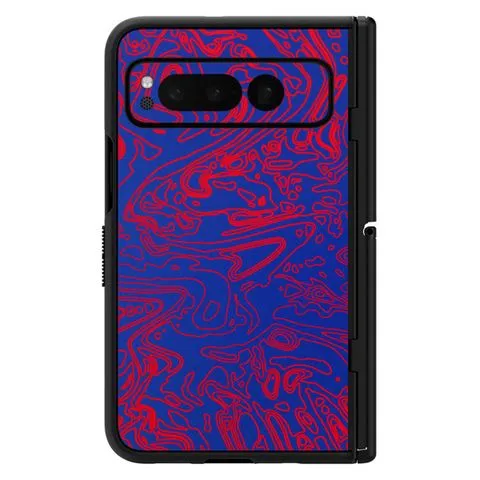
    Casetify Impact Case for Pixel FoldPremium pickIs this Pixel Fold Case expensive for only having four-foot drop protection and no hinge cover? Yeah. Is it the most stylish Pixel Fold case you can buy right now? Yup. From hundreds of designs to upcoming Co-Lab collections, from custom cases to iconic artwork, Casetify’s gallery ensures everyone can find something they like. If you don’t like the black bumper, Casetify also has a Clear option.$72 at Casetify

    caseology parallax pixel fold ca

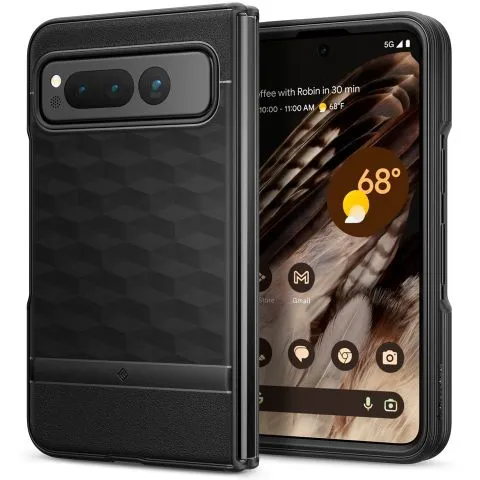
    Caseology Parallax for Pixel FoldBest valueMost manufacturers charge 30-100% more for a foldable phone’s case — they’re harder to design and use more materials — but Caseology keeps it classy and affordable with the Parallax. It might not have a kickstand or color choices, but it gives this Pixel Fold case exactly what it needs: grip and some basic impact resistance. The sculpting around the buttons also makes it easier to open the Pixel Fold.$25 at Amazon

    case mate tough plus pixel fold

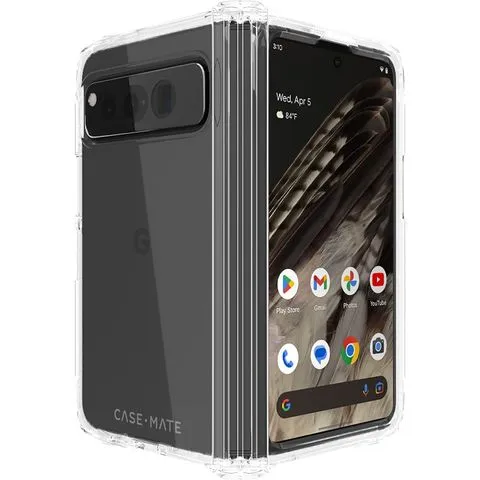
    Case-Mate Tough Plus for Pixel FoldFeels like one solid caseMost folding cases are two completely separate pieces that you have to hope and pray line up perfectly on your Pixel Fold. Case-Mate’s Tough Plus is one of the few Pixel Fold cases that feels like one modulated case rather than two distinctly separate halves. Case-Mate also claims it can withstand up to 16-foot drops, but the polish of this case alone is worth the price of admission.$50 at Amazon

    vrs design terra guard pixel fol

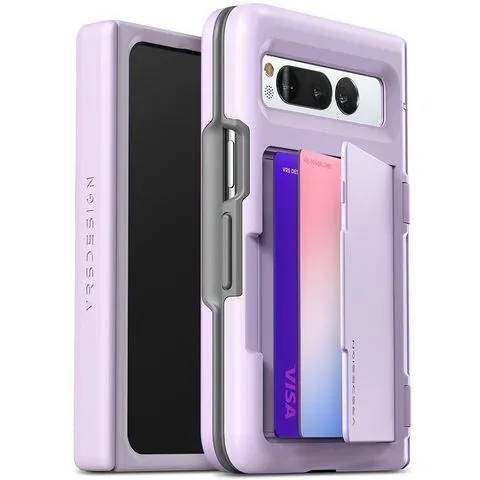
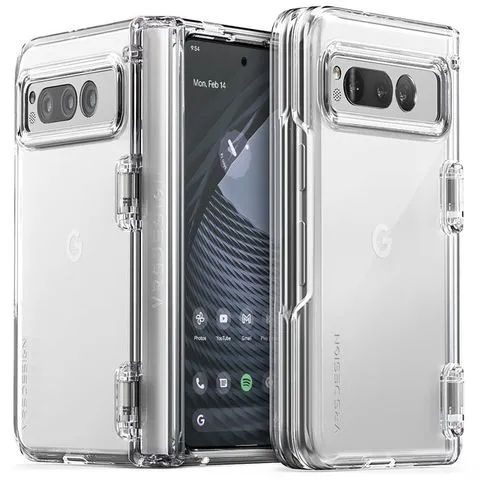
    VRS Design Terra Guard Modern Go for Pixel FoldThere’s no sugarcoating the thickness of this cover, being a card slot case on top of a heavy-duty Pixel Fold case. If you’re looking to ditch the billfold and just carry everything all in one, the Terra Guard is one of the few wallet options for this phone. We wish there were a teeny bit more space inside the slot for cash on top of cards, but it’s workable.$50 at Amazon

    spigen ultra hybrid pixel fold c

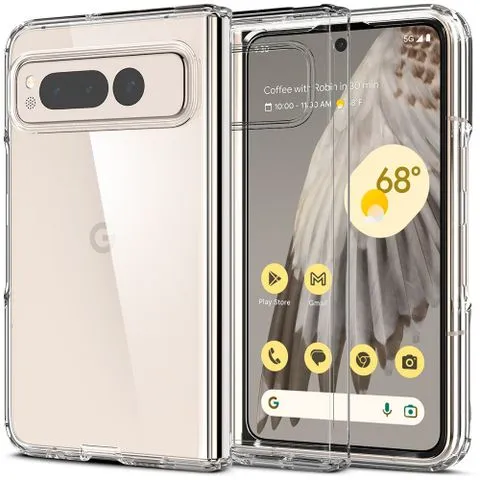
    Spigen Ultra Hybrid for Pixel FoldAs far as clear Pixel Fold cases go, it’s hard to beat the Spigen Ultra Hybrid. Though it lacks a hinged cover, this slim case will put that wonderful, creamy Porcelain on full display while staying slim and manageable while holding. Because there are no moving parts to this case, you can actually lay the Fold flat on a tablet without it turning into a seesaw for fairies.$45 at Amazon

    google pixel fold official case

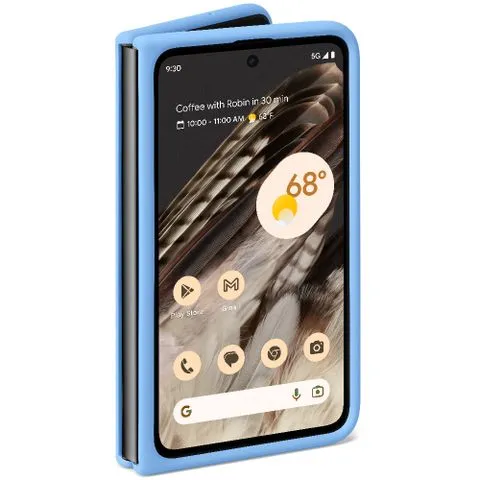
    Google Official Case for Pixel FoldThe track record of Google’s first-party cases has been a bit circumspect over the last couple of years, but its official Pixel Fold case breaks from the flimsy translucent cases with simple silicone slipperiness. Although we’ll have to test this one thoroughly, Google touts its stain resistance and texture — two areas previously struggled with. One thing’s for sure: Google nailed the colors.$60 at Google Store

    tudia dualshield pixel fold case

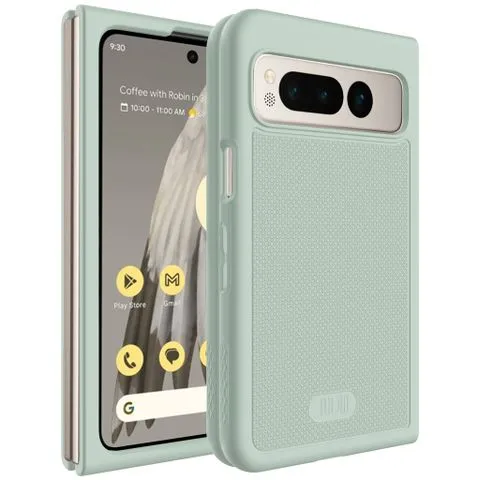
    Tudia DualShield for Pixel FoldTudia’s initial images for the DualShield had it completely covering the power button — and thus the fingerprint sensor — but it seems Tudia has remedied this mistake. The cutout for the power button is slim but should be enough to get a decent read while pulling the phone out of your pocket. It also comes in four striking colorways.$43 at Amazon

    otterbox thin flex pixel fold ca

    Otterbox Thin Flex for Pixel Fold$48$60Save $12At this time, OtterBox only offers the Thin Flex series for the Pixel Fold, a welcome compromise between a bold bumper case and a classic clear case. The edges on a clear case often end up looking ugly, especially if adhesives are involved, so covering these harsh realities is a good call. I do wish there were more color options, though.See at Amazon$48 at Otterbox

    vrs design simpli fit pixel fold

    VRS Design Simpli Fit for Pixel FoldWhile available in solid green and black, the clear VRS Simpli Fit shows the Pixel Fold’s matte glass exterior and thus is vastly superior. Clear cases with hinge covers are usually a bit messy, but VRS Design keeps things sturdy and clean. The cutout around the power button could use a little extra room for scanning fingerprints, but it should be fine most of the time.$40 at Amazon

    spigen tough armor pixel fold ca

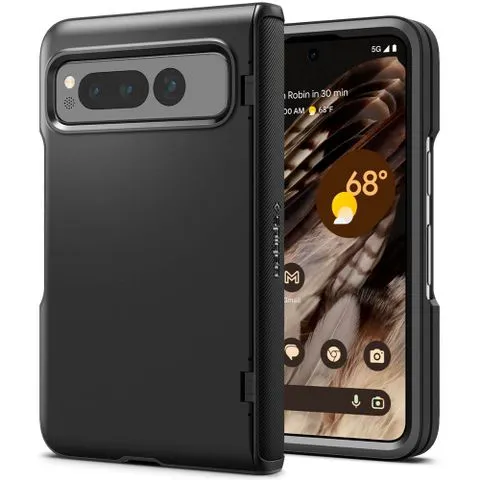
    Spigen Slim Armor Pro for Pixel FoldThe Slim Armor Pro’s normal construction makes it almost feels stale on normal slab phones, but its folding hinge cover adds just enough flair to keep it interesting. The hinge cover here is a bit slimmer than those found on VRS Design and Poetic’s cases, making it a less awkward handhold while using the Fold’s inner screen. For this price, the lack of kickstand stings.$85 at Amazon

    dbrand grip for pixel fold

    dbrand Grip for Pixel Fold$60$80Save $20Dbrand offers some of the best cases on the market, and they are bringing that expertise to the Galaxy Fold. At just 2mm thick and with military-grade drop protection, the case makes you feel confident that your phone will be well protected without any extra bulk. To prevent you from dropping it, this case consists of thousands of tiny ridges for maximum grip. It also comes with a built-in kickstand for enhanced viewing pleasure.$60 at dbrand

    ghostek covert for pixel fold 1

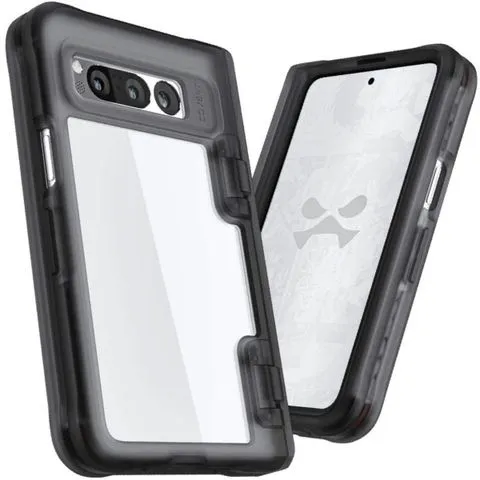
    Ghostek Covert for Pixel FoldThe Ghostek Covert case for the Pixel Fold offers a lot of protection in some fantastic colorways. While there are nine colors to choose from, six of those colors are available in limited quantities. So if you want to be unique, make sure you don’t hesitate. This case offers eight feet of drop protection, is scratch resistant, and has raised edges to keep the display and camera lenses free of scratches. $40 at Ghostek

    whitestone dome escudo for

    Whitestone Dome Escudo for Pixel FoldThe Whitestone Dome Escudo case offers complete device protection for the Pixel Fold. In addition to protecting the Fold’s body, the Escudo case protects the hinge and comes with a built-in screen protector. It is wireless charging compatible, allowing you to use your favorite charging mat or the power share feature. With precise port cutouts and an integrated kickstand, the Escudo case is a fantastic investment for the Pixel Fold.$26 at Amazon

    pixel fold cases

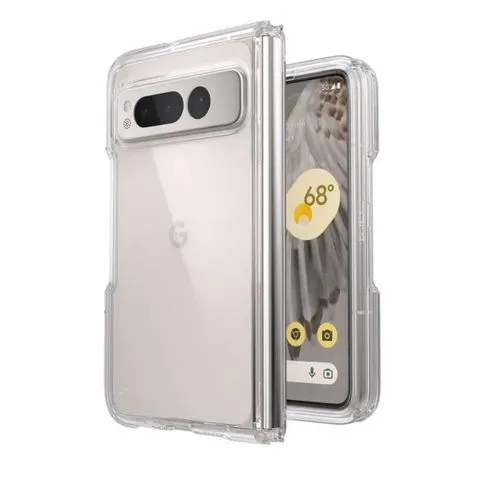
    Speck Presidio Perfect-Clear for Pixel FoldThe Presidio Perfect-Clear case from Speck has its surface covered in Microban, keeping odor and stain-causing bacteria at bay. This layer maintains top-notch clarity and won’t yellow over time. In addition to showing off the Pixel Fold, it offers 13 feet of drop protection in a thin package. And with raised bezels, the screen and camera are protected from being dragged across a flat space.$60 at Speck


    The current selection is strong, despite the fact that we’re still missing a sizable portion of the anticipated Pixel Fold cases—we’re hoping they’re just fashionably late and not just absent. Newer companies like Ghostek and Casetify bring forth more flair and refinement, while more traditional names like OtterBox, Dbrand, and Spigen serve up the familiar and expected series. The Caseology Parallax combines all the best elements. We are familiar with and have confidence in this series since it provides a protective case that is neither too thick nor too thin, with equal parts grip and style.

    It’s good that there aren’t many colorful Pixel Fold options you’d want to show off with a clear case. Slim scratch protection is provided by clear cases like the Ultra Hybrid and the Presidio Perfect-Clear. Additionally, more colorful cases, such as the graphic Casetify Impact Series, continue to create distinctive and captivating combinations for your Pixel Fold.

    You will have to cope with actual cuts surrounding the button because the Pixel Fold’s fingerprint sensor is positioned on the power button. Hence, cases that eliminate the volume and power buttons, like the Spigen Ultra Hybrid, tend to yield better reads. Although cases like the Ultra Hybrid expose more of the frame and the buttons, they also provide a better grip place for opening the Fold with one hand. Some covers, like Tudia’s DualShield, simply expose the power button, making it simpler to feel where your finger has to go. But, some people may find it more difficult to acquire accurate fingerprint reads due to the smaller cutout.

    If all else fails, use Smart Lock, also known as Extend Unlock, to keep your digital lifeline unlocked when you’re out and about or sporting your lovely Android smartwatch, as I do. Then purchase a screen protector for your Pixel Fold to shield that dazzling exterior screen from nicks and breaks.

  • Fix “This device isn’t Play Protect Certified” error on custom ROMs

    Fix “This device isn’t Play Protect Certified” error on custom ROMs

    An Android phone stands apart in the market thanks to customization and the freedom to do anything with it. You can replace the phone’s stock UI with a custom ROM if you don’t like it. Once more, if your manufacturer has stopped providing updates for your phone, you can try out custom ROMs that are powered by the newest version of Android. You therefore have significant customization options and control over your smartphone in both situations.

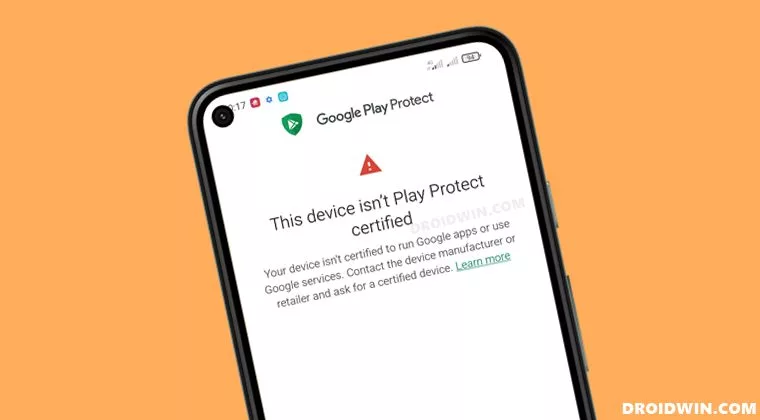
    However, a developer of a modified ROM must register the ROM with Google. The device will not be able to use any Google services, including Google apps and services, if it is not registered with Google.

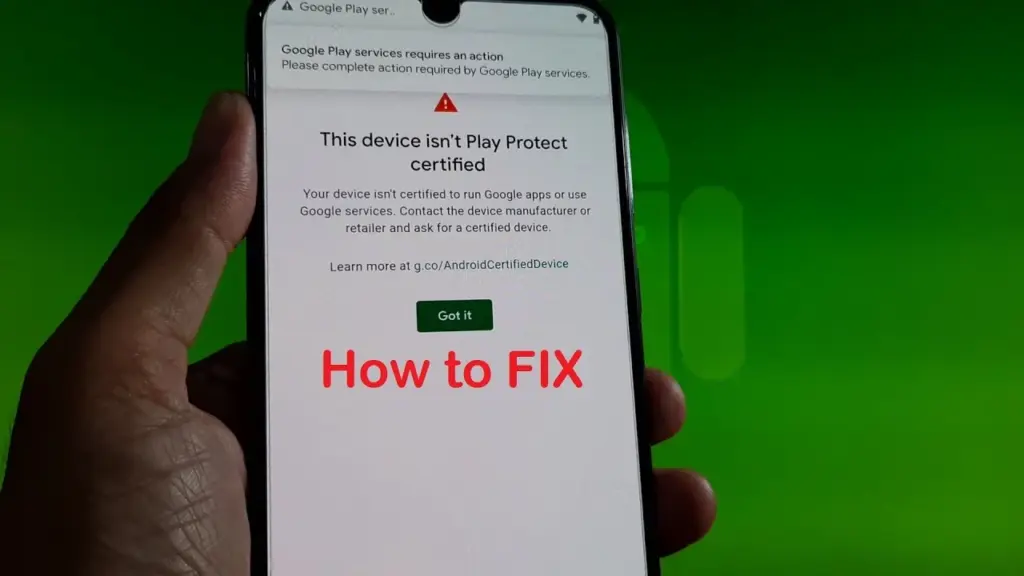
    When a device has an unregistered custom ROM installed, they get the “This Device Isn’t Play Protect Certified” error. Now, if you are one of those struggling with such an error message, this article will help you. Here, we have listed how you can fix this. So without any further ado, let’s get into this.

    You need to follow the steps for this in a systematic manner. It is exactly as we have mentioned below here. Do not skip any of these steps, and ensure one step is complete before moving to the next one.

    How to fix This Device Isn’t Play Protect Certified Error On Custom ROMs?

    This device isn’t Play Protect Certified

    Install Android SDK:

    Download and extract the Android SDK Platform Tools on your PC. Depending on your PC’s OS, download it for WindowsMac, or Linux. It will be a zip file. Once you have it, extract it in any preferred location. Now, you need to enable USB debugging on your smartphone for that.

    Enable USB Debugging:

    This step is essential if you want your PC to recognize your device when connecting it via USB in ADB mode.

    • Open up the settings menu on your phone.
    • Navigate to About Phone > Build Number. You need to tap on the Build number 7 times. You will see a pop-up on your screen that reads, “You are now a developer.”
    • Now go back to Settings and Open up System.
    • Navigate to Advanced > Developer Options > Enable USB Debugging.

    And that’s it. Your smartphone is now ready to take in ADB shell commands.

    Find Device ID:

    Obtaining the device ID used to be a challenging task; users would frequently need to root their phones in order to obtain this data. But that is no longer the case. The Google Play Store offers a program called Device ID that you can download. When you launch it after installation, the device ID details will be visible. After noting the device ID, proceed on to the following action.

    Register Your Custom ROM:

    You must visit the Google Device registration page for the final registration process.

    • Click on this link to go to Google’s Device registration page.
    • Sign in to your account here.
    • Now type in the device ID under the “Google Service Framework Android ID” section.
    • Verify the captcha and then click on the Register button below it.
    • Wait for an hour, and your device should be registered successfully.

    Once the registration is complete, your Custom ROM will also be registered, and you won’t see the “This Device Isn’t Play Protect Certified” error on your screen anymore. If you have any questions or queries about this article, comment below, and we will get back to you.

  • BlackRock Android Malware – what is it and how to avoid it

    BlackRock Android Malware – what is it and how to avoid it

    Android users installing apps from third-party app stores are at risk of the BlackRock malware. How can this malware be stopped?

    BlackRock malware is yet another threat worrying Android users. This newly-discovered malware can target a variety of different applications, thereby stealing your information.

    Make sure you know what BlackRock malware is, and how you can protect yourself, before installing another file.

    Security firm, ThreatFabric, discovered a digital danger that affects Android devices in May 2020: BlackRock malware.

    Analysts however quickly discovered that BlackRock malware is not really a new threat. BlackRock malware is the product of leaked source code for Xeres malware, which is a form of trojan LokiBot banking.

    Despite the fact that BlackRock malware is based on a banking trojan, it does not just affect banking apps. It also targets applications for shopping, leisure, social relations, entertainment and even dating. This extensive publicity makes it extremely risky.

    It currently has 337 apps on its goal list, some of which you might be using on a regular basis. Its target applications aren’t limited to one country either — it targets applications across Europe, North America , and Australia.

    ThreatFabric presents the full list of targets in its article. Some of the applications on the list include Gmail, Netflix, Snapchat, eBay, Twitter, TikTok, PayPal and more.

    BlackRock malware has not been detected on the Google Play Store until now. Currently it targets downloaded apps from third-party sites, but that does not mean that BlackRock malware will never appear on the Google Play Store. Aggressive hackers also can find ways to break Google’s protection protocols.

    How BlackRock Malware Steals Your Information

    When BlackRock malware appears on your computer it can never be noticed by an unknowing user. It uses a technique known as a “overlay,” a fake window which pops up over a legitimate app. The overlay mixes with the software so it’s hard to say whether the pop-up is part of the app or not.

    The window will ask you to enter your credit card number and login code, before you can even start using the legal app. This helps it to get the details right off the bat.

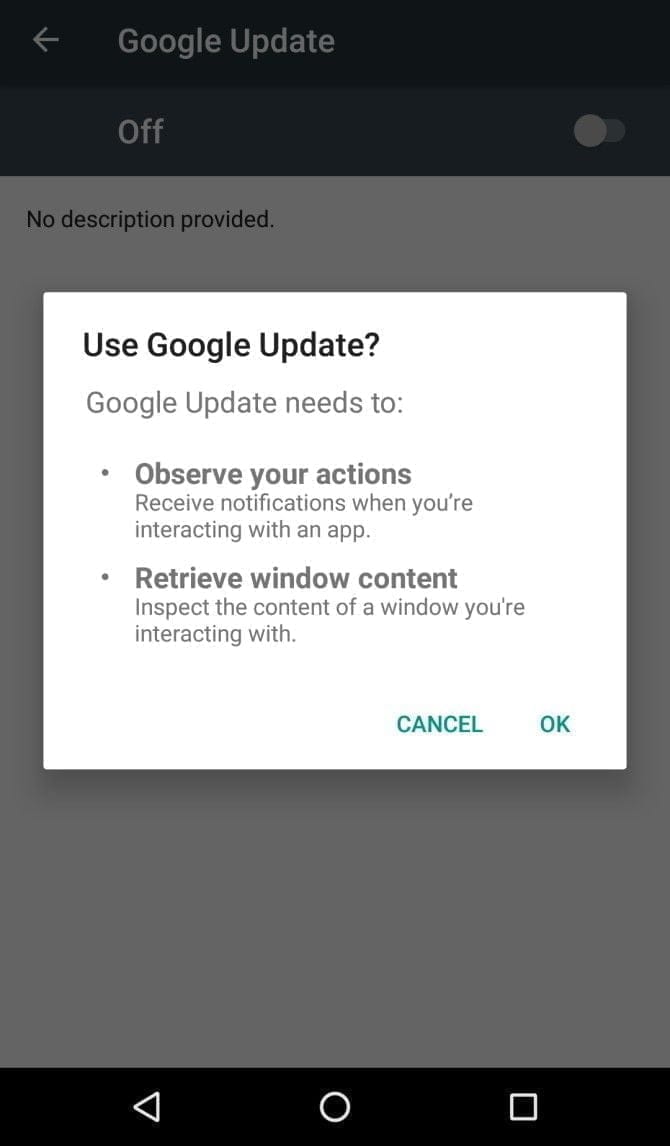
    It infiltrates your device in the first place by getting Accessibility Services permissions. When you install an infected app, it’ll prompt you to enable a fake Google Update. Accepting the “Google Update” allows it to intervene with your device.

    If you aren’t familiar with an Android’s Accessibility feature, you should know that it’s one of the most powerful functions on your device. It’s meant to help Android owners with disabilities, but Accessibility Services can be used to hack your phone as well. This feature can automate a variety of tasks for the user, including tapping the screen, reading text aloud, and even creating captions.

    Giving BlackRock permission to use Accessibility Services lets you build the overlay that you can see when you open the target app. It also gives additional functionality to the malware, as it can then use an Android DPC (device policy controller) to grant administrator privileges to itself.

    In other words, it not only steals the confidential details you type into its overlay — it can actually do a lot more than that. BlackRock does not only intercept SMS messages, mask alerts and lock your computer, it can also engage in keylogging. That said, this malware is certainly not what you want on your computer.

    Protect yourself from BlackRock malware

    As mentioned earlier, the Google Play Store still hasn’t found BlackRock. But just because apps from third-party app stores are currently being targeted, that doesn’t mean it’ll never make its way to Google Play.

    ThreatFabric notes that it “can not yet predict how long BlackRock will be active on the threat landscape.” Meanwhile, it’s necessary to bear in mind some precautions before installing apps.

    Why an anti-virus app won’t cut it

    It’s not a bad idea to have an antivirus app on your smartphone, but unfortunately, an antivirus app won’t stop the BlackRock malware. When BlackRock infiltrates your phone, it has a feature that blocks you from using an antivirus app.

    As soon as you open an antivirus or an Android cleaner app, such as Avast, Kaspersky, McAfee, BitDefender, or Superb Cleaner, BlackRock will immediately redirect you to your Home screen. This prevents you from removing the malware using an antivirus app.

    So, if you download a sketchy app from a third-party store, and think that an antivirus app will keep you safe from all threats, think again.

    Check app permissions

    No matter how legit an app may seem, you should keep an eye on the app permissions. Some apps request permissions that have nothing to do with the App’s core function.

    For example, your SMS messages obviously don’t need access to a flashlight app. This is a sign that you should immediately uninstall the App.

    As BlackRock malware asks for permissions from Accessibility Services, you’ll want to look for any apps that require that particular privilege. If an app is legitimately for users with disabilities, has good reviews, and is from the Google Play Store, you are likely to have confidence in granting permission to the accessibility services. If not, avoid giving that privilege to any applications that don’t need it.

    Download apps from Google Play Store only

    Google Play Protect was put in place to scan your installed apps for malware as soon as you download them, as well as scan them periodically once installed. Third-party app stores don’t have this safety feature, so you’re pretty much on your own in terms of security.

    The lack of security protocols on third-party stores has allowed BlackRock malware to thrive. To lower your risk of encountering BlackRock malware, try to avoid third-party apps stores, and refrain from downloading APKs.

    Stay safe!

    BlackRock malware will hopefully never hit the Google Play Store. There really isn’t any telling if the actors behind BlackRock malware can find a loophole in Google’s security policies, but if they succeed, BlackRock malware could accumulate a significant number of victims.

    If BlackRock ever reaches the Google Play Store, it’s not too surprising. After all, despite Google’s strict security protocols, several apps that contain Joker malware still managed to make their way onto the Google Play Store.

  • Antivirus and anti-malware apps for Android

    Antivirus and anti-malware apps for Android

    Android antivirus apps remain one of Android’s most common applications. Generally speaking, if you play it safely, you don’t need to have an antivirus program, just download apps from the Play Store and keep your security settings available. In the other side, however, there are those who enjoy taking a stroll and not doing those things. There’s just a lot of bad antivirus software out there. Even if those apps aren’t needed, knowing the safe ones that don’t suck is fine. Below are Android’s best Antivirus and Anti-Malware devices.


    360 Security

    360 Security android app

    360 Security is something of a mixed bag. Any of the protection stuff isn’t half bad and the other half is pretty bad then. The app scans your devices for possible malicious activity, but its detection rate is slightly higher than we would expect. Facebook is evil, and all, but it is not malware yet. In any case, this is a good, super simple antivirus app that shows you possible vulnerabilities and will do the scans. The software also includes a range of functions like phone booster and phone generator. We suggest that you should not use those at all because they are snake oil and they are not really operating.


    McAfee Mobile Security

    screen 0

    McAfee is one of the big names of antivirus software. It is one of the biggest ones, too. The application provides features for screening, anti-theft, anti-spyware and security locking. Additionally, it can take photographs of your possible phone thief, record cloud locations until the phone shuts down, and other useful things. McAfee also has a number of other standalone apps. The UI is old, and looks not very fine. In addition, it has boosting features that don’t work and it needs the development of an account to go pro. The application’s antivirus portion works pretty well and some tertiary features are good.


    Kaspersky Mobile Antivirus

    Kaspersky Mobile Antivirus

    Kaspersky is among the most common antivirus apps available. It has both a free version, and a paid edition. All versions provide SMS blocking and calling, scanning, malware monitoring and anti-theft. The premium edition includes items like the security in real time, an applock and more. Both models of course have malware scanning tools and things like that. It’s not nearly as powerful as the big antivirus software. Plus, it has no nasty booster features which don’t work. It’s good to see an antivirus app that doubles down on its intent, rather than trying to expand to items that make no sense. For many people, that makes it a good middle-of – the-road option.


    ESET Mobile Security and Antivirus

    Eset mobile security

    ESET is another major name in the anti-malware and antivirus world. It includes scans, anti-theft support, a security auditor tool, scan scheduling, and more. The design is a little distracting. One of the few needing an email address is this. Otherwise, it would work reasonably well. Upon download, you’ll get a free one month trial. It goes from there for $1.99 a month, or $14.99 a year. As anything like AVAST or AVG it’s not quite heavy, but it’s heavier than CM Protection Lite or Bitdefender.


    Malwarebytes Security

    96442c3c6d2c5519990e5eec0a4f295d

    Malwarebytes is among the most common Windows antivirus software. The mobile version is also relatively fine. It features a collection of actively modified viruses, malware and ransomware support, a permission tracker, and more. It can also search messages for potentially harmful connections in WhatsApp, Email, SMS and so on. Obviously it even does the normal stuff like scanning. The app looks good, it works well and isn’t as heavy as others. This is also reasonably priced at $1.49 a month, or $11.99 a year.