The Google Pixel phones are notable for their outstanding photography capabilities, even with their flaws. You may capture beautiful pictures with a Pixel by pressing the shutter button. No need for retakes. The Pixel Camera app is crucial in providing that experience because it has the ideal combination of functionality and a clear, user-friendly layout.
Even so, you have probably missed a number of the Pixel Camera app’s incredible features. Some make taking the ideal picture easy, while others streamline the image-sharing process.
#deal – Google Pixel 9
Google Pixel 9 with Gemini gets the best of Google AI first, so you can take amazing photos, make edits like magic, and get things done even easier
Quick access controls
The performance of their point-and-shoot cameras makes Pixel phones unique. The best results can be obtained without adjusting settings or switching to a specific mode. Remove your phone from your pocket, open the app, and begin taking pictures. To get the desired effect, you might need to change the brightness, shadows, or white balance.
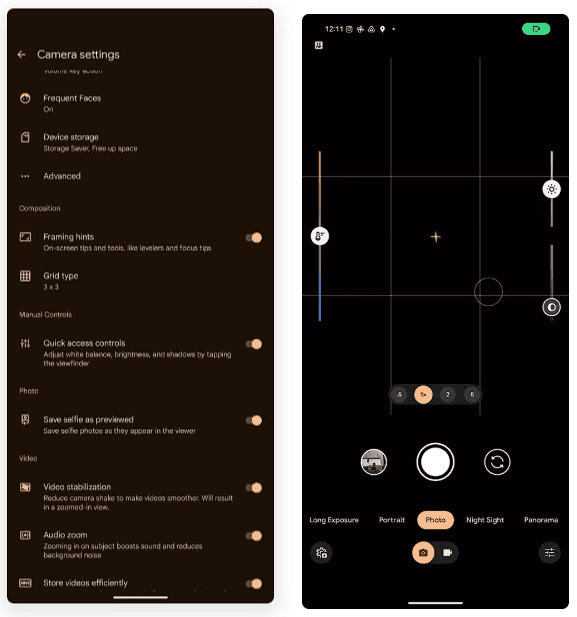
To adjust these settings, you do not have to go into Pro mode in the Pixel Camera app like you would on other phones. Instead, go to the settings menu and enable Quick access controls. Then, by tapping the viewfinder, you may activate sliders to adjust the brightness, shadows, and white balance.
Panorama with audio
The Google Pixel supports panoramic photography, just like a lot of Android phones. In contrast to most, they have a remarkable 50MP resolution for taking panoramas. But that is not it. The latest Pixel phones have yet another secret weapon. Audio can be recorded while taking a panorama picture. Although this feature may seem like a gimmick to you, there are several situations in which it might be helpful.
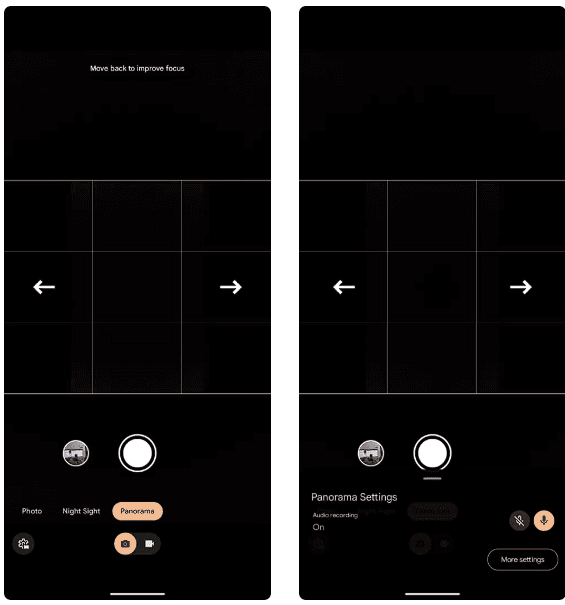
Imagine recording a breathtaking panoramic scene and narrating it in the backdrop with your voice. After that, you can show it to your loved ones. This function is well-executed by Google, which makes sure the soundtrack plays in the background and fades in and out while you see the panoramic.
The only drawback is that it can be challenging to share panorama photographs with audio. The noise is eliminated when sending the picture via Instagram, Google Messages, or WhatsApp. The panorama cannot even be uploaded to Google Photos. Sending the photograph to another Pixel using Quick Share is your best bet.
Guided frame
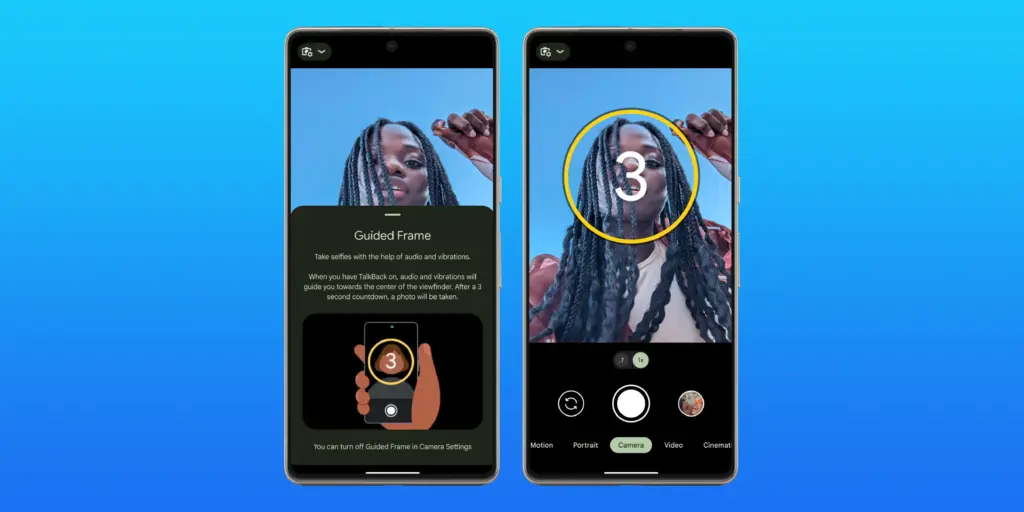
Pixel phones have excellent photography. However, this does not imply that anyone can shoot beautiful photos with a Pixel phone. People with visual impairments may often find it challenging to frame their subjects correctly before taking a picture. This is where the Guided Frame function of the Pixel Camera is useful.
This accessibility feature offers auditory and visual cues to assist in appropriately framing subjects. It is intelligent enough to assist with framing by automatically recognizing faces, objects, and scenes. Your Pixel phone will automatically take a picture when it is properly framed.
When using the front camera to take selfies, Guided Frame is useful. You can move around until the Pixel Camera app recognizes better lighting circumstances after it recognizes your face. The picture is then automatically taken.
By pressing the Settings icon in the bottom-left corner of the Pixel Camera app and selecting More settings > Guided Frame, you may enable guided frame. When you turn on TalkBack mode on your Pixel, the feature is automatically enabled.
#deal – Google Pixel 9
Google Pixel 9 with Gemini gets the best of Google AI first, so you can take amazing photos, make edits like magic, and get things done even easier
Quick short video
Enjoy posting quick videos on Snapchat or Instagram? For this, you do not have to put the Pixel Camera in video mode. Hold down the shutter button while using the camera app instead.
A video is being recorded by your Pixel phone. When you remove your finger from the shutter, it stops. As an alternative, you can continue recording even after you pull your finger off the screen by sliding it to the lock icon on the left of the viewfinder.
This tool is ideal for shooting video or swiftly taking brief clips. Additionally, you can export a full-resolution frame from the movie to share as a photo because Top Shot functions in this mode.
Palm timer
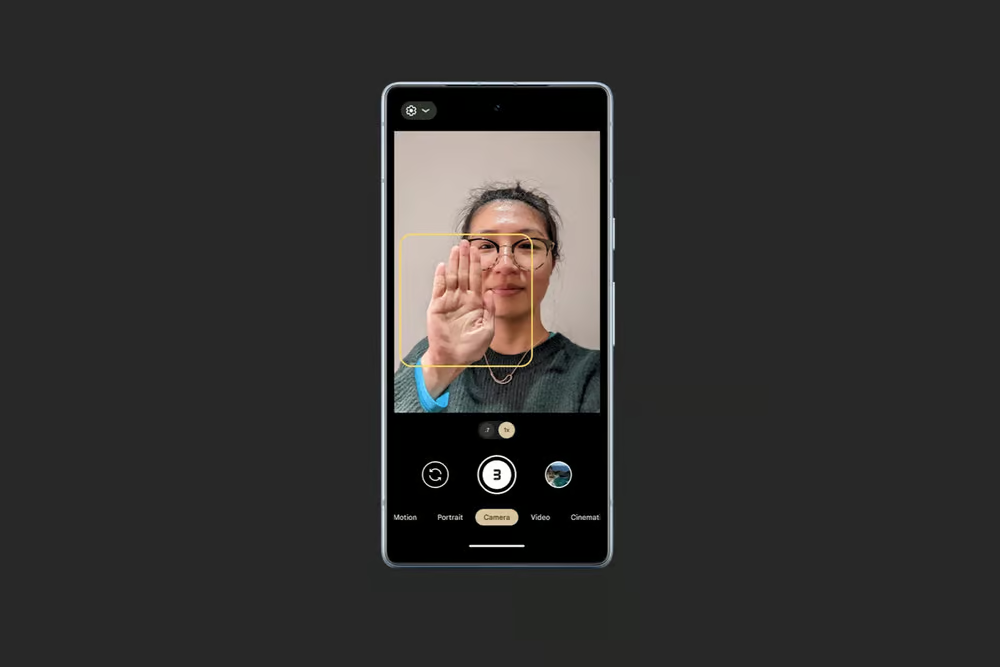
Sometimes you want to capture a picture with your Pixel propped up on a table. Or, when taking a group selfie, have your arm fully extended. It can be challenging to press the volume key or tap the on-screen shutter button in these circumstances without shifting the phone or readjusting your grasp. In these circumstances, the Pixel Camera’s palm timer function can be useful.
You may enable a three-second timer on your Pixel simply lifting your palm. You do not have to have it. Your Pixel automatically takes a picture after the countdown. It is helpful while taking solo photos with a tripod. Both the front and back cameras are compatible with the function.
I use the Palm timer to take selfies or group photos using the rear camera, as the larger sensor means better quality images. You can enable Palm timer from the Pixel Camera settings.
#deal – Google Pixel 9
Google Pixel 9 with Gemini gets the best of Google AI first, so you can take amazing photos, make edits like magic, and get things done even easier