Tag: pc

  • How to transfer files from Android to PC (no cable needed)

    How to transfer files from Android to PC (no cable needed)

    Gone are the days when a USB cable was the only way to move files between your Android phone and computer. Whether you’re transferring photos, documents, or videos, there are now several wireless methods that make the process faster and more convenient — no cables, no drivers, and no hassle.

    In this article, you’ll discover how to transfer files from Android to your PC wirelessly utilizing free built-in utilities and reliable third-party apps. All ways are easy, secure, and don’t need rooting your smartphone.

    Why Go Wireless?

    Here’s why transferring files without a cable is the smarter choice:

    • No need to carry cables or adapters
    • Works on all modern Windows, macOS, and Linux PCs
    • Faster for frequent transfers
    • No risk of physical damage to USB ports

    1. Use Google Drive (Cloud Sync)

    If you have a Google account, you already have access to Google Drive — one of the easiest ways to transfer files wirelessly.

    Steps:

    1. Open the Google Drive app on your Android device.
    2. Tap the “+” icon, then select Upload.
    3. Choose the file(s) you want to send.
    4. Wait for the upload to complete.
    5. On your PC, go to https://drive.google.com and log in.
    6. Download the files to your computer.

    Pros:

    • Seamless for documents and photos
    • Files are stored in the cloud, so they’re safe even if your phone is lost
    • Works across devices and operating systems

    Cons:

    • Requires an internet connection
    • File size limits apply (15GB free storage per Google account)

    2. Send via Nearby Share (Best for Windows)
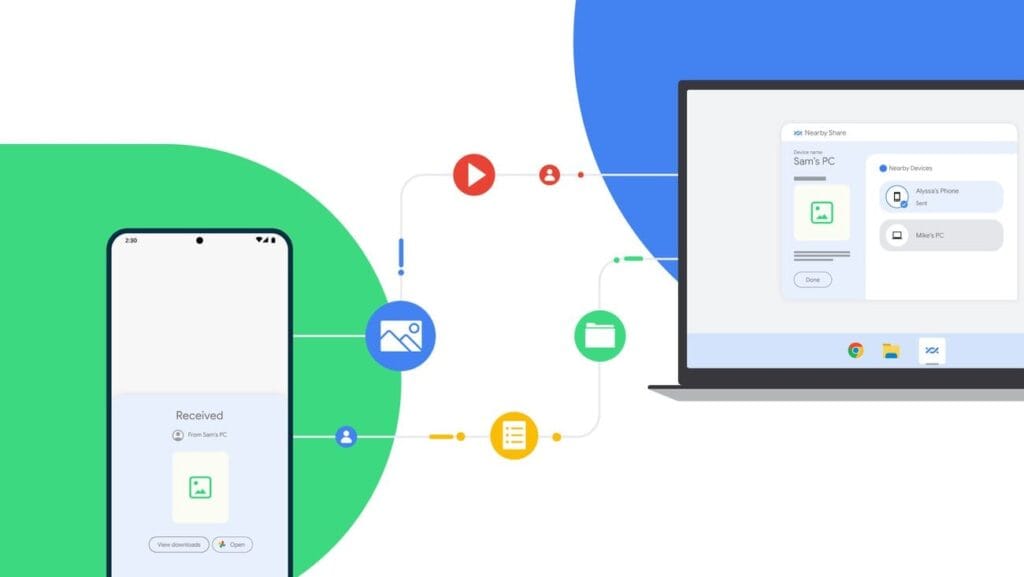
    Nearby Share for transfer files

    Currently fully supported on Windows 10/11, Nearby Share is Google’s AirDrop-style solution for sharing files instantly between Android and Windows devices.

    Set It Up:

    1. On your Android, go to Settings > Google > Devices & sharing > Nearby Share and turn it on.
    2. On your PC, install the official Nearby Share for Windows app from Google’s website.
    3. Connect both devices to the same Wi-Fi network and ensure Bluetooth is on.

    Send Files:

    1. Select a file on your Android device.
    2. Tap the Share icon and choose Nearby Share.
    3. Your PC should appear in the list — tap it to send the file.
    4. Accept the transfer on your computer.

    Pros:

    • Fast and secure
    • Works offline (local Wi-Fi or Bluetooth)
    • No cloud storage needed

    Cons:

    • Not available on older PCs or operating systems
    • Some routers may block discovery if firewall settings are strict

    Method 3: Transfer with File Sharing Apps (like Send Anywhere)

    Direct wireless transfers between your computer and phone are possible through Wi-Fi thanks to apps like Xender, Feem, and Send Anywhere.

    Using Send Anywhere:

    1. Install Send Anywhere on your Android from the Play Store.
    2. Visit https://send-anywhere.com on your PC.
    3. On your phone, select the files you want to send.
    4. You’ll get a 6-digit code — enter this on your PC to receive the files.

    Pros:

    • Works on any OS and browser
    • No account required
    • Fast local transfer via Wi-Fi Direct (not over the internet)

    Cons:

    • Ads in the free version
    • Interface might be confusing for first-time users

    Method 4: FTP File Transfer via File Manager Apps

    If you prefer full control over file navigation, FTP (File Transfer Protocol) is a powerful option — no internet needed.

    Using Solid Explorer or ES File Explorer:

    1. Install a file manager that supports FTP (e.g., Solid Explorer).
    2. Open the app and go to Network > FTP Server.
    3. Start the server — the app will display an IP address like ftp://192.168.1.10:1234.
    4. On your PC, open a browser or FTP client (like FileZilla) and enter the address.
    5. Browse your phone’s storage and download files directly.

    Pros:

    • Full control over folders and files
    • High-speed transfers over local network
    • No cloud or apps required on the PC

    Cons:

    • Not user-friendly for beginners
    • Must stay on the same Wi-Fi network

    Method 5: Microsoft Phone Link (Windows 10/11)
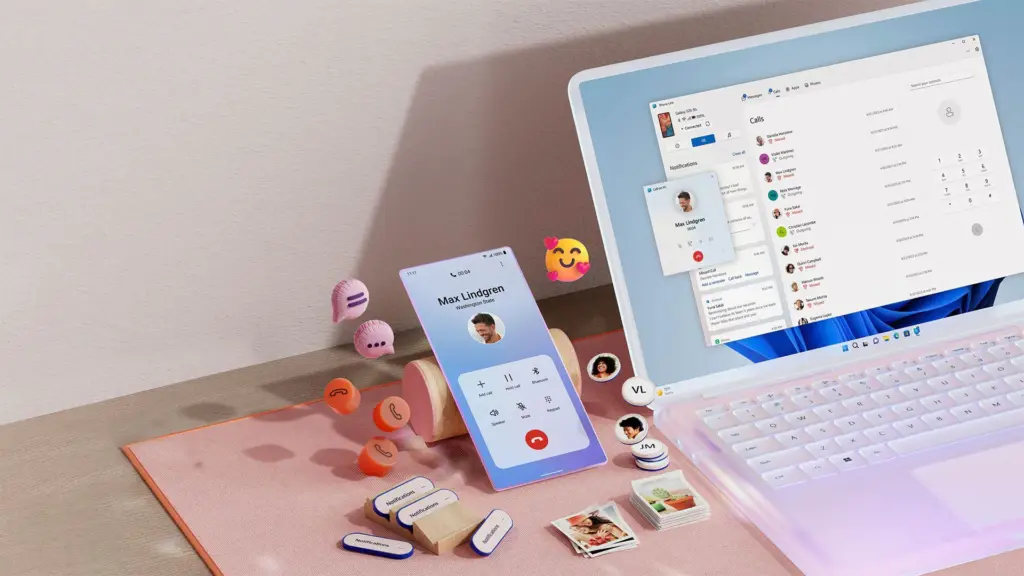
    msft open laptop with mobile phone floating emojis RW10WBx

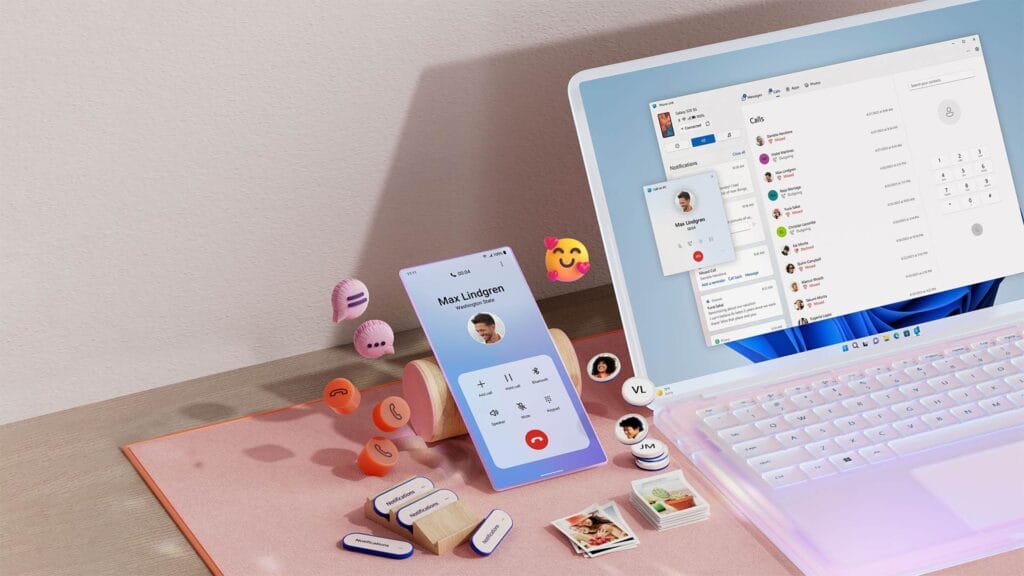
    Microsoft’s Phone Link app (previously “Your Phone”) enables seamless connectivity between Android and Windows.

    Setup:

    1. On your Android, install the Link to Windows app.
    2. On your PC, open the Phone Link app (pre-installed on Windows 10/11).
    3. Follow on-screen instructions to link the two devices.

    Features:

    • Access photos, messages, notifications, and files
    • Drag-and-drop files directly between phone and PC

    Pros:

    • Seamless experience for Samsung and Surface users
    • Files transfer instantly without cables

    Cons:

    • Requires Microsoft account
    • Full feature set limited to specific models (Samsung, Honor)

    Bonus: Email, Telegram, or WhatsApp (for Small Files)

    For documents or images under 100MB, you can simply email them to yourself or use Telegram’s Saved Messages to transfer between devices.

    • Email: Attach files and send them to your own address.
    • Telegram: Send the file to yourself from your Android and download it on your PC.
    • WhatsApp Web: Share with a trusted contact and download via WhatsApp Web on PC.

    What’s the Best Option?

    MethodSpeedInternet RequiredSetup ComplexityBest For
    Google DriveMedium✅ YesLowBackups & multi-device use
    Nearby ShareHigh❌ NoMediumWindows 10/11 users
    Send AnywhereHigh✅/❌ OptionalMediumFast wireless transfers
    FTP via File ManagerVery High❌ NoHighTech-savvy users
    Microsoft Phone LinkHigh✅ YesMediumWindows users w/ Samsung

    You no longer require a USB cable to transfer data between your Android phone and computer. Whether you want to backup your gallery, transfer work documents, or send huge films, wireless solutions make the process simple and effective.

    Nearby Share and Google Drive are the most user-friendly solutions. If you desire speed and complete control, FTP or Send Anywhere would suffice, as they do not require cloud storage.

    Experiment with the way that best suits your workflow; once you go wireless, you will not want to plug in again.
  • How to control your Android phone from a PC

    How to control your Android phone from a PC

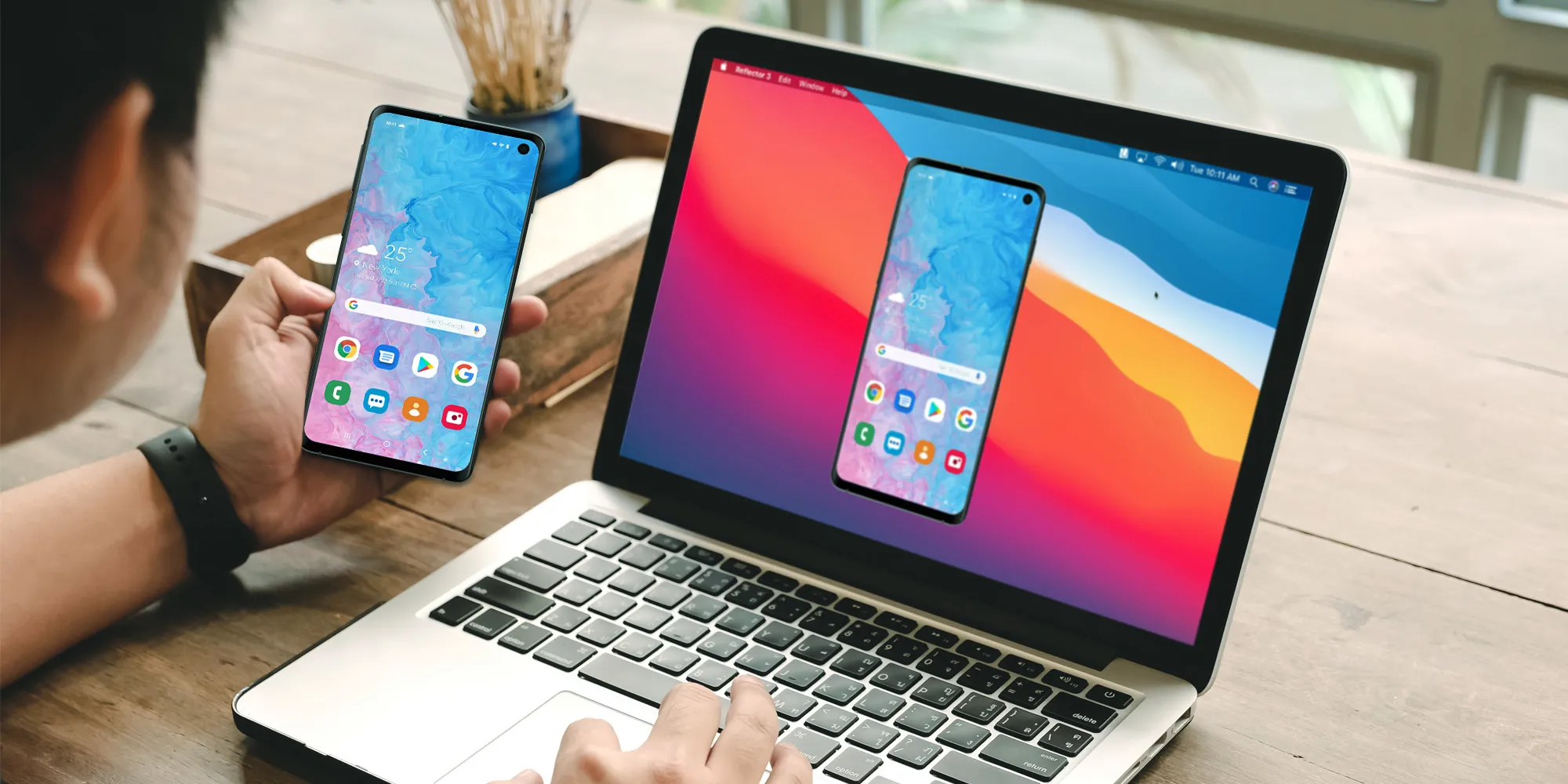
    Picking up my phone to check a notification or respond to a text annoys me since I want convenience. I always keep WhatsApp Web open in a tab because of this. Even while it meets the most of my communications requirements, it is insufficient. As a huge admirer of Apple’s iPhone Mirroring function, I have been searching for a practical method to manage my Android phone from my computer. I can do just that with these four apps.

    TeamViewer QuickSupport

    control your android device remotly

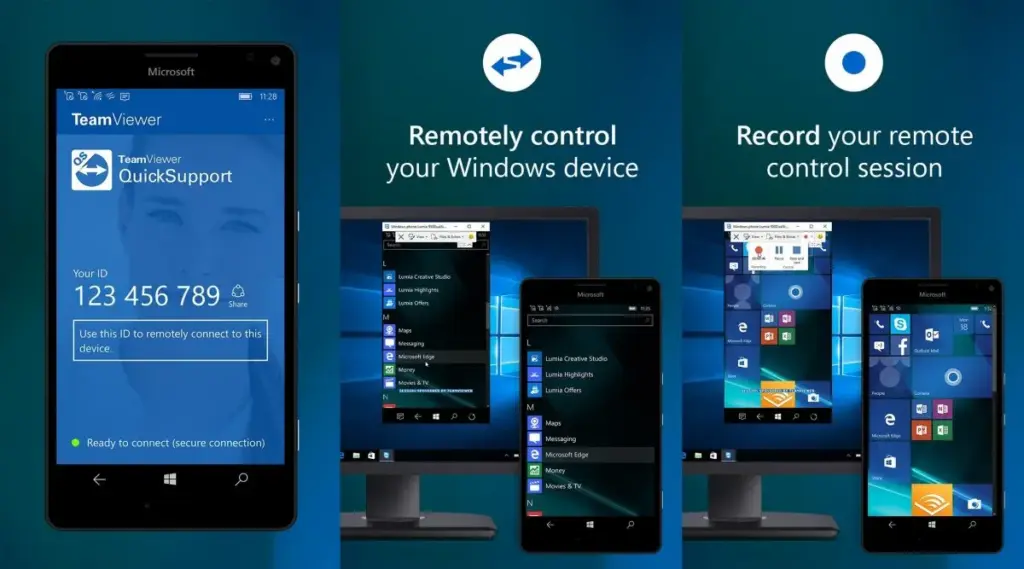
    Sometimes you need to remotely control your Android phone, either to access your device from a distance or to assist a buddy in troubleshooting a problem. This is made simple by TeamViewer QuickSupport, which provides complete remote control, enabling you to install apps, change settings, and browse menus from your PC.

    It is easy to set up. Install the QuickSupport app on your phone, connect using the TeamViewer desktop app, and give the person helping you the unique ID. They are perfect for remote management, troubleshooting, and technical help because they can operate your device in real time when they are linked. In contrast to many alternatives, TeamViewer is compatible with web browsers, Linux, macOS, and Windows. End-to-end encryption and two-factor authentication are two of its robust security features. Additionally, it facilitates communication and file transfers, which facilitates teamwork.

    There are certain drawbacks to TeamViewer. Access may be restricted by the limited free version, which may mark frequent personal use as commercial. Since network quality affects performance, lag may result from slower connections. It works well for remote control, but unlike Phone Link or Scrcpy, it is not designed for everyday phone mirroring.

    TeamViewer QuickSupport is still among the best choices for safe, cross-platform remote access, particularly for IT assistance and troubleshooting.

    Microsoft Phone Link

    control your android device from PC

    Microsoft Phone Link, which is integrated into Windows 10 and 11, allows you to easily connect your Android phone to your PC. Without touching your phone, you can make calls, control notifications, send texts, and view recent photos.

    The ability to replicate apps is one of its strongest features. For apps without web versions, you can use your mouse and keyboard to interact with them when you launch specific mobile apps on your PC. It is easy to set up. You can connect your Android phone to your PC via Bluetooth or Wi-Fi after installing the Link to Windows app on your phone. Everything updates automatically once it is synchronized, and the connection is secure.

    Phone Link is revolutionary if you operate on a computer for extended periods of time. It ensures that you remain connected while minimizing distractions. The majority of Android phones can utilize its primary functions, albeit Samsung Galaxy devices are the greatest fit for it.

    AirDroid

    control your android device on air

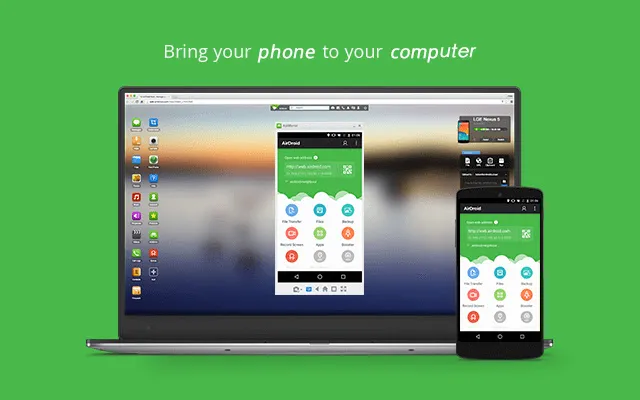
    AirDroid is another excellent option if you want complete control over your Android phone from your PC. It is cross-platform, having a web interface and specific Windows and macOS programs, unlike some rivals. Once configured, you can remotely access your phone’s camera, manage SMS messages, respond to notifications, transfer files, and mirror your screen without ever touching your device.

    It is easy to get started. Use the desktop software or log in via a browser after installing the AirDroid app on your Android phone and creating an account. Everything connects immediately if you are on the same Wi-Fi network. Although remote access is feasible, a paid subscription is needed for services like screen mirroring over mobile networks.

    AirDroid’s versatility is what sets it apart. For presentations or to view particular apps, you can mirror your screens. You can even transfer data across devices wirelessly. Another benefit that helps you stay informed about messages and alerts while working is notification mirroring. Despite having a lot of functionality, AirDroid maintains simplicity with a clear, user-friendly interface. Premium users receive end-to-end encryption for added security if security is a top concern.

    Scrcpy

    Scrcpy control phone from PC

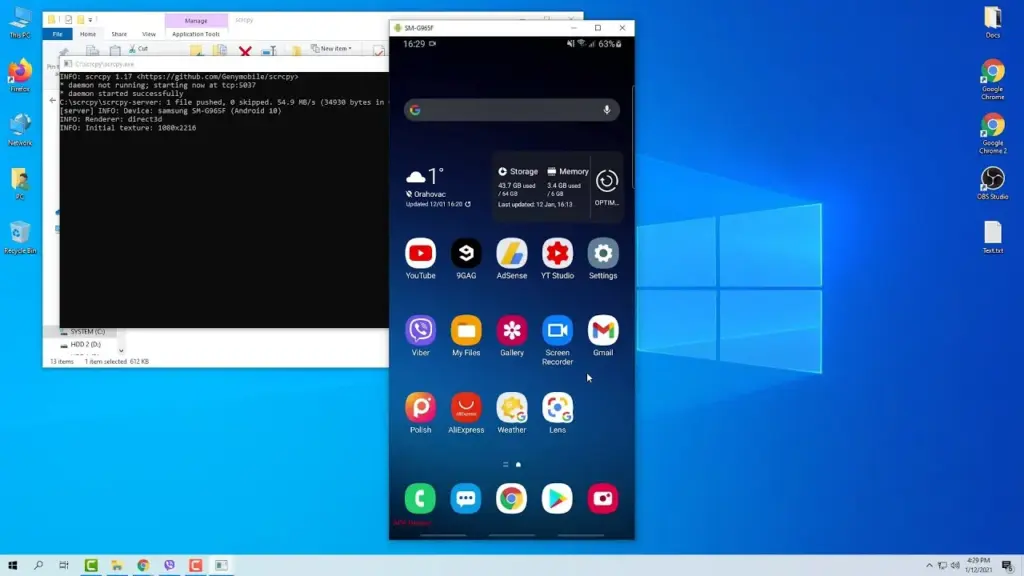
    It can be inconvenient to constantly pick up your phone to check things, particularly if you work on a PC. By enabling you to mirror and manage your Android phone from your PC, Scrcpy solves this problem. It has no bloat and is free.

    With an emphasis on low-latency, high-resolution screen mirroring without root access, Scrcpy is quick, light, and open source in contrast to many commercial programs. You have the option of using Wi-Fi or USB, depending on what is more convenient for you. It is easy to set up. After downloading the app, connect your phone to your PC and turn on USB debugging. When it is operating, you may use your keyboard and mouse to interact with your phone’s screen, which displays in real time.

    Scrcpy is a comprehensive mirroring solution that supports audio forwarding in its latest versions. Wireless performance can vary, though, and some users may find the absence of integrated file sharing and multi-device functionality to be a drawback. Furthermore, even though third-party graphical interfaces are available, people who are not familiar with Scrcpy may find its command-line configuration daunting.

    On the plus side, Scrcpy does not need to be installed on your phone, which lowers security concerns and conserves storage space. It improves with frequent updates because it is open source. Scrcpy is among the greatest free programs for managing your Android phone from a PC, provided you are prepared to overcome its drawbacks.

    How you work will determine which tool is ideal for you.

    For Windows users seeking a native, hassle-free method of syncing calls, messages, and notifications, Phone Link is my top pick. With file transfers, remote access, and notification mirroring, AirDroid goes above and beyond; however, some premium capabilities are subscription-based.

    I have experimented with Scrcpy since I love open source software. Although it offers little lag and high-performance screen mirroring, I find its command-line configuration to be less than ideal. Last but not least, TeamViewer QuickSupport is an option; nevertheless, its limitations in the free edition make it most appropriate for infrequent use.

    The most important factors – productivity, ease of use, or complete control – determine which tool is best. Whichever option you select, these options facilitate communication and task completion. It has never been simpler to control your Android phone from your PC. There is a solution that suits your operation, whether you require remote help, sophisticated functionality, or smooth integration.

  • Full Introduction: Best Online Computer Backup Service

    Full Introduction: Best Online Computer Backup Service

    Are you interested in protecting your computer data by creating an online computer backup? Opting for an online backup solution ensures that your backed-up data is securely stored in the provider’s data center, offering protection against local accidents and disasters. Additionally, once you’ve made online backup for your computer data, you’ll have the freedom to access, download, and modify your data from any device.

    What Makes Online Computer Backup the Preferred Choice?

    Many users, like yourself, are increasingly opting for PC online backup. Let’s delve into the advantages of this backup solution:

    • Local data loss prevention: Local accidents such as system crashes, virus attacks, natural disasters, and equipment failures can result in data loss. However, creating an online computer backup ensures the safety of your data on the cloud.
    • Cost-effectiveness: Unlike traditional backup methods, online computer backup services often offer free cloud storage. If you require additional backup space, you can easily upgrade your cloud storage service according to your needs.
    • Enhanced data accessibility: Rather than carrying around a physical storage device, an online computer backup allows you to access your computer data from any device with a stable internet connection.
    • Simple data recovery: Online computer backup services maintain multiple versions of your backed-up data, enabling you to restore it to any previous version effortlessly.
    • Streamlined backup tasks: Online computer backup typically offers advanced features and settings to simplify and optimize your backup process.

    Discover the Best Online Computer Backup Service: CBackup

    Are you faced with the dilemma of selecting a reliable online computer backup service for your computer data? With numerous options available in the market, comparing different aspects can be time-consuming. Do not worry, as we introduce you to the ultimate online backup service: CBackup.

    CBackup is from a professional company specializing in global data security for many years. CBackup employs OAuth to effectively protect your account and login information. Furthermore, the utilization of 256-bit AES Encryption guarantees the safety of your important computer data during upload and transfer tasks.

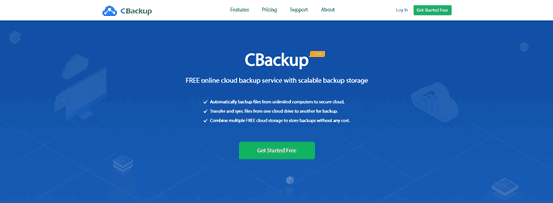
    Regardless of the operating system you use, you can access CBackup from its official web page. If you’re using a Windows operating system like Windows 11, 10, 8.1, 8, 7, or XP, you can download and install the CBackup desktop client directly on your computer, facilitating the creation of an online computer backup.

    With CBackup, you can create backup tasks for your entire computer, or select certain files and folders from computer to back up.

    Picture2

    CBackup offers a wide array of free backup and sync features. Here’s a brief overview of some of them that can help safeguard your computer data:

    • Backup PC to public cloud: The backup feature lies at the core of CBackup. You can easily back up your computer data to many common cloud drives such as Google Drive, OneDrive, and Dropbox.
    • Backup PC to CBackup Cloud: In addition to public cloud drives, CBackup also provides the option to use CBackup Cloud. Upon signing up for a new account, you receive 10GB of free cloud storage in CBackup Cloud.
    • Combine cloud storage: A standout feature of CBackup, it allows you to merge multiple cloud drive accounts into a single combined cloud, granting you unlimited cloud backup space. You can select accounts from the same platform or different cloud drives.
    • Sync PC to public cloud: CBackup enables you to sync your PC data with public cloud drives, offering this feature for free.
    • Cloud to cloud backup or sync: Aside from transferring data from local storage to the cloud, CBackup facilitates seamless data transfer between different cloud drive accounts using the cloud to cloud backup or cloud to cloud transfer feature.

    Step-by-Step Tutorial: Creating an Online Computer Backup

    If you’re eager to utilize the CBackup desktop application for creating an online computer backup, refer to the simple tutorial provided below:

    Start by downloading and installing the CBackup desktop app from the official website. Sign up for a new account and open the CBackup desktop application to log in.

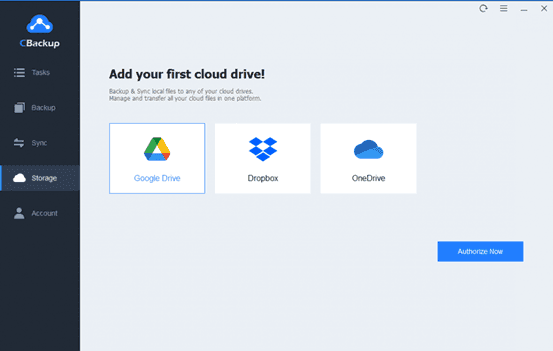
    1. On the left-hand side, click on the Storage tab, choose a public cloud, and click “Authorize Now” to add it.

    Picture3

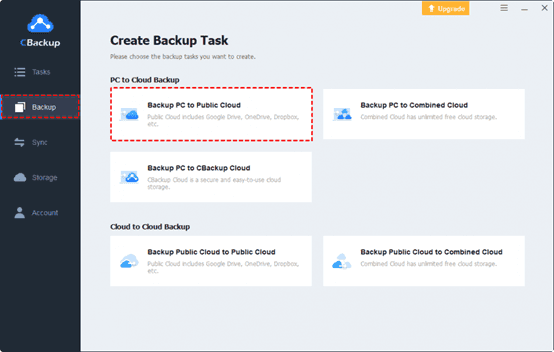
    2. Press Backup and select “Backup PC to Public Cloud” in turn.

    Picture4

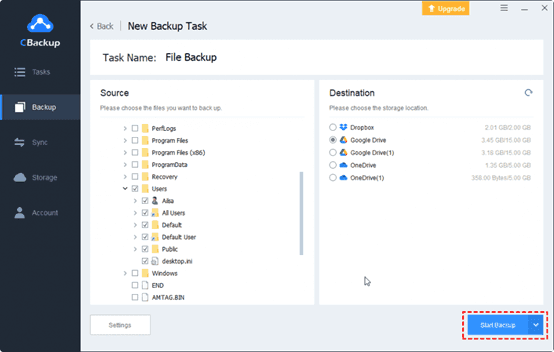
    3. Choose any data from your computer or the entire computer as the backup source. Then, select the cloud drive account you have added to CBackup as the backup destination.

    Finally, click the “Start Backup” button to swiftly back up your PC data to the online cloud.

    Picture5

    In Conclusion

    That concludes our discussion on the best backup software for computers, along with a step-by-step guideline. With CBackup, you can explore a range of additional free features to enhance the convenience of your online computer backup.