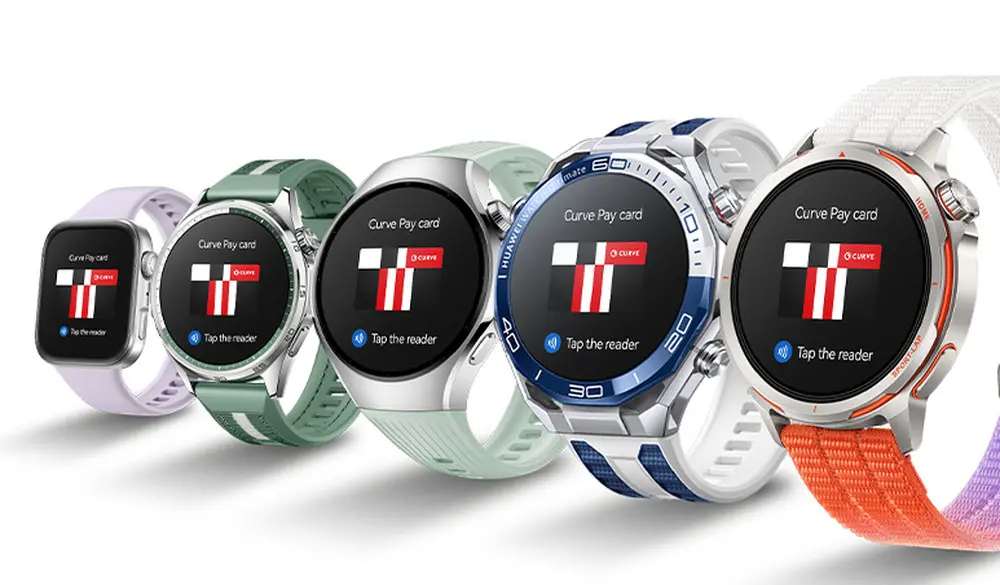
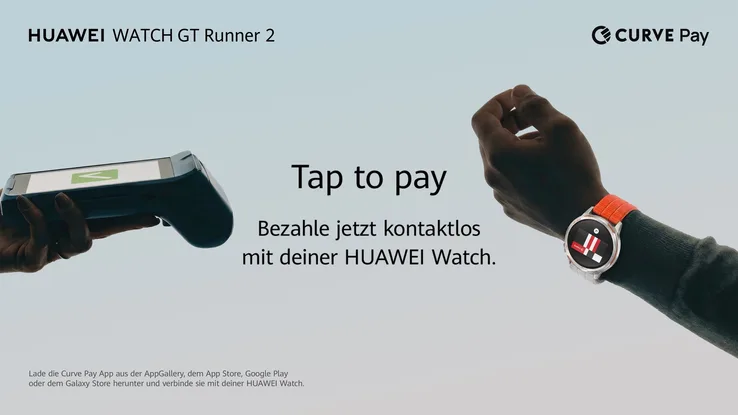
Curve Pay is available in Europe for the Huawei Watch Ultimate 2, the Huawei Watch GT 6, and a number of other Huawei smartwatches, significantly enhancing the contactless payment experience.
In the past, Quicko was the only contactless payment method available in Europe for smartwatches like the Huawei Watch GT 6. But as compared to Google Pay and Apple Pay, this approach has a lot of drawbacks. On the one hand, Quicko is not accepted in many retail chains, and credit needs to be topped up beforehand rather than just using a debit or credit card.
With the introduction of Curve Pay to Huawei smartwatches, Huawei is finally making amends. Like Apple Pay, Curve Pay lets you store numerous cards and use the NFC chip in your timepiece to make contactless purchases with them. Curve Pay is compatible with any bank account and permits cash withdrawals at an ATM, according to the vendor. The following Huawei smartwatches are compatible with Curve Pay:
Huawei Watch GT Runner 2
Huawei Watch Ultimate 2
Huawei Watch GT 6
Huawei Watch GT 5
Huawei Watch 5
Huawei Watch Fit 4
The Curve Pay app must be downloaded from Google Play, the Apple App Store, or the Huawei AppGallery in order to utilize the service. Instead of constantly switching to the smartphone app, stored payment methods can be chosen directly on the smartwatch via an integrated smart wallet once the app has been loaded, configured, and connected to the smartwatch. Curve Pay is free to use, but you may purchase different subscriptions if you want features like more cashback or bigger limits for free payments overseas.
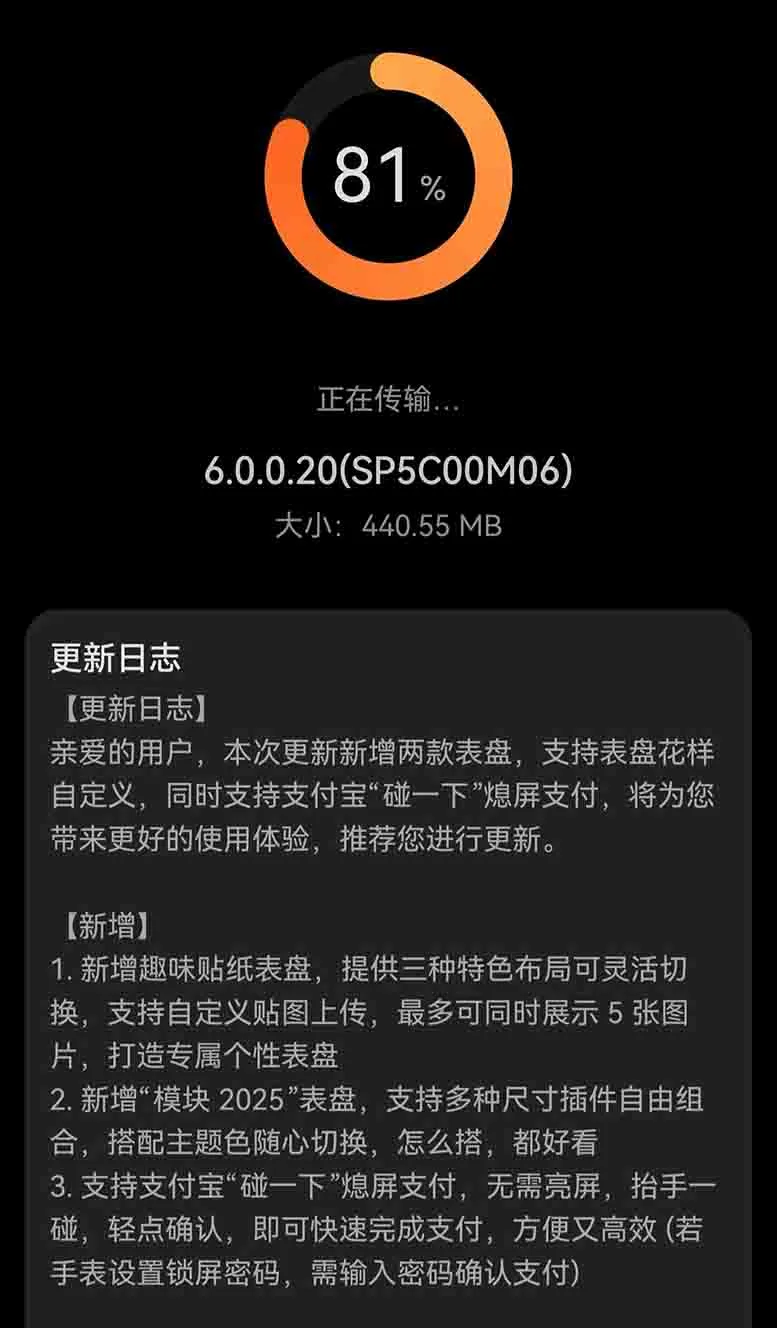
With build version 6.0.0.20, the Huawei Watch GT 5 Pro wristwatch is now receiving a new HarmonyOS 6 update that enables users to tap to pay. The notice states that users who took part in the early testing program are currently receiving this update.
The Huawei Watch GT 5 series, which debuted in September 2024, comes in two models: basic and Pro. Titanium Silver, Obsidian Black, Glacier White, and Ceramic White are just a few of its vivid color choices. It provides a long-lasting backup with a battery life of 14 days.
The most recent HarmonyOS 6 beta update adds a number of new features to the Huawei Watch GT 5 Pro in addition to the tap-to-pay feature. These include the following.
Three distinct layouts that are interchangeable have been added to the fun sticker watch faces. You may create your own distinctive watch face by uploading custom stickers, which can display up to five photos at once.
HarmonyOS 6 beta update
The new “Module 2025” watch face boasts that “it looks excellent no matter how you customize it” and supports a free combination of different-sized widgets and simple theme color switching.
Supports Alipay’s “Tap to Pay” feature, which lets you swiftly finish payments without turning it on by just raising your wrist and pressing the screen. In order to verify the payment, you must input the lock screen password if your watch has one.
You should be aware that this feature upgrade is only available to Chinese users; Huawei has not yet made it available to customers worldwide.
While smartphones and tablets are excellent temporary digital nannies for keeping children entertained, they also pose a risk of children spending their parents’ money on in-app purchases and the Google Play Store itself. This article will teach you how to avoid making unintentional or unwanted purchases on your Android smartphone or tablet.
Anyone with young children has most likely placed a smartphone or tablet in the hands of their child, assuming the child does not already have their own device. However, with so many games offering in-app purchases, how do you keep them from exceeding your credit card limit?
With the popularity of the one-click purchase feature, such convenience creates a risk for poorly secured devices in children’s hands. Securing your device will also assist you in avoiding impulse or even accidental purchases.
Both Google and Apple offer tools to control or prevent such unwanted or accidental purchases on Android or iOS/iPadOS. In this article, we’ll show you how to do that in Google’s ecosystem.
Avoid unwanted purchases on your smartphone by your child
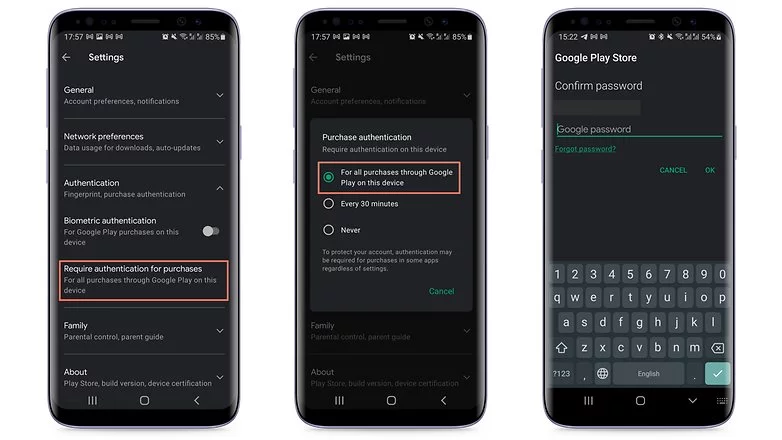
If your child uses your smartphone or tablet while logged in to your Google account, the simplest solution is to make all purchases require approval via account password confirmation. Simply follow these steps to accomplish this:
Tap the profile picture in the top corner of the screen in the Play Store.
Choose Settings.
Tap the Authentication field to launch the available options.
Select Require authentication for purchases.
Choose For all purchases through Google Play purchases on this device.
As the option itself already mentioned, you will need to repeat the steps on all tablets and smartphones used by the child.
Otherwise, the child may authorize purchases using his or her fingerprint or other biometric systems registered on the device if the Biometric authentication option is enabled.
Needless to say, the password to your Google account is private and should never be shared with your child. Disable biometric authentication as well if necessary.
After following the above steps, every time you or anyone else using the device would like to make a purchase, you/they will need to authorize it by entering your Google account password, including in-game and in-app purchases that rely on the Google Play Services payment system.
Another important point is to remember to repeat the steps for all user accounts that have been registered on the smartphone or tablet. Doing so will help avoid unwanted scares on devices used, for instance, covering both personal and professional areas.
After you’ve completed the preceding steps, every time you or anyone else using the device wants to make a purchase, you’ll need to authorize it by entering your Google account password, including in-game and in-app purchases that use the Google Play Services payment system.
Another important point to remember is to repeat the steps for all user accounts registered on the smartphone or tablet. This will help to avoid unwanted scares on devices used, for example, in both personal and professional settings.
Use parental Control to prevent unwanted purchases
If your child has his or her own tablet or smartphone, we recommend using parental controls to force purchase authorization. Google provides the Family Link app for just this purpose. This app allows you to create a user account just for your child or teen, as well as other admin options for YouTube, web search, and other services.
After installing the app on your smartphone or the smartphone of the child’s guardian, launch Family Link and follow the steps shown below:
After the app is launched, choose the user account of the parent or guardian.
In the next screen, select the Parent option.
Choose Next and then I’m ready.
On the next screen, we will choose to create a new account for the child by tapping No.
If she already has a Google account, just go to Settings on the other device, then Google > Parental Controls, and set up the device to be managed from your smartphone.
Tap Next to begin the account creation process, which will require more information and can take around 10 minutes.
During this step, you will need to agree to additional terms of use and confirm your user password, as well as accept the privacy rules for the new account.
At the end of the creation process tap the Next button.
After creating the Family Link account, use the login as the primary Google account on the child’s device. Return to your smartphone and launch the Family Link app to configure the following restrictions on the child’s account:
Tap the View button under the profile that will have restricted purchases.
Select the Manage settings option.
Choose Google Play.
Tap Require approval for.
Select the All content option just to be safe!
After that, each time the child attempts to purchase content, they must authorize the transaction on the parent or guardian’s device.
Depending on how the secondary account is set up, make sure there is no form of payment registered in the account. If there are any, simply follow the steps in the next section.
Remove associated credit or debit cards on the Google account
This is a more extreme option, and it is not recommended if you also buy a lot of apps, have subscriptions or recurring payments associated with your Google account, or use the Google Pay service. Removing all payment methods from your Google account affects all devices associated with the login, so think twice before wiping your account clean.
To remove a credit card, debit card, or other payment methods from your account, follow these steps:
Launch the Play Store app and tap your profile photo.
Select the Payments and subscriptions option.
Choose Payment methods.
Scroll down the screen and launch the More payment settings option.
The browser will open a list of all available payment methods registered on the account. Tap Remove.
Confirm the removal of the credit/debit card from the account by tapping Remove again.
You will need to repeat these steps for each registered payment method, as well as all for all user accounts associated with the device.