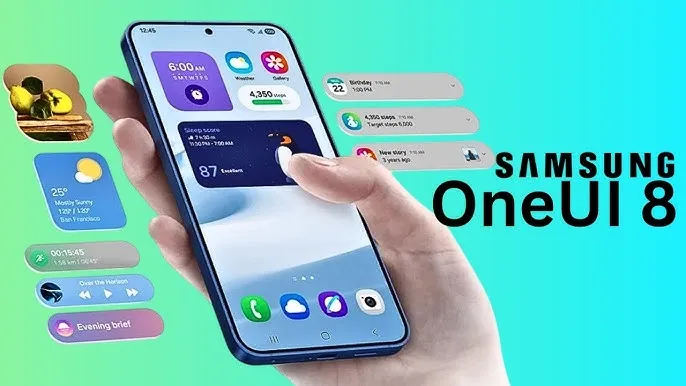
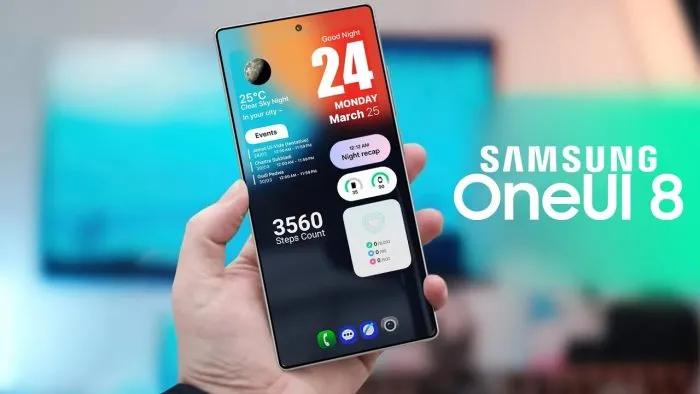
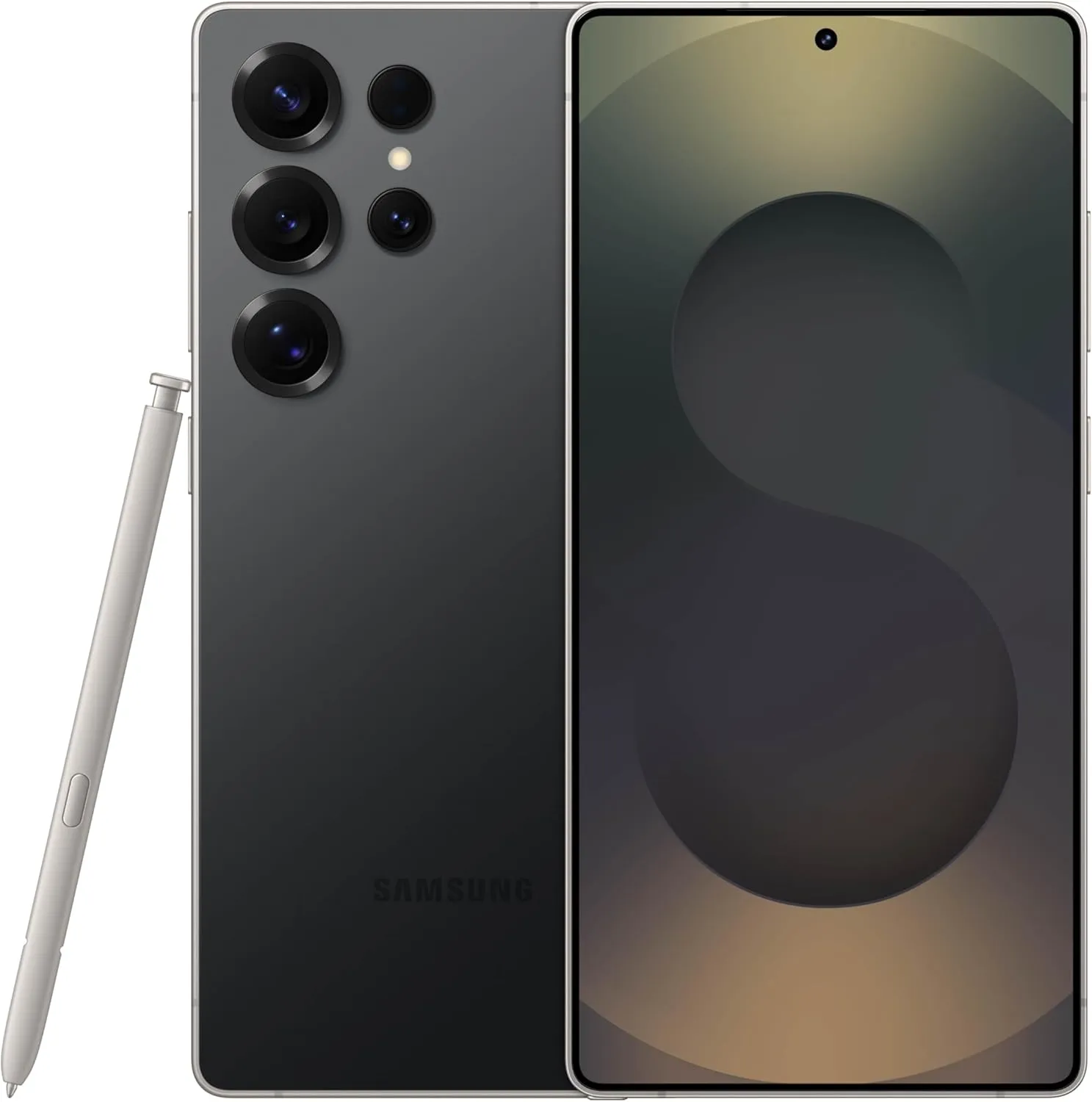
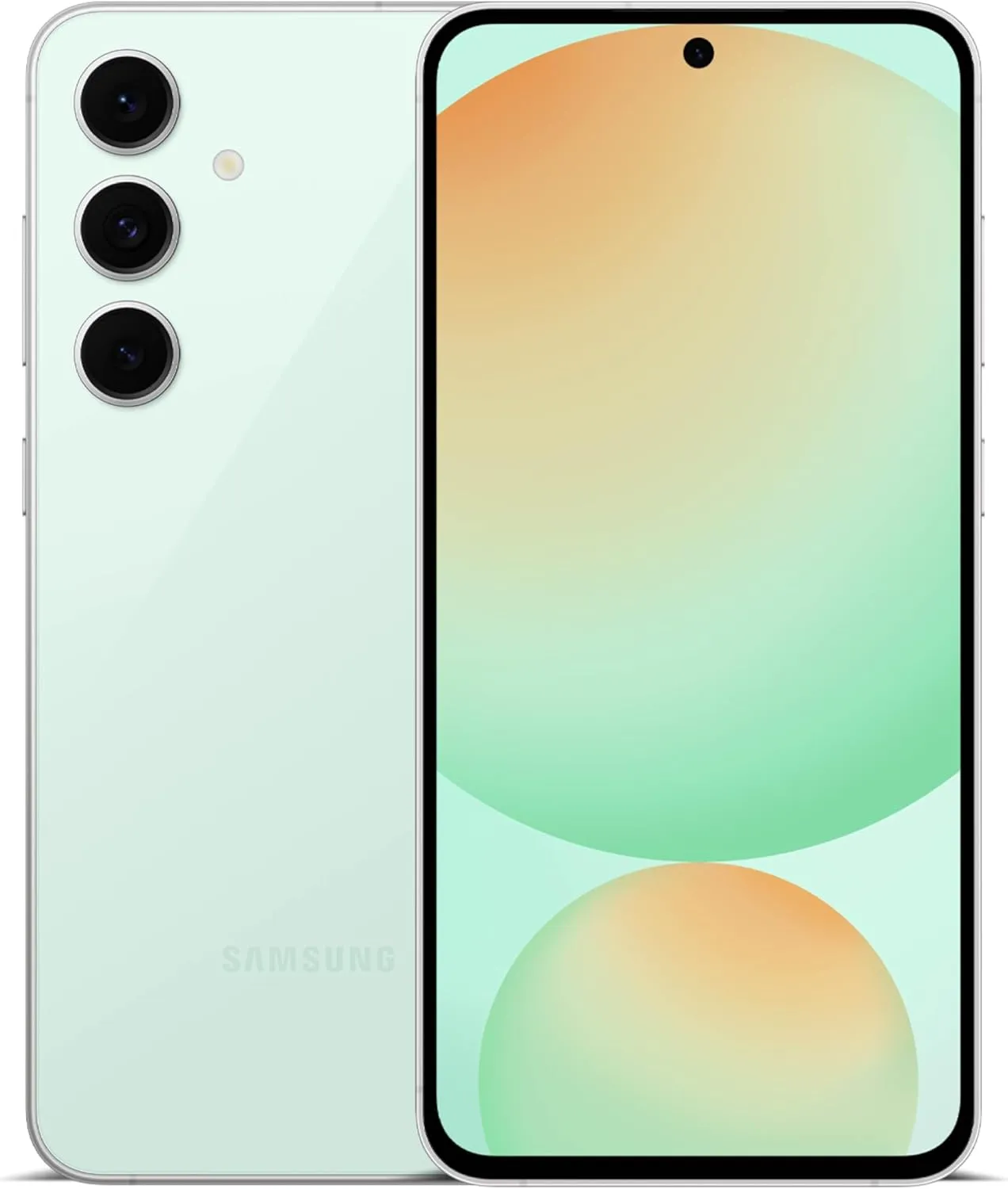
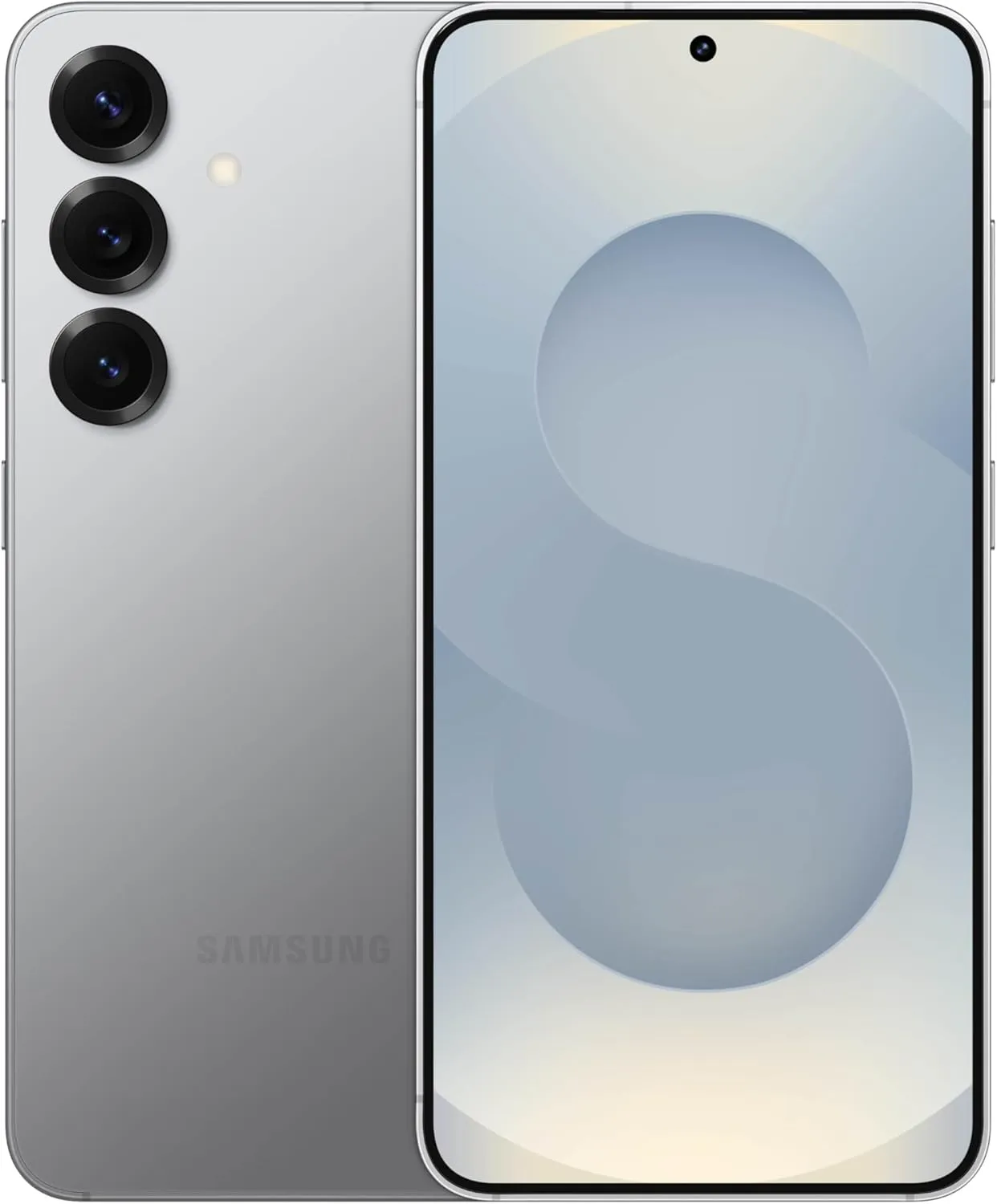
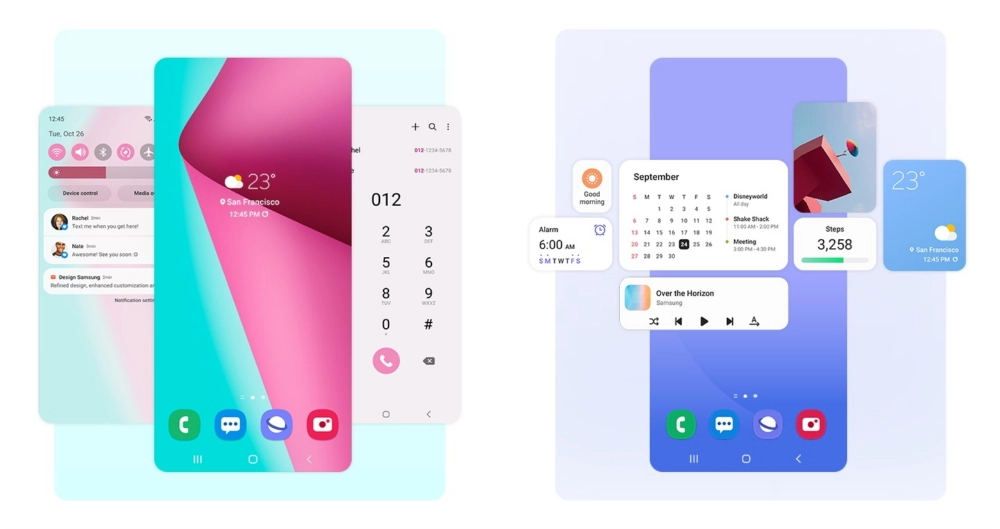
With Samsung now enabling Galaxy S25 series owners to test the most recent One UI 8 beta program, starting in its home country of South Korea, One UI 8 will soon be available on your Galaxy phone. You must be wondering how to join the beta phase as soon as it arrives on your device, but here are a few easy actions you can take.
Before the official or stable release, the One UI 8 Beta program is now available for the Galaxy S25, Galaxy S25+, and Galaxy S25 Ultra to test out all the newest features and capabilities.
The beta build for the Galaxy S25 family is designated with build number ZYER, while the upgrade may eventually reach additional eligible regions outside of South Korea. Simultaneously, this most recent version improves accessibility, efficiency, and security while also adding some of the main features of Android 16.
Beyond this, this update further includes the ongoing May 2025 security patch that significantly improves the device’s overall security and core functionality.
How to join One UI 8 beta program?
Also, Samsung made some minor changes to its beta registration procedure this time around to make it more convenient. Here’s how to sign up for the most recent One UI 8 beta program using the Samsung Members app!
Open the Samsung Members app.
Tap on the One UI 8 Beta program banner.
Once tapped, follow all the on-screen prompts while also accepting the beta terms and conditions. You are enrolled now!
This takes you closer to installing the latest beta build; just head to Settings >> Software Update >> and finally, Download and Install.
Once installed, your device will automatically reboot to the latest build; thus, you are now ready to rock One UI 8 beta.
If you want the latest Droid Tools news, follow us on X @droid_tools and like our page on Facebook to stay updated.
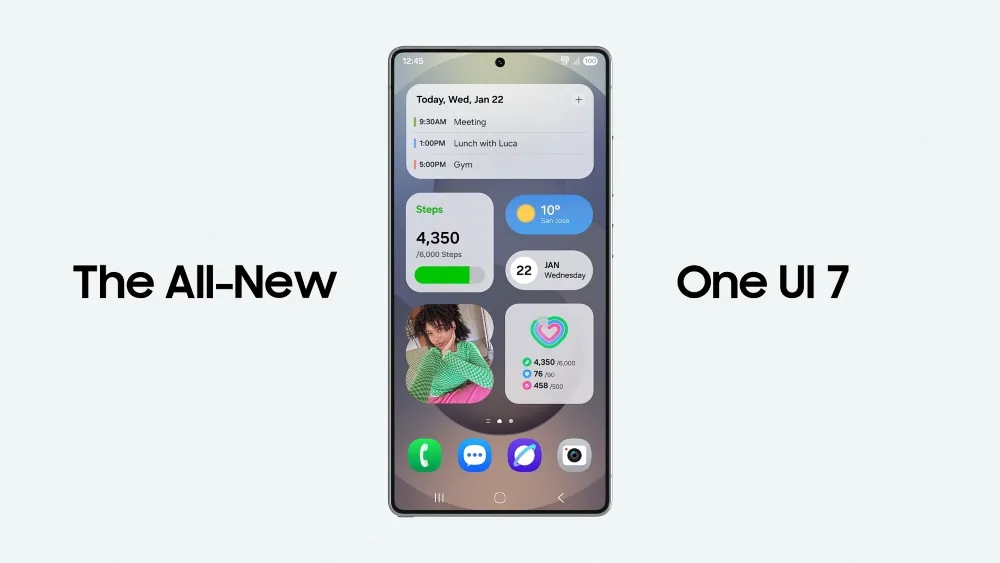
Samsung devices include a power-saving mode; while this feature is similar to all smartphones around the world, One UI 7.0 makes it more customisable.
Android and iOS smartphones have had a power saving mode for some time, but you may only be able to enable or disable it. Smartphones, by default, limit background processes such as network usage, synchronization, and location, as well as reducing the high refresh rate to 60 Hz, and you may not be able to adjust the power saving mode.
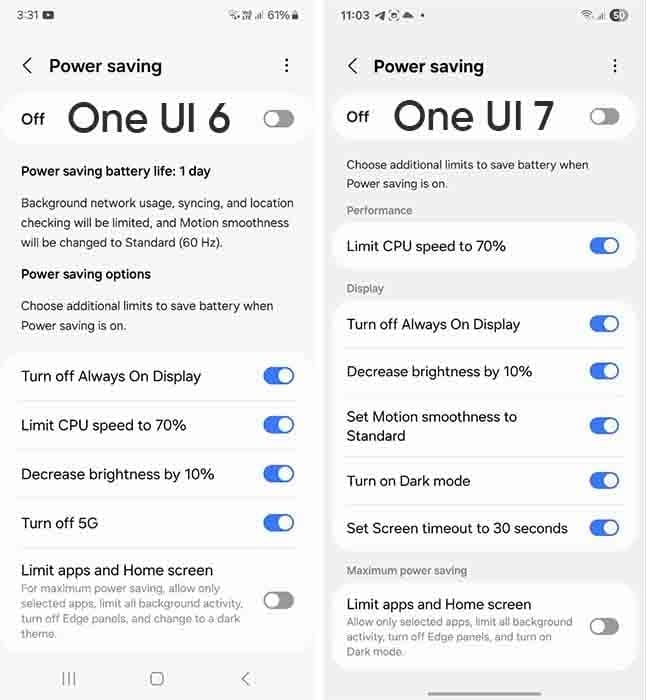
However, Samsung devices provide you with more control over this capacity due to extra limitations. This power saver can be enabled from either the fast settings panel or the battery settings. Additional power-saving settings from One UI 6.x are listed below:
Turn off Always on Display
Limit CPU speed to 70%
Decrease brightness by 10%
Turn off 5G
Limit apps and the Home screen
You can control these options with the toggle button in front.
Moving on, One UI 7.0 device users will now see three additional power saving limits, including:
Set motion smoothness to standard
Turn on Dark mode
Set screen timeout to 30 seconds
The refresh rate was previously deactivated automatically during power saving mode, but you can now set its limits. Similarly, Dark mode and screen timeout help to conserve power.
If you wish to maximize power efficiency, enable “Limit apps and Home screen”. It only permits certain apps, restricts background activity, disables Edge panels, and activates Dark Mode.
If you do not want to employ any of these additional power-saving features, you may click the toggle button to return to the system’s normal power usage restrictions. When you disable the high refresh rate option, the 70% CPU limit is reduced automatically. Additional power-saving limits can be found in Settings > Battery > Power saving.
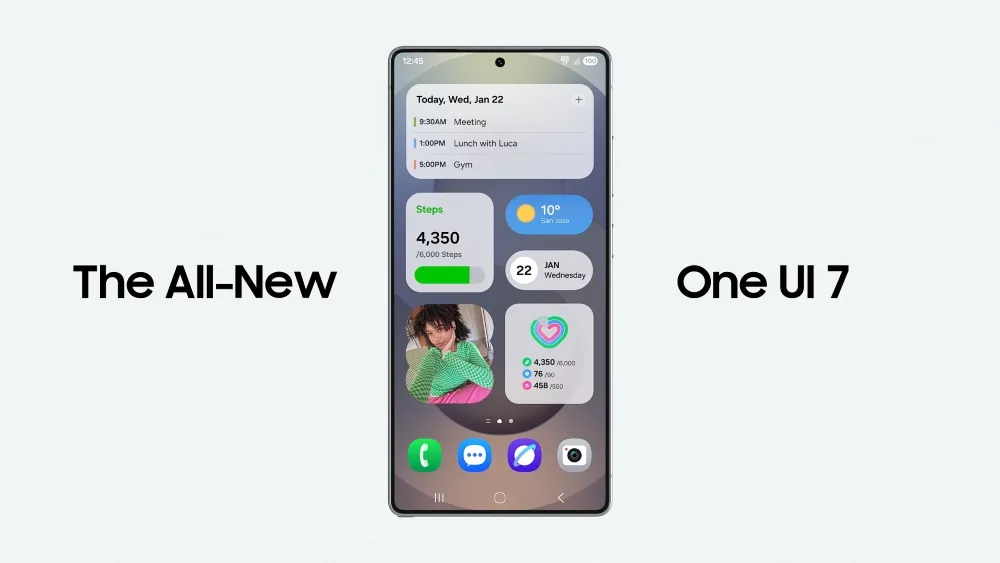
There is no sugarcoating it. Samsung botched the deployment of One UI 7 on the top Galaxy phones. Still, it is one of the most significant redesigns in One UI history, adding an unmatched level of polish to the company’s appearance. You have surely heard about the Now Bar and the huge Galaxy AI improvements in One UI 7, but here are several tiny, underappreciated updates you might have overlooked.
Double-tap playback controls in AOD
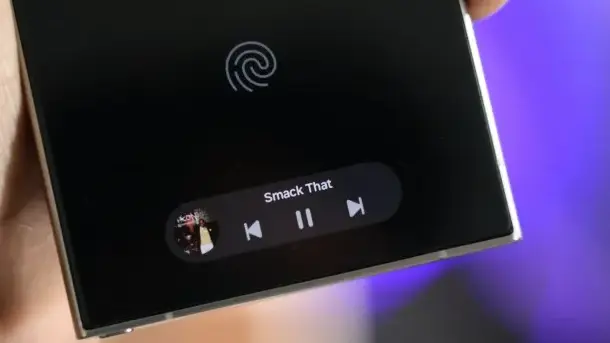
Now Bar is one of the significant new features in One UI 7, promising to provide relevant information at the right time. It also works with Always-on Display, displaying softly at the bottom. This is not the only way Samsung enhanced the Always-on Display with One UI 7. You may now control media playback via the Always On Display (AOD).
If you lock your Galaxy phone running One UI 7 while media is playing, the playback controls show at the bottom of the Now Bar. A single tap does nothing, but double tapping the playback controls will play, pause, or skip the current song or movie.
When you double-tap the album art, an expanded view of the media player appears, complete with larger controls and the ability to adjust media output.
Vertical app drawer
One UI 7 introduces a vertical app drawer to the One UI launcher. The option was included in One UI 5 and earlier releases, however it was deleted with Samsung’s Android 14-based One UI 5 update. The business promised to bring back the vertical app drawer with One UI 6.1.1, however this never happened.
If you have hundreds of apps installed on your Galaxy phone, a vertical app drawer will help you to easily swipe through them. In true Samsung form, there is an anomaly in how the feature was implemented.
Samsung does not specifically refer to it as a vertical app drawer. Instead, open the app drawer, hit the overflow menu button in the lower-left corner of the search bar, and choose Sort, then Alphabetical order. This converts the app drawer to a vertical style and organizes apps by name. You cannot move apps in this view, but you may position them within folders. Folders are located at the top, followed by applications and games.
A useful feature of the vertical app drawer is the addition of a fast-scroll bar on the right, which allows you to swiftly skim through and jump to any portion of your app list. The Home Up Good Lock module, which was updated with One UI 7, allows for more customisation of the home screen and app drawer.
Quick switch between the notification panel and Quick Settings
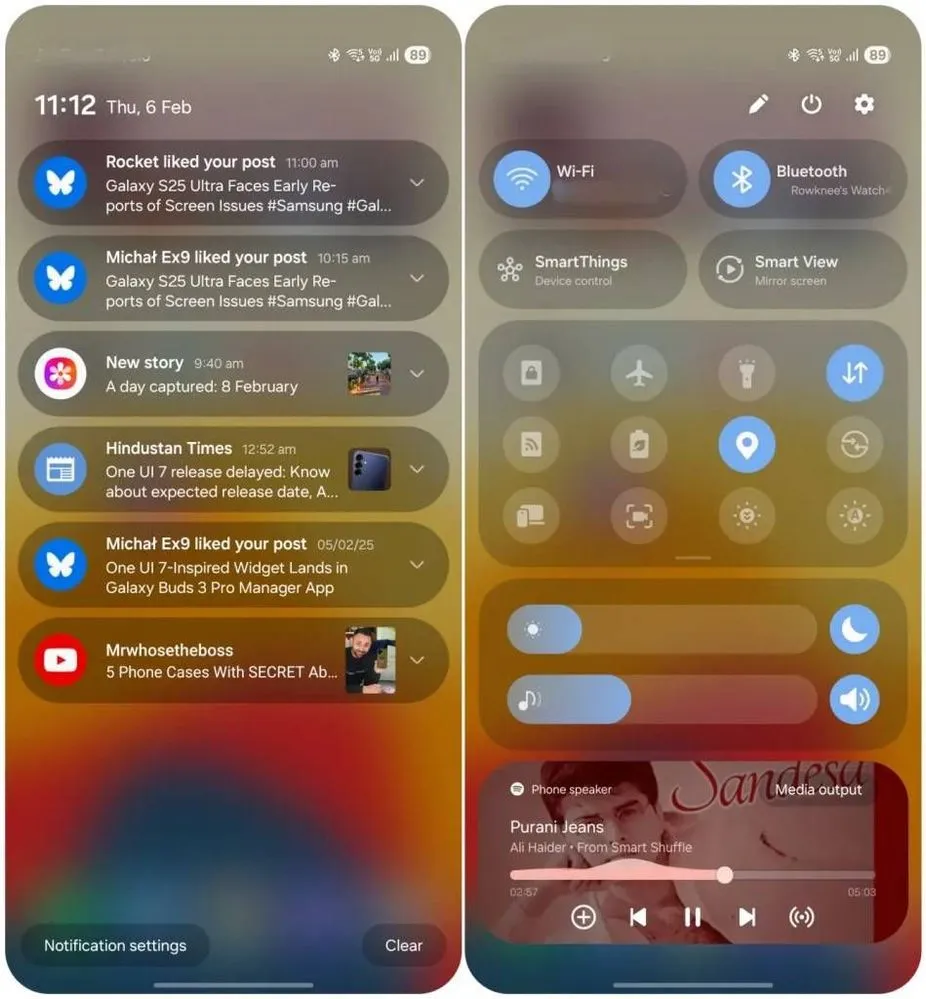
Samsung used an iOS-like approach with One UI 7, separating the notification panel and Quick Settings into two sections. You can return to the former One UI 6-like layout, but sample this adjustment for a few days before making a decision.
Compared to Apple’s distinct Quick Settings and notification panel design, Samsung’s method has one significant advantage. Swiping between the Quick Settings panel and the notification shade allows you to rapidly move between them. The same is true for phones from Xiaomi, Oppo, and OnePlus, all of which have long used separate Quick Settings and notification panels.
Although Samsung was not the first to market with the idea, it made care to include a helpful change in One UI 7.
Minimized pop-up apps group together
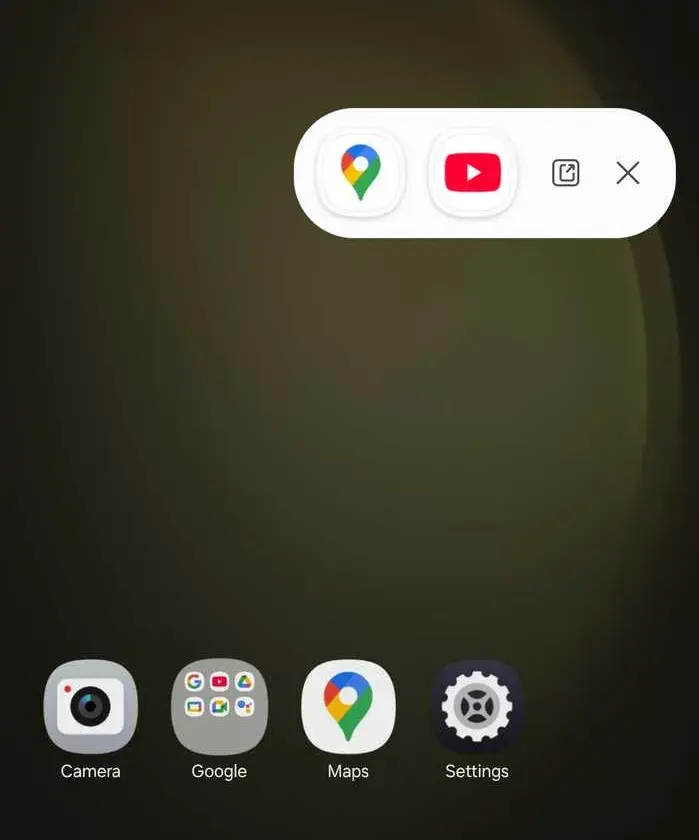
Samsung’s Android skin includes a variety of useful multitasking capabilities, including the option to run programs in a pop-up view. This allows you to run many programs simultaneously and minimize them into a floating shortcut. When you minimize numerous apps in pop-up mode, your Galaxy phone’s display may appear cluttered.
One UI 7 solves this problem by grouping the floating shortcuts of all minimized programs. Even better, there is a shortcut for launching all minimized apps at once. If you do not frequently utilize pop-up view multitasking on your Galaxy phone, you may disregard this as a minor modification. If you rely significantly on it, you will benefit from this modification.
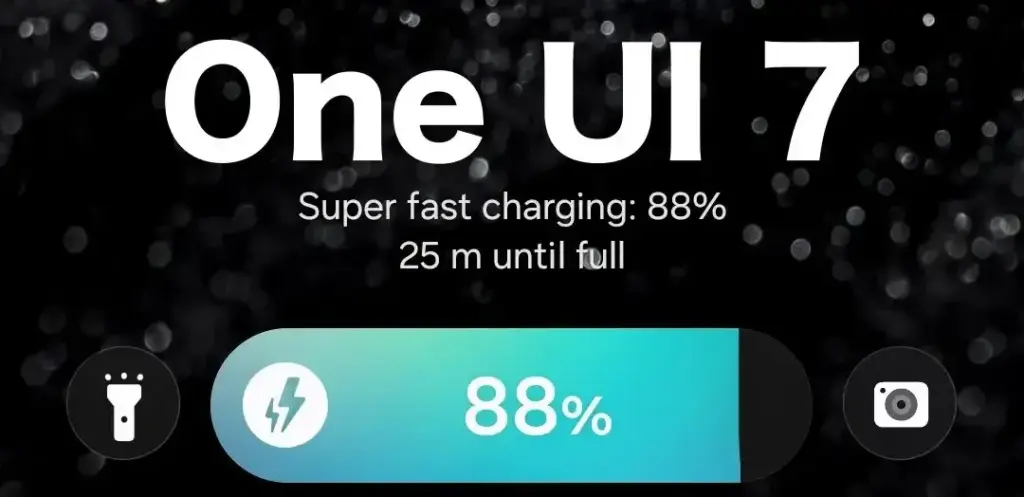
New charging animation
Samsung’s work with One UI 7 is evident, from the smooth system animations to the general fluidity. The experience rivals iOS in polish and feels substantially better than other Android skins. You will not encounter sporadic lags or stutters. The new charging animation demonstrates Samsung’s attention to detail in One UI 7.
If you put in your Galaxy phone to charge when the display is turned off, a charging pill with a slick animation appears at the bottom, where the Now Bar resides. It does not appear in extreme brightness, but rather in a dimmed state. When you are in a dark room, the phone automatically adjusts the brightness to make it even darker. The charging information can be displayed even when the screen is turned off.
One UI 7 is really improved
Samsung’s Android skin offers a feature-rich experience, including useful multitasking options. Still, it felt like One UI lacked the polish and attention to detail that Pixel UI and iOS possessed.
With One UI 7, Samsung steps up, demonstrating that when it wants to, it can create a professional and well-rounded Android experience while correcting some of its long-standing faults. So it is sad that the focus on One UI 7 is primarily on its rollout delays, rather than the polish and enhancements it delivers.
Google is releasing Gemini 2.5, another major AI update, just months after releasing the Gemini 2.0 Flash Thinking model. Gemini 2.5 Pro Experimental, the first model based on this new technology, is currently accessible to Gemini AI Studio and Advanced users.
Infused with reasoning
Google describes version 2.5 as its “most intelligent” AI model to date in a news release. It is the second of its kind and falls into the same category as Gemini 2.0 Flash Thinking, which is a thinking model. Gemini 2.5 differs from previous models in that it can use contextual intelligence, draw well-reasoned conclusions, and make educated decisions, going beyond the conventional “classification and prediction” method used by non-thinking models.
The Gemini 2.5 model, which was created as an improved version of Gemini 2.0 Flash Thinking, has a better base and more sophisticated post-training. Additionally, Google has shown ambitions to integrate Gemini 2.5’s reasoning capabilities into its non-thinking models.
New benchmark in AI reasoning
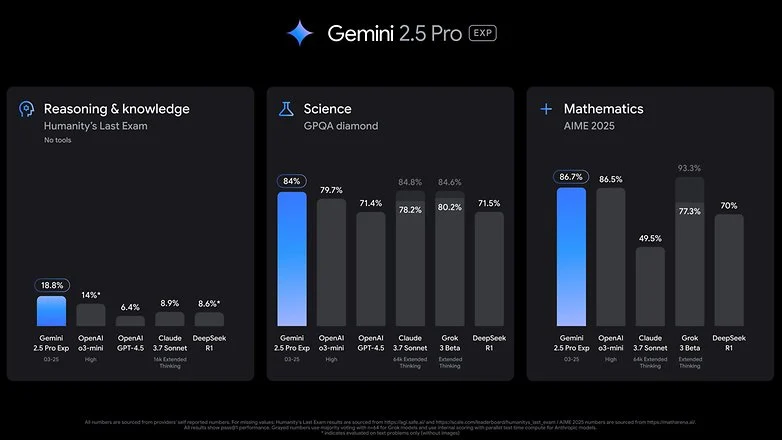
Gemini 2.5 Pro Experimental, the first product to use 2.5 version, is offered as a model option within Google’s AI services. Google claims that in the Humanity’s Last Exam test, which is a standard for AI knowledge and reasoning, The2.5 Pro Experimental has fared better than top reasoning models like OpenAI’s o3-mini and Claude 3.5 Sonnet. Furthermore, Gemini 2.5 Pro outperformed rivals like OpenAI’s GPT-4.5 and X’s Grok 3 Beta in math and science benchmarks.
With Gemini 2.5 Pro, Google also highlights improvements in software creation and coding. Coders, editors, and developers can use the concept to create “agentic applications and web apps.” It demonstrated its capabilities by creating a game from a single line of prompt in a demonstration video.
Currently, business and educational plans, as well as Advanced subscribers under One AI Premium, can access Gemini 2.5 Pro. Additionally, it can be accessed through Gemini Studio, and Vertex AI will soon be available as well. Google has said that it will shortly reveal the cost of extended access, even though usage is still restricted.
The release of 2.5 comes after Google opened up the Gemini 2.0 Flash and Deep Research models, as well as Gemini Live screen sharing, which was previously only available to subscribers. It is probable that the AI may soon be widely available due to this tendency.
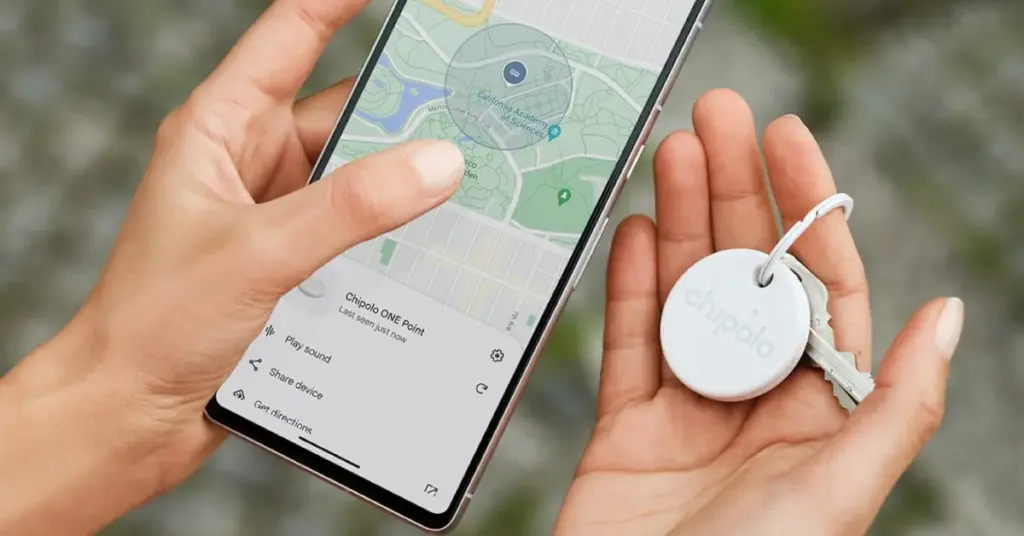
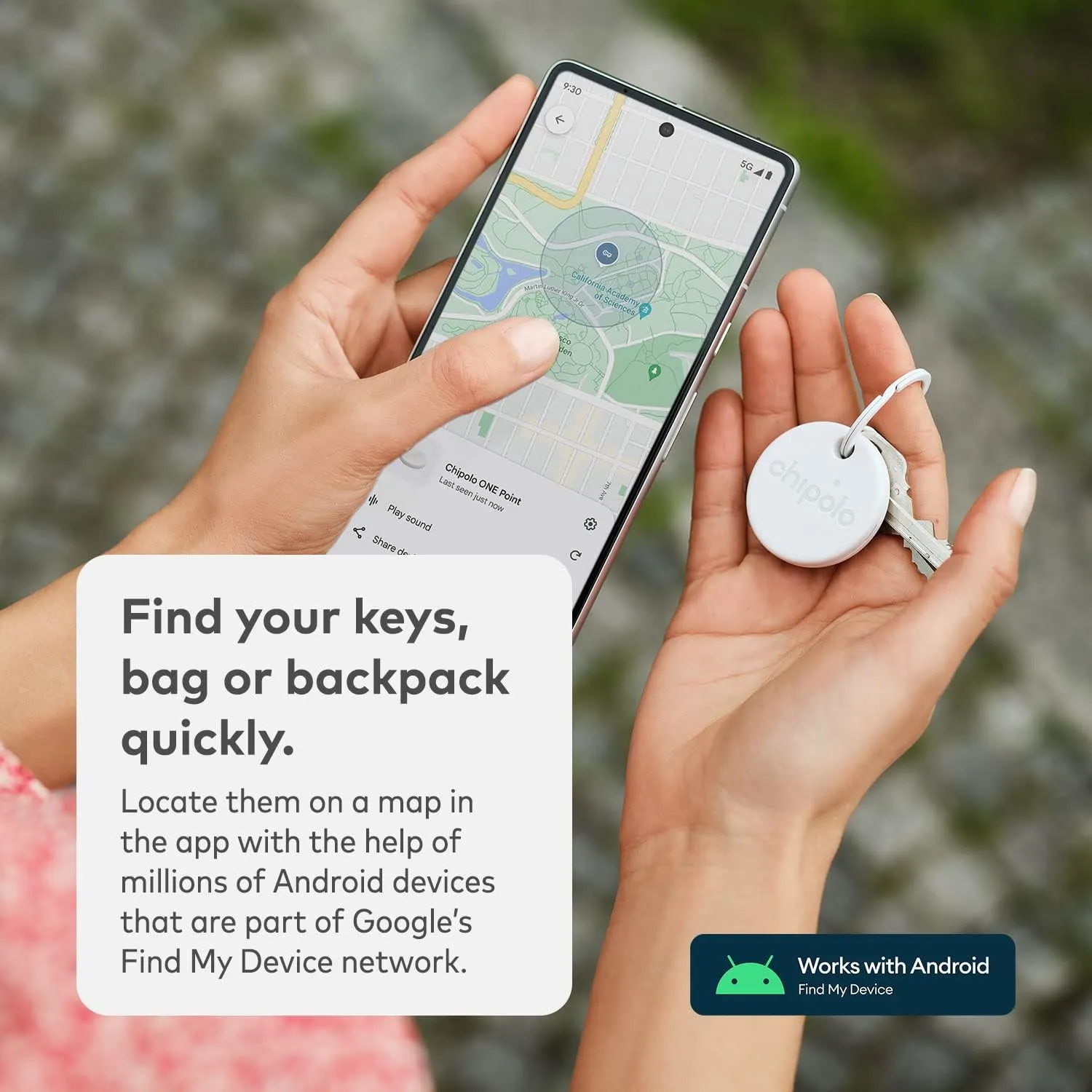
Find My Device, Google’s recently enhanced tracking network, is intended to serve as the Android counterpart to Apple’s Find My network. The new Point tracking gadgets from Chipolo are also meant to serve as the Android equivalent of Apple AirTags. Among the first third-party tracking apps to integrate with Find My Device are the Chipolo One Point item tracker and the Chipolo CardPoint wallet finder.
I was curious to compare these trackers because I have been using Apple AirTags for a long time. Fortunately, I received a few from Chipolo for this use. In the end, I found nothing unexpected, which is fortunate.
Chipolo key points
Chipolo’s new trackers assist you in finding misplaced objects by integrating with Google’s Find My Device network. Earlier Chipolo trackers were only compatible with the Chipolo app for iOS and Android or Apple Find My, not Find My Device. The only devices compatible with Chipolo’s point trackers are Android smartphones and Google’s Find My Device app.
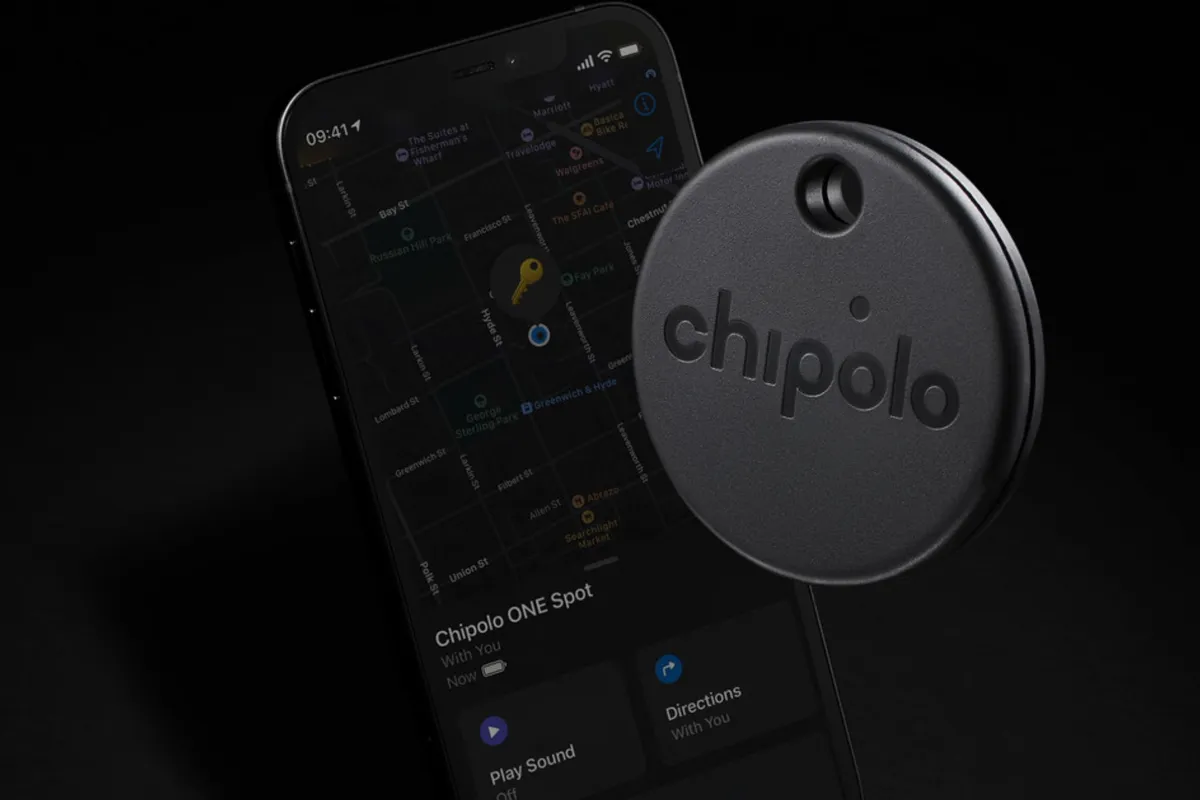
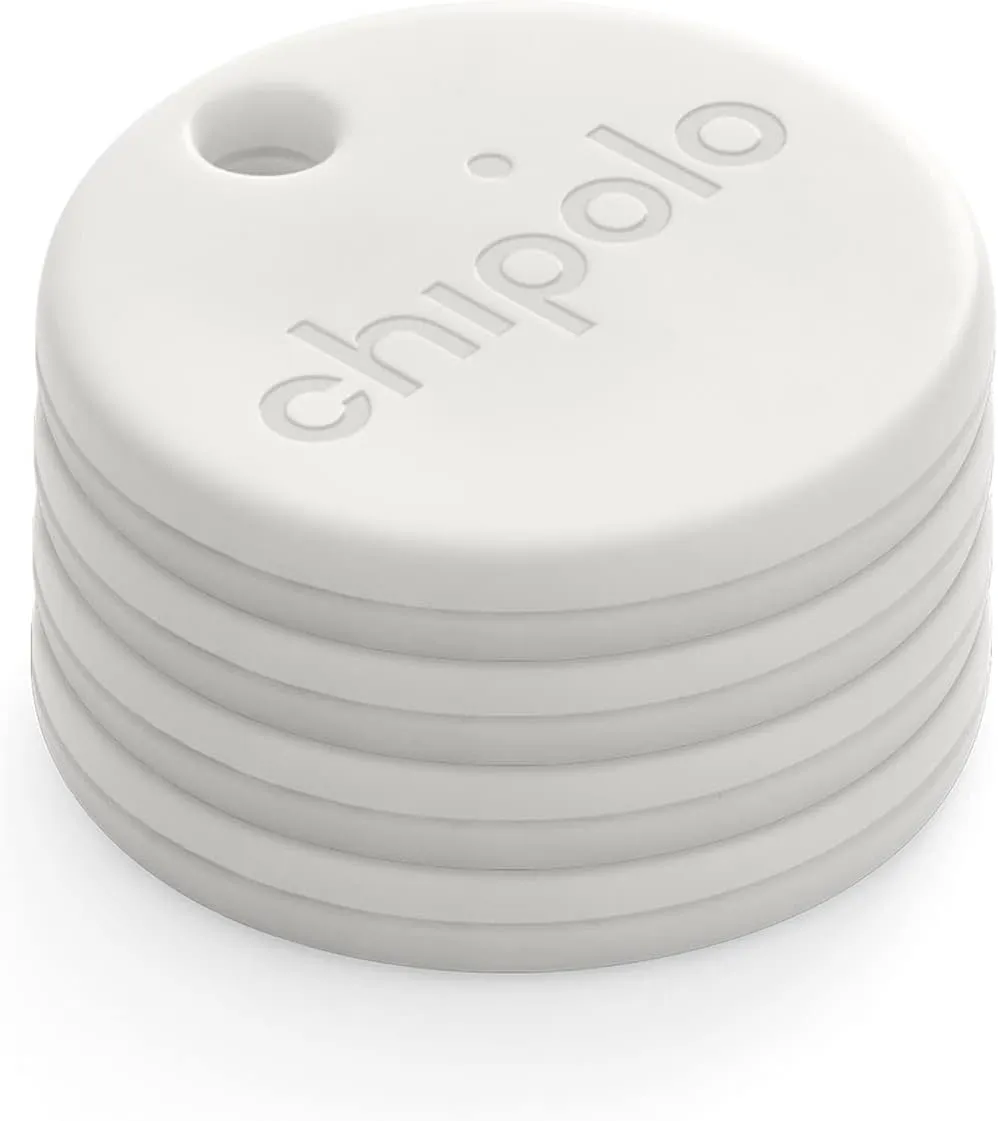
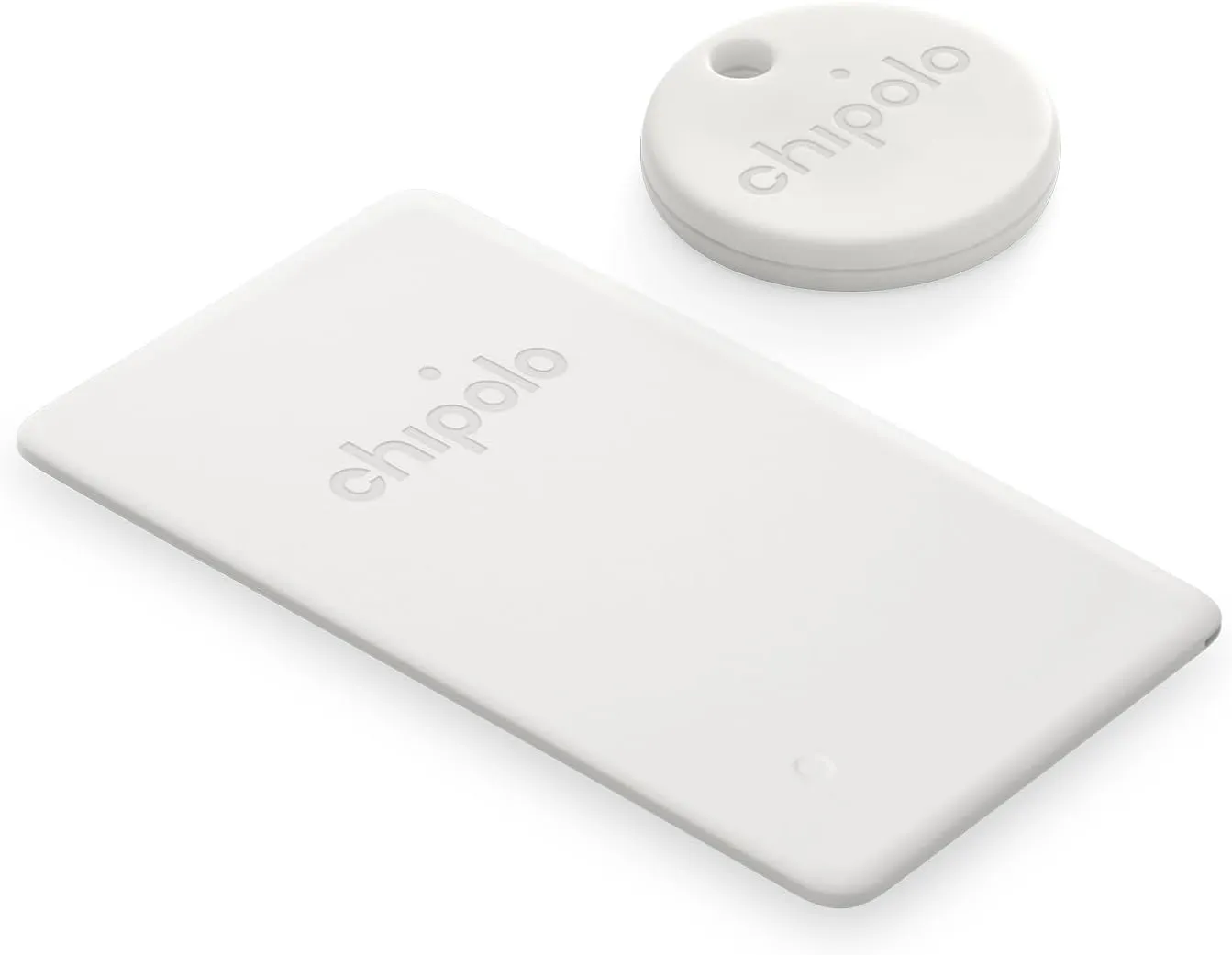
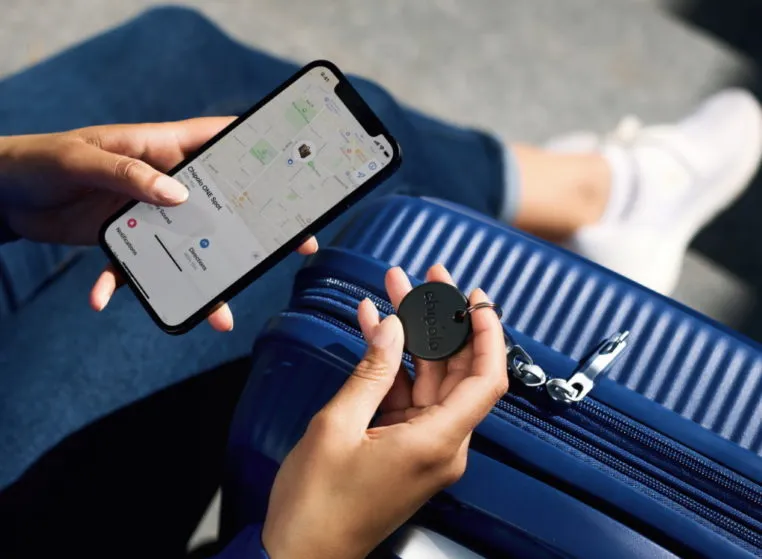
Two varieties of Chipolo Point trackers are available at launch. The Chipolo One Point is a tracker that fits on a keychain and is perfect for monitoring things like baggage, backpacks, and keys. Up to a year should pass before the replaceable battery inside of it needs to be changed. The design of this product is strikingly similar to that of Apple AirTags.
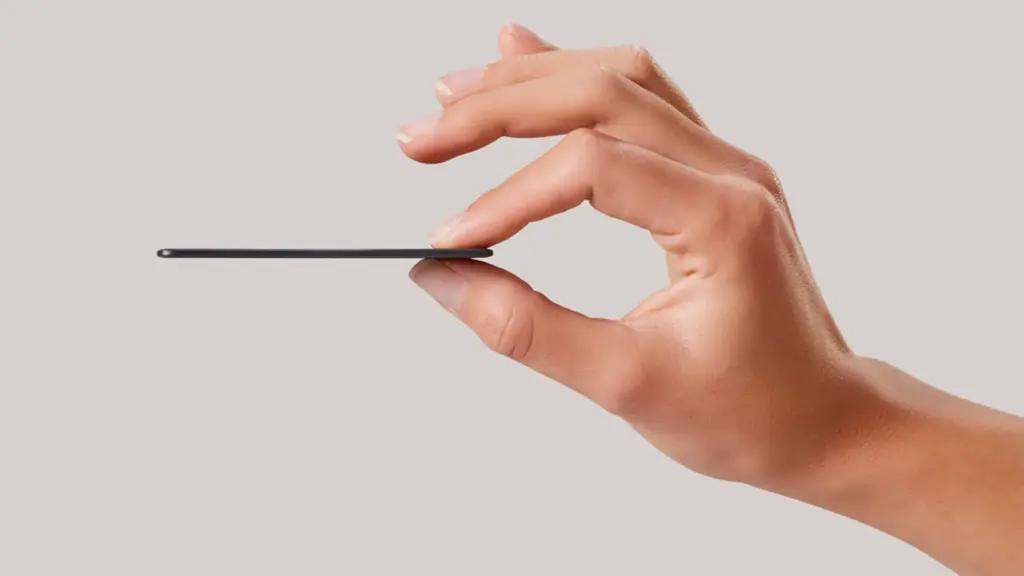
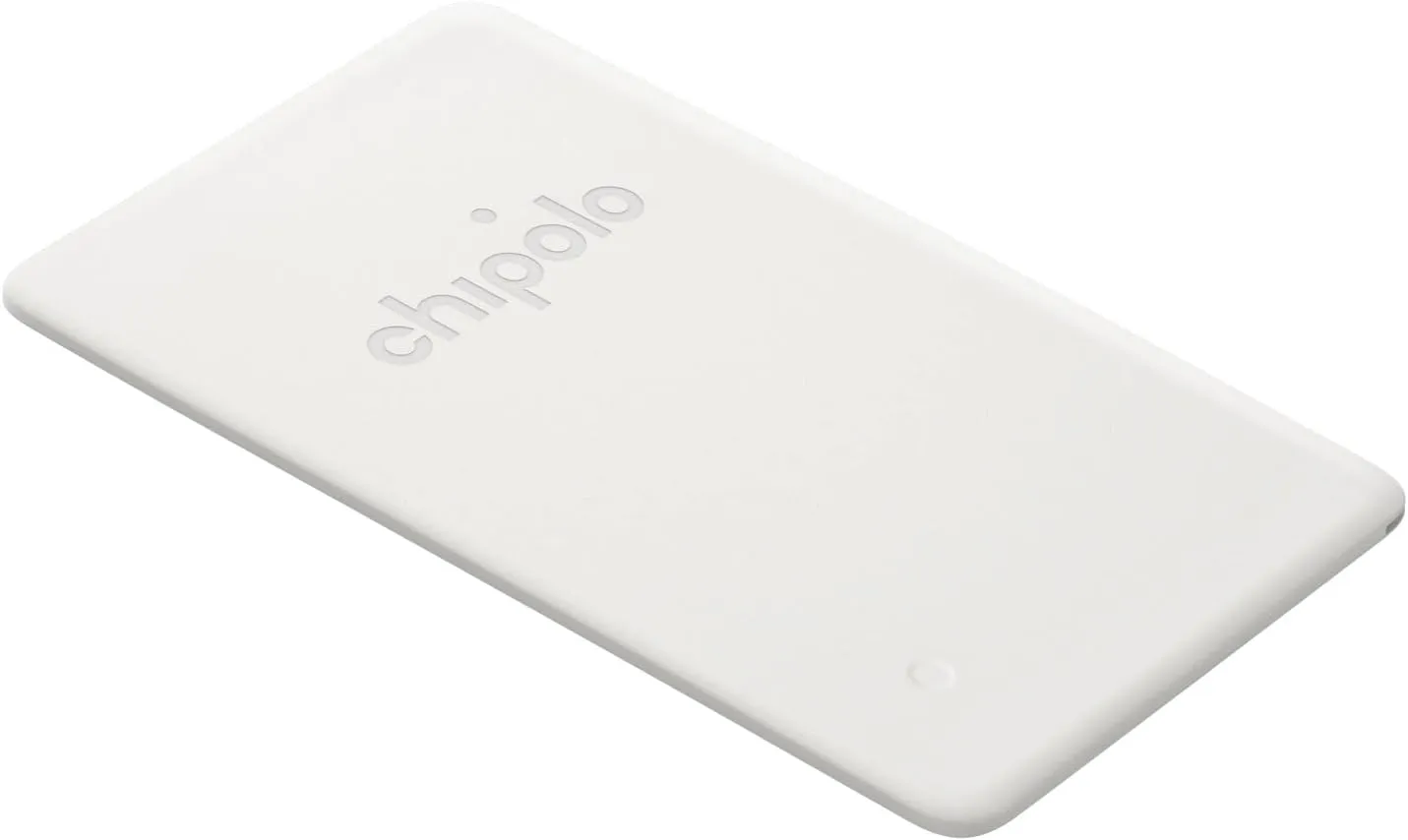
Mostly intended for use in a wallet, the Chipolo Card Point is a credit card-sized, flat tracker. Additionally, it can be used to monitor other objects, such passports. Before the tracker needs to be replaced, the Card Point’s long-lasting, nonreplaceable battery can last up to two years.
How they integrate with the Find My Device
I was perplexed by the configuration when I first got my Chipolo Point review trackers. At first, I assumed that you needed to configure them through the Chipolo app, which would somehow link them to Find My Device. But that is not how it operates. Everything went smoothly after I realized this.
Bringing it close to your Android device and pressing on it until a sound is heard is how you set up a tracker. A notice asking if you wish to set up the tracker then appears on the screen of your phone.
The Google Find My Device app allows you to see all of the information about the Bluetooth trackers once they are linked to your phone. Chipolo Point trackers allow you to share the tracker’s location with another person, find their current location, and sound an alert if they are close yet unlocatable. Additionally, you may view the device’s remaining battery life. Similar to AirTags, you may use your phone’s Bluetooth to activate step-by-step instructions to locate the trackers when they are close by.
It is crucial to remember that Google’s network protects user privacy by using anonymized reporting and end-to-end encryption for location data. Google’s Find My Device feature, similar to Apple Find My, will notify you if an unidentified device is tracking you. For instance, both networks discreetly notified me about each other when I fastened a Chipolo One Point to the same keychain as an AirTag.
Google pinpoints a tracker’s location using a combination of GPS, Wi-Fi, and cell tower signals.
A great tracker
It was a wise move on Google’s part to update Find My Device to enable tracking of non-Android devices. Third parties like Chipolo are finally launching helpful trackers as a result of that decision. In the upcoming months, more businesses will undoubtedly join the movement.
Both the One Point and the Card Point have really pleased me. They have a simple setup process (once you know how they operate), are reasonably priced ($28 for the One Point and $35 for the Card Point), and work flawlessly with Find My Device. Like other Chipolo trackers, I anticipate future iterations will be available in a variety of colors. I do not see any areas that require development beyond this.
Where to buy?
Chipolo ONE Point – 4 Pack
WORKS WITH GOOGLE’S FIND MY DEVICE NETWORK – Use Fast Pair to connect your Chipolo ONE Point to Google’s Find My Device app on your Android phone. After setup you can play a sound, locate it on a map or use Google’s Find My Device network to help you find it.
WORKS WITH GOOGLE’S FIND MY DEVICE NETWORK – Use Fast pair to connect your Chipolo CARD Point to Google’s Find My Device app on your Android device. After setup you can play a sound, locate it on a map or use Google’s Find My Device network to help you find it.
Chipolo Point Bundle – 1X ONE + 1x Card Item Finder
Use Fast Pair to connect your Chipolo ONE Point to Google’s Find My Device app on your Android phone. After setup you can play a sound, locate it on a map or use Google’s Find My Device network to help you find it.
If you ask me, there are far too many small details that each of us must keep track of on a daily basis. We have our phones, keys, wallets, and so on, and it is difficult to keep them all secure. So it is good to have a bargain on Bluetooth trackers that can perform the hard work for you. The Chipolo One Point Bluetooth tracker is currently available for $20, a 20% savings from its original price of $25.
The Chipolo One is our pick for the finest Bluetooth tracker in 2025. This variant is exclusively available for Android users and is compatible with Google’s Find My Device network. The tracker’s battery should last a year and is water resistant. Plus, it rings really loudly, so you do not have to worry about hearing it over background noise. Unlike Apple’s AirTag, it also has a hole for easy attachment to your keys.
Chipolo ONE Point
Key Finder, Bluetooth Tracker for Keys, Bag – Works with Google’s Find My Device app (Android only)
The Chipolo Card Point is also on sale, down from $35 to $24, representing a 31% reduction. It is an excellent Bluetooth tracker for flat goods such as a wallet, passport holder, or pocketbook. It also supports Google‘s Find My Device network and has similar features such as water resistant and a pleasantly loud ring.
The launch of Samsung’s One UI in 2018 was undeniably a watershed moment for phone user interfaces. While the initial iPhone had shortcomings, it was clear that it had won the hearts and minds of the globe when everyone from OnePlus to Google copied much of its design. We’ve been fans since the beginning, but there’s one area where it’s always been difficult to look at, and that’s animations.
Samsung’s One UI is a mix of openness and closeness. Things are continually speeding, flowing, expanding, and contracting to an extreme degree. In fact, the animation bloat was so awful that Samsung included a feature named “Reduce Animations” at one time, almost as if they realized it was excessive.
It’s difficult to quantify how much that feature lowered everything, but we always advised you to enable it. Then Samsung took it down one day! If you wish to lessen animations, you must first activate developer options and alter the phone’s animation scales. That’s not tough, but we don’t like the fact that Samsung removed our earlier straightforward option.
Anyway, SamMobile believes that Samsung is set to dramatically increase the UI speed in One UI 5.0, which is positive and relevant news. One of the primary issues on the One UI 5 agenda, according to their sources, will be to improve UI navigation speeds and animations so that they are smoother.
We don’t have an official debut date for One UI 5, however Samsung usually releases new One UI updates alongside the latest Android version. For example, we were able to test One UI 4 with Android 12 before it was rolled out to all of Samsung’s finest phones by the end of 2021. If Samsung holds another developer conference in the fall, it could be a nice opportunity to preview the new One UI.
Finally, while we have someone in Samsung’s orbit’s attention, can we get a vertical app drawer already? For us, Samsung, it’s long past time to make the switch.
Samsung’s deployment of One UI 4, which is based on Android 12, has been lightning fast. This year, the firm made a first by launching beta programs for all of its major flagship smartphone lines, including the Galaxy S, Galaxy Note, Galaxy Z Flip, and Galaxy Z Fold. It then went on to release the stable update for devices like the Galaxy S21, Galaxy Z Flip3, and Galaxy Z Fold3 (although with some issues), and now the S20 and Note20 series are following suit.
In less than 48 hours, Samsung overcame a snag that stalled the One UI 4 deployment for its 2021 flagships, released a stable upgrade for the Galaxy Z Fold2, and began rolling out Android 12 to the S20 and Note20 (per SamMobile). In comparison, OnePlus has only recently stabilized Android 12 on its 9 series flagships, while Motorola and Sony have yet to release even a single upgrade – Samsung is clearly gaining ground. However, we hope that the firm conducts its due research to ensure that these updates work as planned and are not hampered by compatibility concerns, as we witnessed with the launching of the S21.
As we speak, Samsung’s stable One UI 4 software is coming out to the Galaxy S20, S20 Plus, S20 Ultra, Note20, Note20 Ultra, and even the S20 FE, so there’s a good possibility you’ll be ditching Android 11 by 2022. Users in Switzerland have already reported receiving Android 12 over the air, but owners of the S20 and Note20 in other regions of the world could anticipate the software to arrive in the next few days (unless Samsung has reason to halt the release). To see if the update is available for your phone, go to Settings > Software update > Download and install.